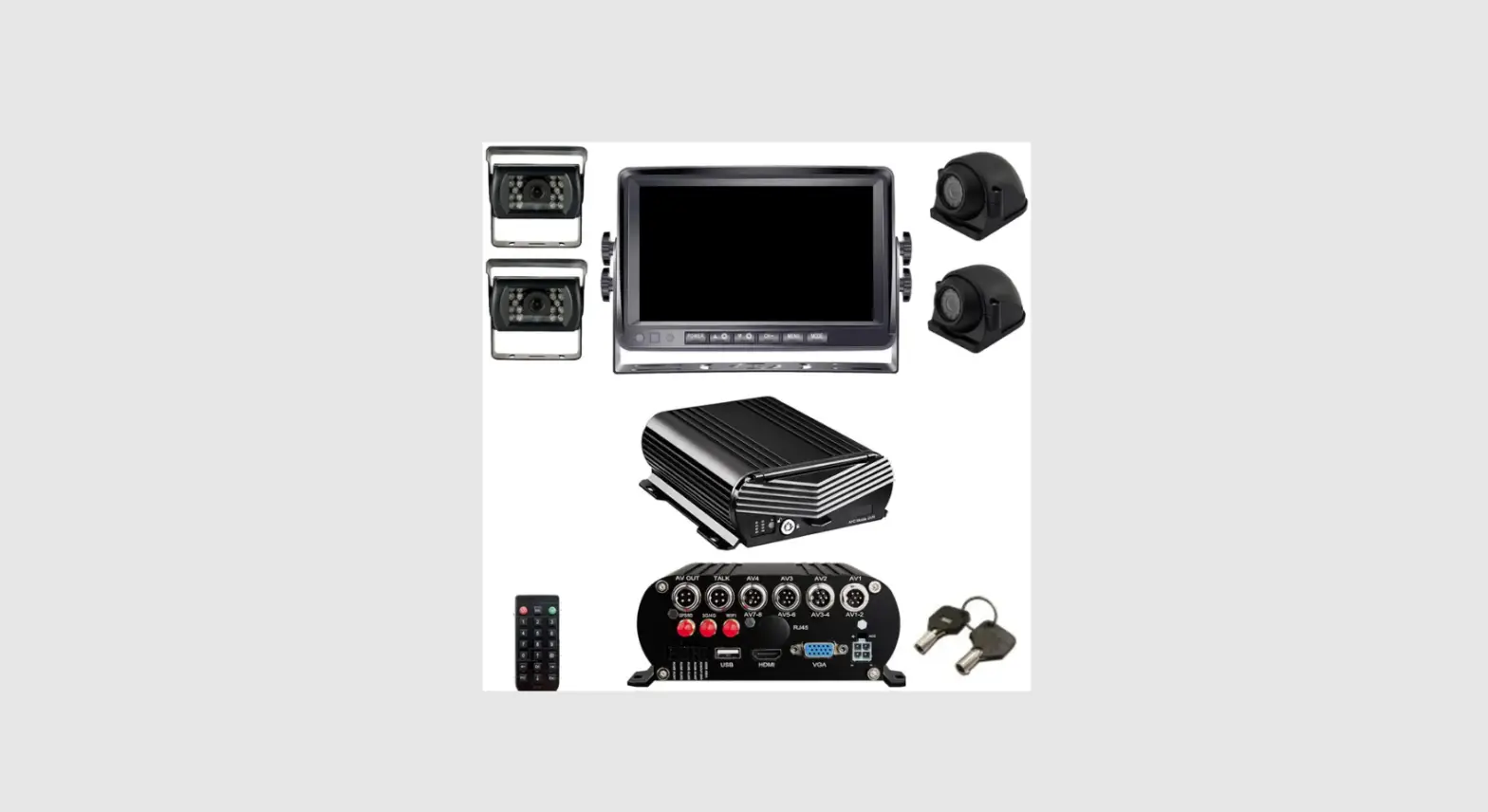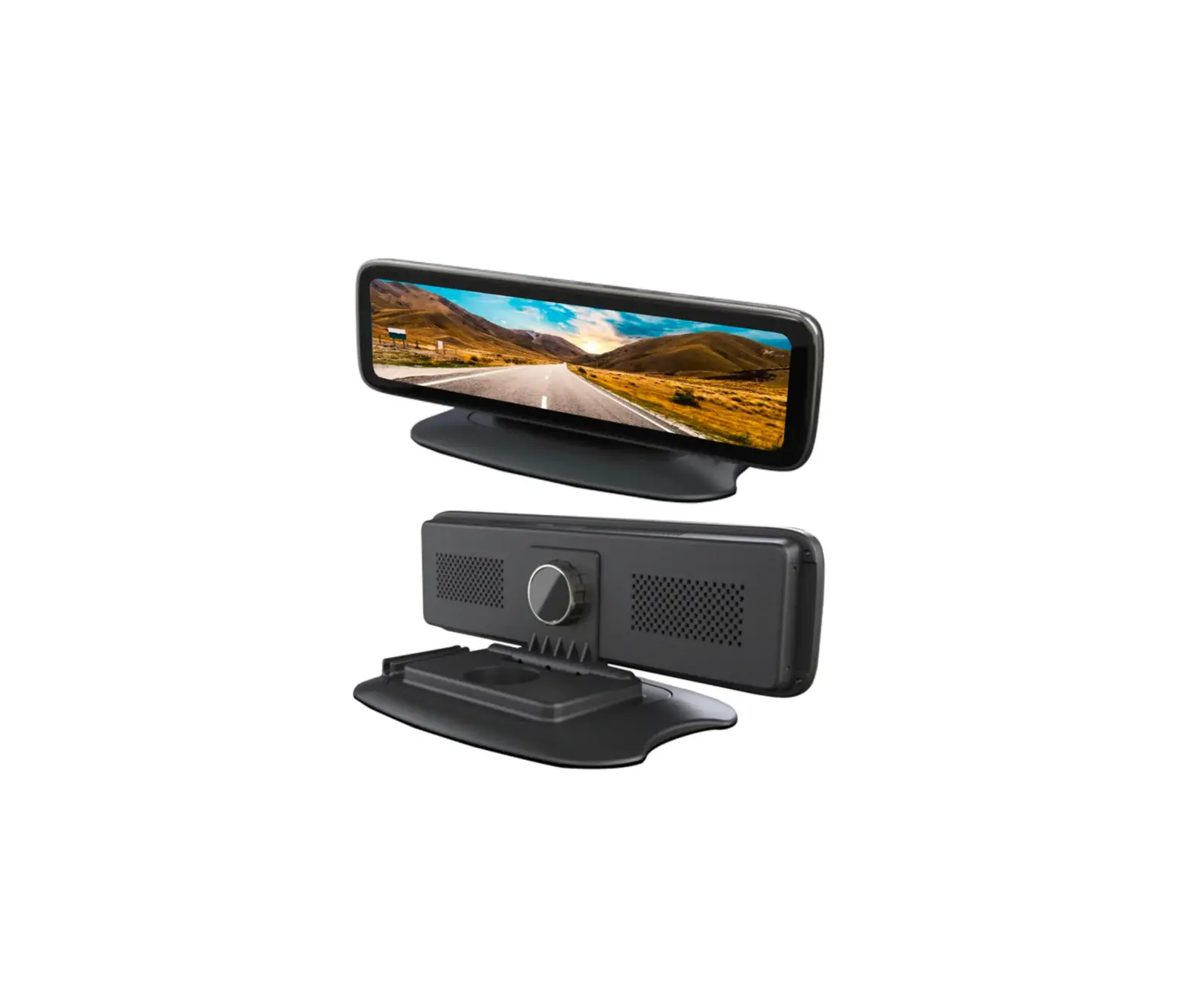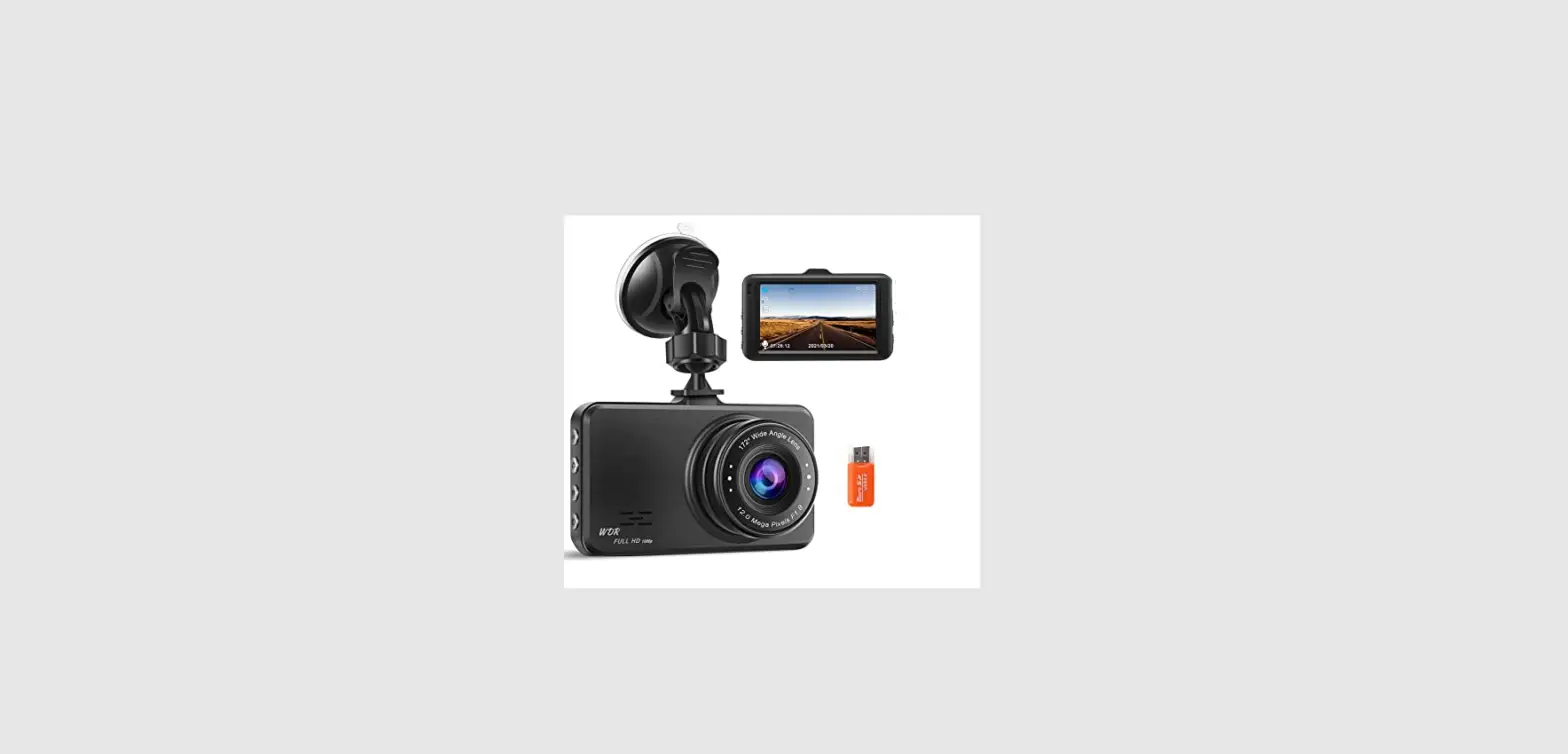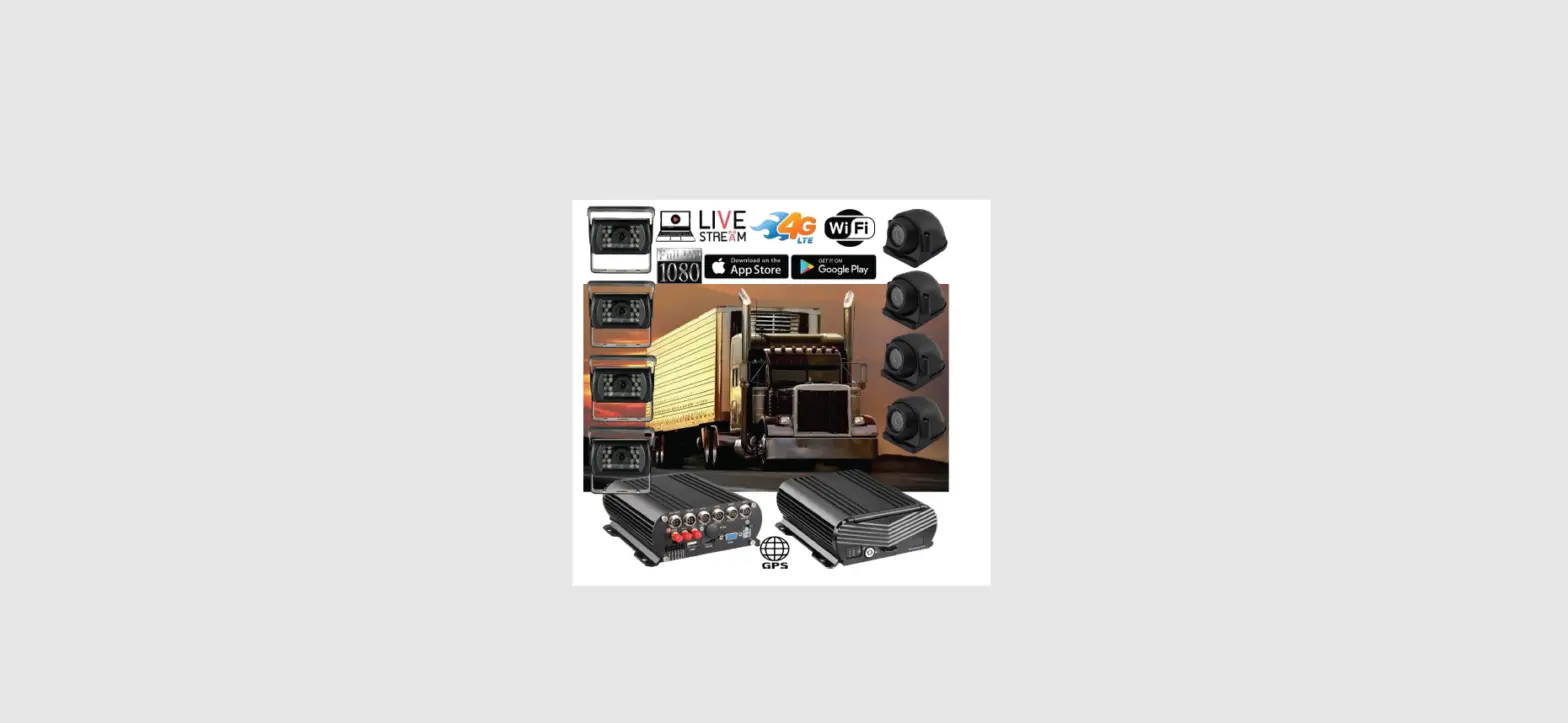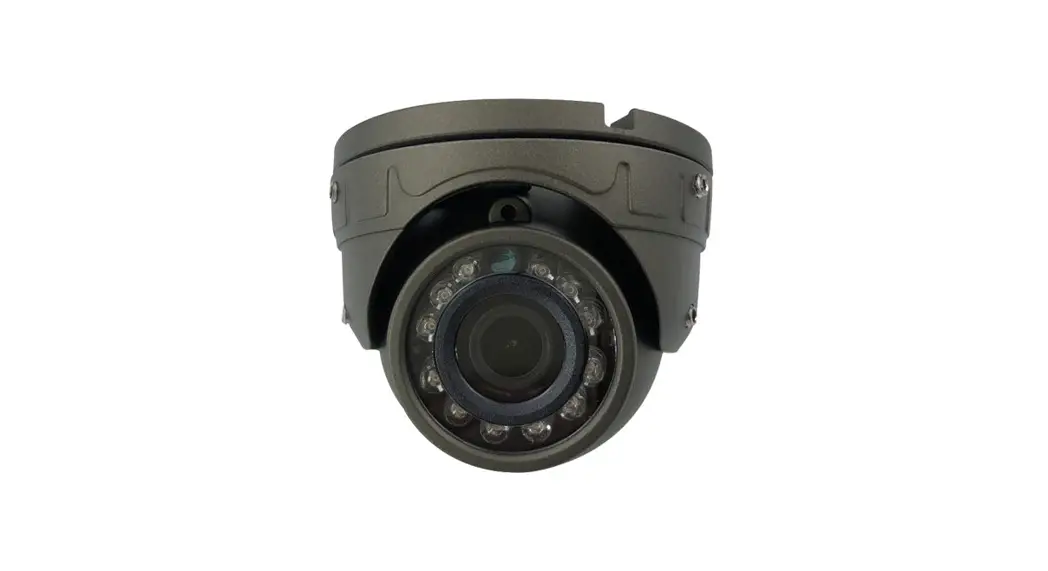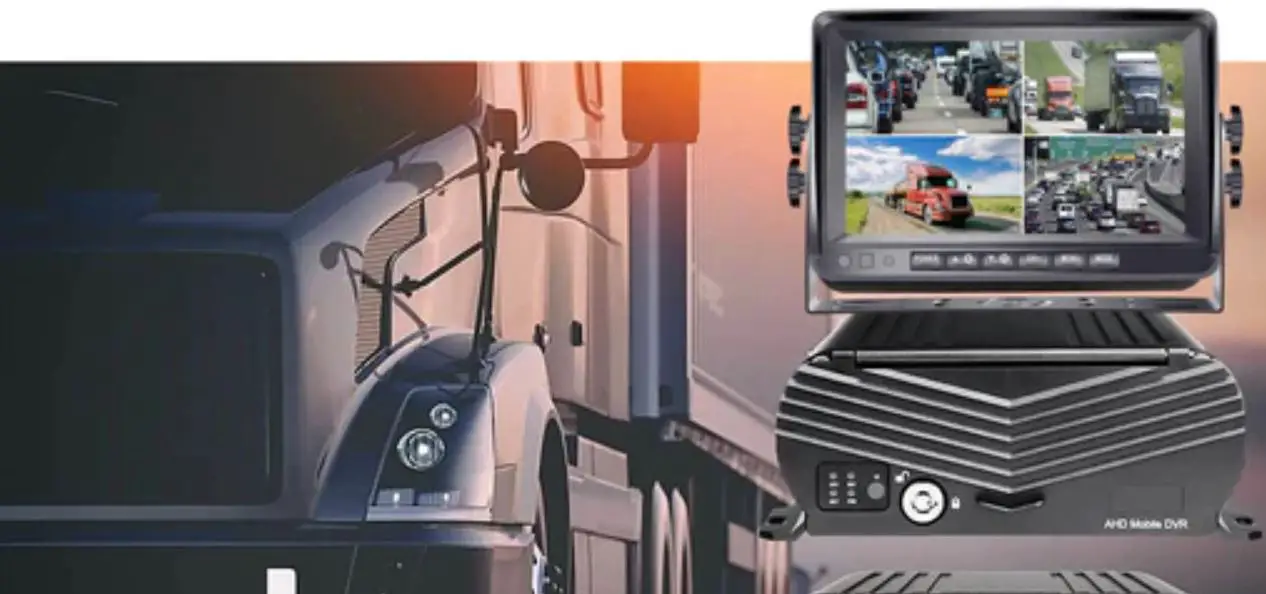

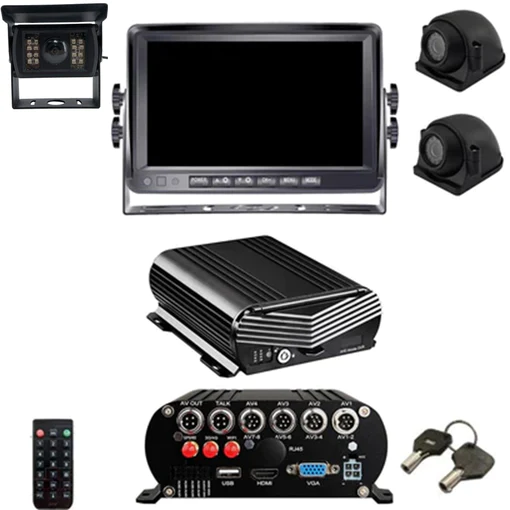
Falcon FE8CAMMNVR37 Dash Cam Live Streaming MNVR 3-8 Cam 1080N System
New Server Migration Reasons
Old server can not meet the requirements of development for more 4G MDVR devices on the IP server. Having to many devices on an older server causes buffering when viewing video. Enjoy our new server for better service experience.Additional Quick Start Process available below if you have these discontinued 4G MNVR products.
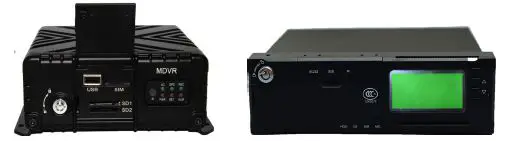
1st Gen
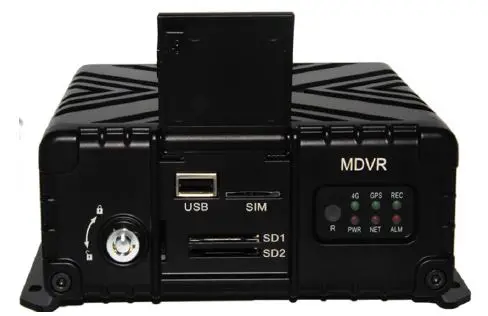
2nd Gen
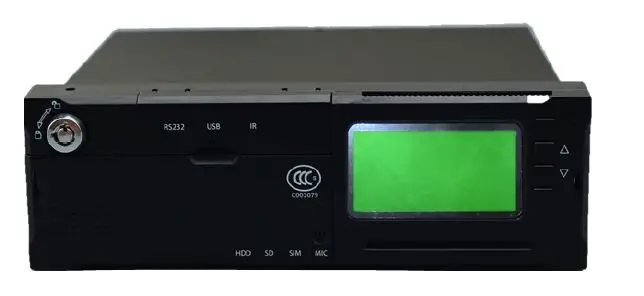
Note
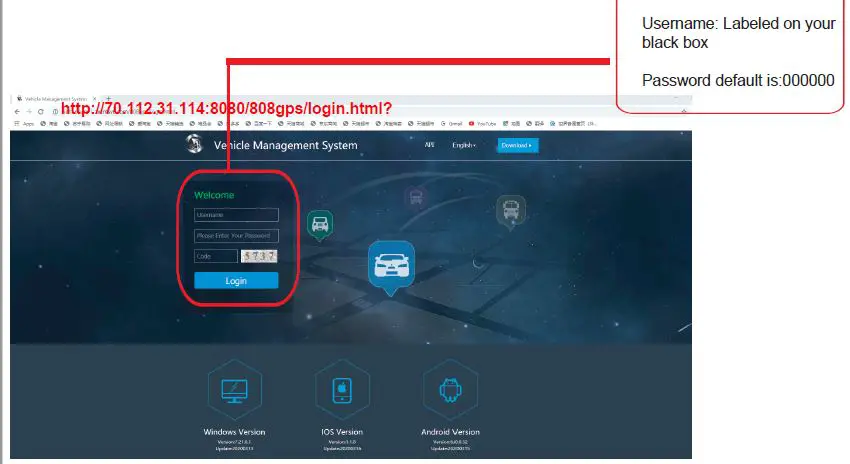
All 4G MNVR devices will be using the NEW, IMPROVED, UPDATED IP SERVER & PORT # NEW URL IP SERVER THAT WILL BE USED IS http://70.112.31.114:8080/808gps/login.html? Click or copy and paste IP Server link to your browser. MUST ENABLE / ALLOW FLASHafter you have entered new IP server URL into your browser.
ACCESSORIES
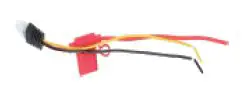
Power Cable 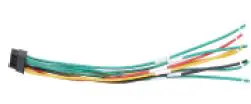
I/O Cable 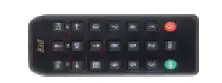
Remote Control 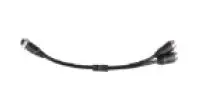
Video Input Cable 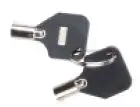
MNVR Keys 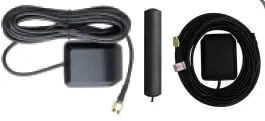
4G / GPS / WIFI Antenna 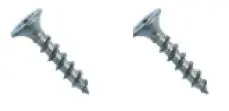
SDD CADDY SCREWS 
QR Code Manual Page
Power Connection
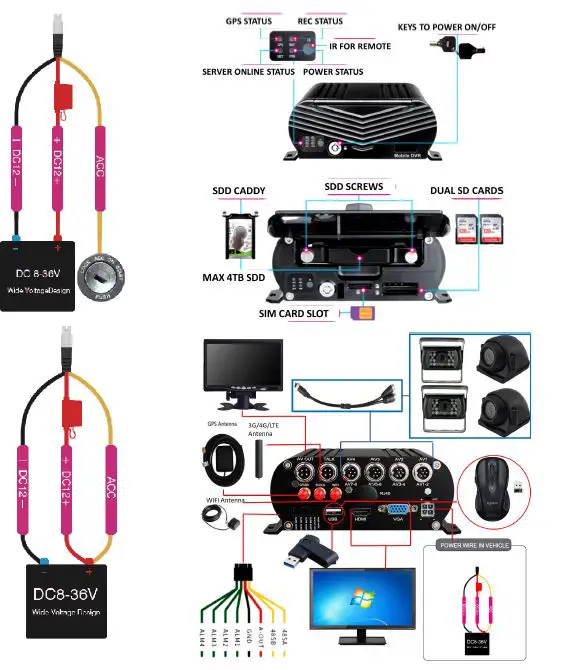
SDD Caddy Installation
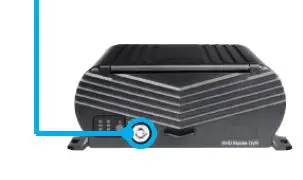
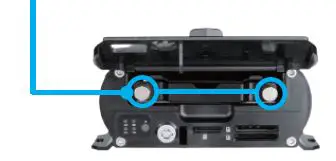
Open MNVR Shell with included Keys
 Twist screws and take out of the SDD Caddy
  Insert SDD Into SDD Caddy
 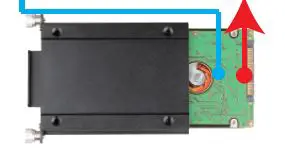 Screws SDD and Insert SDD Caddy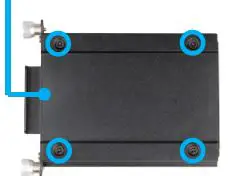
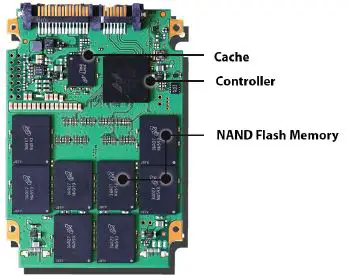
SSD2.5
4G/WIFI/GPS Live Viewing 1080P 3-8 Cam MNVR Black box with SDD 3rd Gen
Username: Admin / Password: 2020
How to change/enter new IP server and port #
- Login- MDVR Menu=>Advance Tab=>COMM=>CMS Change the server IP and Port #’s=> SAVE-
- Restart Device
- CMS Enable
- Enter YOUR Device ID located on your black box labeled as
- Account #
- USE THIS Center IP- 070.112.031.114
- Leave Center Domain blank
- Center Port 6608
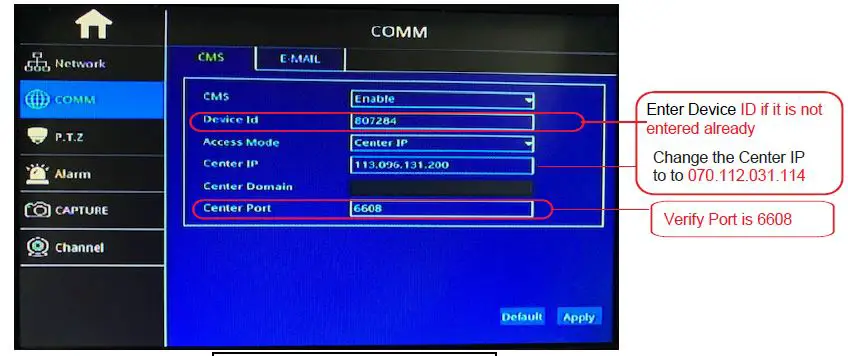
Enter, copy&paste or CLICK http://70.112.31.114:8080/808gps/login.html? into browser to open the CMSV6 platform.
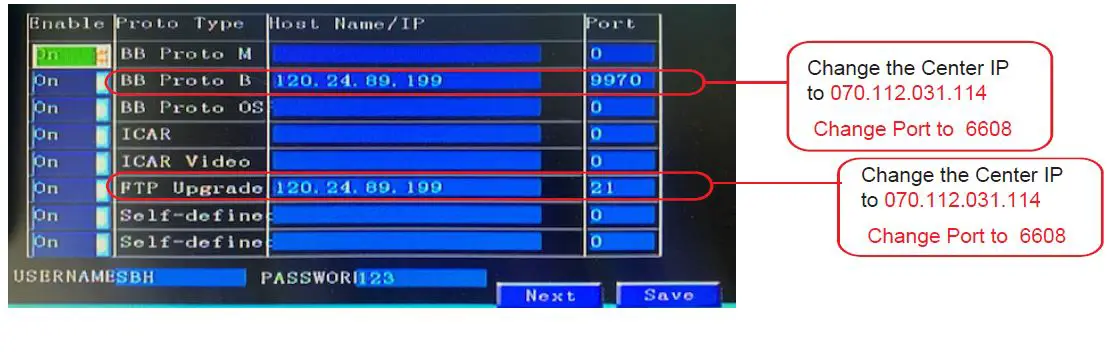
1st Gen New Server Migration User Guide
How to change/enter new IP server and port #
Login MDVR Menu>Select Network>Server>Change the server IP and Port #’s> SAVE-Restart Device.
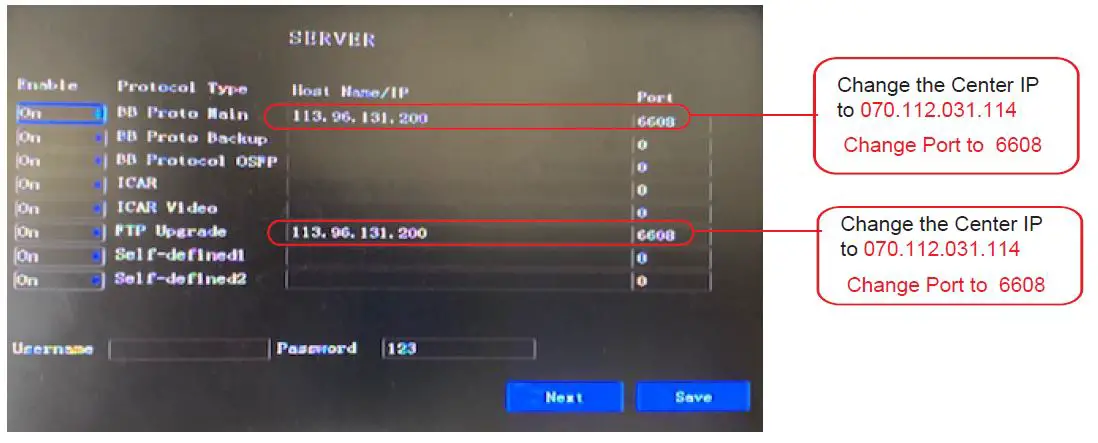
2nd Generation New Server Migration User Guide
How to change/enter new IP server and port #
Login MDVR Main Menu>Select Network Icon>Select Server Icon>Change server IP and Port #>Select SAVE Restart Device.
Enter http://70.112.31.114:8080/808gps/login.html? into browser to open the CMSV6 platform
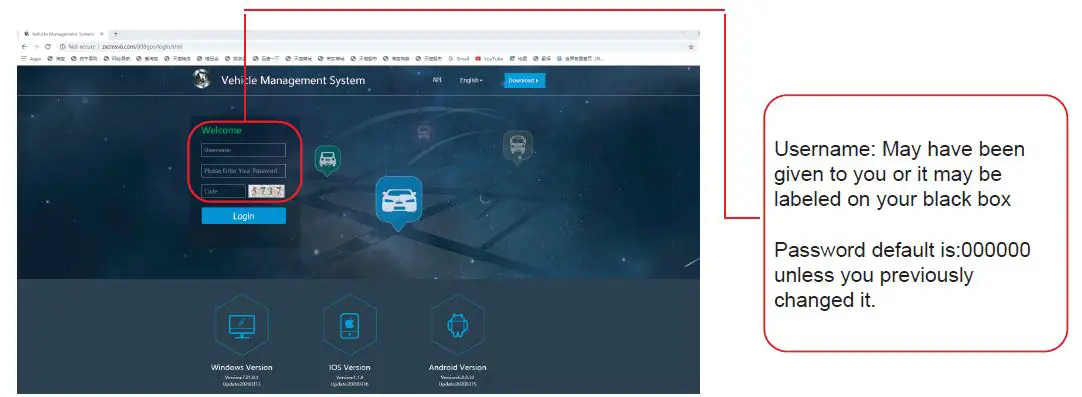
THIS PROCESS IS ONLY IF YOUR SYSTEM HAS AN INTERNET CONNECTION AND IS ONLINE Instructions Process to remote live view cameras on a desktop, laptop Copy/Paste URL into web browser.http://70.112.31.114:8080/808gps/login.html?
Process for Gen 1 and Gen2 discontinued MNVR devices
- Account name: Was Given to you and may start with: MNVR
- Password: 000000 unless you have changed it
- Enter Code
- Login
Make sure that Flash Web PC Settings are set allowed
- Check the box on top left corner next to your order number.
- Select the + sign next to your device # and picture of truck logo to display CH1, CH2,CH3,CH4 – CH8
- Right click on CH1, CH2, etc (depends on how many cameras you may have) video cam log and select Preview Main Stream or Sub Stream.
Process if you have this 4G MNVR product
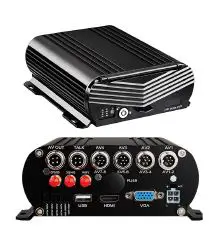
- Account name: Located on your black box
- Password: 000000
- Enter Code
- Login
- Make sure that Flash Web PC Settings are set allowed.
- IOS and Android devices Mobile viewing In the APP store, type the app name CMSV7.
Process if you have these discontinued 4G MNVR products
- Account name: Was Given to you and may start with: MNVR.
- Password: 000000 unless you have changed it.
- ENTER IP Address: 070.112.031.114.
- LOGIN.
- Select Video.
- Press Play icon to view each camera.
Process if you have this 4G MNVR product
- Account name: Located on your black box
- Password: 000000
- ENTER IP Address: 070.112.031.114
- LOGIN
- Select Video
- Press Play icon to view each camera
We are here to answer any questions you may have. BEFORE CALLING FOR TECH SUPPORT: REVIEW MANUALS ON THE EXTRA TAB ON OUR PRODUCT PAGE
- BE PARKED OR AVAILABLE TO NAVIGATE THROUGH MNVR BLACK BOX MENUS’S
- REVIEW ALL INSTRUCTIONAL VIDEOS
- REVIEW ALL MANUALS
MNVR Tech Support: Call, Text, or Email Falcon Electronics office CST 972.600.1320 [email protected]
 70.112.31.114:8080/808gps/login.html