PC0380 Camera 8K 3D VR Video Recording and Live Streaming
Product Information
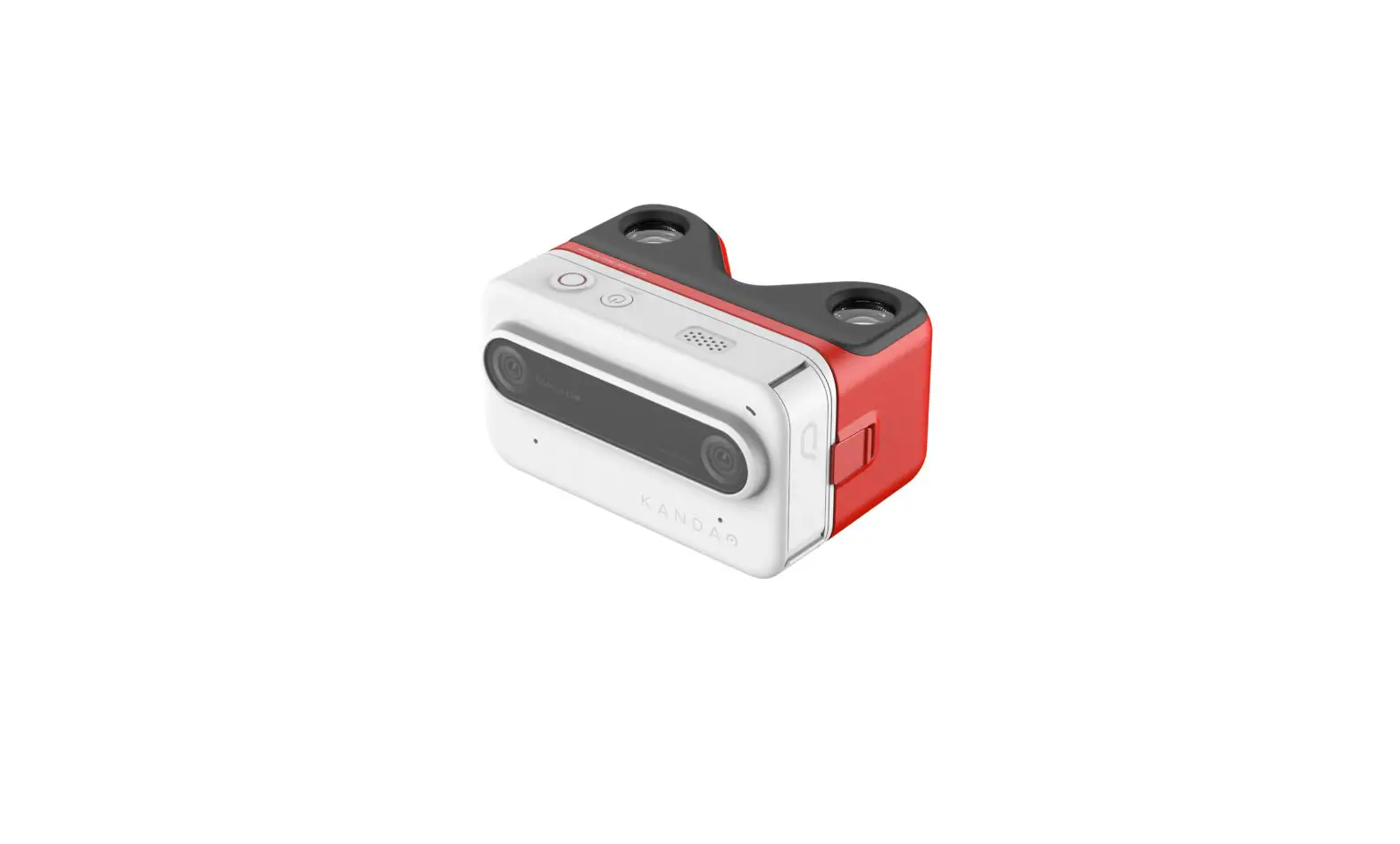
The 3D 180VR is a camera designed for capturing immersive 3D
videos and photos. It comes with two F1.8 fisheye lenses and a CMOS
1-inch sensor, providing high-quality images. The camera is made of
aircraft-grade aluminum alloy and PC material, ensuring durability
and lightweight design. With a weight of 750g and dimensions of
138*70*91mm, it is portable and easy to carry.
The camera supports ISO range from 100 to 6400, allowing for
excellent performance in various lighting conditions. It has a wide
field of view angle and uses the WiFi standard 802.11n 2*2 for
seamless connectivity. The camera can be powered externally using a
65W power supply, and it has a built-in 3500mAh battery for
convenient use.
The camera features multiple communication interfaces including
TYPE-C, USB-A, RJ45, and HDMI, offering versatile connectivity
options. It supports UFS storage media with a maximum capacity of
512GB. Additionally, it has a built-in 6-axis gyroscope for
enhanced stability during recording.
Product Usage Instructions
- Camera Interfaces:
- Audio Interface: This interface is used to
connect an external microphone. Only enable it when an external
microphone is connected. Follow the instructions and markings to
connect the audio cable correctly. - Power Interface: This interface is for
external power supply. Use the included fast charger (65W) with
Type-C1, Type-C2, and USB interfaces. - TF Card Interface: Insert a memory card into
the card slot to expand the camera’s storage capacity. Use the
camera control App to view the internal storage status.
- Audio Interface: This interface is used to
- Powering On or Off the Camera:
- To power on the camera, slide the power button. The blue LED
will stay on, and after startup, the constant green LED indicates
normal operation. - To power off the camera, slide the power button again.
- To power on the camera, slide the power button. The blue LED
- The Camera Display Screen: The camera display
screen shows the preview image from the right lens. - Capturing a Photo: Follow the instructions in
the camera control App to capture a photo. - Capturing a Video: Follow the instructions in
the camera control App to capture a video. - Live Streaming: Refer to the camera control
App for instructions on live streaming. - Wi-Fi Settings: Follow the instructions in the
camera control App for Wi-Fi settings. - Connecting the Camera to the Accompanying
Software: Refer to the camera control App for instructions
on connecting the camera to the accompanying software.
3D180VRHardwareUserGuide Disclaimers
Please read this statement carefully. By using the 3D 180VR and its related accessories, you are deemed to fully acknowledge and accept this statement. Before each use, please carefully inspect the camera and its related accessories. If any damage or deformation is found, please do not use them and promptly contact our customer service.
By using this camera, you acknowledge and agree that you will be fully responsible for your actions and any potential consequences arising from the use of this camera.
You mustpromise to use this camera only for legitimate and lawful purposes.You understand and agree that Hangzhou TECHEASY Technology Co., Ltd. (hereinafter referred to as “TECHE”) shall not be liable for any misuse, adverse effects, damages, injuries, penalties, or other legal consequences directly or indirectly resulting from the use of this camera.Users should comply with the instructions for use mentioned in this document, including but not limited to the precautions mentioned.
The right to interpret and modify this commitment within the scope
of national laws and regulations belongs to TECHE.
Table of contents
1.Introduction to Camera Components 2.Camera Specifications 3.Accessory Installation 4.Camera Usage Guide 1).Camera interfaces a) Audio interface b)Powerinterface c)TFcardinterface 2).Powering on or off the camera 3).The camera display screen shows the preview image from the right lens 4).Capturea photo 5).Capture a video 6).Live streaming 7).Wi-Fi settings 8).Connecting the camera to the accompanying software
1.Introduction to Camera Components
2. Camera Specifications
Camera model
PC0380
Camera name
3D180VR
Camera lens
2*F1.8 Fisheye lens
Camera weight
750g
Camera dimensions
138*70*91mm
Material
Aircraft-grade aluminum alloy
+PC
Protection level
Not waterproof, not
explosion-proof, not
splash-proof.
Operating temperature
0-45
Sensor
CMOS 1 Inches(*2)
ISO
100-6400
Focal length
3.1mm
Camera field of view angle
181°
WiFi standard
802.11n 2*2
Power supply method
External power supply.65W
Power connector type
TYPE-C
Device power consumption
12W
Battery and battery life
3500mAhBuilt-in battery
Communication interfaces
TYPE-C /USB-A/RJ45/HDMI
Storage media Storage capacity
GPS Gyro Built-in Mic External Mic
UFS 512G Not applicable Built-in 6-axis gyroscope.
2 USB
3. Accessory Installation
4. Camera Usage Guide 1).Camera interfaces a)AudiointerfaceFor use only when connecting an external microphone, do not enable when not in use.Please strictly follow the instructions and markings to connect the external audio cable (connect the device as shown in the diagram below).
b)PowerinterfacePower supply interface for external use, Included fast charger (65Wwith Type-C1, Type-C2, and USB interfaces).
c)TF cardinterface
Insert the memory card into the card slot and open the camera control Appto view the internal storage status of the camera.
RecommendModelSanDisk U3A2
Maximum supported: 512GB
2). Powering on or off the camera
Built-in 3500mAh battery with a sliding power button. Power on operation: The blue LED stays on, and after startup, the constant green LED indicates normal operation.
Shutdown operation: Press the power button and wait for a moment until the screen and lights turn off automatically. This indicates that the device is turned off
Charging display: If the red light remains solid during charging, it indicates that the device is in normal charging mode. If the red light is blinking, it indicates that the device is in thermal protection mode.
Camera light status guide: Green light means idle state, blue light means working state.
3.The camera display screen is the right lens preview screen.
4.Camera shooting mode 1Switch modeMode switching is realized through the software program that comes with the camera 2Camera modeThe camera has built-in single-shot and continuous-shot modes, and the shooting function can also be realized through the camera’s standard software program.
5.Camera recording mode 1Start recording videoTo start recording, just press the capture button on the camera.It can also be done with the software program that comes standard with the camera. 2Stop recording videoTo stop recording a video, simply press the capture button again.It can also be done with the software program that comes standard with the camera.
6.The camera turns on the live broadcast mode The camera starts liveSwitch the camera to live mode and use the TECHE Center camera control program for live broadcast, please refer to the instructions provided in the TECHE Center user manual.
7.Camera WIFI function setting (1)To connect your mobile phone or PC to the network named “3D180VR,” follow these steps: (2)If prompted, enter the network password teche720.Wait for the device to establish a connection with the “3D180VR” network. (3)Once connected, you should see the network name “3D180VR” appear as the active network on your phone or PC.By connecting to the “3D180VR” network, you will be able to access camera related functions and features for streaming, control and other related purposes.
8.To establish a connection between the camera and standard software, follow these steps 1Install the software program that came with your camera on your computer or mobile device. 2 Make sure your camera is turned on and connected to the network
through the network port or WIFI, and make sure the camera is in the same network as the phone or PC 3Launch the software program on your computer or mobile device. The camera is automatically searched on the software, click Connect to successfully connect the camera to the App or PC program 4 Use the software to shoot, record, live broadcast and parameterize the camera, as well as stitch panoramic materials. 5Once the connection is established, you should be able to access the camera’s functions and control it through the software program. For specific instructions on how to connect the included software to your camera, see the owner’s manual or documentation that came with your camera.
FCC Caution: This device complies with part 15 of the FCC Rules. Operation is subject to the following two conditions: (1) This device may not cause harmful interference, and (2) this device must accept any interference received, including interference that may cause undesired operation. Any changes or modifications not expressly approved by the party responsible for compliance could void the user’s authority to operate the equipment. NOTE: This equipment has been tested and found to comply with the limits for a Class B digital device, pursuant to Part 15 of the FCC Rules. These limits are designed to provide reasonable protection against harmful interference in a residential installation. This equipment generates, uses and can radiate radio frequency energy and, if not installed and used in accordance with the instructions, may cause harmful interference to radio communications. However, there is no guarantee that interference will not occur in a particular installation.
If this equipment does cause harmful interference to radio or television reception, which can be determined by turning the equipment off and on, the user is encouraged to try to correct the interference by one or more of the following measures: — Reorient or relocate the receiving antenna. — Increase the separation between the equipment and receiver. — Connect the equipment into an outlet on a circuit different from that to which the receiver is connected. — Consult the dealer or an experienced radio/TV technician for help.
The device has been evaluated to meet general RF exposure requirement. The device can be used in portable exposure condition without restriction.