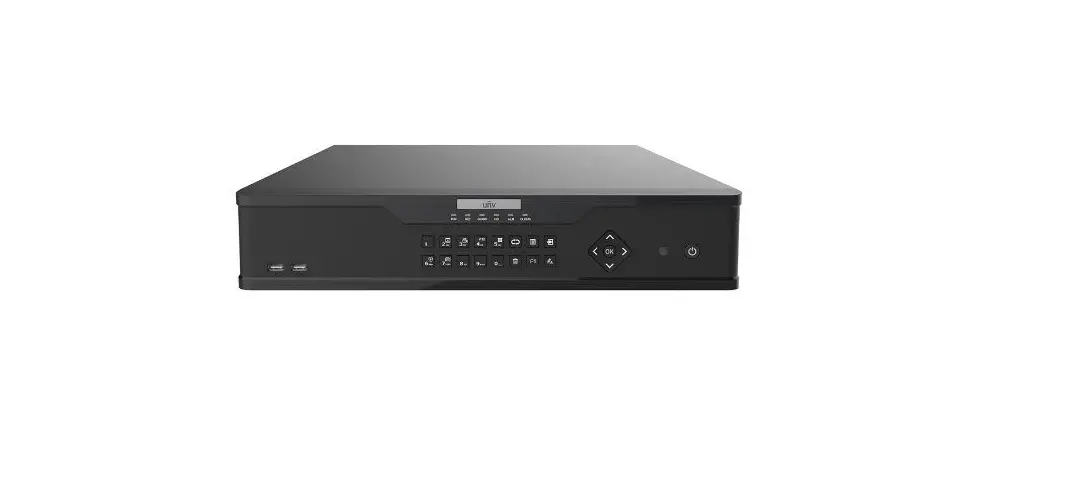
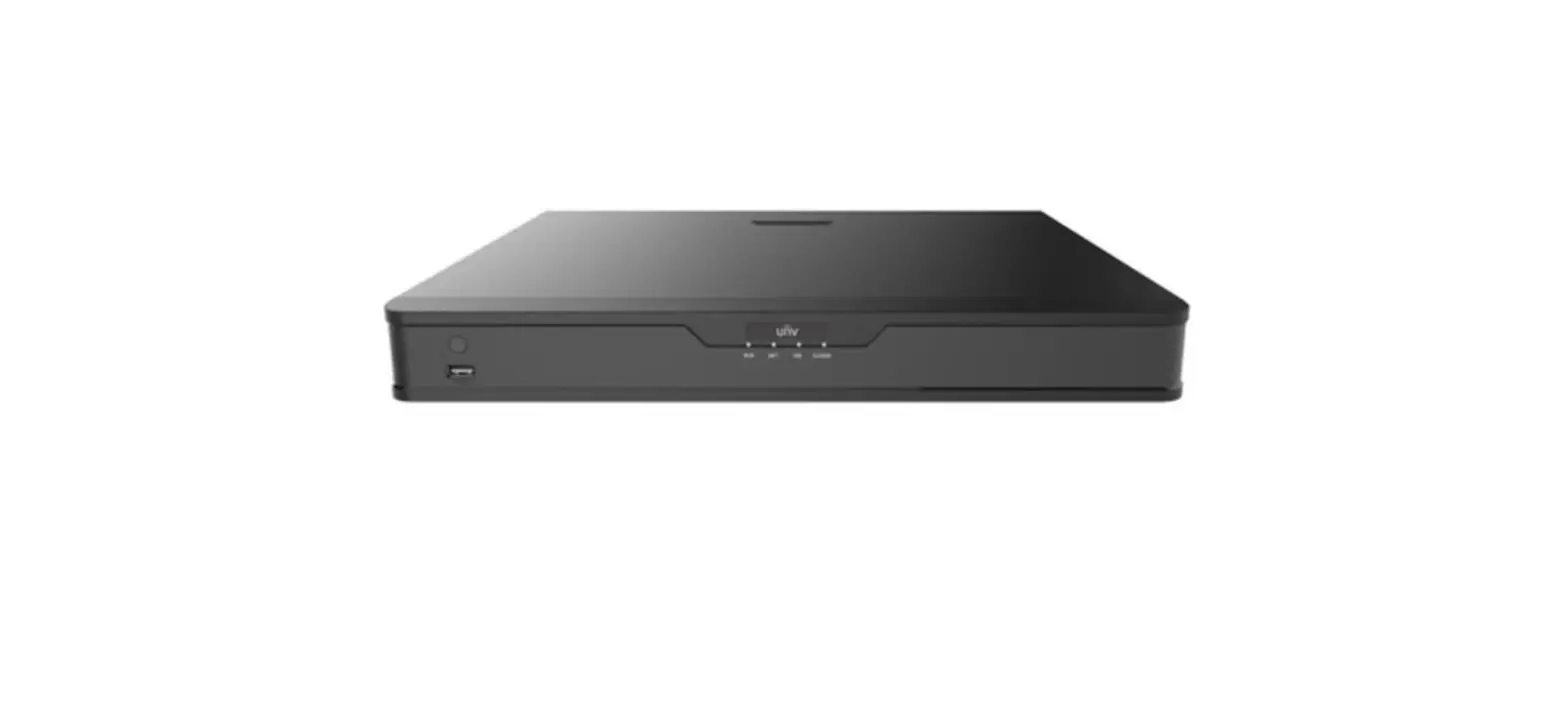
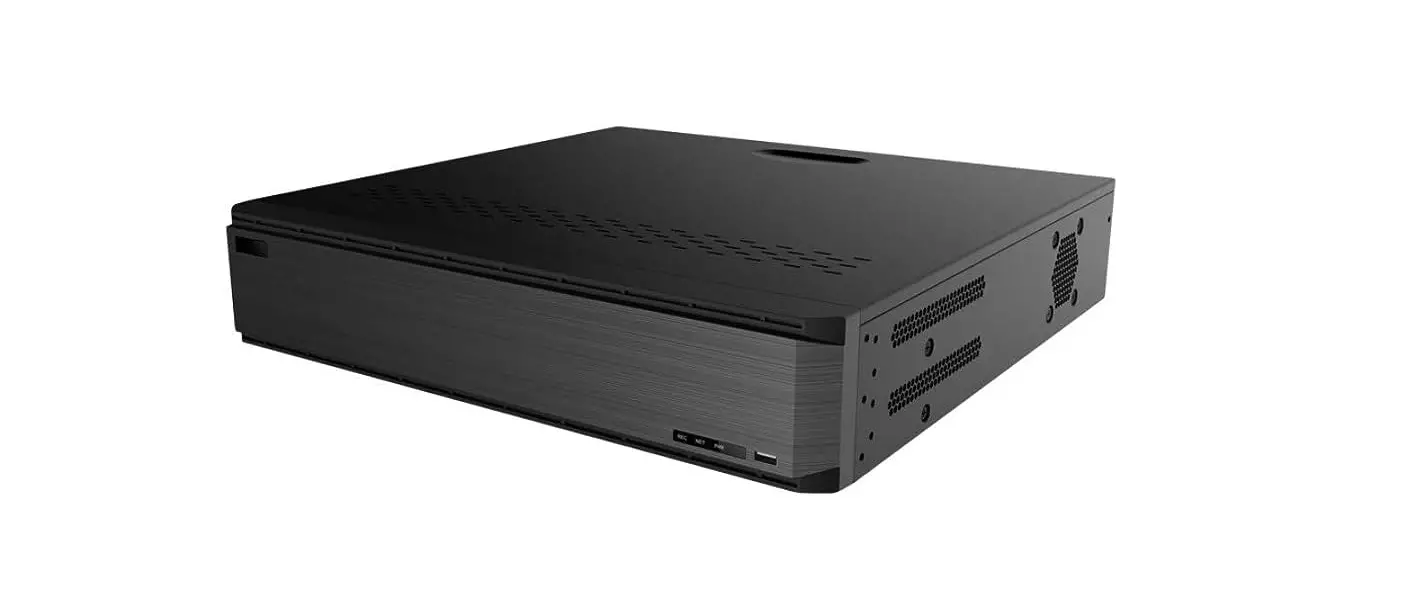
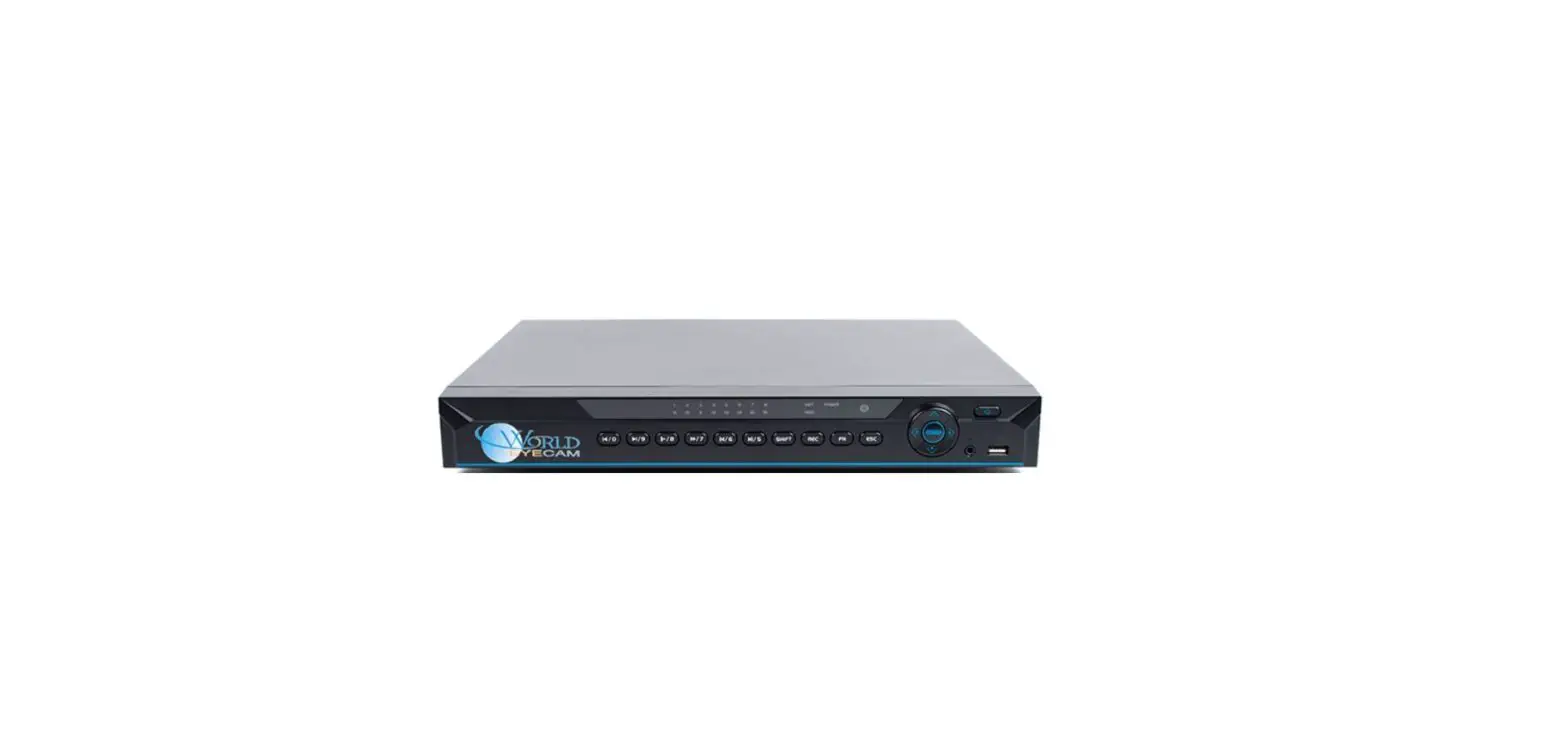
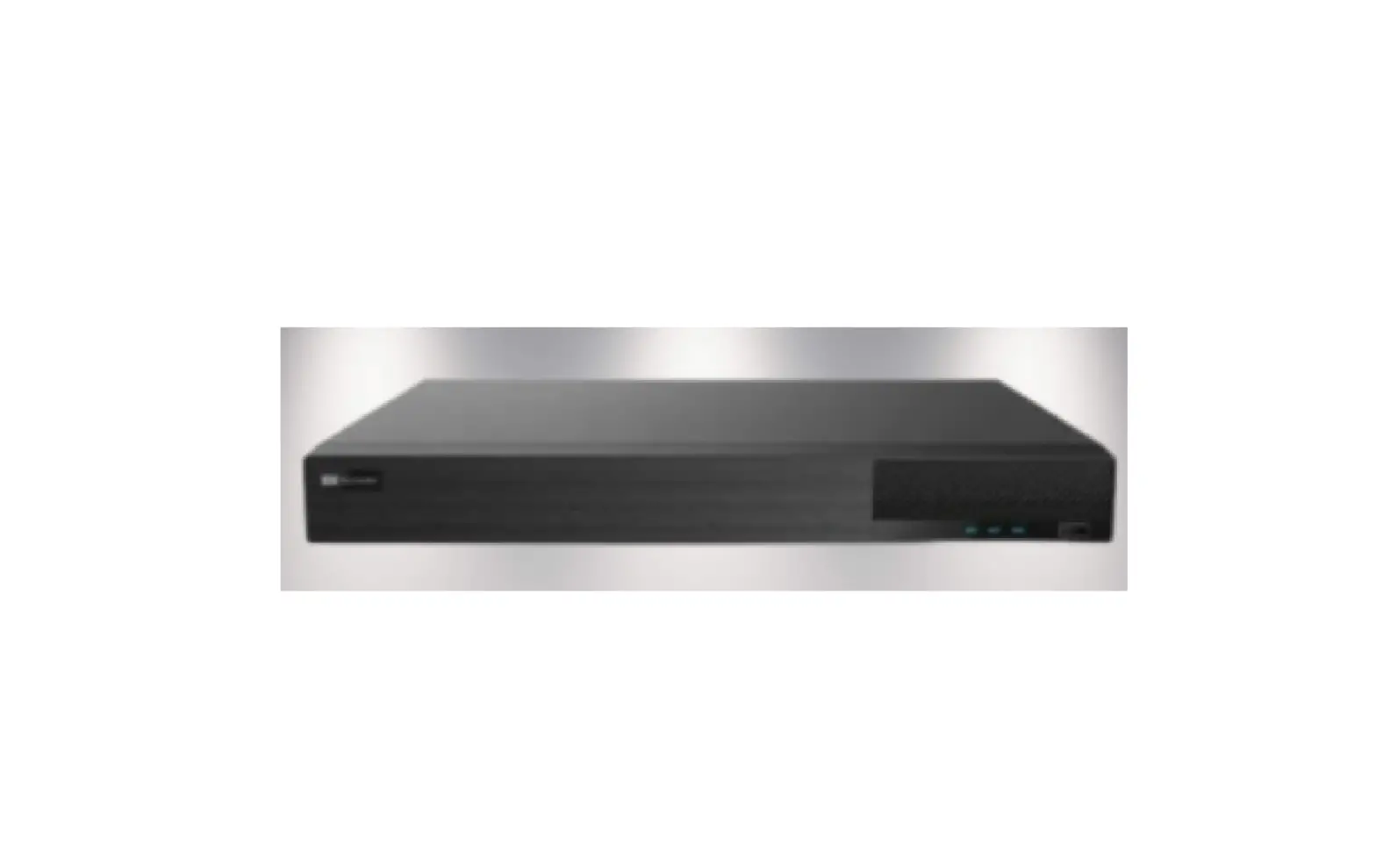
NV9000 Digital Video Recorder
Product Information
The Digital Video Recorder (DVR) is a device that allows you to
record and store video footage from analog cameras. It supports up
to 16 channels and has various interfaces for connecting external
devices such as alarms, sensors, sound boxes, microphones,
monitors, display devices, storage devices, keyboards, and speed
domes.
The DVR comes with a default username (admin) and password
(123456) for login, but you can change the password during the
initial configuration. The device can be powered by a DC12V power
source and has multiple rear panel connectors for different
purposes.
Product Usage Instructions
- Notes: Before using the product, read the
instruction manual carefully and keep it for future reference. The
manual contains important information and may be subject to change
without notice. Ensure that the device is operated only with the
specified power source voltage. - Packing Check: After receiving the device,
check for any damages, shortages, or defects. Contact your dealer
immediately if any issues are found. - HDD Installation: This DVR supports 2 SATA
hard drives. Before installation, make sure the device is powered
off. Loosen the screws to open the cover and secure the HDDs with
the screws. Connect the power and data cables. Ensure proper
alignment with the provided pictures. - Startup & Shutdown: To start the DVR,
connect the monitor and power. The power indicator will display
blue, and a wizard window will appear. To shut down the device,
click Start, select the Shutdown icon, confirm the shutdown, and
disconnect the power. Secure the cover with screws after
shutdown. - Login: The default username is admin, and the
default password is 123456. Configure the wizard during the
first-time startup and change the password if needed. Click Start,
select Login, enter the username and password, and view the live
image. - Analog Camera Connection: Connect the camera
to the DVR and go to Start > Settings > Camera > Manage
Camera > Camera Signal. Checkmark the video mode that
corresponds to the actual signals input. Refer to the User Manual
for detailed instructions.
Digital Video Recorder
Internet
Quick Start Guide
1. Notes
Please read this instruction carefully for using the product and keep it for further reference. All the examples and pictures used here are for reference only. The contents of this manual are subject to change without notice. This device should be operated only from the type of power source indicated on the marking label. The voltage of the power must be verified before using the same.
2. Packing Check
Please check the device and the accessories after getting the device. If there are any damages, shortages or defects, please contact your dealer immediately.
3. HDD Installation
This series of the product supports 2 SATA hard drives. Please make sure that the device is powered off before the installation. The pictures of the installation are only for reference, please take the real object as the standard. Loosen the screws to open the cover. Screw the screws into the holes of the HDD but not tighten them. Put the HDDs onto the bottom of the machine. Turn over the machine and secure the HDDs with the screws. Connect the power and data cables.
Name ALARM OUT ALARM IN GND VIDEO IN CVBS AUDIO OUT AUDIO IN HDMI VGA LAN USB e-SATA RS485 DC12V
Rear Panel for 16CH
Description Relay output; connect to external alarm Alarm input for connecting sensor Grounding Video input CVBS Video output; connect to monitor Audio output; connect to sound box Audio input; connect to microphone or pickup Connect to high definition display device Connect to monitor Network port Connect to USB storage device or USB mouse Connect to HDD with e-SATA interface Connect to keyboard or speed dome. A is TX+,B is TXPower input
5. Startup & Shutdown
Startup Connect the monitor and the power.
The device will boot and the power indicator will display blue.
A wizard window will pop up. Shutdown Click “Start” and then select “Shutdown” icon. This will bring up a shutdown window. The device will shut down by clicking “OK” button. Then disconnect the power.
Install back the cover and secure it with the screws. Tips: Please check the inside structure of the device and make sure the cables connected well before installing the cover back. Please format the HDD before using.
4. Rear Panel Instruction
The interfaces of the rear panels are for reference only.
ALARM OUT ALARM IN 1
3
5
7
COM1 NO1 GND 1 3 5 7
1
3
5
7
CVBS
COM2 NO2 GND 2 4 6 8
2
4
6
8
AUDIO IN
2
4
6
8
VIDEO IN
AUDIO OUT
Rear Panel for 8CH
VGA
e SATA B A LAN USB RS485 DC12V
6. Login
The default username is admin and the default password is 123456. You must configure the wizard if you start the DVR for the first time and you may change the password when you configure the wizard for the first time. You can skip the settings of wizard next time. Click “Start” and select “Login”. This will take you to see a login box. Input default username and password you set and you can see the live image.
Username Password
Login
admin Enter Password
Display Password
Log In Automatically
Edit Security Question
Login
Cancel
7. Analog Camera Connection
First connect the camera to the DVR. Then go to Start Settings Camera Manage Camera Camera Signal to checkmark the video mode. The actual signals input shall correspond to the video mode. Please refer to User Manual for details.
8. Network Configuration & Add IP Camera
After you finish adding IP cameras, you can see the live images through the monitor of the DVR. The following will mainly introduce how to add the IP cameras via LAN/WAN.
LAN Set the network of the DVR. Go to Start Settings Network TCP/IP. Input IP address, subnet mask, gateway, etc. If using DHCP, please enable DHCP in both the DVR and the router. Go to Start Settings Network Port. Input HTTP port (the default value is 80), server port (the default port is 6036). Click “Apply” to save the settings.
IP Address Settings
Ethernet Port 1 ( Online )
Obtain an IPv4 address automatically
Address
192 . 168 . 1 . 2
Subnet Mask
0 . 0 . 0. 0
Gateway MTU
192 . 168 . 1 . 1 1500
Obatin DNS server address automatically Preferred DNS 192 . 168 . 1 . 1
Alternate DNS
0 . 0 . 0. 0
Obtain an IPv6 address automatically Address
Mask Length
0
Gateway
Go to Start Settings Camera Add Camera. The DVR will automatically refresh the cameras searched. The IPC which supports the Onvif protocol may be added manually. If the IPC searched is not in the same local network as the DVR, you should select the device and click to modify the IP address.
Quickly Add Manually Add
Add Camera
No. Address 1 192.168.2.45
Port Edit 80
Subnet Mask 255.255.255.0
Protocol XXX
Model XXX
Version 4.0.0.1.beta1
Selected: 1/1 Remain Bandwidth: 10 / 10 Mb
Mac Address Address Subnet Mask Gateway Username Password
Default Password
Add
Cancel
Edit IP CE :98 :23 :75 :35 :22 192 .168 . 1 . 45 255 . 255 . 255 . 0 192 .168 . 1 . 1 admin
Sync to IPC
OK
Cancel
Checkmark the device you want to add and then click “Add” button.The DVR will automatically refresh the cameras and return to “Edit Camera” interface. “Online” status means connecting the device successfully and you will see the live image. You may select the added device and click button to modify channel, IP address, ect.
Camera Signal Edit Camera IP Planning
Search Camera
No.
Camera Name Address
Port Status Protocol Model Preview
Edit
1
IP Camera 1
192.168.1.45 80 Online
XXX
2
[A01]Camera1XXX
3
[A02]Camera24
[A03]Camera35
[A04]Camera4Upgrade
Version 4.1.0.0
Camera Name Address Port Protocol Model Username Password
Edit Camera IP Camera 1 192 .168 . 1 . 58 80 XXX XXX admin
Sync to IPC
Test
OK
Cancel
WAN Set the network of the DVR. Go to Start Settings Network PPPoE. Input static IP address or enable PPPoE and then input the user name and password received from your ISP. Go to Start Settings Camera. Click “Add Camera” or behind the column of the search camera and select “Manually Add” to add the IP cameras. Input IP address, server port, username and password of the IP camera. The IP camera must be connected over WAN. And here the IP address of the IP camera must be a WAN IP address.
9. UPnP
You can use the UPnP function to enable the fast connection of the device to WAN via a router without port mapping. Go to Start Settings Network UPnP, and enable UPnP and then click “Apply” button to save. Enable the UPnP function in the router. Click “Refresh” button to refresh the UPnP status. If the UPnP status were still “Invalid UPnP” after refreshing it for several times, the port would be wrong. Please change the mapping type to “Manual” and then click to modify the port until the UPnP status turns to “valid UPnP”.
UPnP
Enable Map Type
Auto
Port Type HTTP Port HTTPS Port Server Port RTSP Port
External Port 80 443 6036 554
External Address 183.17.254.19 183.17.254.19 183.17.254.19 183.17.254.19
Port
UPnP Status
Edit
80
Valid UPnP
443
Valid UPnP
6036 554
Valid UPnP Invalid UPnP
Refresh
Apply
10. NAT
NAT Settings The DVR shall be powered on and connected to the network. Go to Start Settings Network TCP/IP. You can obtain the IP address, subnet mask and gateway automatically. You can also manually enter them according to the actual network situation. Please make sure the network segment is the same as that of the network which is used. Set the preferred or alternative DNS Server. Click “Apply” to save the parameters. Go to Start Settings Network NAT tab. Enable NAT and select the NAT Server Address (The default NAT Server Address is nat.autonat.com). Click “Apply” to save the parameters.
NAT
Visit Address Enable
www.autonat.com
NAT Server Address nat.autonat.com
Apply
NAT Access After finishing the NAT settings, you can input www.autonat.com in the IE address bar and then press enter to go to the following interface. If you are the first time to access the NAT, you shall download and install the ActiveX according to the popup tips. After installing ActiveX successfully, it will pop the login box.
Enter device serial number Enter Username Enter Password
Login
Device Serial Number: Click on the menu bar at the bottom of the live interface to check the serial number or go to Start Settings Network Network Status to check the serial number of the DVR). Username: The username of the DVR. The default username is admin. Password: The password of the DVR. The password is set by yourself when you configure the wizard for the first time.
11. Manual Recording
Before recording, please install and format a HDD. In the live interface
you can see the menu toolbar. Click button to start recording. Click
it again to stop recording. You can also click the recording.
to check the status of
12. Playback
Instant playback Click “Instant Playback” in the right-click menu of the camera’s preview window to select or drag the playback progress bar to change the playback time to play back the record.
General playback Click on the tool bar at the bottom of the live preview interface or click Start Playback to go to the playback interface as shown below. You can also add the playback cameras manually. Click in the playback window to pop up the “Add Camera” window. Check the cameras in the window and then click “Add” to add playback camera. The record files of the added playback camera will be played in the playback interface.
450041001147 A0
 IIS Windows Server
 autonat.com