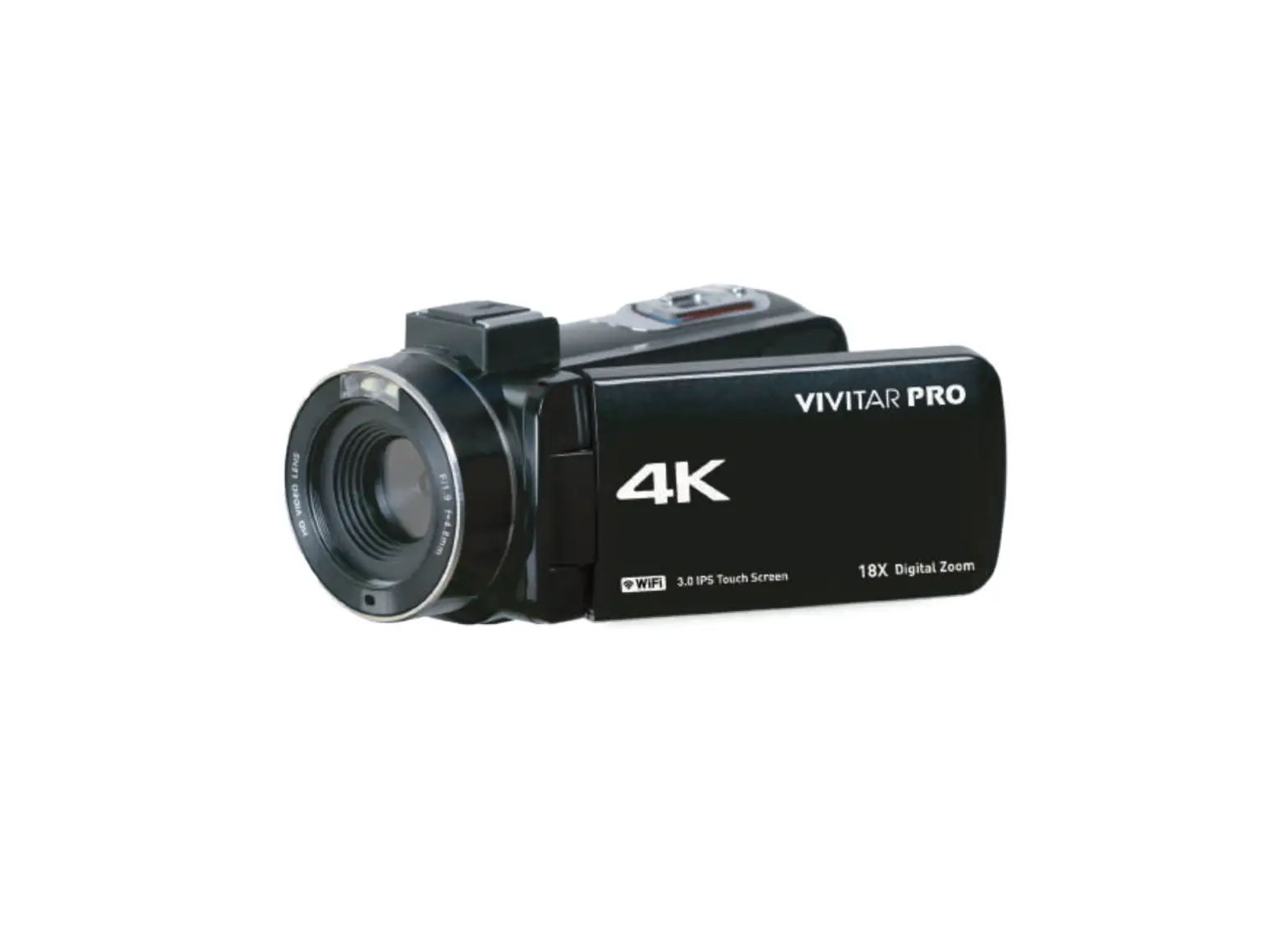
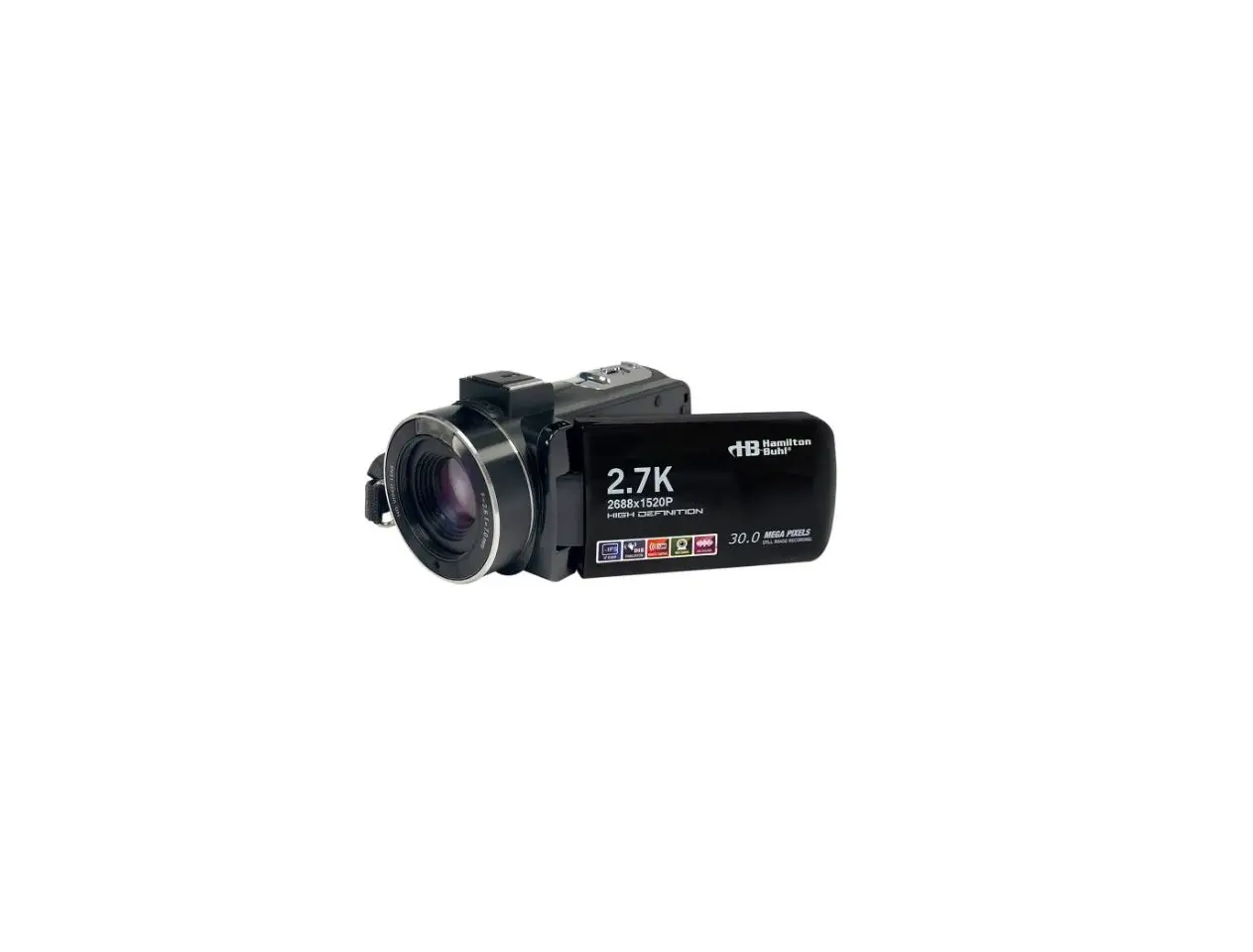
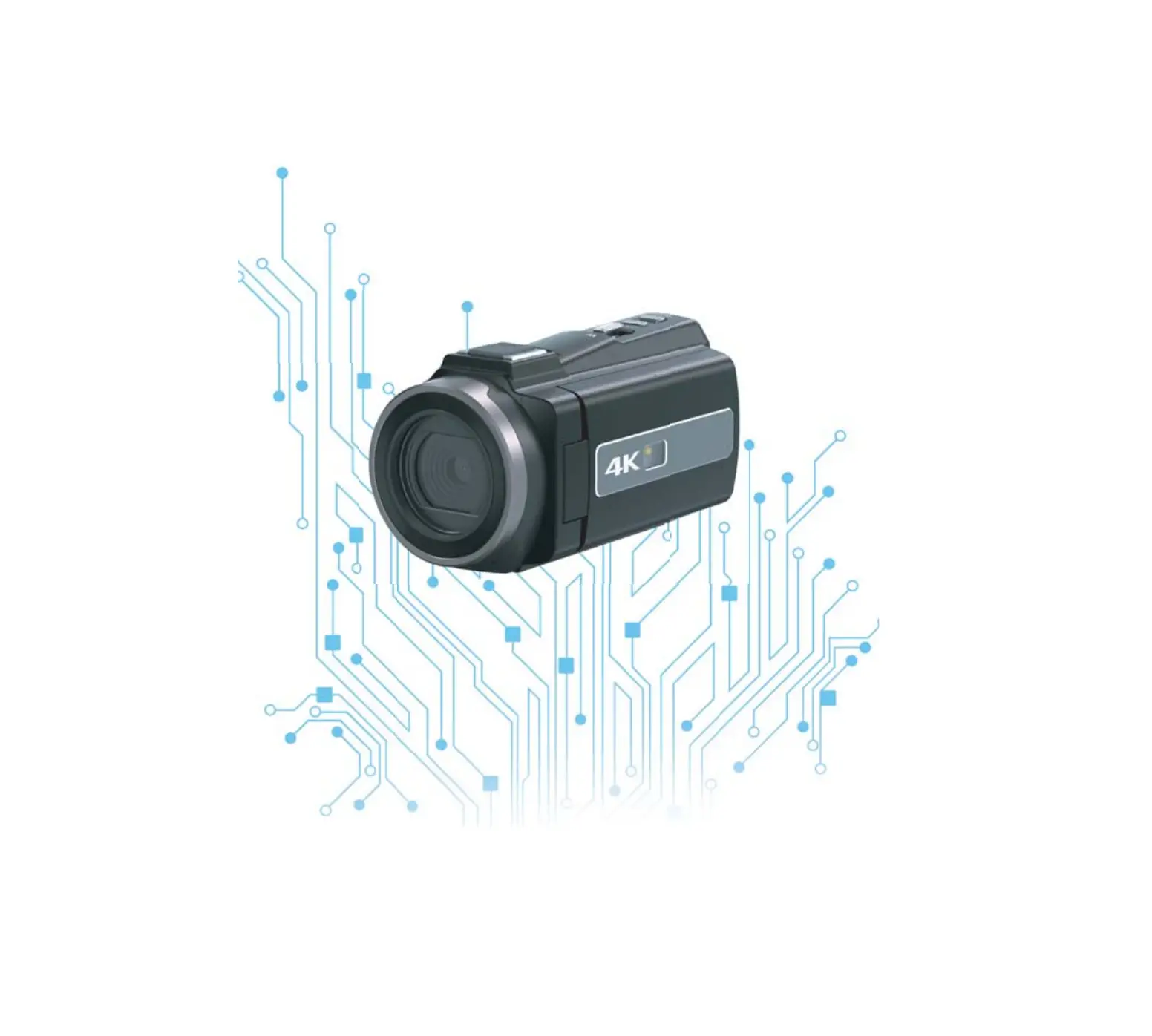
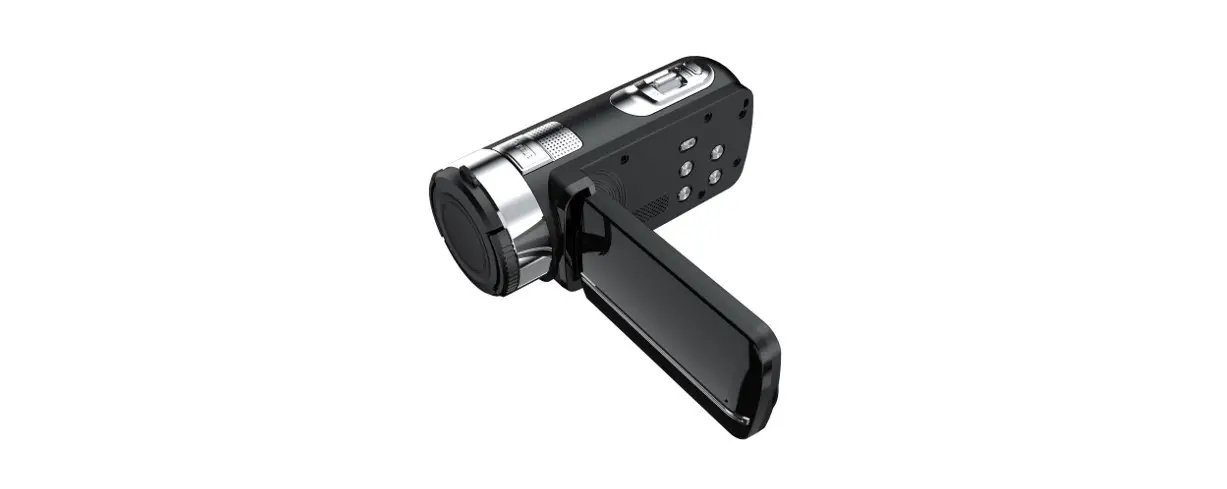
HDV01-8K 4K WiFi Digital Video Camera Camcorder DV Recorder
Product Information: 2.4G Wireless Remote Control Digital
Camcorder
The 2.4G Wireless Remote Control Digital Camcorder is a portable
video camera that allows users to capture high-quality videos and
photos. It comes with a range of features such as a hot shoe, IR
light, external MIC jack, HDMI output interface, Type-C USB
interface, and built-in speaker and microphone.
The camera has a built-in lithium-ion battery that can be
charged using an AC adapter/battery charger. Users are advised to
follow the safety instructions provided in the user manual to avoid
any mishandling of the battery pack. The camera also has a tripod
hole and a battery/memory card slot cover.
The camera is compatible with computers running on Intel Pentium
2.0GHz or higher/ Microsoft Windows XP or higher operating system,
2GB RAM, 40GB above available disk memory, standard USB interface,
1GB GPU or higher, and 1920×1080 pixel or higher resolution.
Product Usage Instructions:
Before using the 2.4G Wireless Remote Control Digital Camcorder,
users should read the user manual and keep it for future reference.
The following instructions should be followed:
Charging the Battery:
Use the AC adapter/battery charger to charge the camera’s
battery. Users should ensure that they use the specified type of
battery to avoid any accidents. Do not handle damaged or leaking
lithium-ion batteries. Keep the battery pack out of the reach of
small children. Dispose of used batteries according to the
instruction.
Using the Camera:
The camera can be turned on/off using the power button. The mode
button allows users to switch between fill light mode, take photos,
and record videos. The menu button can be used to set shooting menu
and system menu. The upward button can be long-pressed to open
WiFi, while the downward button can be used for digital zoom
out/in. The W/T photo button can be used to take photos.
The camera has a range of controls and indicators located on its
front, back, top, bottom, and left sides. Users should familiarize
themselves with these controls before using the camera.
When transferring data to a computer, users should ensure that
their computer meets the system requirements mentioned in the user
manual. If static electricity or electromagnetism cause data
transfer to discontinue midway (fair), restart the application or
disconnect and connect the communication cable (USB, etc.)
again.
Users should also ensure that they follow the safety
instructions provided in the user manual to avoid any mishandling
of the battery pack or AC adapter/battery charger.
2.4G wireless remote control
DIGITAL CAMCORDER Easy Guide
Read me before use Keep manual and all relevant information for future reference.
Contents
WARNING……………………………………………………………………………………. 1 CAUTION…………………………………………………………………………………….. 1 About the camera………………………………………………………………………….. 2
System requirement ……………………………………………………………….. 2 Parts and controls …………………………………………………………………… 2 Remote Control …………………………………………………………………………… 4 Charging the battery…………………………………………………………………… 5 Power on/off the camcorder…………………………………………………………… 6 Introduction to startup interface ……………………………………………….. 7 Page touch function introduction……………………………………………….. 7 Set the camcorder ………………………………………………………………………. 8 Insert and format the memory card …………………………………………… 10 Format the memory card……………………………………………………………….. 10 Using the camcorder……………………………………………………………………… 11 Fill light……………………………………………………………………………………….. 12 Mic interface ……………………………………………………………………………….. 12 Playback……………………………………………………………………………………….. 12 Playback in HDTV ………………………………………………………………………. 13 Connect to computer ……………………………………………………………………. 14 Connect to the WIFI app ……………………………………………………………. 15 Camera cleaning and maintenance …………………………………. 15 Troubleshooting ………………………………………………………………………. 16 Additional notes …………………………………………………………………………. 17
WARNING
To reduce the risk of fire or electric shock, 1.) Do not expose the unit to rain or moisture. 2.) Do not place objects filled with liquids, such as vases, on the apparatus. 3.) Do not expose the batteries to excessive heat such as sunshine, fire or the like. 4.)Do not ingest battery, chemical burn hazard. 5.)Keep new and used batteries away from children. If the battery compartment does not close securely, stop using the product and keep it away from children. 6.) If you think batteries might have been swallowed or placed inside any part of body, seek immediate medical attention.
CAUTION
If the battery is mishandled, the battery pack can burst, cause a fire or even chemical burns. Observe the following cautions. Do not disassemble. Do not crush and do not expose the battery pack to any shock or force such as hammering,dropping or stepping on it.
Do not short circuit and do not allow metal objects to come onto contact with the battery terminals.
Do not expose to high temperature above 60°C (140°F) such as in direct sunlight or in a car parked in the sun.
Do not incinerate or dispose of in fire. Do not handle damaged or leaking lithium ion batteries. Keep the battery pack out of the reach of small children. Keep the batter pack dry. Replace the battery with the specified type only. Otherwise, burst, fire or injury may result.
Dispose of used batteries according to the instruction.
Use a nearby wall outlet(wall socket) when using the AC Adapter/Battery charger. If any malfunction occurs, disconnect the plug from the wall outlet (wall socket) immediately to disconnect from the power source. If you use the product with a charge lamp, note that the product is not disconnected from the power source even when the lamp turns off.
Do not use the AC adapter/Battery charger placed in a narrow space, such as between a walland furniture.
1
immediately to disconnect from the power source. If you use the product with a charge lamp, note that the product is not disconnected from the power source even when the lamp turns off.
Do not use the AC adapter/Battery charger placed in a narrow space, such as between a wall and furniture.
If static electricity or electromagnetism cause data transfer to discontinue midway (fair), restart the application or disconnect and connect the communication cable (USB, etc.) again.
About the camera
System requirement Users can transfer videos and photos to computers with the following configurations: Intel Pentium 2.0GHz or higher/ Microsoft Windows XP or higher operating system 2GB RAM 40GB above available disk memory/ Standard USB interface / 1GB GPU or higher 1920×1080 pixel or higher resolution.
Parts and controls
Front side view
Back side view
1
2
7
4
3
8 5
6
1: Hot shoe 2: IR light 3: Lens
4: Extenal MIC Jack 5: HDMI output interface 6: Type-C USB interface 7: Charge/Busy indicator 8: Rec/Stop button
2
Top side view
1
2
Bottom side view
3
1: Hot shoe 2: Photo shutter 3: Zoom in/out
Left side view
1
2
1
2
1: Tripod hole 2: Battery/memory card slot cover
7
1: Built-in speaker 2: Mode button 3: Power / OK / light button
3
4
5
6
4: UP button 5: Down button 6: Menu button 7: Built-in MIC
Buttons/ Indicatorsv
POWER
MODE MENU UP DOWN W/T PHOTO
Functions Power on / off Switch fill light mode Confirm Open/close mode menu Set shooting menu and system menu Upward Long press to open WiFi Downward digital zoom out / in Take photo
Pause of recording
3
Shoot video button Indicator light BUSY Indicator light CHG
Hot shoe
MIC interface HD
USB
Shoot start / end Working indicator light Charging indicator light
Base for installing handle, microphone and fill light
External microphone interface(3.5mm) TV HDMI cable interface USB cable charging Connect the computer with USB cable
Remote Control
Due to different sales regions and different remote control configuration models, both remote controls can be used. It does not affect the use effect. 1This remote control uses CR2025 or CR2032 3V button batteries, and its distance is 65.6 ft (20 meters). It can remotely control the camera from a
360-degree angle. Note: Pull out the insulating paper at the bottom of the remote control before use. Insert the insulating paper when not in use to avoid battery power loss.
01: Fill light button 02: Power button 03: Photo button 04: Video button 05: Playback 06: Zoom in button 07: Zoom out button 08: Left 09: Up 10: Right 11: Down 12: Ok button 13: Menu button 14: Mode button
2The remote control uses 2 AAA batteries . In the unobstructed environment, it can be remotely controlled for a distance of 20 meters. It can remotely control the camera from a 360-degree angle.
4
1:Power button 2:Up button / digital zoon in 3:Right button 4:OK button 5:Shoot video button 6:Playback button 7:Mode button 8:Fill light button 9:Left button 10:Down button / digital zoom out 11:Take photo button 12:Menu button
Charging the battery 1.Power off your camcorder, open the battery cover and insert the battery in the direction as the shown of following picture, then close the battery cover.
2.You can use supplied USB cable to charge your camcorder via an adapter (5V/1A~5V/2A) or connect to PC directly.
5
*The charging indicator will be turned on in red when the battery is in charging. *The charging indicator will be turned off automatically when the battery is fully charged. 3.Charge the battery with a standard external charger and put the battery directlyinto the charger. (The standard package does not include, please consult the seller for details)
*The external charger charging indicator will be turned on in red when the battery is in charging. The indicator light will turn blue when the battery is fully charged. Normally it takes around 2 hours to full charging of the battery. When the battery is fully charged, the battery life is around 90 minutes for recording.
Power on/off the camcorder
Open the touch screen, the camcorder will be powered on automatically.
6
Power button
You can also power on the camcorder by pressing the Power button. To power off the camcorder, close the screen or hold and press the Power button for 3 seconds. Notes: It takes 5 seconds to power on/off the camcorder by openning the screen. If you open/close the screen twice in this reaction time, it may cause the camcorder can not power on/off properly. Please wait for the machine to complete the power on/off procedure before operating the machine again. Introduction to startup interface
1: Video resolution 2: Video sound 3: Remaining memory space of memory card 4: Memory card 5: Remaining battery power 6: Current mode 7: White balance 8: Filter
9: Exposure value 10: Metering mode 11: ISO 12: Current mode menu 13: Date 14: Time 15: Play back 16: Mode
Page touch function introduction Click the screen (white balance, filter, exposure value, metering mode, sensitivity)
7
icon to change the parameters, and click the blank area of the screen to hide all the icons on the page.
1: Click on the blank area of the screen and slide down to enter the mode selection interface.
2: Click on the blank area of the screen to slide up Enter the current mode menu.
3: Click on the blank area of the screen and slide to Enter playback.
Set the camcorder
You can make custom settings of the camcorder.
8
After the camera is turned on, tap the mode icon on the screen or press the mode button to open the mode menu. Click the system setting icon on the screen or press the “Up” or “Down” key, when the cursor stays on the system setting, press the OK key to enter the system setting.
MENU
Tap the screen OR Press the MODE button System Settings
Sub menu bar
Exit the menu
Sub-menu Screen brightness Anti-flicker Indicator light Screen saver Automatic shut-down Tone settings Audio noise Boot Poweroff music Remote control Icon display
Language
Time Format Time Setting Date Setting
Menu content
Middle/Low/High Auto/50Hz/60Hz Open/Close (Press OK to switch) Close/30s/1min/2min Close/3min/5min/10min High/Middle/Low/Close Close/Open Open/Close (Press OK to switch) Open/Close (Press OK to switch) Open/Close (Press OK to switch) Simplified Chinese/traditional Chinese/English/ Japanese/Korean/Russian/German/French/Italian/ Spanish/Portuguese/Thai Y/M/DD M/D/Y D/M/Y hour minute second Year month day
9
Format Device info Factory Reset
(SD Card)Format/Cancel Product model and version Cancel/OK
Insert and format the memory card
A class 10 or higher speed memory card is recommended to normal use. 1.Open the battery cover, and insert the memory card until hear the “click” sound.
Insert the card with the noted corner in the direction as illustrated.
2.To remove the memory card, open the cover and push the memory card it will bepopup automatically.
Format the memory card
It is recommended to format the memory card before the first use. To format the memory card, please click the mode icon on the screen or press the mode button to open the mode selection. Then tap the System Settings icon to open System Settings. Press the Up/Down buttons or swipe down the screen until “Format”, then tap Format or press the Power button to get the sub menu. Select “Format” to format the memory card.
Note: If the memory card is not native format, the screen will pop-up a prompt: ” Card error..”, please format the memor card as above operation.
10
Formatting the memory card will earse all the data stored on it and the data will be irrecoverable. Save your important data on PC before formatting.
Using the camcorder
After power on the camcorder, video capture mode is the default mode. Press the mode button or tap the mode icon on the screen to enter the mode selection page. Tap the on screen video mode or photo mode icon to select the desired mode.
MODE Video Slowly Loop Lapse Photo
Auto
Burst Timer PlayBack
illustrate Normal recording mode Slow motion shooting recording infinite loop Fast action shooting Take a single photo normally
Automatically cycle take photos after a specified number of seconds Take a specified number of photos in succession Take a single photo after a specified number of seconds Play the video or photo
The camera supports setting the corresponding mode menu in different modes. After choose your desired mode, then tap “Menu” icon of the screen or press Menu button to open the menu and select the desired settings according. Press the Photo Shutter button to take a photo, the photo will be saved in to the memory card automatically.
Press the record/stop button to start recording, press again to end recording. You can also press the camera button to pause/continue recording while recording.
11
1 2
3
4
1: Zoom in/out button 2: Photo shutter button 3: Busy indicator
The light flashes while in recording. 4: Record/Stop recording
Press to start recording, press again to stop the recording.Note: The camcorder can not take a photo in video mode.
Fill light Short press the Power button, the camcorder will turn on the fill light, press again to turn off it. Mic interface The camcorder supports an external microphone with a 3.5mm connector. Note: This interface does not support headphone connection.
Playback
Open the touch screen, tap the Mode icon of the screen or press the Mode button to open the mode options. Click the screen media library icon or press the “Up” or “Down” button, when the cursor stays on the “Media Library”,press the “OK” button to enter the media library. Select the video or photo you want to view, press the Up/Down button to scroll through the videos or images stored on the memory card.
12
Figure 1: Video playback Figure 2: Photo playback 1: Click to exit playback or press the photo/video button to exit playback 2: Recording time length 3: Click to delete the current photo/video or press MENU to delete Note: cannot be restored after deletion 4: Current/total pages 5: Resolution of the current photo 6: Current/total number of images
Playback in HDTV
The HD interface of this camcorder is only for connecting to a high-definition TV, and cannot be connected to a computer. Please plug the public port of the HD cable into the HD interface of the camcorder, and connect the other end of the port to the HD input interface of the HDTV. Note that before connecting/unplugging the HD cable, please stop recording/playing the images first. (The TV source needs to be adjusted to HD mode). The HD cable is suitable for the Mini HDMI to HDMI Cable.
Note: After connecting to the HDTV, the camera’s display content will automatically switch to the HDTV,and the camera’s screen will automatically be black. It is not a malfunction.
USB Cable
13
Connect to computer
Connect the camcorder to computer is able to transfer the images to computer, also can use the camcorder as a PC camera.
1. Connect the Type-C USB port of the camcorder and the USB port of the computer with supp lied USB cable.
Signal flow
HDMI cable
2.The camcorder will be powered on automatically, then screen be shown the available options.
Tap the desired option or press UP/DOWN button then press Power button to confirm the settings.
Charging Mode Select the charging mode, the camcorder supports the function of recording normally. Power off the camcorder would be fully charged faster then keep powering on.
Mass Storage Mode Select “MSDC”, the computer will display the memory card disk of the camcorder, and the computer can transfer the files into the memory card.
PC Camera Select the “PC Cam” mode, the camera can be used as a webcam, live streaming, etc.
Note: While the camcorder is using as a PC Camera, only the digital zoom lever
14
can be operated on the camera, and other functions cannot be used.
Connect to the WIFI app
Scan the QR code below to download the WIFI application.
After downloading the app, long press the “up” button to turn on the camera’s Wi-Fi and then the Wi-Fi ID and password will be displayed on the screen of the camera.
Turn on the smartphone, click Settings—WLAN—WIFIxxxx, and then enter the password according to the screen of the camera. After successfully connecting to WiFi, enter the app to control the camera (take photos/videos), and you can also easily download photos/videos from the camera to your smartphone. Note: The Wi-Fi of the camcorder can not access to the social network, it is for smartphone access to camcorder only
Camera cleaning and maintenance
(1)If you do not use the camera for a long time, take out the camera battery and place it in a dust-free, dry environment with a temperature no higher than 30 . (2)In order to extend the service life of the battery, please discharge it completely before storage. (3)Please fully discharge the battery at least once every 3 months after it has been
15
fully charged. (4)If there is dust or dirt on the lens or screen, gently wipe it with a clean, soft lens cleaning cloth. (5)As this machine is a precision instrument, please do not drop it or suffer from strong impact or vibration.fully charged. (4) If there is dust or dirt on the lens or screen, gently wipe it with a clean, soft lens cleaning cloth. (5) As this machine is a precision instrument, please do not drop it or suffer from strong impact or vibration.
Troubleshooting:
If you encounter problems with the camera, please refer to this section.
1.The camera cannot be turned on after installing the battery (1)The battery power is insufficient, please replace the battery with a new one or charge the battery. (2)The battery is installed in reverse, please confirm that the battery is installed in the correct way. (3)The battery insulating paper is not removed.
2.The battery is not charging (1)If the red light of the charging indicator flashes, the battery is not in place or the contact is poor. Please re-install the battery until the indicator light is on (the indicator light goes out when the battery is fully charged) (2)The charging indicator light is off and the charger is not plugged in properly. Please check whether the charger is connected normally. (3)The ambient temperature is lower than 10, which may lead to slow charging or failure to charge.
3.The remote control does not work (1)When using the remote control, pull out the bottom insulating paper. When the insulating paper is pulled out, if it still does not work, pull out the battery of the remote control and reinsert it. (2)The remote control cannot remotely control the camera to turn on, but can only remotely turn it off.
4.Camera crashes (1) Quickly pressing each button of the camera may cause the camera to freeze. After it crashes, unplug the battery and reboot. Tip: When the camera is recording or taking pictures, do not quickly press the camera button. Under normal circumstances, the camera will display a waiting icon.
16
5.The memory card cannot be recognized: (1)Please check whether the memory card complies with SD card (class10), the maximum is not more than 256G.
(2)Please check whether the memory card is inserted backwards. (3)When the memory card is used on the camera for the first time, it is recommended to format it first.
Additional notes
(1)Do not insert any object into the slot except the memory card. (2)After the power is turned on, the camera may show an unstable image about for a few seconds, but this is not a fault. (3)Due to the optical properties of the lens, there may be color dispersion (magnification of chromatic aberration) at the edges of the image. This is not a camera fault.
(4)It is normal for the memory card to get hot after a long period of use. (5)It is normal for the camera’s screen to heat up after a long period of use.
Warning: Changes or modifications to this unit not expressly approved by the party responsible for compliance could void the user’s authority to operate the equipment. NOTE: This device complies with part 15 of the FCC Rules. Operation is subject to the following two conditions: (1) This device may not cause harmful interference, and (2) this device must accept any interference received, including interference that may cause undesired operation. FCC Statement: This equipment has been tested and found to comply with the limits for a Class B digital device, pursuant to part 15 of the FCC Rules. These limits are designed to provide reasonable protection against harmful interference in a residential installation. This equipment generates, uses and can radiate radio frequency energy and, if not installed and used in accordance with the instructions, may cause harmful interference to radio communications. However, there is no guarantee that interference will not occur in a particular installation. If this equipment does cause harmful interference to radio or television reception, which can be determined by turning the equipment off and on, the user is encouraged to try to correct the interference by one or more of the following meRaseuoreiesn: t or relocate the receiving antenna.
Increase the separation between the equipment and receiver. Connect the equipment into an outlet on a circuit different from that to which theCroencseuivlterthies dcoeanlneercoterda.n experienced radio/TV technician for help. The product is a portable device and meets the exposure assessment requirements forportable devices.