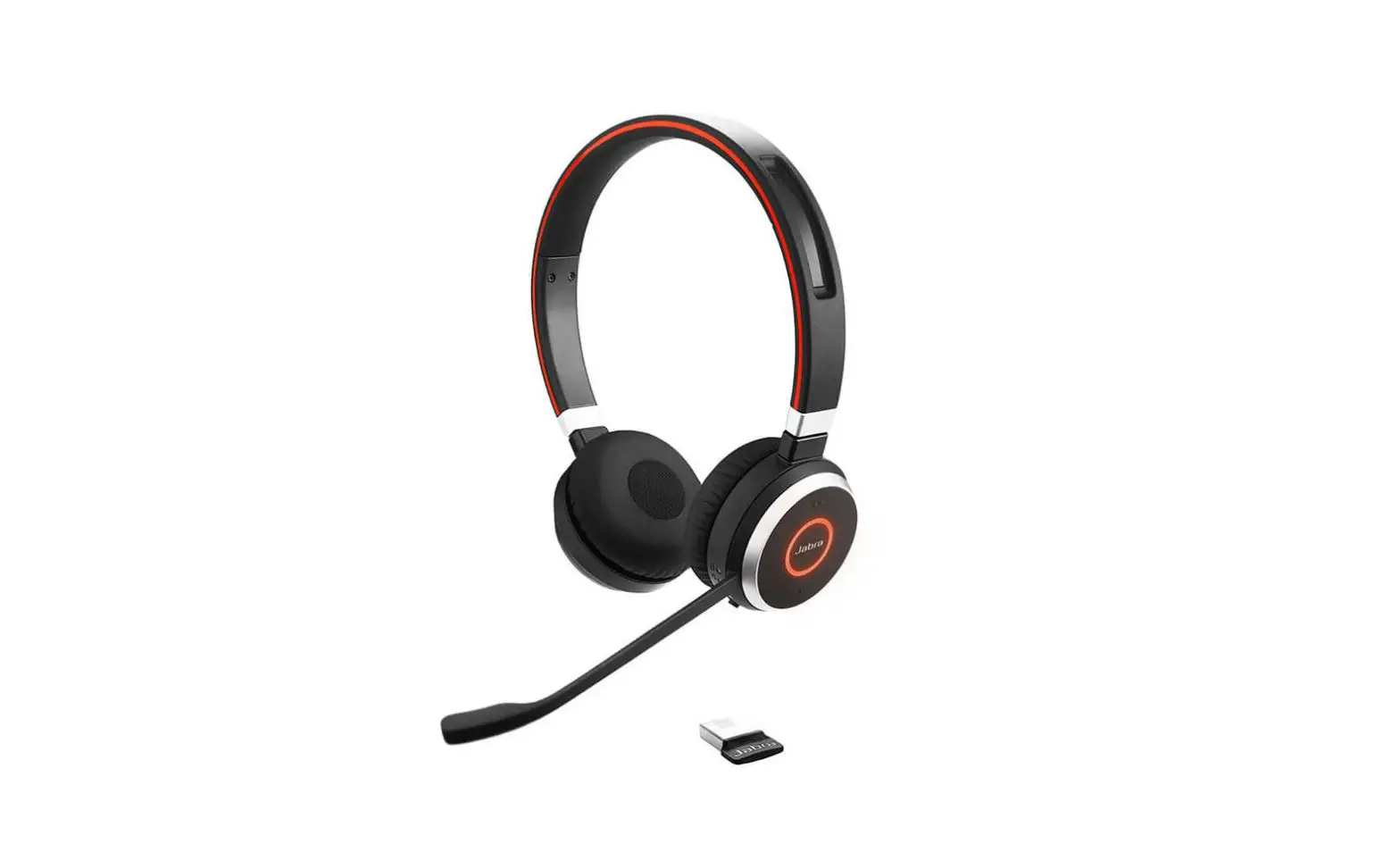
Jabra Evolve 65 User Manual
Welcome
Thank you for using the Jabra Evolve 65. We hope you will enjoy it!
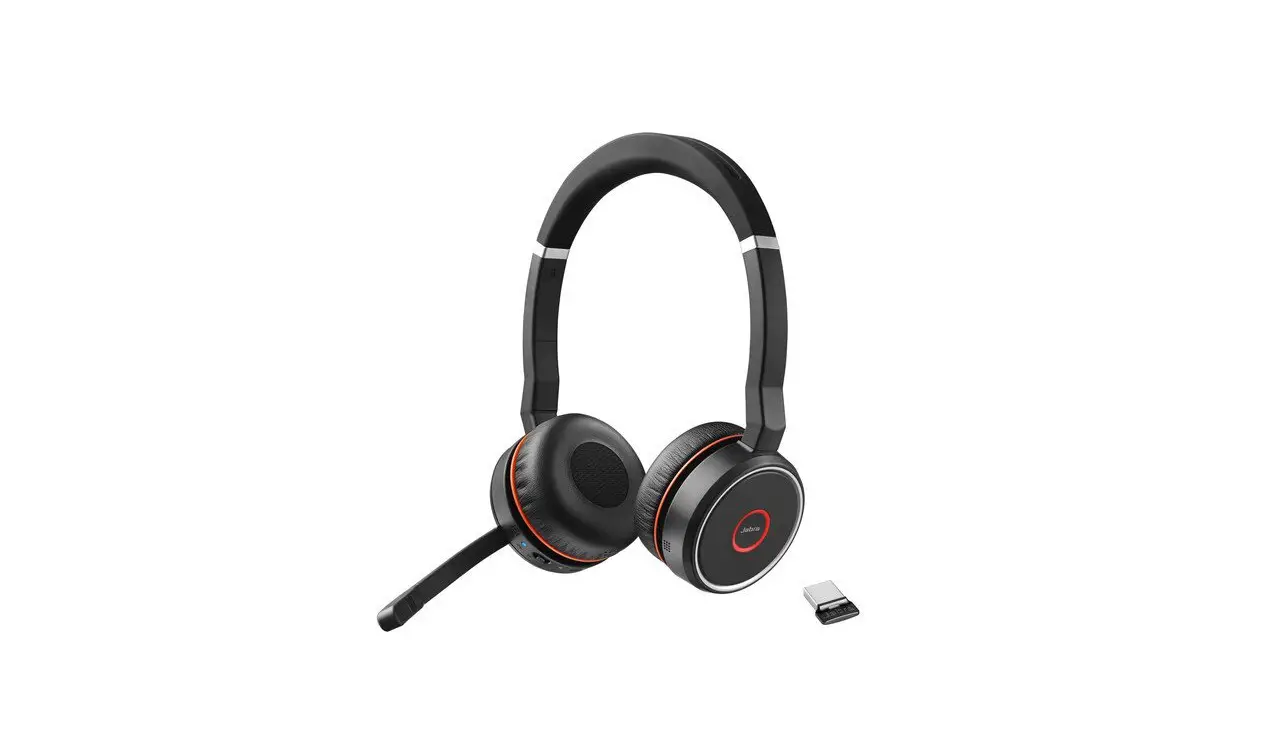
Jabra Evolve 65 features
- Connects to PC via Jabra Link 370 bluetooth adapter or USB cable
- Connects to mobile devices via Bluetooth
- Integrated busylight
- Discreet microphone boom-arm that integrates into the headband when not on calls
- Superior music and voice capabilities
- Hi-Fi Sound
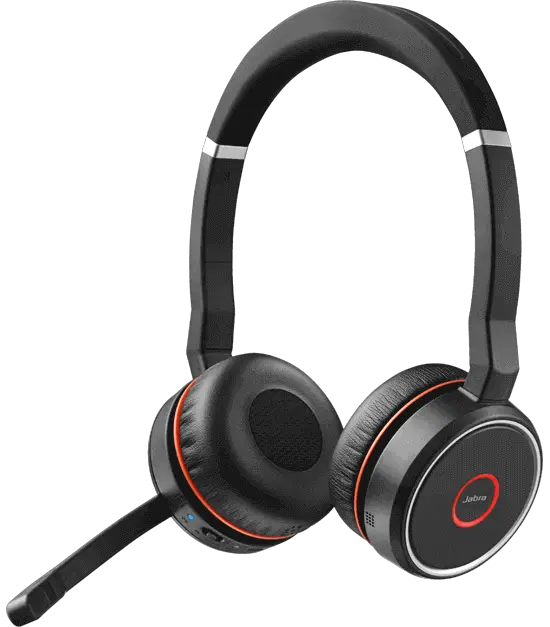
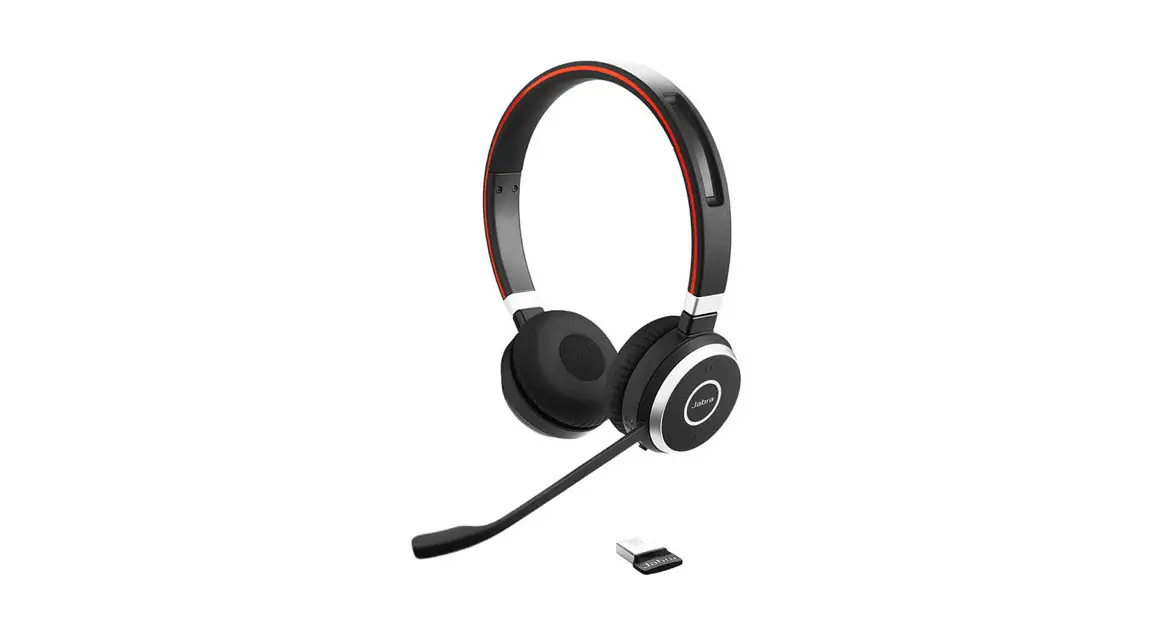
Jabra Evolve 65 Overview
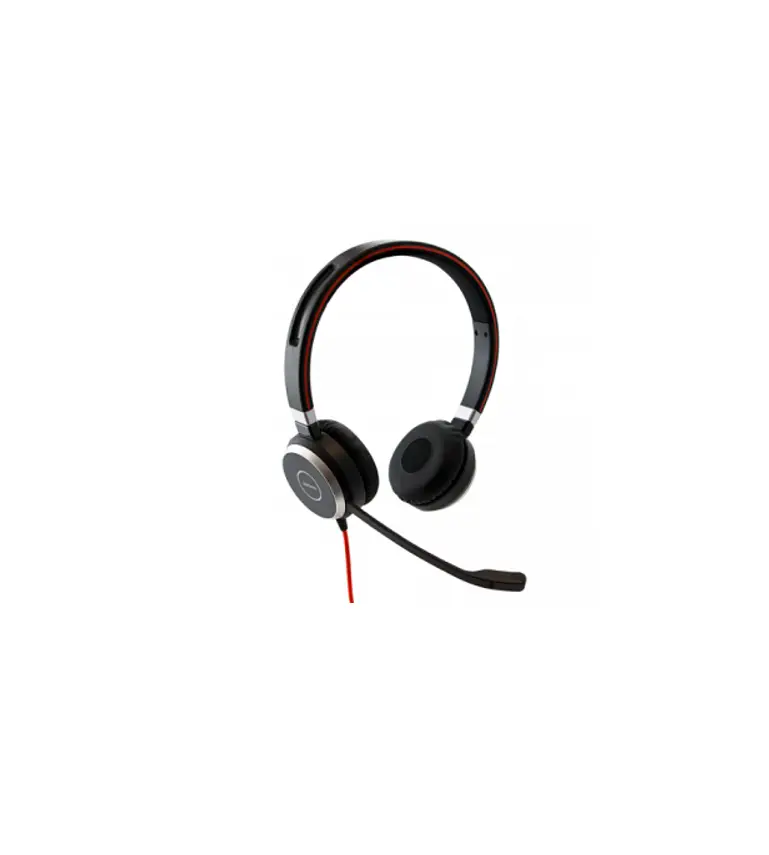
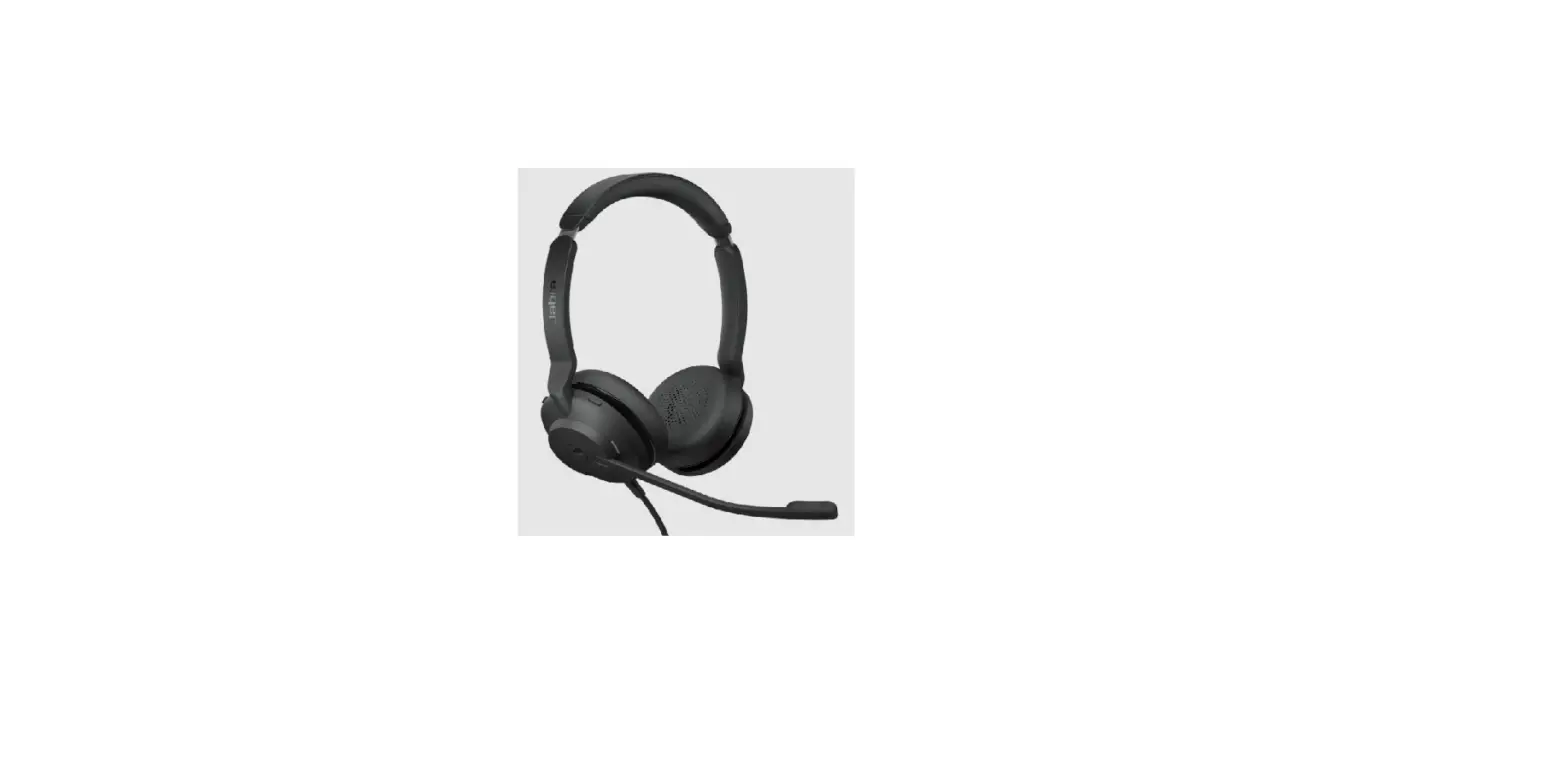
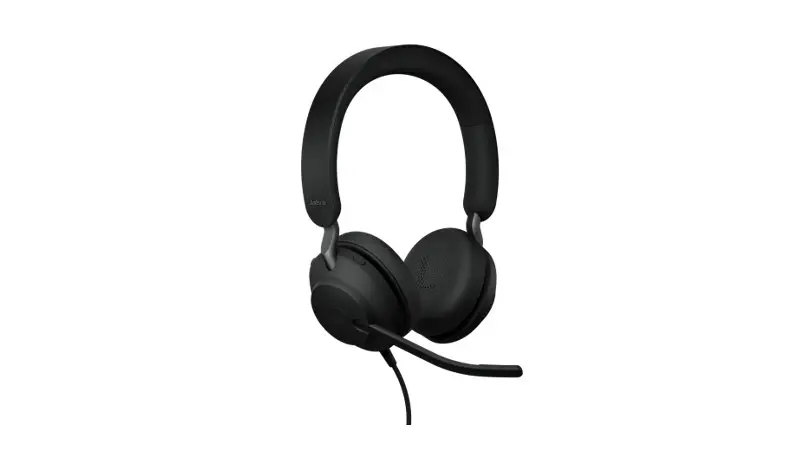
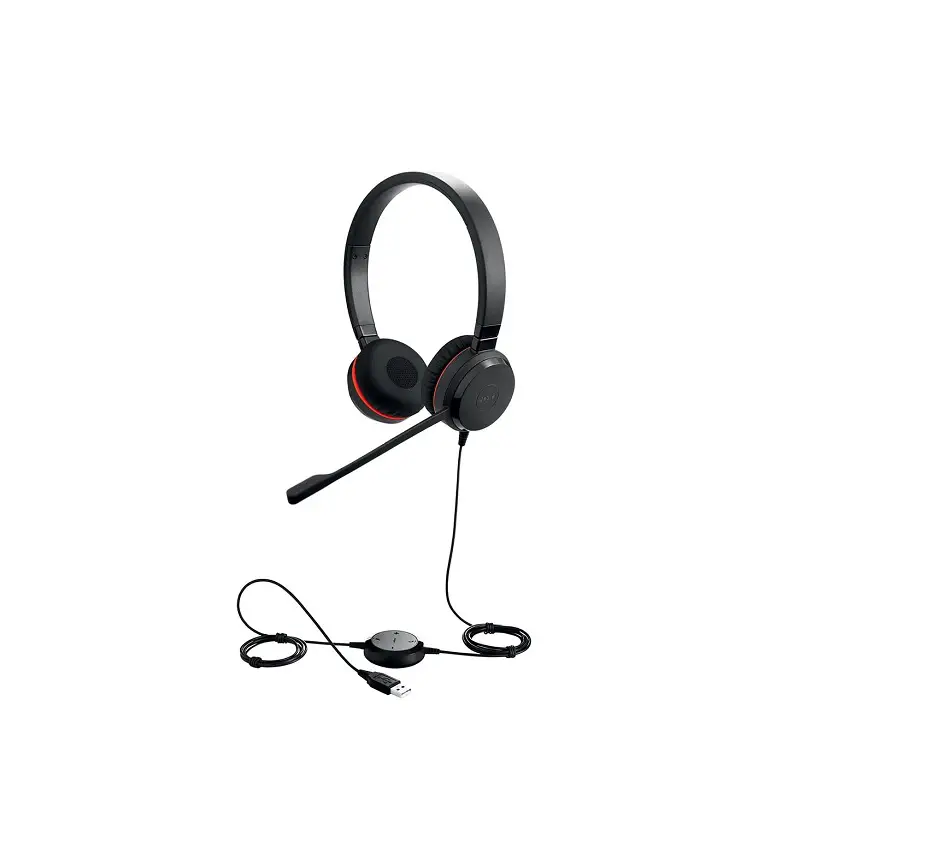
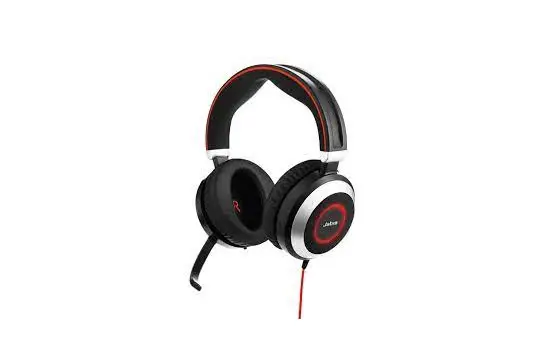
Stereo variant
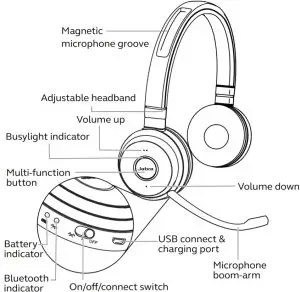
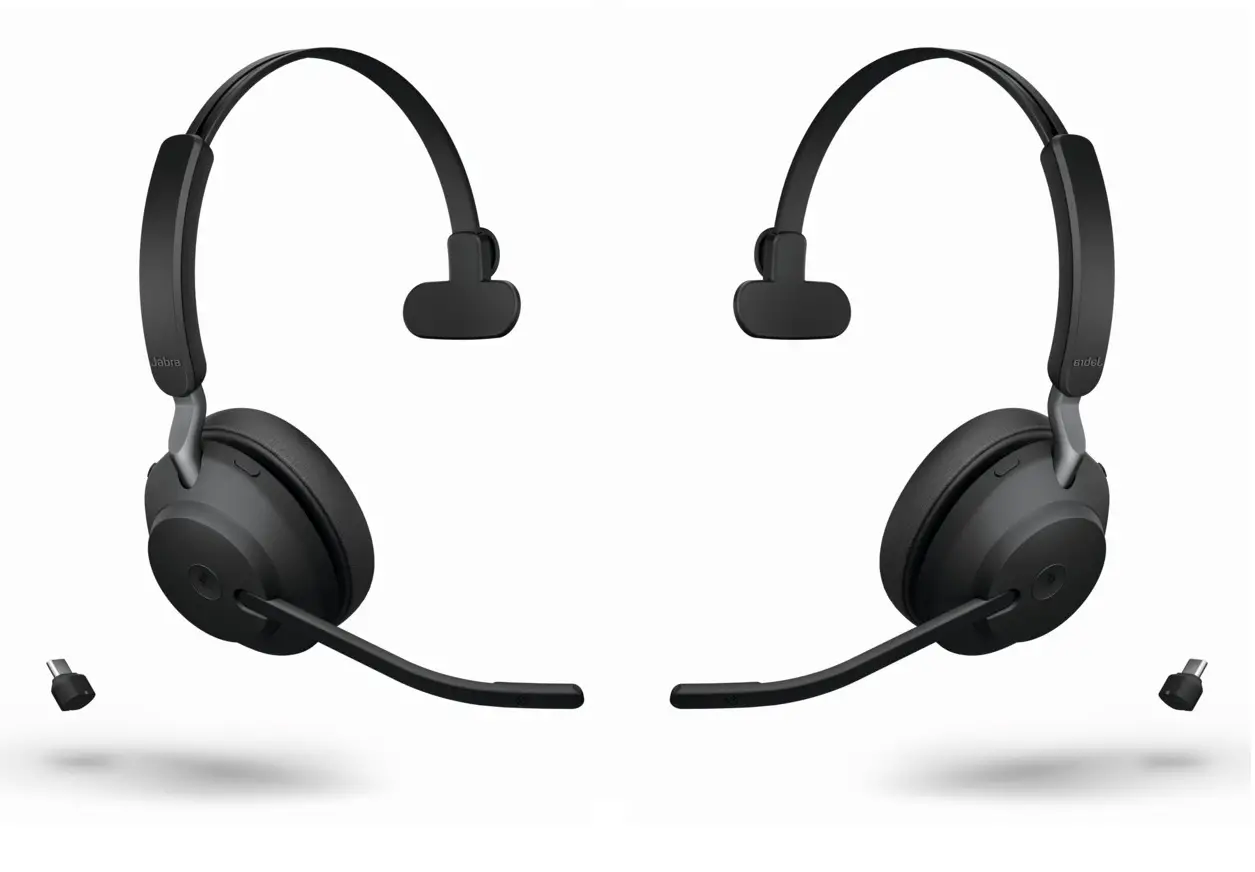
Mono variant
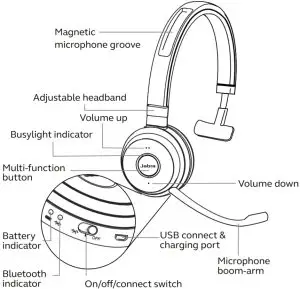
Included accessories (stereo and mono)
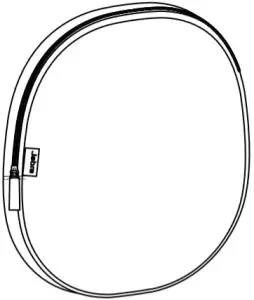
- Carry pouch

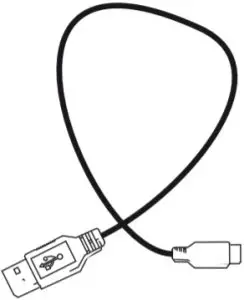
- USB cable

How to wear
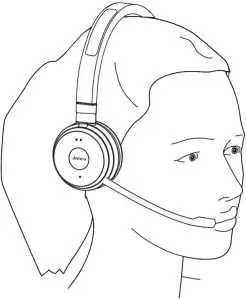
Left or right wearing style
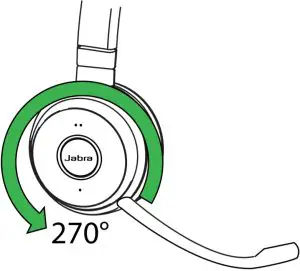
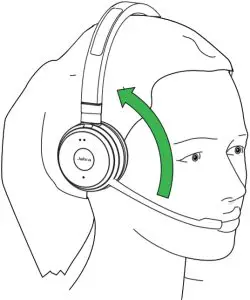
The Jabra Evolve 65 can be worn on the left or right by flipping the microphone to the other side (270° limit).
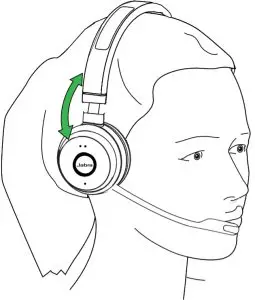
Adjust the headband
Adjust the headband to find the most comfortable fit.
Position the microphone
It is recommended to position the microphone close to your mouth (0.5 inches).
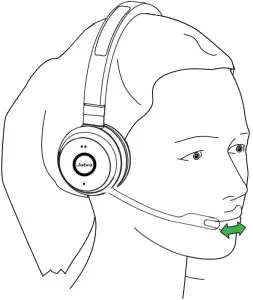
The microphone is bendable for personal preference.
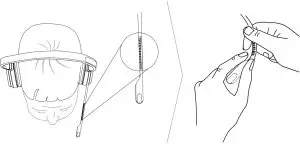
Storing the microphone
When listening to music or outdoors, the microphone can be magnetically stored in the headband groove.
How to charge the battery
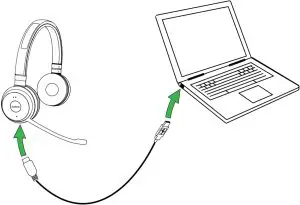
The headset battery will charge when connected to a PC using a USB cable, or when using any USB charger supplied with your mobile device.
The headset can still be used for calls while charging using a USB cable connected to a PC.
It takes approx. 3 hours to charge the battery.
How to connect
Connect to PC (using jabra Link 370)
- Ensure the headset is switched on.
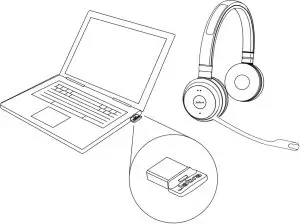
- Plug the Jabra Link 370 dongle into a USB port on your PC. The headset and Jabra Link 370 are already pre-connected.
Connect to mobile device (using Bluetooth)
- Wear the headset.
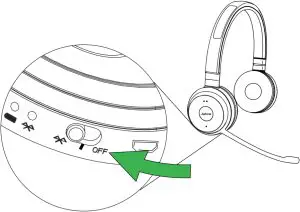
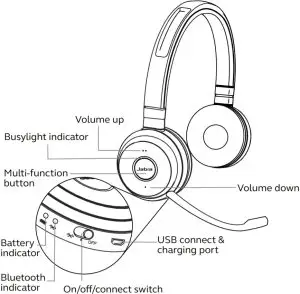
- Hold (3 secs) the On/off/connect switch in the connect position until you hear the voice guided instructions. The Bluetooth indicator will flash blue.
- Follow the voice guided instructions to connect.
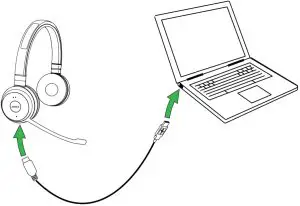
Connect to PC (using USB cable)
- Ensure the headset is switched on.
- Plug the headset into a USB port on your PC using the supplied USB cable.
How to use
Everyday use
| Function | Action | |
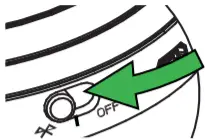 | Headset on/ of | Slide the On/off/connect switch |
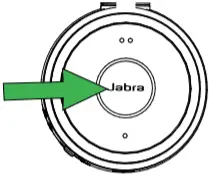
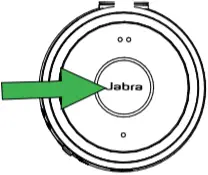 | Answer/end call | Tap the Multi-function button |
| Reject call | Double-tap the Multi-function button | |
| Battery and connection status | Tap the Multi-function button when not on a call | |
| Enable/ disable Voice prompts | Press and hold the Multi-function button while turning on the headset | |
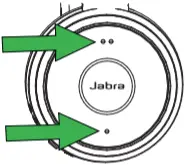
| Adjust volume | Tap the Volume up or Volume down button |
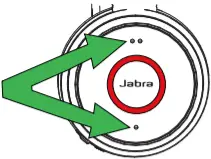 | Manual busylight on/off | Simultaneously tap the Volume up and Volume down buttons |
| Enable/ disable Busylight function | Simultaneously press and hold (3 secs) the Volume up and Volume down buttons | |
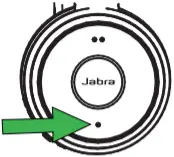 | Mute/unmute microphone | Press and hold (2 secs) the Volume down button |
Multiple call handling
The headset can accept and handle multiple calls at the same time.
Function | Action | |
| End current call and answer incoming call | Tap the Multi-function button |
| Switch between held call and active call | Press and hold (2 secs) the Multi-function button | |
| Put current call on hold and answer incoming call | Press and hold (2 secs) the Multi-function button | |
| Reject incoming call, when on a call | Double-tap the Multi-function button |
Busylight
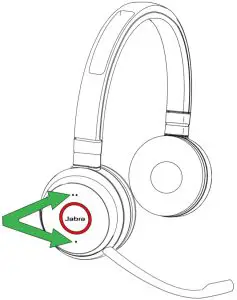
The busylight indicator on the headset can be turned on to let others know that you are busy.
MANUALLY TURN BUSYLIGHT ON/OFF
To manually turn the busylight on/off, tap both the Volume up and Volume down buttons at the same time.
ENABLE/DISABLE BUSYLIGHT FUNCTION
To enable/disable the busylight function, press and hold (3 secs) both the Volume up and Volume down buttons at the same time.
Support
FAQ
View the FAQs on Jabra.com/evolve65
How to care for your headset
- Always store the headset with the power off and safely protected.
- Avoid storage at extreme temperatures (above 55°C/131°F or below -10°C/14°F). This can shorten battery life and may adversely affect the headset.
Technical Specifications
| Jabra Evolve 65 headset | Specification |
Headset weight |
|
Headset dimensions |
|
Microphones | Noise cancelling microphone |
| Speaker | 28 mm Dynamic PureSound speakers (Hi-Fi) |
Speaker maximum input power | 10 mW |
| Speaker frequency range | 70 hz – 20 kHz |
Operating temperature | -10°C to 55°C (14°F to 131°F) |
| Storage temperature | -20°C to 25°C (-4°F to 77°F) |
BLUETOOTH ADAPTER (JABRA LINK 370) | SPECIFICATION |
| PC connection | USB 2.0 |
Bluetooth version | 4.2 |
| Bluetooth range | Up to 30m (100 feet), Class 1 |
Bluetooth profiles | A2DP (v1.2), Hands free profile (v1.6) |
| Simultaneous Bluetooth connections | 1 |
Bluetooth audio bandwidth | HD voice (wideband), A2DP |
| Visual indicators | Multicolor LED |

 Bluetooth office headset with amazing sound | Jabra Evolve 65 MS/UC
 Wireless Headsets and Headphones for Office, Music & Sport | Jabra