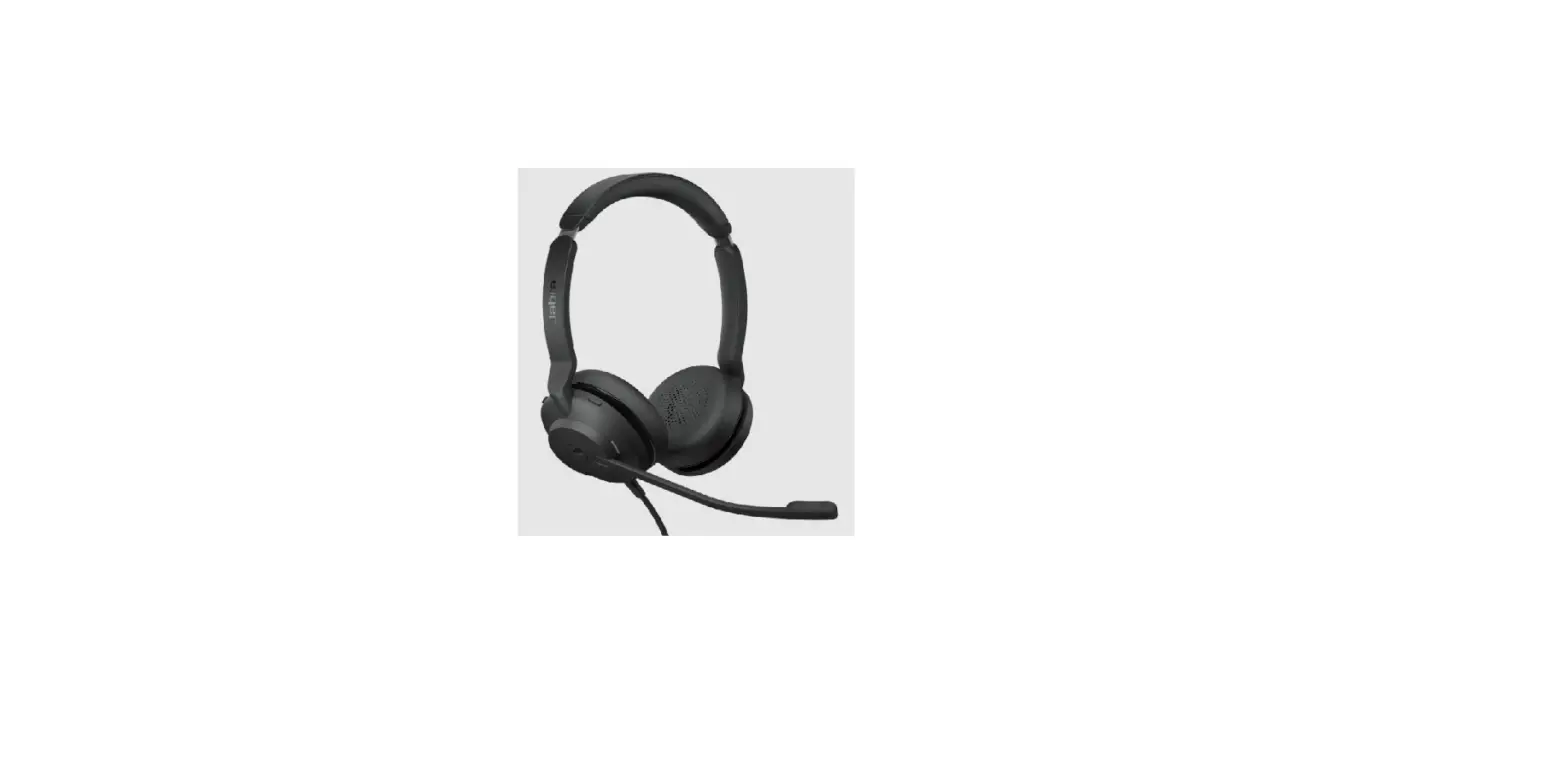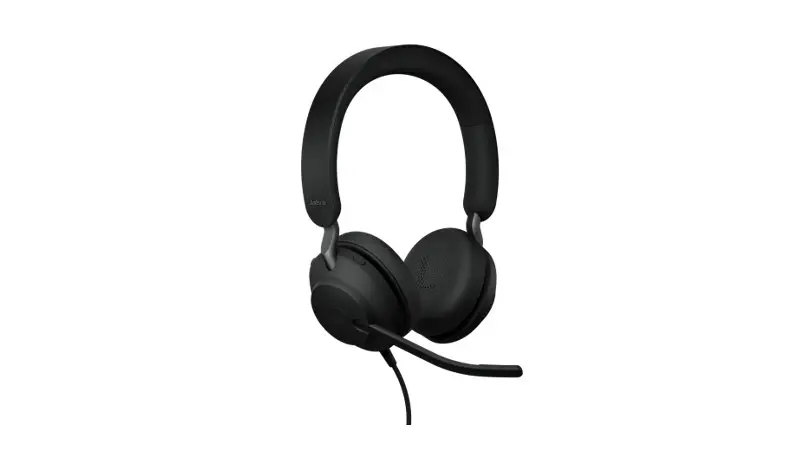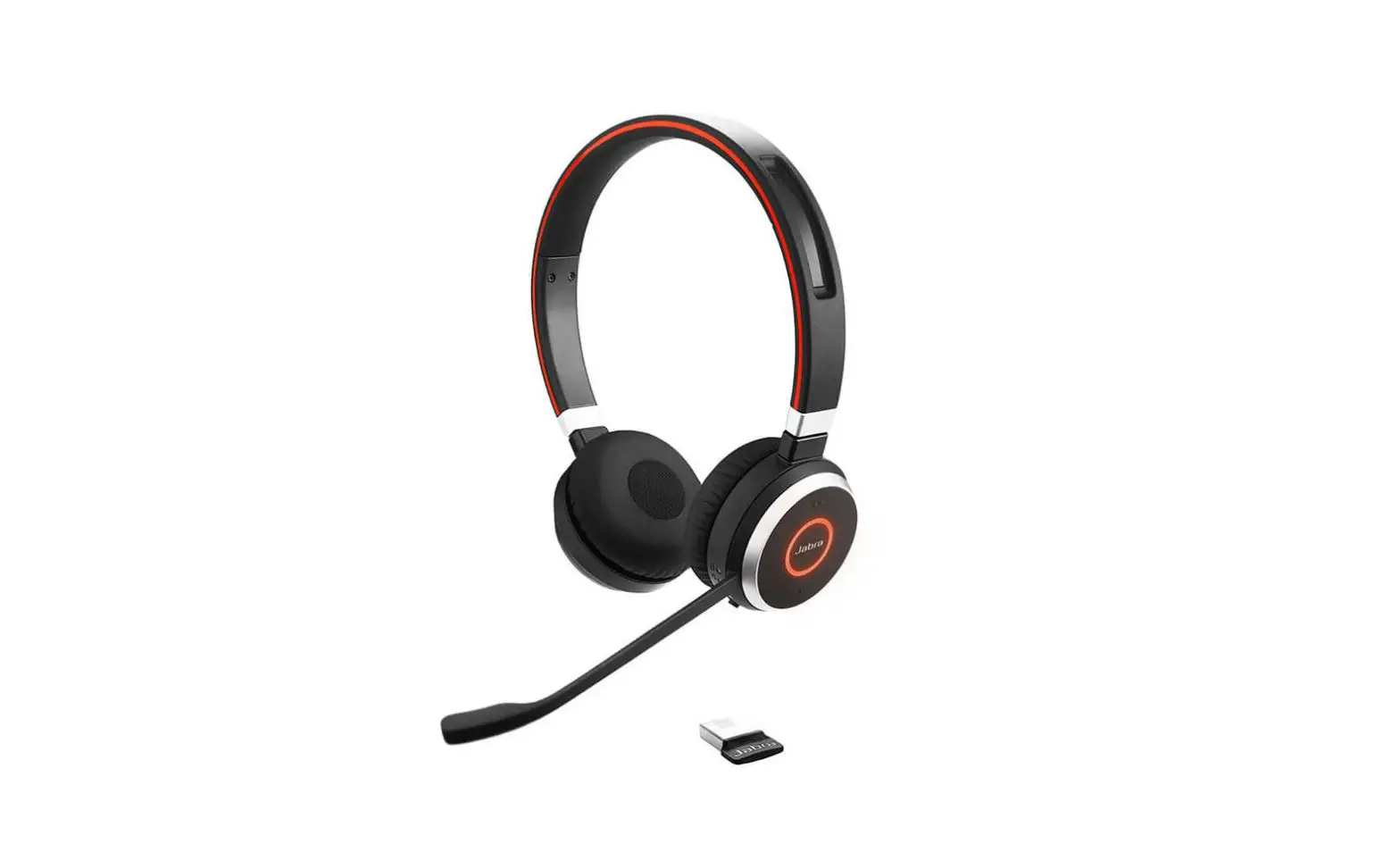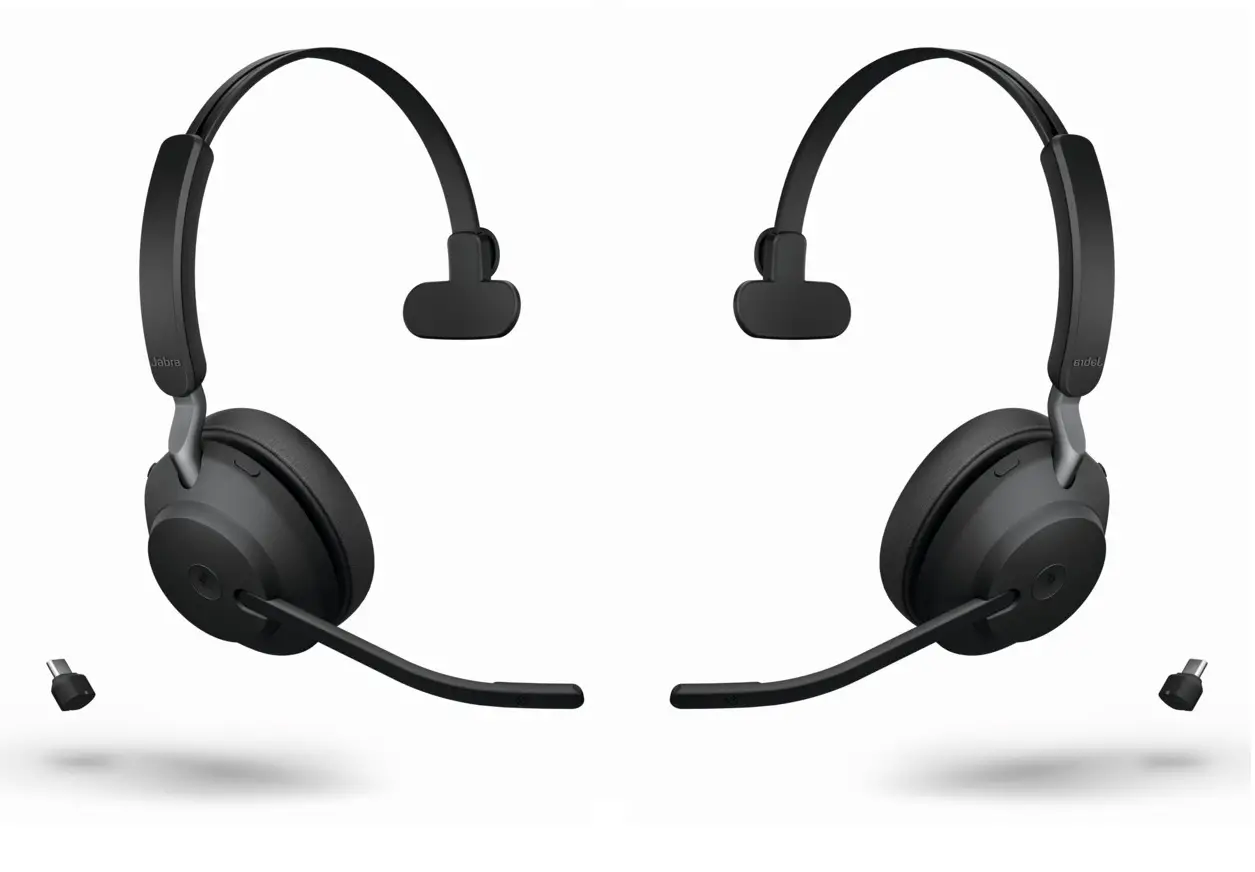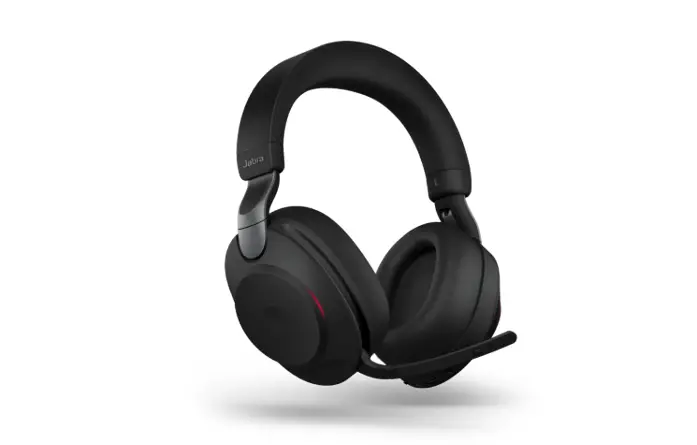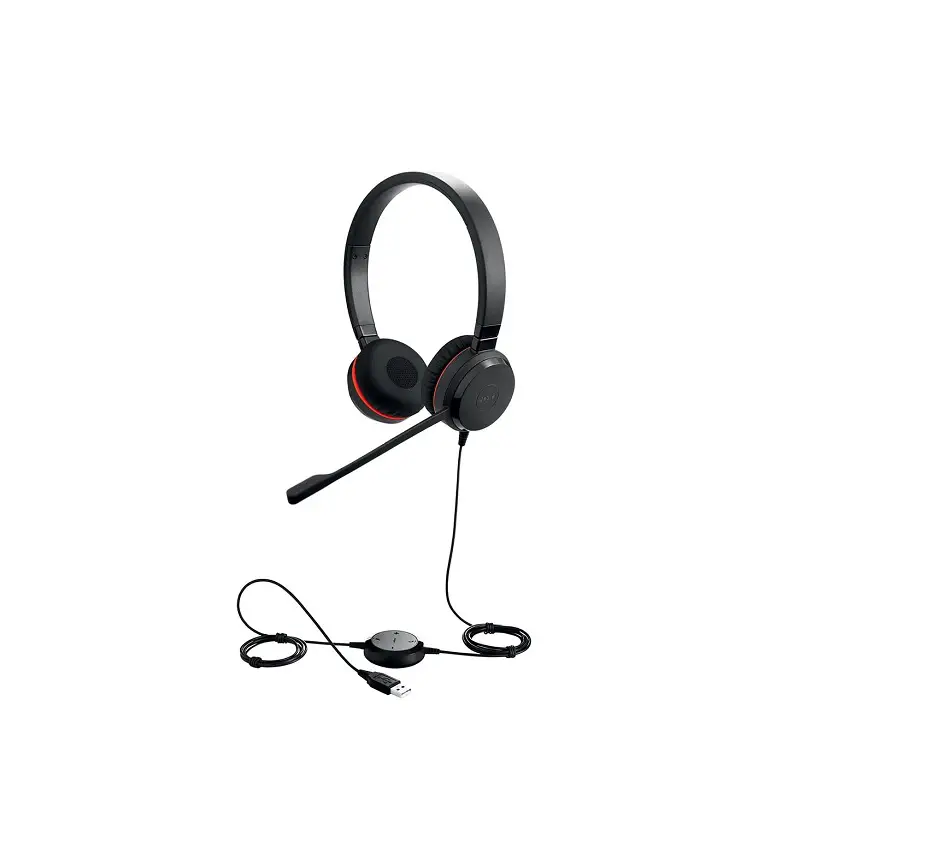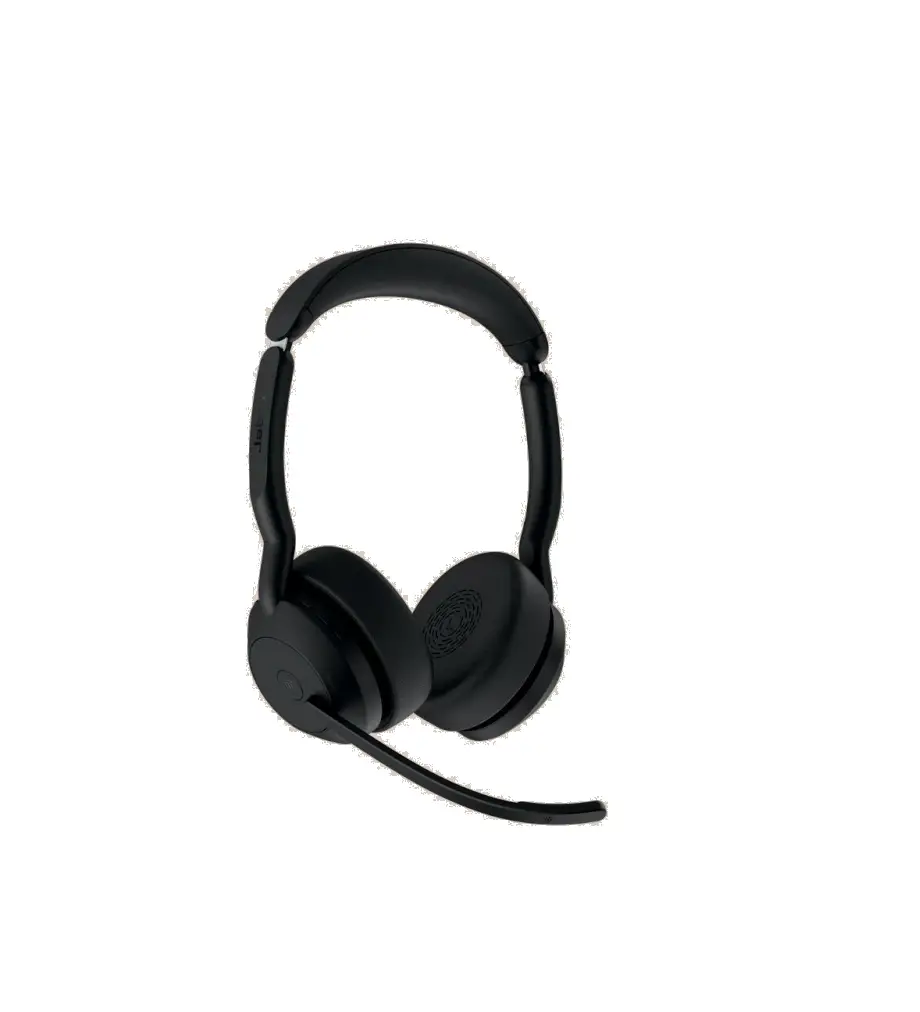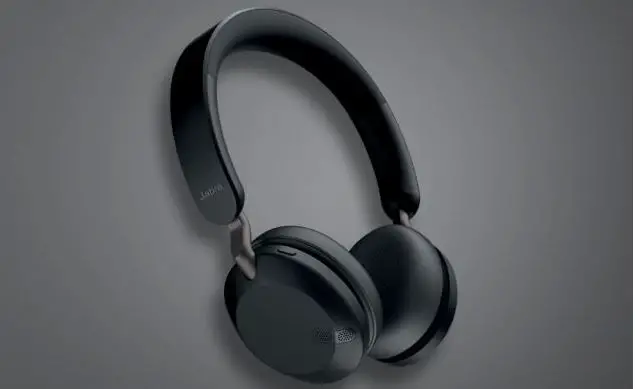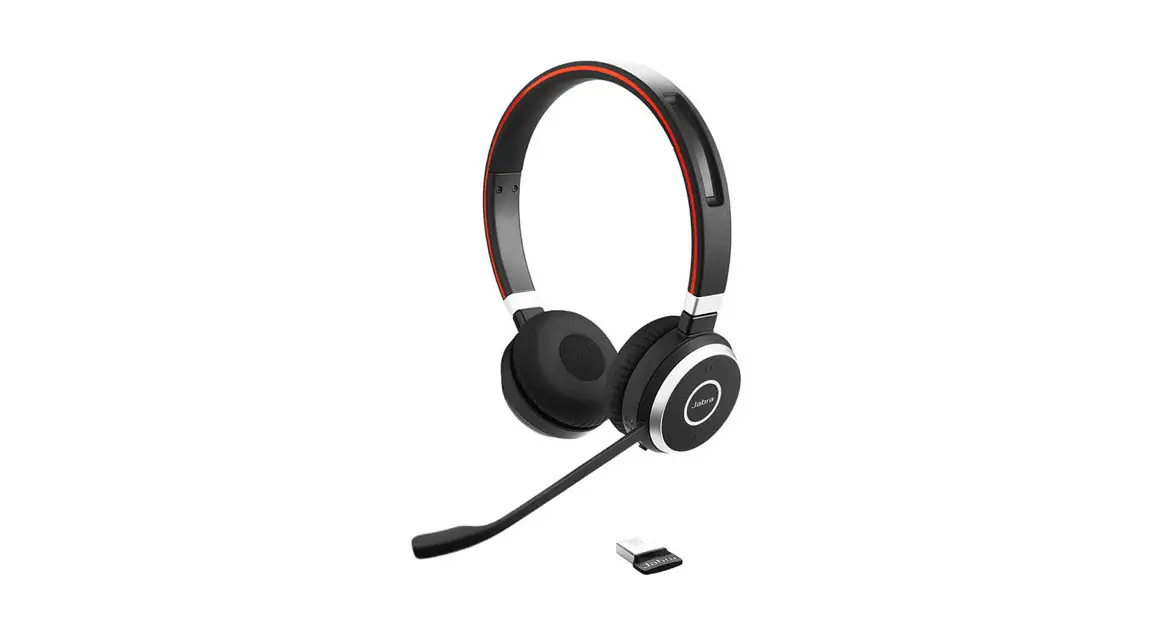
 EVOLVE2 30
User manual
GN Making Life Sound Better
MODEL: HSC140
© 2021 GN Audio A/S. All rights reserved. Jabra is a trademark of GN Audio A/S.
Made in China
Declaration of Conformity can be found on www.jabra.com/doc
Welcome
Thank you for using the Jabra Evolve2 30. We hope you will enjoy it!
Jabra Evolve2 30 features
- 2-microphone call technology
- Designed for all-day comfort
- Built-in Busylight
- 28mm speaker for exceptional sound
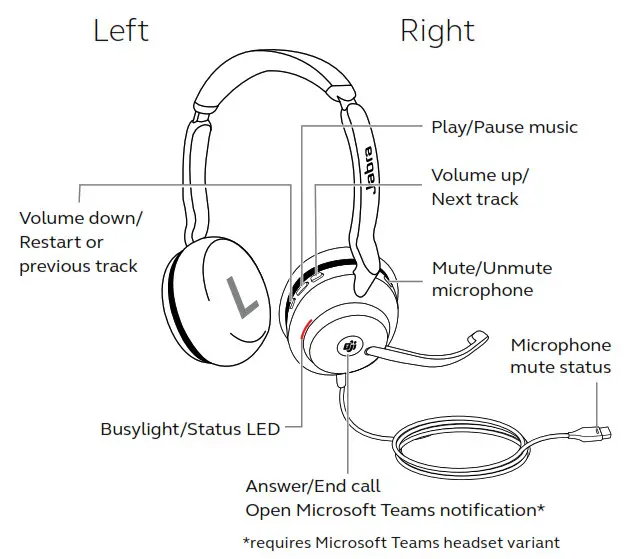
Jabra Evolve2 30 overview

Included accessories
How to connect
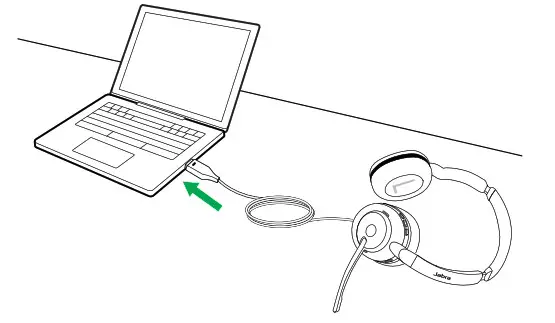
Connect to computer
Plug the Jabra Evolve2 30 into either a USB-A or USB-C port on your computer, depending on the USB variant of the headset.
Connect to mobile devices
Plug the Jabra Evolve2 30 into a USB-C port on your mobile device. Not all USB-C devices or apps support an audio connection to the Jabra Evolve2 30.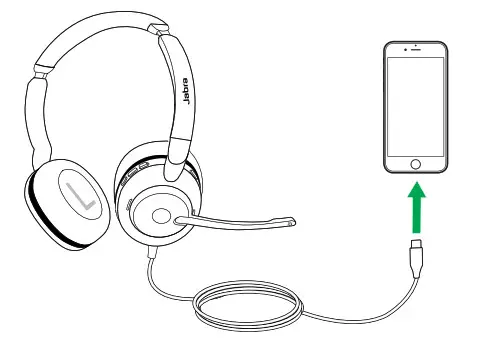
How to wear
Wearing styles
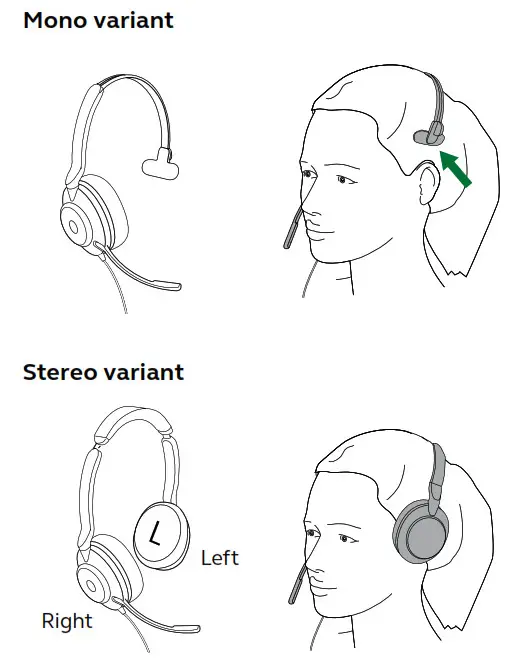
Adjusting the headset
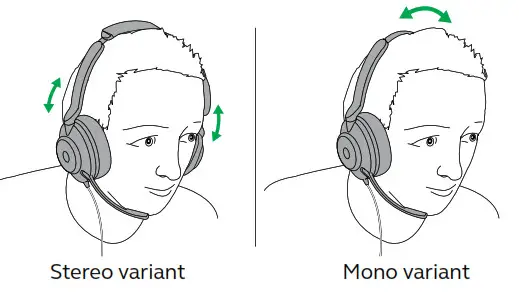
While wearing the headset, adjust the headband so that it fits your head comfortably.
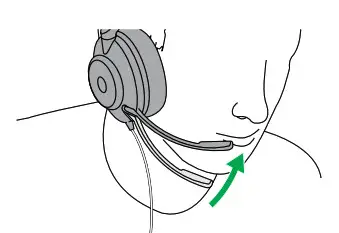
When using the microphone, it should be positioned close to your mouth.
What the LEDs mean
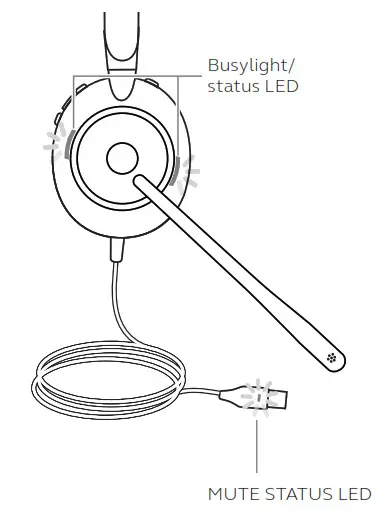
BUSYLIGHT/STATUS LED Busylight
 Incoming call
Plugged into the computer and signed into Microsoft Teams* Headset is trying to connect to Microsoft Teams. Will time out after 10 seconds*
 Microsoft Teams notification* Headset microphone muted
*requires Microsoft Teams headset variant
How to use
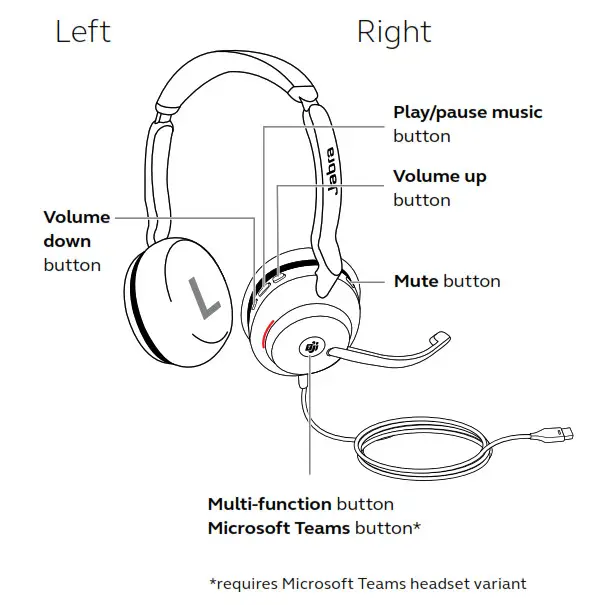
Calls & music
| Right | Calls and music | |
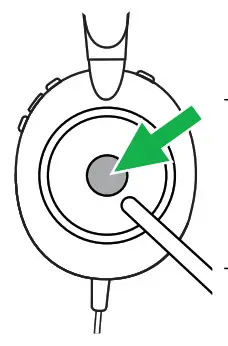 | Answer call | Press the Multifunction button |
| End call | Press the Multifunction button | |
| Reject call | Double-press the Multi-function button | |
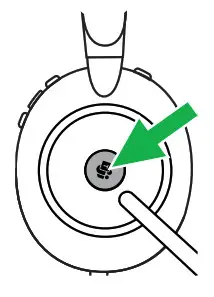 | Bring Microsoft Teams to the foreground on the computer | Press the Microsoft Teams button* (when signed into Microsoft Teams) |
| Join active Microsoft Teams meeting | Press the Microsoft Teams button* (when signed into Microsoft Teams) | |
| View Microsoft Teams missed calls and voicemails | Press the Microsoft Teams button* (when signed into Microsoft Teams) | |
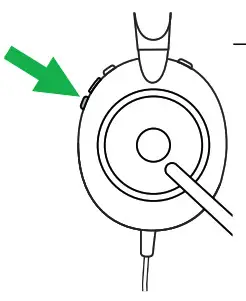 | Play/pause music | Press the Play/pause music button |
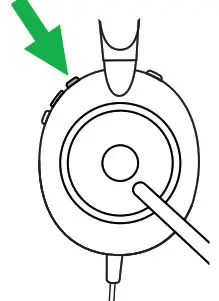 | Raise volume | Press the Volume up button |
| Next track | Press and hold (1 sec) the Volume up button | |
| Lower volume | Press the Volume down button |
| Restart track | Press and hold (1 sec) the Volume down button to restart the current track. Press and hold twice to play the previous track. | |
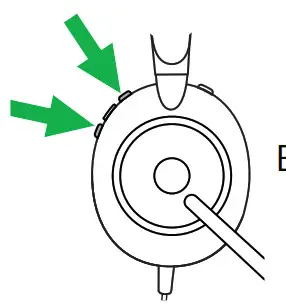 | Busylight on/off | Press the Volume up and Volume down buttons at the same time |
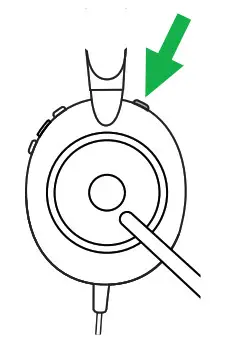 | Mute/unmute microphone | Press the Mute button, when on a call. Alternatively, move the microphone boom-arm up to mute, or down to unmute. |
Sidetone
Sidetone enables you to better hear your own voice when you are on a call.
Sidetone settings can be configured using Jabra Direct.
Voice guidance
Voice guidance are announcements that will guide you through set up, or will give you headset status updates (e.g. mute status).
| Right | Voice guidance | |
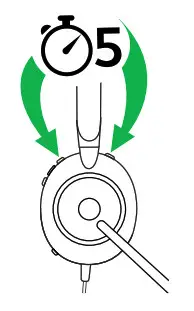 | Turn Voice guidance on/off | Press and hold (5 sec) the Mute button and the Volume up button until you hear an announcement |
Alternatively, use Jabra Direct to turn Voice guidance on or off.
Multiple call handling
The headset can accept and handle multiple calls at the same time.
| Right | Multiple call handling | |
| End current call and answer an incoming call | Press the Multifunction button |
| Put the current call on hold and answer an incoming call | Hold (2 secs) the Multi-function button | |
| Switch between held call and active call | Hold (2 secs) the Multi-function button | |
| Activate Cortana | Hold (2 secs) the Microsoft Teams button* | |
| Reject incoming call, when on a call | Double-press the multi-function button | |
Software and firmware
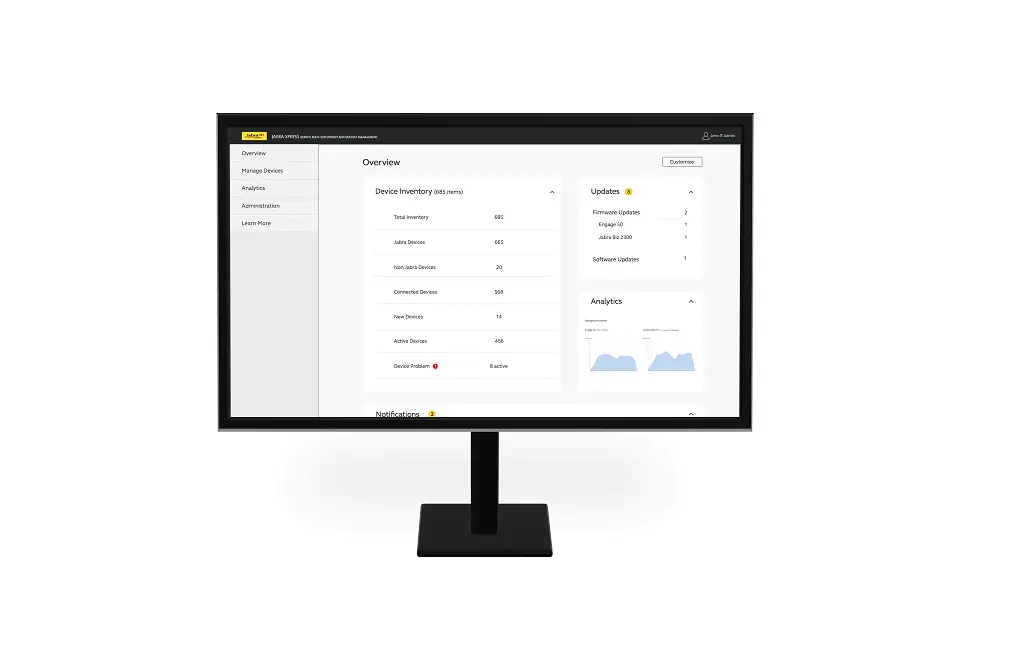
Jabra Direct
Jabra Direct is computer software designed to support, manage and enable optimal functionality for Jabra devices.
Download the latest free version from jabra.com/direct
Update firmware
Firmware updates improve performance or add new functionality to Jabra devices.
- Connect the Jabra Evolve2 30 to a computer.
- Use Jabra Direct to check for the latest firmware updates.
Support
FAQ
View the FAQs on Jabra.com/help/evolve2-30.
How to care for your headset
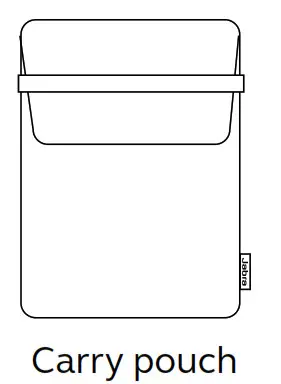
- Always store the headset in the supplied pouch.
- Avoid storage at extreme temperatures (above 55°C/131°F or below -5°C/23°F).
- Do not expose the headset to rain or other liquids.
 Jabra Direct - Engineered to optimize and personalize your headset
 Declarations of Conformity