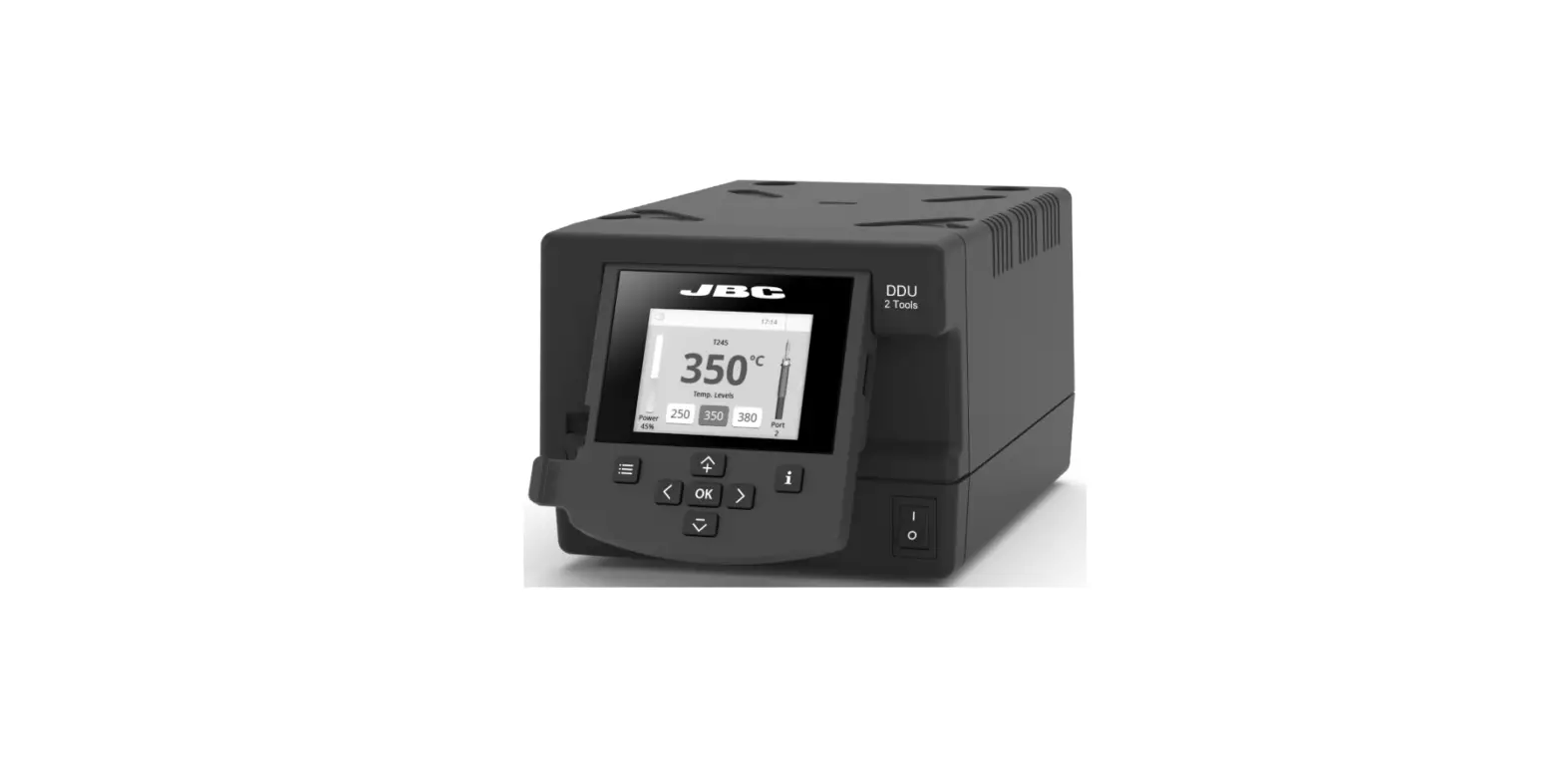
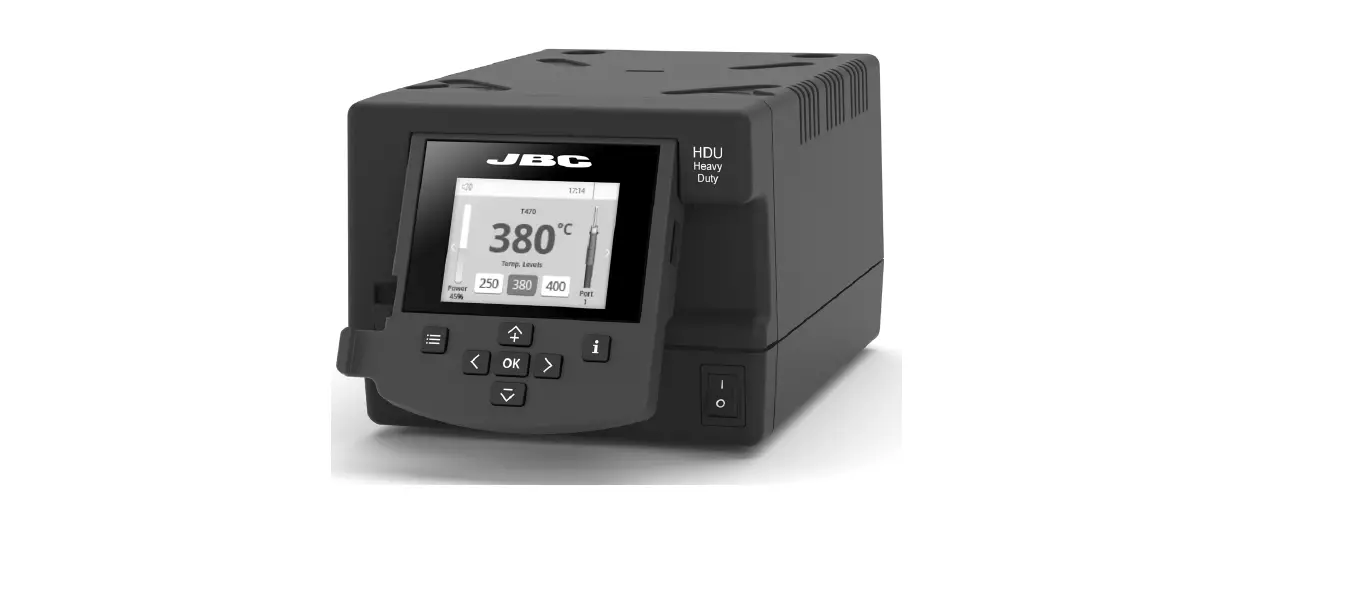
DME 4 Tool Control Unit Flexible Assembly Systems
Product Information:
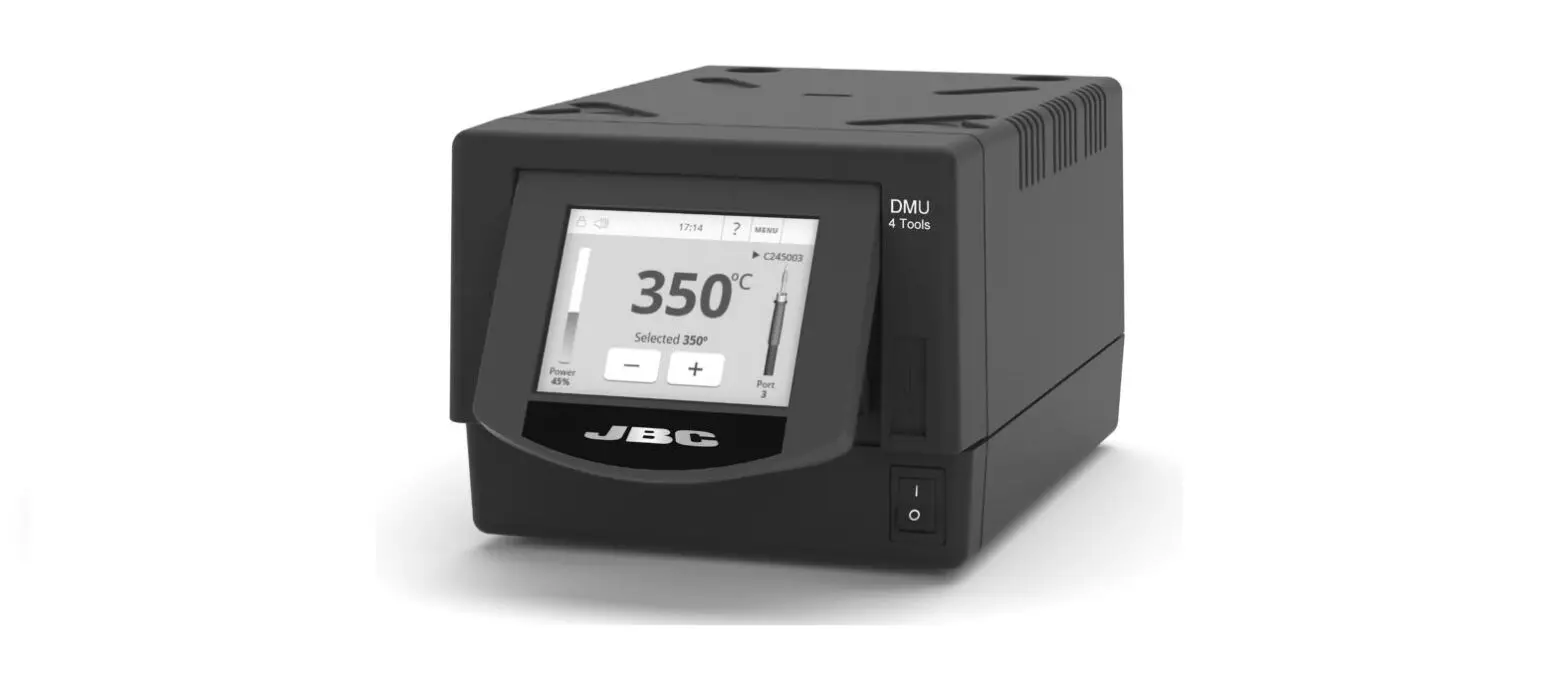
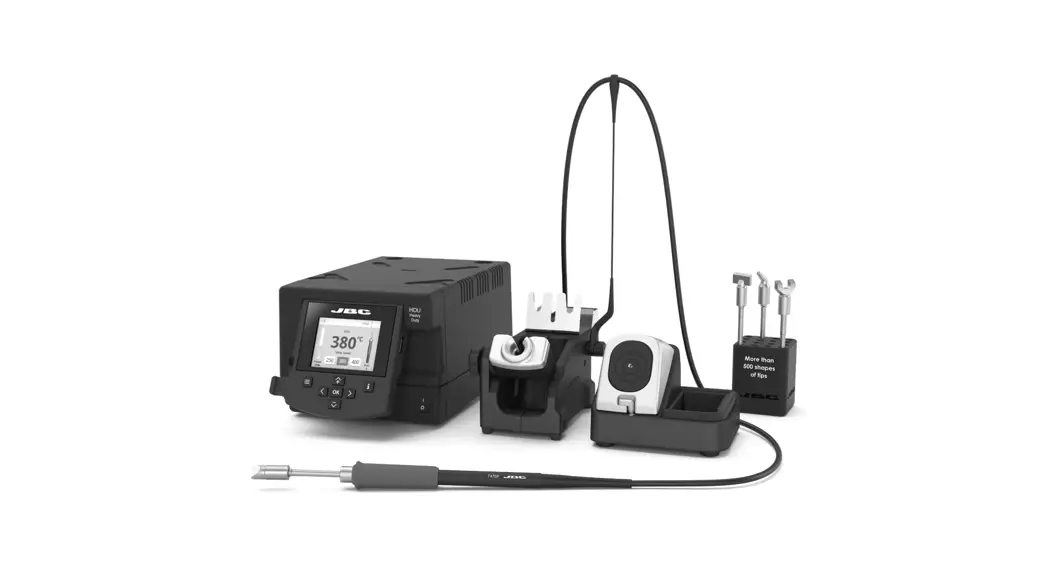
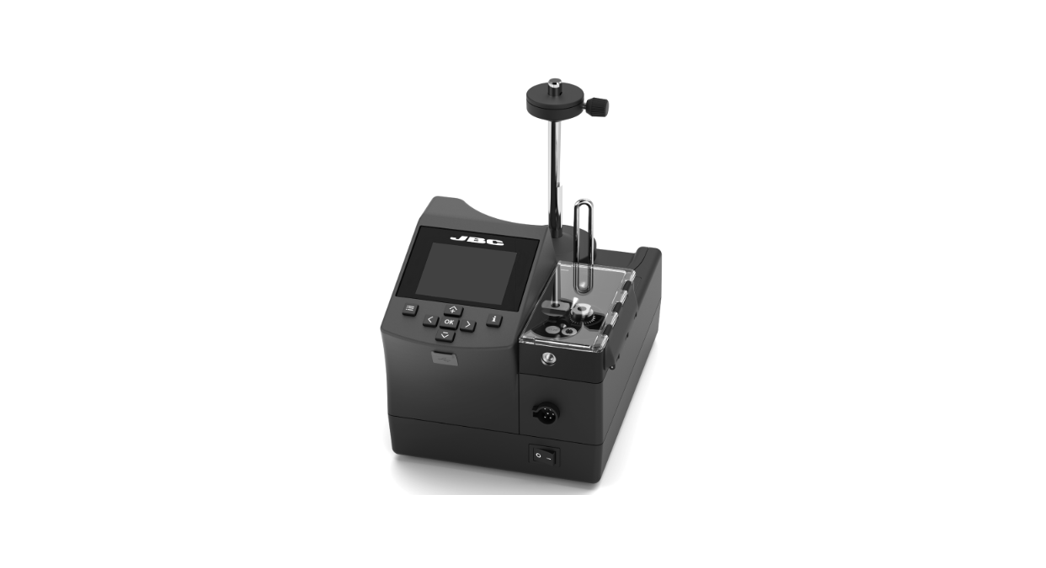
The DME 4-Tool Control Unit is a versatile product that allows
simultaneous control of up to 4 tools and 1 module + 1 pedal for
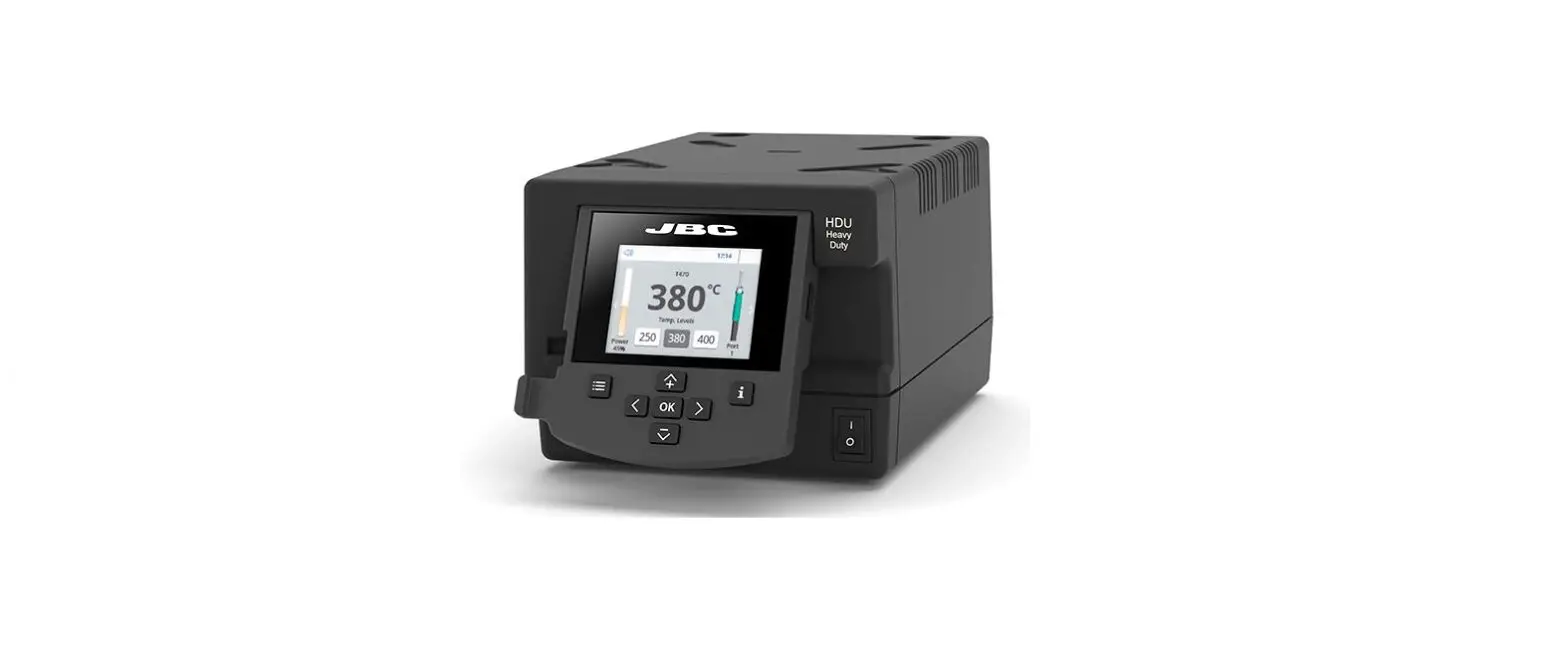
each tool. It features a 2.8″ color TFT display that can be tilted
for easy reading. The unit also includes a USB-A connector, main
switch, and various connectors for stands and peripherals.
The DME is compatible with a wide range of soldering and
desoldering tools, stands, and peripherals, making it suitable for
various soldering and desoldering needs. It offers an intuitive
user interface with quick access to station parameters and provides
helpful information and troubleshooting options.
Additionally, the DME has utilities such as graphics display for
real-time analysis, file export for saving soldering processes,
video playback, and microscope connectivity.
Product Usage Instructions:
- Unpack the DME 4-Tool Control Unit and ensure that the
following items are included:- 4-Tool Control Unit – 1 unit
- Power Cord – 1 unit (Ref. 0024077 for 100V, 0023717 for 120V,
0024080 for 230V) - Manual – 1 unit (Ref. 0031931)
- To set up the DME, follow the connection example provided in
the user manual:
- Choose the appropriate tools, stands, and peripherals from the
compatibility list mentioned in the manual based on your soldering
or desoldering needs. - Connect the tools, stands, and peripherals to the DME using the
corresponding cables and connectors. - Power on the DME using the main switch.
- Use the display and menu buttons to configure tool settings for
each port, link station ports with modules and pedals, personalize
the station, and access various utilities. - Refer to the user manual for troubleshooting assistance if
needed.
INSTRUCTION MANUAL
DME
4-Tool Control Unit
This manual corresponds to the following references: DME-9A (100V) DME-1A (120V) DME-2A (230V)
Packing List
The following items are included:
4-Tool Control Unit ………………. 1 unit
Power Cord ……………….. 1 unit Ref. 0024077 (100V)
0023717 (120V) 0024080 (230V)
Manual ………………………. 1 unit Ref. 0031931
Features
DME works simultaneously with up to 4 tools and 1 module + 1 pedal for each tool (peripheral module for each tool needed).
2,8″ Color TFT Display
Tilt the display for easy reading
USB-A Connector Main Switch
2
Connection Example
DME 4-Tool Control Unit
Stand Cable Ref. 0024227
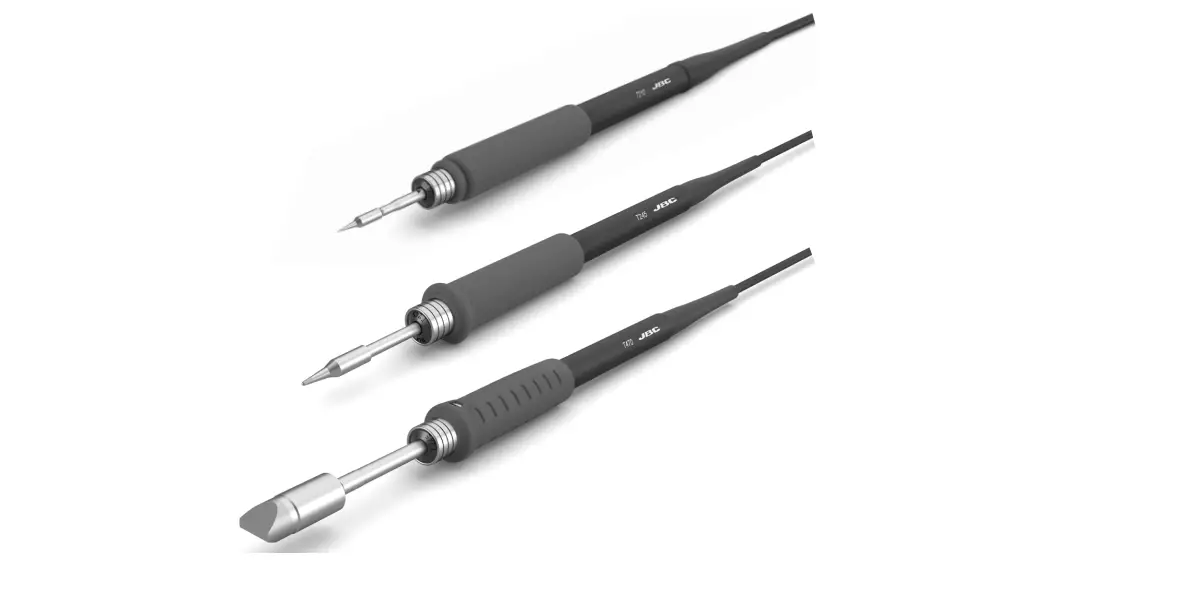
T245 General Purpose Handle
ADS Stand for T210 & T245 Handles
Module Cable Ref. 0024228
Stand Connectors
Equipotential Connector USB-B Connector
RJ12 Connector Power Socket and Fuse
Stand Cable Ref. 0024227
DR560 Desoldering Iron
DRS Stand for DR560 Desoldering
Iron
Suction Filter Ref. 0821830
MSE Electric Desoldering Module for DDE & DME
To another Peripheral To Pedal P005
3
Compatibility
Select the equipment that best suit your soldering or desoldering needs.
Control Unit
DME
Modular System
Stand
Tool
ADS
DNS APS AMS ATS HTS DSS DRS
T210 T245 T470 T210N T245N AP250 AM120 PA120 AT420 HT420 DS360 DR560
Peripherals
Cartridge MSE / MVE
Range
MNE
C210
C245
C210 C245 C250
C120
C420
C360 C560
P405
4
Work Display
DME offers an intuitive user interface which provides quick access to the station parameters.
Default PIN: 0105
Station Information
Help for each parameter
Station Lock PIN required for unlocking
17:14
? MENU
C245-003
350ºC
Cartridge in Use Introduce the reference for more precise temperature accuracity
Power Indicator Shows the %
Selected 350º
Tool in Use Press on the
power delivered by the tool.
Power
+
Port
tool image to see the Ports Display
45%
3
Troubleshooting Station troubleshooting available on the product page at www.jbctools.com
Menu Display
Press the station information button (?) to get information of the different features being displayed.
Configure tool settings for each port
Link station ports with modules and pedals
17:14
?
Personalize the Station: Station name, PIN activation, Display settings, Robot activation, Partial resets…
Station
Tools Peripherals Counters
Registers total and partial hours for each port: work, sleep, hibernation…
Utilities
Profiles Language
Reset
Utilities Useful additional applications that complement and support your work.
Multi-language 10 languages to choose from.
5
Utilities Submenu
It provides detailed graphics of tip temperature and power delivery in real-time during solder joint formation for analysis purposes. This helps you decide how to adjust your process or which tip to use to obtain the best quality soldering.
Graphics
Export graphics Insert a USB flash drive into the USB-A connector to save your soldering process in CSV format.
Files
Play videos Enables to play video files from a USB device as long as it is in AVI format and 320x240px.
Video
Provides the possibility to connect a microscope* by USB connection to the station. The image will be shown on the station display.
* compatible with: Dino Lite AM2111 and AM2011 Microscope
Provides calculator environment and function.
Calculator
Enables to convert, for example, ºC values into ºF values.
Convert
System notifications
The following icons will be displayed on the screen status bar.
USB flash drive is connected.
Station software update. Press INFO to start the process.
Station is controlled by a PC.
Warning. Press INFO for failure description.
Station is controlled by a robot. downloaded to the station.
Error. Press INFO for failure description, the type of error and how to proceed.
6
MSE / Pedal Initial Setup
After connecting the electric desoldering module (MSE-A), a popup window is opened.
Peripherals
19:29
?
19:29
?
Peripherals
MS a
Port 1 2 3 4 PERIPHERAL
Peripheral 1 plugged:
Electric Suction Module
Setup
Postpone
Peripherals
MS a PD a
Port 1 2
3 4
1. To configure your Electric Suction Module press Setup in the popup window.
2. Select the module from the list of peripheral connections. Remember your first connection is denoted as “a”, the second being “b”, etc. (e.g. MS_a, MS_b,…). Do the same with the pedal (e.g. PD_a,…)
3. Select the port of the tool you want to link to the peripheral.
Simultaneous Ports Control
4. Press Menu or Back to save changes. Once set up, the module settings can be changed by entering the Peripherals Menu.
See the information for all ports in real time when pressing the tool image on the Work display.
19:29
Port 1 C245903
Hibern.
? MENU
Port 2 C560001
Sleep
Tool port Press any port to show on the Work display
Tool Status Tip temperature,
Sleep or Hibernation
Port 3 C120001
350º
Port 4
C210001
Hibern.
7
Operation
JBC’s Most Efficient Soldering System
Our revolutionary technology is able to recover tip temperature extremely quickly. It means the user can work at a lower temperature and improve the soldering quality. The tip temperature is further reduced thanks to the Sleep and Hibernation modes which increase up to 5 times the life of the tip.
1. Work
2. Sleep
3. Hibernation
When the tool is lifted from the stand the tip will heat up to the selected temperature.
Long period in the stand
When the tool is in the stand, the temperature falls to the preset Sleep temperature.
After longer periods of inactivity, the power is cut off and the tool cools down to room temperature.
19:29
? MENU
C245003
350
Selected 350ºC
Power
Port
45%
1
Tool Settings: · Operating Temp.
19:29 T245
? MENU
Sleep
Tool in the stand Actual Temp. 180º Delay to hibernation: 29:30
Port 1
Tool Settings: · Sleep
19:29 T245
? MENU
Hibernation
Actual Temp. 25ºC
Port 1
Tool Settings: · Hibernation
Change Work temperature from 90 to 450 ºC.
or steps of ±5 ºC / ºF or steps of ±50 ºC / ºF
Change Sleep temperature and set Sleep delay from 0 to 9 min or no Sleep.
Change Hibernation delay from 0 to 60 min or no Hibernation.
Tool Settings: · Temp. Levels
Press , select Tool Settings and activate the Temp. Levels option.
or steps of ± 5 ºC / ºF.
8
USB Connector
Download the latest software from our website to improve your soldering station at www.jbctools.com/software.html.
Maintenance
Before carrying out maintenance or storage, always allow the equipment to cool.
– Clean the station display with a glass cleaner or a damp cloth.
Clean periodically
– Use a damp cloth to clean the casing and the tool. Alcohol can only be used to clean the metal parts.
– Periodically check that the metal parts of the tool and stand are clean so that the station can detect the tool and establish its status.
– Maintain tip surface clean and tinned prior to storage in order to avoid tip oxidation. Rusty and dirty surfaces reduce heat transfer to the solder joint.
– Periodically check all cables and tubes.
– Replace a blown fuse as follows:
Fuse
Fuse Holder
Fuse holder
1. Pull off the fuse holder and remove the fuse. If necessary use a tool to lever it off.
2. Insert the new fuse into the holder and return it to the station.
– Replace any defective or damaged pieces. Use original JBC spare parts only.
– Repairs should only be performed by a JBC authorized technical service.
9
Safety
It is imperative to follow safety guidelines to prevent electric shock, injury, fire or explosion. – Do not use the units for any purpose other than soldering or rework. Incorrect use may cause a fire. – The power cord must be plugged into approved bases. Be sure that it is properly grounded before use. When unplugging it, hold the plug, not the wire. – Do not work on electrically live parts. – The tool should be placed in the stand when not in use in order to activate the sleep mode. The soldering tip or nozzle, the metal part of the tool and the stand may still be hot even when the station is turned off. Handle with care, including when adjusting the stand position. – Do not leave the appliance unattended when it is on. – Do not cover the ventilation grills. Heat can cause inflammable products to ignite. – Avoid flux coming into contact with skin or eyes to prevent irritation. – Be careful with the fumes produced when soldering. – Keep your workplace clean and tidy. Wear appropriate protection glasses and gloves when working to avoid personal harm. – Utmost care must be taken with liquid tin waste which can cause burns. – This appliance can be used by children over the age of eight and also people with reduced physical, sensory or mental capabilities or lack of experience provided that they have been given adequate supervision or instruction concerning the use of the appliance and understand the hazards involved. Children must not play with the appliance. – Maintenance must not be carried out by children unless supervised.
10
Notes
11
Notes
12
Notes
13
Notes
14
Specifications
DME 4-Tool Control Unit Ref. DME-1A 120V 50/60Hz. Input fuse: T-3.5A. Output: 23.5V Ref. DME-2A 230V 50/60Hz. Input fuse: T-3.15A. Output: 23.5V Ref. DME-9A 100V 50/60Hz. Input fuse: T-8A. Output: 23.5V
– Peak Power (Tool): – Selectable Temperature: – Idle Temp. Stability (still air): – Temp Accuracy: – Temp Adjustment: – Tip to Ground Voltage/Resistance:
– Ambient Operating Temp: – Connections:
150W per tool 90 – 450 °C / 190 – 840 °F ±1.5ºC / ±3ºF Meets and exceed IPC J-STD-001F ±3% using reference cartridge ±50ºC / ±90ºF Through station settings menu Meets and exceeds ANSI/ESD S20.20-2014 IPC J-STD-001F 10 – 50 ºC / 50 – 122 ºF USB-A: Firmware Update,
Grafics and Profiles, Dino-Lite USB Microscope (models AM2011, AM2111) USB-B: PC Communication RJ12: Fume Extractor/Peripherals/Robot
– Control Unit Dimensions / Weight: (L x W x H)
232 x 148 x 120 mm / 4.57 kg 9.13 x 5.83 x 4.72 in / 10.08 lb
– Total Package Dimensions / Weight: 258 x 328 x 208 mm / 4.97 kg
(L x W x H)
10.16 x 12.91 x 8.19 in / 10.96 lb
Complies with CE standards. ESD safe.
15
Warranty JBC’s 2 year warranty covers this equipment against all manufacturing defects, including the replacement of defective parts and labour. Warranty does not cover product wear or misuse. In order for the warranty to be valid, equipment must be returned, postage paid, to the dealer where it was purchased. Get 1 extra year JBC warranty by registering here: https://www.jbctools.com/productregistration/ within 30 days of purchase.
This product should not be thrown in the garbage. In accordance with the European directive 2012/19/EU, electronic equipment at the end of its life must be collected and returned to an authorized recycling facility.
0031931-270623
 JBC Soldering and Rework equipment for electronics