 Printed Matter No. 6159925540
Tracking base
Product Instructions
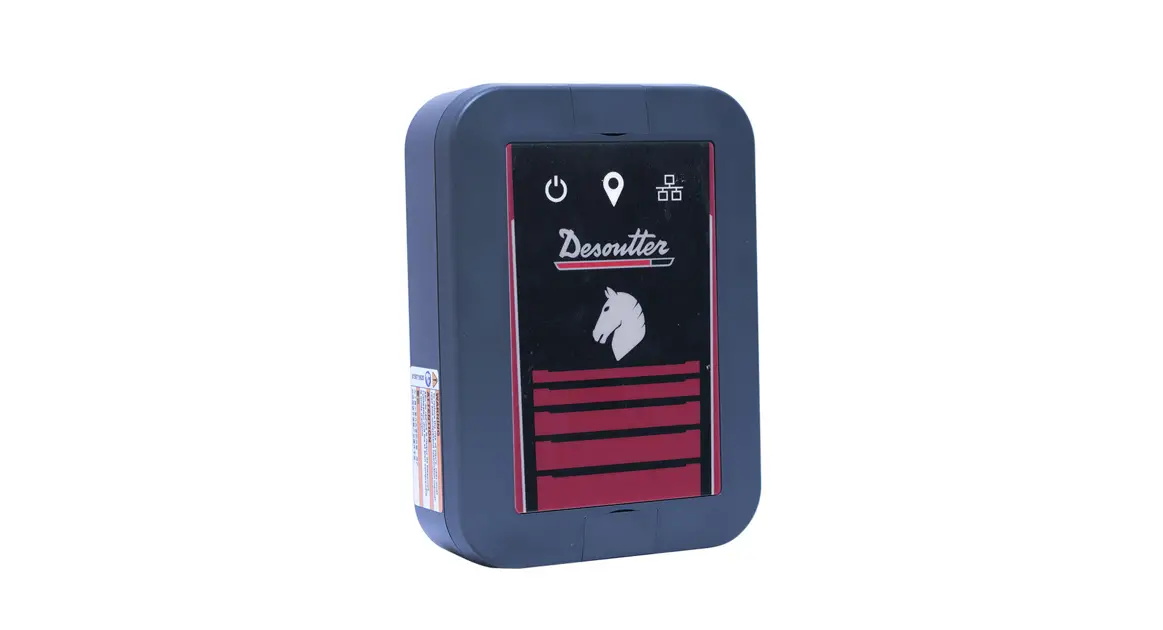
Model 6158133350
Part number Tracking base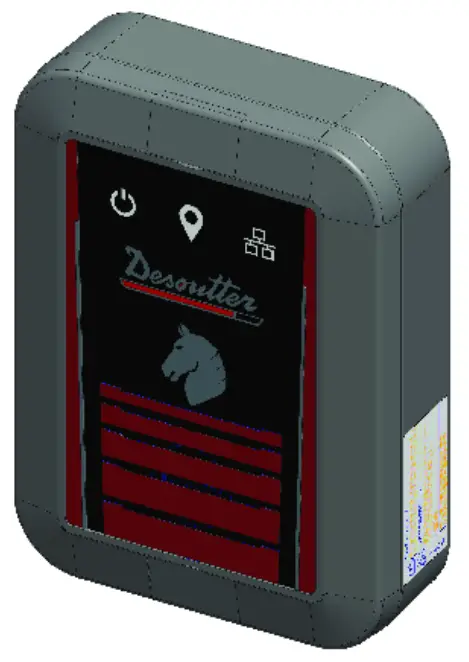
Tracking Base Virtual Cable
Download the latest version of this document at http://www.desouttertools.com/info/6159925540_EN WARNING
 Read all safety warnings and instructions
Failure to follow the safety warnings and instructions may result in electric shock, fire and/or serious injury.
Save all warnings and instructions for future reference
Product Information
General Information WARNING Risk of Property Damage or Severe Injury
Ensure that you read, understand and follow all instructions before operating the tool. Failure to follow all the instructions may result in electric shock, fire, property damage and/or severe bodily injury.
► Read all Safety Information delivered together with the different parts of the system.
► Read all Product Instructions for installation, operation and maintenance of the different parts of the system.
► Read all locally legislated safety regulations regarding the system and parts thereof.
► Save all Safety Information and instructions for future reference.
Warranty
- Product warranty will expire 12 months after the product is first taken into use, but will in any case expire at the latest 13 months after delivery.
- Normal wear and tear on parts is not included within the warranty.
- Normal wear and tear is that which requires a part change or other adjustment/overhaul during standard tools maintenance typical for that period (expressed in time, operation hours or otherwise).
- The product warranty relies on the correct use, maintenance, and repair of the tool and its component parts.
- Damage to parts that occurs as a result of inadequate maintenance or performed by parties other than Desoutter or their Certified Service Partners during the warranty period is not covered by the warranty.
- To avoid damage or destruction of tool parts, service the tool according to the recommended maintenance schedules and follow the correct instructions.
- Warranty repairs are only performed in Desoutter workshops or by Certified Service Partners. Desoutter offers extended warranty and state of the art preventive maintenance through its Tool Care contracts. For further information contact your local Service representative. For electrical motors:
- Warranty will only apply when the electric motor has not been opened.
Website
Information concerning our Products, Accessories, Spare Parts and Published Matters can be found on the Desoutter website.
Please visit: www.desouttertools.com.
Information about spare parts
Exploded views and spare parts lists are available in Service Link at www.desouttertools.com.
Dimensioning
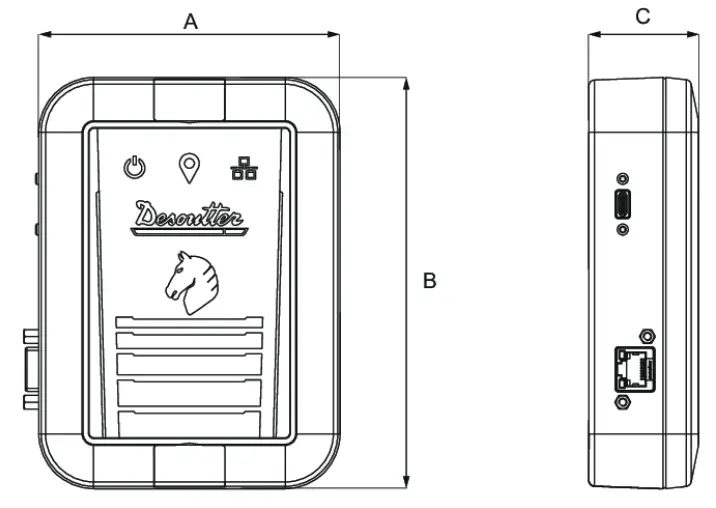
| mm | in. | |
| A | 110 | 4.33 |
| B | 150 | 5.9 |
| mm | in. | |
| C | 40 | 1.57 |
CAD files
For information about the dimensions of a product, see the Dimensional drawings archive:https://www.desouttertools.com/resource-centre
Overview
Virtual cable
Virtual cable is a Desoutter solution based on the UWB (Ultra-Wide Band) technology.
It prevents the operator to use the tool outside a predefined area, named Working space.
It is composed of a Master tracking base connected to CONNECT and of tools equipped with trackers
(TRACKER-EABC e-LINK,TRACKER-EPBC and TRACKER-EABS ranges).
The Master tracking base can manage up to 7 additional tracking bases which control their own working space.
Each tracking base can manage up to 8 trackers.
All devices (tracking bases, trackers) must be inside 15/20 m (49/65 feet) radius from the Master tracking base.
Extra UV are required to use this solution.
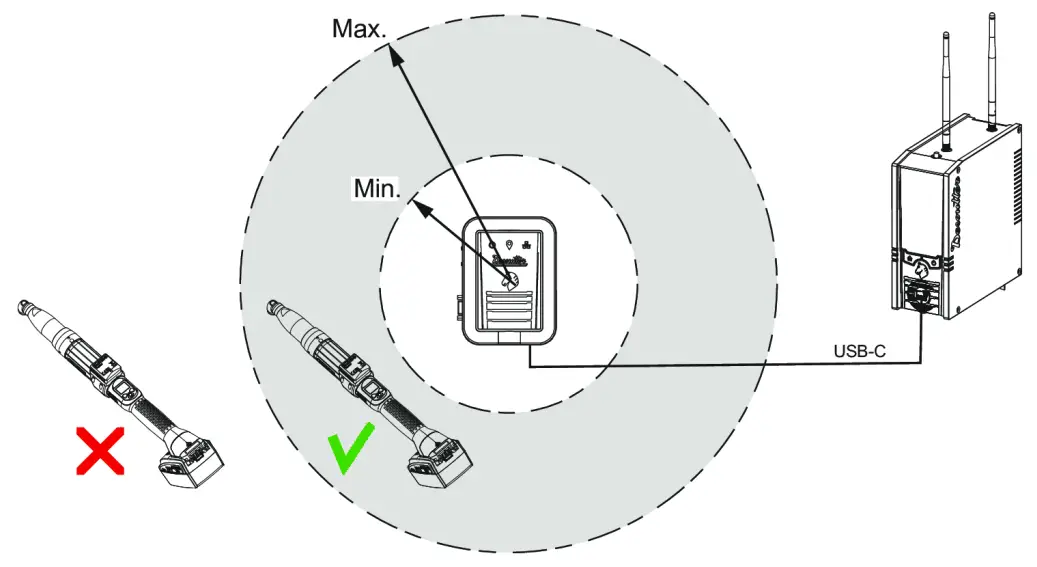
Example of installation -1 working space
The Master tracking base is connected to CONNECT via USB-C.
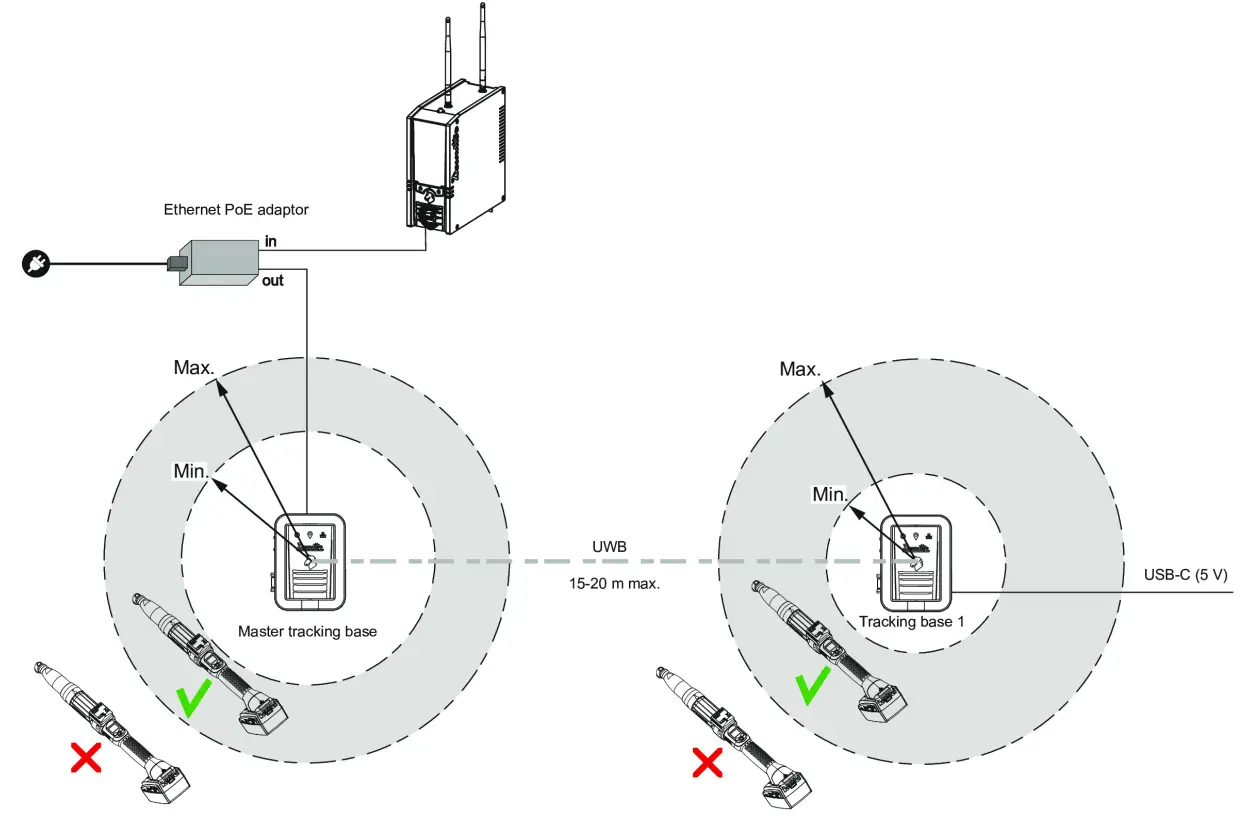
Example of installation – 2 working spaces
The Master tracking base is connected to CONNECT via Ethernet.
The tracking base is powered by an external USB-C (5 V).
The tracking bases are communicating via UWB.
Depending on the configuration of the workstation, the distance between the tracking bases cannot exceed 15-20 m (49/65 feet).
Technical data
Power supply
PoE: 48 V 
USB-C: 5 V
Power consumption
PoE
20 mA
LPS (Limited Power Source) on PoE power supply
Maximum PoE power supplied: 15.4 W
USB-C
180 mA
Weight
0.280 kg
0.62 lb
Storage and use conditions
| Storage temperature Operating temperature Storage humidity Operating humidity Altitude up to Usable in Pollution degree 2 environment IP54 Indoor use only | 0° to +40°C (32 to +104 F) +5 to 40 °C (41 to 104 F) 0-80 % RH (non-condensing) 0-80 % RH (non-condensing) 2000 m (6562 feet) |
Wireless Communication specifications
Frequency: 3.2 – 7.0 GHz power – 0.831 dBm
Description
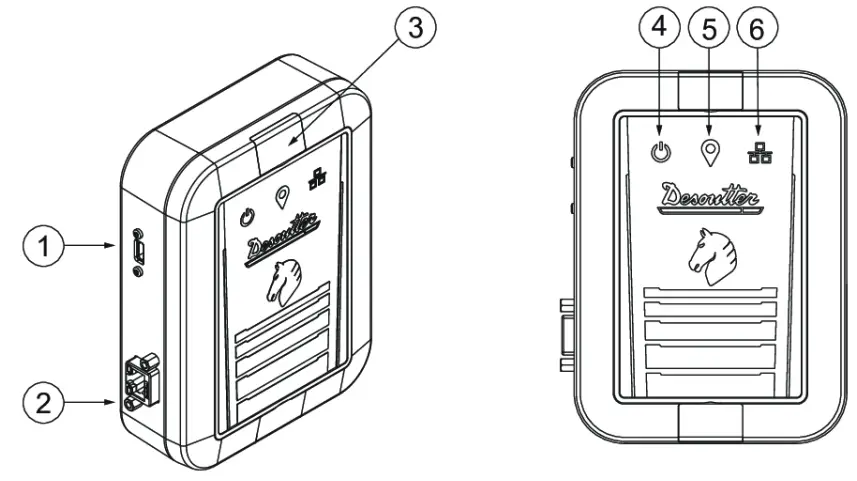
- USB-C
- Ethernet/Ethernet PoE
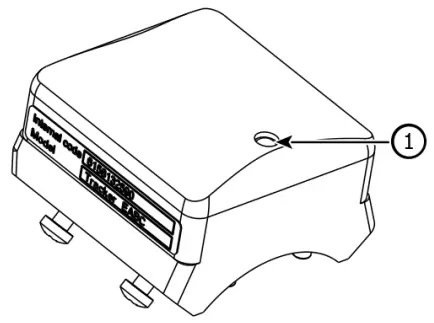
- Mounting screw access door
- Power supply indicator
- UWB indicator
- Ethernet / USB indicator
Installation
Installation Requirements
Read before installing
- Trackers mounted on tools must be always visible by the tracking base.
- Avoid metallic structure between trackers and tracking base.
- All devices (tracking bases, trackers) must be inside 15/20 m (49/65 feet) radius from the Master tracking base.
- When the communication is set to USB, the Master Tracking Base cannot be positioned more than 5 m (16 feet) from CONNECT.
- Place the tracking base next to the center of the working space.
- Place the tracking base 2 meters (6.5 feet) maximum above the floor.
Other UWB systems may interfere with communication used between trackers and tracking base.
The UWB radio channel used for communication can be modified by using CVIMONITOR.
Minimum firmware and software releases
| Product | Release |
| CONNECT | V 2.1.5.x |
| CVI CONFIG | V 2.3.4.x |
| CVIMONITOR | V 1.7.8.x |
Defining the Communications Settings for the Master Tracking Base
Before installing the Master tracking base in the workstation, check its communication settings.
- Plug the USB-C cable from the Master tracking base to the computer where CVIMONITOR is installed.
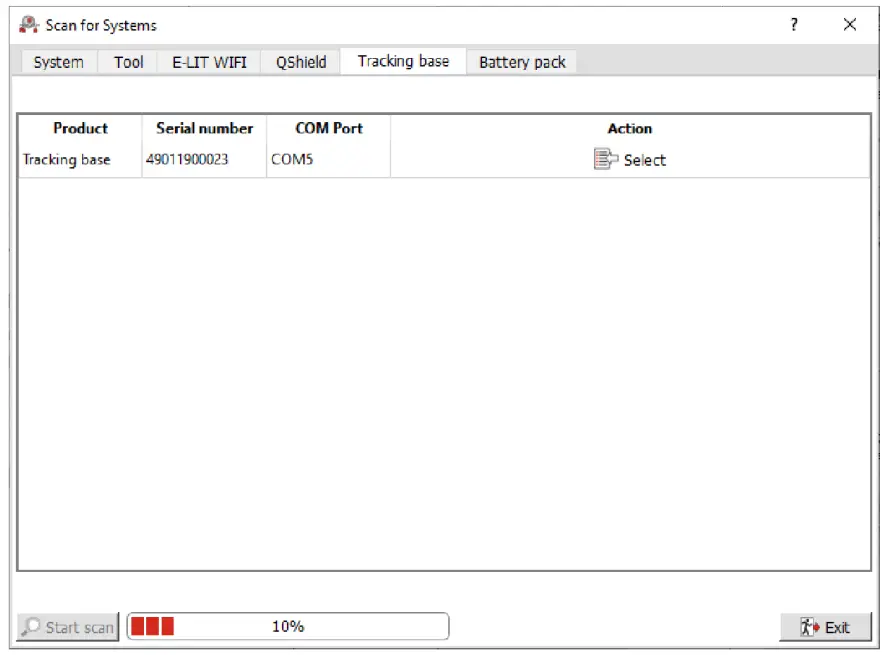
- Launch CVIMONITOR. Minimum firmware and software releases [Page 7]

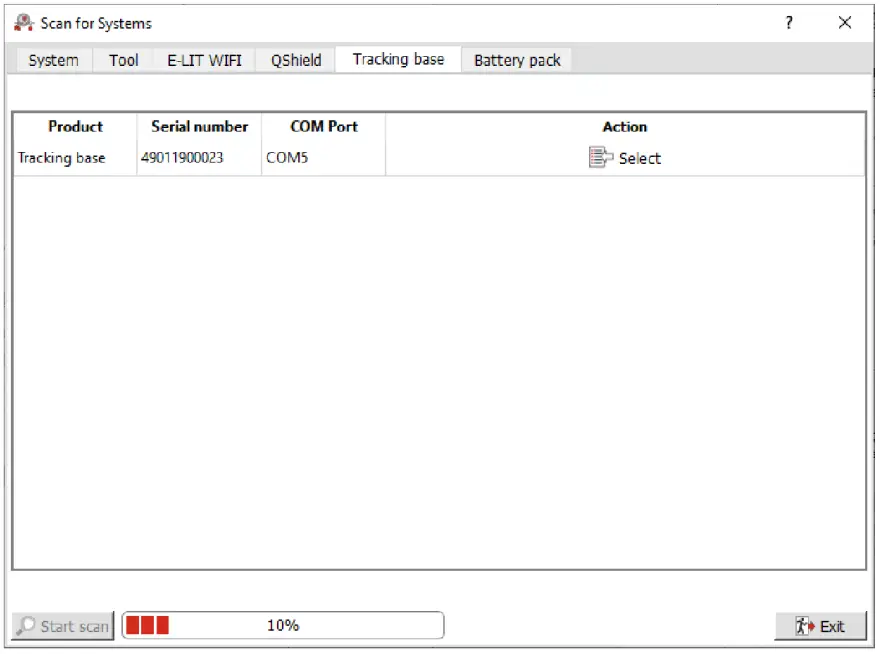
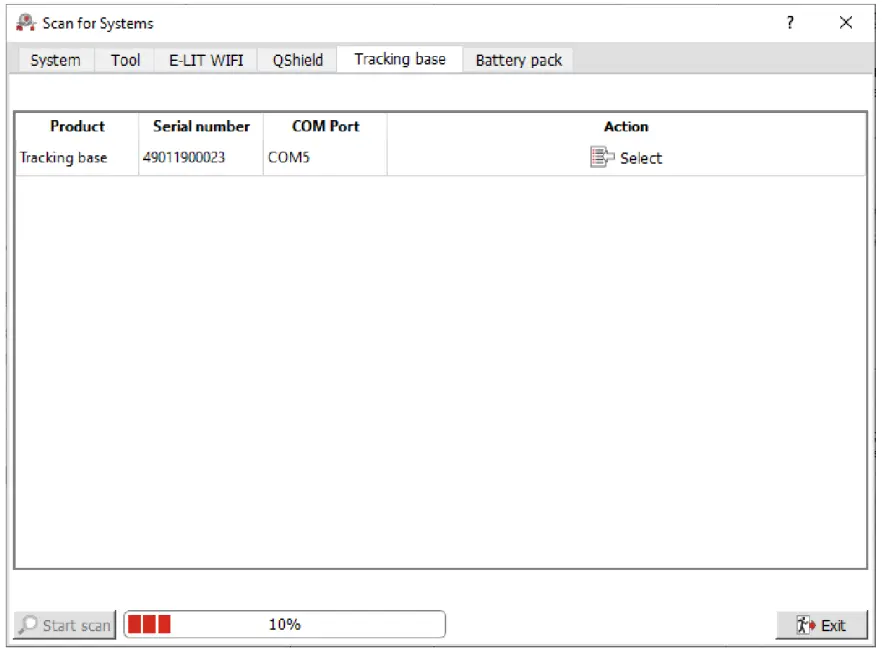
- Click the tab Tracking base.
- When the tracking base is displayed, click Select.

- Select USB if the tracking base has to be connected physically to the USB port of CONNECT. Click Write.

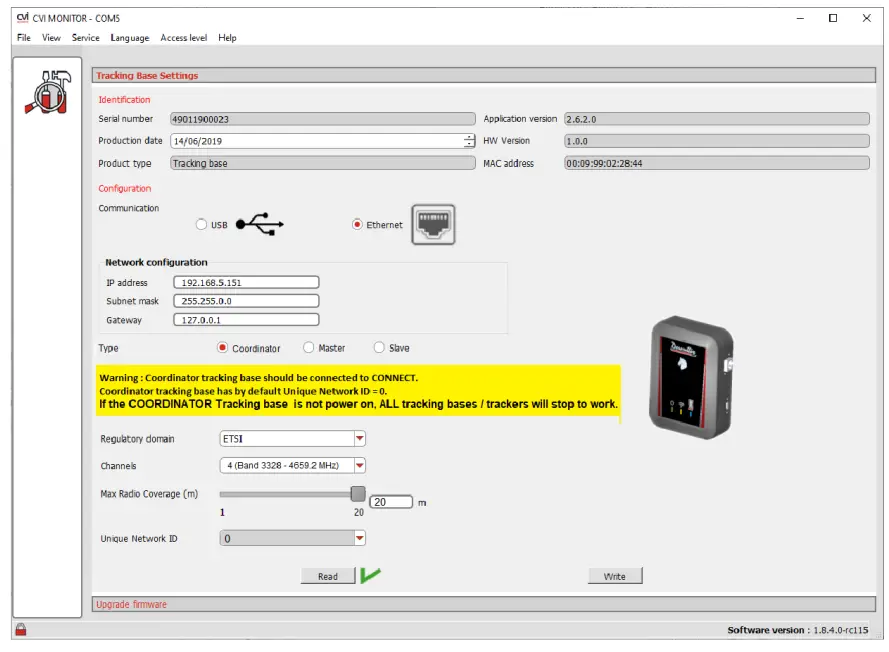
- Select Ethernet if the tracking base has to be connected to the Ethernet port of CONNECT. Enter the IP address of the tracking base (192.168.5.151 by default), its sub-net mask (255.255.255.0 by default) and the gateway (127.0.0.1 by default).. Click Write.
- Write down the tracking base MAC address. This information is mandatory for virtual system configuration with CONNECT or CVI CONFIG.
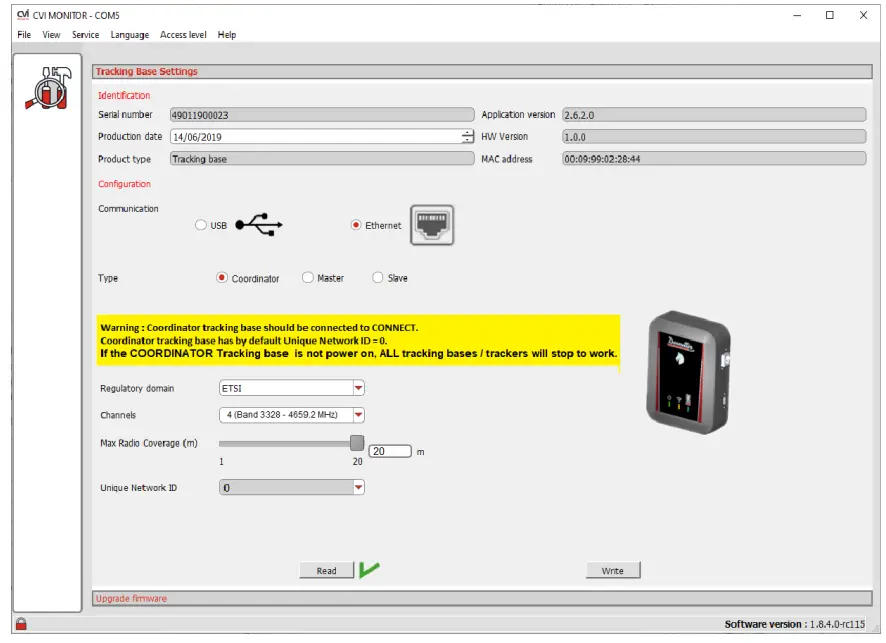
The UWB radio channel used is set to 2 by default (band 3774 – 4243.2 MHz). UWB radio channel possibilities are:
| Tracking Base Model | UWB Channel | Region |
| FCC | Channel 1 (band 3244.8 – 3744 MHz) | FCC (US & Canada) |
| FCC, CE | Channel 2 (band 3774 – 4243.2 MHz) | ETSI (Europe) and FCC (US & Canada) |
| FCC, CE | Channel 3 (band 4243.2 – 4742.4 MHz) | ETSI (Europe) and FCC (US & Canada) |
| FCC, CE | Channel 4 (band 3328 – 4659.2 MHz) | ETSI (Europe) and FCC (US & Canada) |
| FCC, CE | Channel 5 (band 6240 – 6739.2 MHz) | ETSI (Europe) and FCC (US & Canada) and SRRC (China) |
| FCC, CE | Channel 7 (band 5980.3 – 6998.9 MHz) | ETSI (Europe) and FCC (US & Canada) |
| CE only | 4900xxxxxxx to 4903xxxxxxx From index = 0 to3 | before 2021 |
| CE & FCC | 4904xxxxxxx and later From index = 4 | after 2021 |
Select tracking base type (Coordinator by default), the max radio coverage (20 meters by default) and unique network ID (0 by default).
Network ID = 0 define the Coordinator Tracking bases. If the Coordinator Tracking base is not power on, ALL tracking bases (Master / Slave) and trackers will stop to work.
Only with tracking base firmware version 2.7 or later, if the coordinator tracking base is not power on then a Master tracking base is automatically elected as the new Coordinator. In this case ALL tracking bases (Master / Slave) and trackers will continue to work.
Coordinator tracking is identified with fast blinking UWB indicator.
Coordinator and Master Tracking bases required a connection (USB or Ethernet) with a CONNECT and a power supply to work. The power supply can be provided by:
- USB communication
- Ethernet (if CONNECT is PoE)
- PoE injector.
Network ID configuration will be applied only for Master Tracking bases. Slave Tracking base depends on Master Tracking base. Slave Tracking base only needs a power supply to work.
Updating the Tracking Base Firmware
Before installing the Master tracking base in the workstation, check its tracking base firmware.
- Plug the USB-C cable from the Master tracking base to the computer where CVIMONITOR is installed.
- Launch CVIMONITOR.

- Click the tab Tracking base.
- Select the tracking base.
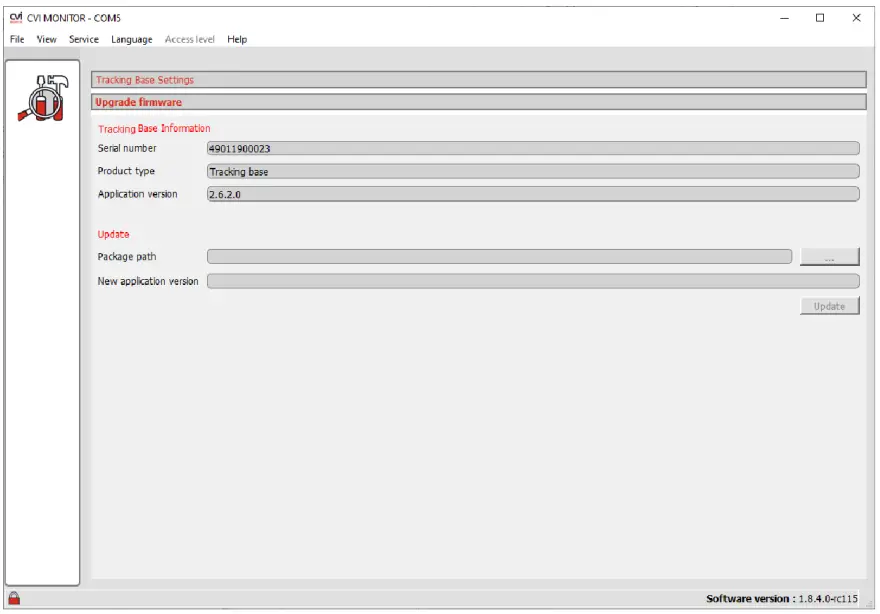
- Select Upgrade firmware panel.

- Plug a CVI Key with production setup right.
- Press ••• button and Select Tracking base ZIP package.
 Tracking base ZIP package can be found on Desoutter support library available at:
https://thehub.group.atlascopco.com/Teams/CPD_rd_desoutter/SitePages/DSL.aspx - Press Update button.
- A progress bar is displayed to show the update progress status.
Defining the Communications Settings for the Tracker
Before using the tracker in the workstation, check first its correct installation on the tool.
Refer to the Safety Instructions of Tracker (printed matter Tracker (EABC) 6158132590, Tracker (EPBC) 6158132600, Tracker (EABS) 6158134150) available at: https://www.desouttertools.com/resource-centre.
After that check its communication settings.
- Plug the USB-C cable from the tool with tracker to the computer where CVIMONITOR is installed.
- Launch CVIMONITOR.

- Select the tool.
- Select tool identification tab.
- Plug a CVI Key with change tool setup right.
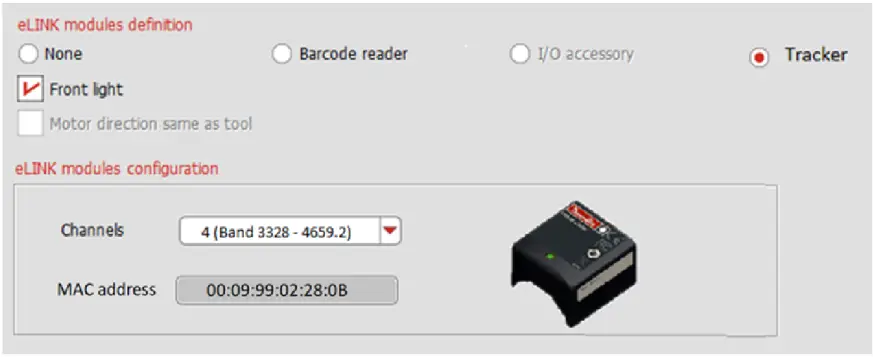
- Declare Tracker accessory on tool.

- Write down the tracker MAC address.
- This information is mandatory for virtual system configuration with CONNECT or CVI CONFIG.
- The UWB radio channel used is set to 2 by default (band 3774 – 4243.2 MHz). UWB radio channel possibilities are:
UWB Channel Region Channel 1 (band 3244.8 – 3744 MHz) FCC (US & Canada) Channel 2 (band 3774 – 4243.2 MHz) ETSI (Europe) and FCC (US & Canada) Channel 3 (band 4243.2 – 4742.4 MHz) ETSI (Europe) and FCC (US & Canada) Channel 4 (band 3328 – 4659.2 MHz) ETSI (Europe) and FCC (US & Canada) Channel 5 (band 6240 – 6739.2 MHz) ETSI (Europe) and FCC (US & Canada) and SRRC (China) Channel 7 (band 5980.3 – 6998.9 MHz) ETSI (Europe) and FCC (US & Canada) UWB radio channel used should be the same between tracker and tracking base.
Updating the Tracker Firmware
Before installing the tracker in the workstation, check its tracking base firmware.
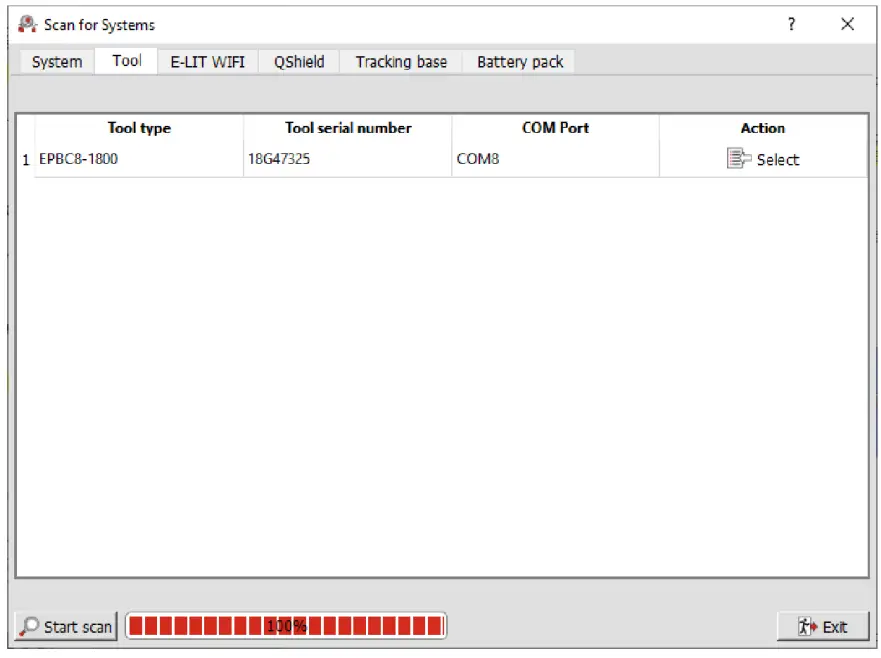
- Plug the USB-C cable from the tool with tracker to the computer where CVIMONITOR is installed.
- Launch CVIMONITOR.

- Select the tool.
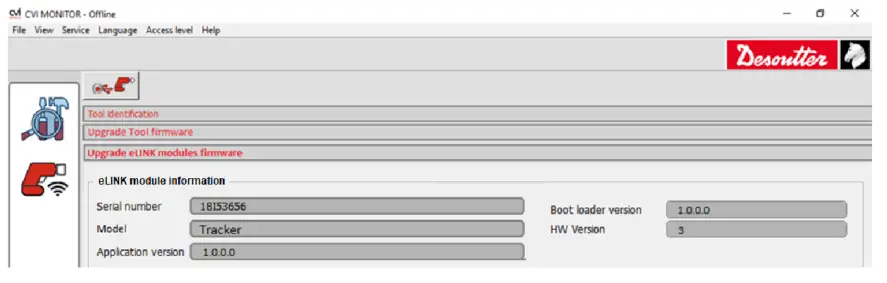
- Select Upgrade eLINK modules firmware tab.

- Plug a CVI Key with production setup right .
- Press ••• button and Select Tracker base ZIP package. Tracker ZIP package can be found on Desoutter support library available at: https://thehub.group.atlascopco.com/Teams/CPD_rd_desoutter/SitePages/DSL.aspx
- Press Update button.
- A progress bar is displayed to show the update progress status.
Installation Instructions
Power supply and communication
Via USB-C
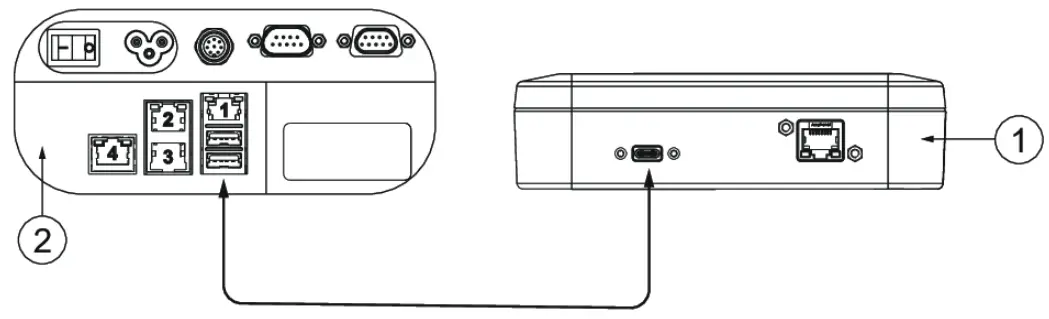
- Tracking base
- CONNECT inside panel
Plug a USB3.0 A to C cable (not supplied) to the tracking base and to any USB port of CONNECT. Both power supply and communication are provided.
Via external PoE injector The PoE injector is not supplied.
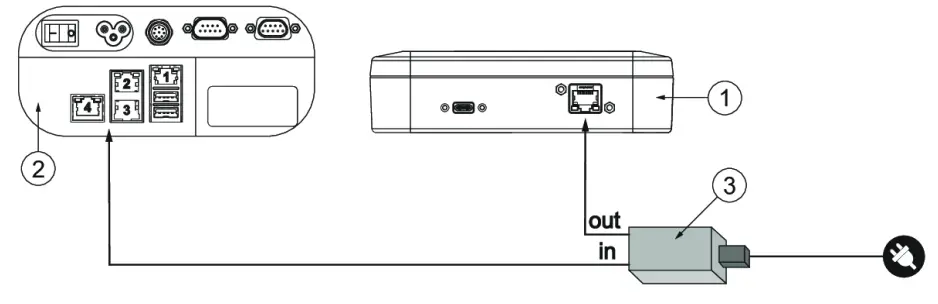
- Tracking base
- CONNECT inside panel
- External PoE injector
Plug an Ethernet cable to the PoE injector (in) and to the Ethernet port of the tracking base.
Plug an Ethernet cable to the PoE injector (out) and to CONNECT.
Installation
Before mounting the tracking base, refer to the instructions given in the chapter Read before installing [Page 7] in this manual.
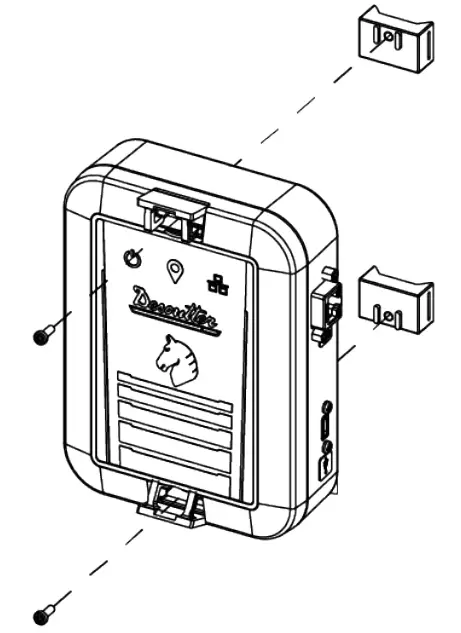
- Open the mounting screw access door located on the front panel of the tracking base.
- Place the M4 Torx screw and the bracket (supplied) as shown below.
Tighten the screw by hand.
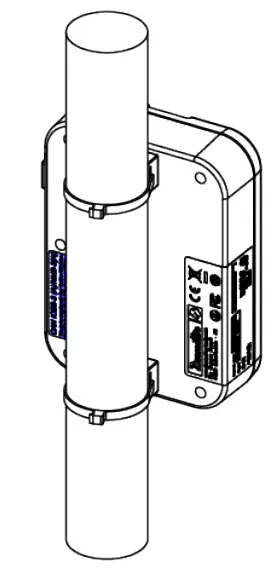
- Run a Nylon cable tie (not supplied) through the bracket and fix it at the chosen location. For example:

How to read indicators
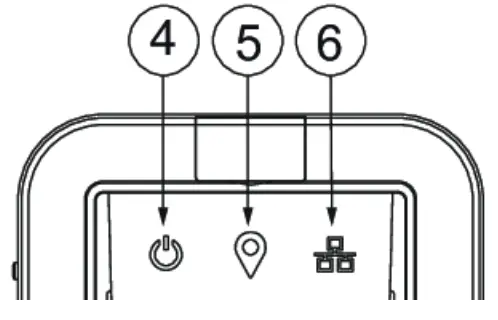
When Tracking base is Coordinator:
| Item | Indicator | Description |
| 4 | Power supply indicator | This LED lights up in White and remains steady when the power supply is correctly provided. |
| 5 | UWB indicator | This LED shows UWB communication status: • Blue (Blinking): communication between Tracking base/Tracker is not functional • Green (Blinking): communication between Tracking base / Tracker is functional. |
| 6 | Ethernet / USB indicator | This LED shows Ethernet / USB communication status between Tracking Base and CONNECT. When Ethernet /USB communication has been established, this LED lights up in Blue and remains steady. A Coordinator can be also used to only synchronize UWB devices. In this case Ethernet/ USB can be not used. |
| 4 | Power supply indicator | This LED lights up in White and remains steady when the power supply is correctly provided. |
| 5 | UWB indicator | This LED shows UWB communication status: • Red (steady): settings issue between Master Tracking base / CONNECT. • Blue (steady):communication between Master Tracking base/ Slave Tracking base or Tracker is not functional. • Green (steady): communication between Master Tracking base/ Slave Tracking base or Tracker is functional. |
| 6 | Ethernet / USB indicator | This LED shows Ethernet / USB communication status between Tracking Base and CONNECT. When Ethernet /USB communication has been established, this LED lights up in Blue and remains steady. A Coordinator can be also used to only synchronize UWB devices. In this case Ethernet/ USB can be not used. |
Only with tracking base firmware version 2.7 or later, if the coordinator tracking base is not power on then a Master tracking base is automatically elected as the new Coordinator. When Tracking base is Slave:
| Item | Indicator | Description |
| 4 | Power supply indicator | This LED lights up in White and remains steady when the power supply is correctly provided. |
| 5 | UWB indicator | This LED shows UWB communication status: • Red (steady): settings issue on Master Tracking base / Slave tracking base. • Blue (steady): communication between slave Tracking base / Tracker is not functional. • Green (steady):communication between slave Tracking base / Tracker is functional. |
| 6 | Ethernet / USB indicator | Not used. |
Operation
Configuration Instructions
How to set up Virtual cable
Read before starting
- Tightening tools are equipped with trackers.
Each tightening tool has been associated to a tightening unit and is ready to run a Pset. - Trackers have to be declared in CONNECT.
- The Master tracking base has to be set up with CONNECT.
- Working spaces can be set up by using CONNECT or CVI CONFIG. Note the MAC addresses of tracker and tracking base and keep them available.
The MAC address of the tracker is located on the front panel.
The MAC address of the tracking base is located on the label of the rear panel.
Declaring the tracker
Go to CONNECT.
Tap “Configuration > System > Peripherals > Tracking system > Trackers”.
Tick the box Locating tracker.
Click the white box below to display the screen “MAC address”.
Use the keyboard to enter the 6 last digits. Tap this icon to validate.
How to set up the Master tracking base
Go to CONNECT.
- – In case communication with CONNECT is via USB
Tap “Configuration > System > Peripherals > Serial/USB > USB”.
Set the tracking system to USB 1 or USB 2 according to the physical configuration.
Tap “Configuration > System > Peripherals > Tracking system > Settings”.
Tick the box “Enable tracking system”. Tap this icon to validate.
 - – In case communication with CONNECT is via Ethernet
Tap “Configuration > System > Peripherals > Tracking system > Settings”.
Tick the box “Enable tracking system”.
Select “Ethernet communication”.
Enter the IP address of the tracking base (by default 192.168.5.151) . Tap this icon to validate. - – Declare the tracking bases
Tap “Configuration > System > Peripherals > Tracking system > Tracking bases”.
Tap this icon to add a tracking base.
Click “Tracking base name-1” to customize the tracking base.
Click the white box below to display the screen “MAC address”.
Use the keyboard to enter the 6 last digits. Tap this icon to validate. - – Check the communication between the Master tracking base and CONNECT
Tap “Configuration > System > Peripherals > Tracking system > Check”.
Tap “Check”.
When the communication is correct, a tick is displayed.
How to create a working space with CONNECT
- – Create a Virtual cable system associated to a tracking base
Tap “Configuration > System > Peripherals > Tracking system > Infrastructure”. Tap this icon.
 Choose a name.
Tap the List button to open the list of existing tracking bases.
Tap the tracking base to select it. The box turns light grey. Tap this icon to validate. The Virtual cable system is created.
 - – Select which tightening unit to associate to the working space
Tap “Configuration > System > Peripherals > Tracking system > Infrastructure”. Tap the green tile. Tap this icon.
Customize the name of the working space.
Tap the Empty list button to open the list of existing tightening units.
Tap the tightening unit to select it. The box turns light grey. Tap this icon to validate. The tightening unit has been selected.
 - – Activate the UV for the tightening unit using the working space
Go to CVI CONFIG.
Check that CONNECT is connected to the computer.
Create a working area, add CONNECT, check the IP address. Click this icon to update CVI CONFIG.
Go to “Feature management”.
The feature “Virtual cable 1 working space” is present but not active. Click this icon.
 Click this icon to update the product.
 - – Finish the creation of the working space
Repeat the activation of the tightening unit until the following screen. Tap “Create zone with tool”. The box turns light grey.
Tap this icon to go to the next step. Check the tool is connected.
Unplug and plug the battery pack. Click REC.
Move with the tool to the minimum distance and press the trigger.
Move then to the maximum distance and press the trigger.
Click STOP.
Tap this icon to go to the next step. The working space for this tightening unit is done.
Swipe the tile to the left to control that the tightening unit is correct.
Swipe again to Edit or Delete the working space.
4 – Fine-tune manually
Click Edit. Click the figures and change them if required. Tap this icon to validate.
Tap this icon to quit. - – Run a Pset to test the settings
Run a Pset in the working space. See in the screen above, the green anchor attesting that the system is working correctly. When the tool is outside the working space, “E931” is displayed on the tool display. Press OK to quit.
 Tap this icon.
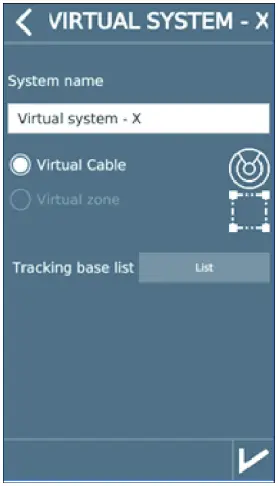 Choose a name.
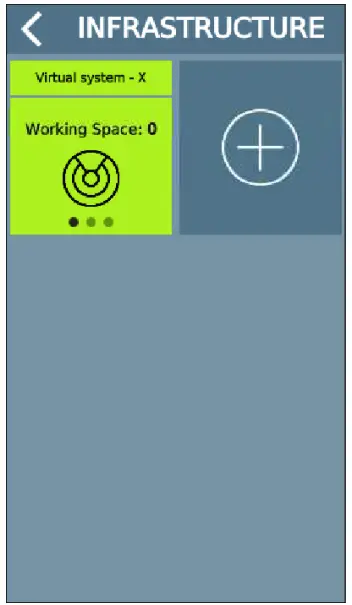 The Virtual cable system is created.
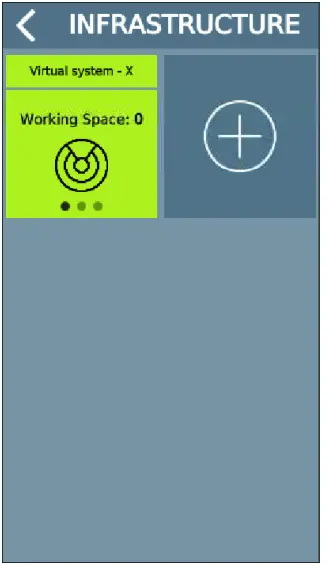 Tap the green tile.
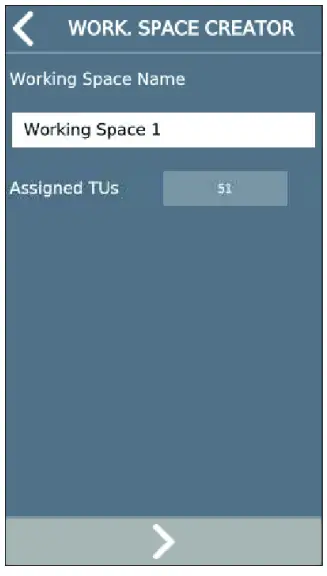 The tightening unit has been selected.
 Click this icon to update CVI CONFIG.
 Click this icon.
 Click this icon to update the product.
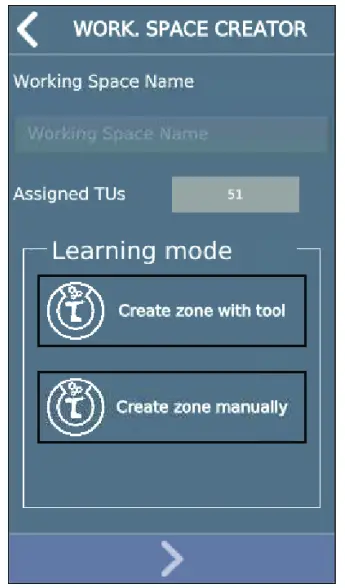 Tap “Create zone with tool”. The box turns light grey.
 Check the tool is connected.
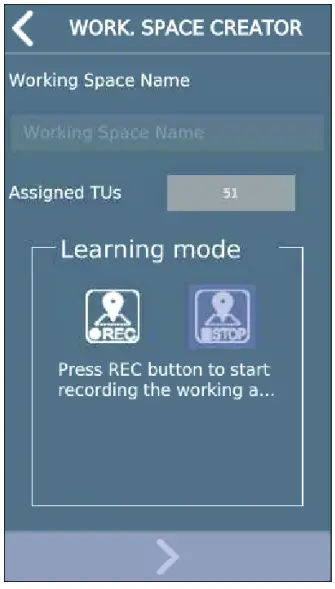 Click REC.
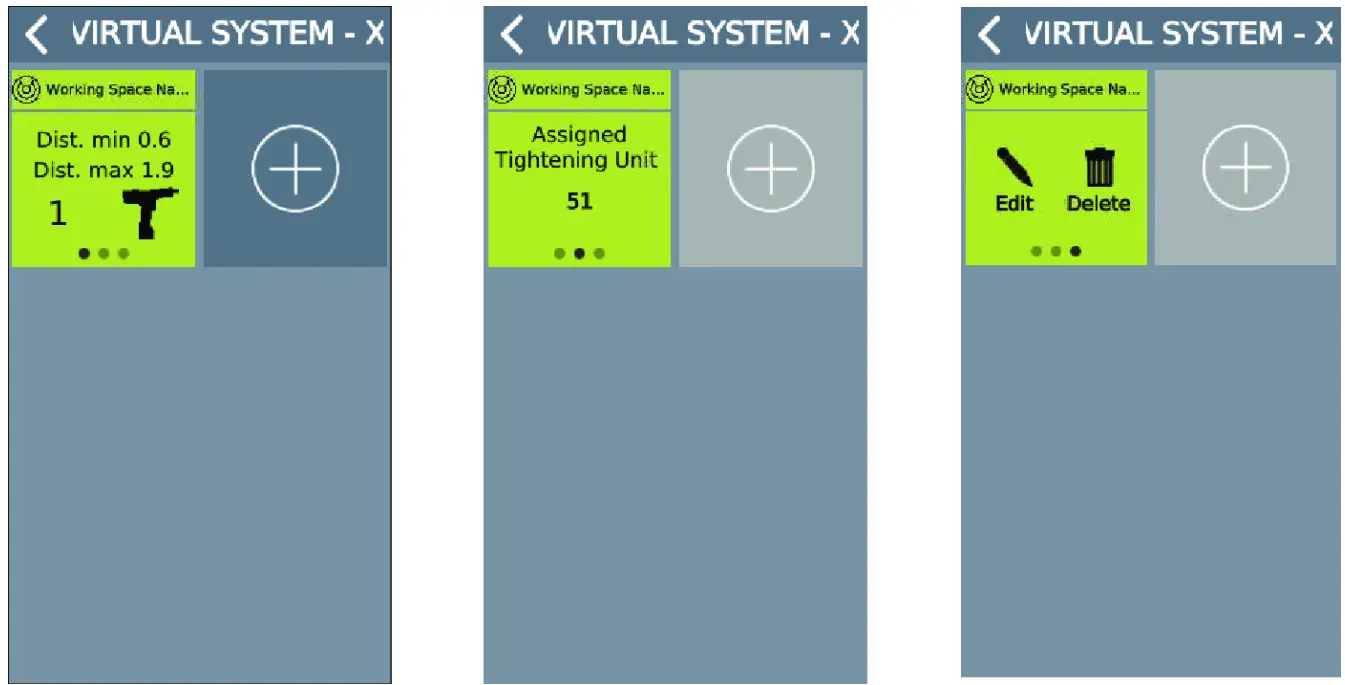 The working space for this tightening unit is done.
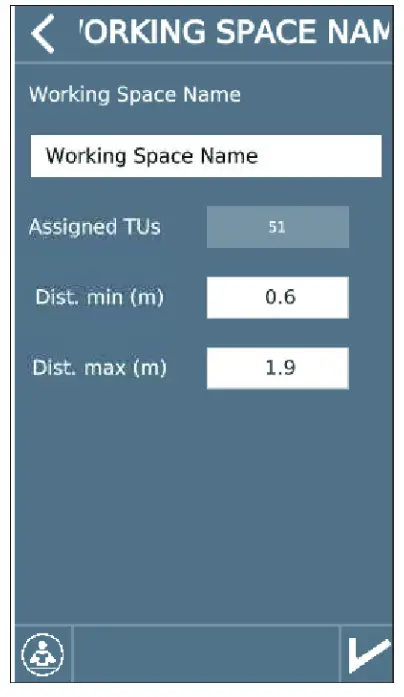 Click the figures and change them if required.
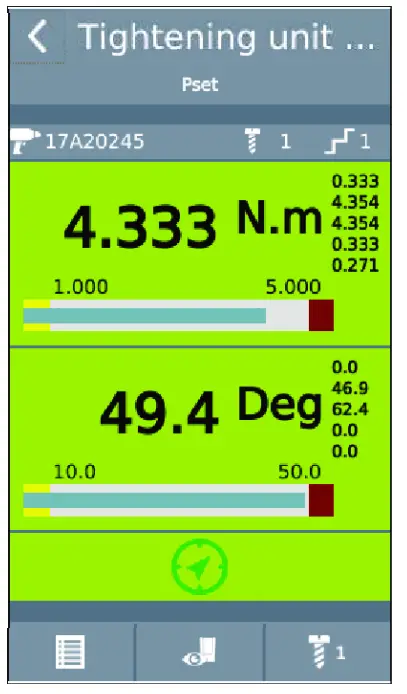 See in the screen above, the green anchor attesting that the system is working correctly.
Operating Instructions
Using the Virtual cable solution
The tool is enabled when the operator uses the tool inside the working space.
The tool is disabled if the operator goes outside the working space.
The user info “I931 – Tool locked by Tracking system” is displayed on both CONNECT and tool display. Tap “OK” to clear the message. If the tightening is running as the operator goes outside the working space, the tool is by default stopped. This behaviour can be configured with the parameter “Stop when ongoing tightening is outside working space” available in Tightening Unit settings in CVI CONFIG and CONNECT.
Troubleshooting
Troubleshooting for Virtual Cable
Led indicators with Virtual cable system based on 1 coordinator and x Tracker(s):
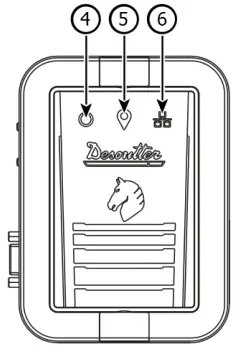
| Coordinator | Tracking Base | Tracker | Diagnostic LED Status | |
| LED 4 | LED 5 | LED 6 | LED 1 | Power problem on Coordinator Tracking Base |
| OFF | OFF | OFF | Blue* Red | Power problem on Tracker |
| White | Blue Blinking | Blue | OFF | Configuration problem on Tracking Base : 1. Ethernet / serial communication error. 2. Wrong network interface used 3. Wrong Tracking base IP address. 4. No cable between CONNECT and Tracking Base |
| White | Blue Blinking | OFF | Blue* Red | Configuration problem between CONNECT and Tracking Base : 1. No communication between CONNECT and PoE injector 2. Wrong network interface used Tool is Locked |
| White | Green Blinking | OFF | Green | Configuration problem on Tracking Base : |
| White | Red Blinking | Blue | Blue * Red | 1. Tracking base wrong type ( slave instead of Master) |
| White | Blue Blinking | Blue | Red | Configuration problem on Tracker / Tracking Base 1. Wrong UWB channel 2. Wrong MAC address |
| White | Blue Blinking ** | Blue | Blue* Red | Tracker not visible from Tracking Base ( Out of range ) |
| White | Green Blinking | Blue | Green | Virtual Cable system OK |
| White | Blue Blinking ** | Blue | OFF | Tracker switch off |
* LED color If previously virtual cable system was OK. After system restart, LED color is the 2nd choice.
** When several Tracker is used : Coordinator LED 5 turns to Green blinking as soon as 1 tracker is functional.
Led indicators with Virtual cable system based on 1 coordinator, x Master, x slave and x Tracker(s): Analysis should be done with the following steps:
- Check UWB network with Coordinator Tracking Base with its Tracker (if exists)
Check other UWB network one by one.
- Check Coordinator Tracking Base and its tracker LED status.
Coordinator Tracking Base 1 Tracker Diagnostic LED Status LED 4 LED 5 LED 6 LED 1 Power problem on Coordinator Tracking Base OFF OFF OFF Blue* Power problem on Tracker White Blue Blinking Blue Red
OFFConfiguration problem on coordinator tracking base : White Blue Blinking OFF Blue*
RedConfiguration problem on coordinator tracking base :
1. Ethernet / serial communication error.
2. Wrong network interface used
3. Wrong Tracking base IP address.
4. No cable between CONNECT and Tracking BaseWhite Blue Blinking Blue Red Configuration problem on Tracker / Tracking base:
1. Wrong UWB channel
2. Wrong MAC addressWhite Green Blinking Blue Green Go to Step 2 analysis * LED color If previously virtual cable system was OK. After system restart, LED color is the 2nd choice.
- Check other UWB network one by one.
| M+A928:H933aster | Tracking Base | Slave Tracking Base | Tracker | Diagnostic LED Status | |||
| LED 4 | LED 5 | LED 6 | LED 4 | LED 5 | LED 6 | LED 1 | Power problem on master tracking base |
| OFF | OFF | OFF | White | Blue | OFF | Blue* | Power problem on slave tracking base |
| White | Green Blinking | Blue | OFF | Red OFF | OFF | Red Green | Power problem on tracker |
| White | Green Blinking | Blue | White | Green | OFF | OFF | |
| White | Green * Red | OFF | White | Green | OFF | Green | Configuration problem on Master tracking base : 1. Ethernet / serial communication error 2. Wrong network used 3. Wrong tracking base IP 4. No cable between CONNECT and tracking base |
| White | Green * Red | Blue OFF | White | Blue* Red | OFF | Blue* Red | Configuration problem on master tracking base : Tracking base wrong type (slave instead of master) |
| White | Green Blinking | Blue | White | Red | OFF | Green | Tool is locked. Configuration problem on Slave Tracking base : 1. Wrong UWB channel 2. Wrong MAC address |
| White | Green Blinking | Blue | White | Green * Blue | OFF | Red | Configuration problem between tracker / slave tracking base : 1. Wrong UWB channel 2. Wrong MAC address |
| White | Blue Blinking | Blue | White | Blue | OFF | Blue | Master and slave tracking bases not visible from coordinator tracking base (out of range) |
| White | Green Blinking | Blue | White | Green | OFF | Blue | Tracker not visible from Slave Tracking base (out of range) |
| White | Green Blinking | Blue | White | Green | OFF | Green | Virtual Cable system OK |
| White | Blue Blinking | Blue | White | Red/Green* (Alternate) Blue | OFF | Red/Green* (Alternate) Blue | Multiple coordinator tracking base detected |
*LED color If previously virtual cable system was OK. After system restart, LED color is the 2nd choice
** When several tracker is used : Coordinator led (5) turns to green blinking as soon as 1 tracker is functional.
Founded in 1914 and headquartered in France, Desoutter Industrial Tools is a global leader in electric and pneumatic assembly tools serving a wide range of assembly and manufacturing operations, including Aerospace, Automotive, Light and Heavy Vehicles, Off-Road, General Industry.
Desoutter offers a comprehensive range of Solutions -tools, service and projects- to meet the specific demands of local and global customers in over 170 countries.
The company designs, develops and delivers innovative quality industrial tool solutions, including Air and Electric Screwdrivers, Advanced Assembly Tools, Advanced Drilling Units, Air Motors and Torque Measurement Systems.
Find more on www.desouttertools.com
More Than Productivity
 Desoutter Industrial Tools - Industrial Pneumatic Tool for Aeronautics & Automotive