
Outform OF2021 Control Center
Appearance
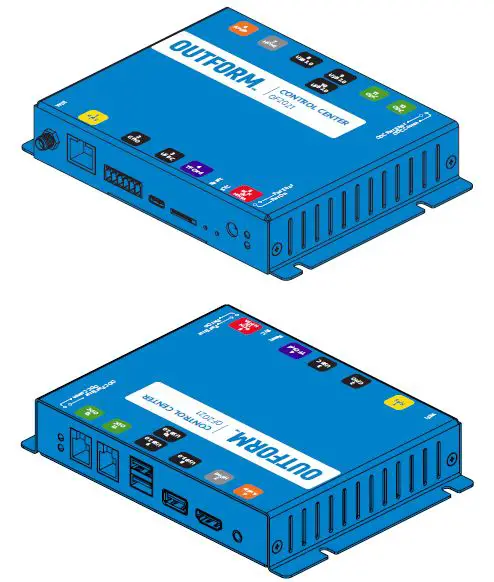
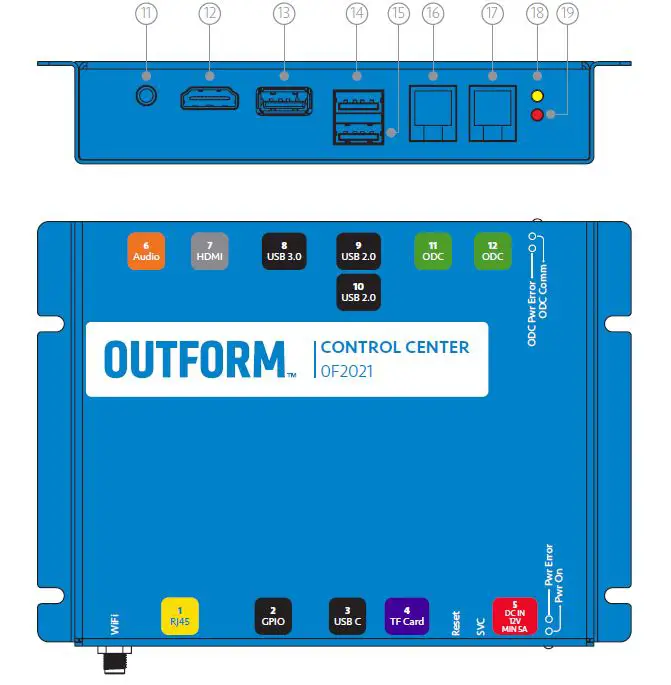
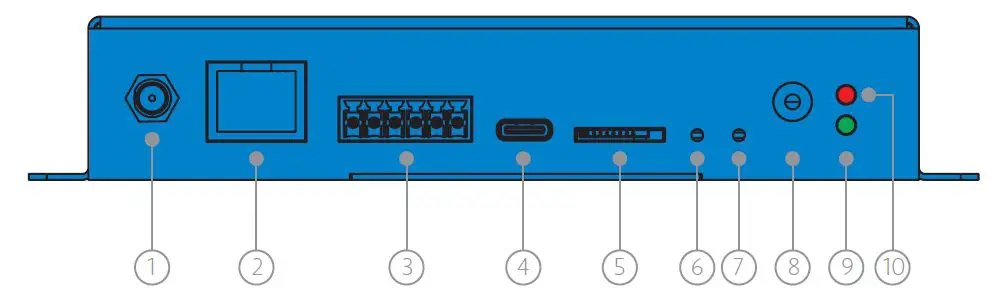
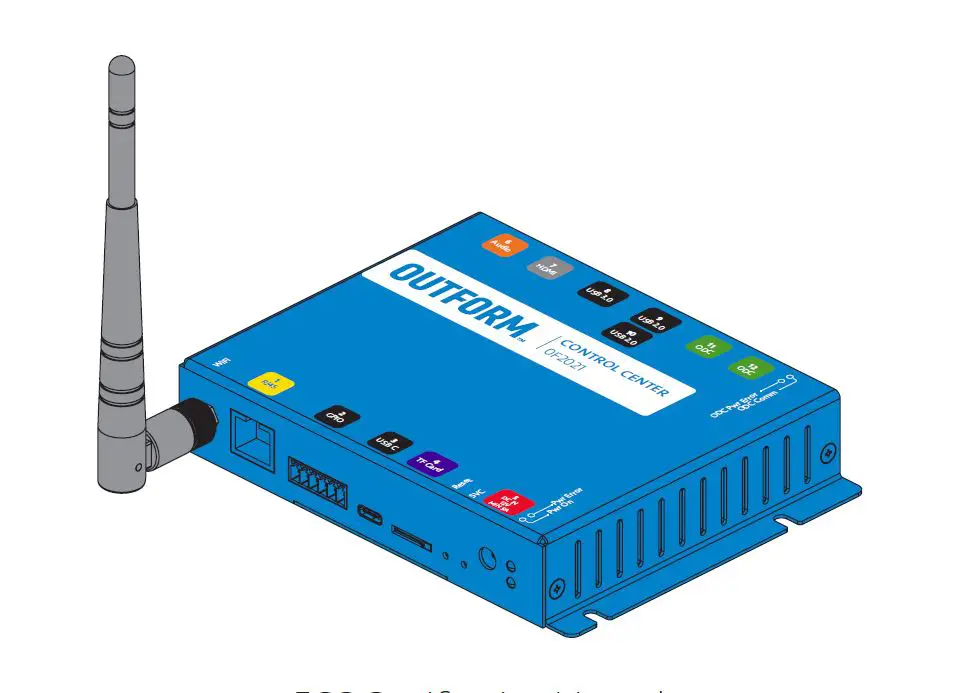
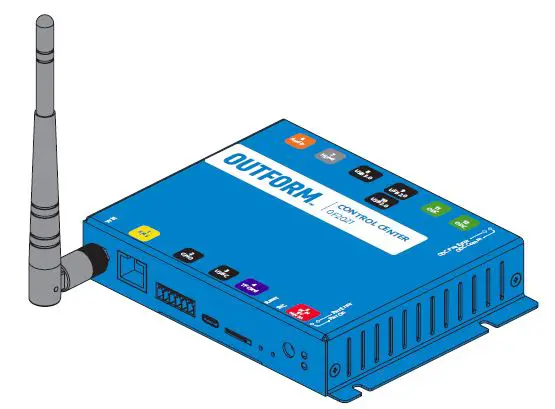
| No. | Input and Output | Description |
| 1 | Antenna | Transmission gain for WiFi |
| 2 | RJ45 Network Interface | RJ45 Network no POE |
| 3 | GPIO Interface | 6 Pin Phoenix Connector for Signal input and output |
| 4 | USB-C Interface | For Android System Debug |
| 5 | TF-Card Jack | SD Card Slot |
| 6 | Reset Button | Hard Reset OF2021 |
| 7 | SVC Button | For Factory Reset |
| 8 | DC Input | Outform Standard Power Port – 12V input |
| 9 | Power On LED | Power Indicator |
| 10 | Power Error LED | Power Error Indicator |
| 11 | 3.5mm Audio Jack | Analog Audio Out Interface |
| 12 | HDMI Interface | HDMI Signal Transmission |
| 13 | USB 3.0 Interface | USB Type A, Powered 5V 2A |
| 14 | USB 2.0 Interface 1 | USB Type A, Powered 5V 1A |
| 15 | USB 2.0 Interface 2 | USB Type A, Powered 5V 1A |
| 16 | ODC 1 Interface | RJ25 Interface, support Power input and output, Audio and Data transmit |
| 17 | ODC 2 Interface | RJ25 Interface, support Power input and output, Audio and Data transmit |
| 18 | ODC Communication LED | ODC Data transmission Indicator |
| 19 | ODC Error LED | ODC Data Transmission Error Indicator |
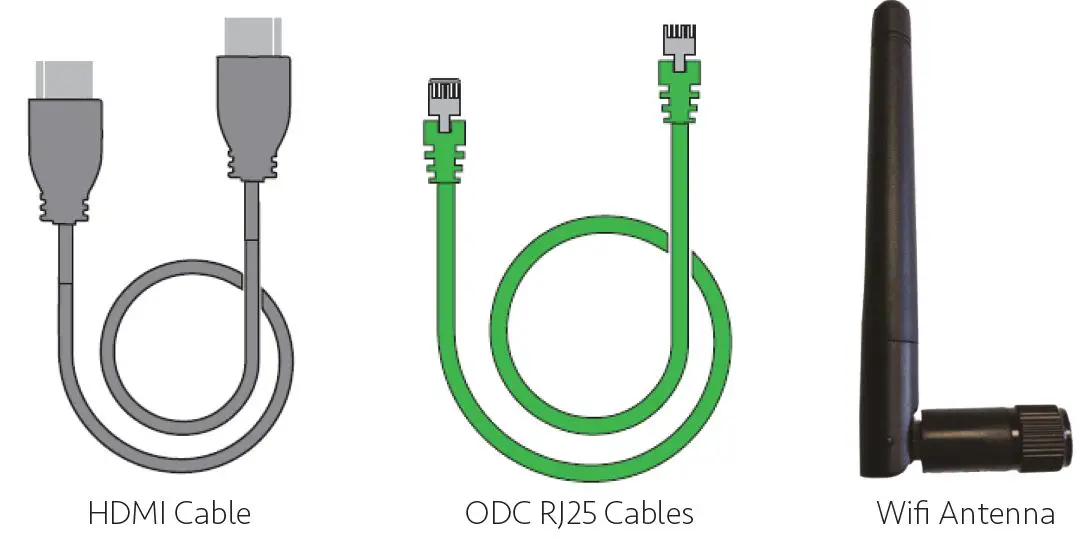
Accessories
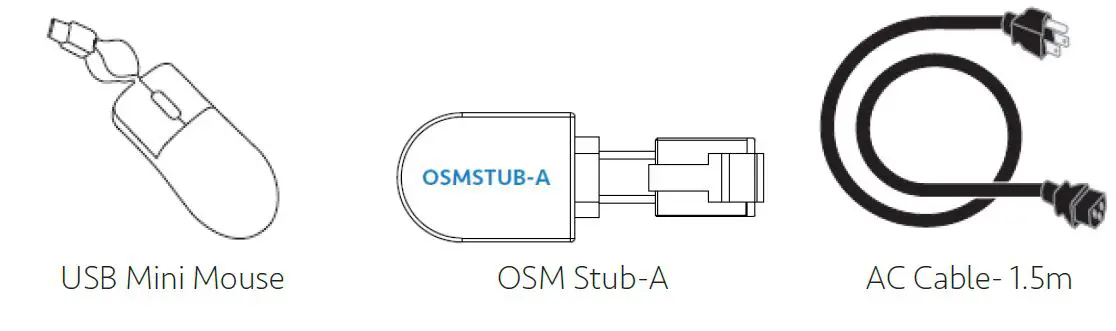
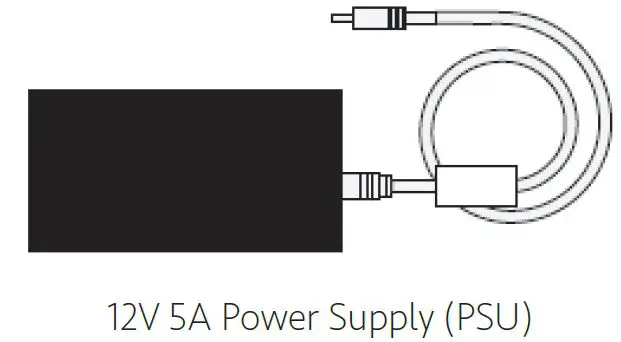
Statement
This device complies with part 15 of the FCC rules. Operation is subject to the following two conditions:
(1) this device may not cause harmful interference, and
(2) this device must accept any interference received, including interference that may cause undesired operation. Changes or modifications not expressly approved by the party responsible for compliance could void the user’s authority to operate the equipment.
Note: This equipment has been tested and found to comply with the limits for a Class B digital device, pursuant to Part 15 of the FCC Rules. These limits are designed to provide reasonable protection against harmful interference in a residential installation. This equipment generates, uses, and can radiate radio frequency energy, and if not installed and used in accordance with the instructions, may cause harmful interference to radio communications. However, there is no guarantee that interference will not occur in a particular installation. If this equipment does cause harmful interference to radio or television reception, which can be determined by turning the equipment off and on, the user is encouraged to try to correct the interference by one or more of the following measures:
- The device is slaver
- Reorient or relocate the receiving
- Increase the separation between the equipment and
- Connect the equipment into an outlet on a circuit different from that to which the receiver is
- Consult the dealer or an experienced radio/TV technician for help.
Radiation Exposure Statement
To comply with FCC RF exposure compliance requirements, this grant is applicable to only mobile configurations. The antennas used for this transmitter must be installed to provide a separation distance of at least 20cm from all persons and must not be co-located or operating in conjunction with any other antenna or transmitter.
Wi-Fi Connection
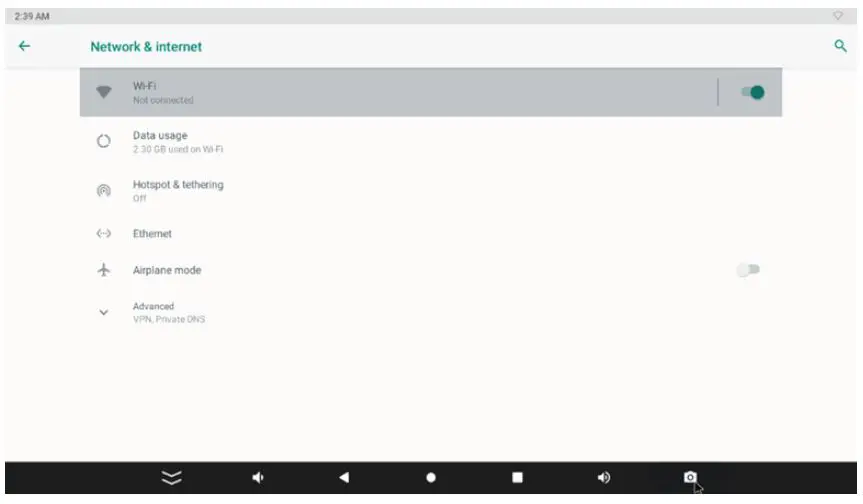
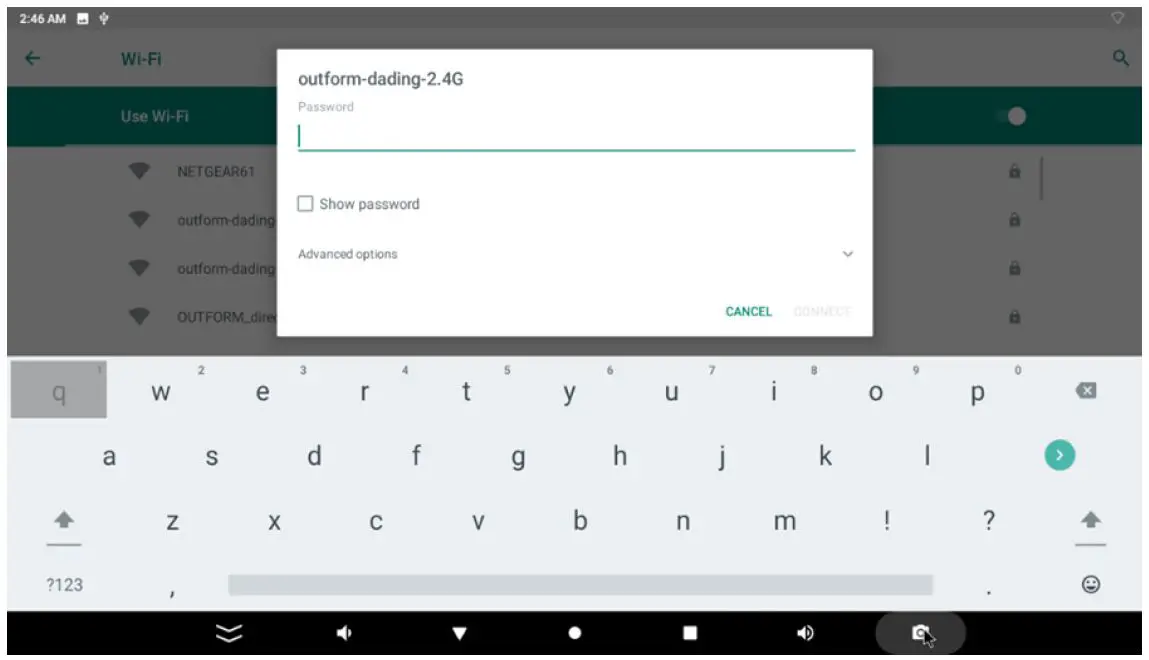
If you want to use Wi-Fi to gain access to the internet, you need to establish a connection to a Wi-Fi network. Follow these easy instructions.
Step 1. Open Wi-Fi Connection.
Step 2. Select Wi-Fi Network.
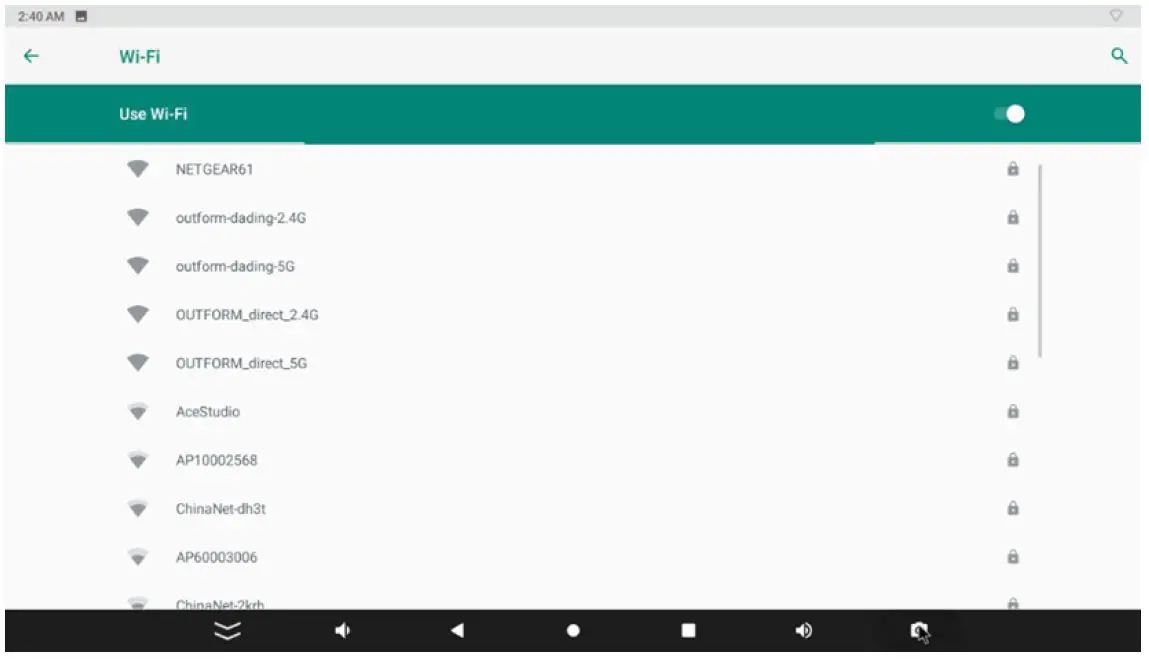
Step 3. Input Wi-Fi password to connect to the Wi-Fi network.
Connect to Bluetooth device
Step 1. Open Bluetooth in System configuration menu.
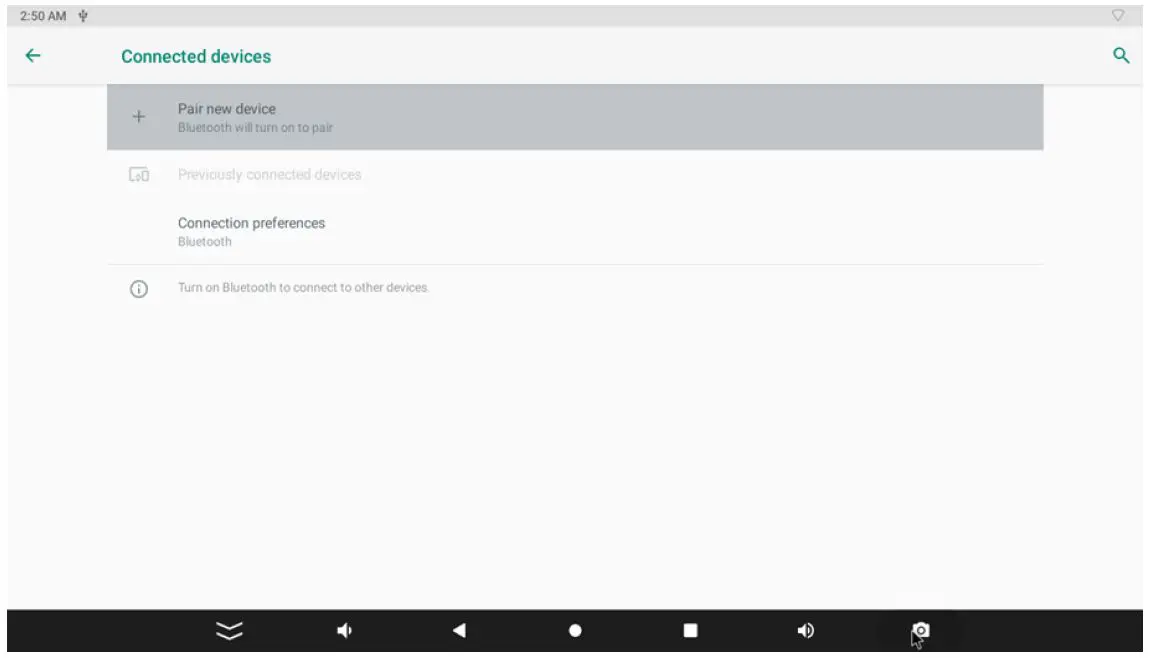
Step 2. Pair a new device by select the corresponding Bluetooth device.