K6M-SPEAK Specific Headset
Product Information
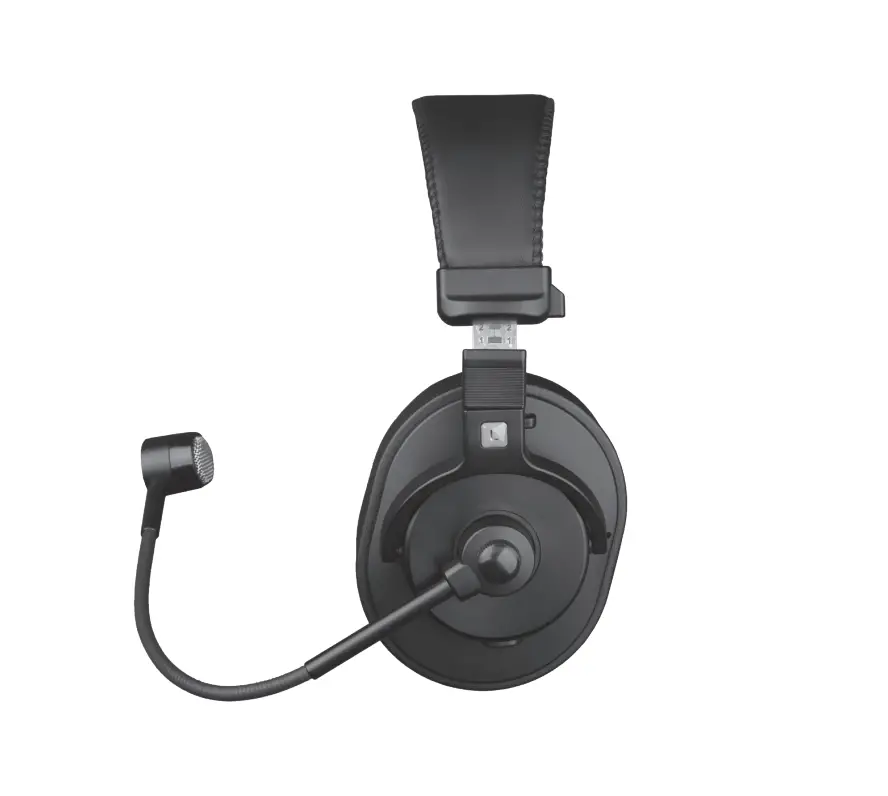
The Specific Headset is a wireless communication device designed
for motorcycle riders. It comes with speakers, a wired microphone,
a boom microphone, and buttons for controlling the device. The
headset is equipped with Bluetooth technology that allows it to
connect to a phone or GPS device. It also has an intercom feature
that enables communication between two riders who are wearing the
headset.
The headset has a micro USB recharge plug for charging its
battery. It has a power on/off button that needs to be pressed for
three seconds to turn the device on or off. The headset has audio
and visual feedback features that indicate its status, such as blue
or red led blinking, steady blue or red led, and purple led.
Product Usage Instructions
Pairing to Phone/GPS
To pair the headset with a phone or GPS device:
- Make sure the headset is powered off.
- Press and hold the button with the Caberg logo for four seconds
until the led blinks alternately. - Activate Bluetooth on your phone or GPS device and search for
Bluetooth devices. - Select “Specific Headset” from the list of available
devices. - If prompted, enter the PIN code 0000.
- Wait for the led to blink four times, indicating that pairing
is successful.
Pairing Another Midland Specific Helmet
To pair the headset with another Midland Specific Helmet:
- Make sure both devices are powered on.
- Press and hold the button with the Caberg logo for five seconds
on both devices until the leds blink alternately on both
devices. - Wait for the leds to blink three times on both devices,
indicating that pairing is successful.
Pairing to a Different Model/Brand Unit
To pair the headset with a different model/brand unit:
- Make sure both devices are powered on.
- Press and hold the button with the Caberg logo for five seconds
until the led blinks alternately. - Follow the phone pairing procedure for your device.
Voice Call
To make a voice call:
- Make sure the headset is powered on and connected to a
phone. - Press the button with the Caberg logo once to answer a call or
end a call. - Press and hold the button with the Caberg logo for three
seconds to reject a call.
Volume Adjustment
To adjust the volume:
- While listening to an audio source, such as intercom, music, or
phone call, press and hold the button with the Caberg logo to
increase the volume. - While listening to an audio source, such as intercom, music, or
phone call, press and hold the button with the + symbol to decrease
the volume.
Music
To play music:
- Make sure the headset is powered on and connected to a
phone. - Select a music app from your phone.
- Press the button with the Caberg logo once to play/pause the
music. - Press the button with the Caberg logo twice to skip to the next
song. - Press the button with the Caberg logo twice again to go back to
the previous song.
Change Language
To change the language:
- Make sure the headset is powered on.
- Press and hold the button with the + symbol for more than seven
seconds. - Release the + button to select the desired language from the
battery status options available.
SPECIFIC
HEADSET
POCKET GUIDE
DESCRIPTION – LEGENDA
Speakers
Wired microphone
Button –
Button +
Micro USB recharge plug
Boom mike
Button-/Button+ OPERATION
X”
Press X sec. xX
Press X times
AUDIO FEEDBACK
Sound alert VISUAL FEEDBACK
Blue led blinking
Red led blinking
Red/blue led blinking Purple led
Steady blue led Steady red led
POWER ON
Press 3 sec. 3″
Led Blinking “Power on”
Battery status
POWER OFF
Pres 3 sec. 3″
Led Blinking “Power off”
PAIRING TO PHONE/GPS Status: power off
4″
CABERG
Press 4 sec.
Led blinks alternately Searching Bluetooth device on your phone.
If needed, enter PIN code (0000). Four led blinkings
“Pairing successful”
“Device connected”
PAIRING ANOTHER MIDLAND SPECIFIC HELMET
Status: Both units powered on
Press 5 sec.
5″
on both devices
“Pairing”
Led blinks alternately on both devices
Three led blinkings on both devices
“Pairing successful”
PAIRING TO A DIFFERENT MODEL/BRAND UNIT Status: Both units powered on
5″ Press 5 sec.
Led blinks alternately Follow the “phone” pairing procedure
RESET ALL PAIRINGS Status: power off
Press 7 sec. 7″
Steady led for 3 sec.
“Beep”
“Pairing” Both units stop flashing
VOICE CALL Status: unit on and connected to a phone
“Pairing successful”
OPEN/CLOSE INTERCOM Status: units on and paired
Press once x1
“Beep” Led blinks: audio active
Press twice x2
Voice assistant (Google assistant, Siri)
Press twice
x2
to end the call
Note: Double click on + control -> Redial.
ANSWER A CALL Status: phone rings
Press once
x1
to answer a call
Press once
x1
to end a call
Press 3 sec.
3″
to reject a call
Note: if the automatic reply is activated, after 8 seconds the call automatically starts.
VOLUME ADJUSTMENT
Status: while listening to an audio source (intercom, music, phone call…)
Keep pressed to increase the volume
Keep pressed to decrease the volume
Frequency Max power
2.4GHz 2.5mW
MUSIC Status: unit on and connected to
the phone
Select a music APP from the phone
x1
x2 x2
Press once Play/Pause
Blinking
Press twice Song forward
Press twice Song backward
CHANGE LANGUAGE Status: unit on
Keep pressed for more
+7″
than 7 seconds
“Battery status” in the various languages.
Release + button to select the desired one.
To download the complete user manual please visit www.midlandeurope.com
Produced or imported by: MIDLAND EUROPE srl Via R. Sevardi 7 – 42124 Reggio Emilia – (Italy www.midlandeurope.com
Read the instructions carefully before installation and use.
Imported in Canada by: GENTEC INTERNATIONAL 90 Royal Crest Court, Markham, ON L3R 9X6 Canada
NOTE: This equipment has been tested and found to comply with the limits for a Class B digital device, pursuant to part 15 of the FCC Rules. These limits are designed to provide reasonable protection against harmful interference in a residential installation. This equipment generates uses and can radiate radio frequency energy and, if not installed and used in accordance with the instructions, may cause harmful interference to radio communications. However, there is no guarantee that interference will not occur in a particular installation. If this equipment does cause harmful interference to radio or television reception, which can be determined by turning the equipment off and on, the user is encouraged to try to correct the interference by one or more of the following measures:
– Reorient or relocate the receiving antenna.
– Increase the separation between the equipment and receiver.
-Connect the equipment into an outlet on a circuit different from that to which
the receiver is connected.
-Consult the dealer or an experienced radio/TV technician for help
Changes or modifications not expressly approved by the party responsible for compliance could void the user’s authority to operate the equipment.
This device complies with Part 15 of the FCC Rules. Operation is subject to the
following two conditions:
(1) this device may not cause harmful interference, and (2) this device must
accept any interference received, including interference that may cause
undesired operation. This device contains licence-exempt transmitter(s)/receiver(s) that comply with Innovation, Science and Economic Development Canada’s licence-exempt RSS(s). Operation is subject to the following two conditions: (1) This device may not cause interference. (2) This device must accept any interference, including interference that may cause undesired operation of the device.
L’émetteur/récepteur exempt de licence contenu dans le présent appareil est conforme aux CNR d’Innovation, Sciences et Développement économique Canada applicables aux appareils radio exempts de licence. L’exploitation est autorisée aux deux conditions suivantes : (1) L’ appareil ne doit pas produire de brouillage; (2) L’ appareil doit accepter tout brouillage radioélectrique subi, même si le brouillage est susceptible d’ en compromettre le fonctionnement.
 Midland Europe | Radio and CB, Motorbike intercom systems and Action Cams