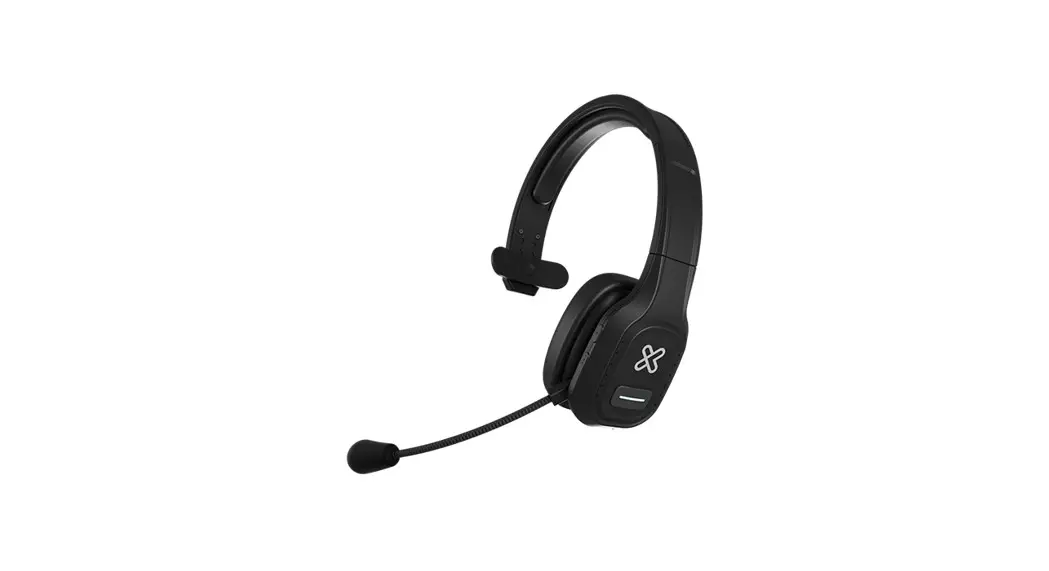
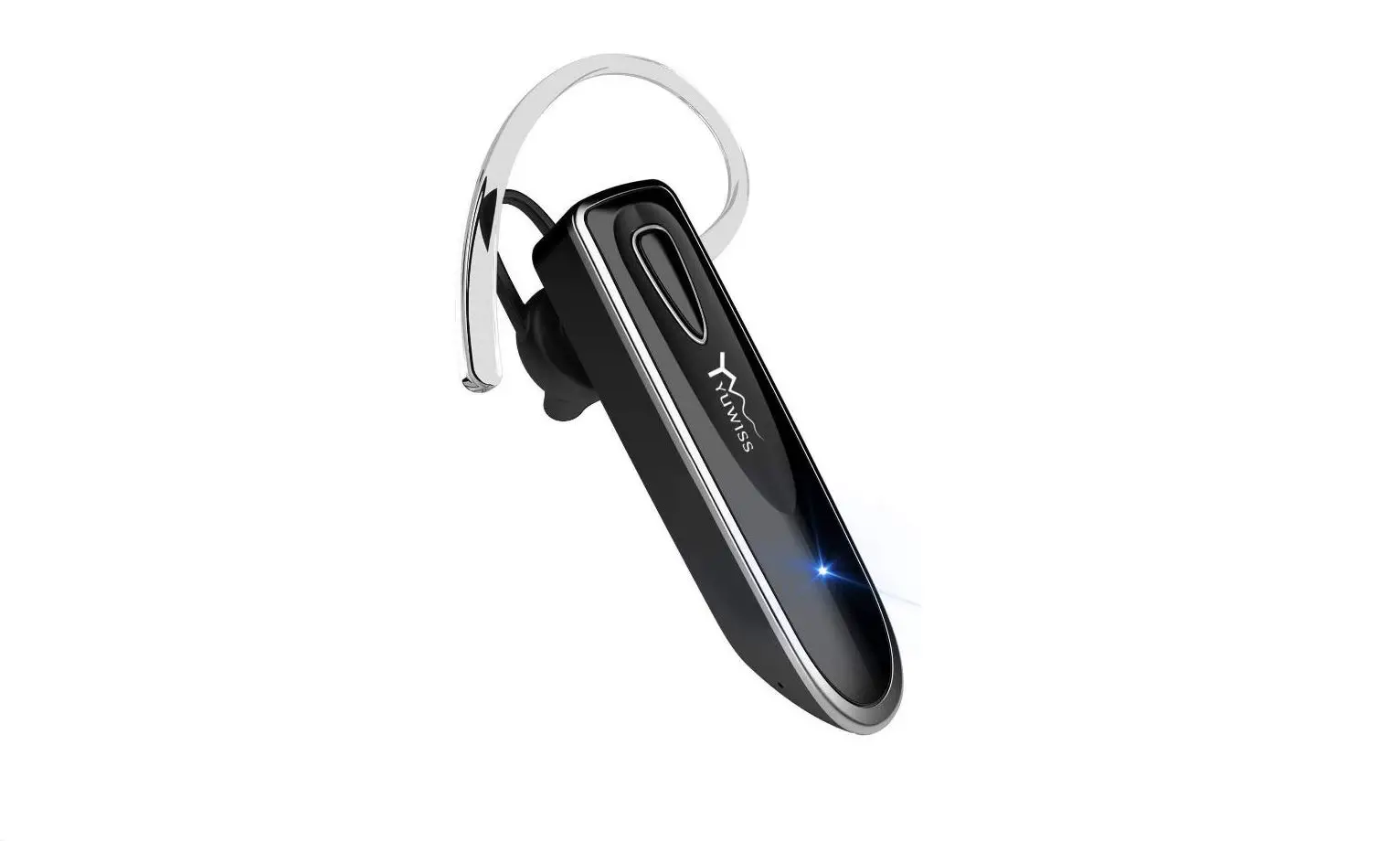
KCH-750 VoxCom Wireless Monoaural Headset
Product Information
The KCH-750 VoxCom is a wireless monaural headset with dual
connection capability. It is designed for premium business use and
is available in English language. The headset features a
multifunction button for various operations, volume control
buttons, a microphone, a Type C charging port, a mute button with
an LED indicator, and LED indicators for different modes and
statuses. The headset supports voice assistants on smartphones and
offers a wireless range estimate based on unobstructed line of
sight between devices.
Main Features:
- Volume control and usage-dependent functionality
- Possible limitations in platform compatibility
- Voice assistant support on smartphones
- Wireless range estimate based on unobstructed line of
sight
Product Overview:
- Multifunction button: On/Off, pairing mode, play/pause, redial,
dial, answer/hang up/reject a call - Volume + button: Increase volume, go to the next track
- Volume – button: Decrease volume, go to the previous track
- Microphone
- Type C charging port
- Mute button and LED indicator
LED Indicators:
| Mode | LED Indicator |
|---|---|
| Power on | LED blinks blue 3 times |
| Power off | LED is on in red for 1 second |
| Pairing mode | LED blinks red and blue alternately |
| Delete paired device | LED blinks blue and red once at the same time |
| Reconnect mode | LED blinks blue twice every 5 seconds |
| Unconnected standby mode | LED blinks blue twice every 5 seconds |
| Connected standby mode | LED blinks blue once every 10 seconds |
| Music playback | LED blinks blue twice every 10 seconds |
| Talking | LED blinks blue twice every 10 seconds |
| Low battery | LED blinks in red |
| Charging | LED is solid red |
| Full charge | LED is solid blue |
Product Usage Instructions
Charging the Headset:
To charge the headset, connect it to a power source using the
provided USB-C charging cable. When the battery level is low (20%
or below), a tone will be heard to indicate the low battery
level.
Headset Operation:
- To power on the headset, press and hold the multifunction
button for 3 seconds. A tone will be heard. - To power off the headset, press and hold the multifunction
button for 5 seconds. A tone will be heard. - To answer a call, press the multifunction button once. Press it
again to hang up. Press and hold it to reject a call.
Pairing the Headset with Your Computer or Mobile Device:
- Ensure the headset is powered off.
- Press and hold the multifunction button for 7 seconds until it
enters pairing mode. The LED indicator will blink red and blue
alternately. - On your computer or mobile device, enable Bluetooth and search
for available devices. - Tap on the newly discovered audio device (KCH-750) displayed on
your computer or mobile device to pair with the headset.
Pairing the Headset with Two Devices:
To pair the headset with two devices, follow the same pairing
instructions mentioned above for each device separately. The
headset can be connected to both devices simultaneously.
Precautions:
Refer to the user manual for any specific precautions related to
usage, maintenance, and safety of the KCH-750 VoxCom headset.
Technical Specifications:
Refer to the user manual for detailed technical specifications
of the KCH-750 VoxCom headset.
Additional Information:
The KCH-750 VoxCom headset supports voice assistants like Siri
and Google on smartphones. It is compatible with Windows XP, Vista,
2000, Windows 7, Windows 8, Windows 10, and Windows 11 operating
systems.
For any further information or clarifications, please refer to
the user manual provided with the product.
KCH-750
VoxCom
Wireless monoaural headset, dual connection
Bluetooth® compatible and 3.5mm
Premium business
English
I. Introduction
Thanks for purchasing the wireless monoaural headset compatible with Bluetooth® from KlipXtreme. We encourage you to read this quick instruction guide thoroughly to get the most out of this quality audio device, specially designed for office or home office.
Main features
· Dual wireless monoaural headset Bluetooth® compatible for freedom of movement and wired connection through a 3.5mm cable · Flexible wireless connection with Bluetooth® v5.0 to pair simultaneously with two devices · Complete more tasks with up to 30 hours of talk time1 · Compatible with Teams, Zoom, and other leading Unified Communications platforms2 · Can be paired with most Android and iOS smartphones with Bluetooth® enabled · Adjustable and padded headband reduces pressure over the head for a
comfortable sensation all day · Compatible with Google Assistant and Siri voice assistant, it supports the voice
recognition feature for true hands-free control and access to your linked device at the touch of a button3 · Outstanding audio quality that enables clear communications on both ends of the call · Built-in command controls to easily manage all your calls and mute button when you don’t want to be heard · The cardioid microphone with noise canceling reduces distracting background noise in busy or crowded work environments ·The microphone arm rotates 270 degrees to find the perfect angle that works for you
1 Depending on the volume level and type of usage (calls/music). 2 Some limitations in platforms’ functions may apply. 3 Voice assistant only supported on smartphones. 4 Range estimate is based on an area free and clear of obstacles and interference, and within the line of sight between devices
II. Product overview
4 1 2 3
1. Multifunction button: On, off, enter pairing mode, play/pause, redial, dial, answer/hang up/reject a call
2. Volume +: Increase volume, go to the next track
3. Volume -: Decrease volume, go to the previous track
4. Microphone
5. Type C charging port
6. Mute button and LED indicator
56
LED indicators
Mode Power on Power off Pairing mode Delete paired device Reconnect mode Unconnected standby mode Connected standby mode Music playback Talking Low battery Charging Full charge
LED indicator LED blinks blue 3 times LED is on in red for 1 second LED blinks red and blue alternately LED blinks blue and red once at the same time LED blinks blue twice every 5 seconds LED blinks blue twice every 5 seconds LED blinks blue once every 10 seconds LED blinks blue twice every 10 seconds LED blinks blue twice every 10 seconds LED blinks in red LED is solid red LED is solid blue
III. Charging the headset
· Plug one end of the supplied Type C cable into the headset’s Type C port and the other end to the USB port of your computer to charge the battery.
· The battery takes up to an hour and a half to fully charge. · Make sure the headset is fully charged before using it for the first time. · While the headset is being charged the LED indicator glows red. · Once the headset is fully charged, the LED indicator turns blue. · When the battery is low, the LED indicator blinks in red. If the battery gets to
20%, a tone will be heard to let the user know that the battery level is low.
IV. Headset operation
1. Press and hold the multifunction button for 3 seconds to power on the headset, a tone will be heard.
2. Press and hold the multifunction button for 5 seconds to power off the headset, a tone will be heard.
3. To answer a call, press the multifunction button once. Press it again to hang up. Press and hold it to reject a call.
4. To play music press the multifunction button. 5. Press the volume button to decrease the volume level. 6. Press and hold the volume button to go to the previous song. 7. Press the volume + button to increase the volume level. 8. Press and hold the volume + button to go to the next song. 9. Press the mute button during a call to mute the microphone, a tone will be
heard. Press it again to unmute and another tone will be heard. Note: The mute function of the microphone takes place directly on the unified communications platform you are using. You may also press the mute button in the conference call software to manage this function.2 10. Press the multifunction button for 3 seconds to activate Google Assistant or Siri. Note: The voice assistant function is only supported on smartphones3. Note: This headphone includes a 3.5mm to Type C audio cable. When listening to music or audio from a device connected to the 3.5mm cable, the headphone’s buttons won’t work. You will need to press the buttons in the connected device to play, pause, or stop audio playback.
V. Pairing the headset with your computer or mobile device
1. Turn on the headset. 2. Set your Bluetooth® device to “discover” the headset. 3. The LED indicator will start blinking blue and red to indicate that the headset has
entered into pairing mode, and it is ready to be detectable for the first time. 4. Tap the newly discovered audio device (KCH-750) displayed on your computer
or mobile device, in the Bluetooth® list. 5. If pairing is successful, a tone will be heard and the LED indicator will turn off. If
after 60 seconds the pairing process fails, please repeat steps 1 through 4 described above. 6. We recommend turning off the device when not in use. If the computer goes into standby or is turned off while the headset is left on, the latter will enter pairing mode. If it doesn’t find a device to connect to, the headset will turn off after 10 minutes for battery-saving purposes. 7. To delete a paired device from the headset memory, press the volume up + and the multifunction buttons simultaneously.
VI. Pairing the headset with two devices
1. Follow the process mentioned above to pair the headset with the first computer or mobile device. Then turn off the Bluetooth® function of the first computer or mobile device.
2. The headset will automatically enter pairing mode with the LED indicator blinking red and blue. Turn on the Bluetooth® function of the second computer or mobile device to search devices.
3. Tap the newly discovered audio device (KCH-750) displayed on your second device, in the Bluetooth® list. The LED indicator will start blinking slowly in blue once the pairing process is completed.
4. Turn on the Bluetooth® function of the first device, reconnect it to the headset. Now the headset is paired with both devices. Note: Music can only be played from one device under two paired devices. If you want to play music from another device, you need to pause or stop audio playback from the previous one. The same applies when talking during calls.
Precautions
· Do NOT drop, hit, or shake the device. · Do NOT disassemble, repair, or modify the headset yourself.
Technical specifications
Headphone
Type Chipset Form factor Driver unit Maximum power output Frequency Impedance Sensitivity Driver unit type
Microphone
Directionality Directivity Frequency Impedance Sensitivity Volume control Boom rotation
Connectivity
Connection type Wireless RF frequency Wireless range
Battery
Type Charging time Run time Standby time Charging type
KCH-750
Monoaural dual Bluetooth® – wired headset CSR8615 On-ear 28mm 20mW 100Hz6.8kHz 150±5 45±2dB (at 1kHz 1mW)) Moving coil type neodymium iron shed magnetic horn
Cardioid (noise canceling) Unidirectional 100-16000Hz 2.2K 45±2dB Yes ± 270 degrees
Bluetooth® v5.0+EDR and USB-C to 3.5mm 2.402-2.480GHz Up to 33ft4
420mAh lithium polymer Up to 1.5 hour Up to 30 hours (50% volume)1 400 hours USB-C
Additional information
Voice assistant supported Compatibility
Buttons
Dimensions (LxWxH) Weight Cable length Operating temperature Operating humidity Package contents
Yes, Siri and Google with smartphones3 – Windows XP, Vista, 2000 – Windows 7, Windows 8, Windows 10, Windows 11
(or higher) – All versions of Mac OS X (or higher) – Android and iOS v10 and up – Multifunction button – Volume +/next track – Volume-/previous track – Microphone mute button and LED indicator 6.1×2.1×7.5in 5oz Charging cable: 1.9ft Audio cable: 3.9ft 77°F Relative humidity 70% Headset, quick instruction guide, spare earmuff, USB-C to 3.5mm cable, USB-C charging cable
1 Depending on the volume level and type of usage (calls/music). 2 Some limitations in platforms’ functions may apply. 3 Voice assistant only supported on smartphones. 4 Range estimate is based on an area free and clear of obstacles and interference, and within the line of sight between devices.
NOTES
Español
I. Introducción
Gracias por preferir el audífono monoaural con Bluetooth® de KlipXtreme. Le recomendamos leer detenidamente esta guía del usuario con el fin de aprovechar al máximo todas las ventajas de este dispositivo de audio especialmente diseñado para oficinas u oficinas en el hogar.
Características principales
· Audífono monoaural inalámbrico de conexión dual compatible con Bluetooth® para tener libertad de movimiento y conexión alámbrica con un cable de 3,5mm
· Conexión inalámbrica flexible con Bluetooth® v5.0 para emparejar dos dispositivos simultáneamente
· Complete más tareas con hasta 30 horas de batería1 · Compatible con Teams, Zoom y otras plataformas de comunicaciones unificadas2 · Puede emparejarse con la mayoría de los celulares Android y iOS habilitados
con Bluetooth® · Diadema ajustable y acolchada disminuye la presión sobre la cabeza para una
sensación confortable todo el día · Compatible con el asistente de voz Google Assistant y Siri; soportan la
funcionalidad de reconocimiento de voz para un verdadero control con manos libres y acceso a tu dispositivo vinculado con el toque de un botón3 · Calidad de audio excelente que permite comunicaciones claras para ambas partes · Controles integrados para manejar fácilmente todas sus llamadas y botón de silenciar cuando no quiere que lo escuchen · El micrófono cardioide con cancelación de ruido disminuye los sonidos de fondo en ambientes de trabajo congestionados · El brazo del micrófono se puede girar 270 grados para hallar el ángulo perfecto para usted
1 Depende del nivel del volumen y del tipo de uso (llamadas/música). 2 Pueden aplicar algunas limitaciones en las funciones de las plataformas dependiendo de la plataforma de comunicaciones unificadas utilizada. 3 Solo soporta el asistente de voz en los celulares. 4 El cálculo de alcance se basa en un área libre de obstáculos e interferencias y dentro de la línea de visión entre los dispositivos.
II. Descripción del producto
4 1 2 3
1. Botón multifunción: encender, apagar, entrar a modo de emparejamiento, reproducir/pausa, rediscar, marcar, contestar/colgar una llamada/rechazar una llamada
2. Volumen +: subir volumen, ir a la siguiente pista
3. Volumen – : reducir volumen, ir a la pista anterior
4. Micrófono
5. Puerto de carga Tipo C
6. Botón de silenciamiento e indicador LED
56
Indicadores LED
Modo
Encender Apagar Modo de emparejamiento Borrar dispositivo emparejado Modo de reconexión Modo de pausa desconectado Modo de pausa conectado Reproducción de música Hablar Baja batería Cargar Carga plena
Indicador LED
El LED parpadea en azul 3 veces El LED se enciende en rojo por 1 segundo El LED parpadea alternadamente en rojo y azul El LED parpadea en azul y rojo una vez al mismo tiempo El LED parpadea en azul dos veces cada 5 segundos El LED parpadea en azul dos veces cada 5 segundos El LED parpadea en azul una vez cada 10 segundos El LED parpadea en azul dos veces cada 10 segundos El LED parpadea en azul dos veces cada 10 segundos El LED parpadea en rojo El LED se ilumina en rojo El LED se ilumina en azul
III. Cómo cargar el audífono
· Conecte un extremo del cable Tipo C suministrado al puerto Tipo C del audífono y el otro extremo al puerto USB de la computadora para cargar la batería.
· La batería toma hasta una hora y media para cargarse completamente. · Asegúrese de que el audífono tenga carga plena antes de usarlos por primera vez. · Mientras el audífono se carga el indicador LED se ilumina en rojo. · Una vez el audífono alcanza carga plena el indicador LED se torna azul. · Cuando la batería está baja, el indicador LED parpadea en rojo. Si la batería llega
al 20%, se escuchará un tono avisando que el nivel de batería está bajo.
IV. Funcionamiento del audífono
1. Mantenga presionado el botón multifunción por 3 segundos para encender el audífono, escuchará un tono.
2. Mantenga oprimido el botón multifunción por 5 segundos para apagar el audífono, escuchará un tono.
3. Para contestar una llamada presione el botón multifunción una vez. Oprímalo de nuevo para colgar. Manténgalo presionado para rechazar una llamada.
4. Oprima el botón multifunción para reproducir música. 5. Presione el botón de volumen para reducir el nivel del volumen. 6. Mantenga oprimido el botón de volumen – para ir a la pista anterior. 7. Presione el botón de volumen + para aumentar el nivel del volumen. 8. Mantenga oprimido el botón de volumen + para ir a la siguiente pista. 9. Presione el botón de silenciamiento durante una llamada para silenciar el
micrófono, escuchará un tono. Oprímalo de nuevo durante una llamada para activar de nuevo el sonido del micrófono y escuchará otro tono. Nota: La función de silenciamiento del micrófono se realiza directamente en la plataforma de comunicaciones unificadas que utilice. También puede presionar el botón de silenciamiento en el software de teleconferencias para gestionar esta función.2 10. Oprima el botón multifunción por 3 segundos para activar Google Assistant o Siri. Nota: la función de asistente de voz solamente funciona en celulares.3 Nota: este audífono incluye un cable de audio de 3,5mm a Tipo C. Al escuchar música o audio de un dispositivo conectado a un cable de 3,5mm los botones del audífono no funcionan. Debe oprimir los botones del dispositivo conectado para reproducir, pausar o detener la reproducción del audio.
V. Cómo emparejar el audífono con su computadora o dispositivo móvil
1. Encienda el audífono. 2. Configure su dispositivo móvil a Bluetooth® para “descubrir” el audífono. 3. El indicador LED comienza a parpadear en azul y rojo para indicar que el
audífono está en el modo de emparejamiento y que está listo para ser detectado por primera vez. 4. Seleccione el dispositivo de audio recién descubierto (KCH-750) que aparece en su computadora o dispositivo móvil en la lista de Bluetooth®. 5. Si el emparejamiento tiene éxito escuchará un tono y el indicador LED se apagará. Si luego de 60 segundos el proceso de emparejamiento falla repita los pasos 1 al 4 descritos anteriormente. 6. Recomendamos que apague el audífono cuando no lo use. Si la computadora entra en pausa o se apaga y el audífono se queda encendido, este entrará en modo de emparejamiento. De no encontrar un dispositivo para conectarse, el audífono se apagará 10 minutos después para ahorrar batería. 7. Para borrar un dispositivo emparejado de la memoria del audífono oprima simultáneamente los botones de volumen + y de multifunción.
VI. Cómo emparejar el audífono con dos dispositivos
1. Siga el proceso mencionado anteriormente para emparejar el audífono con el primer dispositivo. Luego apague la función Bluetooth® de ese primer dispositivo.
2. El audífono entra automáticamente al modo de emparejamiento con el indicador LED parpadeando en rojo y azul. Encienda la función Bluetooth® del segundo aparato para que “descubra” el audífono.
3. Seleccione el dispositivo de audio recién descubierto (KCH-750) en la lista de Bluetooth® del segundo aparato. El indicador LED empieza a parpadear lentamente en azul una vez que concluye el proceso de emparejamiento.
4. Encienda la función Bluetooth® del primer celular y reconéctelo al audífono. Ahora el audífono está emparejado con ambos dispositivos. Nota: La música solamente se puede reproducir desde un celular cuando hay dos dispositivos emparejados. Si quiere reproducir música desde otro aparato debe poner en pausa o detener el audio en el dispositivo previo. Lo mismo aplica cuando habla durante llamadas.
Precauciones
· NO deje caer, golpee ni sacuda el dispositivo. · NO desarme, repare ni modifique el audífono usted mismo.
Especificaciones técnicas
Audífono
Tipo Chip Factor de forma Unidad del parlante Máxima potencia de salida Frecuencia Impedancia Sensibilidad Tipo de unidad del parlante
Micrófono
Direccionalidad Directividad Frecuencia Impedancia Sensibilidad Control de volumen Rotación del brazo
KCH-750
Audífono monoaural dual con Bluetooth® – conexión alámbrica CSR8615 Supraaural 28mm 20mW 100Hz6.8kHz 150±5 45±2dB (a 1kHz 1mW) Bobina móvil tipo neodimio y parlante magnético
Cardioide (cancelación de ruido) Unidireccional 100-16000Hz 2.2K 45±2dB Sí ± 270 grados
Conectividad
Tipo de conexión
Frecuencia de RF inalámbrica Alcance inalámbrico
Batería
Tipo Tiempo de carga Tiempo de funcionamiento Tiempo en modo de pausa Tipo de carga
Información adicional
Asistentes de voz soportados Compatibilidad
Botones
Dimensiones (LaxAnxAl) Peso Longitud del cable Temperatura de funcionamiento Humedad de funcionamiento Contenido del empaque
Inalámbrica: Bluetooth® v5.0+detección y respuesta de puntos finales (EDR); alámbrica: USB-C a 3,5mm 2.402-2.480GHz Hasta 10m4
Polímero de litio de 420mAh Hasta 1,5 hora Hasta 30 horas (Al 50% de volumen)1 400 horas USB-C
Sí, Siri y Google con celulares3 – Windows XP, Vista, 2000 – Windows 7, Windows 8, Windows 10, Windows 11 (o superior) – Todas las versiones de Mac OS X (o superior) – Android e iOS v10 y superior – Botón multifunción – Volumen +/siguiente pista – Volumen -/pista previa – Botón de silenciamiento del micrófono e indicador LED 15,7×5,4×19,2cm 141g Cable de carga: 60cm Cable de audio: 120cm 25°C Humedad relativa: 70% Audífono, almohadilla extra, cable USB-C a 3,5mm, cable de carga USB-C y guía de instalación rápida
1 Depende del nivel del volumen y del tipo de uso (llamadas/música). 2 Pueden aplicar algunas limitaciones en las funciones de las plataformas dependiendo de la plataforma de comunicaciones unificadas utilizada. 3 Solo soporta el asistente de voz en los celulares. 4 El cálculo de alcance se basa en un área libre de obstáculos e interferencias y dentro de la línea de visión entre los dispositivos.
NOTAS
KlipXtreme® is a registered trademark. All rights reserved. Teams is a registered trademark of Microsoft Corporation. Other trademarks and trade names are those of their respective owners. Any mention of such is only intended for identification purposes, and therefore shall not be construed as a claim to any or all rights pertaining to, sponsorship by, or affiliation with those brands. Made in China.
KlipXtreme® es marca registrada. Todos los derechos reservados. Teams es marca registrada de Microsoft Corporation. Todas las demás marcas y nombres comerciales son propiedad de sus respectivos dueños. Cualquier mención de los mismos es por motivo de identificación solamente y por ende, no constituye reclamo alguno a ningún derecho perteneciente a, patrocinado por, ni afiliación con cualquiera de estas marcas. Fabricado en China.
www.klipXtreme.com
 Home - Klip Xtreme