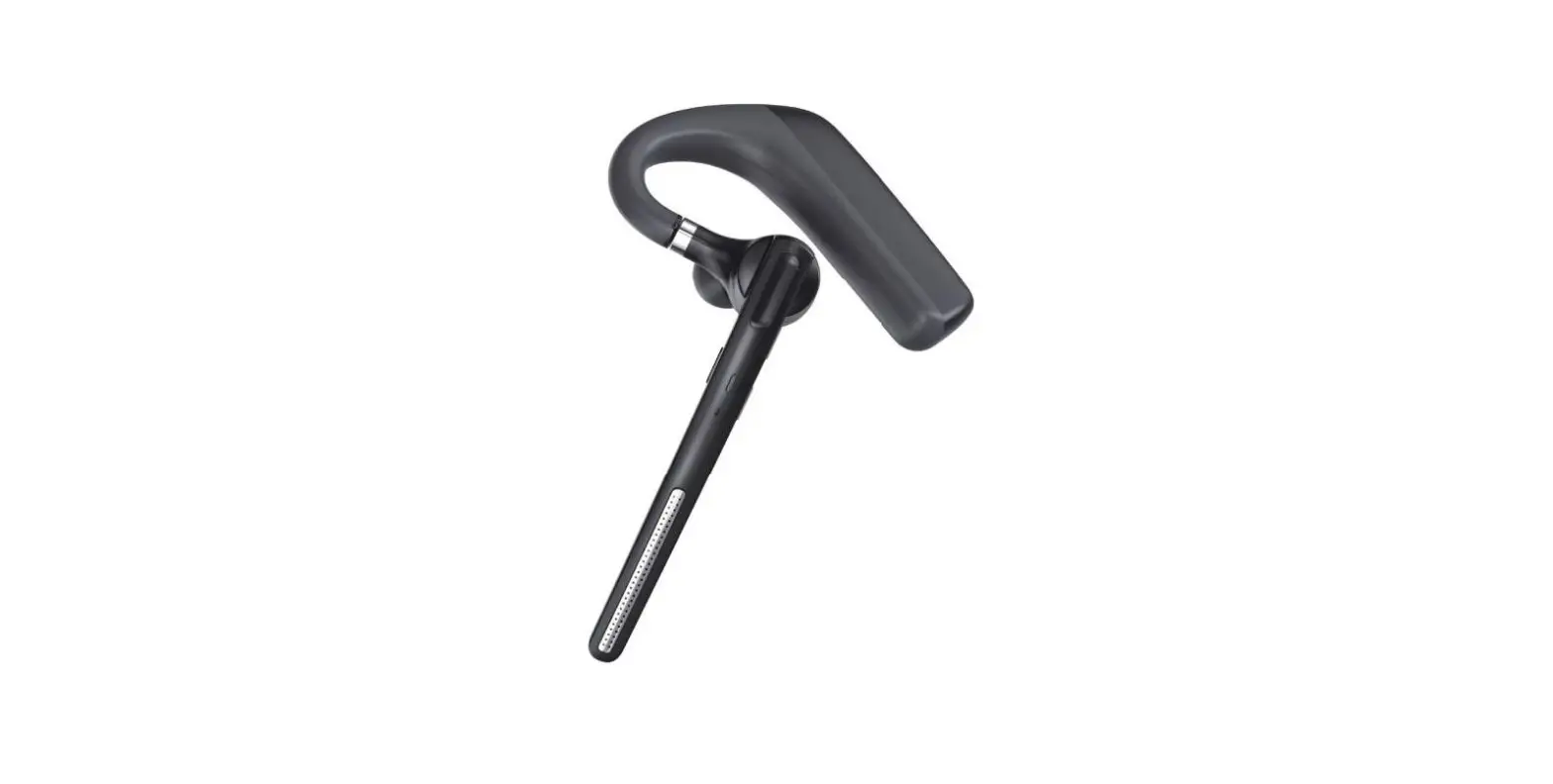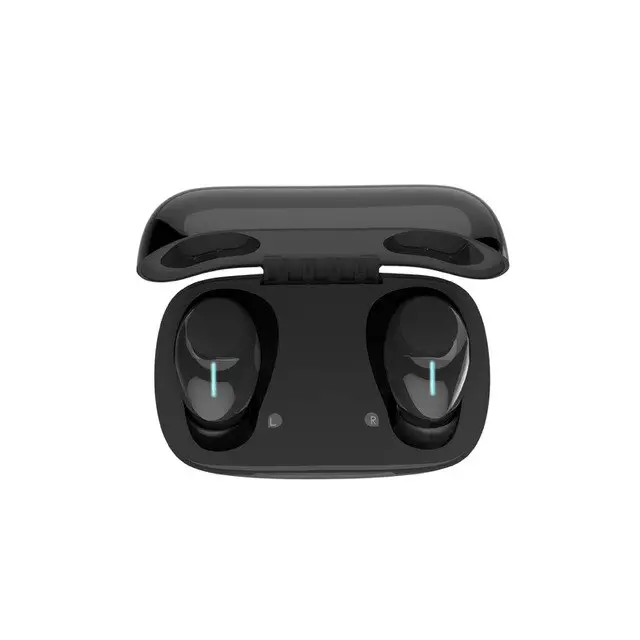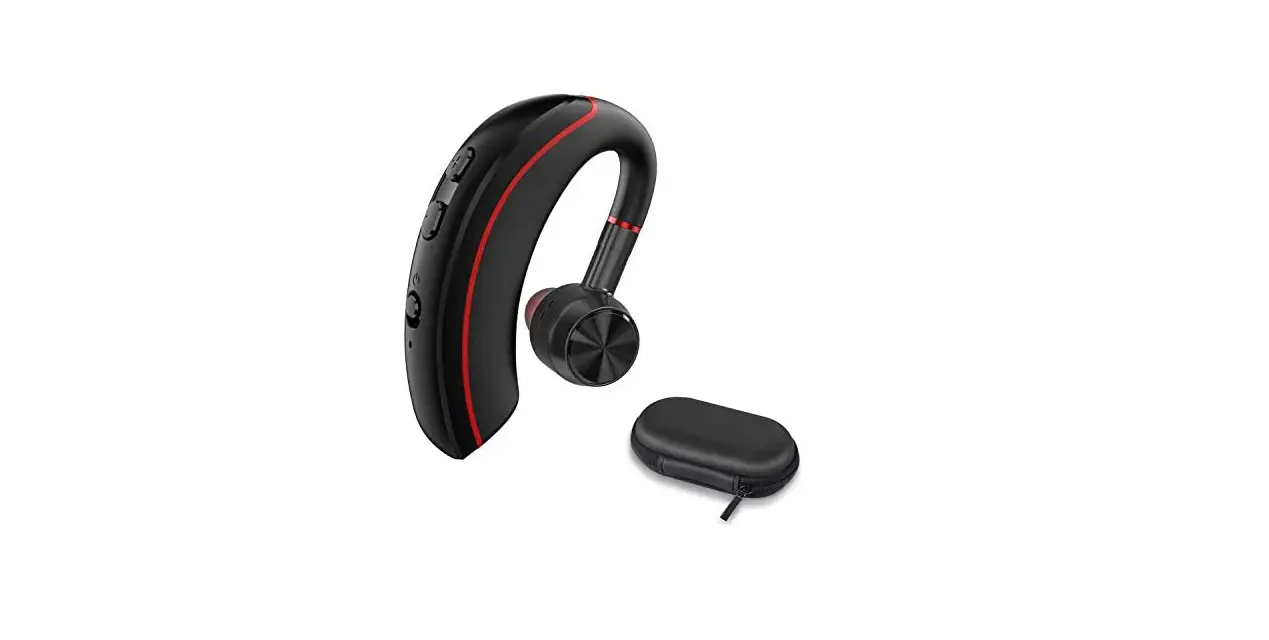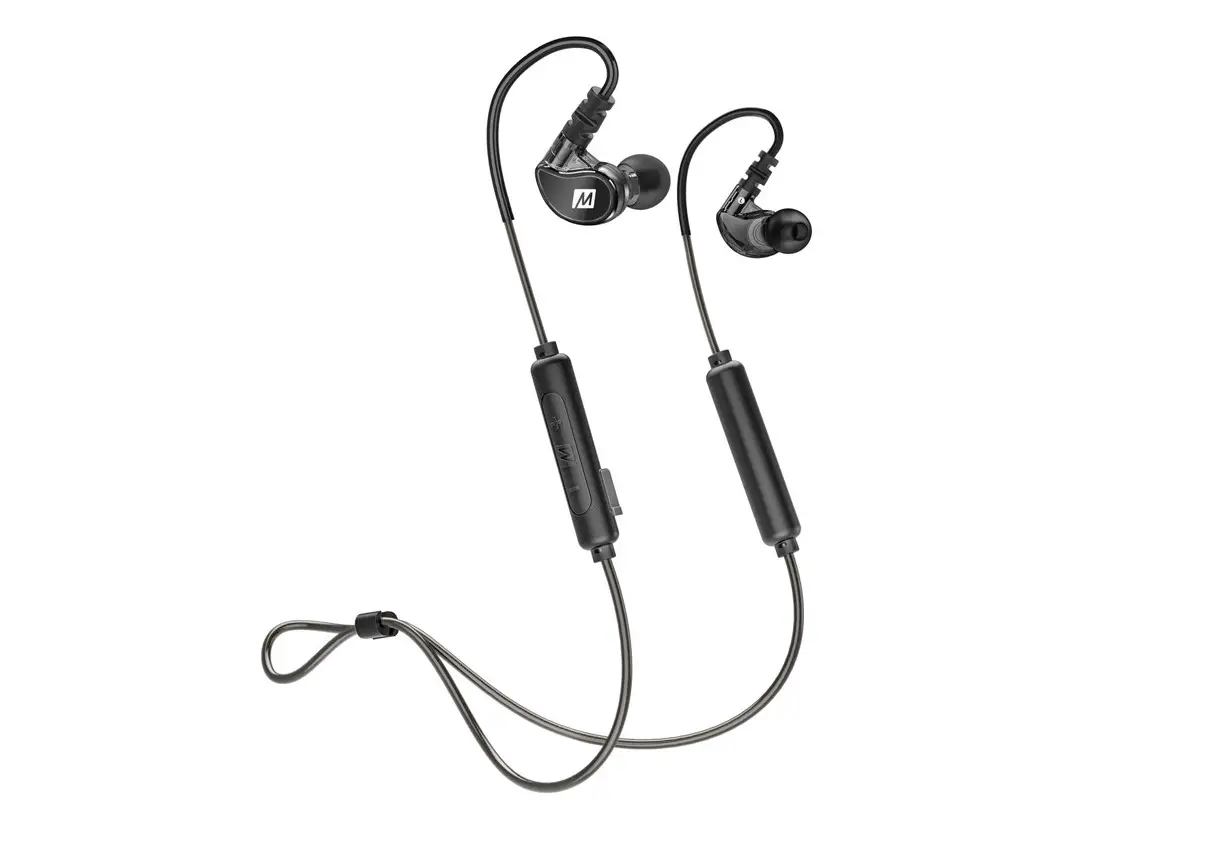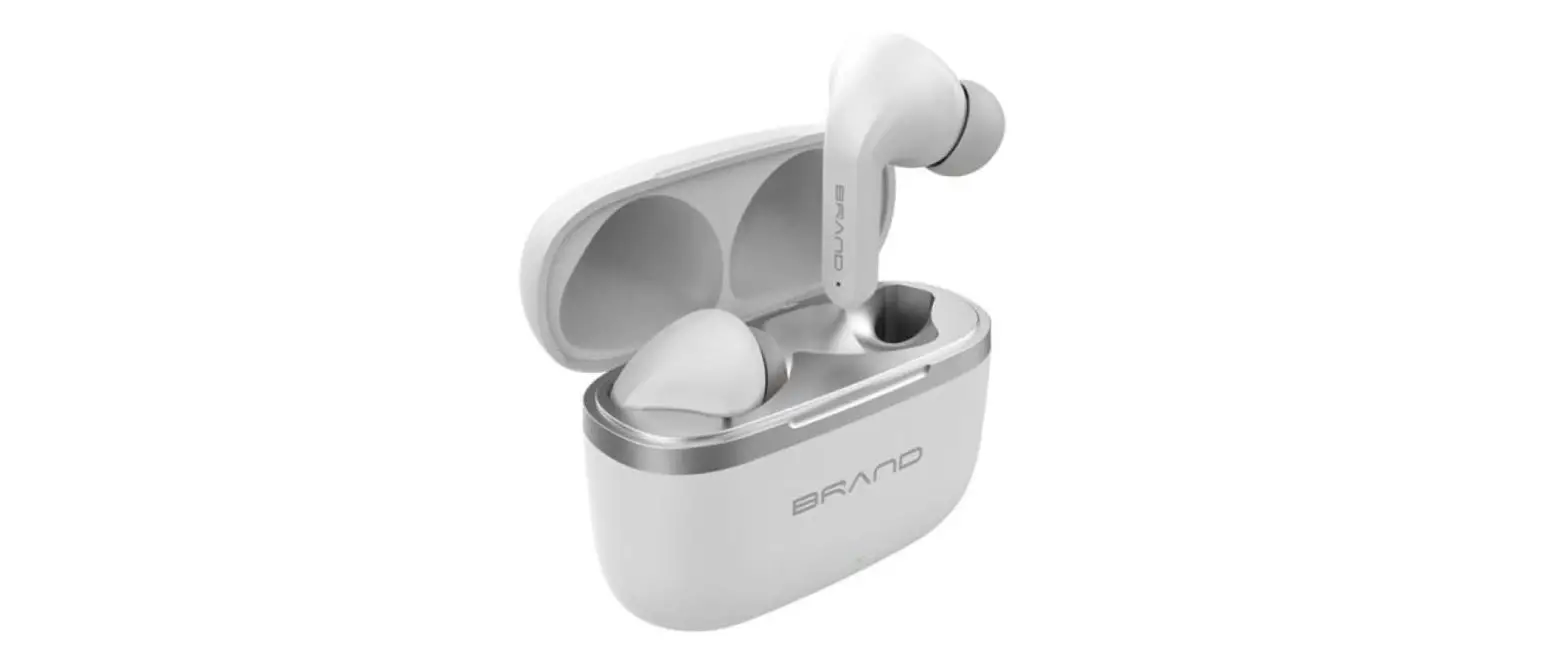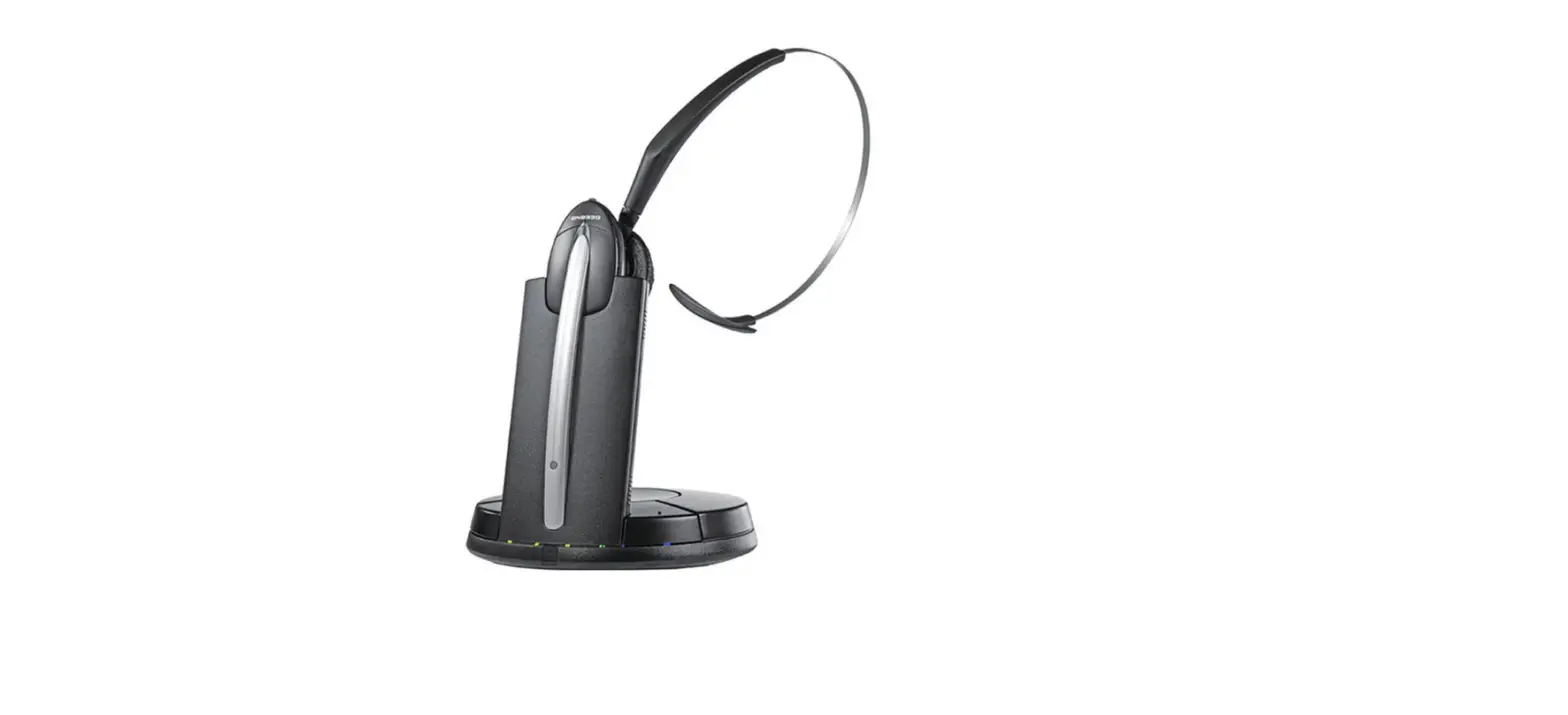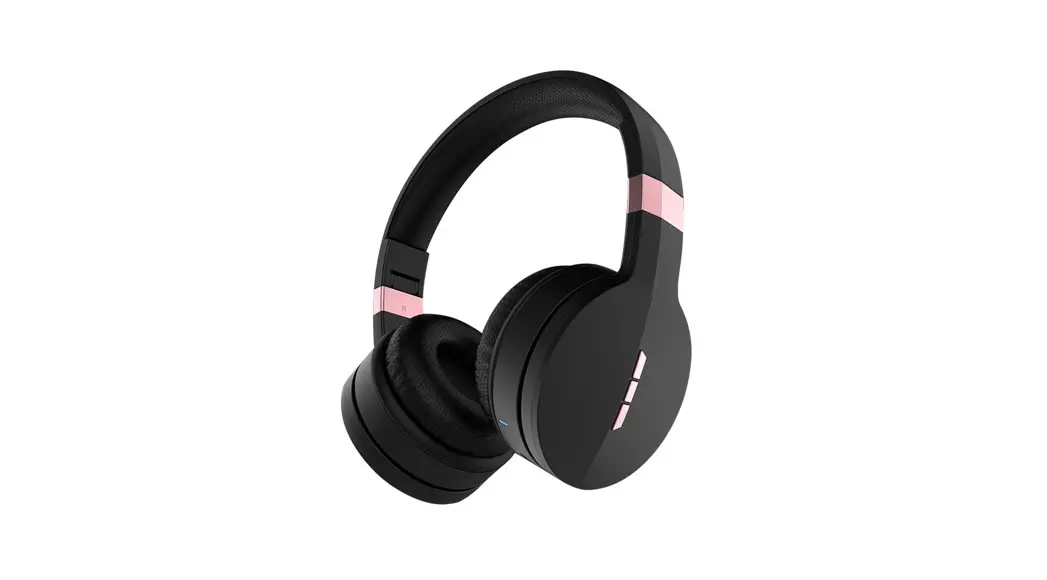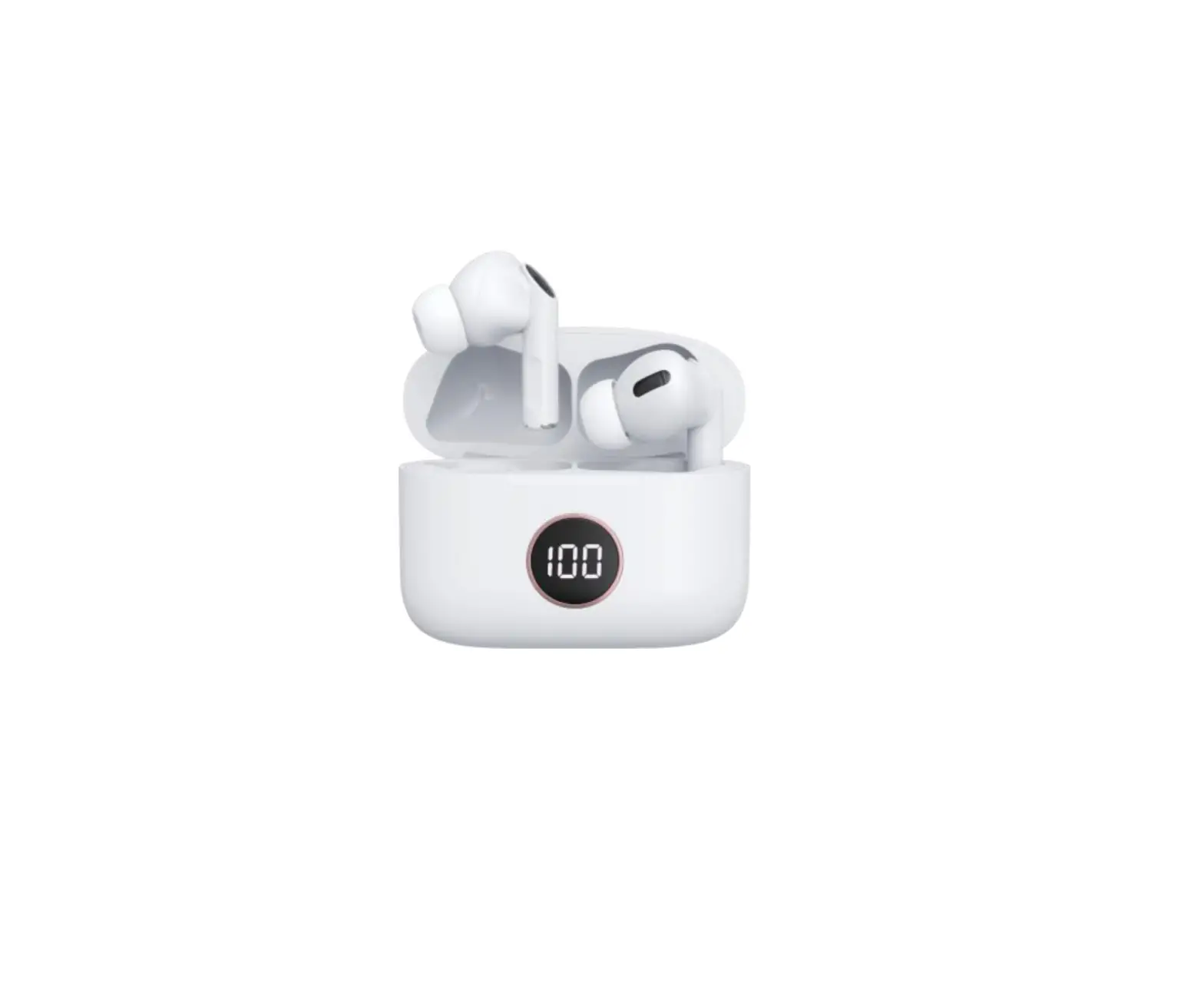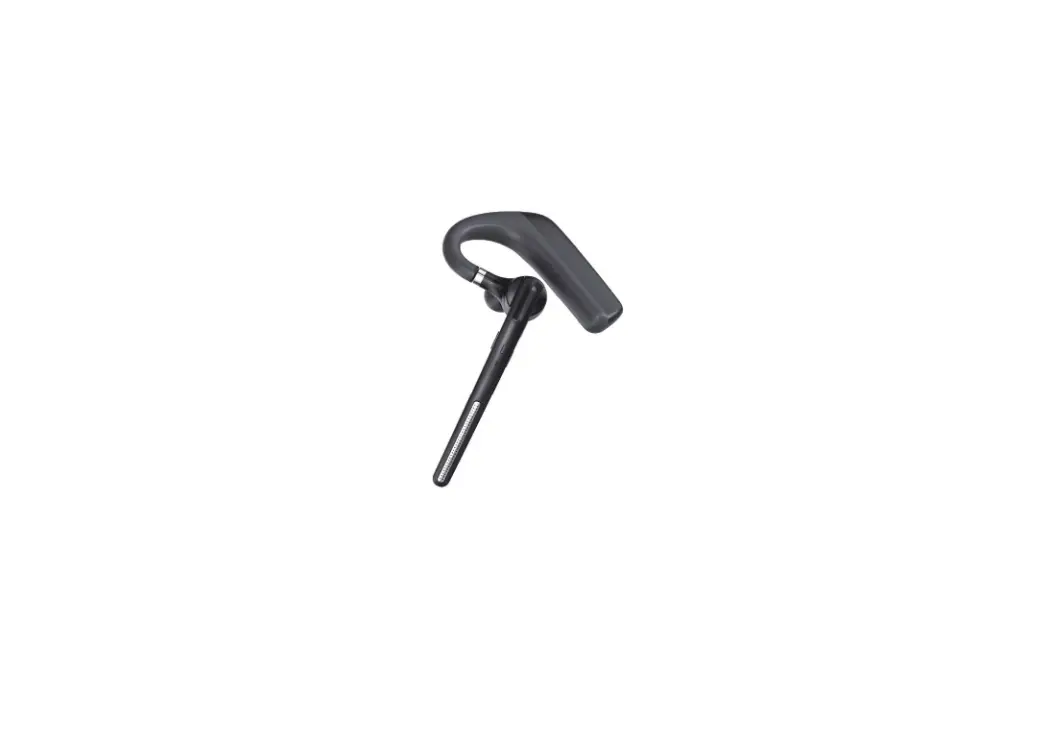

earphone SOLUTIONS G6 Business Wireless Headset
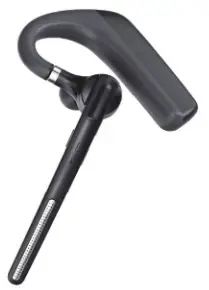
What’s in the Box
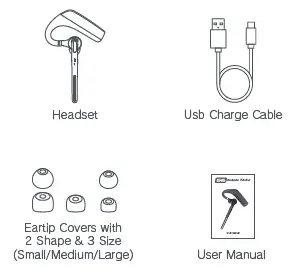
Package Contents
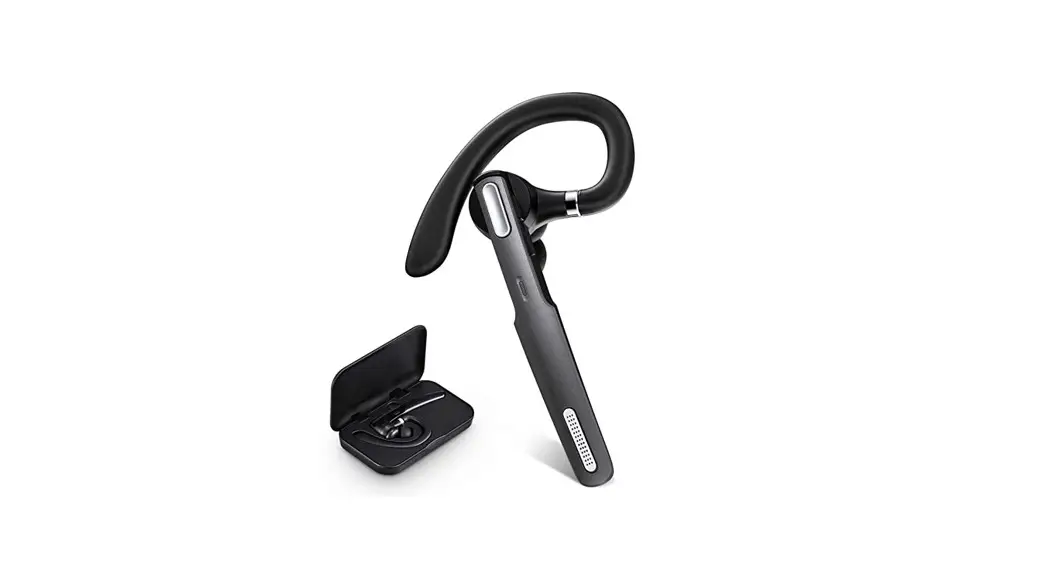
- A. Business Headset x 1
- B. Eartips x 6(Includes one on headset)
- C. Type-C Charging Cable x 1
- D. User Manual x 1
Product Overview
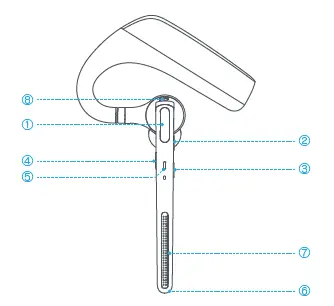
- MFB
(Multi Function Button) - Volume+
- Volume-
- Mute Button
- LED Indicator
- Main Microphone
- Second Microphone
- Charger Port
Basic Operation
| Button | Function | Operation |
|
MFB | Power On | In off status, press MFB to power on. |
| Power Off | In on status, long press 5 seconds to power off. | |
| Enter into Pairing Mode | In off status, automatic enter into pairing mode. | |
|
Connection | Connect for the first time, search and click to connect “ G6 ”on lists. When there is a pairing record, power on and enter into the auto-connect state. | |
| Answer a Call | Short press (when call coming) | |
| Hang up a Call | Short press (during a call) | |
| Reject a Call | Long press 1 second (when call coming) | |
| Play / Pause | Short press (when play music) | |
| Siri | Double press to activate Siri | |
| Volume + | Volume Up | Short press |
| Next Song | Long press for 1 seconds | |
| Volume – | Volume Down | Short press |
| Previous Song | Long press for 1 seconds | |
| Mute | Mute/Unmute | Short press |
LED Indicator
| Mode | G6 |
| Power On | LED Green flashes 1 second |
| Power Off | LED Red flashes 1 second |
| Pairing Mode | LED Red & Green flashes alternately |
| Connection Success | LED Red & Green off |
| Low Battery | Red LED flash |
| Charging | Solid LED Red |
| Full Charged | Solid LED Green |
Charging
Connect the headset to a computer or the USB power adaptor (not included) via the USB cable. Plug the USB power adaptor into an electric socket.
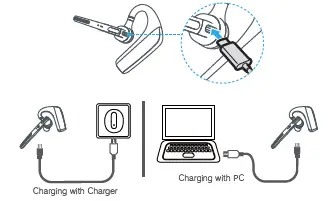
Your new headset has enough power to pair and make a few calls before charging, though you may charge at any time.
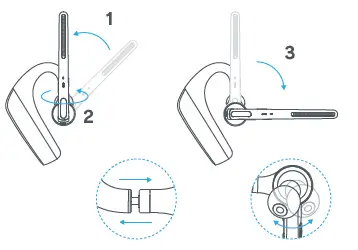
Wear on the left or right
To wear the headset on your other ear, rotate the boom upwards then twist it around so the eartip is on the other side before lowering the boom. Rotate the eartip and adjust the retractable earhook to fit the shape of your ear.
Pairing and Connection
In off status, press MFB to power on and automatically enter into pairing mode with LED Green & Red flash alternately.
A. Connect for the first time, search and click to connect “G6”on lists, LED off after connected success.
B. When there is a pairing record, press MFB to power on and enter into the auto-connect state.
Basic Specification
| Model | G6 |
| Operating Range | 33 feet/10 meters (No obstacles between) |
| Supporting Protocols | A2DP/HFP/HSP/AVRCP |
| Charging Time | 3H |
| Talking Time | 100H |
| Music Time | 110H |
| Standby Time | 90 Days |
| Battery Capacity | 500mAh |
| Operation Temperature | -10̃50°C |
| LED Indicator | Red/Green LED Light |
| Net Weight | 17g |
Safety Instruction
Do not place headset near naked flames sources. Such as candle or oven.
Do not expose the product to direct sunlight.
Press function bottom gently; Press too hard might shorten the lifetime of function.
Do not drop the product on hard surface. This may result in damage of the product.
Do not place headset near TV, speaker or other objects that generate strong magnetic fields.
When headset is affected by a strong magnetic field or by other interference simply turn off to reset headset to resume normal operation.
FCC Statement
This device complies with part 15 of the FCC Rules. Operation is subject to the following two conditions: (1) This device may not cause harmful interference, and (2) this device must accept any interference received, including interference that may cause undesired operation.
This equipment has been tested and found to comply with the limits for a Class B digital device, pursuant to part 15 of the FCC Rules. These limits are designed to provide reasonable protection against harmful interference in a residential installation. This equipment generates, uses and can radiate radio frequency energy and, if not installed and used in accordance with the instructions, may cause harmful interference to radio communications. However, there is no guarantee that interference will not occur in a particular installation. If this equipment does cause harmful interference to radio or television reception, which can be determined by turning the equipment off and on, the user is encouraged to try to correct the interference by one or more of the following measures:
- Reorient or relocate the receiving antenna.
- Increase the separation between the equipment and receiver.
- Connect the equipment into an outlet on a circuit different from that to which the receiver is connected.
Consult the dealer or an experienced radio/TV technician for help.
Caution: Any changes or modifications to this device not explicitly approved by manufacturer could void your authority to operate this equipment.
RF Exposure Information
The device has been evaluated to meet general RF exposure requirement. The device can be used in portable exposure condition without restriction.