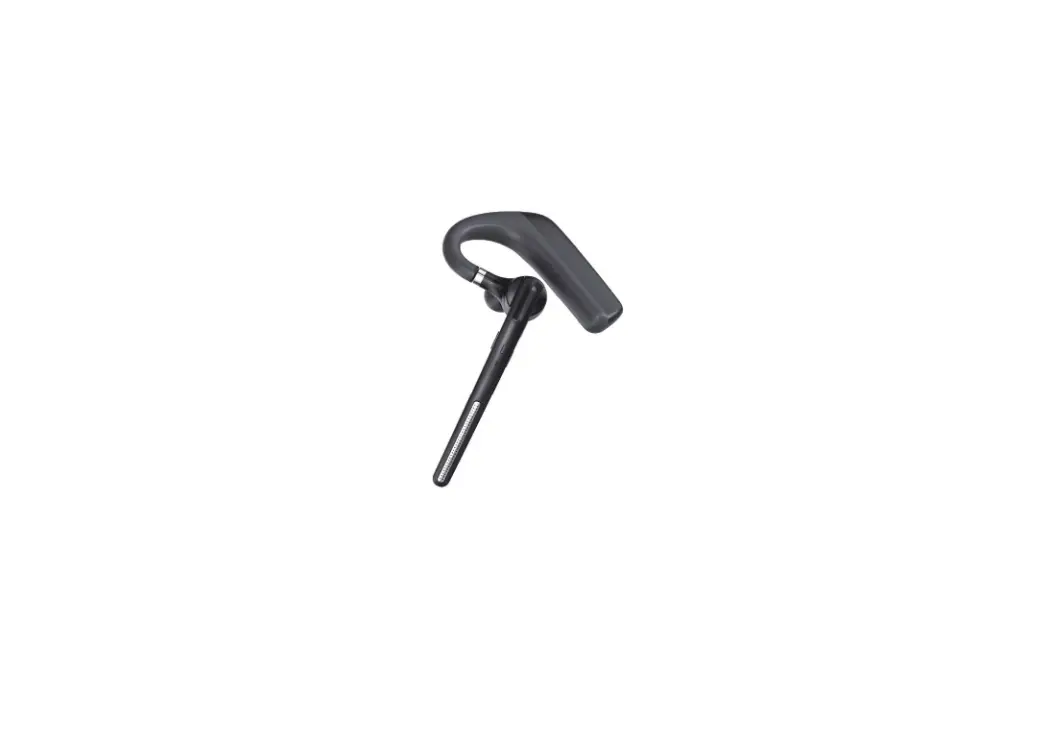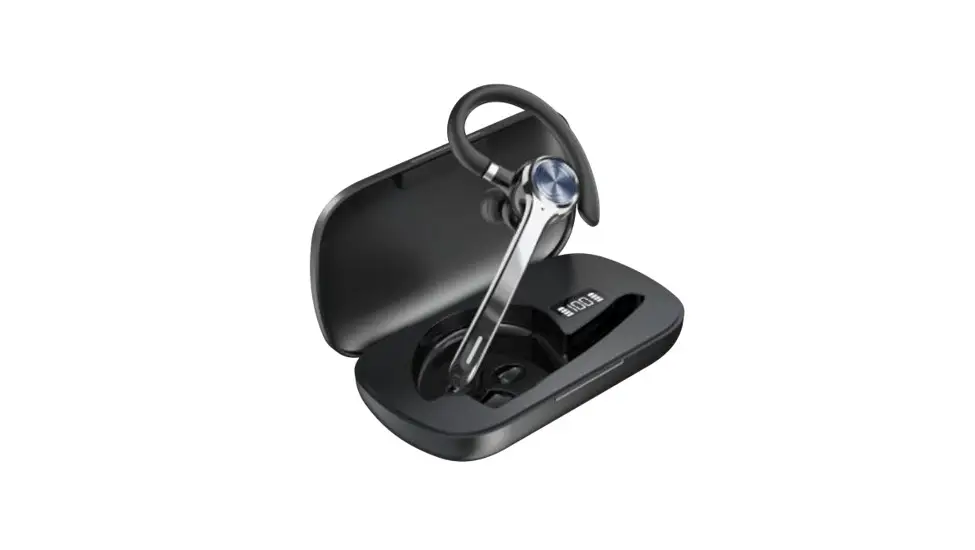
 Headsets G7 Wireless Headset
User Manual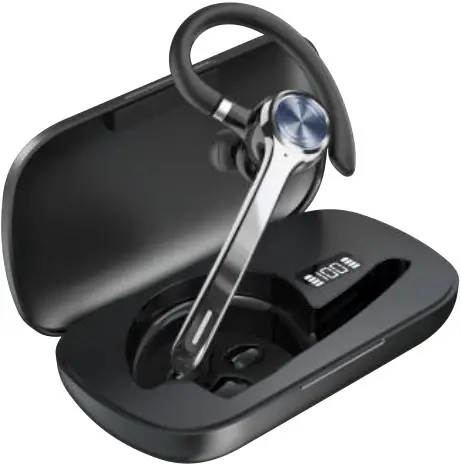
Packing List
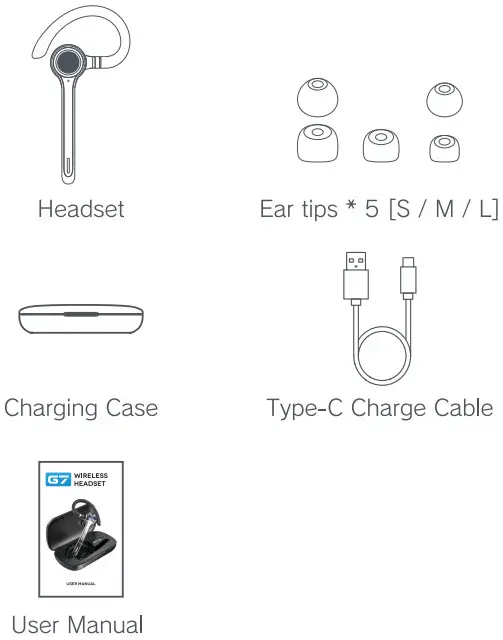
Package Contents:
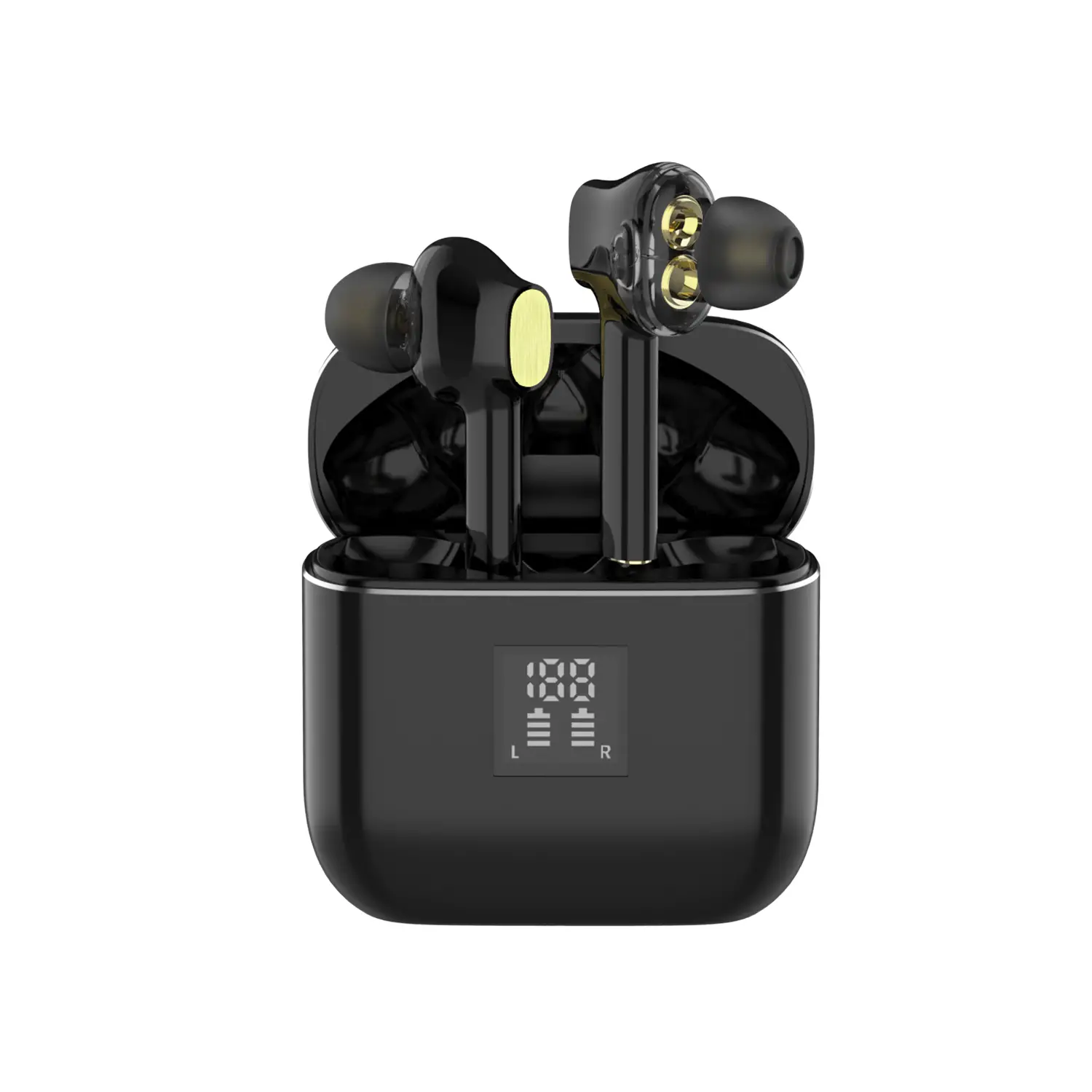
A. Headset x 1
B. Ear tips x 5
C. Charging Case x 1
D. Type-C Charging Cable x 1
E. User Manual x 1
Product Overview
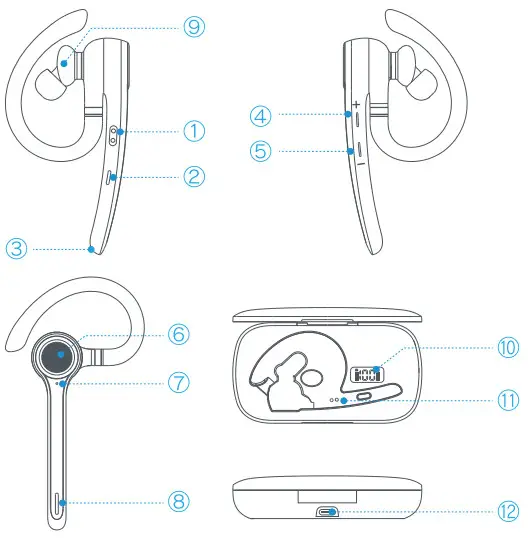
- Charging Pin
- Mute Button
- Microphone
- Volume +
- Volume —
- MFB Button
- Microphone
- Indicator Light
- Speaker
- Battery Display
- Charging Pin
- TYPE-C Charging Port
Wear
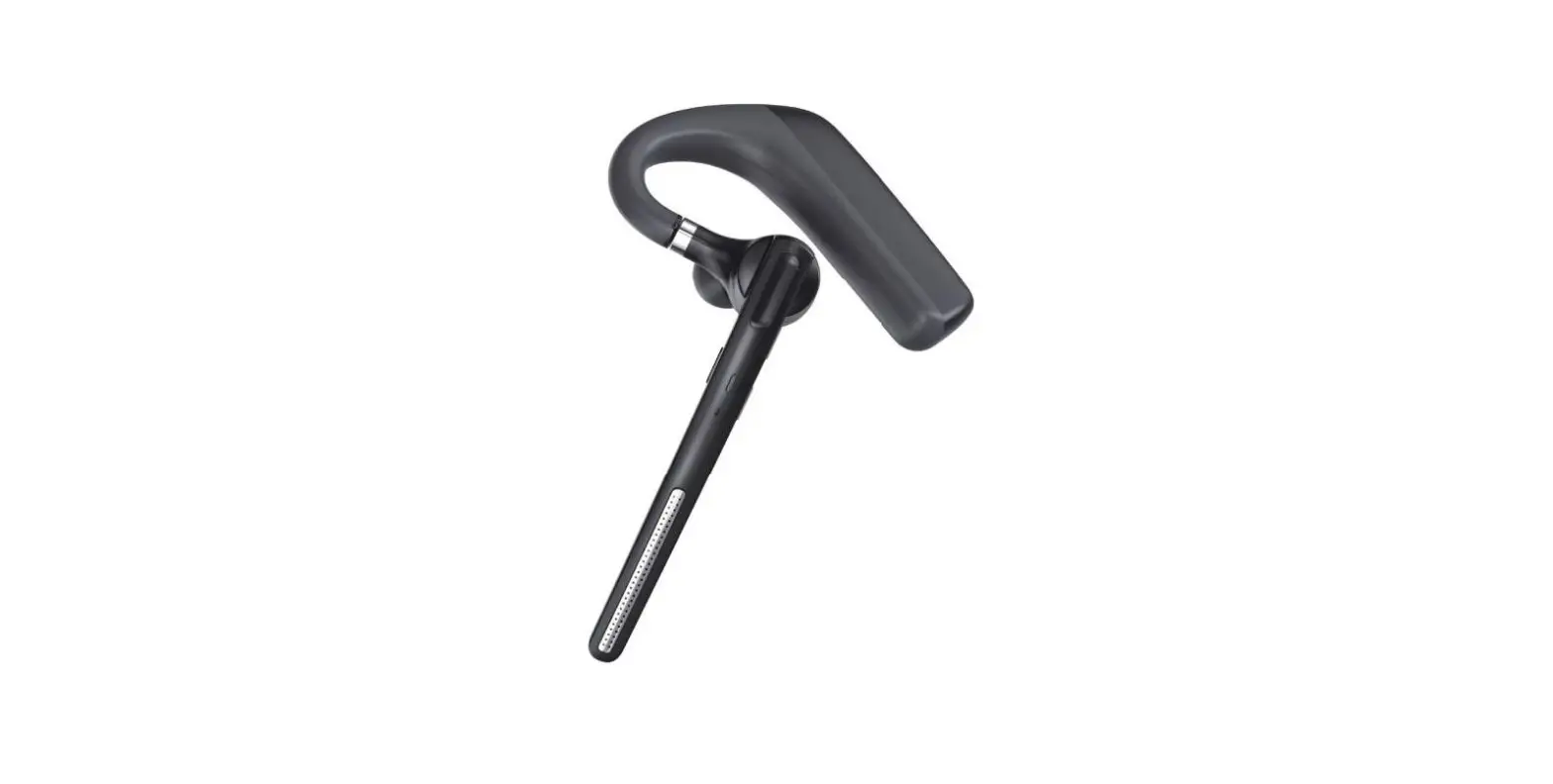
A. Choose an ear tip with a comfortable size and replace it on the headset.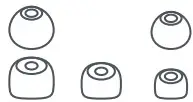 B. Rotate the ear cap position to a suitable angle and insert it into your ear.
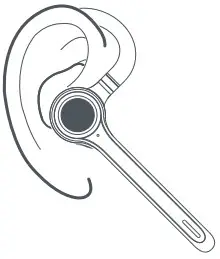 C. Adjust the ear hook to the most comfortable fit.
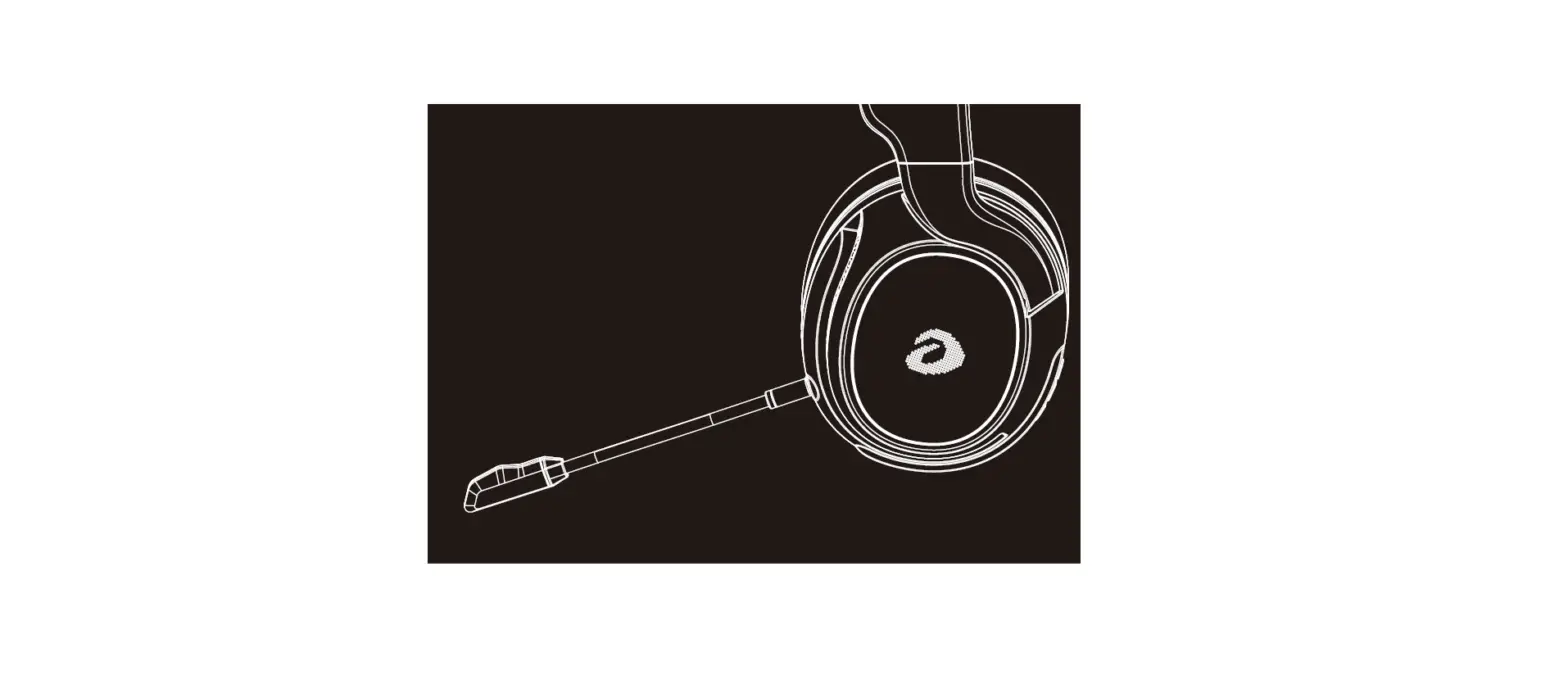
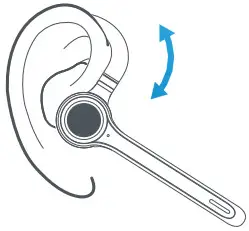 D. Rotate the microphone boom so that the microphone is facing your mouth.
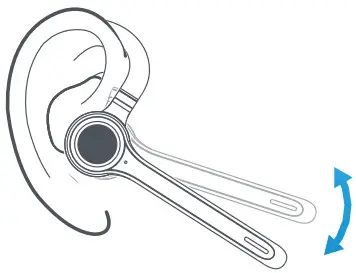 E. If you want to change another ear to wear the headset. rotate the microphone boom upwards and twist, make the earbud turn to another side, and then lower down the microphone boom.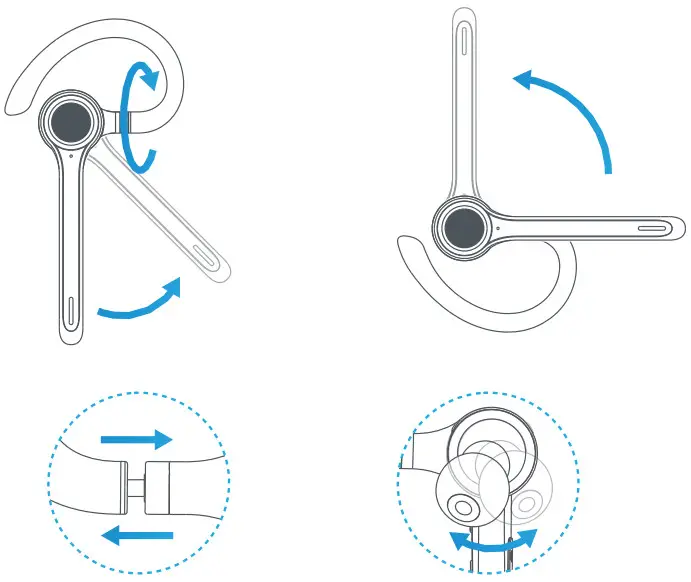
Power On
Auto Power On
Take out the headset from the charging case, the headset will power on automatically.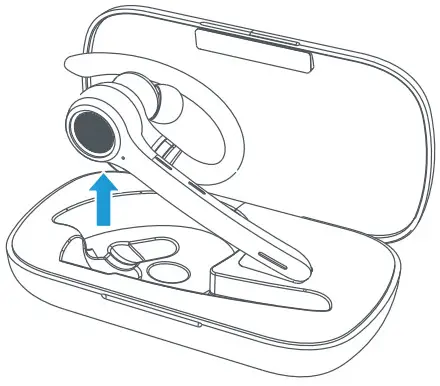
Manual Power On
Long press the “MF13” button for 2s, the headset I. power on and you will hear a voice prompt ‘Power on’. The indicator light stays green for ls. and ta flashes green and red alternately.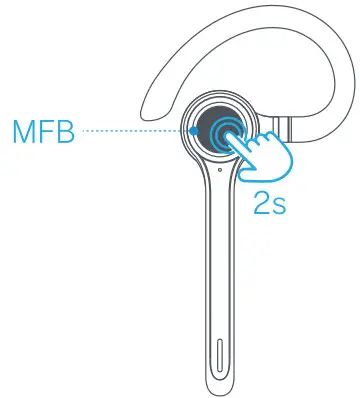
Power Off
Method 1
Pul the headset into the charging case and close the case, the headset will power off automatically.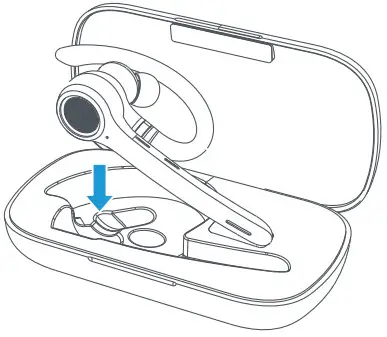
Method 2
Long press the “MFIK button for 3s. the headset will power off and you will hear a voice prompt ‘Power or. The indicator light stays red for Is. and then the light off.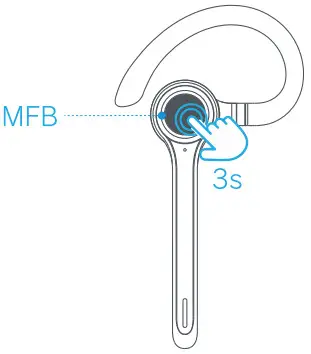
Pairing
How to pair
Power on and automatically enter into pairing mode with indicator light flashes red-green alternately.
A. Connect for the first time, search and click to connect ‘ 67″ on your device, indicator light off after connected success, and you will hear a voice prompt “Connected’.
B. When there is a pairing record. Just take out the headset from the charging case and automatically connect your device.
Pairing 2 Device at The Same Time
A. Connect the first device.
B. Disconnect from the first device and connect to the second device.
C.With the second device connected, search for and click on the ’67” connection in the first device.
D. You have successfully connected two devices at the same time.
Phone Calls Control
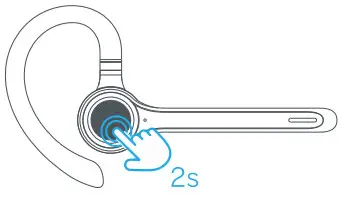
Answer/End Calls: Shod press the -N11:6″ buffo-.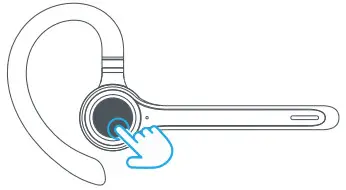 Reject Calls: Long press the ‘MFB’ button for 2s.
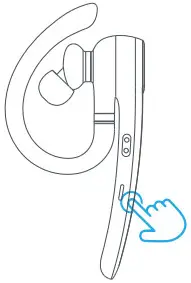
 Mule/Unmute: Short press the “Mute” button(During the call).
 Music
Music
Play/Pause: Short press the -MFB’ button.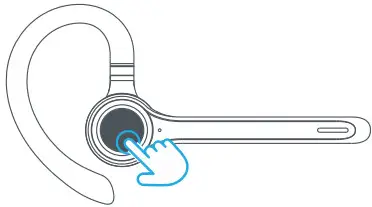 Volume Up: Short press the “+” button. Previous Track: Long press the “+” button.
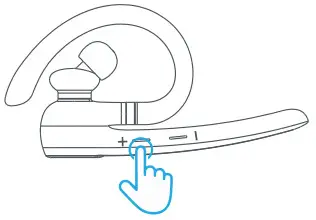 Volume Down: Short press the “-‘ button. Next Track: Long press the -” button.
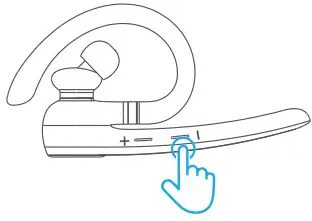 Note: When the volume is set to maximum/minimum, you will hear a voice prompt “Di ∼”
Activate “Siri”
Double press the “MFEI” button in standby mode music mode.
Resetting the Headset
Press and hold the volume “+” and “-” bells is at the same time while charging until indicator light flashes green twice.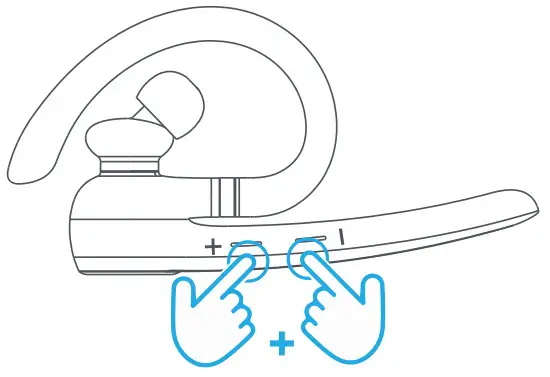
Charging
Headset Charging
Dot Ue headset into charging case and close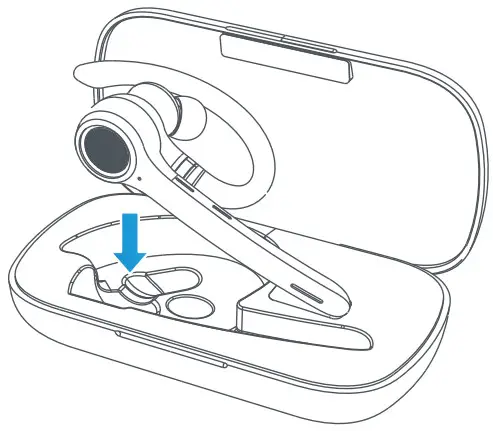
Charging for the Case
Use USB-C charging cable(provided) to connect an adapter(not provided) to your charging case. The indicator light stays red. And it will turn green after 2-2.5 hours fully charged.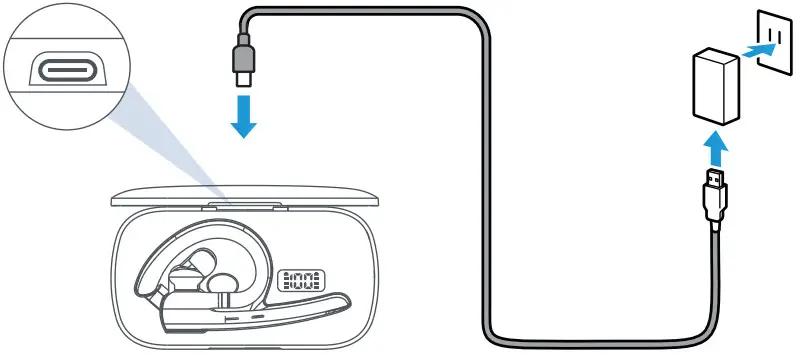 Note: When the headset battery is low, there will be a voice prompt ” Low battery” every 60s. and indicator light flashes red every SS.
Specification
| Model: | G7 |
| Version: | V5.1 |
| Transmission Distance: | 33 feet/10 meters(open space) |
| Supporting Protocols: | A2DP/HFP/HID/SPP/ |
| Headset battery capacity: | 100mAh |
| Case battery capacity: | 500mAh |
| Charging time: | About 2-2.5 hours |
| Standby time: | About 200 hours |
| Talking time: | About 23 hours |
| Working Temperature: | -10° C – 40° C |
| Charging Port: | Type-C |
| Built-in dual microphones | |
| Support two phones connection | |
| Support mute function | |
Safety Instruction
- When using while walking, pay close attention to the surrounding traffic. It may cause a traffic accident.
- Minimize the volume before use. Sudden loud noises will impair your hearing.
- To protect your ears. do not turn up the volume too much.
- If the product drop into flammable or liquid such as water. please stop using it and contact the store where you purchased the product or us. If you still continue to use it. it may cause a fire, malfunction or electric shock.
- Opening the inside may cause a malfunction or electric shock. Do not touch the inside. In addition, we do not guarantee performance it the inside is modified by people.
- Do not charge it with wet hands or touch the charging port. It may cause electric shock.
- If you feel sick while using this product, please stop using it immediately.
- If you are using a medical device such as a pacemaker, consult your doctor before using it.
- Do not allow small children to use it.
Tips
- It may cause disconnection when under low battery circumstances. In order not to affect its normal use please charge the headset in time.
- If the headset fails to turn on. please try to charge it first, and then try to turn it on again after fully charged.
- If the battery is exhausted or has not been used for a long time, there may be no signal light at the beginning of charging, but it will normally light up in red after a few minutes.
- No sound from the headset.
—- Make sure the headset is turned on.
—- Make sure the headset is successfully connected to the Phone.
—- Make sure that the distance between the headset and the phone does not exceed the effective distance of 10 meters (about 32.8 feet).
—- Make sure that the music playback output selects the right.
—- Make sure that your phone is within a strong signal range and there is no external interference.
—- Check whether your phone is connected to other devices. - The headset model cannot be searched.
—- Make sure the headset is in pairing state and ready to connect.
—- There may be a program error between the headset and phone. Please restart the device or contact the manufacturer. - No sound from the headset
—- Make sure that the call selects G7 standby status, not the phone speaker status.
—- Confirm whether your phone is connected to other devices.
This device complies with part 15 of the FCC Rules. Operation is subject to the following two conditions:
- This device may not cause harmful interference, and
- This device must accept any interference received, including interference that may cause undesired operation.
Any Changes or modifications not expressly approved by the party responsible for compliance could void the user’s authority to operate the equipment.
Note: This equipment has been tested and found to comply with the limits for a Class B digital device, pursuant to part 15 of the FCC Rules. These limits are designed to provide reasonable protection against harmful interference in a residential installation.
This equipment generates uses and can radiate radio frequency energy and, if not installed and used in accordance with the instructions, may cause harmful interference to radio communications. However, there is no guarantee that interference will not occur in a particular installation. If this equipment does cause harmful interference to radio or television reception, which can be determined by turning the equipment off and on, the user is encouraged to try to correct the interference by one or more of the following measures:
- Reorient or relocate the receiving antenna.
- Increase the separation between the equipment and receiver.
- Connect the equipment into an outlet on a circuit different from that to which the receiver is connected.
- Consult the dealer or an experienced radio/TV technician for help.