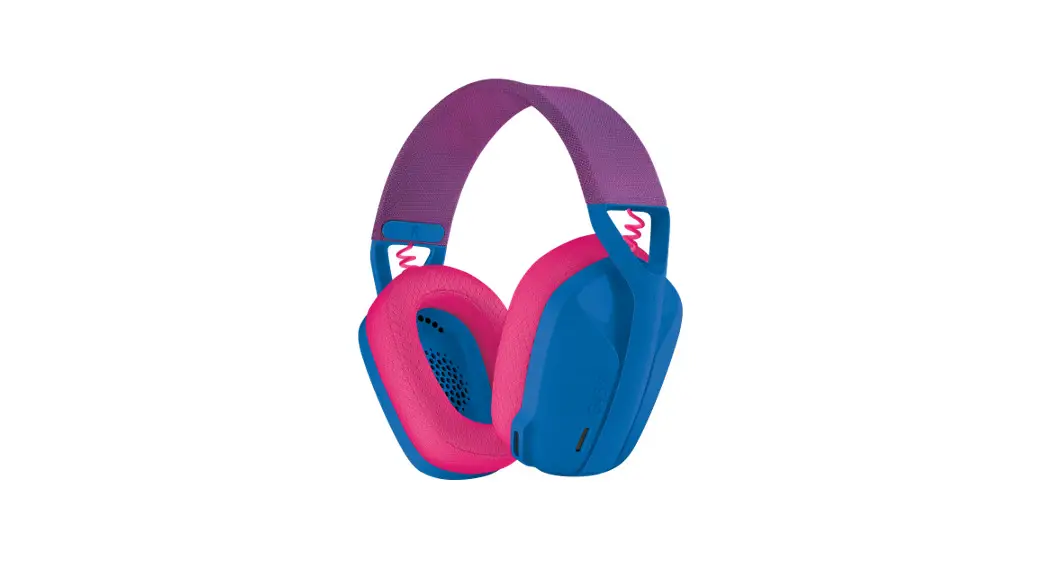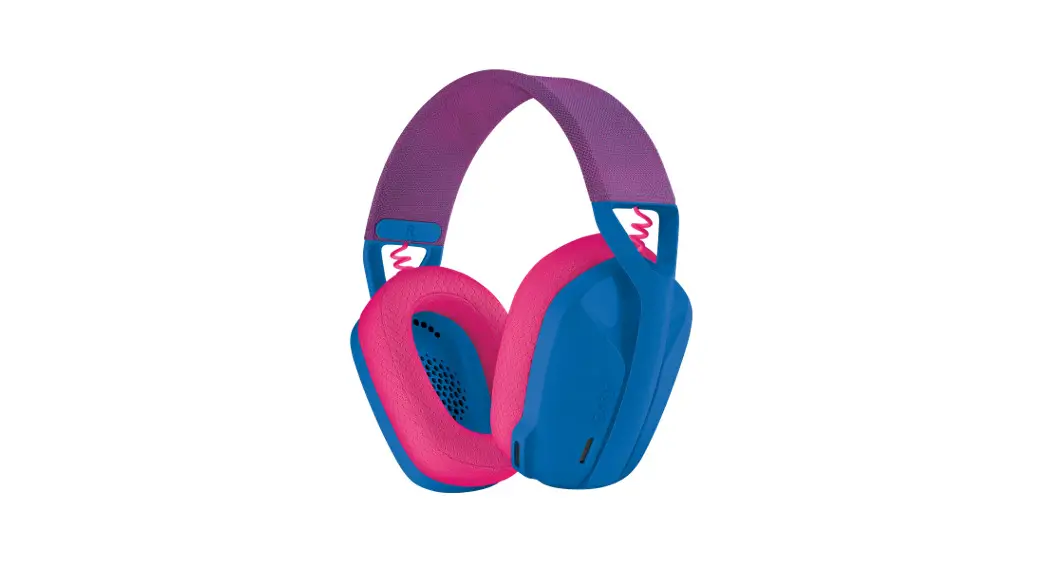
 Logitech G435 Wireless Gaming Headset User Guide
 Logitech G435 Wireless Gaming Headset User Guide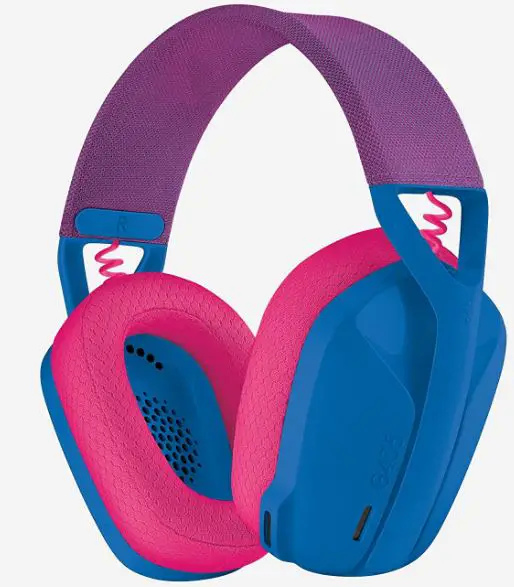
Logitech G435 Wireless Gaming Headset User Guide
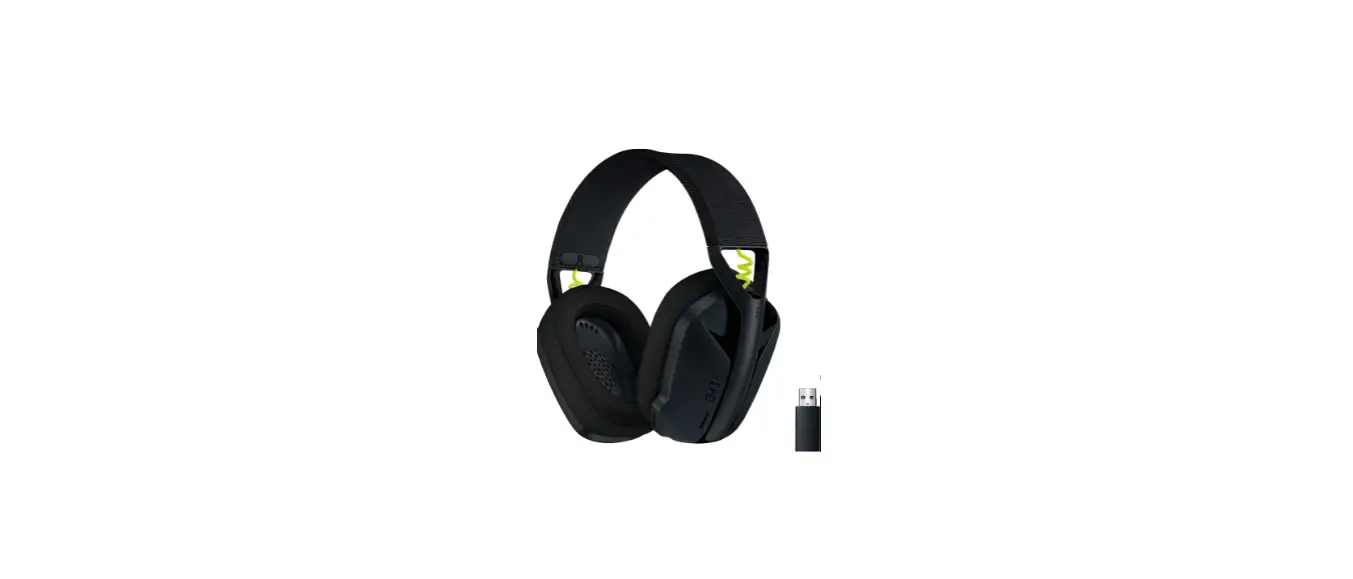
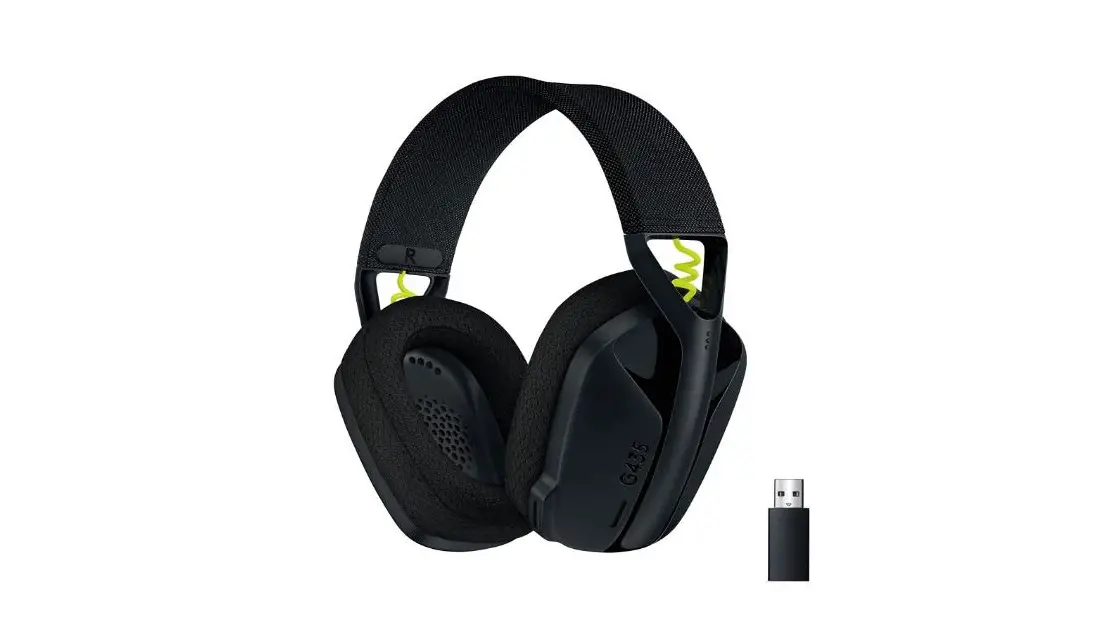
WHAT IS IN BOX
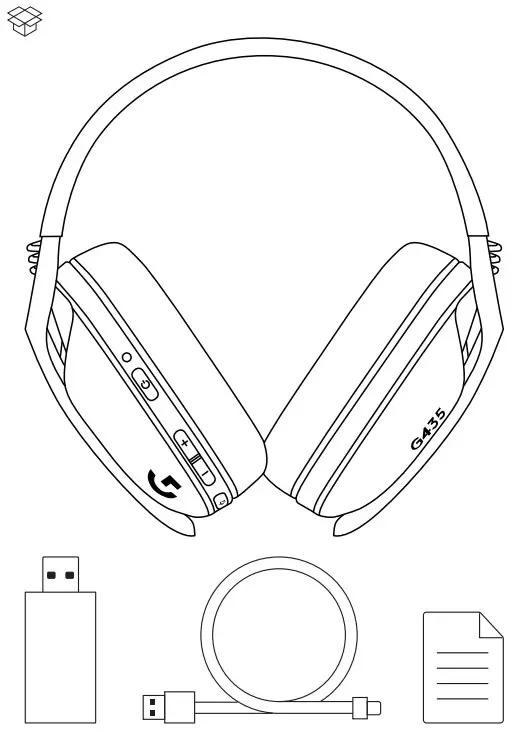
LIGHTSPEED CONNECTION
Connect to your PC, Mac, PlayStation 5, or 4 with LIGHTSPEED Wireless Technology – Insert the receiver into the USB port of your device 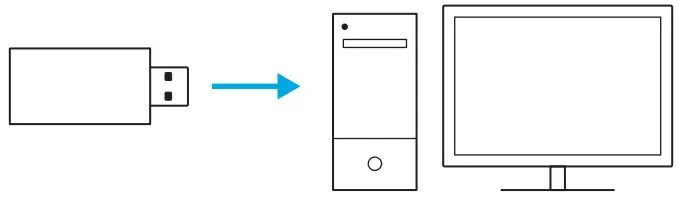 – Press the Power button for a minimum of 1.5 sec
 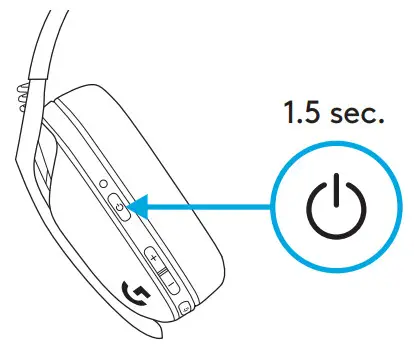 – The LED turns cyan once connected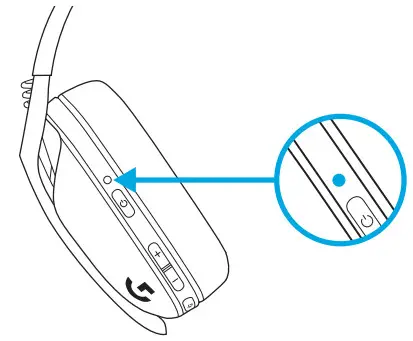
BLUETOOTH CONNECTION
– Press 3 seconds or longer of the Power and Mute button 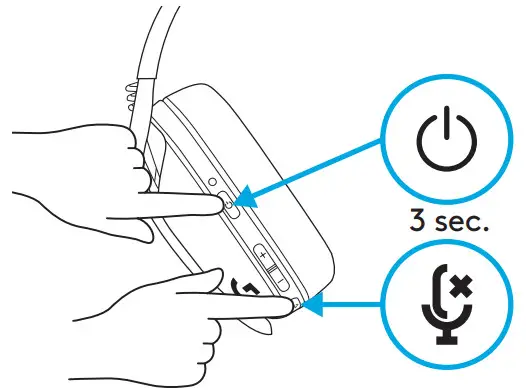 – LED will flash blue as it enters pairing mode
 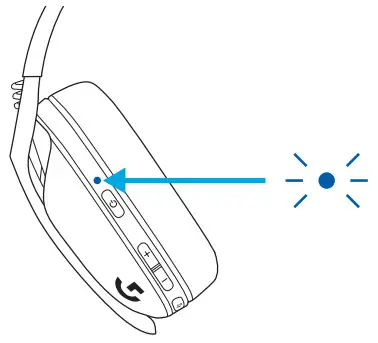 – Connect to your preferred device
 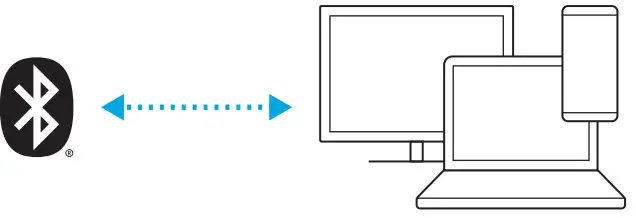 – G435 can connect to a single Bluetooth device at a time
SWITCH BETWEEN LIGHTSPEED AND BLUETOOTH
– Press 3 seconds or longer of the Mute button 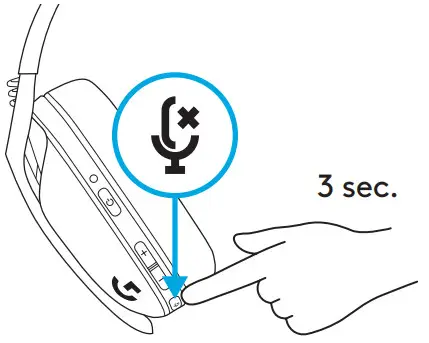 – Switch to LIGHTSPEED, LED will light cyan for 5 seconds |
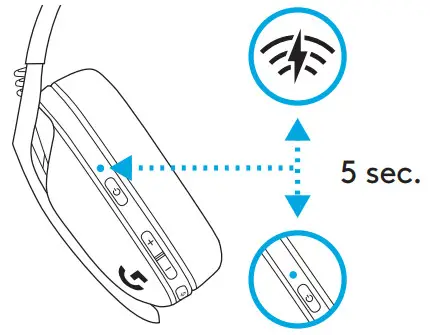 – Switch to Bluetooth, LED will light blue for 5 seconds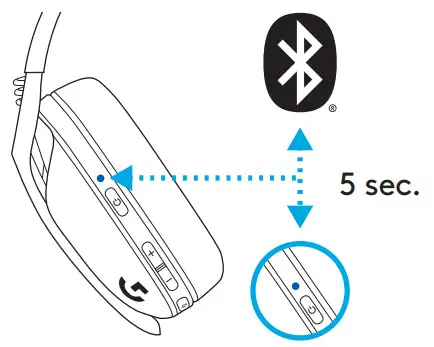
POWER ON AND OFF
Power ON – Press the Power button for 1 5 seconds when the headset is OFF Power OFF – Press the Power button for 3 seconds when the headset is ON 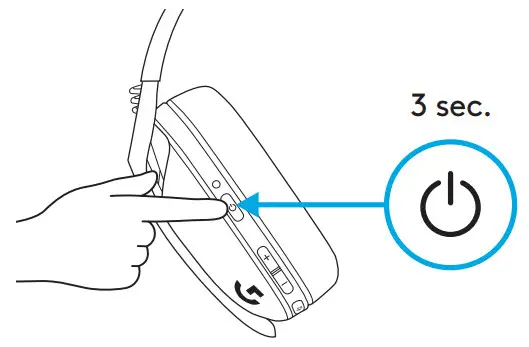 Auto Shutoff – After 30 minutes of inactivity
MUTE / UNMUTE AND MAX VOLUME
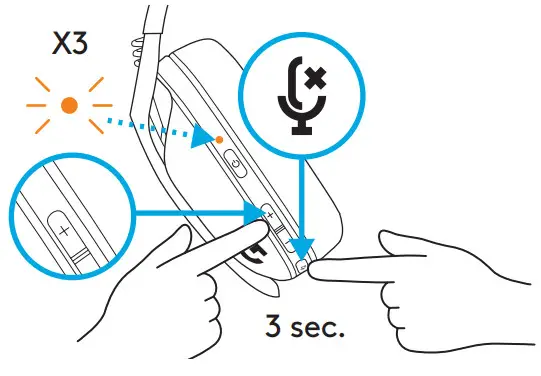
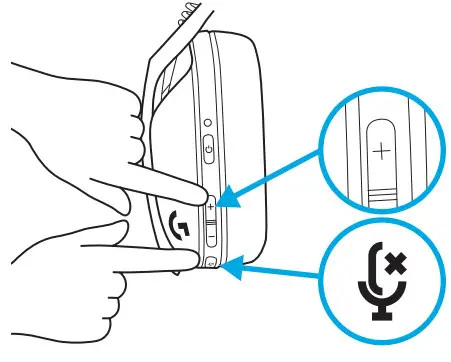
MUTE / UNMUTE microphone – Short press on the Mute button 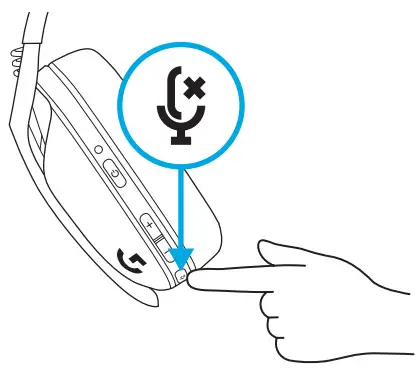 Set Max Volume – Set to 100 dB – Press 3 seconds or longer Mute button + Volume UP – LED will flash orange 3 times
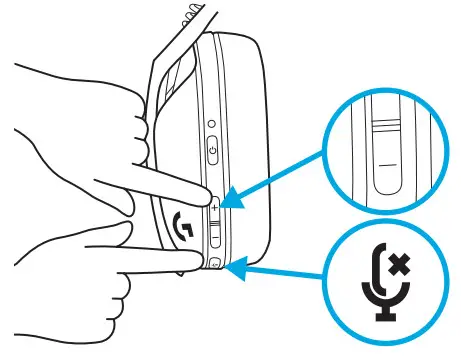
  – Set to 85 dB – Press 3 seconds or longer Mute button + Volume DOWN – LED will turn solid orange for 5 seconds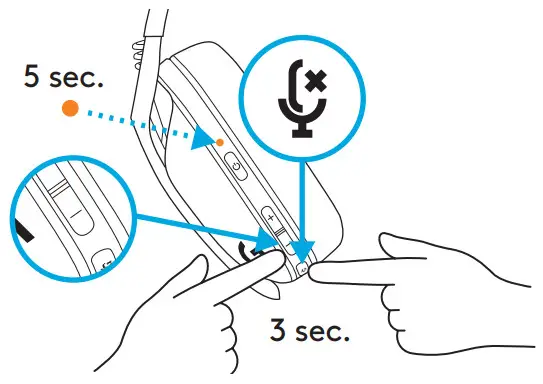
BATTERY CHECK
– Single press the Power button, when the headset is ON – Battery 31% to 100% the LED will show green for 5 seconds 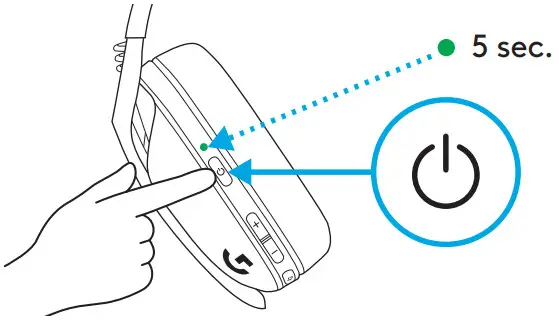 – Battery 15% to 30% the LED will show red for 5 seconds
 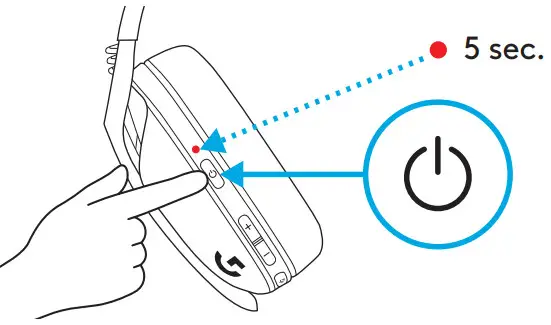 – Battery <15% the LED will flash red for 5 seconds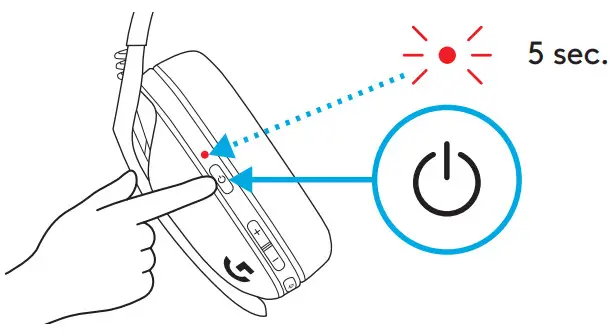
SIDETONE
Sidetone lets you hear your voice while communicating with other people, It mirrors the experience of talking on a phone and allows you to adjust your speaking volume to a proper level – Enable Sidetone – Double press the Mute button and the LED will flash twice in orange 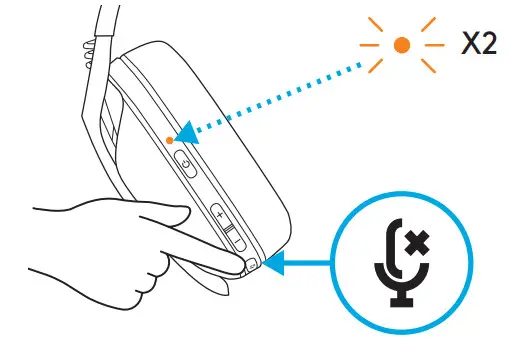 – Disable Sidetone – Double press the Mute button and the LED will flash once in orange
 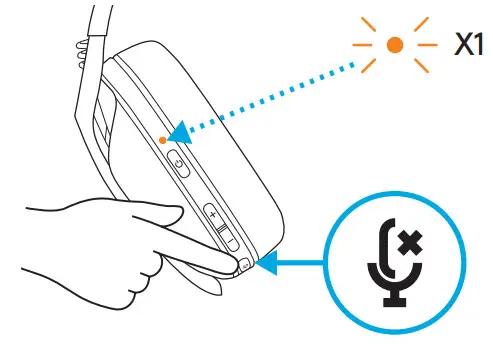 – Adjust Sidetone – UP = Single press Mute button + Volume UP
  – DOWN = Single press Mute button + Volume DOWN
SPARE PARTS
– Earpads – Wireless USB Receiver – Charging Cable
RECYCLING
We encourage you to resell or donate working products Otherwise, batteries, electronic and electrical equipment should not be disposed of with household waste Wherever possible, they should be segregated and brought to an appropriate collection point to enable recycling and avoid potential impacts on the environment and human health For more information, contact your local authorities or place of purchase, or visit www.logitech.com/recycling
QUESTIONS?
logitechG com/support/G435
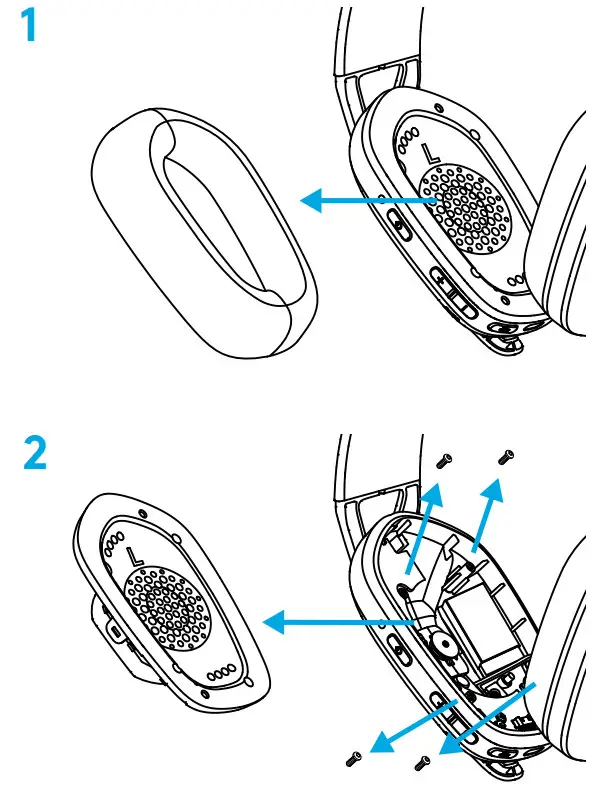
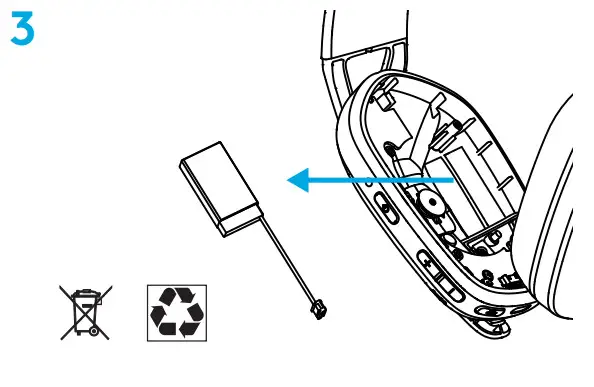
BATTERY REMOVAL
©2021 Logitech Logitech, Logitech G, Logi, and their respective logos are trademarks or registered trademarks of Logitech Europe S A and/or its affiliates in the US and other countries All other trademarks are the property of their respective owners Logitech assumes no responsibility for any errors that may appear in this manual Information contained herein is subject to change without notice WEB-621-002087 002
FAQS
Is there a mute button?
Yes, there is a mute button for Logitech G435 Lightspeed and Bluetooth Wireless Gaming Headset, which you can find below the power button.
The colors listed here have different weights. What weight are these? Are the colors different weights?
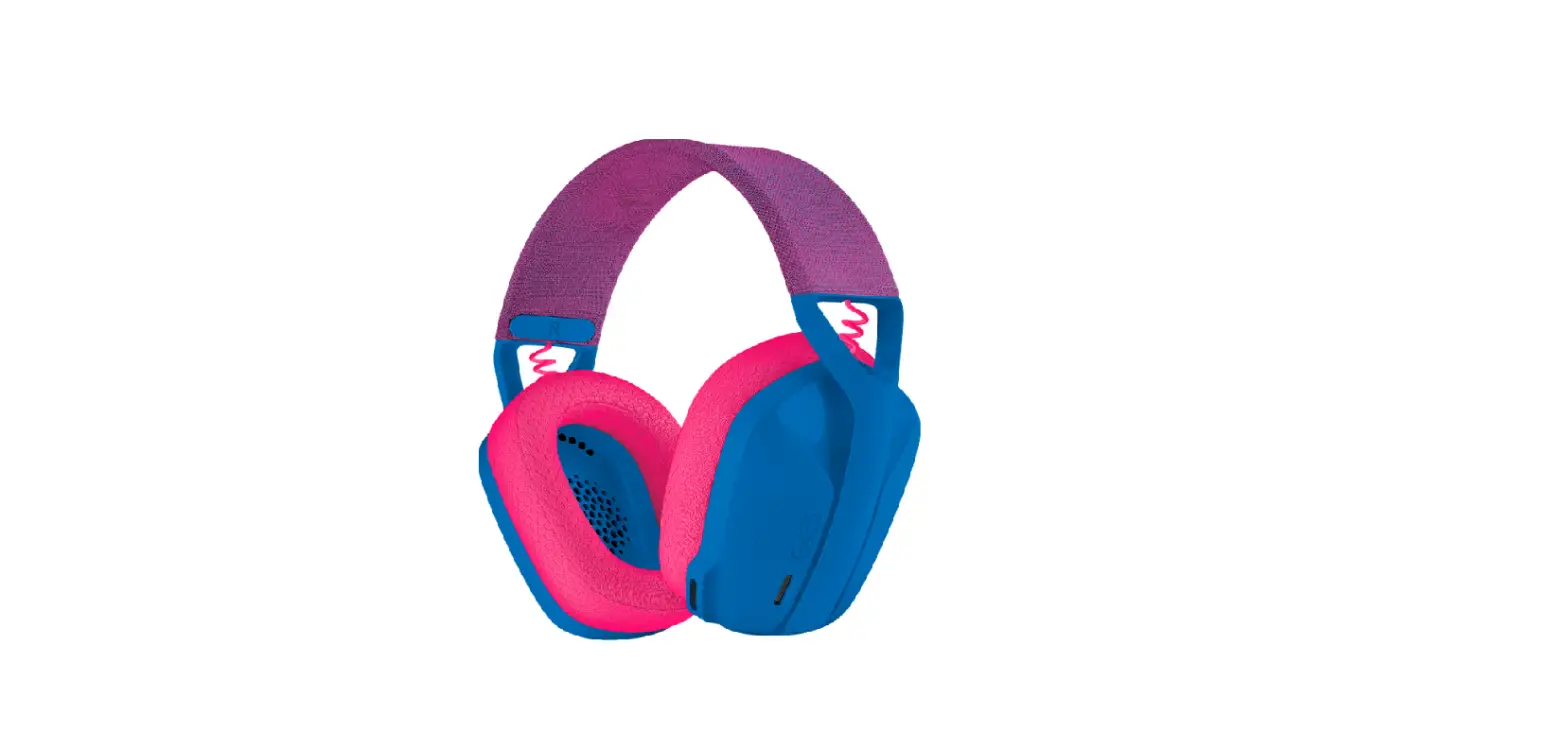
No, the weight for the G435 Lightspeed Gaming headset does not differ with the color of the headset. It weighs 165 grams.
works with switch ,xbox and tv ?
The Logitech G435 Lightspeed and Bluetooth Wireless Gaming Headset work with the below-mentioned requirements:
– Window® 10 or later
– macOS X 10.14 or later
– PlayStation 5, or PlayStation 4
Does the G435 work with a PS4?
Yes, it does.
Does the G435 work with a Mac?
Yes, it does.
Does the G435 work with a PC?
Yes, it does.
Can you use both bluetooth and lightspeed connection at the same time? to take calls or listen to music from a phone while gaming on lightspeed
The physical specification of G435 Gaming Headset are:
COMPATIBILITY:
LIGHTSPEED Wireless: USB 2.0 port (type A port). PC with window 10 or later, macOS? X 10.14 or later, PlayStation 5, or PlayStation 4
Bluetooth: Devices with Bluetooth audio connectivity
Hence, it will not work on the phone. Also, both the connection cannot be used at the same time.
Can this headset be used while charging?
The G435 can be used while charging. However, the lightspeed receiver would still have to be plugged in as these headsets do not work with the charging cable for sound output.
Can this headset be used while charging?
The G435 can be used while charging. However, the lightspeed receiver would still have to be plugged in as these headsets do not work with the charging cable for sound output.
What type of charging port does it have?
G435 consists of USB-C to USB-A charging cable.
do these have a microphone so i can hear and talk to someone from my computer? i work from home needing something that i can do call center work with
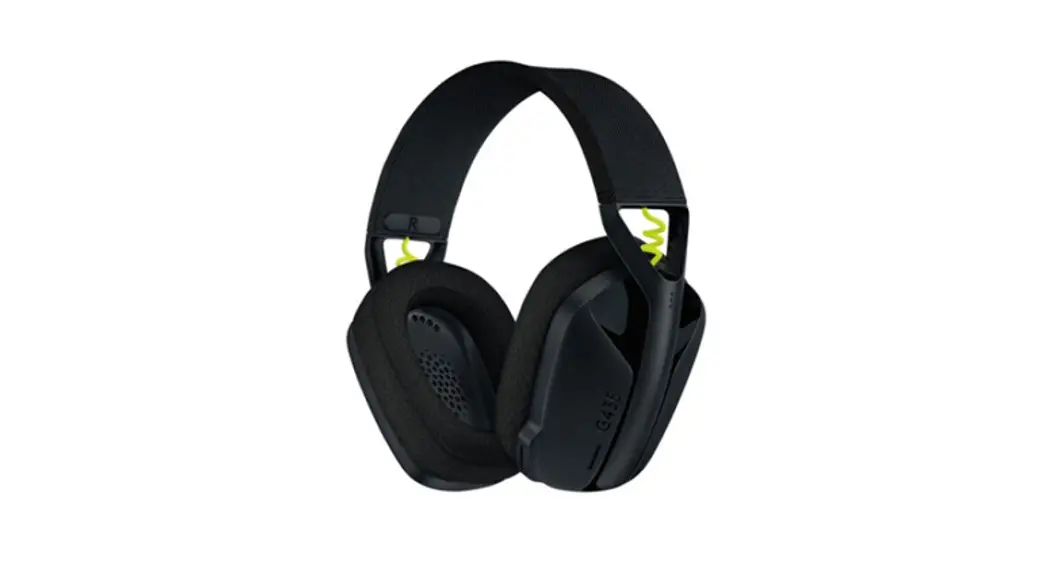
yes there is a small microphone built into the headset. There is no swing arm. You can spot the mic in the above image by the G435 insignia
What is the meaning of the beep with these headphones?
The Beep sound indicates max volume mute and unmute indications in the Logitech G435 LIGHTSPEED and Bluetooth Wireless Gaming Headset.
Is playback in mono or stereo ?
Yes, the Logitech G435 Lightspeed and Bluetooth Wireless Gaming Headset is a Stereo Sound. Discord certified, G435 features 40mm audio drivers and compatibility with Dolby Atmos, Tempest 3D AudioTech and Windows Sonic.
Do these have noise cancellation?
Yes. With built-in dual beamforming mics, G435 drops the mic arm while reducing the background noise.
Does this work with a Xbox One S?
No, G435 doesn’t work with a Xbox One S.
Can you plug in the lightspeed adapter to a usb c port with an adapter?
You can plug in the lightspeed adapter to a USB-C port with an adapter, however, we do not recommend it as this may hinder the performance.
Where is the usb
It’s hidden in the small box that had the wires and papers.
How do I install it
Logitech G435 Lightspeed and Bluetooth Wireless Gaming Headset is a plug-and-play device and hence doesn’t require any software (drivers).
VIDEO
Reference: logitech G435 Gaming Headset User Guide

 Logitech Support + Download
 Global Recycling Program for Ewaste and Batteries - Logitech