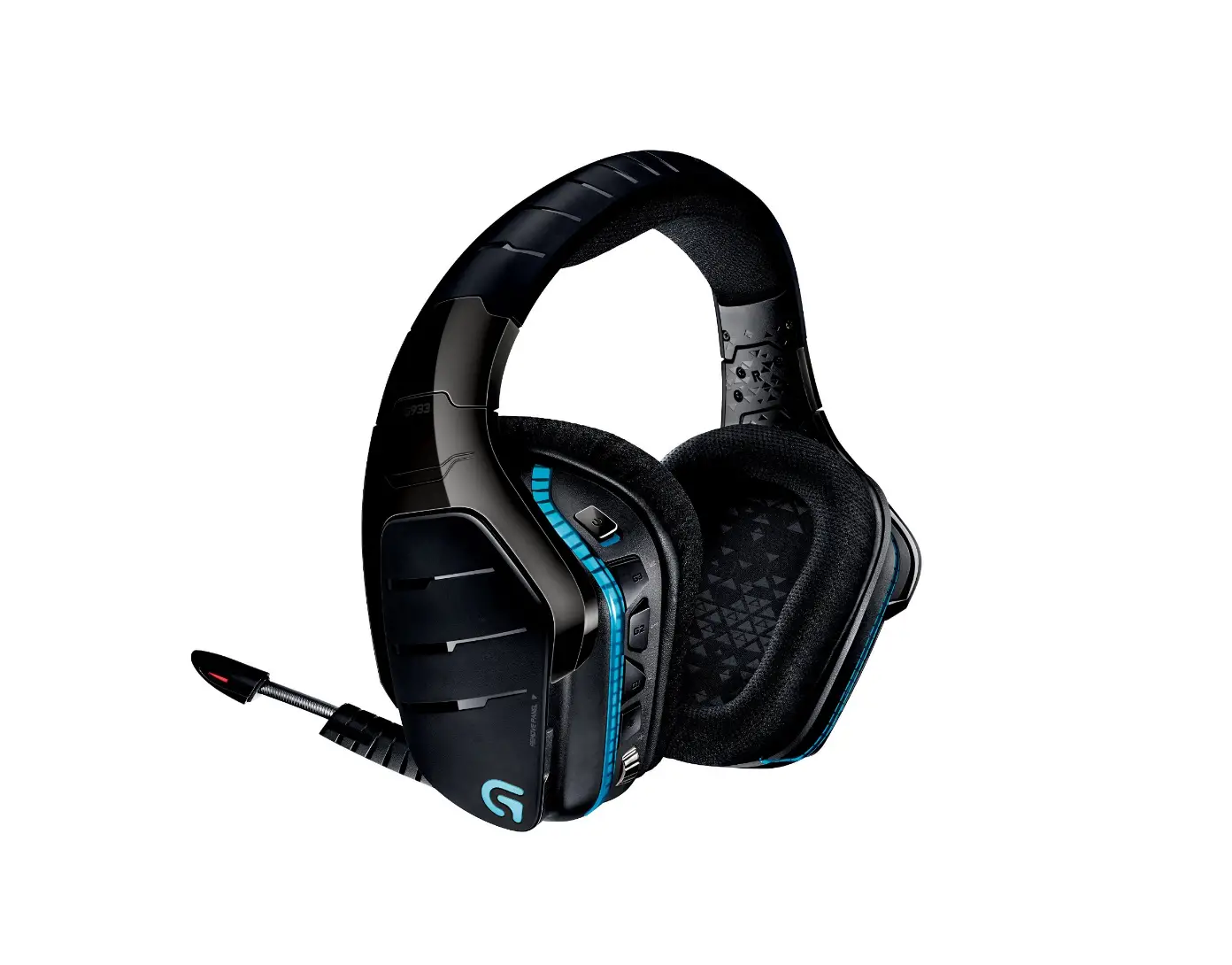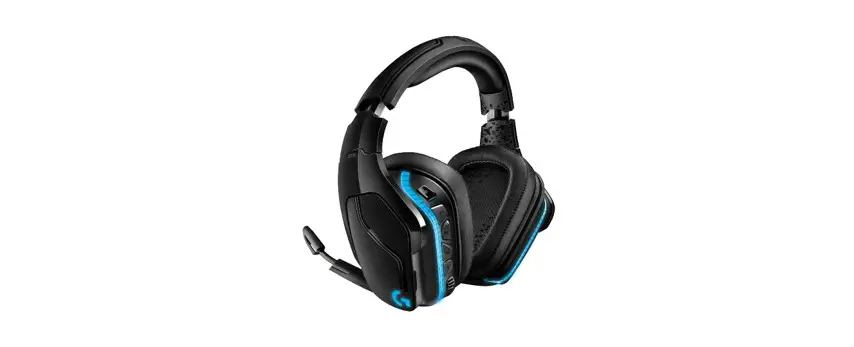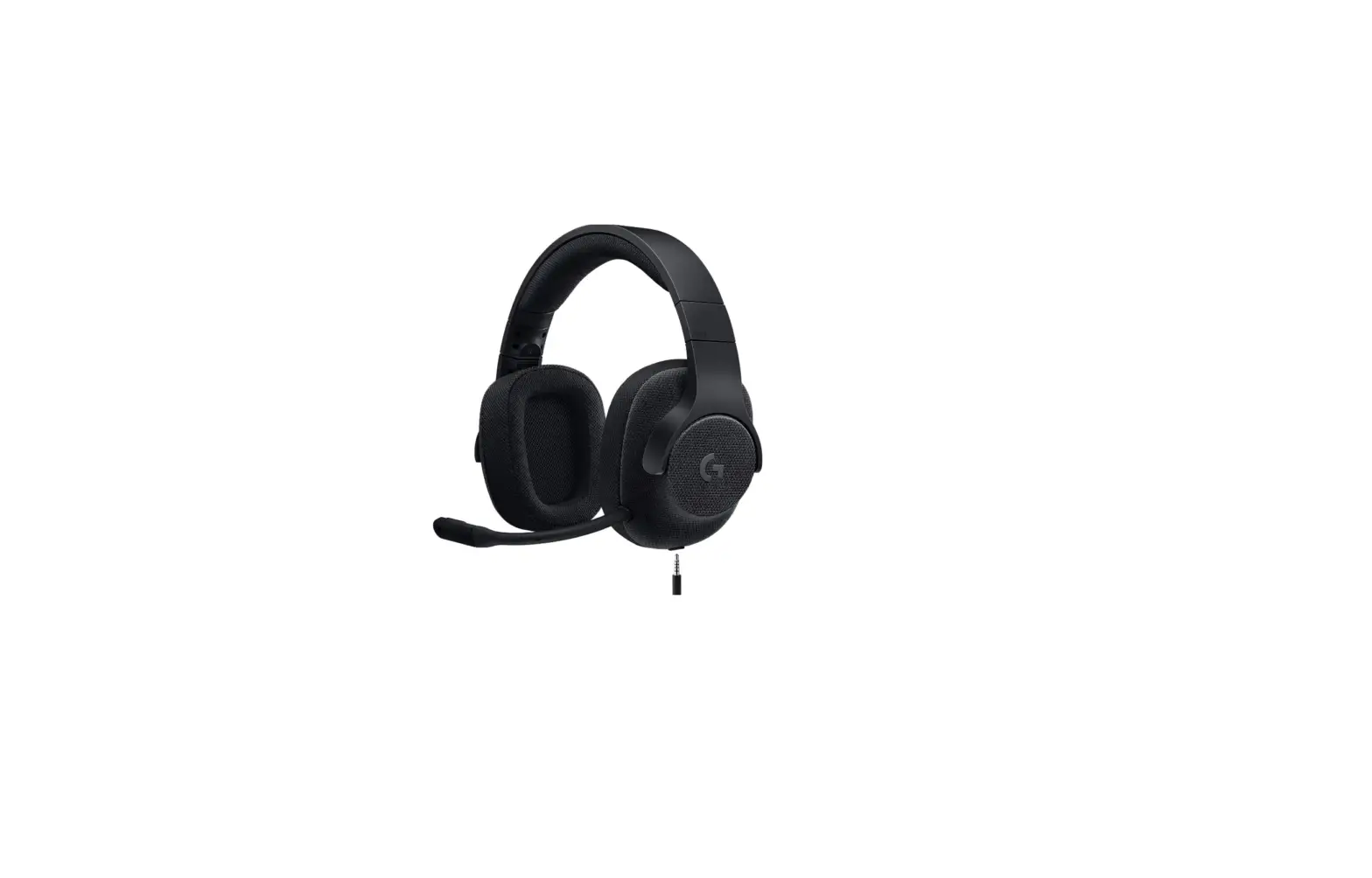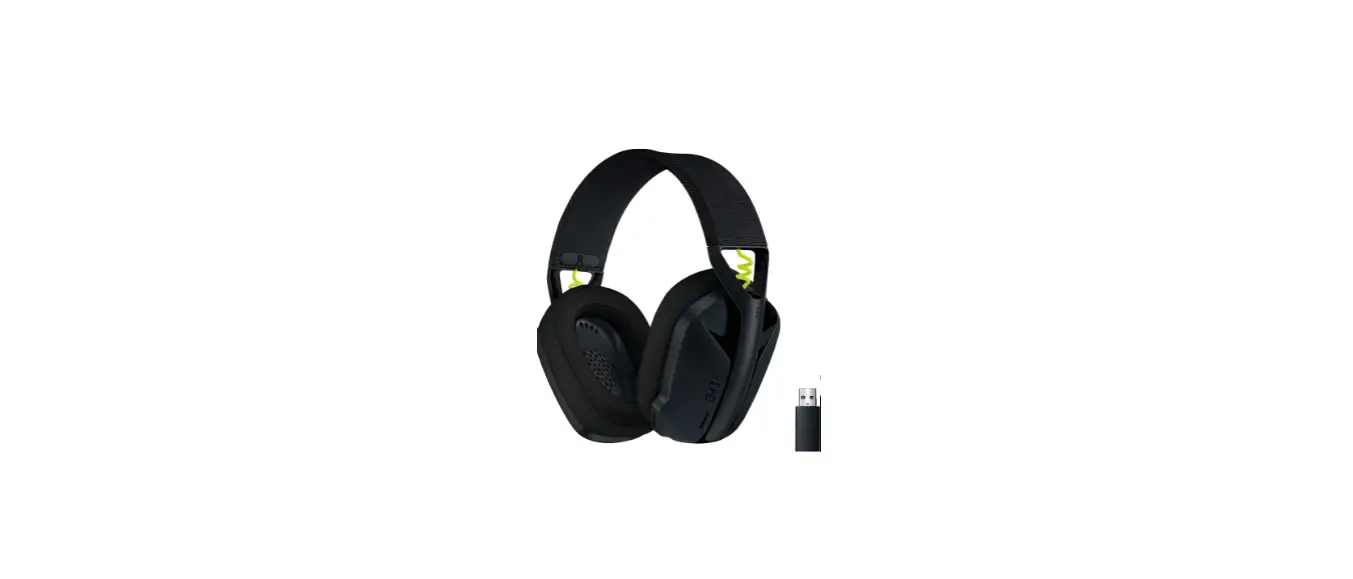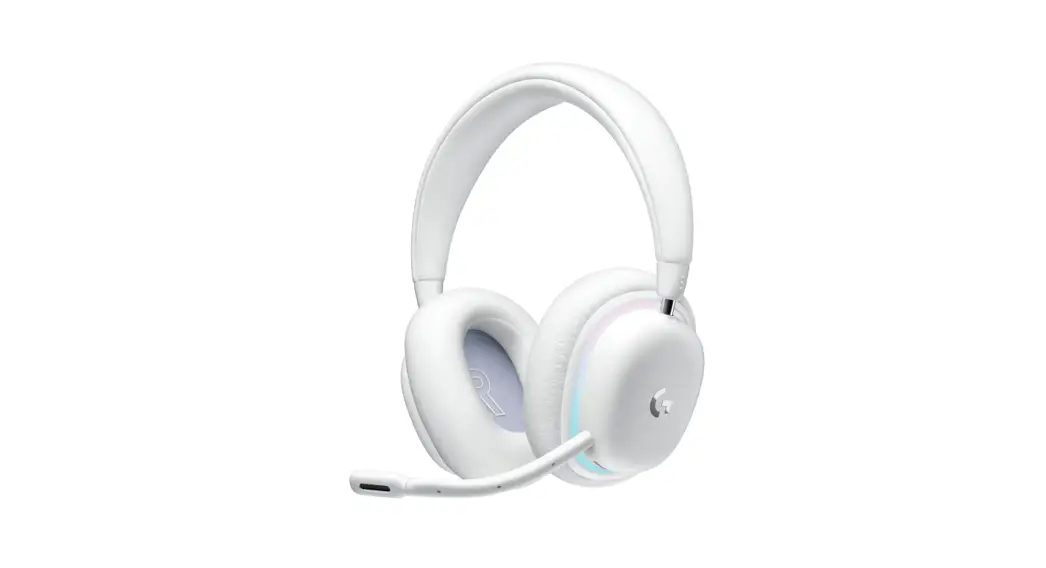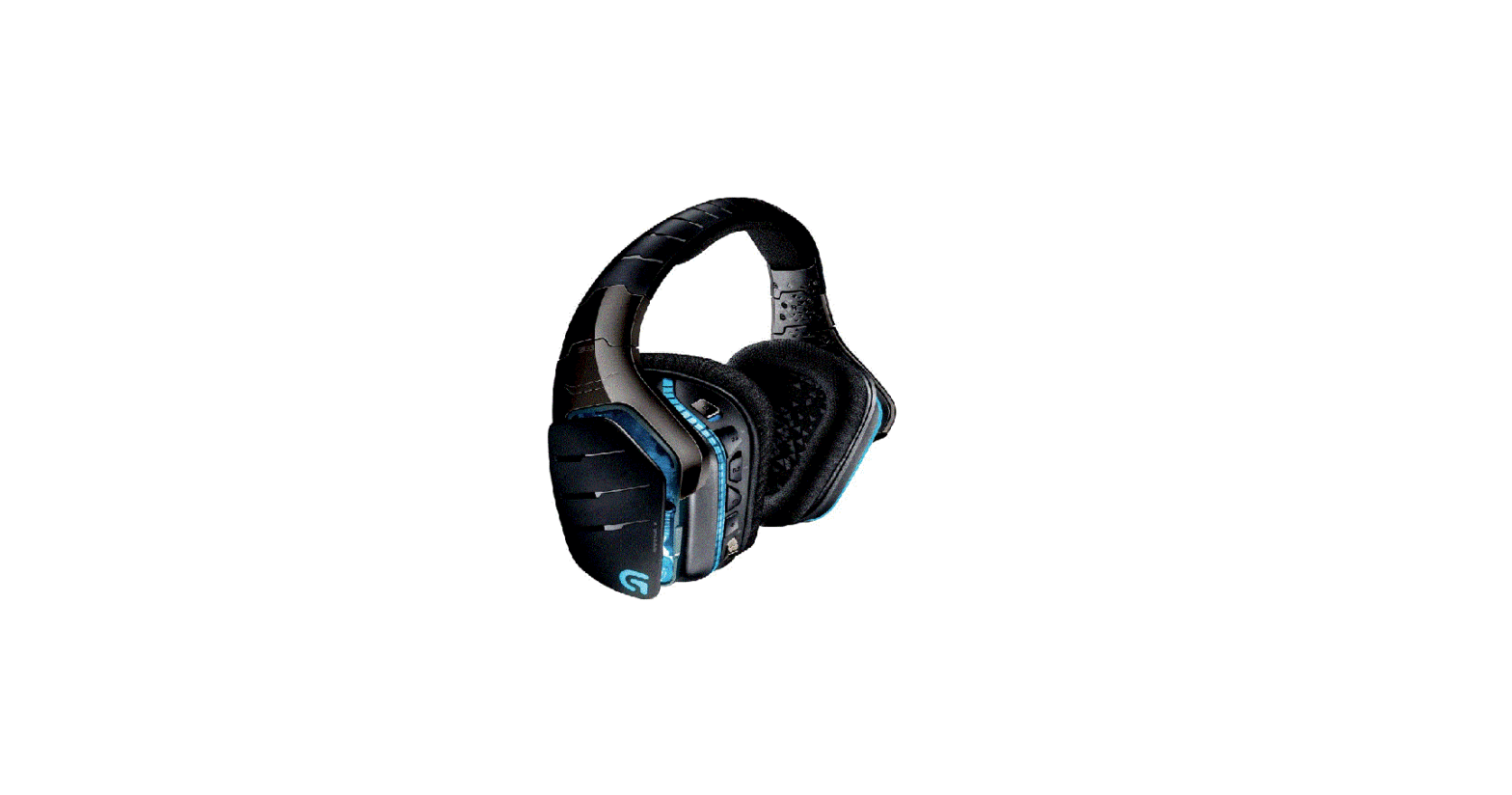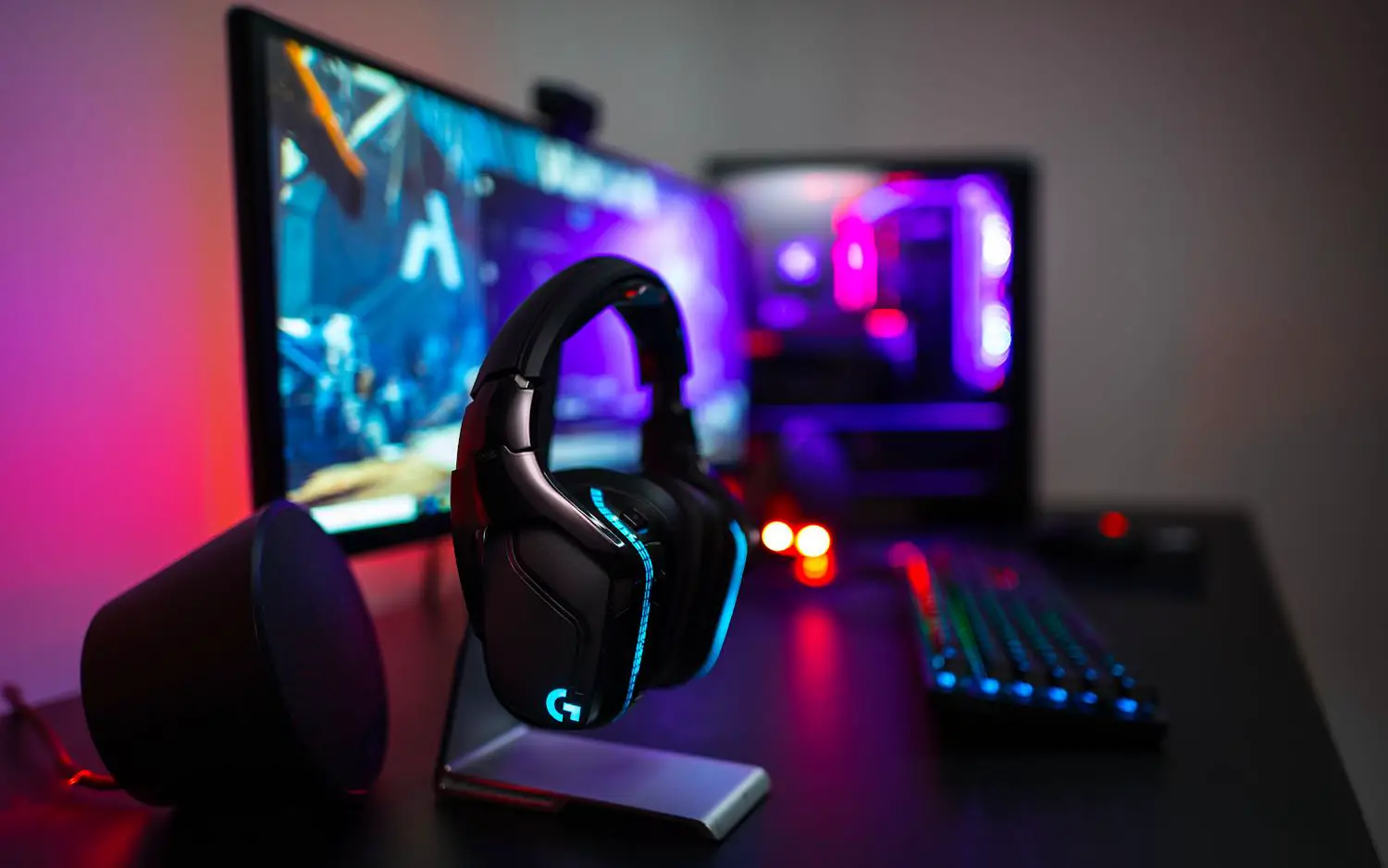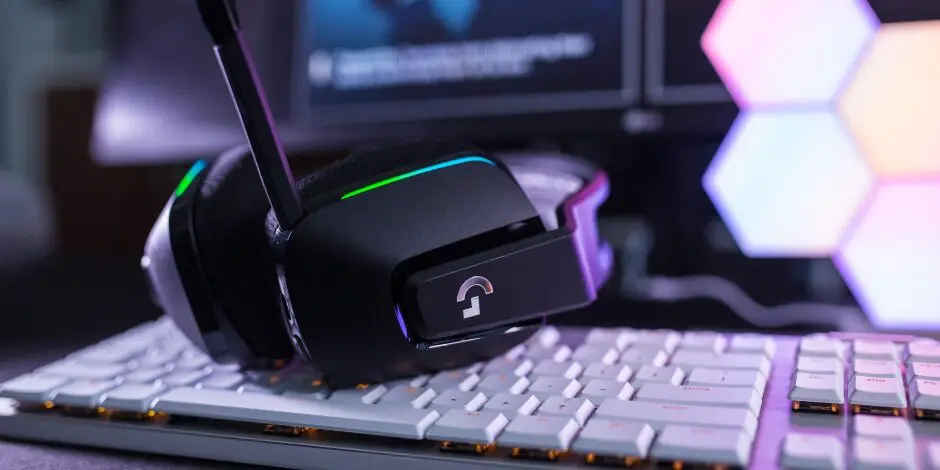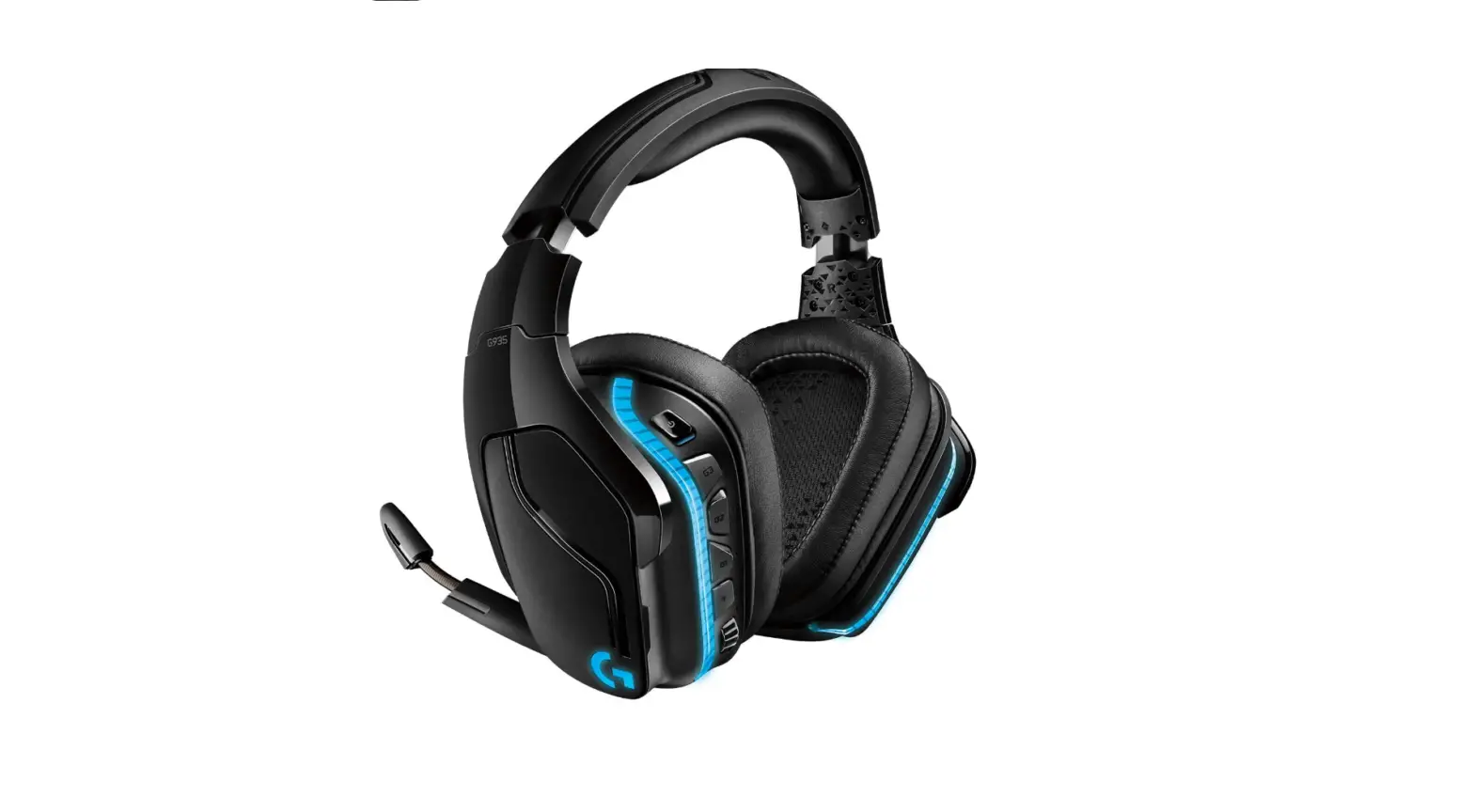

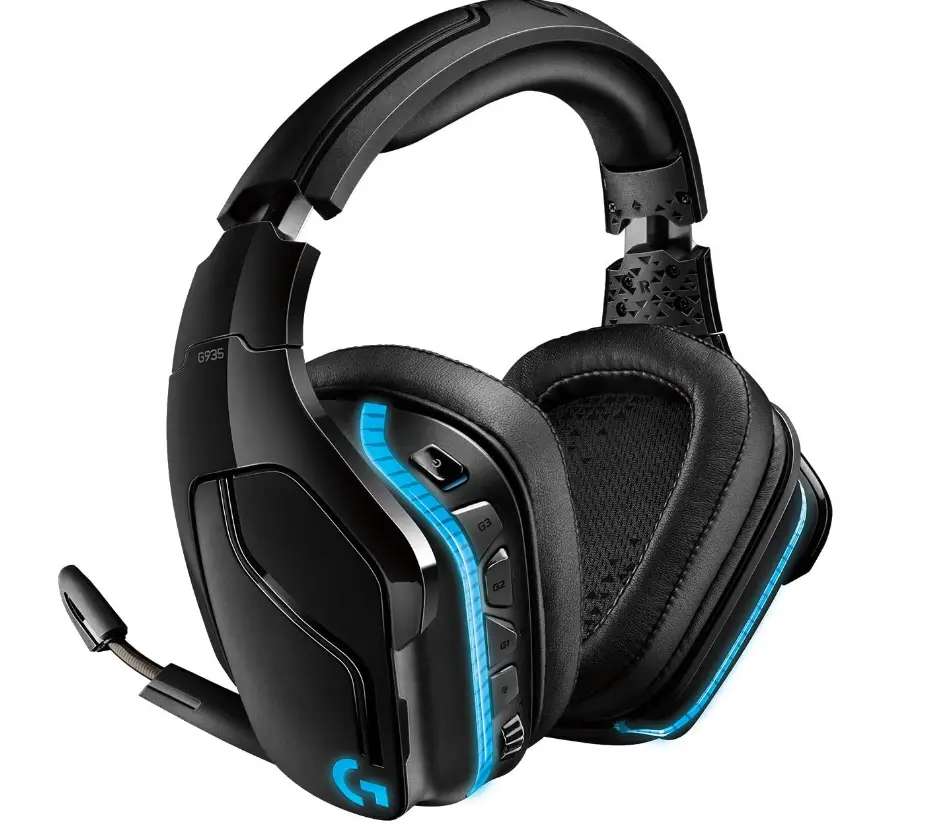
Logitech G935 Wireless Gaming Headset
Specifications
- Product Dimensions
7.8 x 4.21 x 9.06 inches - Item Weight
1.59 pounds - Batteries
1 Lithium Polymer batteries - Hardware Platform
PC,Mac - Operating System
Not Machine Specific - Series
Wireless 7.1 Surround Sound LIGHTSYNC Gaming Headsets - Form Factor
Over Ear - Connectivity Technology
Wireless - Brand
Logitech G
Introduction
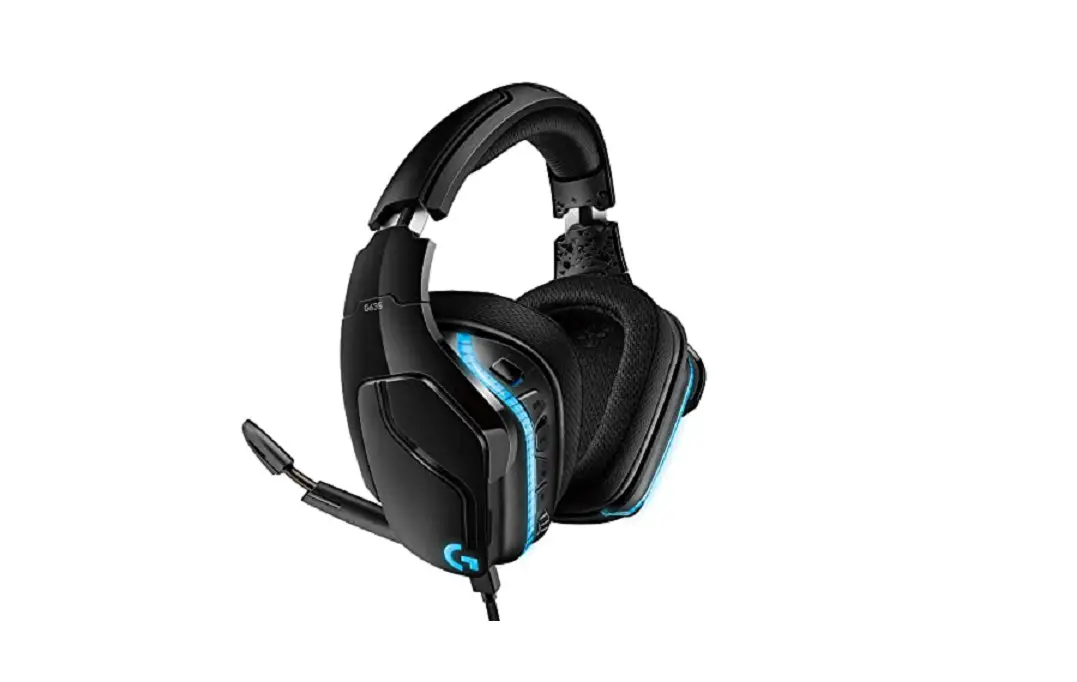
With the latest cutting-edge Logitech G audio technology, the G935 is the perfect wireless gaming headset. Large 50mm Pro-G drivers that are made of woven hybrid mesh and are intended to reduce distortion allow you to hear more detail. On games that allow it, Lightsync RGB lighting can be completely customized and can respond to gameplay. DTS Headphone: X 2. 0 surround sound produces accurate in-game positional awareness for optimum immersion. Sense Air assaults or special-ability hints, hear adversaries coming up behind you, and take in the entire cinematic experience of your favorite games. A large 6 mm flip-to-mute Mic, programmable G-keys on the headset, and the ability to adjust EQ settings and more with Logitech G hub software are additional gaming features.
WHAT’S IN THE BOX
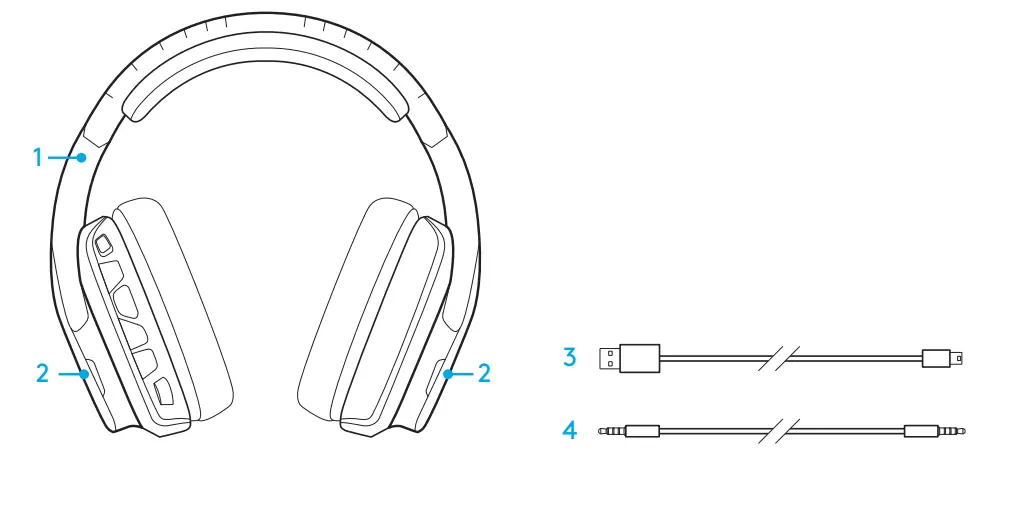
G935 Gaming Headset
Custom tags (L/R)
Charging cable (USB to Micro-USB, 2m)
3.5mm cable (1.5m)
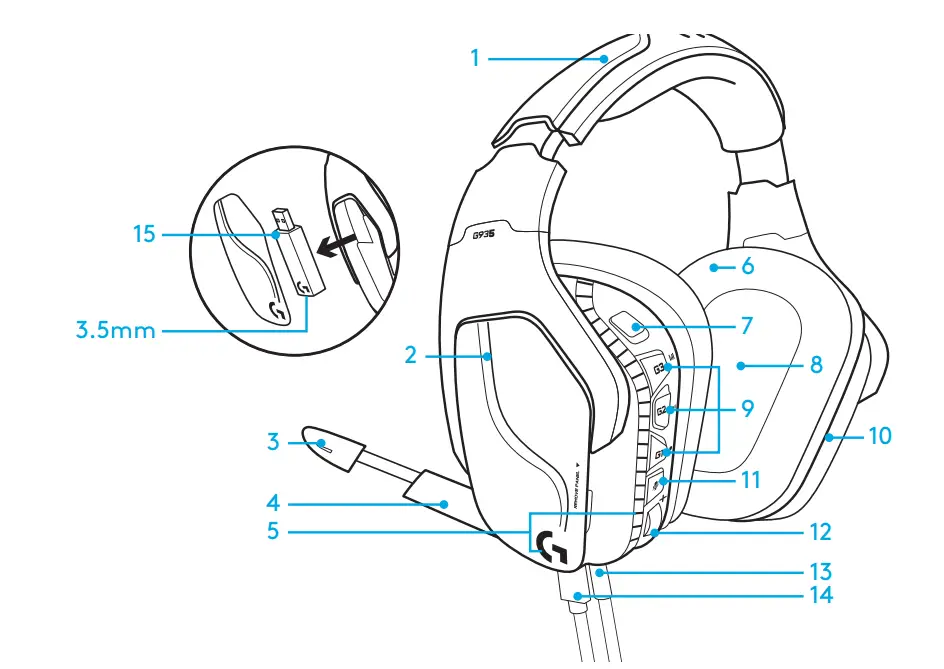
- Adjustable padded leatherette headband
- Removable backlit custom tags
- Boom mic mute indicator LED
- Retractable boom microphone Automatically mutes in “up” position\
- Lighting zones (G logo + light strip)
- Wipeable leatherette earpads
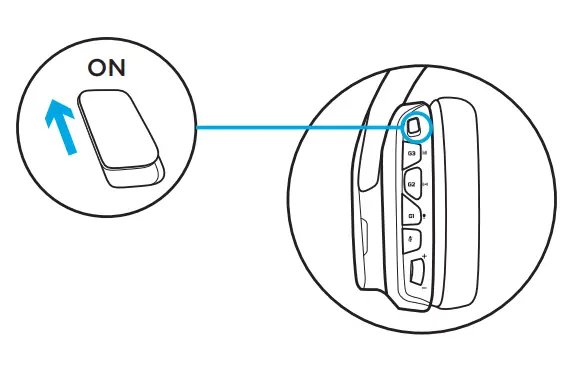
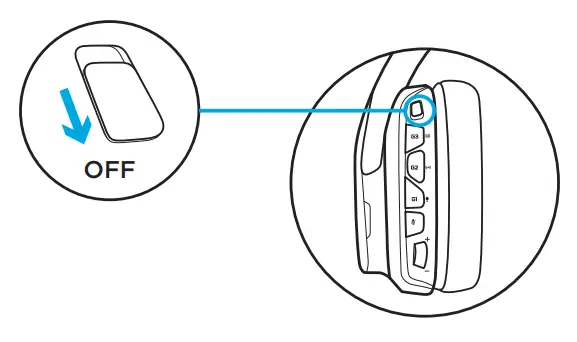
- Wireless On/Off switch
- Pro-G Audio Drivers
- Programmable buttons (G1/G2/G3)
- Battery housed in earcup
- Microphone Mute
- Volume Wheel
- 3.5mm (mobile) connection
- USB charging connection
- USB Wireless Adapter
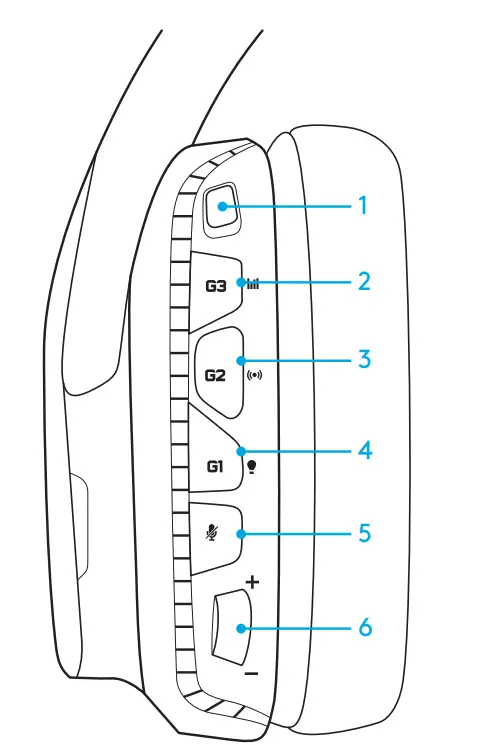
- Wireless On/Off switch
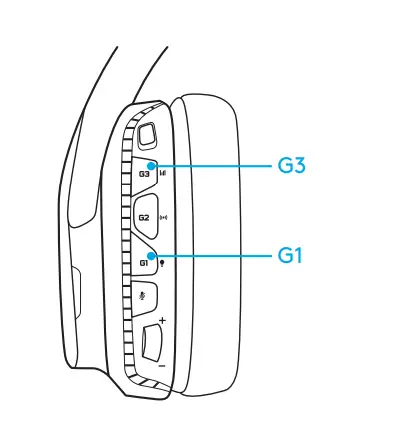
- G3 (programmable): Default equalizer (EQ) cycle
Will cycle through EQ settings in Logitech G HUB software - G2 (programmable): Default surround sound on/off
- G1 (programmable): Lighting cycle
Will cycle through lighting settings in Logitech G HUB Software, including: breathing, solid cyan, custom, and off - Microphone mute
- Volume wheel
G1, G2, and G3 are programmable using the Logitech G HUB Software (in PC mode only)
Note
Buttons and volume wheels only operate in Wireless On mode. Some buttons and features may require a PC connection and Logitech G HUB Software.
BATTERY MANAGEMENT
G935 wireless headset is powered via a battery housed in the right earcup. When you are not using your G935 wireless headset, plug it in via the USB port on the bottom of the unit to charge. When fully depleted, the battery takes approximately 3.5 hours to reach full charge on standard USB output. For the optimal experience, plug in your unit and allow it to charge fully before first use.
Critical Battery Warning
G935 gaming headset will play a tone at a low charge. The headset’s lighting will also dim when at low charge. At the critical charge level, the unit will play a tone and the lighting will turn off. Use a USB charging cable to plug in the headset immediately if you hear these tones to ensure uninterrupted listening or gaming.
Logitech G HUB Software
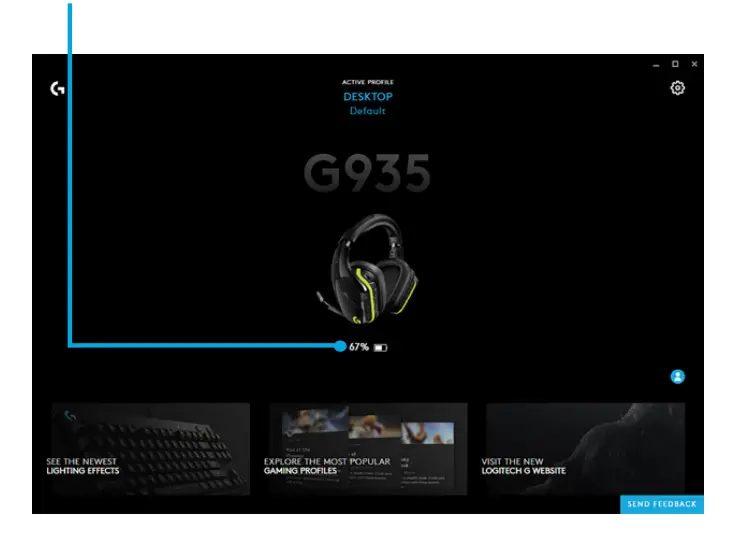
The home screen in Logitech G HUB Software has a battery charge level indicator:
 When using the battery, this will indicate the charge level
 This indicates the unit is charging.
Charge indicator
IDLE SLEEP MODE
G935 will go into sleep mode to conserve battery power when it has not received an audio signal in 15 minutes In idle sleep mode, the unit’s lighting will change to breathing mode, and it will disconnect from the USB wireless adapter. Your G935 will wake up from sleep mode if you press a button on the headset. After 30 minutes in sleep mode, your headset will fully power off in order to conserve your battery. In order to wake up your headset, you will need to move the power switch to the off position and then back to the on position. If you plan to leave your headset idle for an extended period of time, turn off your headset and plug it in via USB to charge.
ON/OFF TONES AND LIGHTS
When your headset is turned on, it will play a tone to indicate that your headset has turned on. The lights will perform a power-on light cycle sequence, then switch to the currently selected lighting. When the unit is turned off, lights will switch to blue and fade out while it powers down.
WIRELESS ON/OFF
G935 has two operation modes, Wireless On, and Wireless Off.
Wireless On
In Wireless On mode, most headset features are available,1 including custom sound profiles, RGB lighting, microphone, mic mute, wireless, and audio mixing. When battery charge is low, lighting will dim and a low battery notification tone will play. When the battery charge level is critical, the lighting will turn off.
Wireless range2 Indoor
15 meters
Battery life3
No lighting
12 hours
Default lighting
8 hours
- Some features may require Logitech G HUB Software.
- Range may vary with environmental conditions.
- Rechargeable batteries have a limited number of charge cycles. Battery life was measured at 50% volume.
Wireless Off (passive mode)
In Wireless Off (passive mode), your headset will operate in passive unpowered mode. Your headset will play audio from any device connected through the 3.5mm input on the headset. Features that require power, including 7.1 surround sound, custom sound profiles, on-headset buttons, volume wheel operation, and button/lighting customization functions are not available in this mode Boom mic is not available for devices connected through the on-headset 3.5mm audio port in this mode. This mode can be used to preserve battery life.
SETUP FOR PC (PC MODE)
- Download and install Logitech G HUB: www.logitech.com/support/g935
- Set switch to Wireless On position.
- Connect USB Wireless Adapter to PC. The headset will automatically connect.
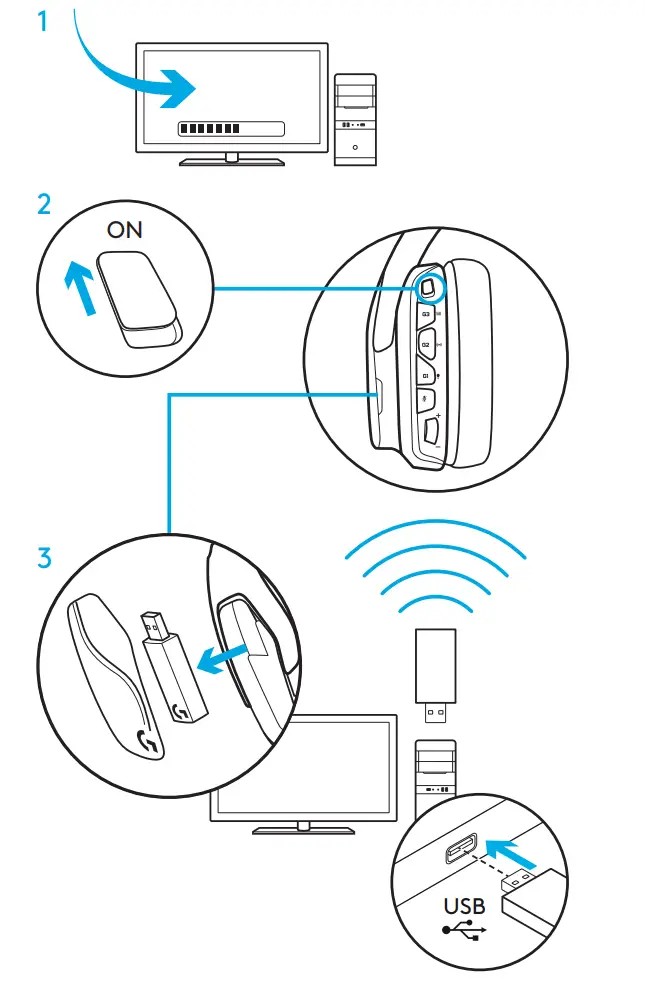
Mixing audio sources
While connected via a USB Wireless Adapter, the G935 can also use the 3.5mm cable to connect to another audio source (ex. smartphone). Both audio sources can be played simultaneously.
SETUP FOR PC (3.5MM CONNECTION)
The G935 can also connect to audio devices solely via a 3.5mm cable.
- Set switch to Wireless Off mode for passive audio mode, or set to Wireless On mode for active audio mode with additional features (see “Wireless On/Off” section).
- Connect to the PC using the 3.5mm cable.
Some features, including 7.1 surround sound, on-headset buttons, volume wheel operation, and customization of lighting and button functions are not available without a USB connection. The boom mic is not available for 3.5mm devices while in Wireless Off mode.
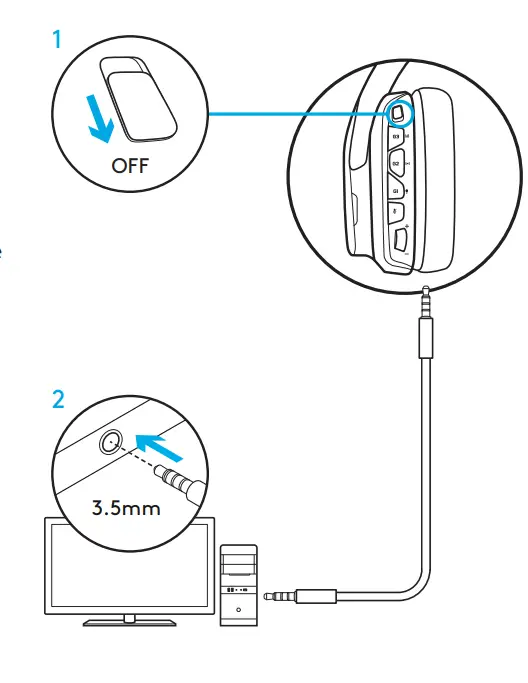
Some PCs may require a 3.5mm 4-pole mic/stereo splitter adapter (not included) to use microphone features in this mode.
SETUP FOR MOBILE
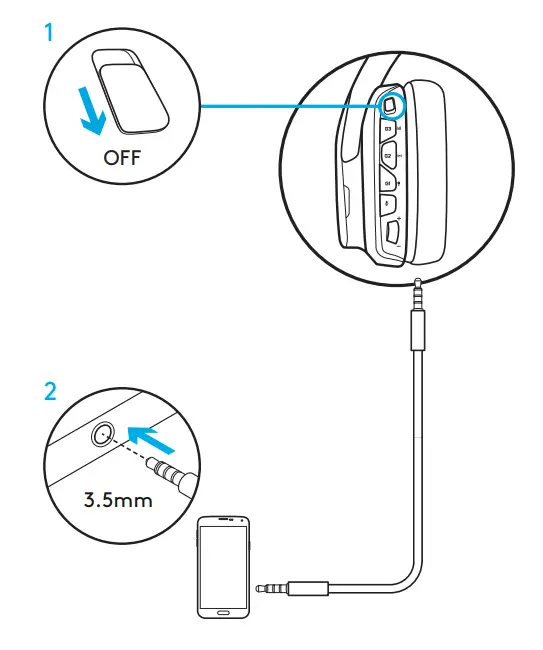
- Set switch to Wireless Off mode for passive audio mode, or set to Wireless On mode for active audio mode with additional features (see “Wireless On/Off” section).
- Connect the headset to the mobile device via the 3.5mm cable. The boom microphone is only available in Wireless On mode.
SETUP FOR CONSOLE: XBOX ONE™, PS4™ OR SWITCH™
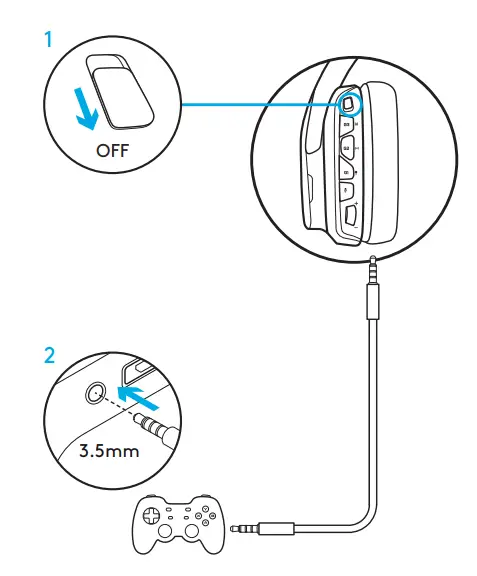
- Set switch to Wireless Off mode for passive audio mode, or set to Wireless On mode for active audio mode with additional features (see “Wireless On/Off” section).
- Connect the headset to the console controller using the 3.5mm cable.
- Xbox One may require Xbox One headset adapter (sold separately).
PlayStation setup (settings)
- Connect headset
- Open Settings
- Select “Sound and Screen”
- Select “Audio Output Settings”
- Set “Output to Headphones” to “All Audio”
The headset will not operate via USB Wireless Mix Adapter on Xbox One Boom microphone is only available in Wireless On mode.
ALTERNATE SETUP FOR SONY PLAYSTATION® 4 & NINTENDO SWITCH™
Wireless operation
- Set switch to Wireless On position.
- Connect the headset to the console using the USB Wireless Adapter
Note
Some buttons and functions may not operate when connected to the PlayStation 4. Programming of lighting and buttons is not possible on the PlayStation. 7.1 surround sound is not available while connected to PlayStation.
PlayStation setup (settings)
- Plug in headset via USB or 3.5mm cables
- Open Settings
- Select “Sound and Screen”
- Select “Audio Output Settings”
- Set “Output to Headphones” to “All Audio”
Nintendo Switch setup (settings)
- Set Switch to Wireless On position
- Connect the USB Wireless Adapter into the USB port inside the Switch TV Dock
- Audio output will change to your headset automatically
RGB LIGHTING ZONE CUSTOMIZATION
Zone 1: G logo
Zone 2: Lighting strip
Each lighting zone can be programmed with the Logitech G HUB (PC mode only).www.logitech.com/support/g935
TAG CUSTOMIZATION
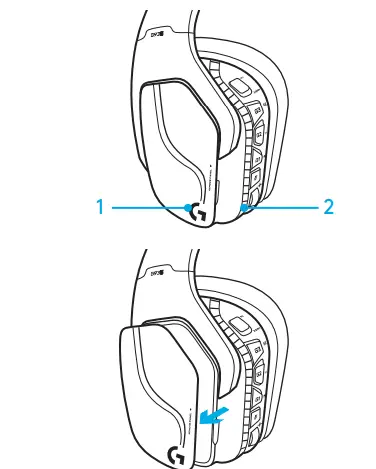
The left and right custom tags can be removed and replaced with custom tags.
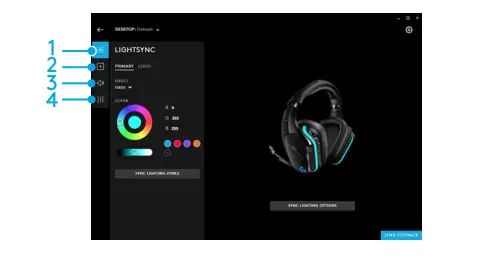
LOGITECH G HUB SOFTWARE
G-key buttons, lighting, equalizer, and surround sound profile programming is possible through the Logitech G HUB Software
- LIGHTSYNC Lighting
- Assignments
- Acoustics
- Equalizer
COLOR/EQUALIZER CYCLING
G1 and G3 buttons are pre-programmed by default to cycle through lighting and equalizer profiles. When the headset is connected to a system with Logitech G HUB Software running, it will cycle through all equalizer or lighting options programmed into Logitech G HUB Software. When the headset is not connected to a system with Logitech G HUB Software running, it will cycle through the custom lighting or equalizer profiles stored in the headset’s onboard memory. These profiles can be programmed via Logitech G HUB Software.
PAIRING INSTRUCTIONS
If your device becomes unpaired or you receive a replacement USB Wireless Adapter, follow these instructions to pair your device with the USB Wireless Adapter:
- Plug-in USB Wireless Adapter
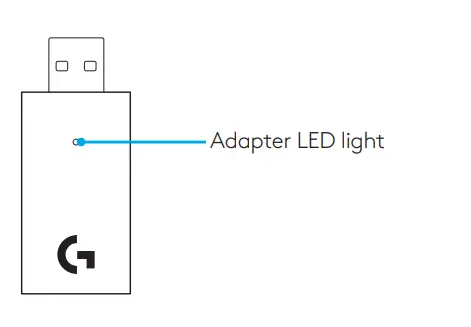
- Insert the pin into the reset port on the adapter to initiate pairing mode
- The light on the adapter will blink
- Turn on headset
- Hold the “Microphone mute” button for 15 seconds to initiate pairing mode
- Headset G logo will blink green to indicate pairing mode
- The logo will turn to a solid color and then return to the currently selected lighting when paired.
EARPAD CLEANING
Removal
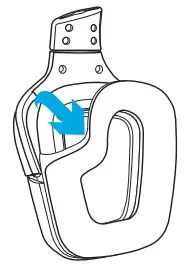
Washing
- Once removed, the earpads can be wiped clean with a damp cloth. Do not use detergent.
- Press with a soft towel to dry, do not wring.
- Allow to air dry before reattaching.
Replacement
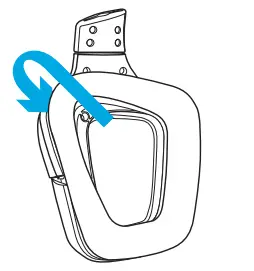
Frequently Asked Questions
The g933 has 40mm speakers and the g935 has 50mm speakers and the bass is unbelievable but they got rid of Dolby digital on this set which really is sad. But I’d prefer the g633 over both. For me, it has the perfect balance of bass to miss and highs. When I’m playing cod I can hear exactly where someone’s footsteps are coming from. Now if I can find a headset that’s wireless to use. The g933 didn’t work for me. So I’m gonna continue to use my g633 until Logitech comes out with one that I want and hopefully, they will bring back Dolby digital and keep dts that are wireless. I have tried any of these on console only pc
No. You must use it WIRED on Xbox One. Found out the hard way
Yes, the USB Wireless adapter is for PC use only and to connect with the Logitech G Hub Application for changing it’s dope 16.8 Million RGB colors. It has both a USB-A (For charging) and a 3.5mm aux port (both cables included!) For Console and Mobile use
I would wait until they revise these as the power button on these things is archaic at best. Nothing else about them seems like its been reworked other than the terrible power button.
That information is incorrect. 7.1 surround is available when using the headset in a wireless configuration. However, the Logitech software is required to be installed in order for the 7.1 surround sound option to function properly. You can also program one of the buttons on the headset to turn on and off the surround sound effect. You must use the Logitech software to switch between Dolby Digital 7.1 and DTS-X.
I use this as my headset for Teams calls every day. Love the flip up mute option for that (you just have to keep it unmuted in the app for it to work).
Yes, you can replace the Lithium battery. Just shop on Amazon for it.
I upgraded from the 533(535?) And the power button is about the same. I have had no hardware issues, however sometimes I have to slide it off and back on just to get it to turn on the Bluetooth connection. If that is your complaint then yes it still has that issue, but as far the slider itself it slides fairly easily and hasn’t worn down in the year or so I have had it. I assume this is more of a software issue as it’s probably my computer that doesn’t recognize that the Bluetooth has been turned on. Also I recommend unplugging the usb connection from time to time just because it’s always on while connected, and that potentially could lower the life of the stick.
You have volume control on the headset. Plus check your system settings. The volume control on the headset will change your system if they are paired correctly.
Yes
Don’t have an Xbox, but from reading the reviews, you are limited to using the 3.5mm audio cable. Hence, no 7.1 for the Xbox. the sound in wired mode is very good. Just not 7.1
933 does have auto-off. 935 is default not to power off. You can control the power settings from the software hub. (Not required)
You’re really unlucky bro. That’s the most important part of the wireless experience. You can still use it though thru a 3.5mm headphone cable (included with the box). However, the experience differs as the lightspeed (the wireless USB/USB receiver) enhances the sound. The headphone cable alone only uses analog sound which means not as good as digital, unless you have DAC.
Does this headphone have Bluetooth?
With a capture card I know you can hear ps4 and Pc at the same time. I can’t tell you it’s 100% with switch but I’m pretty sure.
Logitech site says there are no spare parts for this headset anymore.