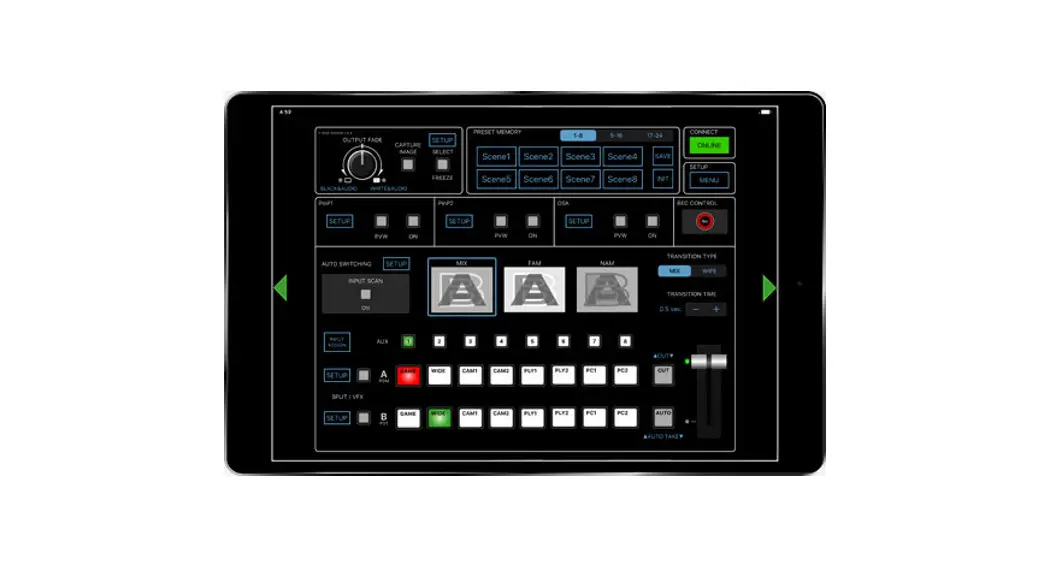

V-8HD Remote
Owner’s Manual
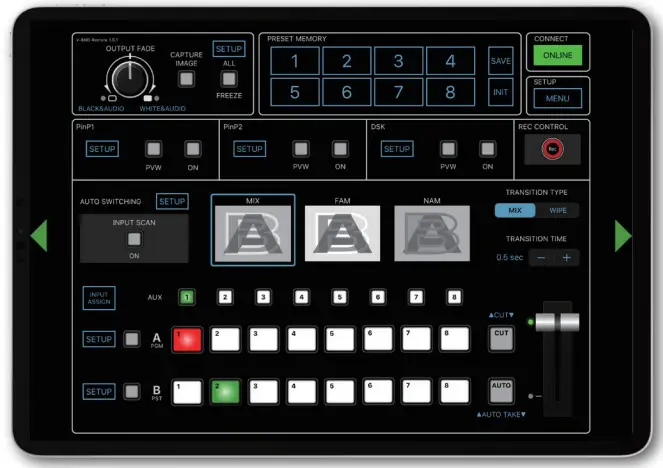
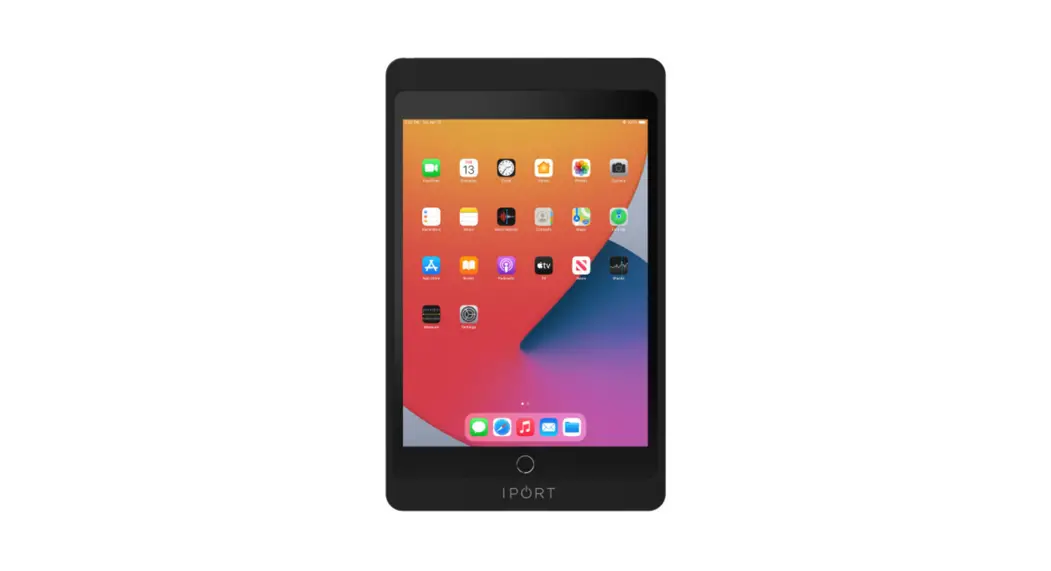
V-8HD Remote is a dedicated iPad application for the Roland V-8HD. Connecting the V-8HD and the iPad via USB lets you operate the V-8HD from V-8HD Remote.
* V-8HD Remote can be used with V-8HD units that are running version 1.03 or later. Be sure to update your V-8HD unit to the latest version.
Connecting the iPad and the V-8HD
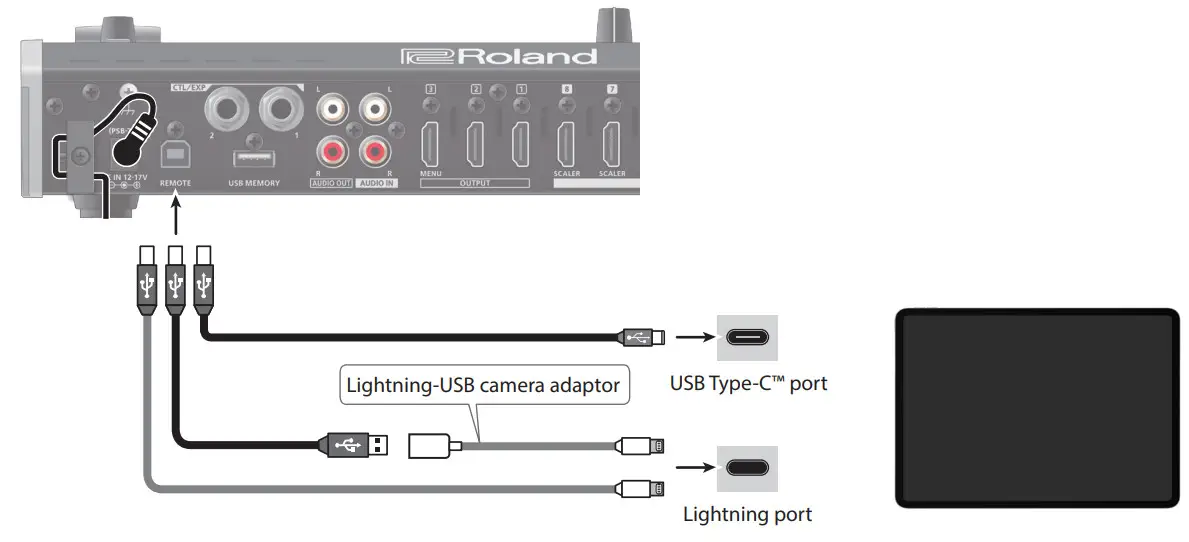
- Connect the V-8HD’s USB port to the iPad.
Using a commercially available connection or an adaptor cable (Lightning-USB camera adaptor), connect the unit to the iPad.
- Turn on the power to the V-8HD.
Starting and Quitting V-8HD Remote
Starting the V-8HD Remote
- Turn on the power to the iPad on which V-8HD Remote is installed.
- Tap the V-8HD Remote icon.
 V-8HD Remote starts, and the V-8HD Remote screen appears
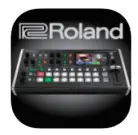 V-8HD Remote starts, and the V-8HD Remote screen appears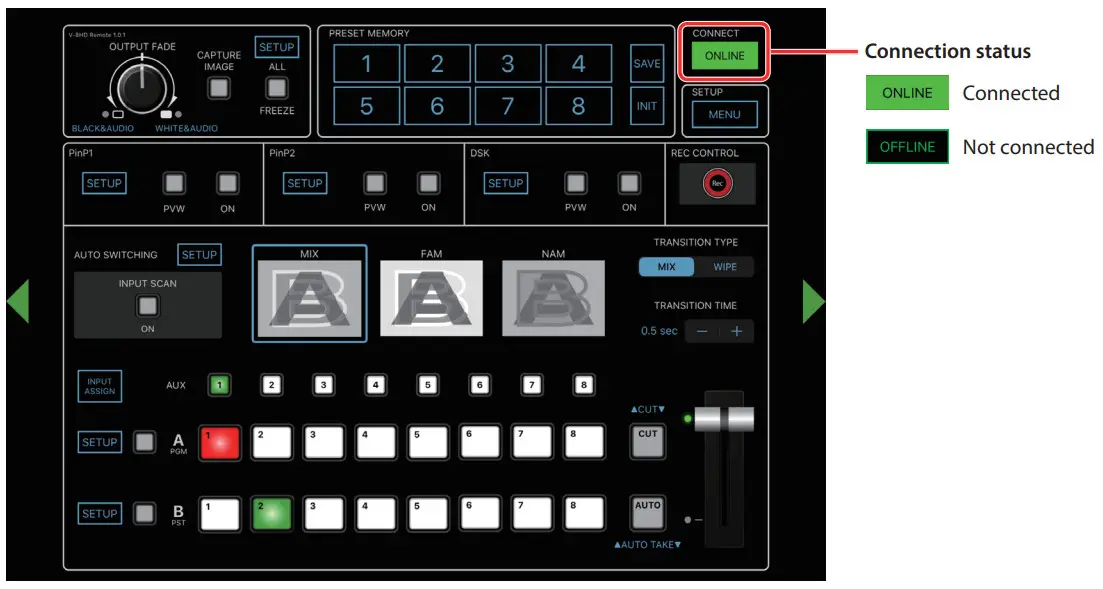
NOTE
If the connection status does not change to “ONLINE” (connected), re-check the connection between the iPad and the V-8HD unit.
Quitting
- Press the Home button on the iPad.
V-8HD Remote ends, and the Home screen reappears.
Part Names and Functions
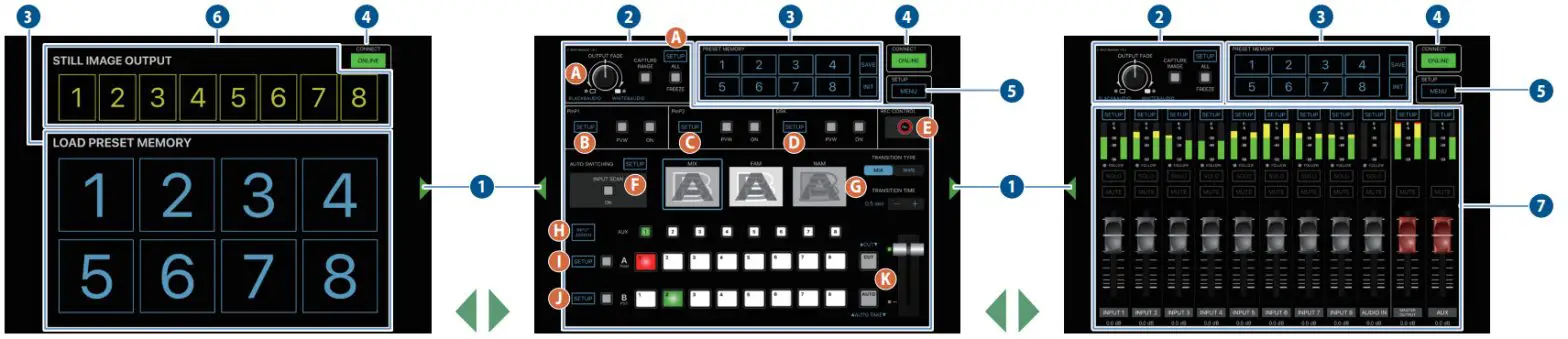
For more details on setting items, refer to the V-8HD Reference
Manual, “Menu List” (PDF).
| Name | Explanation | |
| 1 | Display-change button | Tap the button to switch the display. |
| 2 Operation panel | Operates the operation panel on the V-8HD by remote control. | |
| A | [OUTPUT FADE] knob | When you tap the function name shown at the lower left or lower right of the knob, a window opens, allowing you to change the function of turning the knob left or right. |
| B | FREEZE [SETUP] button | Accesses the freeze function setup screen.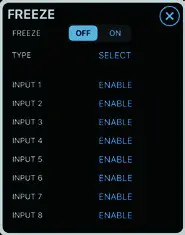 |
| C | PinP 1 [SETUP] button | Accesses the PinP 1 and PinP 2 setup screen.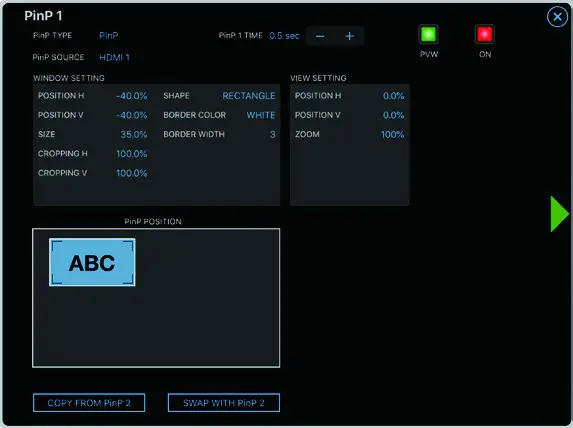 |
| D | PinP 2 [SETUP] button | Accesses the DSK setup screen.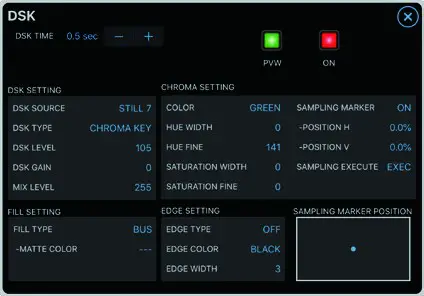 |
| E | DSK [SETUP] button | |
| F | [REC CONTROL] button | If a recorder that supports the “HDMI REC TRIGGER” function is connected to the output of the V-8HD, this controls the start/stop for video recording on the recorder. |
| G | AUTO-SWITCHING [SETUP] button | Accesses the DSK setup screen.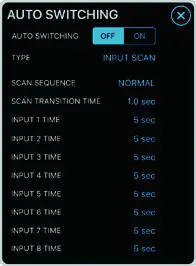 |
| AUTO SWITCHING [ON] button | Turns the auto-switching on/off. | |
| H | TRANSITION TYPE [MIX] [WIPE] buttons | Switches to the MIX or WIPE setting items.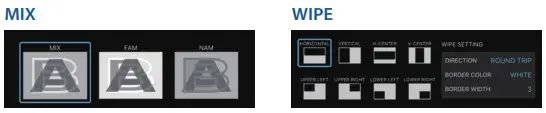 |
| TRANSITION TIME [–] [+] buttons | Specifies the video transition time. | |
| Name | Explanation | |
| I | [INPUT ASSIGN] button | Accesses the INPUT ASSIGN (input source selection) setup screen.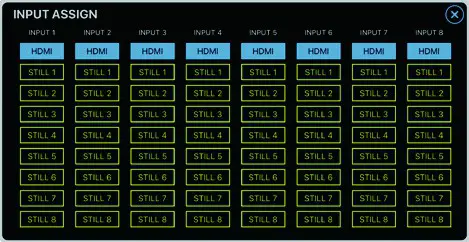 |
| J | SPLIT/VFX A [SETUP] button | Accesses the SPLIT/VFX A and SPLIT/VFX B setup screen.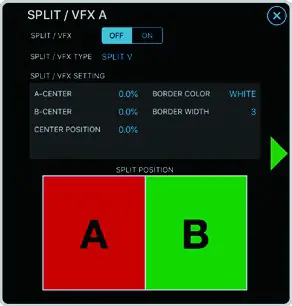 |
| K | SPLIT/VFX B [SETUP] button | |
| L | [CUT] button | When you tap the function name shown above or below the button, a window opens, allowing you to change the function of the button. For the [CUT] button: If the function is set to something other than “CUT,” the button name indication changes. For the [AUTO] button: If the function is set to something other than “AUTO,” the button name indication changes. |
| [AUTO] button | ||
| 3 PRESET MEMORY | |
| [1]–[8] buttons | When you tap a button (button lit), the saved settings are recalled. * The following settings are not saved in memory. Only one set of these settings are saved for the V-8HD unit. •RESET MEMORY menu •CTL/EXP menu •STILL IMAGE menu •SYSTEM menu |
| [SAVE] button | If you tap the [SAVE] button (making it light) and then tap a [1]–[8] button, the state of the operating panel is saved to the memory you tapped. |
| [INIT] button | If you tap the [INIT] button (making it light) and then tap a [1]–[8] button, the content of the memory you tapped is initialized. |
| 4 CONNECT | This displays the connection status of the V-8HD and iPad. If this is “ONLINE,” you can remotely control the V-8HD from V-8HD Remote.  Connected Connected Not connected Not connected |
| Name | Explanation |
| 5 [MENU] button | This displays the settings screen (menu) of the V-8HD unit. Tap the [Back] button to return to the previous screen. * Some of the parameters cannot be edited from V-8HD Remote. 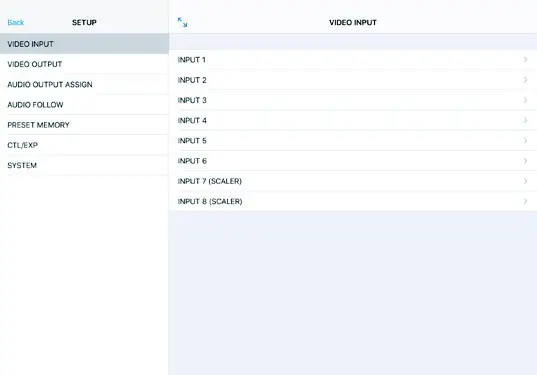 |
| 6 STILL IMAGE OUTPUT | |
| [1]–[8] buttons | When you tap a button (button lit), the output video switches to the specified still image. |
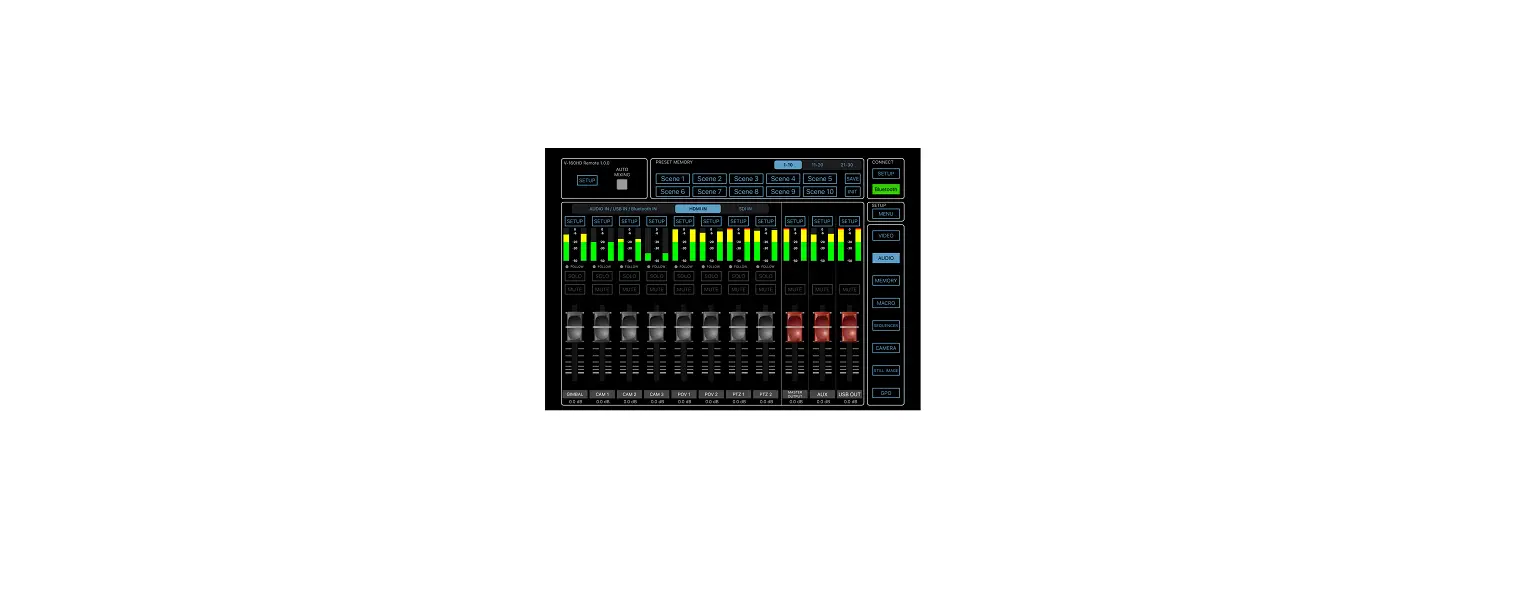
| 7 Audio mixer | |
| [SETUP] button | Selects the channel for which you can edit the character of the sound. The setup screen for the channel selected by the [SETUP] button appears. 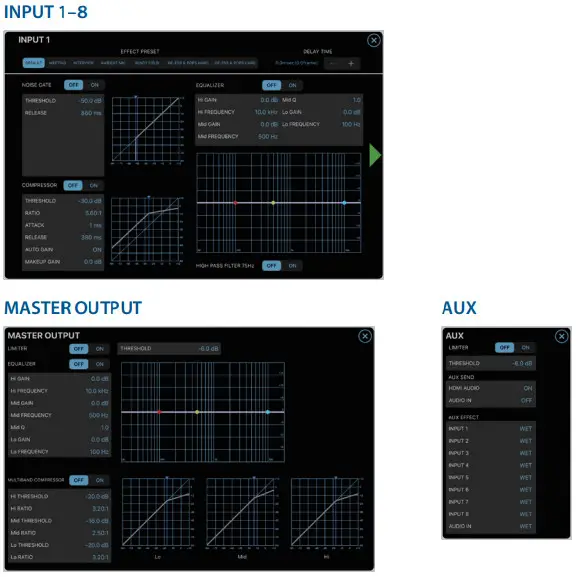 |
| Level meter | These display the volume levels of input/output audio. |
| FOLLOW indicator | This is lit if the audio follow function is turned on. |
| [SOLO] button | Turns the solo function on/off. |
| [MUTE] button | Turns the mute function on/off. |
| Audio level faders | Adjusts the volume level of input/output audio. |
* Roland is either registered trademark or trademark of Roland Corporation in the United States and/or other countries.
* Company names and product names appearing in this document are registered trademarks or trademarks of their respective owners.
© 2020 Roland Corporation