UNDOK iOS Remote Control Application
Product Information
The product is called UNDOK and it is an iOS remote control
application.
The application can run on any iOS Smartphone or tablet running
iOS 7 or later.
UNDOK can control an audio device via a WiFi Network
connection.
Before using UNDOK to control an audio device, you must
establish a connection between the Smart Device running UNDOK and
the audio unit(s) by ensuring they are both connected to the same
Wi-Fi network.
Usage Instructions
To set up the network connection:
- Ensure the Smart Device and the audio unit are connected to the
same Wi-Fi network. - Open the UNDOK App on the Smart Device.
- Follow the on-screen instructions of the wizard to establish
the network connection.
To use the UNDOK application:
- Open the UNDOK App on the Smart Device.
- Use the Navigation Menu to access different options and
functionalities. - Manage speaker devices used to output audio in the “Speaker
Devices” option. - View the Now Playing screen for the current mode in the “Now
Playing” option. - Browse for appropriate audio sources in the “Browse” option
(not available in Aux In mode). - Switch between modes (Internet Radio, Podcasts, Music Player,
DAB, FM, Aux In) in the “Source” option. - Define settings for the currently controlled audio device in
the “Settings” option. - Put the connected audio device into Standby mode or turn it off
in the “Standby” option.
To control the audio device on the Now Playing screen:
- Adjust the volume using the slider at the bottom of the
screen. - Mute the speaker by tapping the speaker icon on the left of the
volume slider. - Toggle shuffle mode on or off.
- Toggle repeat mode on or off.
- Save or play preset stations.
- Use the Play/Pause and REV/FWD functions.
- In FM mode, tune and/or search up or down the radio
frequencies.
To access and manage presets:
- From the Now Playing screen, tap on the preset icon to access
the preset menu. - In Internet radio, Podcasts, DAB, or FM modes, the available
preset stores of the currently selected mode will be
displayed. - To choose a preset, tap on the appropriate preset listed.
- To store a preset, tap on the icon for the required
preset.
UNDOK
iOS remote control application
End-User Manual
End-User Manual
UNDOK
End-User Manual
1 Introduction
Frontier Silicon’s UNDOK App is an application, for iOS Smart Devices, that allows us ers to control Venice 6.5 – based audio units running, IR2.8 or later, software. Using UNDOK you can navigate between the speaker’s listening modes, browse and play content remotely. The App also provides a convenient way to display RadioVIS content, on your connected Smart Device, for DAB/DAB+/FM digital radio units without a suitable display. Connection is via a network (Ethernet and Wi-Fi) to the audio device being controlled.
Note: The UNDOK App runs on any iOS Smartphone or tablet running iOS 7 or later.
Note: For brevity, “Smart Device” is used in this guide to mean any iPhone or iPad running a suitable version of the iOS operating system.
3
End-User Manual
UNDOK
2 Getting Started
UNDOK can control an audio device via a WiFi Network connection. Before UNDOK can be used to control an audio device you must first establish a connection between the Smart Device running UNDOK and the audio unit(s) you wish to control by ensuring they are both connected to the same Wi-Fi network.
2.1 Network Connection Setup
Ensure your smart device is connected to the required Wi-Fi network (see the documentation for your device for details). The audio devices to be controlled should also be set up to use the same Wi-Fi network. To connect your audio devices to the appropriate network either consult the documentation for your audio device or alternatively audio devices based on Fronetir Silicon’s Venice 6.5 module can be connected to your chosen network remotely via the UNDOK app. The `Set up audio system’ option on the UNDOK Navigation Menu walks you through the various setup stages via a series of screens. Once a stage is completed, to proceed to the next screen, swipe from right to left. Alternatively to go back a stage swipe from left to right.
You can abort the wizard at any stage by pressing the back button or exiting the App.
Not e : If t he app have problem finding t he device, please reinst all t he app
4
End-User Manual
UNDOK
3 Operation
This section describes the functionality available with UNDOK organized by the Navigation Menu options. The primary navigation toolis the Navigation Menu that canbe accessed at any time eitherby tapping on the icon in the top right-hand corne
3.1 Menu options:
The menu options and the functionality available are described in greater detail in the following sections.
This is where you manage the speaker devices used to output the audio.
Now Playing Shows the Now Playing screen for the current mode.
Browse
Allows you to browse for appropriate audio sources dependent on the current audio mode. (Browse is not available in Aux In).
Source
The mode screen enables you to switch between modes (Internet Radio, Podcasts, Music Player, DAB, FM, Aux In).
Presents options to define settings for the currently controlled audio device.
Turns the connected audio device into Standby mode (or if battery powered, OFF). By pressing the button
6
End-User Manual
UNDOK
4 Now Playing Screen
Once an audio source has been selected, the now playing screen show details of the current track in the chosen audio mode. The display will vary dependent on the functionality available in the audio mode and the images and information associated with the audio file or broadcast currently playing.
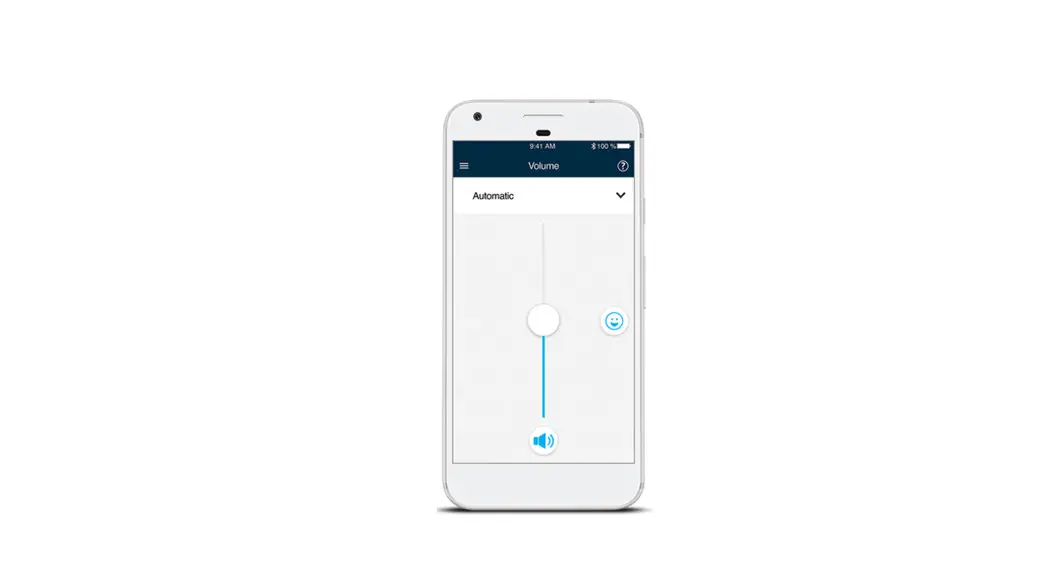
Controlling a single audio device: the slider at the bottom of the screen adjusts the volume Tap the speaker icon on the left of the volume slide to mute the speaker (when muted the icon has a diagonal line through it).
To toggle shuffle mode on or off
To toggle repeat mode on or off
Save or play preset stations
Play/Pause function and REV/FWD function
Options to tune and/or search up or down the radio frequencies are presented in FM mode
7
End-User Manual
UNDOK
5 Preset
The preset menu is accessed from the Now Playing screen of those modes that offer the preset function by tapping on the icon. The Preset option displays the available preset stores in which your favourite radio stations and playlists can be saved. Available in Internet radio, Podcasts, DAB or FM modes, only the presets stores of the currently selected mode are shown within each listening mode.
To choose a preset Tap on the appropriate preset listed
To store a preset
Tap on the
icon for the required
preset to store the current audio source in
that location.
Note: this will overwrite any previously stored value in that particular preset store location.
8
UNDOK
End-User Manual
6 Browse
The availability and list options presented for browsing audio content will depend on the mode and available stations/audiolibraries.
To browse and play available audio sources
Use the presented menu tree to navigate to and select the required audio source. The optionsand depth of the tree depend on the mode and available audio sources.
Menu options with a right facing chevron give access to further menu branches.
9
UNDOK
End-User Manual
87 Source
Presents the available audio source modes. The list presented will depend on the capabilities of the audio devices .
Internet Radio Podacsts
Providesaccess to a wide variety of internet radio stations available on the controlled
audio device.
Music Player DAB FM
Enables you to select and play music from any available shared music library on the network or on a storage device attached to the USB socket of the audio device currently being controlled.
Allows control of the DAB radio capabilities of the controlled audio device.
Allows control of the FM radio capabilities of the controlled audio device.
Aux in
Allows playback of audio from a device physically plugged into the Aux In socket of
the controlled audio device.
10
UNDOK
End-User Manual
8 UND OK Settings
Access from the top menu by tap
then
Option
Function
icon, the Settings menu provides general settings for the audio device
Soft w are updat e Updat e process for current device
Internet Radio station suggestion
Link to a website to suggest station
About
Showing app’ s information
SmartRadio Service Status Showing product setting status
FAQ
Showing user’s common questions
Privacy Notice
Showing the product privacy policy
Th em es Logging
Cust omize t he app int erface
Logging facilities understanding of any problems or errors caused by the UNDOK app or the device
Enable scrolling
Scrolling on off
11
UNDOK
End-User Manual
9 Settings
AccessAfcrocmesstheed tforopmmtehneuNbayvtiagpation mieconnu,, tthhee SSeettttiinnggssmmeennuupprroovvidideessggeenneeraral lsseetttitninggssfofor rththeeauaduidoiodedveice
Option
Function
Sleep Timer
Allows you to set up a sleep interval in minutes, after which the connected audio devices will be put into standby mode.
Equalizer Choose equaliser settings
Date & time
Customize the date and time
Set Language Up to 13 languages can be choose Factory Reset Reset the device
12
End-User Manual
UNDOK
9.1
Equaliser
Accessed from the Settings Menu or via the EQ icon (available on the multi-room volume control screen) the EQ options allow you to choose from a menu of preset values and the user definable My EQ.
To select an EQ profile
Tap on the EQ option you require. The current selection is indicated with a tick.
Editing the My EQ option presents a further window which allows you to define the `My EQ’ settings:
Drag the sliders to adjust
13