
Music Bucket
User Guide
Music Bucket

Software Synthesizer Version 2.2
© 20102022 by Björn Arlt @ Full Bucket Music http://www.fullbucket.de/musicVST is a trademark of Steinberg Media Technologies GmbH Windows is a registered trademark of Microsoft Corporation The Audio Units logo is a trademark of Apple Computer, Inc.
Introduction
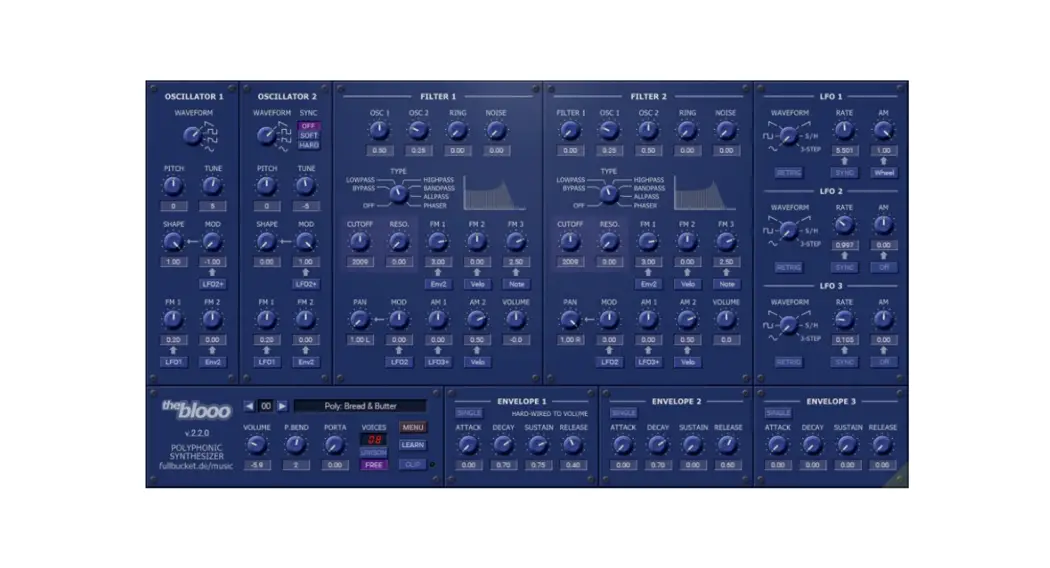
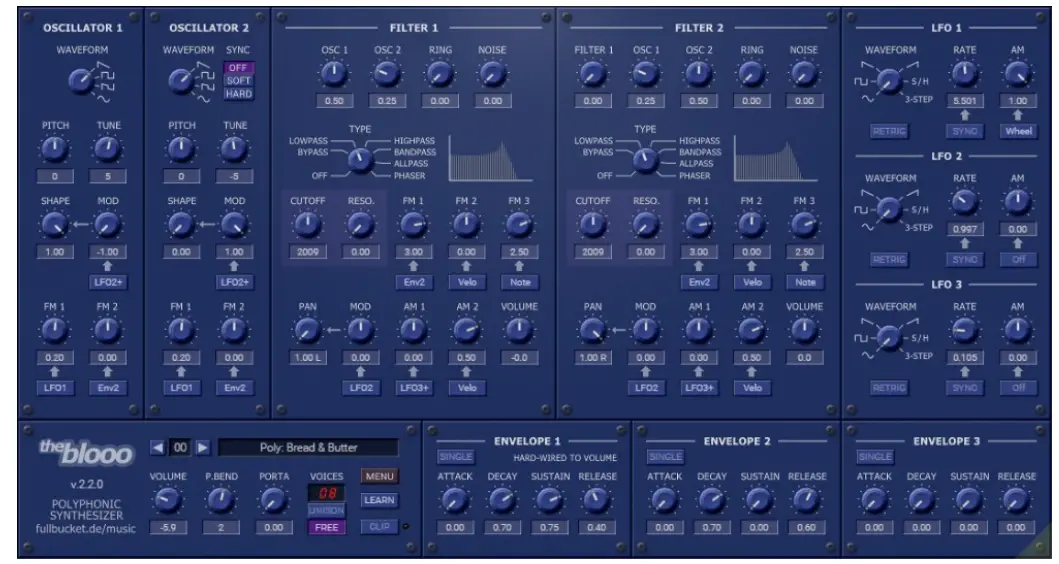
The blooo is a software synthesizer plug-in for Microsoft Windows (VST2/VST3) and Apple macOS (VST2/VST3/AU) based on the classic subtractive synthesis architecture. It is written in native C++ code for high performance even on “lighter” systems. The main features are:
- Up to 64 voices polyphony including Unison mode and portamento
- Two band-limited oscillators including
- Ring modulation and Soft/Hard sync
- Four oscillator waveforms (sawtooth, pulse, sawpulse, sine) with shape control
- Additional white noise generator
- Two multi-mode four-pole filters (lowpass, highpass, bandpass, allpass, phaser) with resonance and panorama control
- Three envelopes (ADSR) with exponential slopes
- Three low frequency oscillators (LFOs) with tempo synchronization
- Double precision audio processing
- All parameters can be controlled by MIDI controllers
- Plug-in supports
- Windows and macOS (32 bit and 64 bit)
The blooo is based on the new iPlug2 framework maintained by Oli Larkin and the iPlug2 team. Big thanks, guys!!! Without your work it would not have been possible to create a resizable blooo user interface.
To resize the plug-in you just grab the yellow triangle at the bottom right of the window and drag it. You can save the current window size using the menu entry “Save Window Size” in the Options Menu.
If you have trouble with the standard version of the blooo, please grab the (soundwise identical) “N” version of the plug-in which is based on the original iPlug framework.
What’s New With Version 2.2?
Version 2.2 of the blooo is fully compatible with previous versions; it should be safe to replace the old plug-in with the new one.
After 12 years since its first incarnation I added two new features to the blooo that have been requested frequently: Unison mode and optional Single trigger mode of the envelopes. I also did a lot of refactoring to the original code but I guess you will not notice much of it (except that the blooo now does not need as much memory as its predecessors).
Architecture
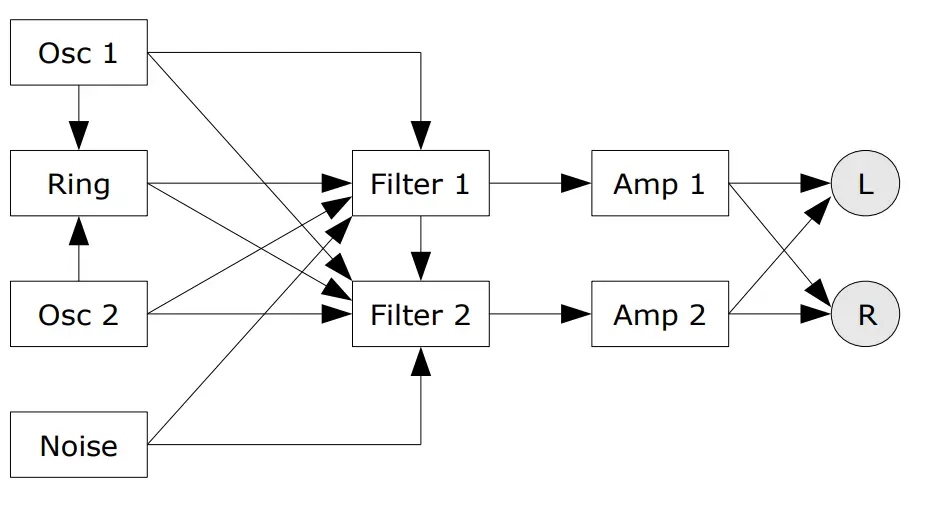
Each voice of the blooo features two oscillators feeding a Ring modulator. The individual outputs of the oscillators, the Ring modulator, and an additional white noise generator are sent to the input mixers of two multi-mode filters; furthermore, Filter 2 can receive the output of Filter 1. The filter outputs are routed to two individual amplifiers with panorama control which are connected to the main stereo output bus.
Aside from the audio modules, the blooo has three envelopes and three LFOs for modulation purposes.
Oscillators
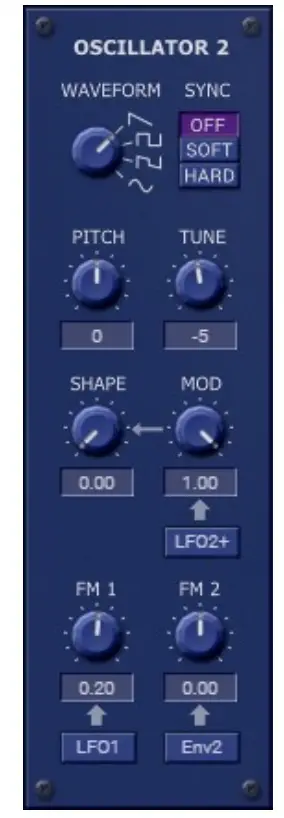
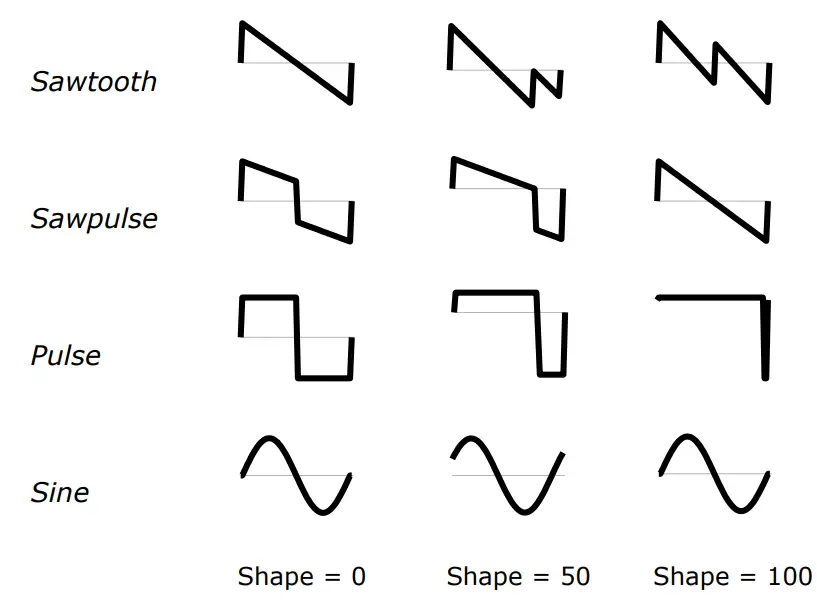
The oscillators of the blooo feature four different waveforms: Sawtooth, Pulse, Sawpulse (a mixture of sawtooth and pulse), and Sine. The shape of the waveforms can be modulated by any unipolar modulation source (see below); in case of the pulse waveform, this is equivalent to pulse width modulation.
Note that Sawtooth with a shape value of 100 equals a mixture of a sawtooth wave and an additional sawtooth wave transposed by one octave. For Sine the shape value controls the phase of the sine waveform only.
On a new note event, digital oscillators typically start at the same initial phase angle of the waveform (e.g. the zero-crossing of a sawtooth’s rising edge) while classic analog oscillators do not; they are “running free” (which means they are still oscillating even if no note is played). The blooo will emulate this behaviour when the Free parameter in the Global Section is turned on.
The frequencies of both oscillators can be modulated independently by two different modulation sources (unipolar or bipolar). Furthermore, Oscillator 2 features Soft and Hard sync (the phase angle of it’s waveform will be inverted or reset whenever Oscillator 1 has finished a complete waveform cycle) to create rich harmonic spectra.
Filters
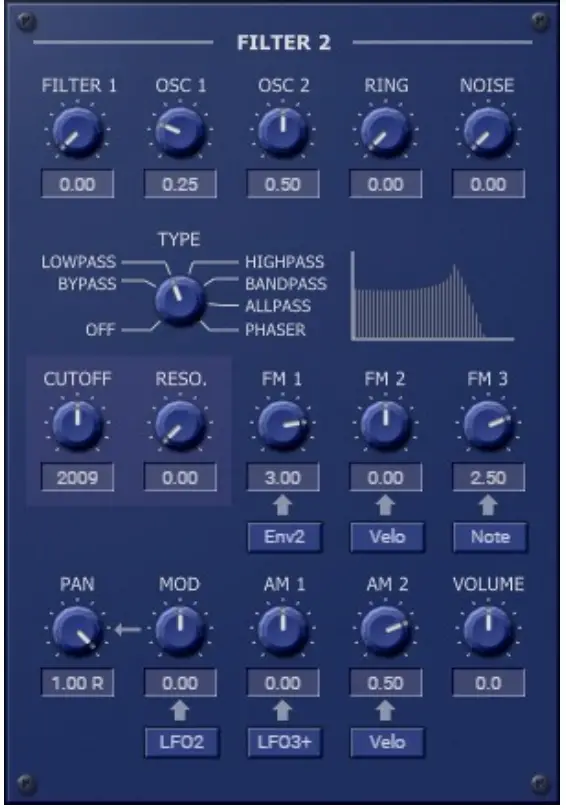
Each of the two filters of the blooo can be divided into three sections: input mixer, filter stage, and output amplifier. The input mixer accumulates the output signals of Oscillator 1 and 2, the Ring modulator (output of Oscillator 1 multiplied by the output of Oscillator 2), and a white noise generator. Furthermore, Filter 2 can also add the output of Filter 1’s filter stage.
From the input mixer the signal is sent to a four-pole filter stage of selectable mode: Lowpass, Highpass, Bandpass, Allpass and Phaser (Allpass added to the input mixer’s output). The filter stage may also be bypassed (i.e. the input mixer signal is routed directly to the output amplifier) or even turned off completely.
The Cutoff parameter adjusts the cutoff or center frequency of the filter stage. Like the oscillators, the cutoff/center frequency can be modulated independently by three modulation sources. Resonance controls the amount of feedback from the output to the input of the filter stage. If Resonance is set to a value near 100 the filter will start to self-oscillate.
The output of the filter stage is sent to an amplifier section with stereo panorama control which can be modulated by a unipolar or bipolar source. The output volume is controlled by the Volume parameter, the output signal of Envelope 1, and two optional unipolar modulation sources. Note that Envelope 1 is hard-wired to the amplifiers of both filters.
Modulation Sources
The blooo’s oscillator/filter frequencies, waveform shapes, amplitudes etc. can be modulated by various modulation sources. Sources that produce a control signal of positive values only (including zero) are called unipolar while sources producing either positive or negative values are called bipolar. The following table lists the available modulation sources and their polarity.
| source | polarity | description |
| Off | unipolar | constant value 0 |
| On | unipolar | constant value 1 |
| LFO1+ | unipolar | output of LFO1 ranging from 0 to 1 |
| LFO2+ | unipolar | output of LFO2 ranging from 0 to 1 |
| LFO3+ | unipolar | output of LFO3 ranging from 0 to 1 |
| Env1 | unipolar | output of envelope 1 ranging from 0 to 1 |
| Env2 | unipolar | output of envelope 2 ranging from 0 to 1 |
| Env3 | unipolar | output of envelope 3 ranging from 0 to 1 |
| Velo | unipolar | MIDI note velocity |
| Note+ | unipolar | MIDI note value |
| PBnd+ | unipolar | MIDI pitch bend wheel (value at center position is 0.5) |
| Wheel | unipolar | MIDI modulation wheel |
| LFO1 | bipolar | output of LFO1 ranging from -1 to 1 |
| LFO2 | bipolar | output of LFO2 ranging from -1 to 1 |
| LFO3 | bipolar | output of LFO3 ranging from -1 to 1 |
| Note | bipolar | MIDI note (value at C3 is 0) |
| PBend | bipolar | MIDI pitch bend wheel (value at center position is 0) |
Envelopes
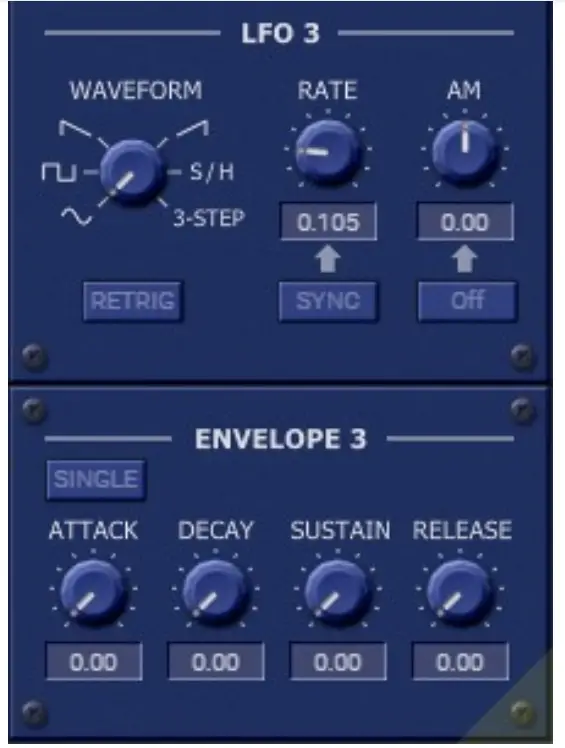
The three envelopes of the blooo are standard ADSR generators with exponential slopes as featured in classic analog synthesizers. Envelope 1 is hard-wired to the filter amplifiers and directly controls the overall amplitude contour.
It is possible to switch from Multiple to Single trigger mode using the designated SINGLE button.
LFOs
The three low frequency oscillators (LFOs) generate a periodic control signal from 0 to 100 Hz or can be tempo-synchronized to the host. Six waveforms are available: Sine, Square, Saw Up (rising sawtooth), Saw Dn (falling sawtooth), S/H (Sample and Hold, i.e. random values), and 3-Step (“stair”-shaped waveform with three steps). The Retrig parameter controls whether the LFO is restarted for each new note or is “running free” (similar to the Free Run mode of the oscillators).
It is possible to modulate the magnitude of the LFO’s output by any unipolar modulation source (even by the LFO itself). This can be used to control the LFO via the modulation wheel or to create complex modulation signals, “magic vibrato” effects, etc.
Global Section
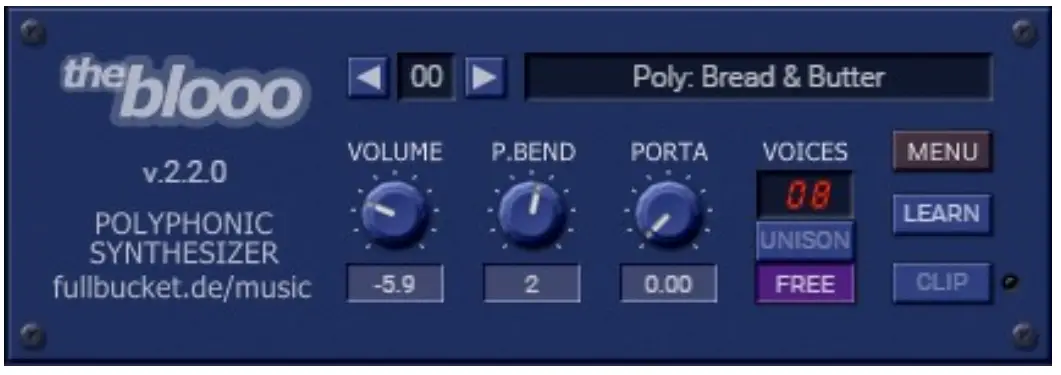
The Global Section hosts common parameters such as Volume, Pitch Bend Amount, and Portamento Time as well as the controls for program selection/naming, the Options menu, Voice mode, MIDI Learn and Clip.
Voice Mode
The number of voices in standard Poly mode anges from 1 to 64. The new Unison mode allows up to 8 slightly detuned voices stacked on top of each other for various polyphonic modes. Clicking on the digital display opens a menu where you can select the desired Unison/Poly mode.
Clip Function
The Clip function prevents the output from clipping. It is not a very sophisticated limiter function but can produce some nice saturation/distortion effect.
Options Menu
When clicking on the Menu button in the Global section, a context menu opens with the following options:
| Copy Program | Copy current program to internal clipboard |
| Paste Program | Paste internal clipboard to current program |
| Init Program | Initialize the current program |
| Load Program | Load a program file containing a patch to the blooo’s current program |
| Save Program | Save the blooo’s current program to a program file |
| Load Bank | Load a bank file containing 64 patches into the blooo |
| Save Bank | Save the blooo’s 64 patches to a bank file |
| Select Startup Bank | Select the bank file that should always be loaded when the blooo is started |
| Load Startup Bank | Load the Startup bank file; can also be used to check what the current Startup bank is |
| Unselect Startup Bank | Unselect the current Startup bank |
| Default Path for Program Files | Sets the default path for program and bank files |
| MIDI Thru | Set globally if MIDI data sent to the blooo should be sent through to its MIDI output |
| Ignore Program Change | Set globally if MIDI Program Change data sent to theblooo should be ignored |
| Reload Configuration | Reload the blooo’s configuration file (see section The blooo.ini Configuration File) |
| Save Configuration | Save the blooo’s configuration file (see section The blooo.ini Configuration File) |
| Check Online for Update | When connected to the Internet, this function will check if a newer version of the blooo is available at fullbucket.de |
| Window Size… | Change the window size of the blooo |
| Save Window Size | Stores the current window size to the configuration file so that it will be restored next time you load the blooo |
| Visit fullbucket.de | Open fullbucket.de in your standard browser |
The blooo.ini Configuration File
The blooo is able to read some settings from a configuration file (blooo.ini). The exact location of this file depends on your operating system and will be displayed when you click on “Reload” or “Save Configuration”.
MIDI Control Change Messages
All parameters of the blooo can be controlled by MIDI controllers, or more precise: Each MIDI controller (except Modulation Wheel and Sustain Pedal) can control one of blooo’s parameters. The mapping is defined in the blooo.ini for example like this:
[MIDI Control]
CC7 = 4 # Volume
CC70 = 32 # Filter 1 Cutoff
CC71 = 33 # Filter 1 Resonance
…
The syntax is straight forward:
CC<controller number> = <parameter ID>
Given the above example, controller 7 directly controls the overall Volume parameter, controller 74 the Filter 1 Cutoff etc. As you can see, comments are introduced by the Pound sign (#); they are here just for description purposes and completely optional. Note that the controller number can run from 0 to 110, with the exception of 1 (Modulation Wheel) and 64 (Sustain Pedal); the latter two are simply ignored.
MIDI Learn
The easiest way to assign MIDI controllers to blooo parameters is to use the MIDI Learn function. To activate MIDI Learn, click on the respective button and wiggle both the MIDI controller and the blooo’s parameter that you want to link. If you want to unlearn the assignment, right-click the MIDI Learn button (the label now reads “Unlearn”) and activate it. Now wiggle the MIDI controller or the parameter that you want to unlearn.
Parameters
Global
parameter | description |
| Voices | number of polyphonic voices (up to 64) |
| Unison | Switches from Poly to Unison mode |
| PBend | maximum pitch bend amount (± 24 semitones) of the oscillators |
| Porta | portamento time (0 to 5 seconds) |
| Volume | the overall volume |
| Free | Free Run mode: when a new note event occurs, Free controls whether the oscillators start at the beginning of the wave form (typical for “digital” oscillators) or are “running free” (like classic analog oscillators) |
| Clip | controls whether the overall output is unlimited or clipped to unity (tanh clipping function) |
Oscillators parameter descriptionWaveform four types are available: Sawtooth, Pulse, SawPulse, and Sine Pitch the relative pitch (± 24 semitones) Tune fine tuning of the oscillator (± 1 semitone) Shape waveform shape control; for Pulse this is equivalent to pulse width Sh.Mod amount of waveform shape modulation Sh.Mo d Source the source of the shape modulation; this can be any unipolar modulation source (see Modulation Sources below) FM1 / FM2 amount of frequency modulation FM1 / FM2 Source the source of the frequency modulation; this can be any modulation source (see Modulation Sources below) Sync controls whether Oscillator 2 is synchronized to Oscillator 1 (Off, Soft, Hard)
Filters
parameter | description |
| Osc 1 | filter input mixer: level of Oscillator 1 |
| Osc 2 | filter input mixer: level of Oscillator 2 |
| Ring | filter input mixer: level of Ring modulation (Oscillator 1 / Oscillator 2) |
| Noise | filter input mixer: level of white noise generator |
| Filter 1 | filter input mixer: level of Filter 1 |
| Filter mode | Off:the filter is switched off Bypass: the filter’s input is directly routed to the filter’s output Lowpass: 4 pole lowpass filter Highpass: 4 pole highpass filter Bandpass: 4 pole bandpass filter Allpass: 4 pole allpass filter Phaser: 4 pole allpass filter (output mixed with the filter’s input) |
| Cutoff | cutoff or center frequency of the filter |
| Resonance | feedback amount of the filter; high values will cause self- oscillation |
| FM1 to FM3 | amount of cutoff frequency modulation |
| FM1 to FM3Source | the source of the cutoff frequency modulation; this can be any modulation source (see Modulation Sources below) |
| Pan | stereo position (panorama) of the filter output |
| Pan Modulation | amount of panorama modulation |
| Pan Source | the source of the panorama modulation; this can be any modulation source (see Modulation Sources below) |
| AM1 / AM2 | amount of amplitude modulation |
| AM1 / AM2 Source | the source of the amplitude modulation; this can be any unipolar modulation source (see Modulation Sources below) |
| Volume | filter output volume |
Envelopes parameter descriptionSingle switches from Multiple to Single trigger mode Attack attack time of the envelope Decay decay time of the envelope Sustain sustain level of the envelope Release release time of the envelope
LFOs
parameter | description |
| Waveform | six types are available: Sine, Square, Saw Up (rising sawtooth), Saw Dn (falling sawtooth), S/H (Sample and Hold, i.e. random values), and 3-Step (“stair”-shaped waveform with three steps) |
| Retrig | when a new note event occurs, Retrig controls whether the LFO starts at the beginning of the wave form or is “running free” (similar to the Free control for the audio oscillators) |
| Rate | rate or speed of the LFO (in Hertz or note lengths) |
| Sync | controls whether the LFO is synchronized to the host tempo |
| AM | amount of amplitude (output level) modulation |
| AM Source | the source of the amplitude modulation; this can be any unipolar modulation source (see Modulation Sources below) |
Frequently Asked Questions
– Just copy the files blooo.dll and blooo.ini from the ZIP archive you have downloaded to your system’s or favorite DAW’s VST2 plug-in folder. Your DAW should automatically register the blooo VST2 plug-in the next time you start it.
– Just copy the file blooo64.dll and blooo.ini from the ZIP archive you have downloaded to your system’s or favorite DAW’s VST2 plug-in folder. Your DAW should automatically register the blooo VST2 plug-in the next time you start it.
– Note: You may have to remove any existing (32 bit) blooo.dll from your VST2 plugin folder or else your DAW may screw the versions up…
– Just copy the files blooo.vst3 from the ZIP archive you have downloaded to your system’s or favorite DAW’s VST3 plug-in folder. Your DAW should automatically register the blooo VST3 plug-in the next time you start it.
– Locate the downloaded PKG package file blooo_2_2_0_mac.pkg in Finder (!) and do a right- or control-click on it. In the context menu, click on “Open”. You will be asked if you really want to install the package because it comes from an “unidentified developer” (me J). Click “OK” and follow the installation instructions.
– The ID is 1 r 7 6 .
– Always try this:
– If you don’t need one of the two filters, set it’s mode to Off.
– If you don’t need Ring modulation, set both Ring parameters of the filter input mixers to zero.
– Whenever it does not degrade the sound you need, try this:
– Reduce polyphony, i.e. the number of voices.
– Turn of Free Run mode of the oscillators.
– Turn of tempo-synchronization of the LFOs.
– Decrease the filter amplifier’s and/or the overall Volume parameters. Alternatively, switch on the Clip parameter in the Global section but that might lead to distortion effects. Hey, maybe that’s exactly what you need? 😉
– The maximum frequency modulation of the blooo’s oscillators and filters ranges from five octaves down to five octaves up. Thus, a value of 1.00 represents a ±1 octave modulation range and a value of 5.00 the maximum range of ±5 octaves.
– However, in case of the Note modulation source a value of 5.00 results in a frequency modulation of one octave per octave on the keyboard (with respect to MIDI key C3). – Why that? Because it gives the answer to the following question:
– Select the Note modulation source for one of the FM parameters of the filter and set the modulation amount to 5.00. Play MIDI key C3 and adjust the Cutoff parameter so that the filter is in tune with the oscillators.
– When connected to the Internet, open the Options menu (see section Options Menu) by clicking the disk icon and select the entry “Check Online for Updates”. If a new version of the blooo is available on fullbucket.de the respective information will be shown in a message box.
Nothing, except that it sounds like “blue”. The same is true for the name Full Bucket, excepts that it does not sound like “blue”.
– Before I answer this question, let me tell you a bit about the history of the blooo…
– The blooo was the first software synthesizer I ever created; this was back in 2010. It is still my workhorse synth and underwent many UI changes (some of you folks might remember the quirky designs from the past) until it got its current look. But under the hood it is almost the same machine as it was from version 1.0.0 onward (OK, the Soft Sync mode was added along with the whole utility paraphernalia…).
– The problem with extending or adding functionality is that you loose backwards compatibility pretty fast. This has to do with the way (VST) parameters are stored (by values between 0 and 1). I wont go into detail here, but even adding an additional modulation source entry to a parameter can kill backwards compatibility. So I decided to leave the blooo as it is and put advanced changes into a potential new plug-in.
– Sorry, what was the question?
 Full Bucket
 full bucket music