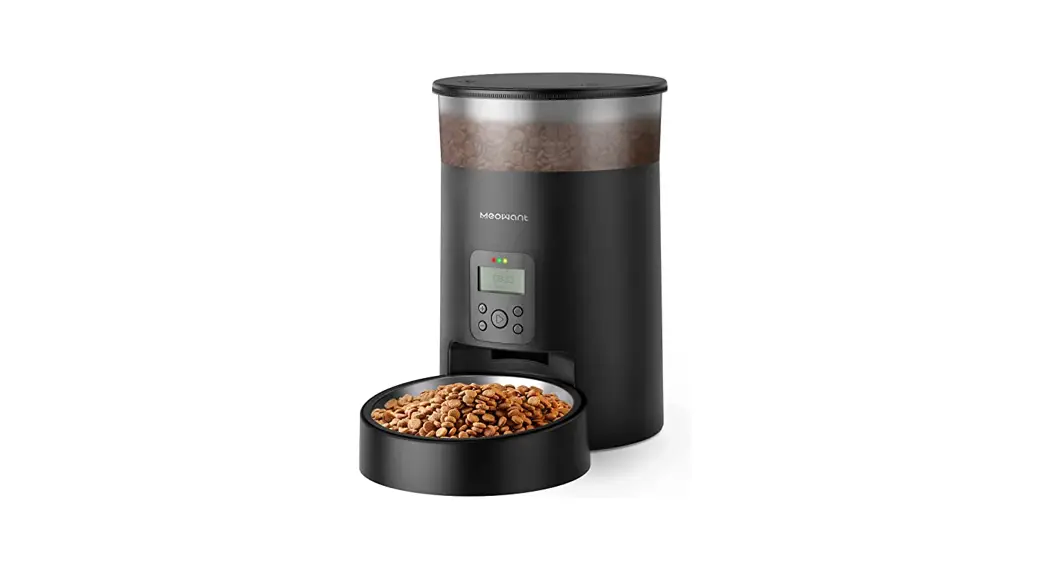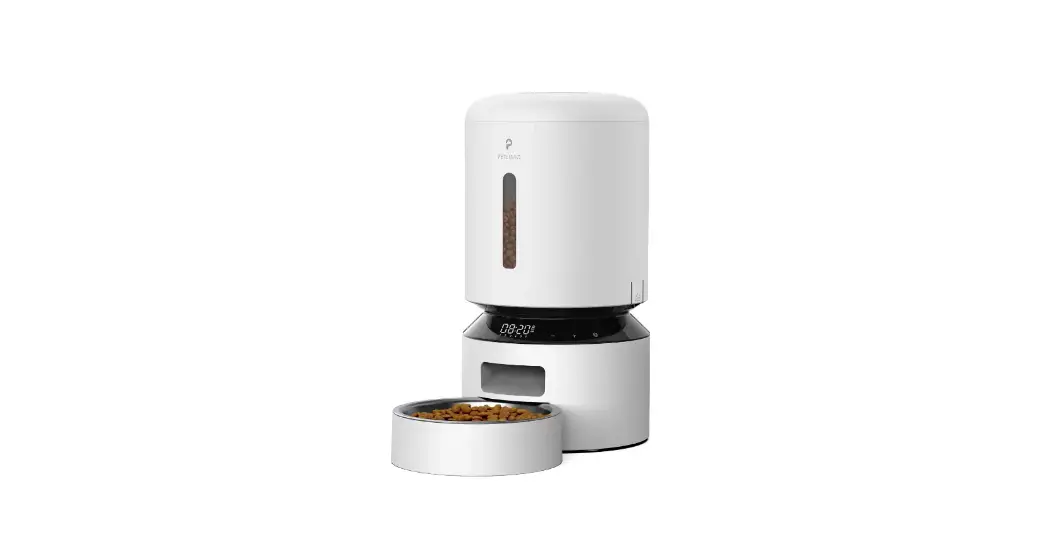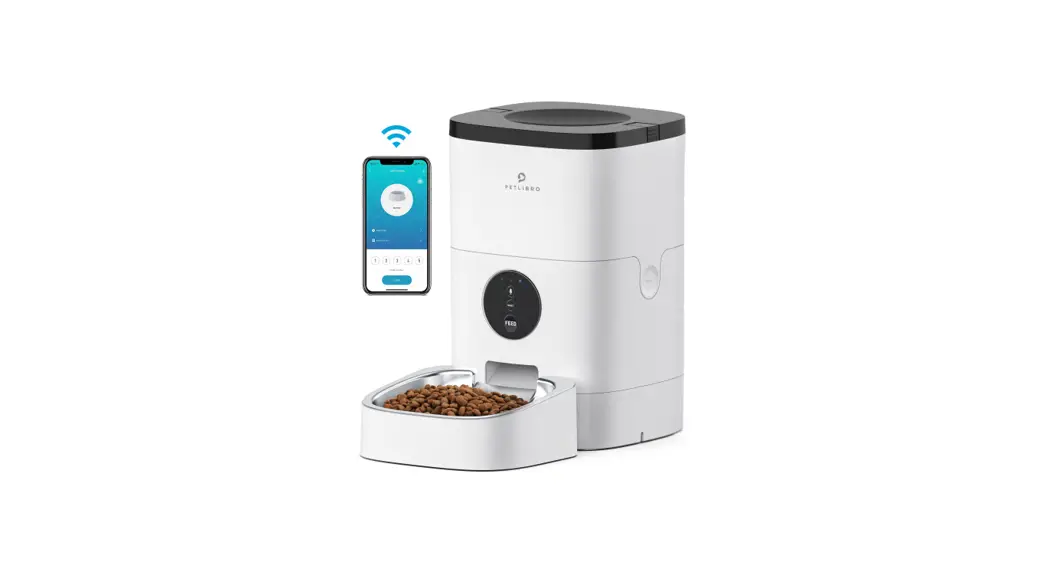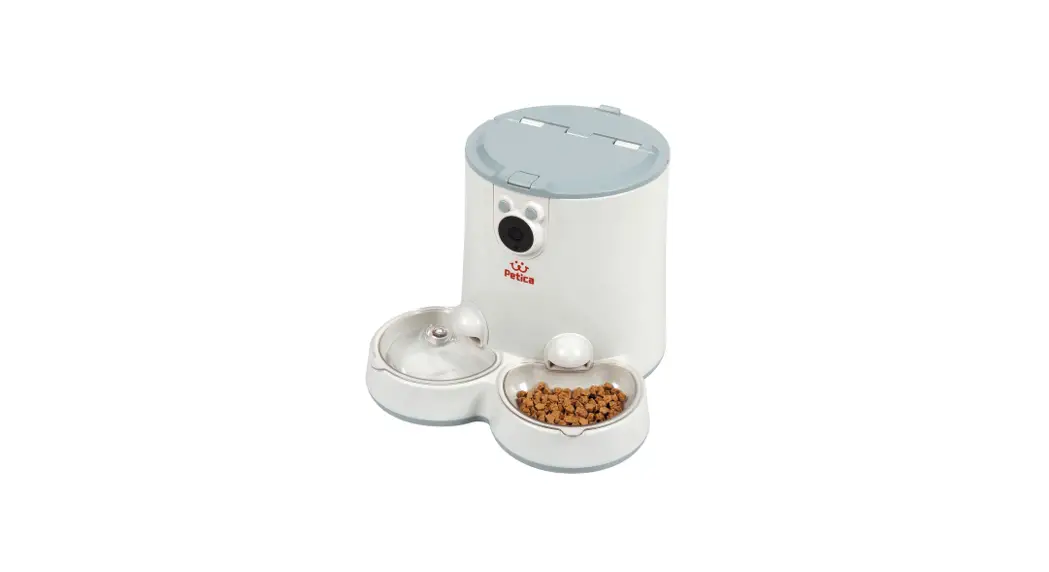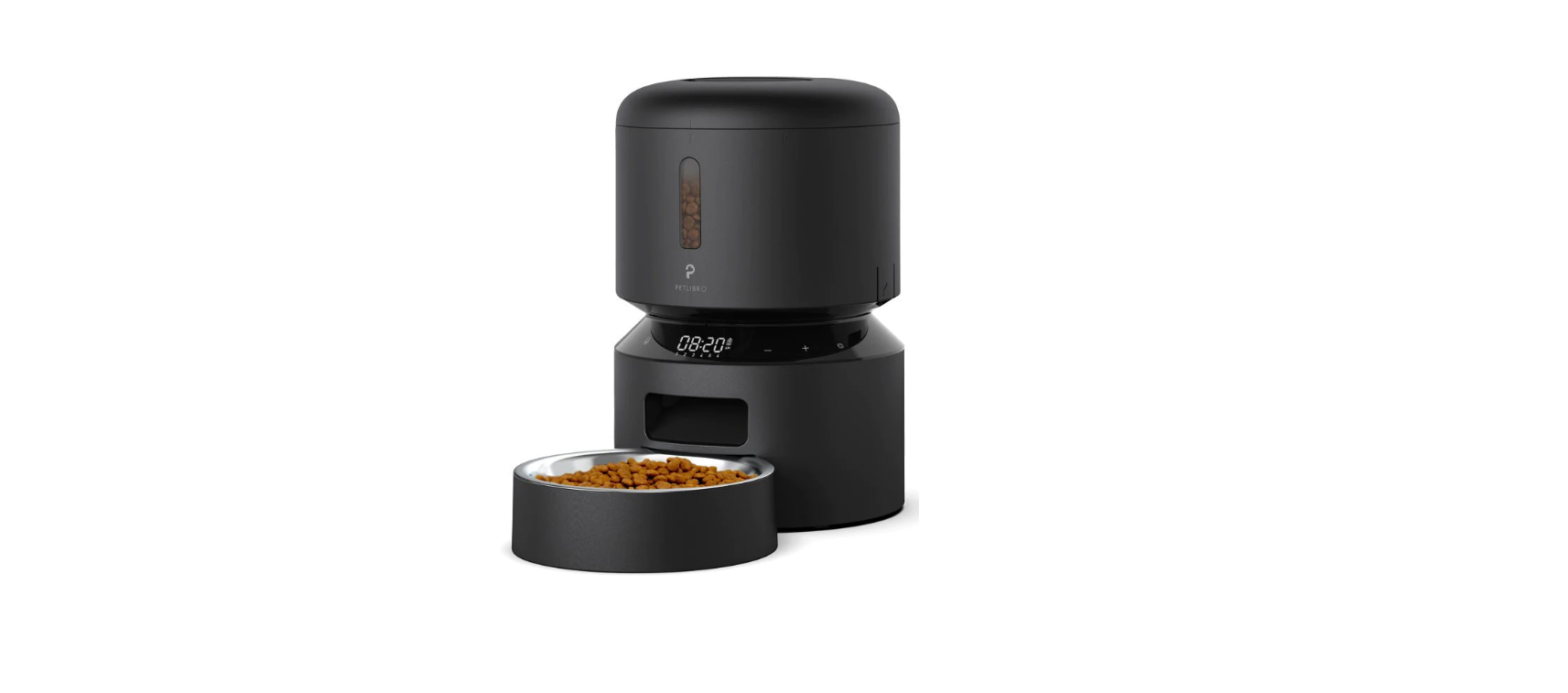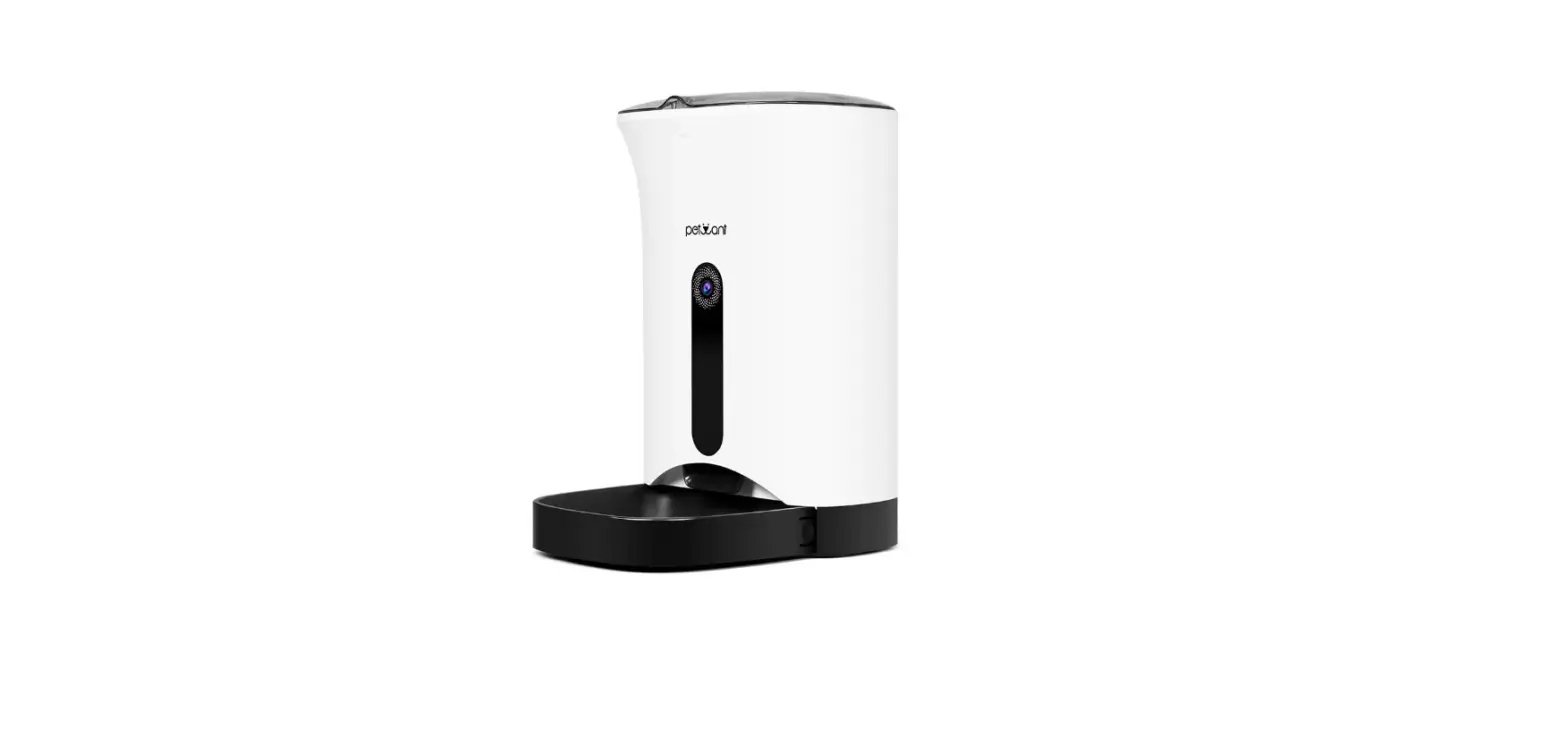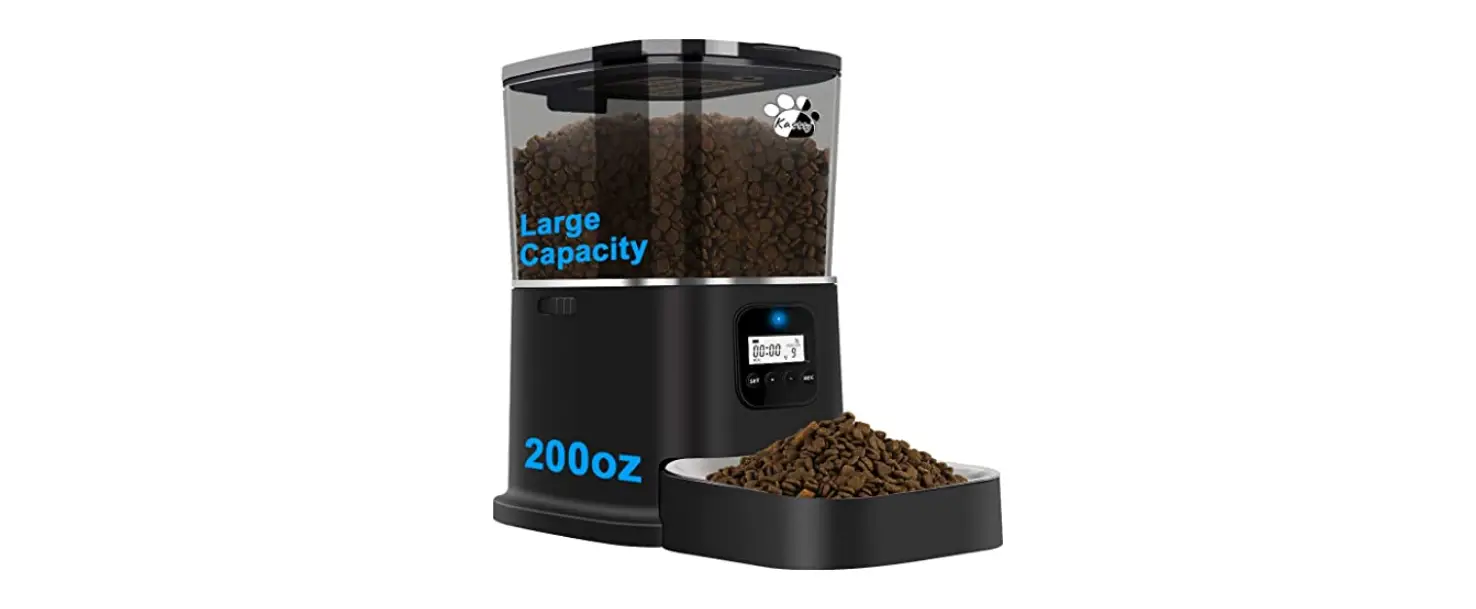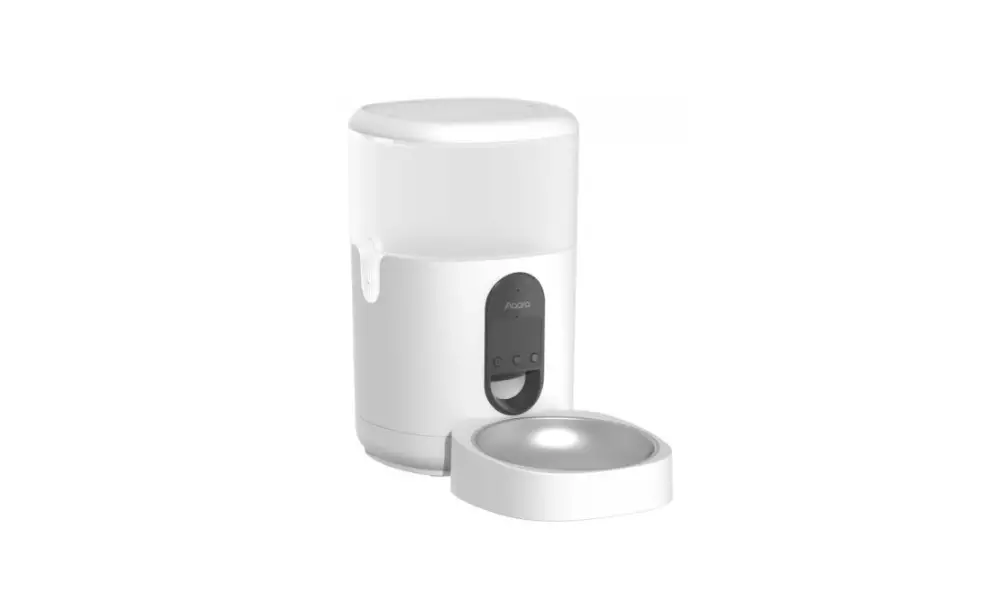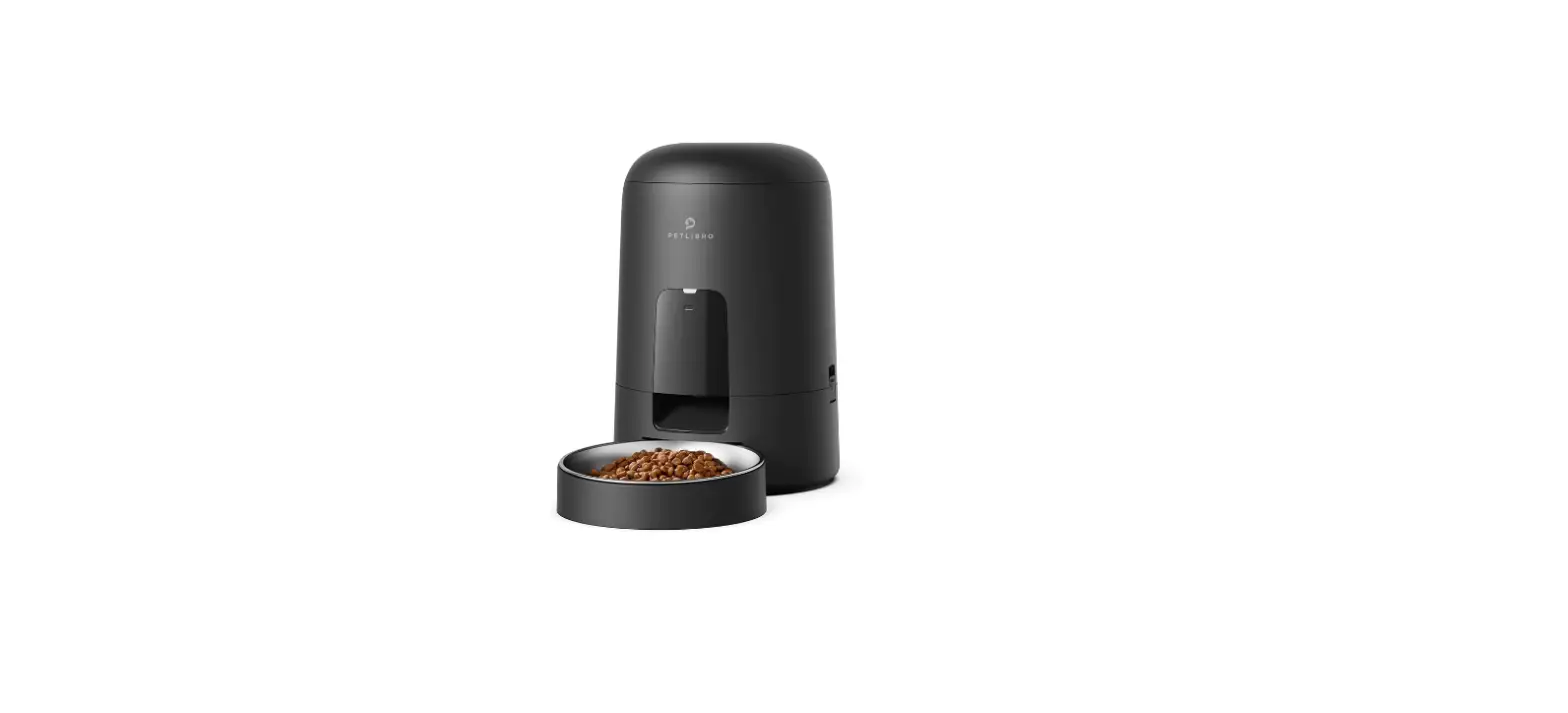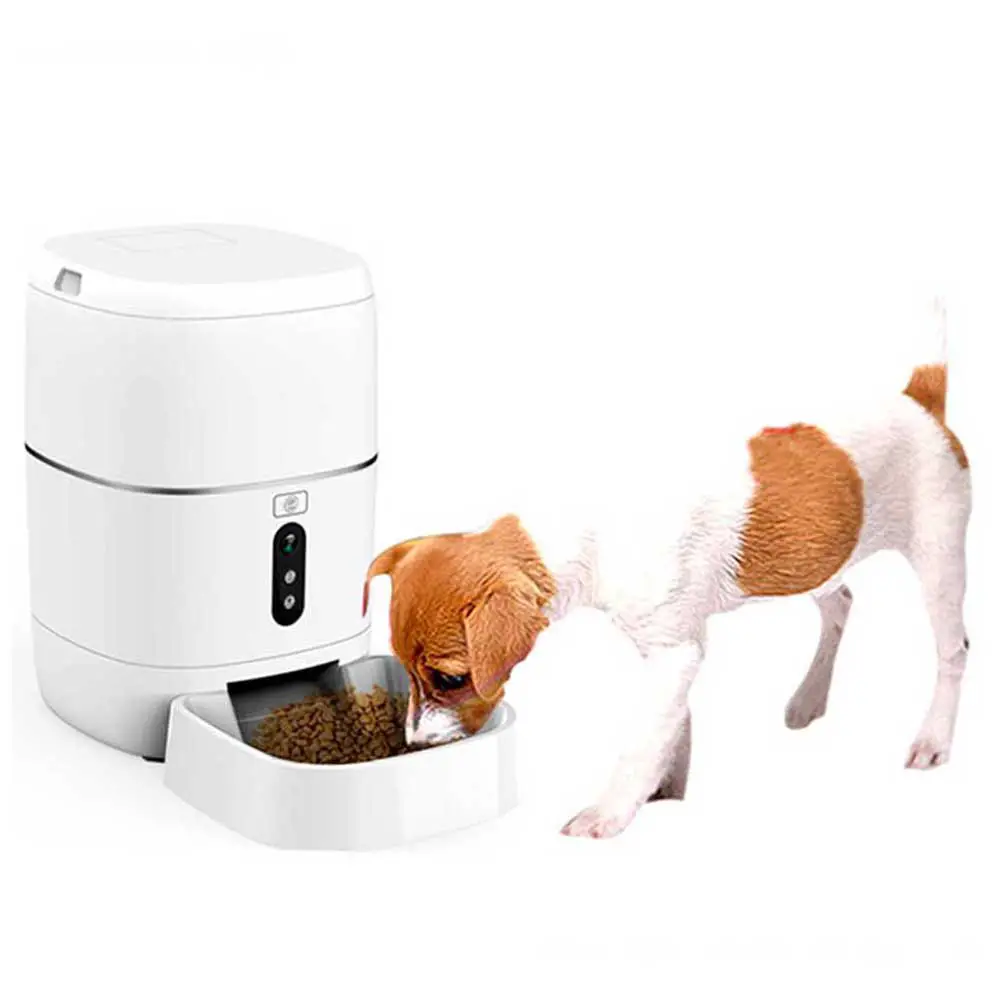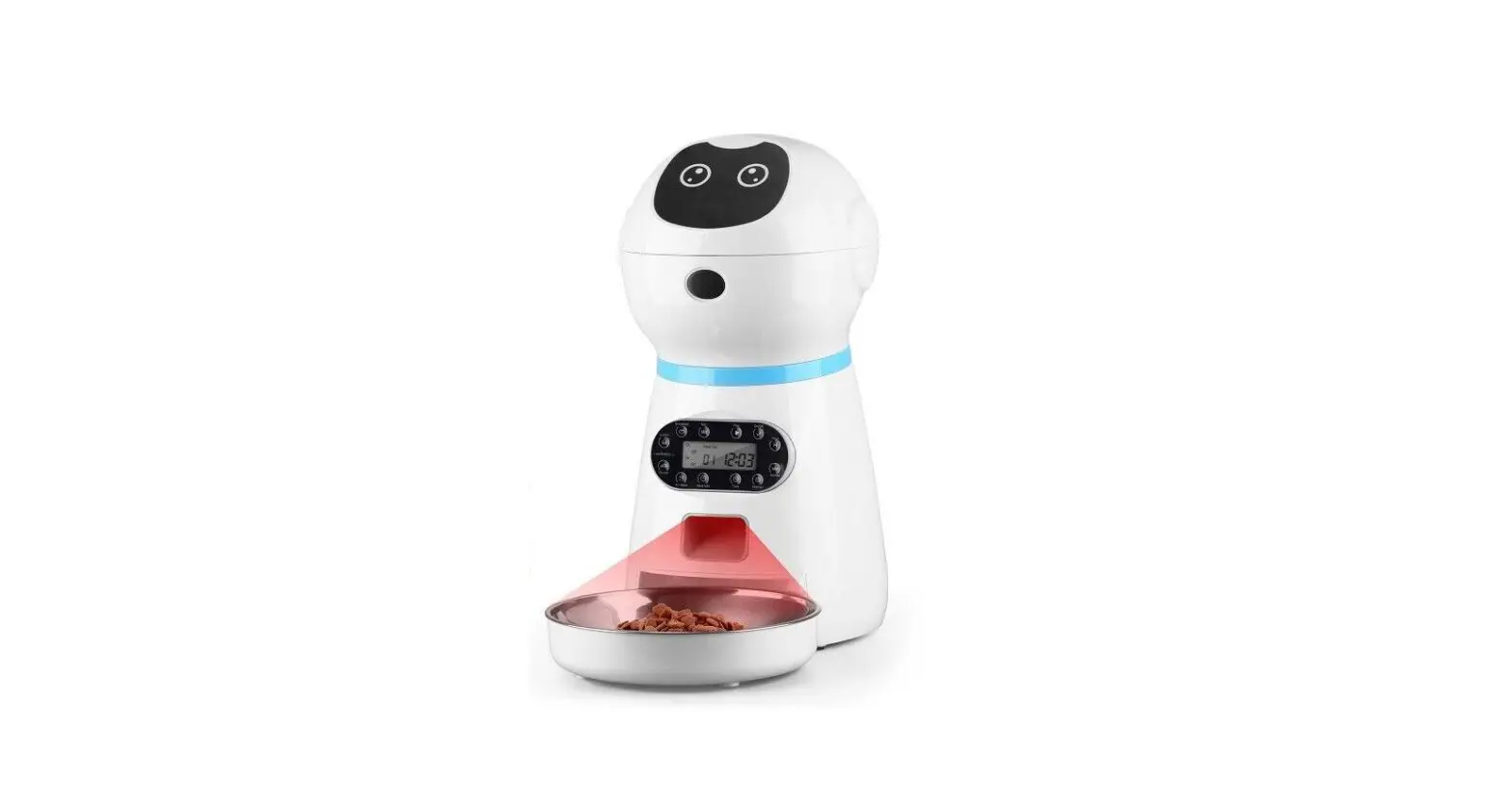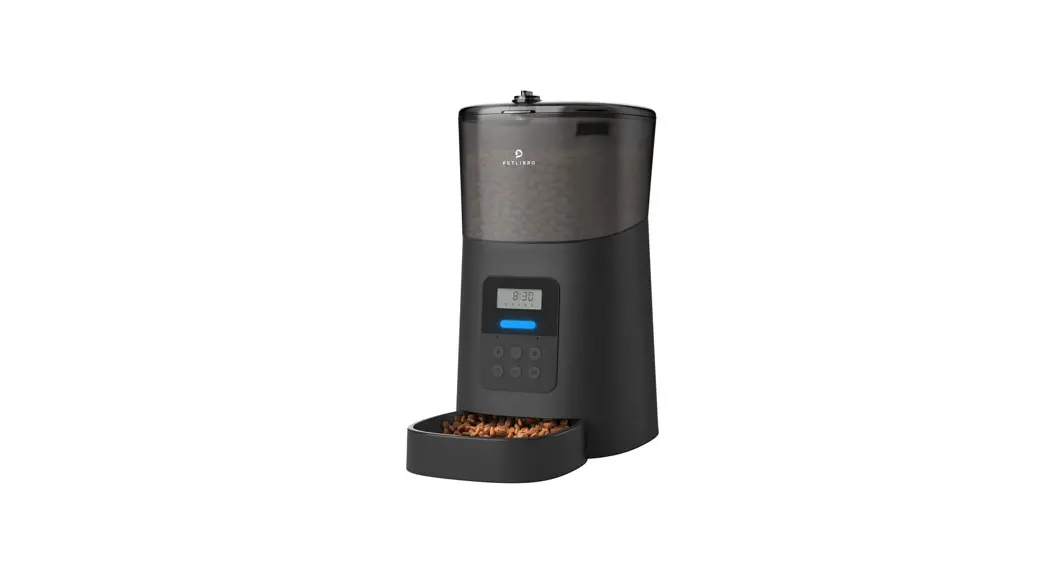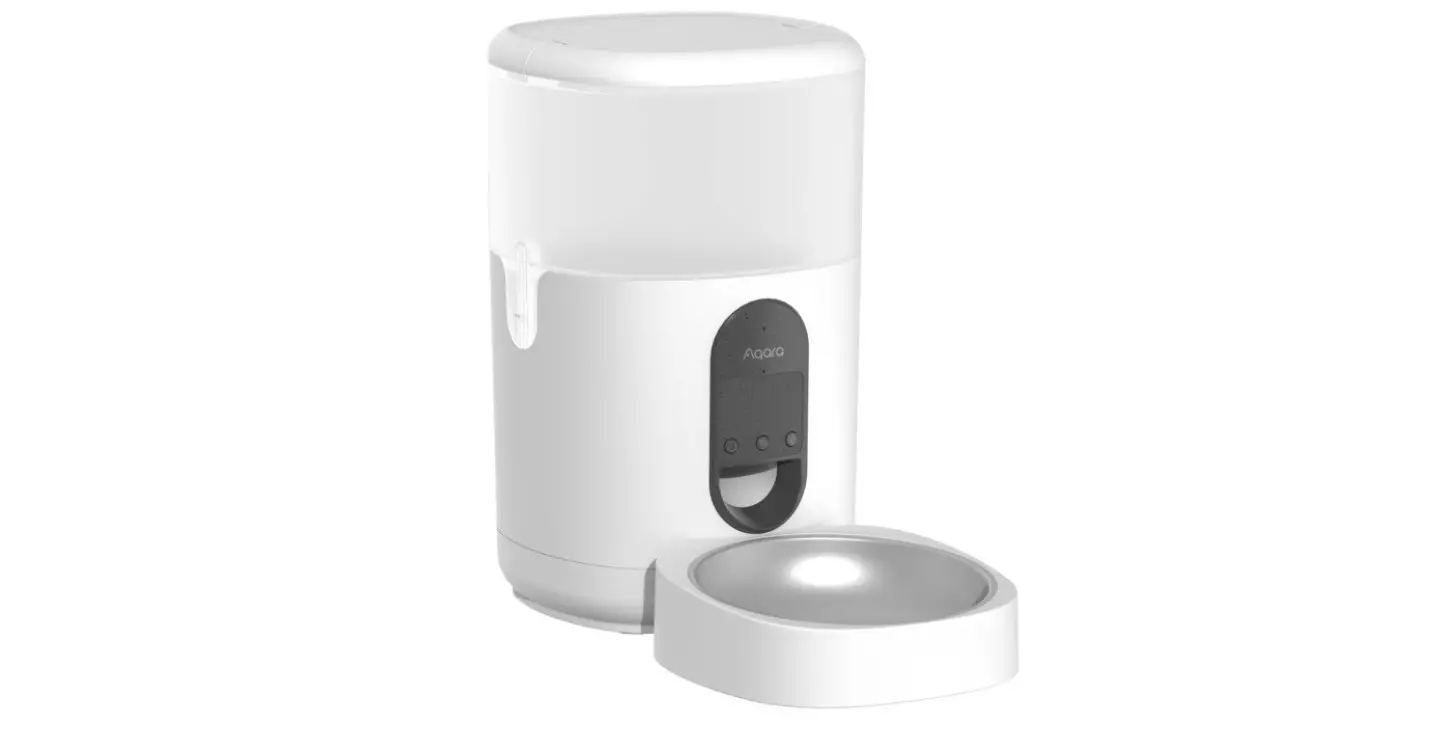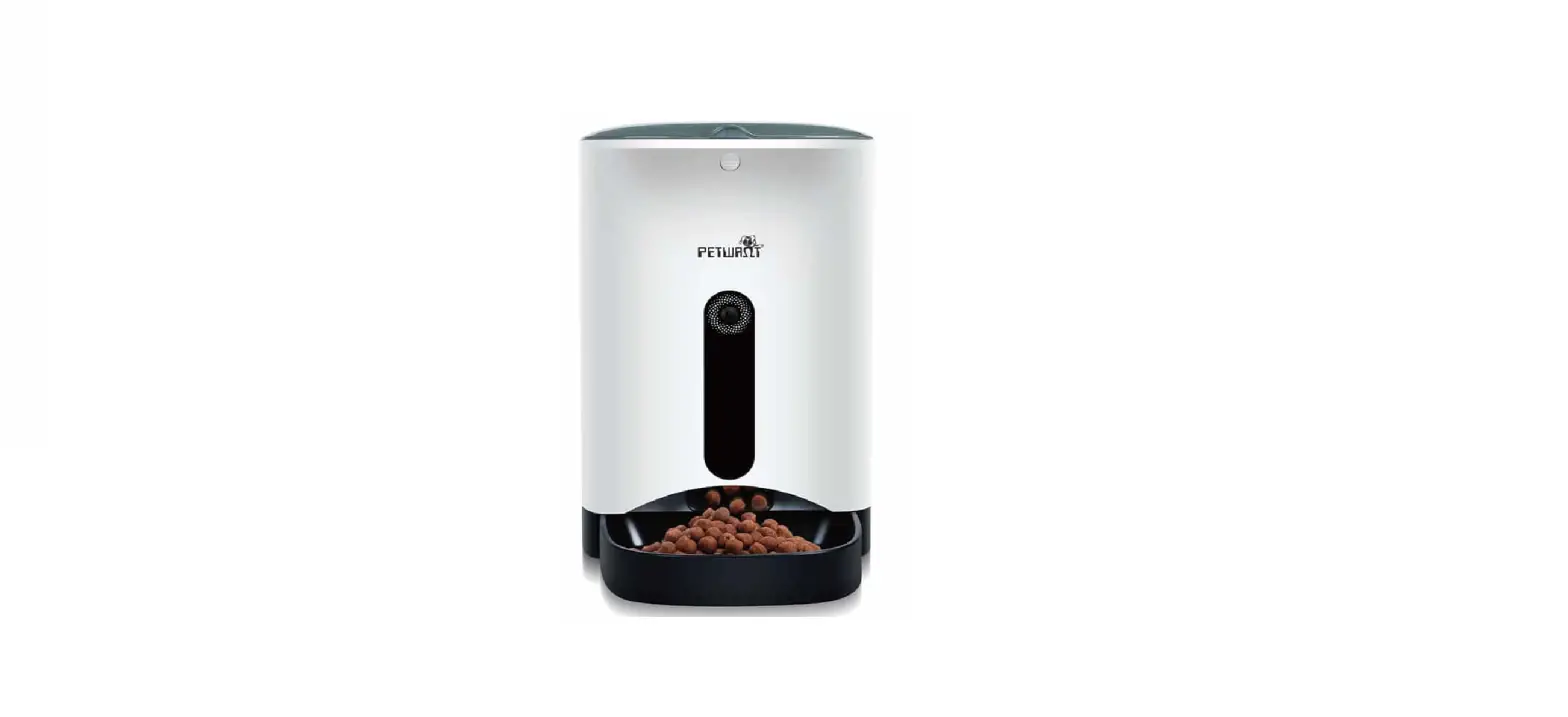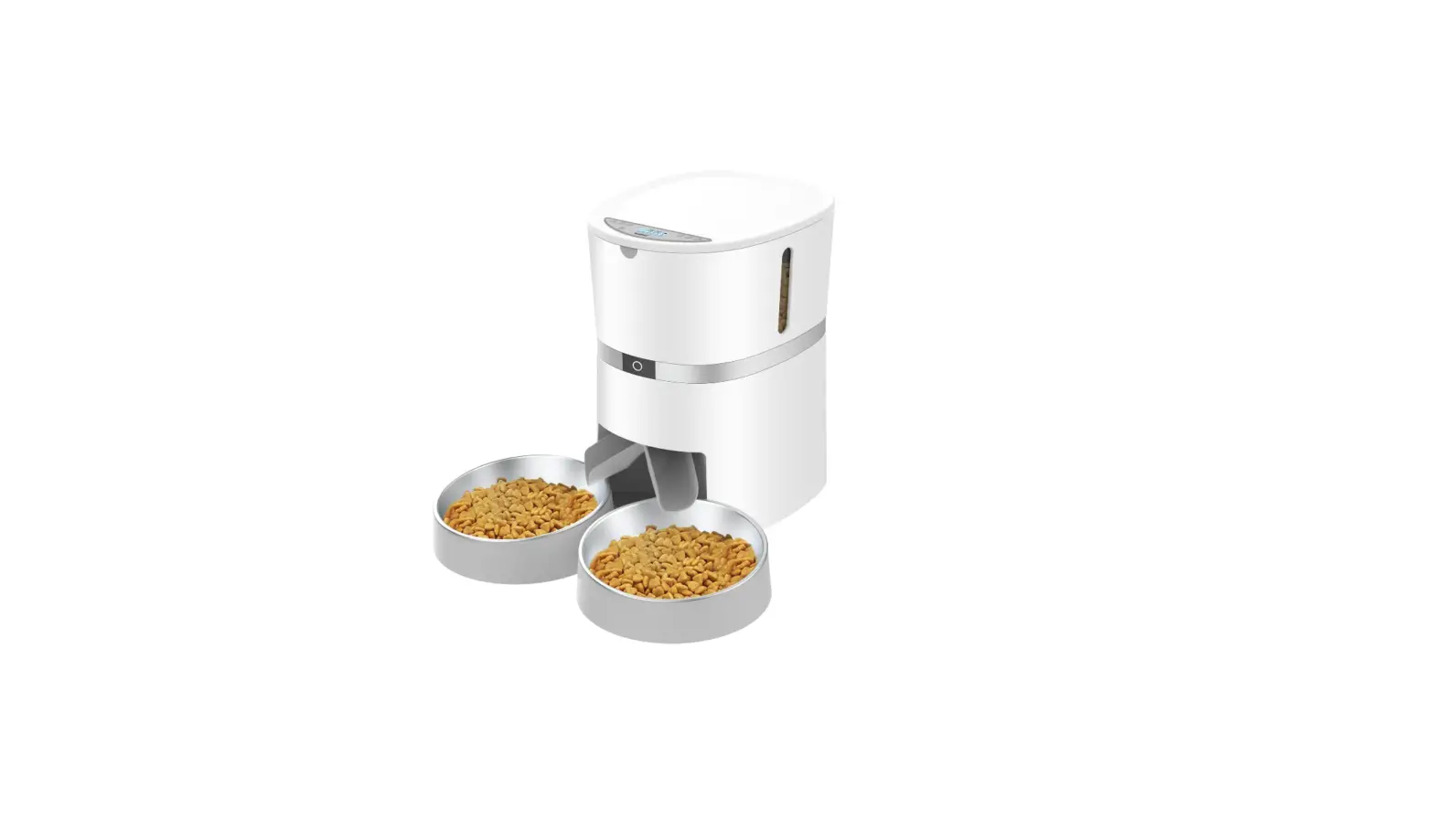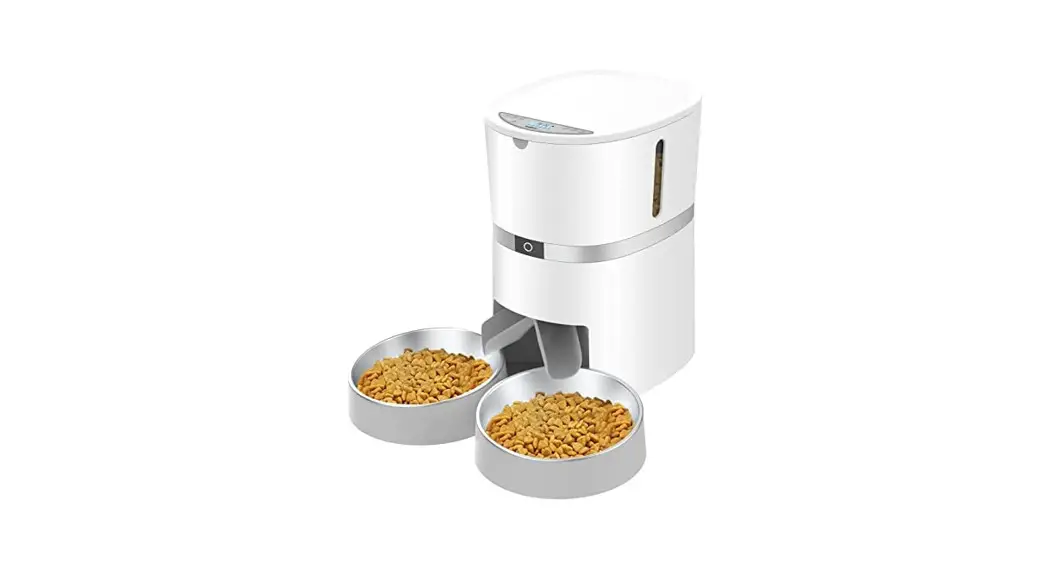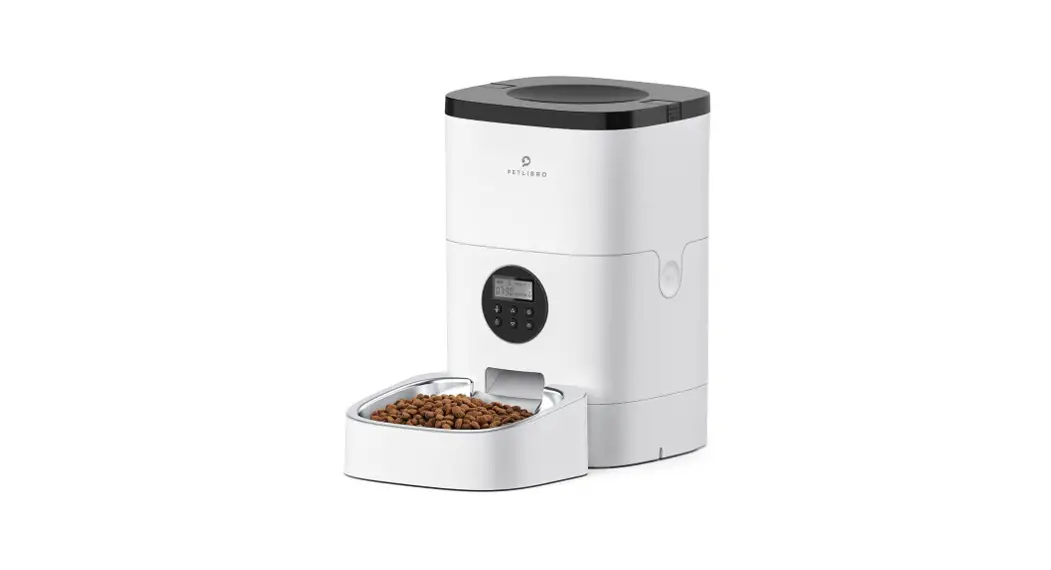
 PF300
PF300
Automatic pet feeder User Manual
Please read the operation manual carefully and keep it Well for future reference
1 YEAR WARRANTY
XTUOES love our customers. If Amazon won’t authorize your return, we will. If they won’t pay your return shiping fee, we will. Please contract us.
Happy!
Leave us a review to share your joyfulness
Post your satisfaction on your social media networks.
Not Happy? Easy for return
FBA(Fufill by Amazon)–Contact Amazon Service center for return FBM(Fulfill by Merchant)–Contact Seller on Amazon or Email our Service center.
Usage Tips:
- Please do not use this product outdoors,
- Please do not use this product in humid environment such as bathrooms.
- Please stay away from water, fire, or corrosive environment.
- Please use the 1.5V DC adapter while sustaining the auto cat feeder power via alkaline D-cell batteries (not included) installed in case of power outages, ensure that your pet gets food consistently (Equipped with setting memory to prevent sudden power failure).
- Please change the batteries every 6 months if not in use for a long time.
- Please connect the 2.4GHz Wii. The SGHz frequency range, as well as the WiFi requiring special authentication in hotel and airport s not supported yet.
- In battery-powered mode, the device cannot be controlled remotely, but the feeder will work based on your appointment
- 1fyou do ot use this product for a long time, please take out the battery and put it in a cool and dry place to avoid the battery expired storage, leaking liquid and corrovding shrapnel
- the lthium battery is not used for a long time, please take out the battery after fully charged and put itin a cool and dry place, and charge it at least once every 3 months to avoid over-discharge of the battery.
- To prevent electrical shack, do not plug or unplug the product with wet hands. Do not wash the base part.
- Fillin dry pet food only; kibble sized 0.07-0.59 inches in diameter.
Safety Precautions:
- Do not disassemble and install for repair the product or its internal hardware.
- Do not manually block the blades in the hopper when the product is working, otherwise it will easily cause injury or damage to the motor,
- Do not put your fingers into the working range of the motor or the discharge port to avoid injury.
- Children should be supervised to ensure that they do not play with the feeder.
- Do not use unsuitable electrical outlets.
- Please change the batteries every 6 months if not in use for a long time.
- Please follow safety regulations when used and contact customer service if you have any problems.
Warning: 
- Children should be supervised to ensure that they do not play with the feeder. Please keep safe when charging the product
- In case of any abnormal phenomenon during use, please cut off power immediately.
- The battery is to be disposed safely.
Product Features
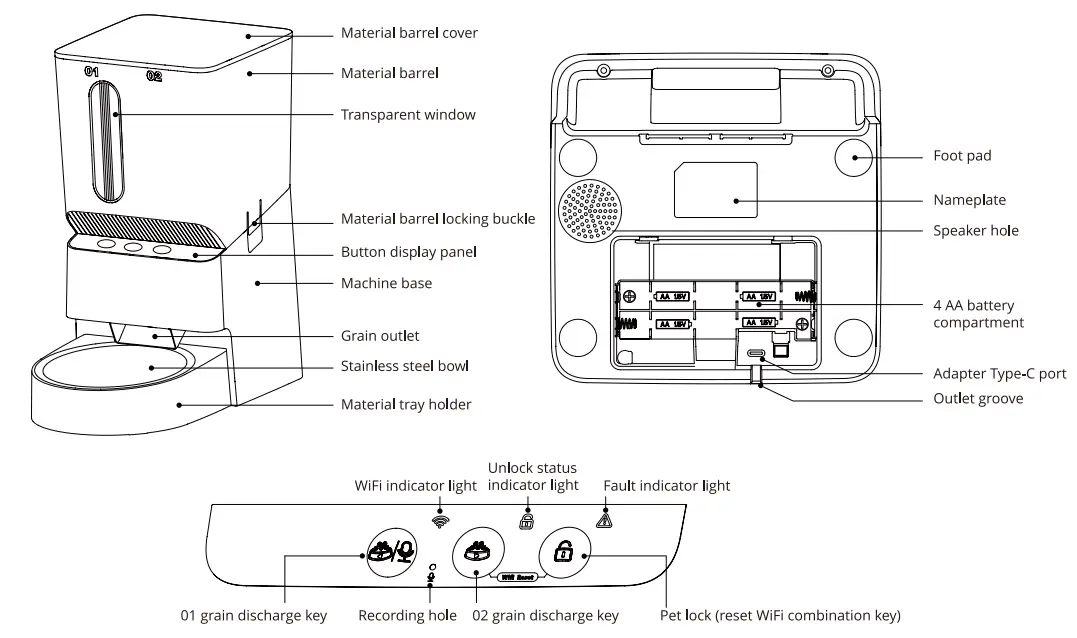
Setting Up
Special Tips:
- Please do not use this product in humid environment such as bathrooms.

- Do not use it in a suspended environment such such as bathrooms. as stairs, balconies, etc., to prevent pets from pushing down the product and causing fall

- D0 not use it directly under the sun or strong light to avoid sensor failure.

- Please try to place the product near the router or in an area with strong WIFI signal to ensure a better connection experience.





Product Installation
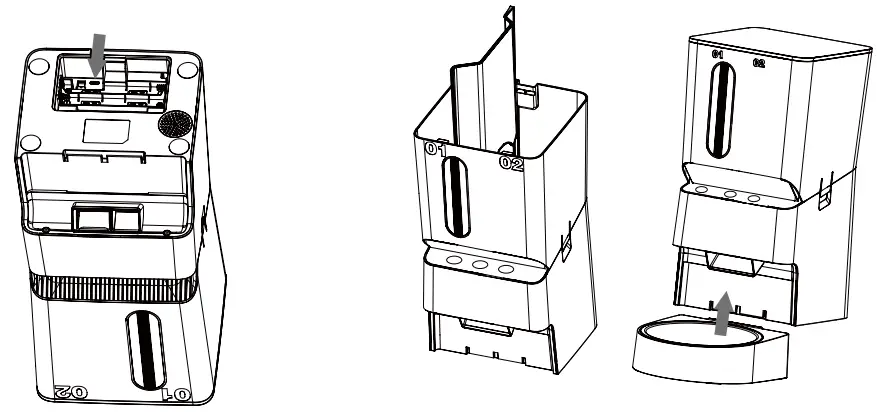
- Take out the bowl base and stainless steel bowl
Open the lid and take the accessories out Alkaline batteries (only 1.5V alkaline batteries), of the hopper.
- Install the battery
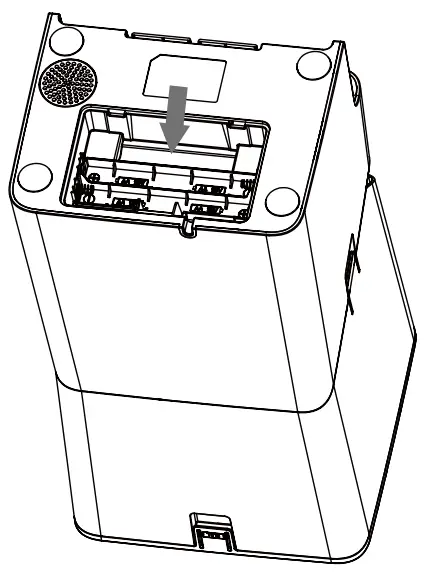
Open the battery cover, and insert the 4 1.5VAA lkaline batteries (only 1.5V alkaline batteries), of the hopper. It will automatically switch to backup power when main power supply is cut off.
- Connect to DC power supply
Open the battery cover at the bottom of the feeder and Plug in the power socket of feeder. Plug in the power cord to the adapter(Adapter NOT included.) - Install The bowl base and stainless steel bowl Insert the bowl base in the right direction and put the stainless steel bowl into the bowl base.

- WiFi Connection
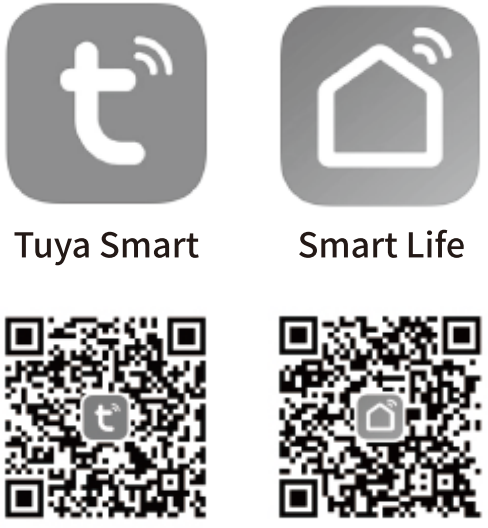
Scan the QR code or download the Tuya Smart or Smart Life application from the APP Store or Android application market, and connect according to the APP operation guide (only the Bluetooth version and WIFI version support APP) https://smartapp.tuya.com/tuyasmart
https://smartapp.tuya.com/smartlife - Fill in dry pet food
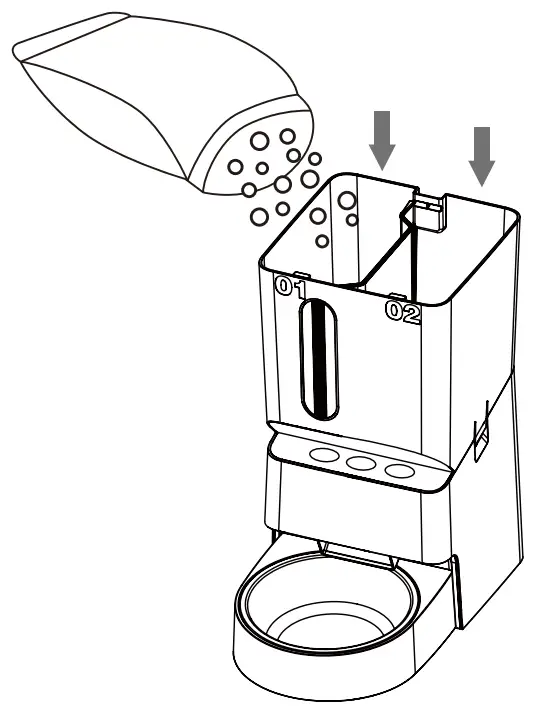
Fill in dry pet food only; kibble sized 0.07-0.59 inches in diameter (Do not fill too much over the recommended capacity)
Cleaning and Other Notices
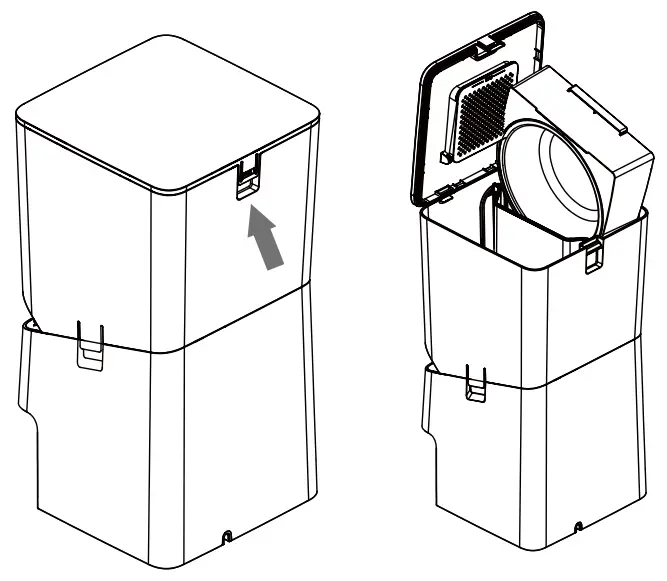
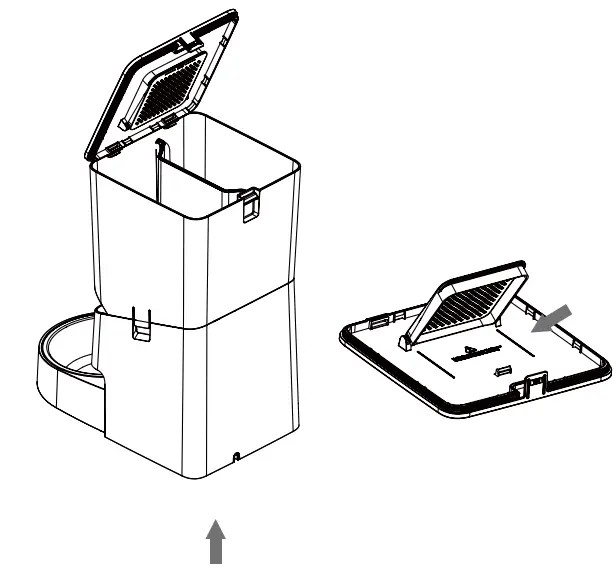
- Power off and shut down Remove the bin cover and desiccant pack as shown in the figure.

- Remove the hopper Pull up the bin by opening the two side buckles of the bin with both hands. Reminder: Before removing the bin, make sure there is no food in the bin. Otherwise, all the food in the bin will leak out.

- Remove the distribution tray Remove the bin cover and wash the bin and bin divider.

- Cleaning
Rinse all parts of the bin with water and air dry before installing them in the reverse direction of removal “Do not wash electronic components directly.
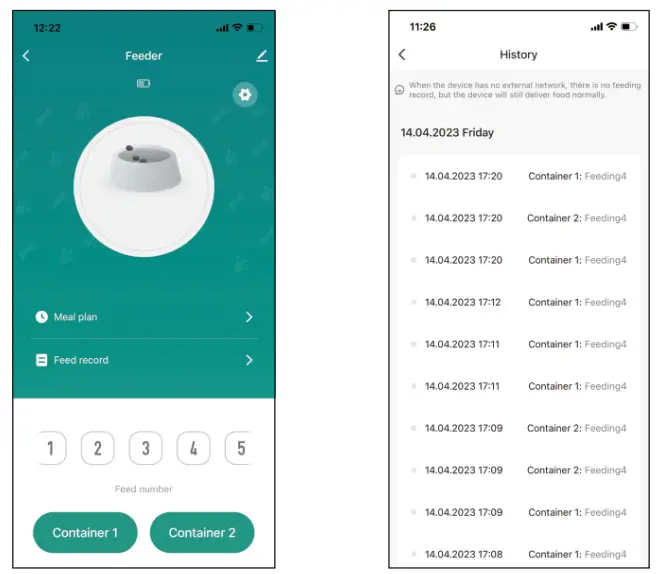
- APP controls feeding Please refer to the APP operation guide for settings and usage.

- Manual feeding Ensure that there is sufficient food in the bin, press and hold the pet lock button for 3 seconds to unlock, at this time the unlock status indicator light will stay on. Then, use the bin 01/02 feeding keys to release the food. Press once to release one portion of food, weighing approxi-mately 5-7g.

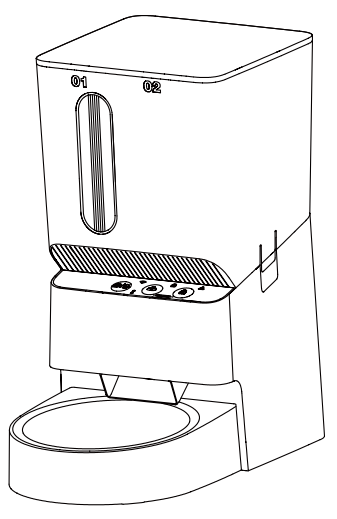
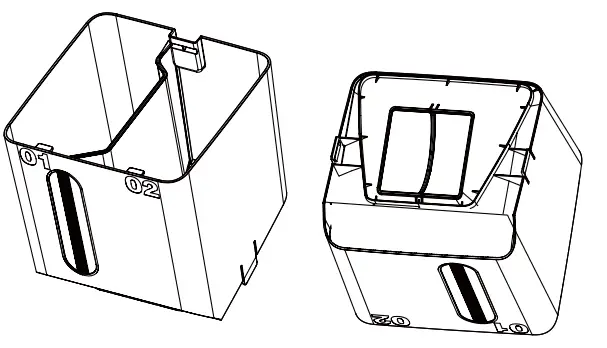
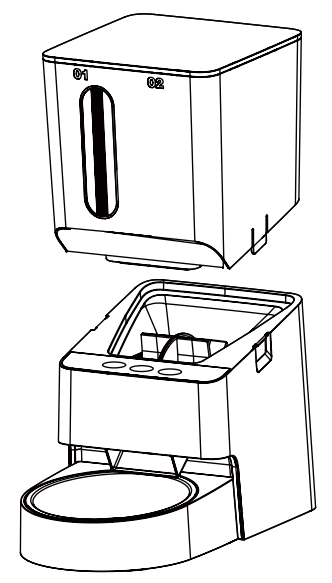
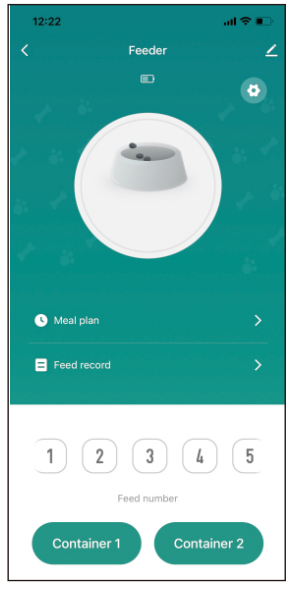
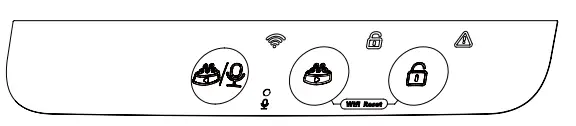
Indicator Description
| Serial number | Indicator light | State | Explain | Remarks |
| 1 | Unlock status indicator light | Off | Pet lock key enters lock state | |
| White light always on | Pet lock key enters open state | |||
| White light flashing | Device enters recording state | |||
| 2 | Wifi indicator light | Fast flashing | Device enters waiting for connection state, can be bound and networked | |
| White light always on | WWI connection OK | |||
| 3 | Malfunction indicator light | Red light always on | Foreign matter stuck |
Troubleshooting
| Serial number | Fault phenomenon | Fault category | Troubleshooting | Remarks |
| 1 | The red light is always on | Food jam | Take out the stuck food and replace the pet kibbles with a diameter -<.. 15 mm | |
| 2 | WiFi indicator flash | WIFI | The Feeder enters to be connected or misoperation may trigger WiFi reconnection | |
| 3 | WiFi is not connected | WIFI | 1.WiFi only supports 2.4G. Please confirm whether the WiFi frequency band is selected correctly 2.WiFi user name or password is entered incorrectly. Please use the correct user name and password | |
| 4 | Voice not played | Voice recording | 1.No voice recorded 2.After the voice recording is completed, press the recording button to save and exit 3.Voice recording mode is not entered correctly to record voice | |
| 5 | set information No real-time display | Network | Due to network quality or delay, it can be displayed by refreshing (exit and re-enter) | |
| 6 | The APP cannot be remotely controlled WIFI/network | Network | 1.The device is not connected or bound normally, and the device needs to be connected and bound first. 2.The network quality of the mobile phone environment is unstable, and it needs to be changed to a place with good network. 3.Power failure/disconnection or device is in battery power supply state | |
| 7 | Inaccurate feeding | Non-fault | The feeder uses a fixed volume method to feed according to the number of portions. Each portion is about 5g. The feeding weight is related to the size, density, and full or empty grain of the pet food particles. Generally, the feeding may be less in the case of lack of grain. It is recommended to design the feeding according to the actual situation when using it, and try to keep the pet food in the bin sufficient. |
Production Specification
| Item | Specifications / parameters | Remarks |
| Product name | Automatic Pet Feeder | |
| Product model | According to the actual purchase model (see the na eplate of the host) | |
| Product Dimensions | Overall Size 180mm*305mm*346mm (with bowl holder) | |
| Weight | 2.0 KG | |
| Connection mode | WiFi 2.4G connection | |
| Voltage | 5V DC | |
| Power | 3W | |
| Input power | Power Supply Method 5V 1 A Adapter Power Supply/ 5 No. M Dry Batteries Power Supply | |
| Control mode | App control + manual control |
Pairing device
- Download app
Scan the QR code or download app graffiti smart or smart life app from App store or Android https://smartapp.tuya.com/tuyasmart
https://smartapp.tuya.com/smartlife - Register and log in
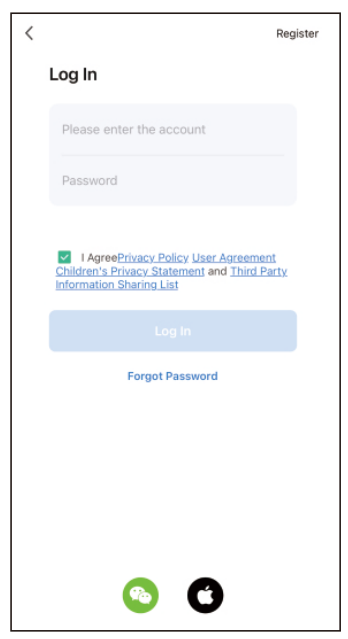
Open the app, click Register, and then log in
- Proceed with setup
A. Insert the DC for charging. B. When the status indicator light is flashing, it means the product is pairingWiFi-connection
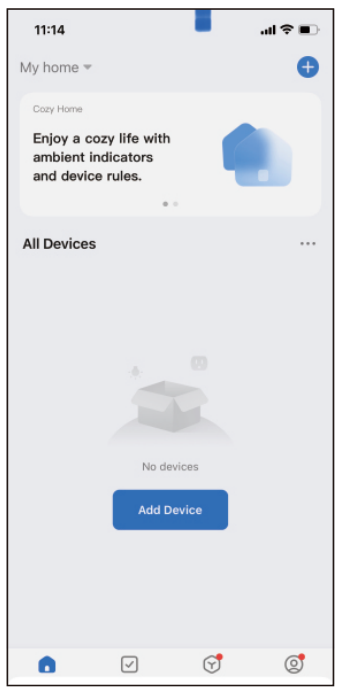
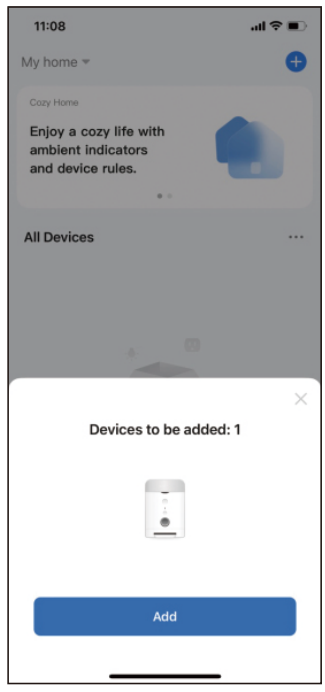
- Add device Click Add device or the + sign in the upper right corner Start adding device

- Add device Click “add” on the following page Then follow the provided steps to complete pairing.

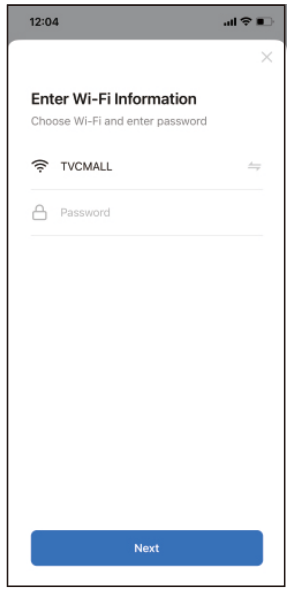
- Wifi-connection In the pop-up dialog box, enter the information from home. WiFi user name and password, click OK. Enter WiFi password and wait for success of connection. ‘For any connection failure, please repeat the operation and check if WiFi password is entered crooectly.

App connection
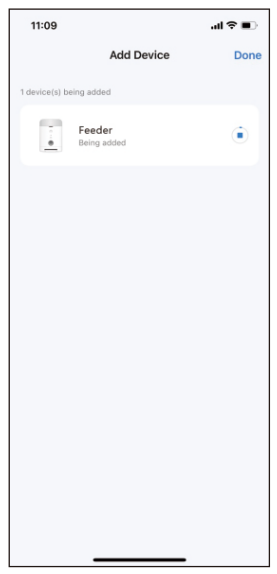
- Add device
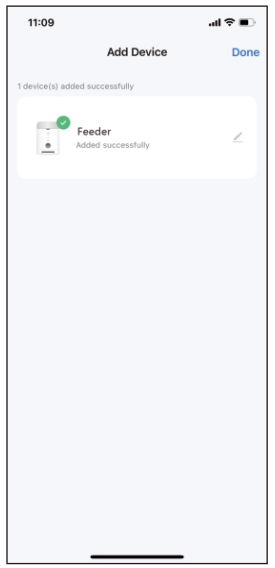
The device enters the connect-ed state - Add device The device is added successful-ly. Click Finish to enter the operation interface
- Add device The connection is successful and automatically enters the app operation interface
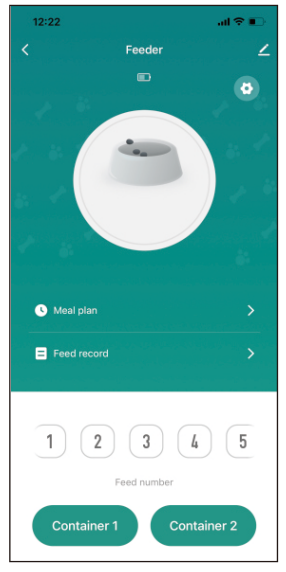
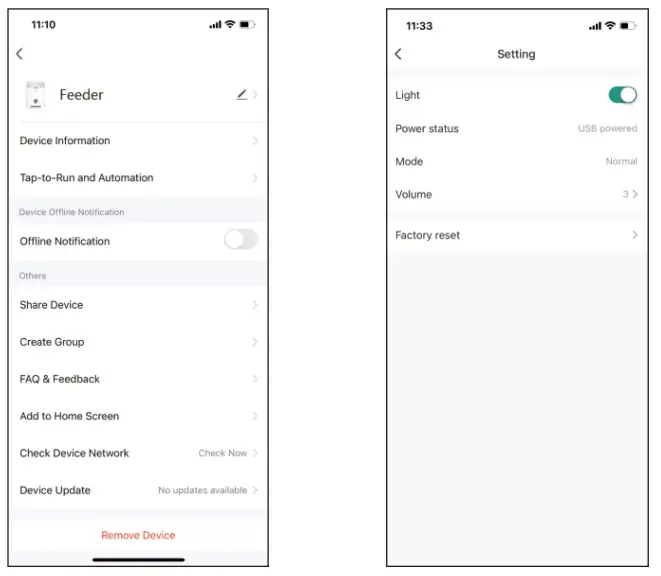
Device settings
Custom naming & Sharing &Removing devices:Click the pen Icon in the upper right corner to edit the product name Indicator switch:The indicator light can be turned on or off. Factory reset:After clicking, the device will be removed and needs to be reconnected. Do not use this function if unnecessary.
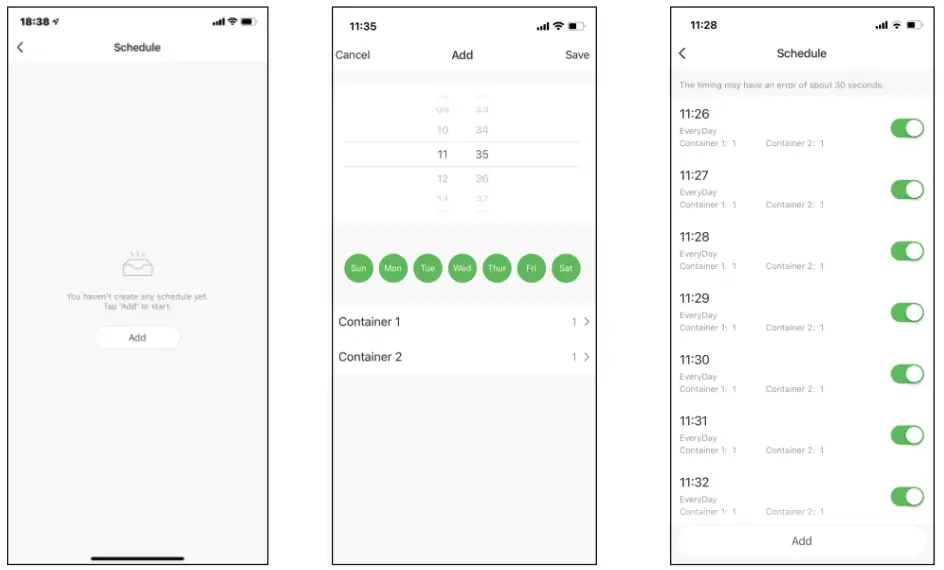
Feeding plan: Click the feeding plan and set regular grain delivery, including timings and food portion.
- Manual feeding: Select the number of manual feeding portions, the smart feeder will automatically supplement the grain and set maximum grain delivery limit.
- Daily record: After successful pairing, you will real-time notifications and history for your pet’ s daily food intake.