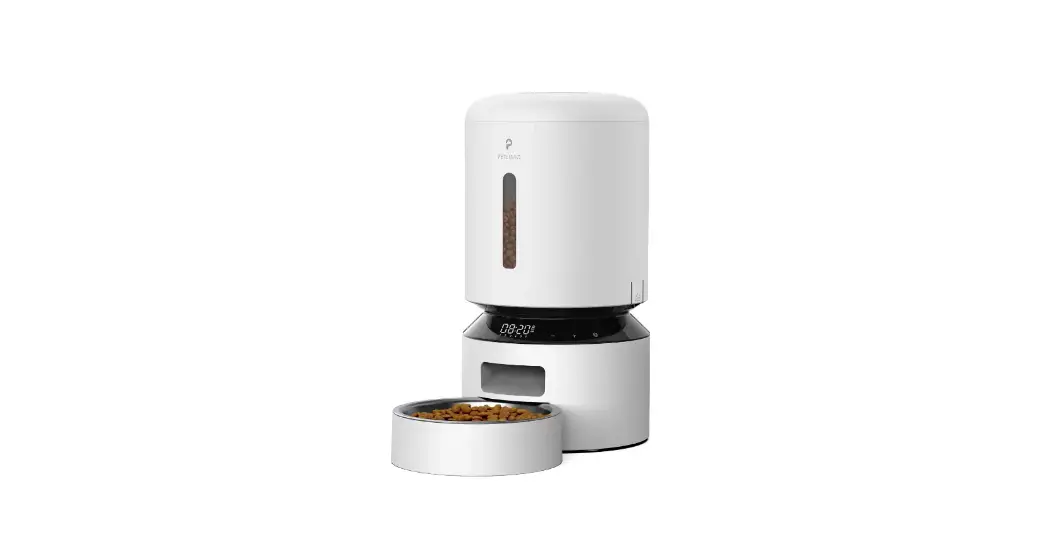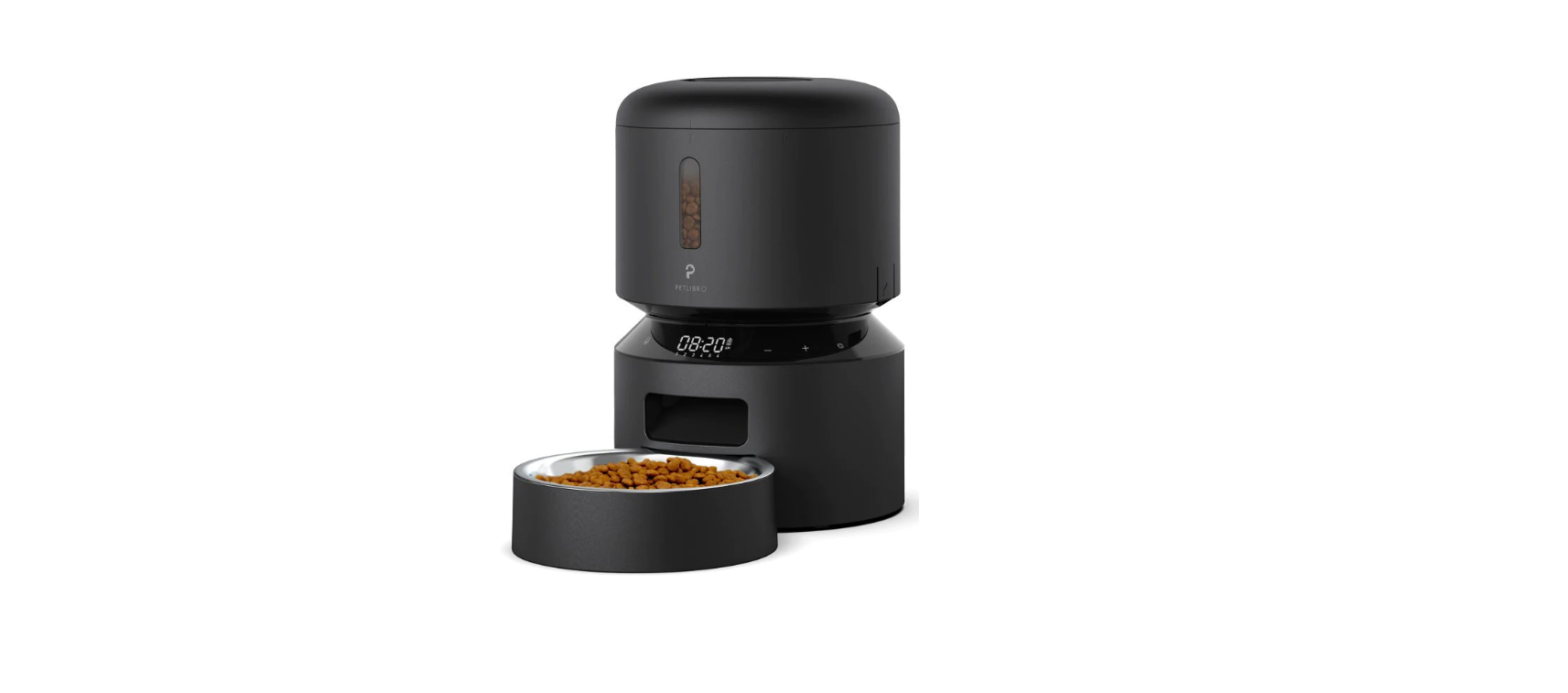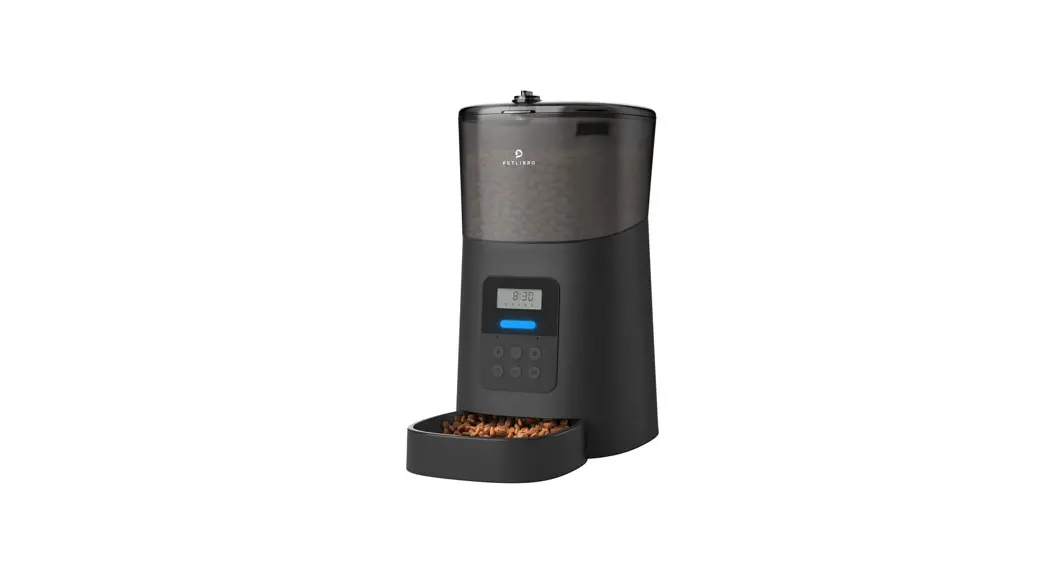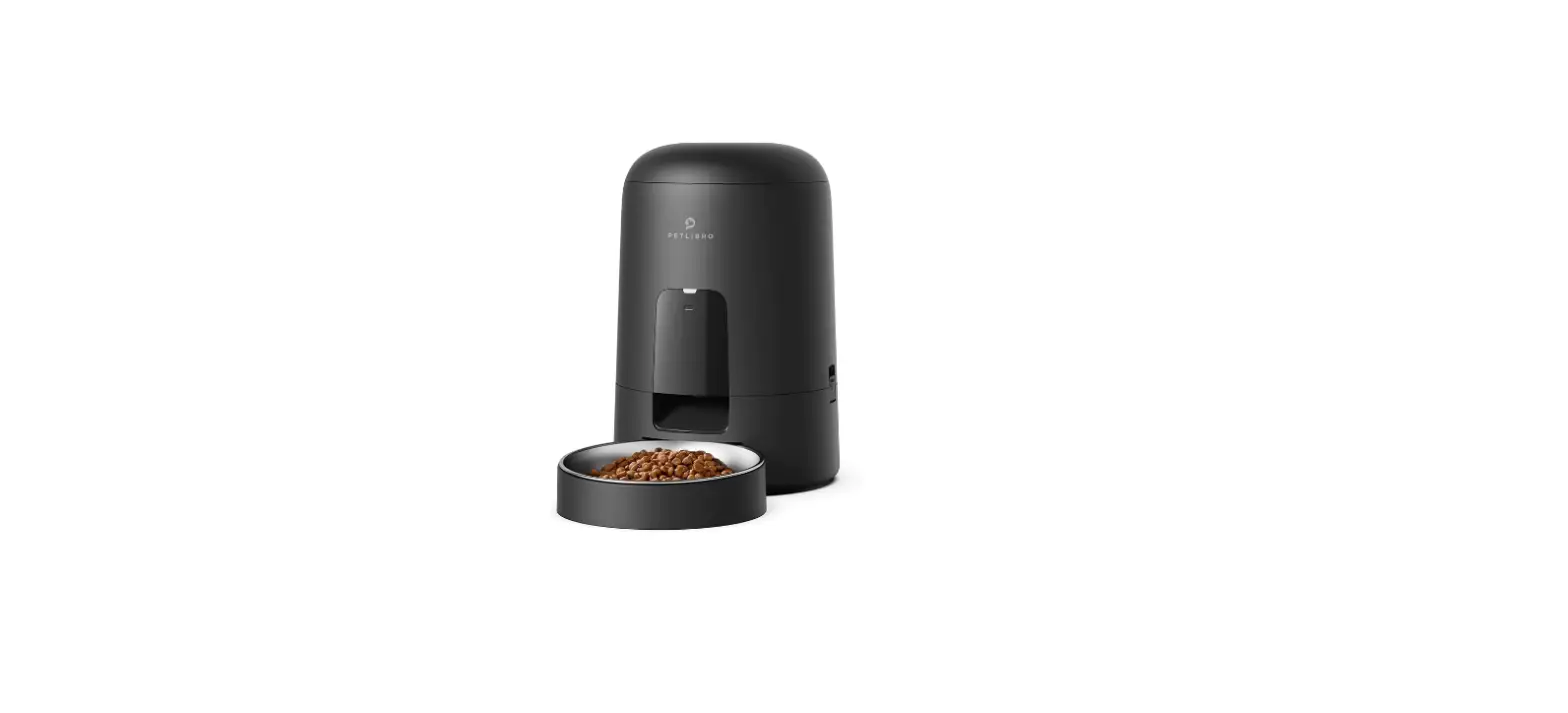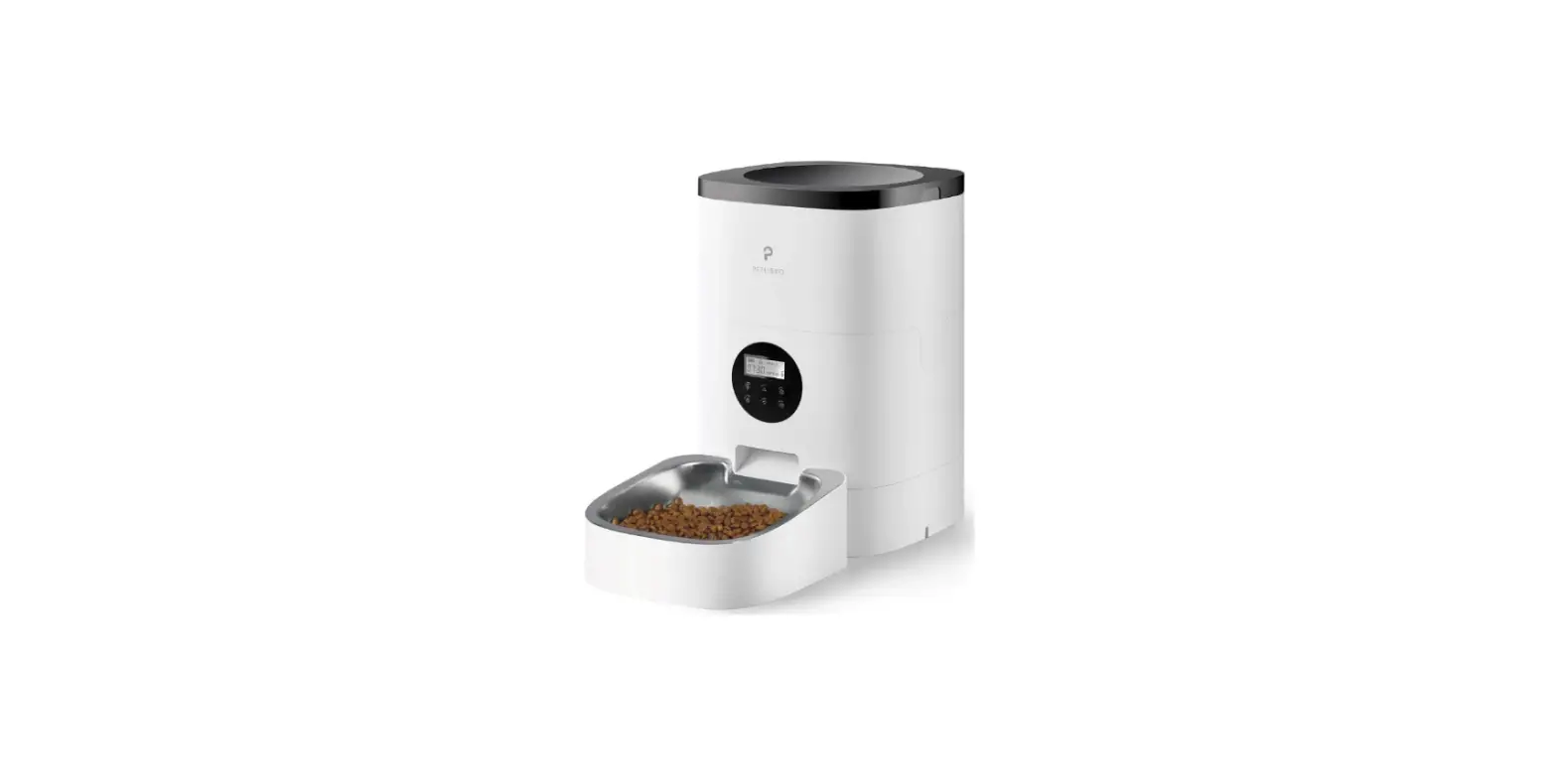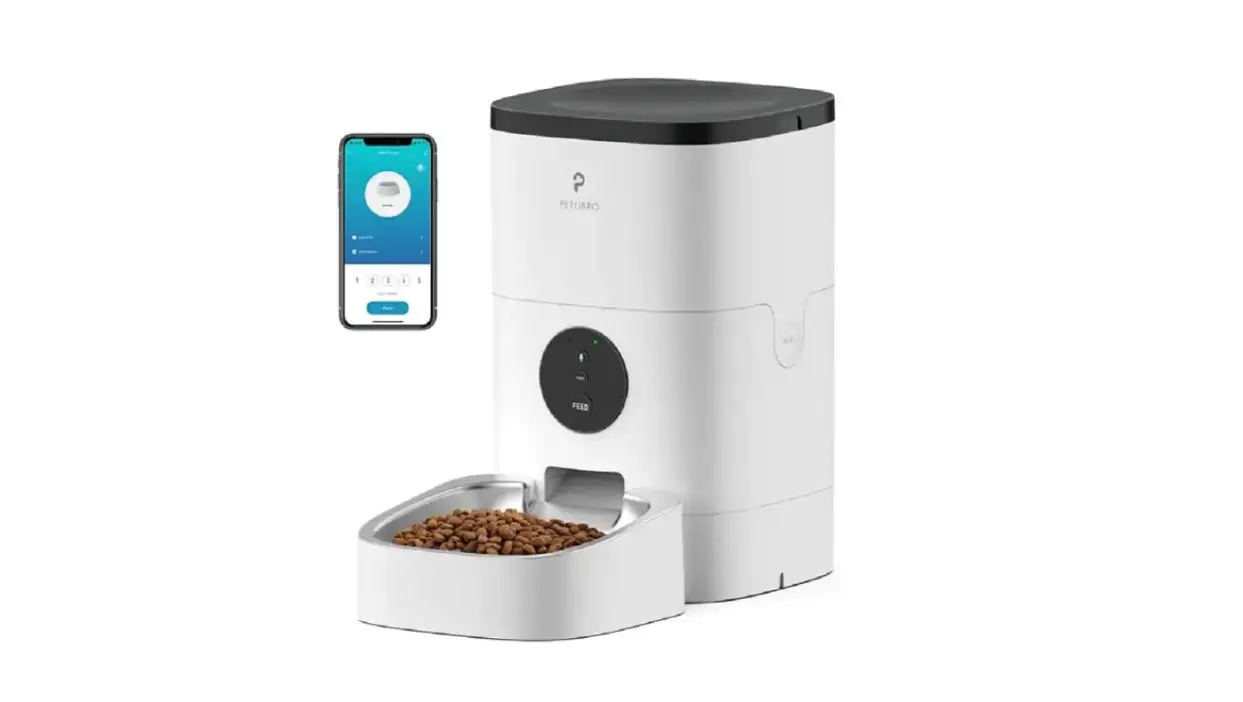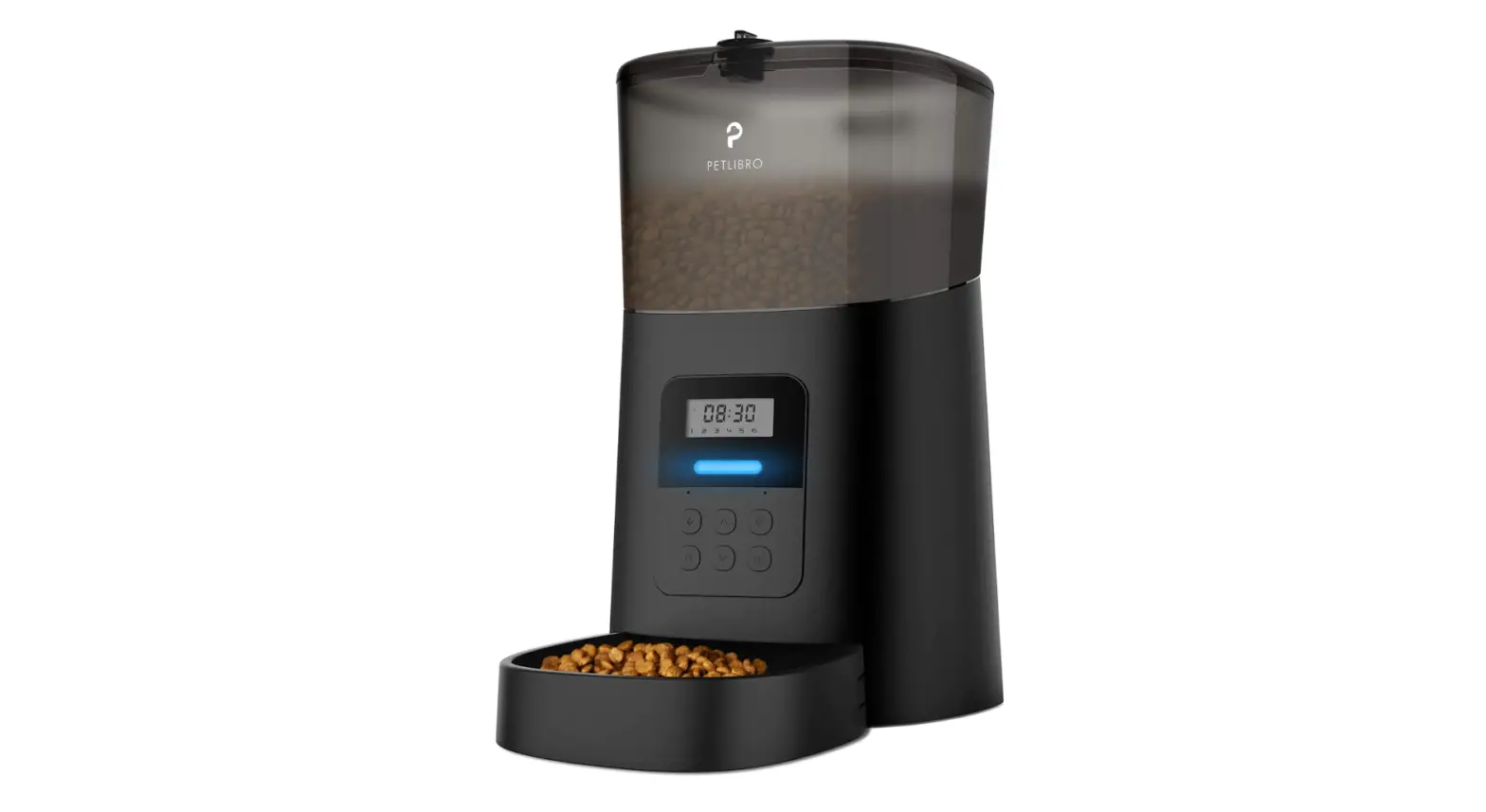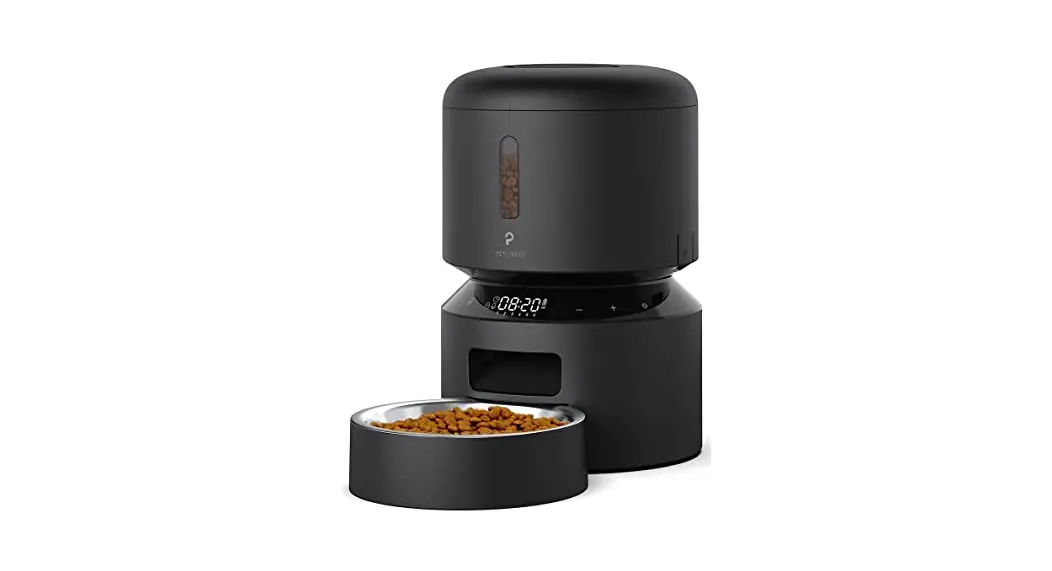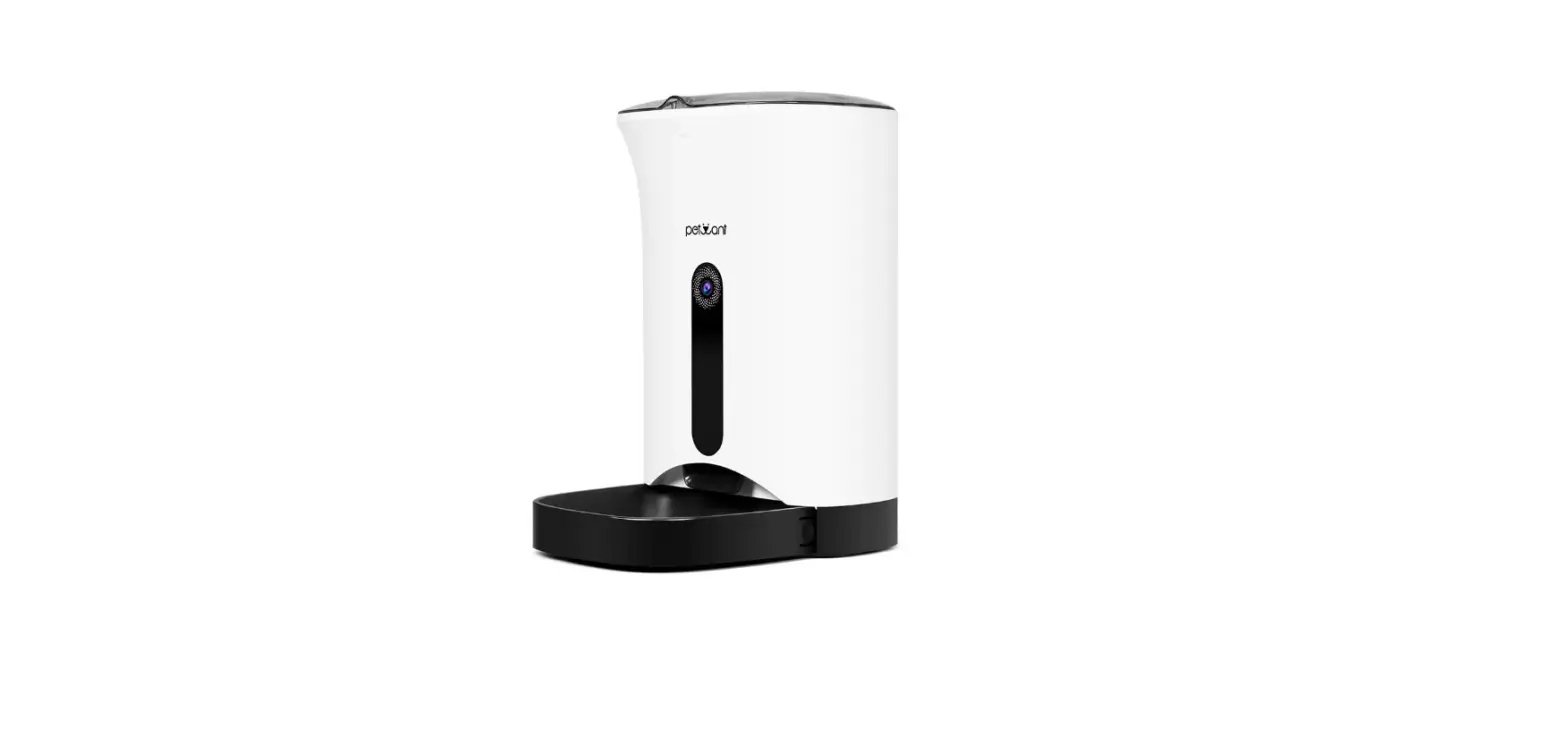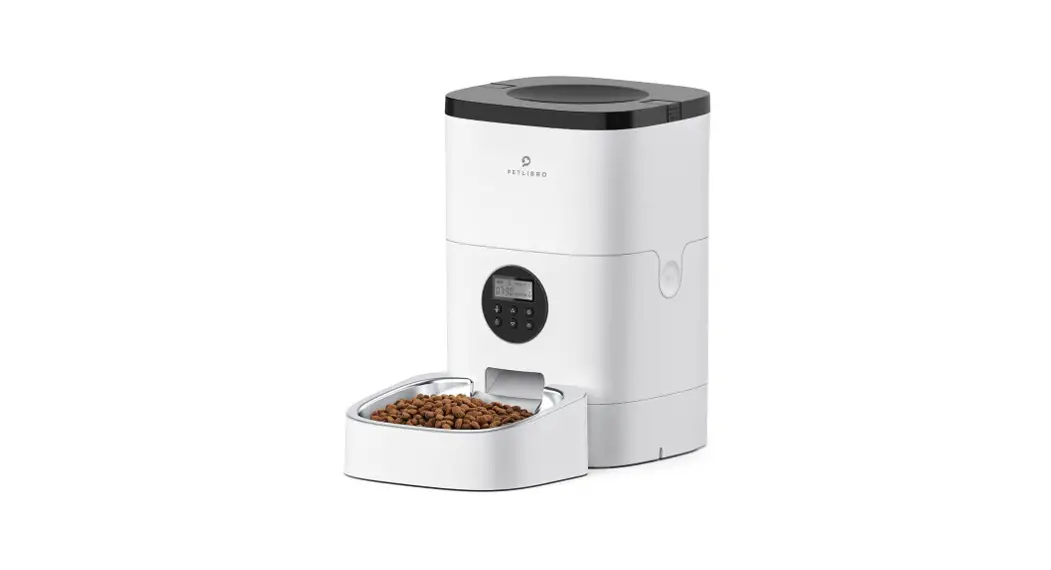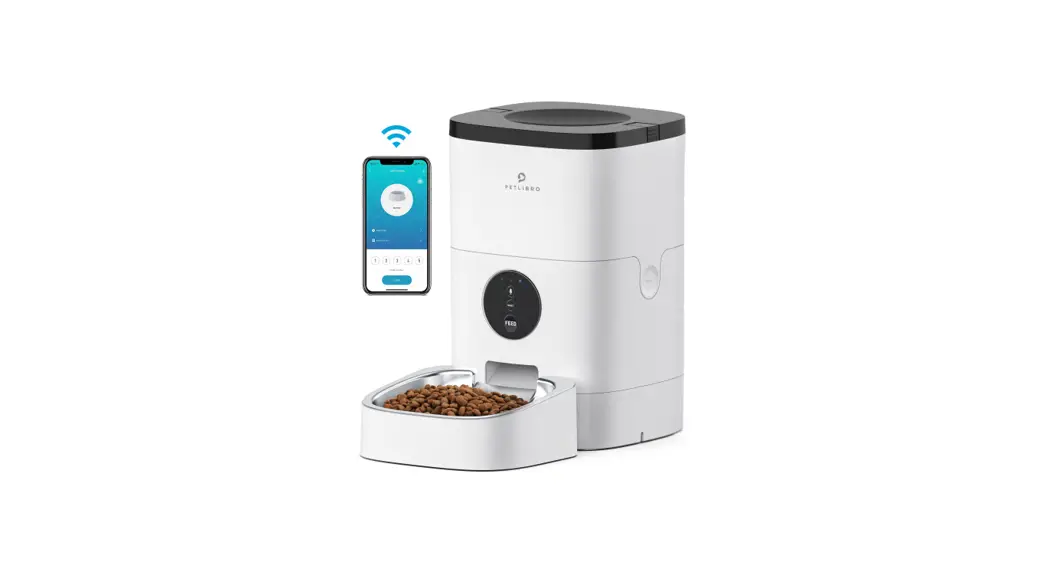
 Model: PLAF101
USER MANUAL
Automatic Pet Feeder
Please read this User Guide before using the product and retain for reference.
This product is intended for household use only
SAFETY PRECAUTIONS
! Warning
- Dispose of all packaging materials properly. Some items may be packed in polybags; these bags could cause suffocation; keep away from children and pets.
- Do NOT allow small children to play with, in or around the pet feeder.
- To reduce the risk of injury, please keep close supervision when an appliance is used near children.
- Do NOT use the feeder with pets not able to reach the food tray or with any physical disability.
- Do NOT immerse the base part in water at any time as it may damage electronic components like the control panel.
- Do NOT place any foreign object in the pet feeder.
- Do NOT use outdoors. Check operation frequently to be sure the unit is dispensing properly.
- Do NOT use wet, canned or moist food.
- Do NOT disassemble the unit other than as instructed in this User Guide.
- Do NOT use the feeder for anything other than its intended use.
- Only use attachments recommended or sold by the manufacturer. The use of attachments not recommend ed or sold by the manufacturer may cause an unsafe condition. Do not modify the pet feeder.
- Do not operate any appliance if the unit is malfunction ing or has been damaged. Do not attempt repairs on the pet feeder yourself. Contact our customer service immediately for further instructions.
- Always unplug when not in use and before cleaning.
- Never pull on the electrical power cord to remove the plug from the wall outlet.
- If the plug of this device gets wet, turn on electricity to that wall outlet. Do not attempt to unplug.
- Examine the feeder after installation. Do not plug in if there is water on the power cord or plug.
- To avoid tripping, always position power cord out of the way of foot traffic.
CAUTION
- Do NOT allow pets to chew on or swallow any parts.
- If an extension cord is necessary, one unit with a proper rating should be used.
- Do NOT install or store the pet feeder where it will be exposed to weather or temperatures below -20C/ -4°F
- Use alkaline D batteries to power. Do NOT use rechargeable batteries.
- Check the batteries regularly. Before leaving for extend ed time, always replace batteries with new ones.
- Do NOT lift the pet feeder by lid, food tank, or food tray. Lift and carry it using both hands and the base, while keeping the unit in an upright position.
- Suitable for dry food ONLY, with kibble size ranging from 2-10mm / 0.07-0.4in in diameter. Larger kibble may get stuck at the food outlet.
- Read and observe all important notices listed on the pet feeder and in the packaging.
This device complies with Part 15 of the FCC Rules. Operation is subject to the following two conditions:
- this device may not cause harmful interference, and
- this device must accept any interference received, including interference that may cause undesired opera tin.
Changes or modifications to this unit not expressly approved by the party responsible for compliance could void the user’ s authority to operate the equipment.
NOTE:
This equipment has been tested and found to comply with the limits for a Class B digital device, pursuant to Part 15 of the FCC Rules. These limits are designed to provide reasonable protection against harmful interference in a residential installation. This equipment generates, uses and can radiate radio frequency energy and, if not installed and used in accordance with the instructions, may cause harmful interference to radio communications.
However, there is no guarantee that interference will not occur in a particular installation.
If this equipment does cause harmful interference to radio or television reception, which can be determined by turning the equipment off and on, the user is encouraged to try to correct the inter ference by one or more of the following measures:
- Reorient or relocate the receiving antenna.
- Increase the separation between the equipment and receiver.
- Connect the equipment into an outlet on a circuit differ ent from that to which the receiver is connected.
- Consult the dealer or an experienced radio/TV Techni cian for help.
This device and its antenna(s) must not be co-located or operation in conjunction with any other antenna or trans mitter.
Radiation Exposure Statement
To maintain compliance with FCC’ s RF Exposure guide lines, This equipment should be installed and operated with minimum distance of 20cm from your body.
WARRANTY
- 1-year warranty
- Lifetime support
For guidance on product use and warranty extension, please contact our brand after-sales staff via email: [email protected]
If any questions related to orders, please contact the seller through the shopping platform.
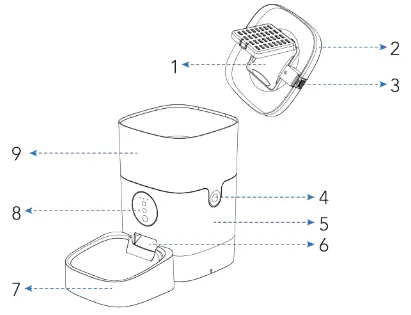
PRODUCT DIAGRAM
Front View
Bottom View
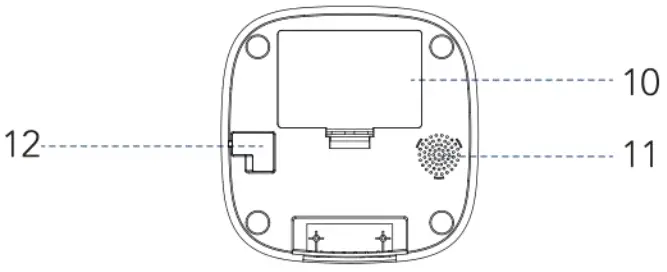
| 1. Desiccant Carrier | 7. Food Tray |
| 2. Lid | 8. Control Panel |
| 3. Lid Grip | 9. Food Tank |
| 4. Food Tank Buckle | 10. Battery Compartment |
| 5. Base | 11. Speaker |
| 6. Food Outlet | 12. Power Socket |
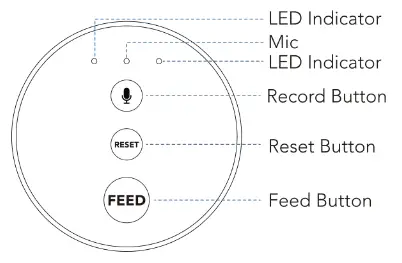 LED Indicators
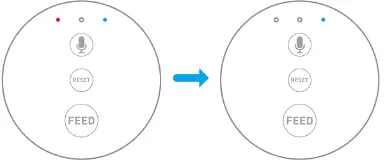
| Blue | Flash every 0.5s | The Feeder is in Bluetooth mode, ready to connect with App. |
| Slowly blinks every 2-3s | The Feeder is in AP Mode, ready to connect with App. | |
| Stay solid | Connected to WiFi and fully operational. | |
| Red | Off | Normal |
| Blink | Food dispensing system error *Press and hold the Reset Button for 6.9 to reset. | |
| Stay for about 6s | Resetting WiFi connection . |
 | • When the feeder is unlocked, press and hold the Record button for about 3s, start recording after a beep is heard. • Record your voice for less than 1 Os. Release the button, 2 beeps will be heard indicating it’ s saved. |
 | • Press and hold for 6s, the indicator will flash twice meaning the control panel is locked. Repeat to unlock. • When the feeder is unlocked, press twice to feed a portion manually. |
 | • When the feeder is unlocked and when the device is connected to the App, press and hold the Reset Button for 6s to reset the device. • When the device is not connected to the App, Press and hold the Reset Button for 6s to switch between Blue tooth Mode and AP Mode. |
CONTROLLING VIA APP
- System Requirements
• iPhone on iOS 9.0 or later; smartphone on Android 4.4 or later
• Wireless router 2.4GHz (802.11 b/g/n)
• High-speed internet connection - Before the Configuration
• Please use indoor only to avoid direct exposure to the sunlight.
• Please connect the Feeder via 2.4GHz only. If your WIFI is 5GHz only, set it to be compatible with 2.4GHz mode.
• The WIFI password is composed of no more than 12 digits and letters. No special symbols are supported.
• Please keep the feeder close to the router. The distance in a range of 6 meters without wall barriers is recomb mended.
• If the configuration fails, please power off and restart the feeder (press and hold the Reset button for 6s), then wait for about 2mins to re-configuration. - How the System Works
The petlibro WIFI automatic feeder connects to your home’ s wireless router and allows you to program and monitor your pet’ s meals from anywhere, right from your smartphone with the smart life app. Use the app to schedule your pet’ s meal times and portion sizes, view the last 7 days of feeder activity, and even dispense a meal remotely. Smartphone alerts let you know when your pet has been fed for added peace of mind. Delivering a convenient lifestyle to you and helping your pets become
their best, the petlibro WIFI automatic feeder keeps you connected to your pet’ s feeding routine wherever you are! - Download the App & Log In
• Scan the OR code or search for “PETLIBRO LITE” on App Store or Google Play to download the app.
• Sign up or Log in to your account.
- Two Ways to Connect Your Feeder with APP

A. Configuring via Bluetooth Mode
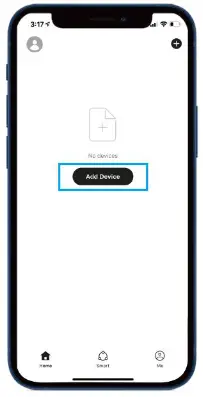
- Open the App, select Home page, tap “Add Device” or “+” in the upper right corner.

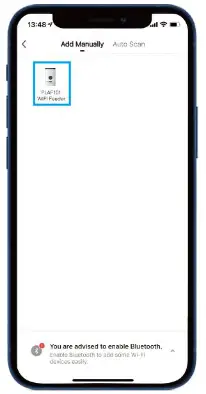
- Choose PLAF101 WiFi Feeder.

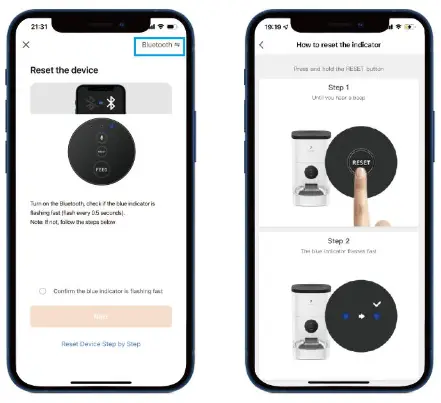
- Follow the instructions on the screen, and confirm the WiFi indicator on the feeder is flashing.
Check by following the steps shown on the screen:- Select ‘Bluetooth’ on the top right corner
- Turn on the Bluetooth on your phone
- Check if the indicator flashes (once every 0.Ss)
- Click Next after checking
Note: If the indicator doesn’t flash (once every 0.5s), click Reset Device Step by Step and complete the steps.
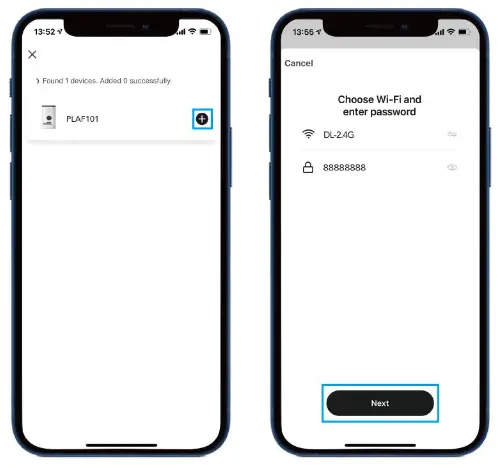
- Add the device PLAF101 by entering WIFI account and password.
Note: Only connect to 2.4G network
- Feeder connected, start to set the feeding time and portions, record meal call, and set the times the meal call play.
B. Add the Feeder in AP Mode
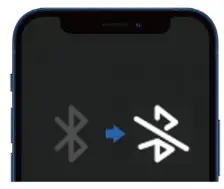
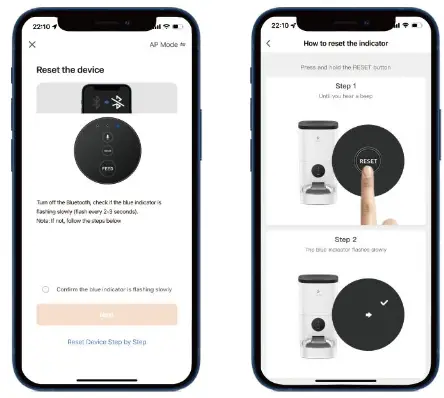
- Turn off the Bluetooth on your phone

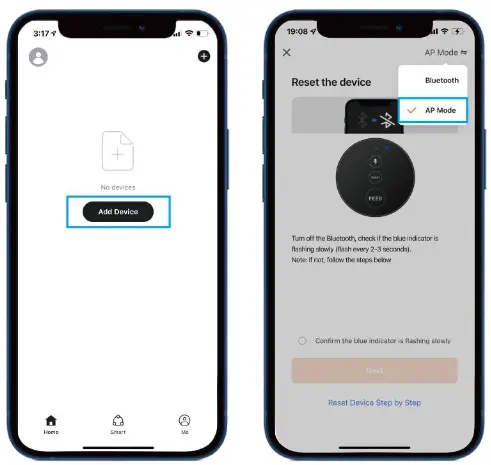
- Open the App, tap “Add Device” or “+” in the upper right corner, choose PLAF101 WiFi Feeder, tap the icon at the top right corner and choose AP mode.

- Confirm the WiFi indicator on the feeder is flashing.
Check by following the steps shown on the screen:- Make sure your phone’s Bluetooth is off
- Check if the indicator slowly blinks (once every 2-3s)
- Click Next after checking
Note: If the indicator doesn’t slowly blink (once every 2-3s), click Reset Device Step by Step and complete the steps.
- Enter your WiFi account and password, and go to the
WiFi connection interface on your phone, find the device “SL-PETLIBRO-xxxx” and tap to connect.
Note: Only connect to 2.4G network - Back to the App and wait for connecting.
- Feeder connected, start to set the meal time and portion size, record meal call, and set the times the meal call play.
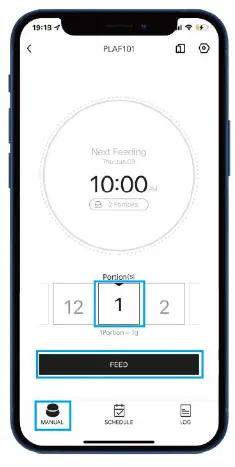
Manually Feeding the Pet
On Manual page, choose the portion you want to feed first, then tap the Feed icon. The feeder will feed immediately.
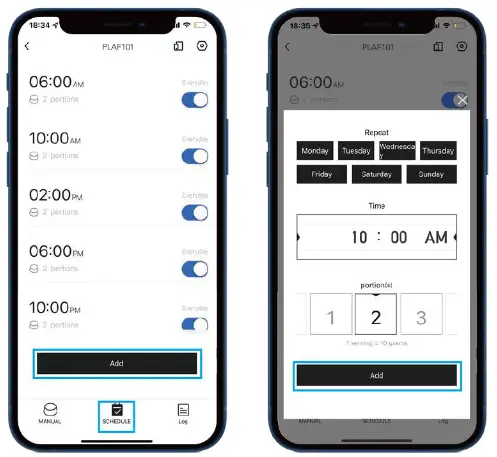
Set Meal Plan
On Schedule page, tap the Add icon, choose feeding time, feeding days, and feeding portions.
Reference for portion setting:
| Model | Daily Intake | Meals per Day | Portion per Meal | Per Portion |
| PLAF101-4L | 1/2 Cup | 2 | 5 | 125m1 |
| 3 | 334 | |||
| 4 | 2233 | |||
| 1/3 Cup | 2 | 34 | ||
| 3 | 223 | |||
| 4 | 1222 | |||
| 2/3 Cup | 2 | 7 | ||
| 3 | 455 | |||
| 4 | 3344 | |||
| 3/4 Cup | 2 | 78 | ||
| 3 | 5 | |||
| 4 | 3444 | |||
| 9/10 Cup | 2 | 9 | ||
| 3 | 6 | |||
| 4 | 4455 | |||
| 1 Cup | 3 | 677 | ||
| 4 | 5 | |||
| 11/4 Cup | 3 | 889 | ||
| 4 | 6667 | |||
| 1 1/2Cup | 4 | 6888 | ||
| 11/3 Cup | 3 | 9 | ||
| 4 | 6777 | |||
| 1 2/3 Cub | 4 | 8899 |
Important Notes:
- It is normal to hear clicks before food is dispensed.
- One or two kibbles may be left at the chute after feeding, and it may come out of the outlet when the machine is moved (doesn’t indicate a faulty equipment).
- Refer to the instructions on your pet food packaging for detailed feeding instruction.
- Please double-check the current time after setting.
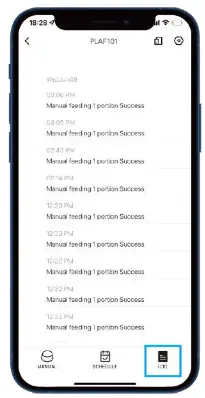
View the Logs
On Log page, you can view the feeding records.
Reset Feeder on App
- Enter Setting on Control Center, Select Factory Reset.
- 3 beeps will be heard, wait for about 1 minute until the blue light starts to flash slowly and your device is ready for re-connection.
Share Your Feeder
Enter Setting, select Share Device, add Sharing Via Smart Life Account Name.
SETUP THE FEEDER
Warning: Please use the original 5V power supply.
- Assembling Food Tray
 • Place the feeder in a desired location. Check the food tank is in place.
• Align the bulging of the food tray and holes in the base, and push upward to connect the two.
Note:
Before moving the feeder, please empty the tray, press it down to remove from the base. Hold the base instead of any other parts when lifting the feeder. - Connecting Power
 • Insert the SV power adapter into a wall socket. Plug in the power socket of the feeder.
• Open the battery compartment at the bottom of the unit, and install 3 alkaline D batteries (not included) in case of outage.
• The LCD display will light up automatically indicating the feeder is on now.
Notes:- Battery NOT included.
- Before connecting to power, make sure all parts are clean and completely dry.
- The battery should power with an output of 4-5V; the battery level icon on the display blinks on a low battery level (<4V).
- Placing Desiccant bag
 The petlibro desiccant bag can remove the moisture and odor inside the tank, protect the pet food from oxidation damage, and always be fresh.
Notes:- It’s recommended to use a desiccant bag and change them every 15 days in case of mold.
- Please remove the desiccant bag before cleaning the lid.
- For a better antioxidant effect, tear off the sealing film outside the small package only when you use it.
- Filling Food Tank
 • Fill food tank with dry pet food. Close the lid and it will snap into place due to gravity.
Notes:- Do NOT use canned, wet or moist pet food.
- Recommend kibble size ranging from 2-10mm / 0.07-0.4in in diameter.
- Recording a Meal Call
• Press and hold the Record button, start recording after a beep is heard.
• Record your voice for less than 1 Os. Release the button, 2 beeps will be heard indicating it’s saved.
Note: When feeding time is up, the recording will be played when food is dispensing,
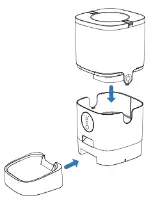 • Place the feeder in a desired location. Check the food tank is in place.
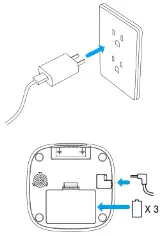 • Insert the SV power adapter into a wall socket. Plug in the power socket of the feeder.
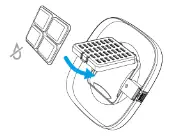 The petlibro desiccant bag can remove the moisture and odor inside the tank, protect the pet food from oxidation damage, and always be fresh.
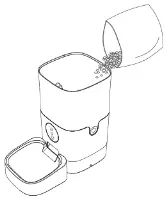 • Fill food tank with dry pet food. Close the lid and it will snap into place due to gravity.
CLEANING & CARE
It’s recommended to clean the feeder regularly for the hea Ith of your pet.
The washable parts of the petlibro auto feeder are as follows: food tank, food tray, and lid (without desiccant bag); they can be submerged in water. Clean by hand-washing using cool or warm soapy water.
– Dissembling the food tank
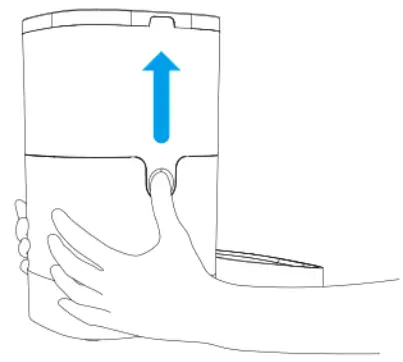
If you have food inside the tank or chute, press the unlocked button and feed button for a few times to empty first.
Press the food tank buckles with your thumbs, push the tank upward to disassemble.
– Dissembling the food tray
Empty the tray, press it down to remove from the base. Rinse and let all parts air dry completely before assembling.
Note: Be careful not to hurt your fingers when disassembling the food tank by great strength.
IN THE BOX
1 x WiFi Automatic Pet Feeder
1 x SV Power Adapter
1 x Desiccant Bag
1 x User Guide Kit
SPECIFICATIONS
| Food Tank Capacity | 4 liters |
| Power | DC 5V power adapter; 3 x alkaline D batteries |
| Power Adapter | AC100-240V Input, DC 5V output |
| Working Current | Avg. 80mA |
| Operating Temperature | -20°C – 85°C / -4°F – 185°F |
| External Socket | 5.5mm power socket |
| VViFi Standards | 802.11 b/g/n |
| Wireless Frequency | 2.4GLIz (channel 1-14) |
| Encryption | WPA/WPA2 |
| Radiat:on Power | +20dBm |
| System Supported | Android &IOS |
| Net Weight | 2.15KG / 4.74Ibs |
| Dimensions | 191 9*30 cm/ 7.5*7.5*12 in |
| Problem | Solution |
| The food won’t come out | 1)Please be sure to fill in with dry food; kibble size should range from 2-10mm / 0.07-0.4in in diameter. 2)Check whether any foreign objects are placed – disassemble the food tank and check the chute. Also check the food outlet. 3)Check whether it’s low battery level -whether the power adapter is connected or there is any outage when no battery is installed. |
| I can’t disassemble the food tank | Please follow steps in Clean & Care |
| I can’t hear any voice recordings when feeding | Make sure you’ve recorded successfully – unlock the control panel, press the Feed button to check. If no sound is heard, you may need to record again and be sure to save following instructions in the Recording a Meal Call section. |
| Food volume for each portion is not the same | The first few portions may vary, and it doesn’t mean a faulty equipment. After about 6 feedings it should be almost even. |
| I can’t configure the feeder on my mobile. | Incorrect account and password format —Use only number and letter for username and password, 12 digits at most. 5G not supported – Please use 2.4G wireless network. Application problem — Some program conflicts may happen. Please restart your mobile |
| Feeder appears disconnected from WiFi. | Weak disconnection — Please check that the distance between your feeder and router is no more than 10m / 33ft, and no concrete walls or too many obstacles between them. Otherwise the WiFi network can be weak and cause unstable connection. |
This device complies with Part 15 of the FCC Rules. Operation is subject to the following two conditions:
- this device may not cause harmful interference, and
- this device must accept any interference received, including interference that may cause undesired operation.

PETLIBRO
Automatic Pet Feeder
Model: PLAF101
©Libra Corp. All Rights Reserved.
Manufacturer: Shenzhen Libro Technology Co., Ltd.
Address: 12/F, Tower B, GALAXY WORLD, Yabao Road,
Longgang District, Shenzhen, China
Made in China
PLAF101_V2.0