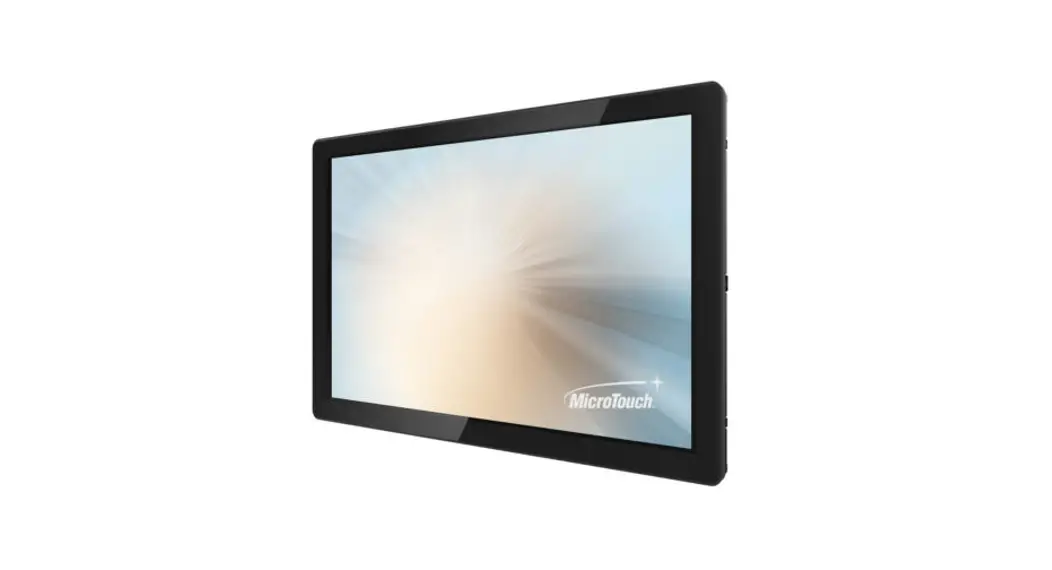
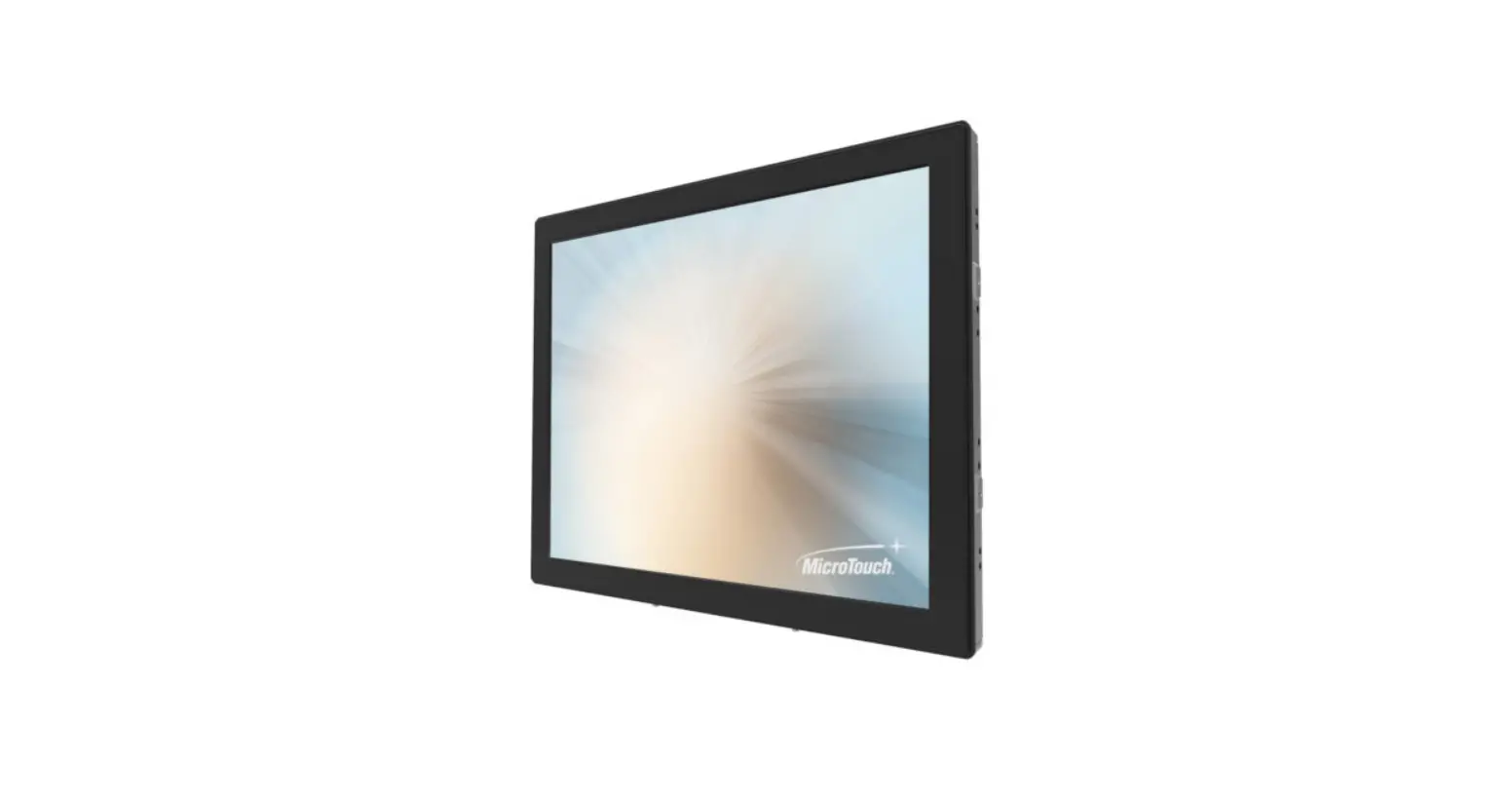
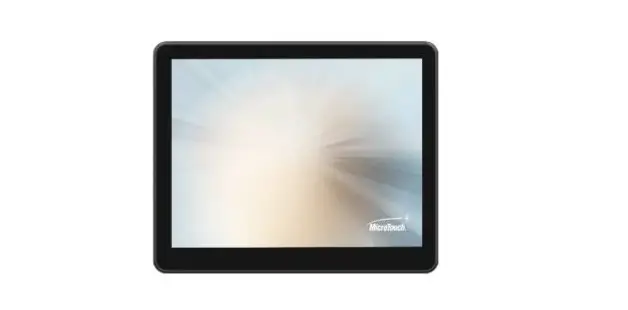
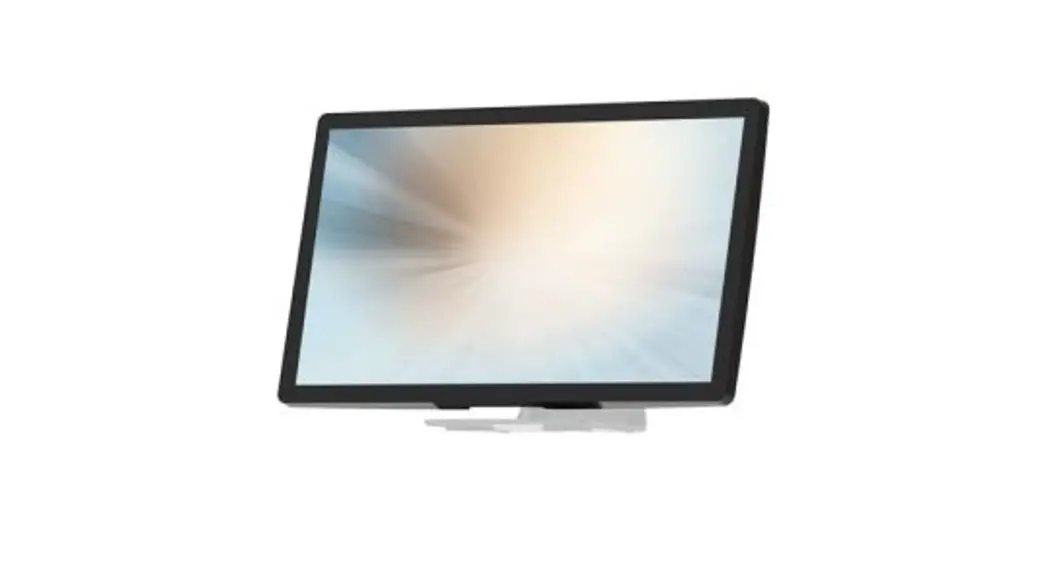
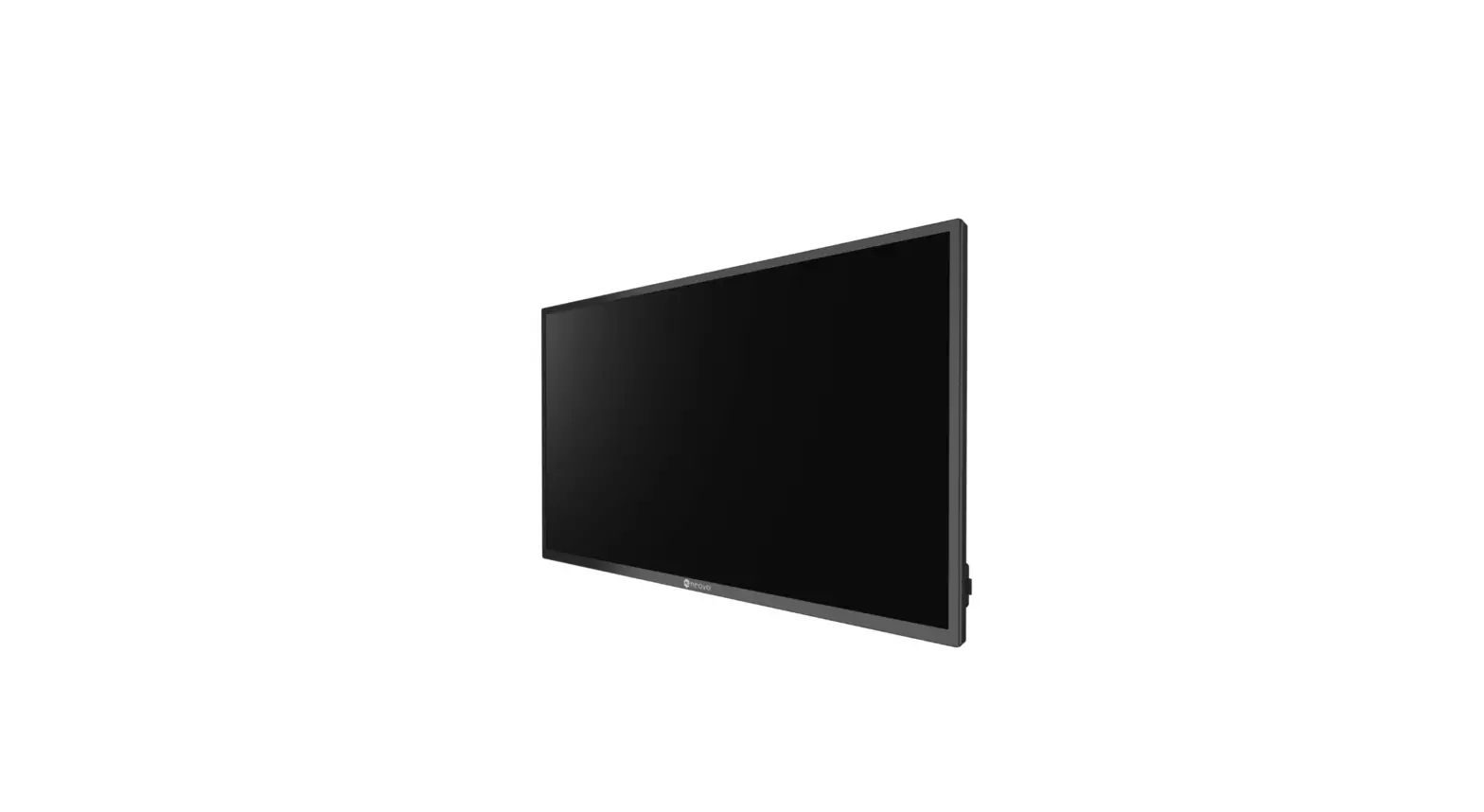
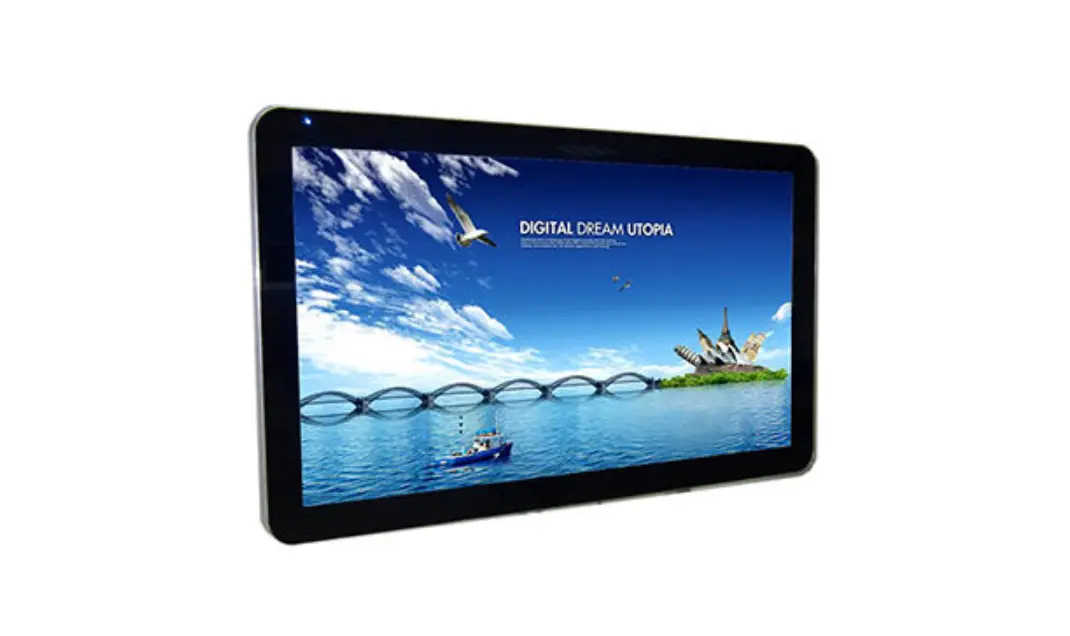
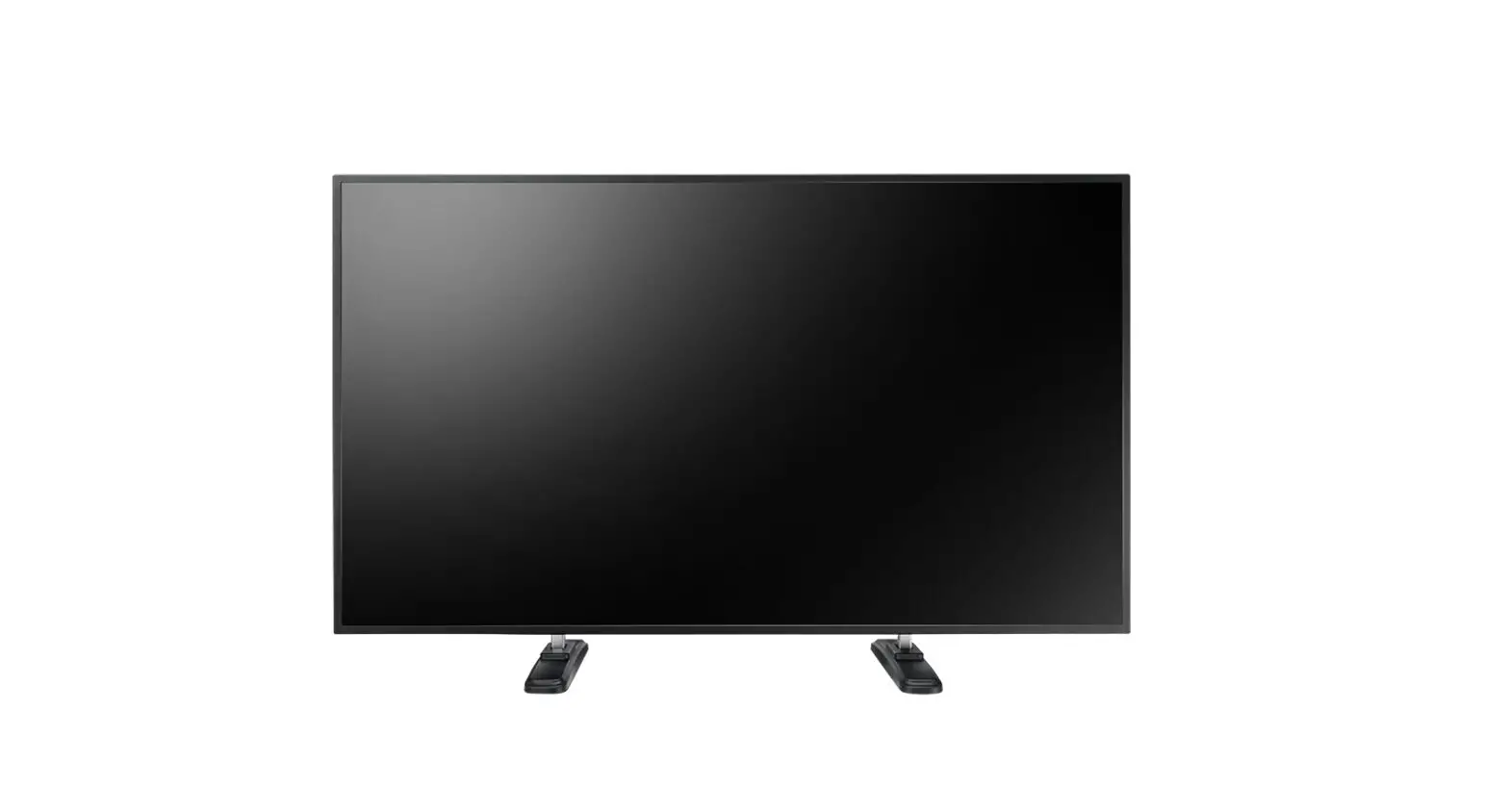
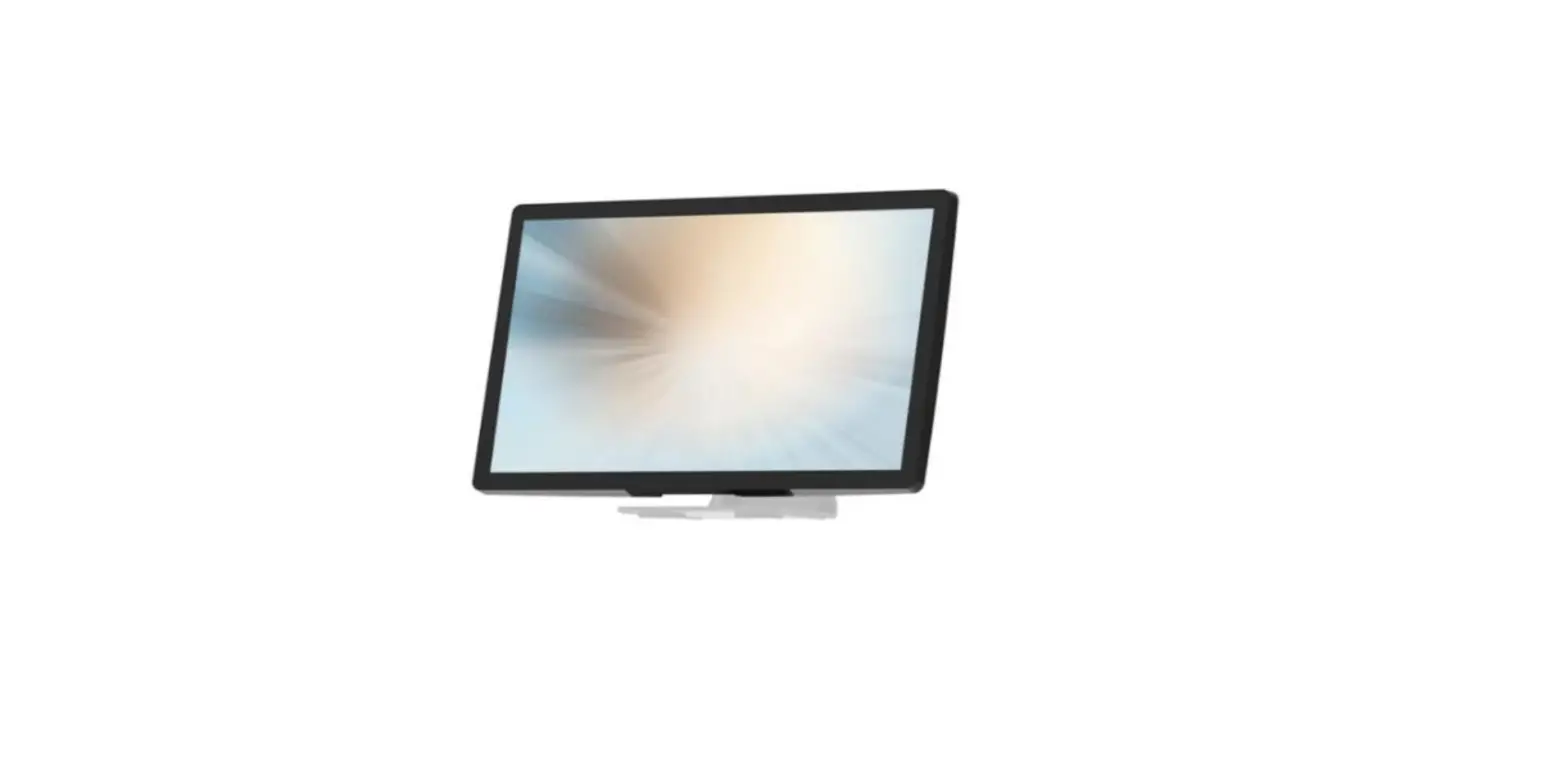
DS-320P-A1 Digital Signage Monitor
Product Information – DS-320P-A1 Digital Signage Monitor
User Manual
- The device complies with the EMC Directive 2014/30/EU and Low
Voltage Directive 2014/35/EU for CE (EU). - This product is classified as a class A product. In a domestic
environment, it may cause radio interference, in which case the
user may be required to take adequate measures. - Usage Notice:
- Warning – To prevent the risk of fire or shock
hazards, do not expose the product to moisture. - Warning – Do not open or disassemble the
product as this may cause electric shock. - Warning – Power cord shall be connected to a
socket-outlet with an earthing connection. - Warning – The cable cover cannot be removed
under normal use conditions. - Warning – The touch monitor may fall, causing
serious personal injury or death. To prevent injury, this touch
monitor must be securely attached to the wall in accordance with
the installation instructions.
- Turn off the product before cleaning.
- Use a soft cloth moistened with mild detergent to clean the
product housing. - Use only the qualified power adapter that comes with your
device. - Disconnect the power plug from AC outlet if the product is not
going to be used for an extended period of time. - Don’t:
- Do not use abrasive cleaners, waxes, or solvents for your
cleaning. - Do not operate the product under extremely hot, cold, or humid
environments. - Do not operate the product in areas susceptible to excessive
dust and dirt. - Do not operate the product near any appliance generating a
strong magnetic field.
- Do not use abrasive cleaners, waxes, or solvents for your
- 1.1 Overview: DS-320P-A1 series supports
landscape or portrait and low power consumption at the maximum
consumption of 70W. DS-320P-A1 provides application for Interactive
whiteboard and digital signage. - 1.2 Feature:
- VESA mounting holes for various mounting options.
- Multilingual OSD user control.
- High Resolution FHD (1920 x 1080).
- 1.3 Specifications:
- LCD Touch Panel Size: 31.5 TFT LCD
- Brightness: 400 cd/m2 (Non-touch screen) 360 cd/m2 (P-CAP)
- Number of Pixels: 1920(H) x 1080(V)
- Touch Type: P-CAP/ 10 points
- Environment:
- Power Input: 100-240V ~ 1.2A 50/60Hz
- Operating Temperature: 0C ~ 40C
- Storage Temperature: -20C ~ 60C
- Operating Humidity: 20% ~ 80% RH, non-condensing
- Mounting Dimension (W x H x D): VESA 400 mm x 200 mm
- Net Weight: 15.0 kg
- Gross Weight: 18.0 kg
- 1.4 Block Diagram: This section describes the
electrical requirements of the monitor. The block diagram in figure
1 illustrates the various electrical sub-systems. - 1.5 Interface Connectors:
- 1.5.1 Power Connector: The monitor shall have
a power control switch visible and accessible on the bottom of the
monitor. The power switch shall be marked with icons per IEC 417,
#5009. The operation of the power switch should be programmable
thru monitor firmware control. - 1.5.2 Video Signal Connector:
- The video signal input via D-type 15-pin female connector.
- The video signal input via HDMI female connector.
- 1.5.1 Power Connector: The monitor shall have
Product Usage Instructions
- To prevent the risk of fire or shock hazards, do not expose the
product to moisture. - Do not open or disassemble the product as this may cause
electric shock. - Power cord shall be connected to a socket-outlet with an
earthing connection. - The cable cover cannot be removed under normal use
conditions. - The touch monitor may fall, causing serious personal injury or
death. To prevent injury, this touch monitor must be securely
attached to the wall in accordance with the installation
instructions. - Turn off the product before cleaning. Use a soft cloth
moistened with mild detergent to clean the product housing. - Use only the qualified power adapter that comes with your
device. - Disconnect the power plug from AC outlet if the product is not
going to be used for an extended period of time. - Do not use abrasive cleaners, waxes, or solvents for your
cleaning. - Do not operate the product under extremely hot, cold, or humid
environments. - Do not operate the product in areas susceptible to excessive
dust and dirt. - Do not operate the product near any appliance generating a
strong magnetic field.
User Manual
DS-320P-A1 Digital Signage Monitor
About This Document No part of this publication may be reproduced, transmitted, transcribed, stored in a retrieval system, or translated into any language or computer language, in any form or by any means, including, but not limited to, electronic, magnetic, optical, chemical, manual, or otherwise without prior written permission of MicroTouchTM a TES Company. The information in this document is subject to change without notice. MicroTouchTM a TES Company makes no representations or warranties with respect to the contents herein, and specifically disclaims any implied warranties of merchantability or fitness for a particular purpose. MicroTouchTM a TES Company reserves the right to revise this publication and to make changes from time to time in the content hereof without obligation of MicroTouchTM a TES Company to notify any person of such revisions or changes. Windows is a registered trademark of Microsoft, Inc. Other brand or product names are trademarks of their respective holders.
1
Compliance Information For FCC (USA) This equipment has been tested and fund to comply with the limits for a Class A digital device, pursuant to part 15 of the FCC Rules. There limits are designed to provide reasonable protection against harmful interference when the equipment is operated in a commercial environment. This equipment generates, uses, and can radiate radio frequency energy and, if not installed and used in accordance with the instruction manual, may cause harmful interference to radio communications. Operation of this equipment in a residential area is likely to cause harmful interference in which case the user will be required to correct the interference at his own expense. This device complies with part 15 of the FCC Rules. Operation is subject to the following two conditions: (1) this device may not cause harmful interference, and (2) this device must accept any interference received, including interference that may cause undesired operation. For IC (Canada) CAN ICES-3(A)/NMB-3(A)
For CE (EU) The device complies with the EMC Directive 2014/30/EU and Low Voltage Directive 2014/35/EU
Warning: This is a class A product. In a domestic environment this product may cause radio interference in which case the user may be required to take adequate measures.
2
Renseignements relatifs à la conformité Pour la FCC (États-Unis). Ce matériel a fait l’objet d’essais qui ont déterminé qu’il respectait les limites d’un appareil de classe A selon la partie 15 des règlements de la FCC. Ces limites sont établies pour assurer une protection raisonnable contre les parasites nuisant à un fonctionnement dans un environnement commercial. Ce matériel génère, utilise et peut émettre des ondes radio électriques, et lorsqu’il n’est pas installé et utilisé selon le manuel d’instructions, peut causer des parasites nuisant aux communications radio. L’utilisation de ce matériel dans une zone résidentielle est susceptible de causer des parasites auquel cas l’utilisateur est tenu de corriger le problème des parasites à ses propres frais. L’appareil respecte la partie 15 des règlements de la FCC. Le fonctionnement doit respecter les deux conditions suivantes : 1) cet appareil ne doit pas causer de parasites et (2) cet appareil doit accepter tous les parasites reçus, notamment ceux pouvant causer un fonctionnement non voulu. Pour Industrie Canada Norme canadienne NMB-3(A)
Pour la CE (UE) L’appareil respecte la directive 2014/30/UE relative à la compatibilité électromagnétique et la directive 2014/35/EU sur les limites de basse tension
Avertissement : Ceci est un produit de classe A. Dans un environnement résidentiel ce produit peut causer des parasites radio auquel cas l’utilisateur peut être tenu de prendre les mesures nécessaires.
3
Usage Notice
! Warning – To prevent the risk of fire or shock hazards, and do not expose the product to moisture.
! Warning – Please do not open or disassemble the product as this may cause electric shock.
! Warning – Power cord shall be connected to a socket-outlet with earthing connection.
! Warning – The cable cover cannot be removed under normal use conditions.
! Warning – Stability Hazard. The touch monitor may fall, causing serious personal injury or death. To prevent injury, this touch monitor must be securely attached to the wall in accordance with the installation instructions.
Precautions Please follow all warnings, precautions and maintenance as recommended in this user’s manual to maximize the life of your unit. Do
Turn off the product before cleaning. Use a soft cloth moistened with mild detergent to clean the product housing. Use only the qualified power adapter that comes with your device. Disconnect the power plug from AC outlet if the product is not going to be used for an
extended period of time.
Don’t Do not use abrasive cleaners, waxes or solvents for your cleaning. Do not operate the product under the following conditions:
– Extremely hot, cold or humid environment. – Areas susceptible to excessive dust and dirt. – Near any appliance generating a strong magnetic field.
4
Avis d’utilisation
! Mise en garde — Pour prévenir les risques d’incendie ou d’électrocution, ne pas exposer le produit à l’humidité.
! Mise en garde — Prière de ne pas ouvrir ou démonter le produit, car cela pourrait entraîner l’électrocution.
! Mise en garde Le cordon d’alimentation doit être branché à une prise pourvue d’une mise à la terre.
! Mise en garde La gaine du câble ne doit pas être retirée en conditions normales d’utilisation.
! Mise en garde — Risque de renversement. Le moniteur tactile peut se renverser et causer de graves blessures corporelles, voire la mort. Pour prévenir les blessures, ce moniteur tactile doit être solidement fixé au mur selon les instructions d’installation.
Précautions Veuillez suivre toutes les mises en garde, précautions et entretiens recommandés dans ce manuel d’utilisation pour maximiser la durée de vie de votre unité. À faire :
Éteindre l’appareil avant de le nettoyer. Utiliser un chiffon humidifié par une solution savonneuse pour nettoyer le boîtier du
produit. Utiliser uniquement l’adaptateur d’alimentation prescrit pour votre appareil. Débrancher l’appareil lorsqu’il n’est pas utilisé pendant une période prolongée.
À éviter : Ne pas utiliser de nettoyants abrasifs, de cires ou de solvants pour le nettoyage Ne jamais utiliser l’appareil dans les conditions suivantes :
des conditions environnementales extrêmes (chaud, froid ou humidité) des endroits remplis de poussières et de saletés. à proximité d’appareils produisant un fort champ magnétique.
5
Table of Contents
Chapter 1 ………………………………………………………………………………………………………… 7 1.1 Overview …………………………………………………………………………………………………….. 8 1.2 Feature ………………………………………………………………………………………………………. 8 1.3 Specifications………………………………………………………………………………………………. 8 1.4 Block Diagram……………………………………………………………………………………………… 9 1.5 Interface Connectors…………………………………………………………………………………… 10
1.5.1 Power Connector ………………………………………………………………………………… 10 1.5.2 Video Signal Connector ……………………………………………………………………….. 10 1.6 Package Overview ……………………………………………………………………………………… 12 Chapter 2 ………………………………………………………………………………………………………. 14 2.1 About VESA Mount …………………………………………………………………………………….. 15 2.1.1 Install the VESA screw …………………………………………………………………………. 16 2.2 About General Mounting Information …………………………………………………………….. 17 2.2.1 Landscape …………………………………………………………………………………………. 17 2.2.2 Portrait ………………………………………………………………………………………………. 17 2.3 On-Screen Display……………………………………………………………………………………… 18 2.3.1 OSD Function Description…………………………………………………………………….. 20 2.3.2 Timing Table Chart………………………………………………………………………………. 21 2.3.3 EDID Data ………………………………………………………………………………………….. 21 2.4 Dimension …………………………………………………………………………………………………. 22 2.4.1 Front View ………………………………………………………………………………………….. 22 2.4.2 Side View …………………………………………………………………………………………… 22 2.4.3 Rear View ………………………………………………………………………………………….. 23 Appendix ………………………………………………………………………………………………………. 24
6
Chapter 1
Product Introduction
7
1.1 Overview
DS-320P-A1 series supports landscape or portrait and low power consumption at the maximum consumption of 70W. DS-320P-A1 provides application for Interactive whiteboard and digital signage.
1.2 Feature
VESA mounting holes for various mounting options. Multilingual OSD user control High Resolution FHD (1920 x 1080)
1.3 Specifications
LCD Touch Panel Size
Brightness
Number of Pixels Touch Type Environment Power Input Operating Temperature Storage Temperature Operating Humidity Mounting Dimension (W x H x D) Net Weight Gross Weight
31.5″ TFT LCD 400 cd/m2 (Non-touch screen) 360 cd/m2 (P-CAP) 1920(H) x 1080(V) P-CAP/ 10 points
100-240V ~ 1.2A 50/60Hz 0C ~ 40C -20C ~ 60C 20% ~ 80% RH, non-condensing VESA 400 mm x 200 mm 476.1mm x 66.8mm x 781.5 mm 15.0 kg 18.0 kg
8
1.4 Block Diagram
This section describes the electrical requirements of the monitor. The block diagram in figure 1 illustrates the various electrical sub-systems.
9
1.5 Interface Connectors
1.5.1 Power Connector The monitor shall have a power control switch visible and accessible on the bottom of the monitor. The power switch shall be marked with icons per IEC 417, #5009. The operation of the power switch should be programmable thru monitor firmware control.
1.5.2 Video Signal Connector
The video signal input via D-type 15-pin female connector. Connector Pin Assignment:
Pin Signal 1 Red video signal input 2 Green video signal input 3 Blue video signal input 4 NC 5 DDC ground for the VESA DDC2B function 6 Analog signal ground for the red video 7 Analog signal ground for the Green video 8 Analog signal ground for the blue video 9 + 5V: Input from host system for the VESA DDC2B function 10 Signal ground 11 NC 12 SDA signal input for the VESA DDC2B function 13 Horizontal signal input from host system 14 Vertical signal input from host system 15 SCL signal input for the VESA DDC2B function
10
The video signal input via HDMI female connector. Connector Pin Assignment:
Pin Signal
1 TMDS Data2+
2 TMDS Data2 Shield
3
TMDS Data2
4 TMDS Data1+
5 TMDS Data1 Shield
6
TMDS Data1
7 TMDS Data0+
8 TMDS Data0 Shield
9
TMDS Data0
10 TMDS Clock+
Pin Signal
11 TMDS Clock Shield 12 TMDS Clock 13 CEC 14 Reserved (N.C. on device) 15 SCL 16 SDA 17 DDC/CEC Ground 18 +5V Power 19 Hot Plug Detect
The video signal input via DVI female connector. Connector Pin Assignment:
Pin Signal
1 TMDS Data 22 TMDS Data 2+ 3 TMDS Data 2/4 Shield 4 TMDS 4 5 TMDS 4 6 DDC Clock 7 DDC Data 8 No Connection 9 TMDS Data 110 TMDS Data 1+ 11 TMDS Data 1/3 Shield 12 TMDS 3-
Pin Signal
13 TMDS 3+ 14 +5V DDC Power 15 Gnd (+5, Analog V/H Sync) 16 Hot Plug Detect 17 TMDS Data 018 TMDS Data 0+ 19 TMDS Data 0/5 Shield 20 TMDS Data 521 TMDS Data 5+ 22 TMDS Clock Shield 23 TMDS Clock+ 24 TMDS Clock-C1
11
1.6 Package Overview
LCD Display
Power Cord
DVI Cable
USB Cable (A to B)
HDMI Cable
VGA cable
Nut x 2
Screw (M5 x 8mm) x 4 pcs
Washer x 2
12
! Warming!
This product is intended to be supplied by a AC-in Power source, rated 100V~240V, 1.2A 50/60Hz minimum, Tma = 40 degree C minimum, and the altitude of operation = 3048m minimum. If it needs further assistance with purchasing the power source, please contact to MicroTouch for further information.
! Mise en garde!
Cet appareil est conçu avec une alimentation de courant CA, d’une tension nominale de 100 V~240 V, 1,2A 50/60 Hz minimum, Tma = 40 degrés C minimum et l’altitude de l’utilisation = 3048 m minimum. Pour d’autres conseils pour l’installation de la source d’alimentation, communiquer avec MicroTouch pour de plus amples renseignements.
13
Chapter 2
Product Installation
14
2.1 About VESA Mount
The DS-320P-A1 series conform to the “VESA Flat Display Mounting Interface Standard” which defines a physical mounting interface for touch monitor and corresponding with the standards of touch monitor mounting devices. The VESA mount is located on the back of this unit.
! Warming!
Please select the MicroTouch original screws! The distance between the back cover surface and the bottom of the screw hole is 6~7 mm. Please use M5 screws diameter with proper length to mount your monitor. Note: The mounting stand must be able to support at least 33 lbs (15.0 Kg).
! Mise en garde!
Sélectionner les vis d’origine de MicroTouch! La distance entre la surface du couvercle arrière et le bas de l’orifice de la vis est de 6 ~7mm. Utiliser les vis M5 de diamètre pour le montage de votre moniteur. Remarque : Le support de montage doit pouvoir supporter un poids d’au moins 33 lb (15,0kg).
15
2.1.1 Install the VESA screw Note: Please install/ dismantle the product when the device is in the shutdown state. Step 1: Fasten two M5 screws nut into the VESA hole
The length of screw nut is 30mm Step 2: Fasten four M5 screws into the VESA hole
The specification of screw is M5 x 8mm
16
2.2 About General Mounting Information
The following two mounting orientations are supported: Landscape and portrait mode. For optimal touch performance, ensure that the monitor is supported fully and is as flat as possible. 2.2.1 Landscape
2.2.2 Portrait
17
2.3 On-Screen Display
The OF-320P-A1 provide side panel controls. And the following is OSD function table:
OSD Key
MENU
SELECT
Menu off status
Menu appear Brightness Contrast Auto Adjusting Power On/Off
Menu on status
Menu disappear/ return to main item Main item select up/ Adjust up Main item select down/ Adjust down Enter/Select sub-item function
1. Press the “MENU” button to pop up the “on-screen menu” and press “Up” or “Down” button to select among the five functions in the main menu.
2. Press “SELECT” to enter the sub menu , and then use “Up” or “Down” button to select the adjustable functions.
3. Choose the adjustment items in the sub menu by pressing the “SELECT ” button.
4. Adjust the value of the adjustment items by pressing the “Up” or “Down” button. 5. With the OSD menu on screen, press “Menu” button to return main menu or exit
OSD. 6. The OSD menu will automatically close, if you have left it idle for a pre-set time. 7. To Lock the OSD / Power menu buttons, please follow the instructions below.
(Please note: the monitor has to be turned ON with a valid signal pre-set) a. Without the OSD menu on screen, press and hold “Menu” key ,and press “POWER” once then release “MENU” key. The “Lock/Unlock” menu will appear for 5 seconds. b. Use the “UP” and “DOWN key to select OSD or Power setting then set at “Lock” (or “Unlock” ) by pushing the “ENTER” button. c. When pressing “MENU” button , the previous setting will be saved and exit the “Lock/Unlock” menu automatically.
Please note:
18
1. When the OSD Lock function is selected, this indicates that all the buttons except “power” button are now disabled.
2. When the Power Lock function is selected, this indicates that the power key is disabled; user can not to turn off the monitor by “Power” key.
3. How to enter factory OSD menu, please follow the instructions below. a. Without the OSD menu on screen, press and hold “Menu” key ,and press “UP” once then release “MENU” key. The factory menu will appear on the screen. d. Use the “UP” and “DOWN key to select main functions, then press “SELECT” to enter sub menu for adjusting (or setting) those values. c. Select “GoTo Main” and press “SELECT” to exit factory OSD menu, it will automatically switch to user menu for normal OSD operation.
4. In power saving status, to press “Menu” button can wake up OSD for selecting video port.
19
2.3.1 OSD Function Description
Item
Content
Default
Contrast
The monitor luminance level control.
50
Brightness Auto Adjust Left/Right
The monitor backlight level control.
50
Automatically adjusts the screen image of VGA signal, affecting the H-position, V-position, Frequency, and NA Phase menu.
Moving screen image horizontal position to left or right. NA
Up/Down
Moving screen image vertical position to up or down. NA
Horizontal size The screen image horizontal dot clock adjustment.
NA
Fine
The screen image pixel phase adjustment.
NA
OSD Left/Right Moving OSD menu horizontal position to left or right. 50
OSD Up/Down Moving OSD menu vertical position to up or down.
50
OSD Time out
OSD Language
Factory Reset Color Temperature Red Green Blue
OSD auto-disappear time selection.
OSD menu language selection. ( English, French, Deutsch, Italian, Spanish, Japanese , Simplified Chinese and Korean )
Factory default value restored.
Color temperature selection. (5500K, 6500K, 7500K, 9300K, User; default: User ) Red gain of selected color temperature. (only User mode can be adjusted) Green gain of selected color temperature. (only User mode can be adjusted) Blue gain of selected color temperature. (only User mode can be adjusted)
15 English NA USER 97 100 97
20
2.3.2 Timing Table Chart
Mode Resolution
1
VGA 640×480@ 60Hz
2
VESA 800×600@ 56Hz
3
VESA 800×600@ 60Hz
4
VESA 1024×768@ 60Hz
5
VESA 1280×720@ 60Hz
6
VESA 1280×768@ 60Hz
7
VESA 1280×1024@ 60Hz
8
VESA 1280×960@ 60Hz
9
VESA 1440×900@ 60Hz
10
VESA 1680×1050@ 60Hz
11
VESA 1920×1080@ 60Hz
H-Freq. (KHz)
31.47 35.16 37.88 48.36 44.772 47.776 64 60 56 65.2 67.5
Bandwidth (MHz)
25.175 36 40 65 74.5 79.5 108 108 106.5 146 148.5
Polarity
H
V
–
–
+
+
+
+
–
–
+
+
–
+
+
+
+
+
–
+
–
+
+
+
2.3.3 EDID Data
The monitor assembly shall provide a display communications channel that conforms to VESA DDC2B hardware requirements. This configuration shall contain the 128-byte EDID file as specified by VESA EDID Standard.
21
2.4 Dimension
2.4.1 Front View
2.4.2 Side View
22
2.4.3 Rear View 23
Appendix
24
Declaration of the Presence Condition of the Restricted Substances Marking
Equipment nameTouch Monitor
DS-320P-A1 Type designation (Type) DS-320P-A1
Restricted substances and its chemical symbols
Unit
Lead (Pb)
Plastic Parts
Metal Parts
Cable
component
LCD Panel
Touch Panel
PCBA
(..) Software
Mercury (Hg)
Cadmium Hexavalent
(Cd)
chromium
(Cr+6)
Polybrominated biphenyls (PBB)
Polybrominated diphenyl ethers (PBDE)
Note 1Exceeding 0.1 wt %andexceeding 0.01 wt %indicate that the percentage content of the restricted substance exceeds the reference percentage value of presence condition.
Note 2indicates that the percentage content of the restricted substance does not exceed the percentage of reference value of presence.
Note 3The-indicates that the restricted substance corresponds to the exemption.
25