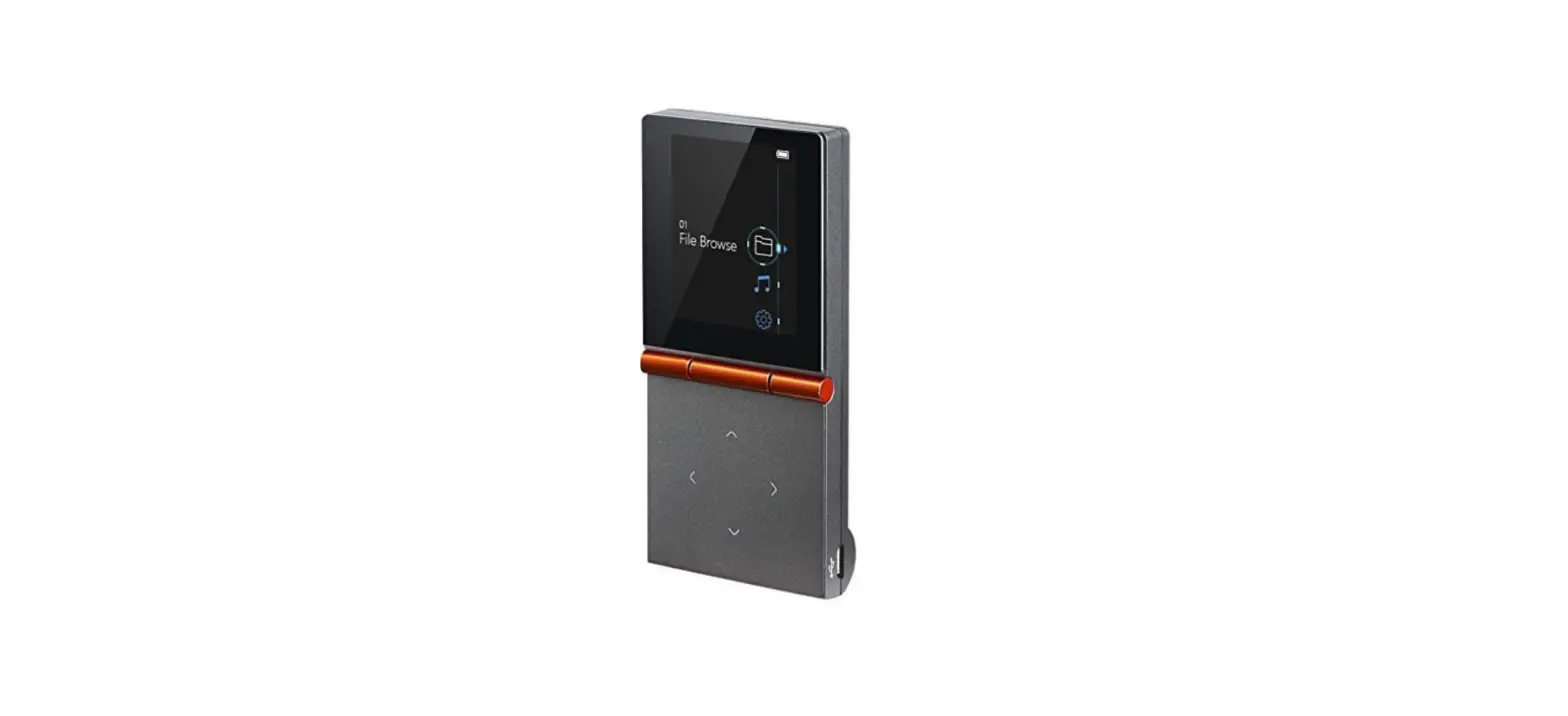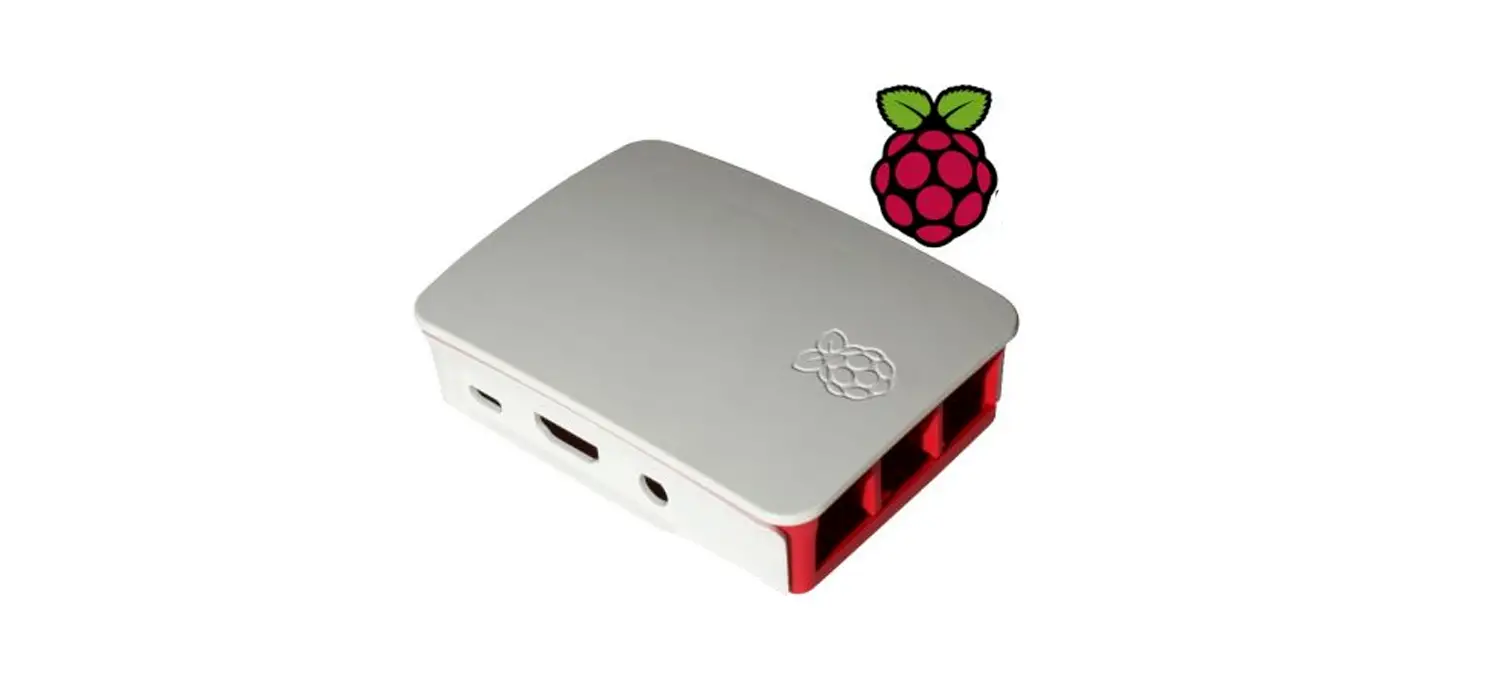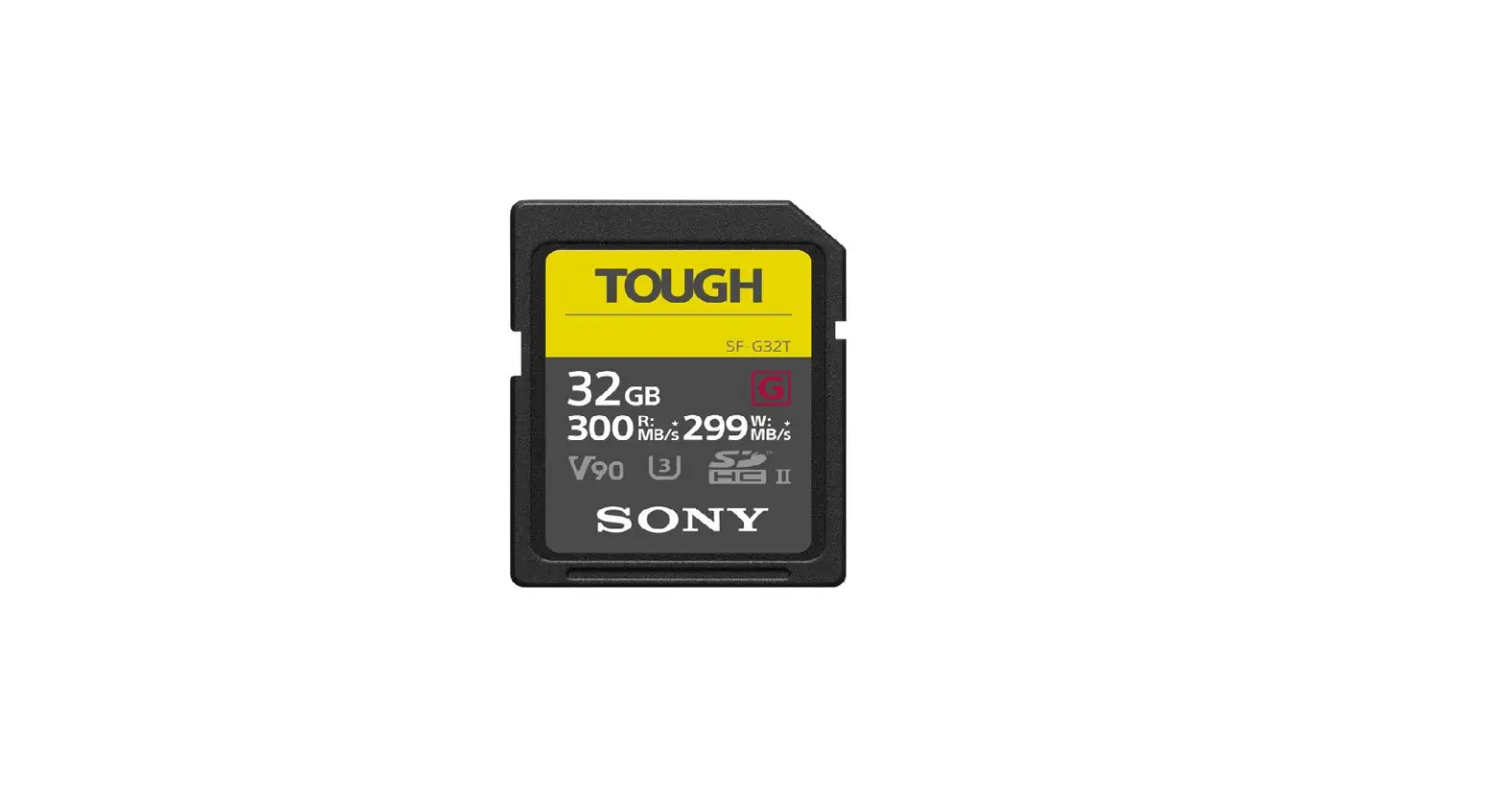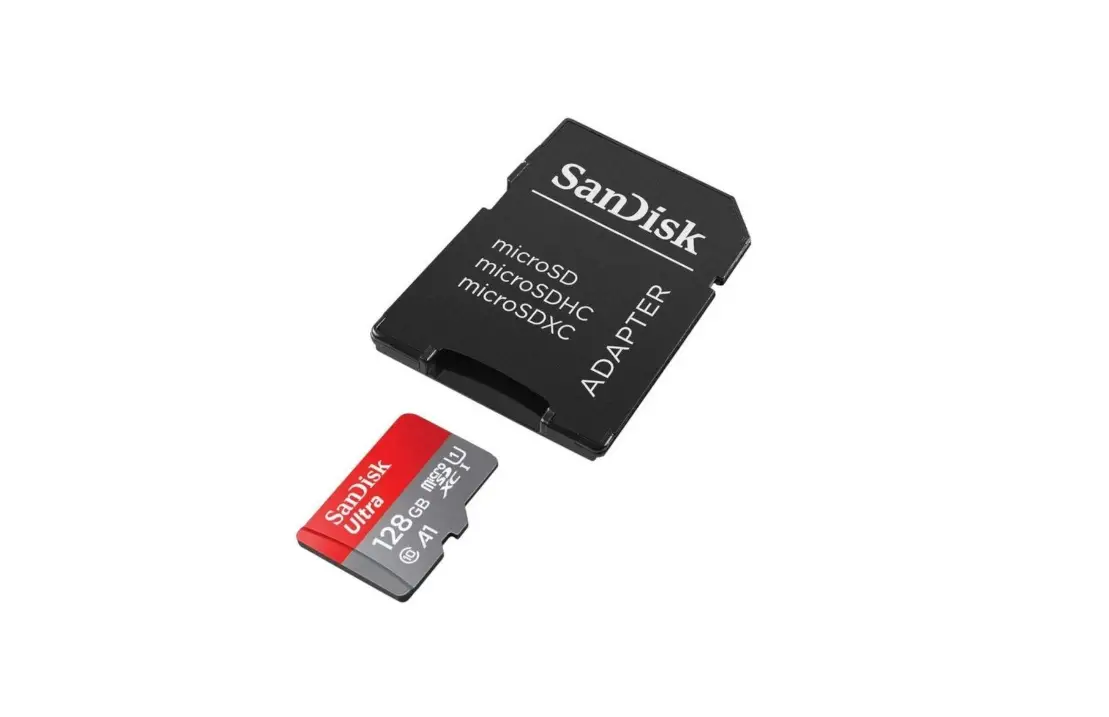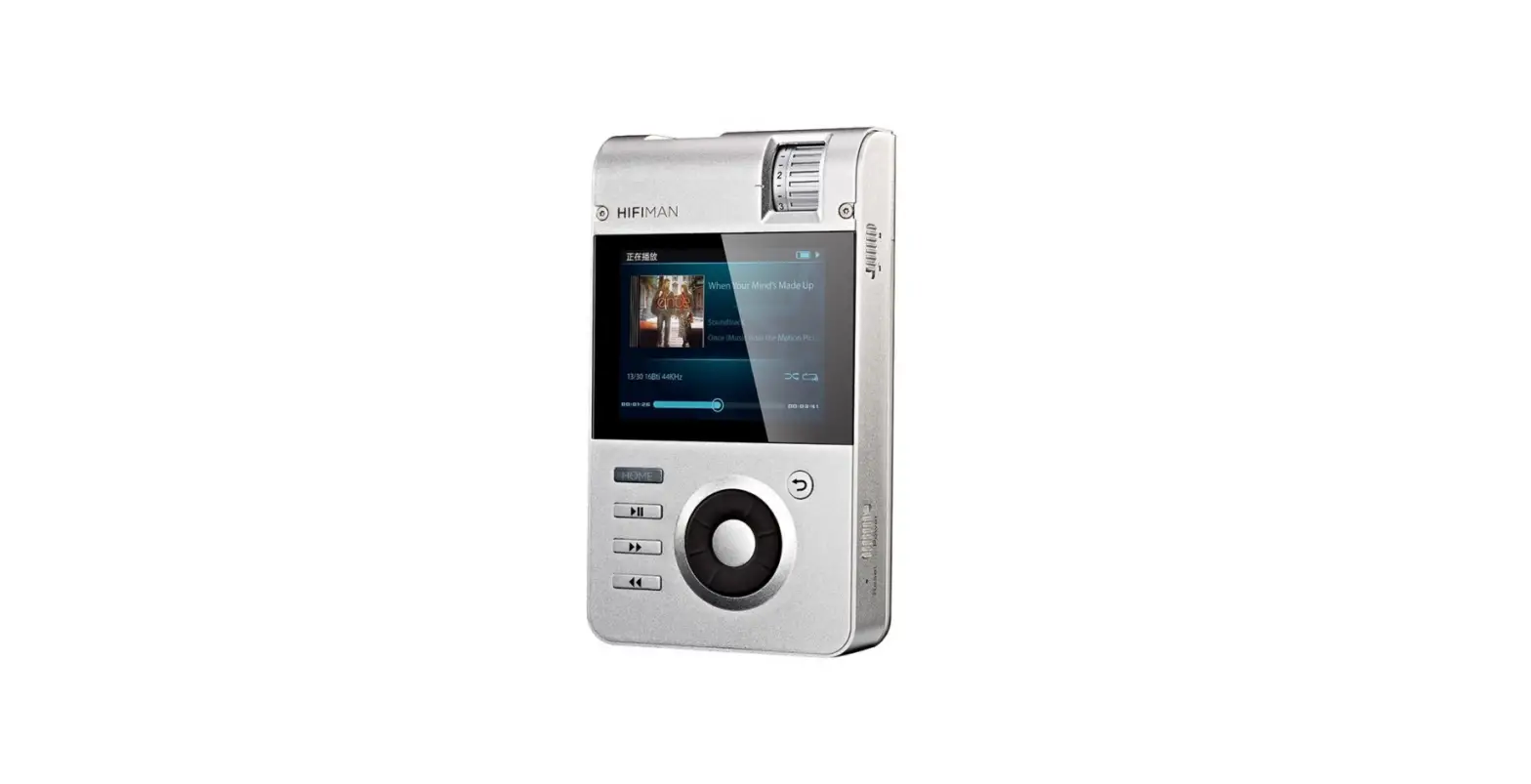

HIFIMAN HM901s 16 GB SD CARD (Balanced)
Specifications
- Dimensions: 72mm W* 117mm H’ 27mm D
- Weight: 250g
- Battery life: 9 hours
- D/A Chip: ESS9018 2
- Frequency response: 20HZ-20KHz
- Distortion: 0.008%(Line out)
- S/N: 106t4dB
- SD card memory: 256G
- Supportive music formats:
- 24Bit: WAV, FLAC, ALAC (M4A)
- 16Bit: MP3, WMA, AIFF, AAC, OGG, APE
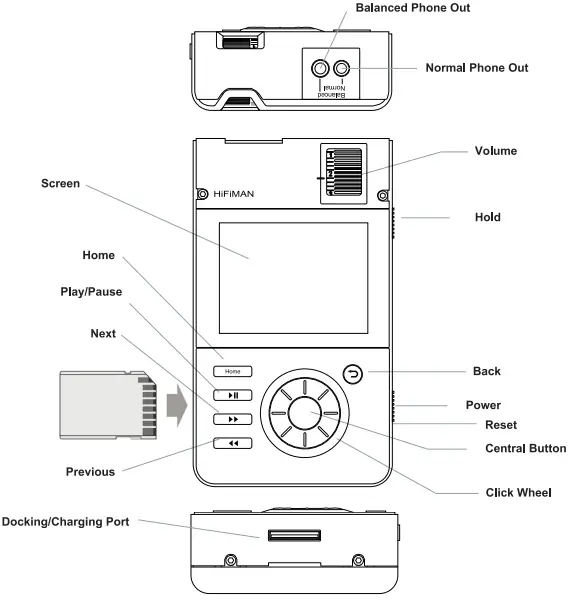
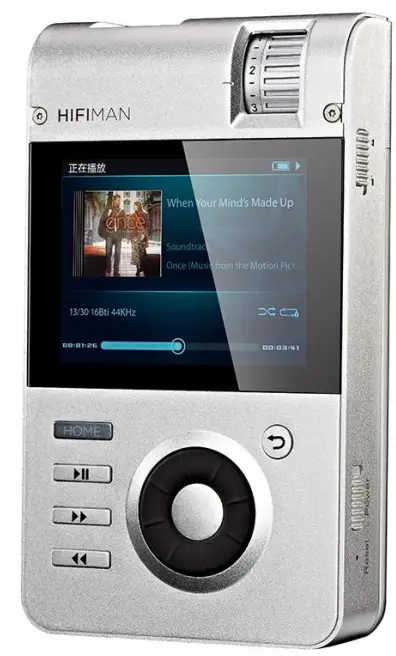
Power Key Hold the power key up for 2-3 sec to turn on the player when HM901s is powered off.
Click Wheel The icon will show on the main menu after the player is powered on.
Central button Press the central button in play menu to play music of pause
Back Press the button to return to the previous folder.
HOME In Play menu, press the HOME button to go to the main menu; press HOME again to return to play menu.
Play/Pause After pressing the Play/Pause button, the player will play music or pause from anywhere.
NEXT Press the button to go to next song from anywhere
PREVIOUS Press the button to return to previous song from anywhere. Volume Please turn the volume to “0” before playing music to protect your hearing. After the player is powered on, adjust the volume as you like.
HOLD Press the HOLD button to lock or unlock the player. When the switch is set to hold, all the buttons (except for volume button) are disabled. When the player is unlocked, all the buttons will once again be working.
Accessories
- Amplifier module
- RCA cable: for line out (red and white), for S/P DIF IN (black)
- Charger, for charging HM901s
- Battery charging system
- Battery: Li-ion +7.4V 1600 mAh, -7.4V 500mAh
- Owner’s Guide
Using HM901s
Note Please read this manual thoroughly on how to best install and operate your player for many years of enjoyment.
Card Installation: The HM901s will automatically detect and update the files in the SD card after the player is turned on. The time for detection depends on the size of the files on the SD card. After the update, the HM901s will be ready to play.
To Remove SD Card: Choose “Remove SD Card” from the Main Menu. Wait until you see “Please remove the SD card”. The SD card is then safe to be removed.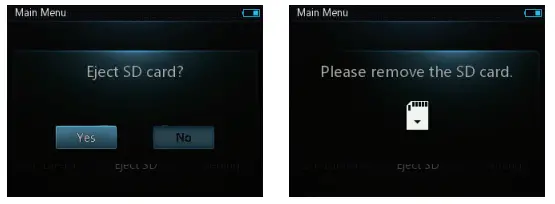
Power ON/OFF/Stand by:
Hold the power key on the right side of HM901s up for 2 sec. After releasing the power key, the player will power on and the HIFIMAN logo will appear.Push the power key up when the player is powered on, it will enter Stand by mode.Under Stand by mode, push the power key up for 2 sec, the player will be on.Go to Setting and select Power OFF to power the player off when the player is powered on.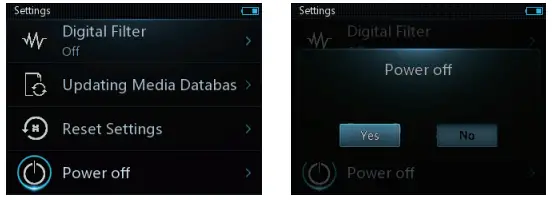
Note: Even under Stand by mode, the player still costs electricity. Using a fully-charged battery can last seven to eight days if the player is in Stand by mode. If you will not listen to the player fora long period of time, please power it off.
Reset
Should the player LCD become “frozen”, carefully insert a fine-point pen or needle in the reset hole to reboot the player.
Charging
The average battery life of HM901s is nine hours. Please charge the player when you see a reminder of low power. We recommend that you use the original HIFIMAN charger.
Note: The player can only be charged fully with Power OFF or under Stand by mode.
Replacing the Battery
How to remove the back cover of HM901s:
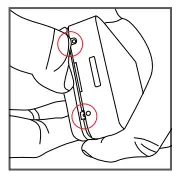
- Remove the screws on the bottom (shown in red circles).
- Gently lift the back cover.

How to replace the cover back:
- Insert the back cover to fit in the two latch holes on the top.(Pictures 1).
- Make sure the back cover falls into place along the frame.
- Fit in the two latch holes on the bottom

- Slightly press the back cover down. Check if it is securely in place without any slant (Pictures 4 and 5).
- Replace the two screws on the bottom (Picture 6).
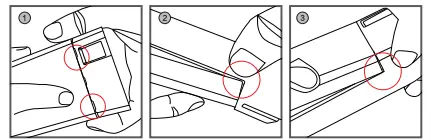
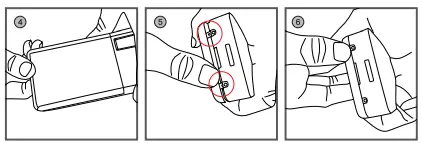
When your battery is out of life, you should replace it with a new one which can only be supplied by HIFIMAN or HIFIMAN authorized dealers. For more information on replacing the battery, please visit: http://head-direct.com/
Replacing Amplifier Module
Please remove the battery first as instructed above. Then the amp module can be replaced. Several optional amplifier cards are available for your HM901s to meet different needs. Below is a figure on how to replace the amp module: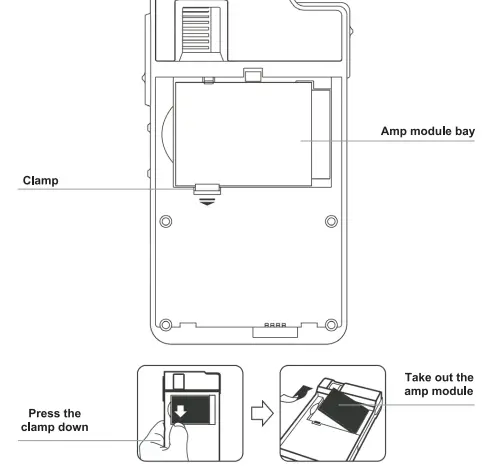
Connecting
Connecting HM901s to PC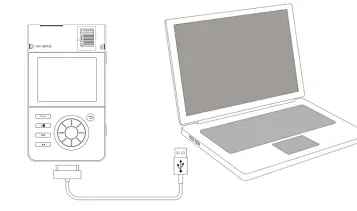
- Use the USB cable to connect HM901s to the computer.
- Wait for the system to show “USB connecting”
- Copy the file or folder to SD card.
Note:
- It is important not to remove the USB cable while music is being downloaded as the music files could be corrupted.
- The speed for data transfer wll vary depending on the size of the transferred files and/or the operating system of your computer.
Disconnecting HM901s from PC
Click the USB device icon on the computer and disconnect the player. The USB cable can then be removed.
Note:
- The USB device icon might be concealed under other programs. If you cannot see it, click the “show the concealed device” and you will find the USB device icon.
- When the SD card is in operation, you should not disconnect the player.
- It is important not to remove the USB cable while the music is being downloaded. Or you might damage the music files.
Operation
Main Menu
When the player is being started, the system will automatically detect the music files on the SD card and update the database. After the update, the HM901s will go to main menu.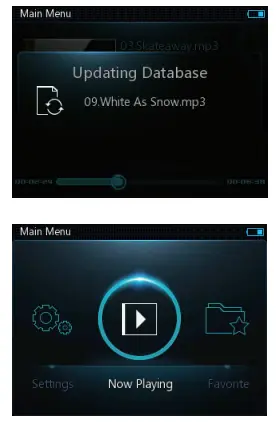
SD Card
On the main menu, rotate the wheel to SD card and click the central button to enter the SD card menu and view the music files. When the wheel highlights a single track, press the central button to play the song. By default, non-music files will not be visible.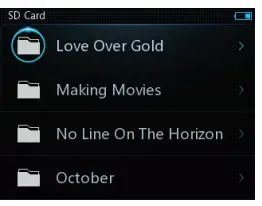
Artist Album and Genre
After the player is started, the music files on the SD card are classified according to the artist, album and genre. ACCordingly, three menus are shown on the main menu.
All Songs
After the player is started, you can go to “browse all songs” from the main menu and play music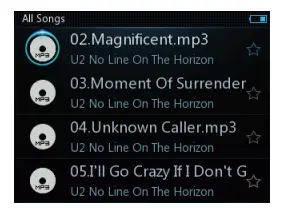
Favorite
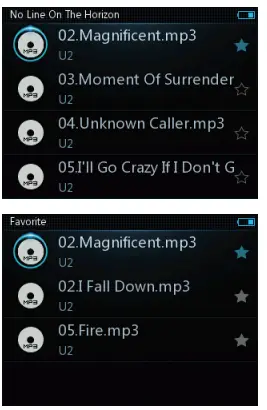
When you browse all songs, you will see a star following each song on the right. If you press the central button for several seconds, the song you are browsing will be added to “Favorite” with the star being solid. By entering Favorite from the main menu, you will see all the added songs.
Delete a file
On the song list, press the Back button for seconds and a window will show up. Press Yes to delete the file you select. Note: the song being played cannot be deleted.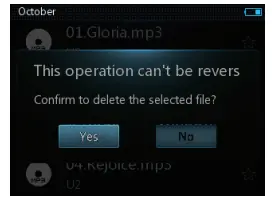
Play menu
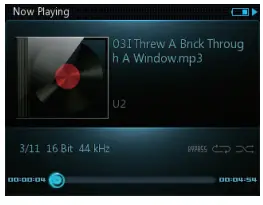
- Below is the play menu. You can press Central Button to pause/play music.

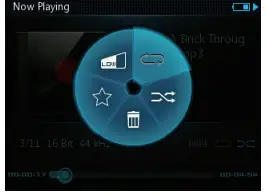
- In play menu, press the Central button for secs will enable the play setting window. Users can change the Repeat/Shuffle, Low/High Gain, and Favorite. Users can add or delete the playing song from Favorite.

Settings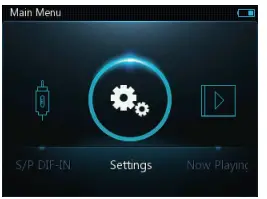
System Version
Click to see the information on your HM901s’ current software version.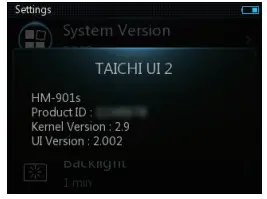
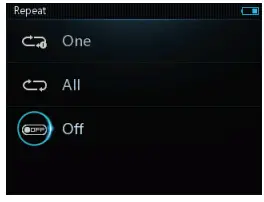
Repeat
On Main Menu, select “Setting” then go to “Repeať” to make your selection.
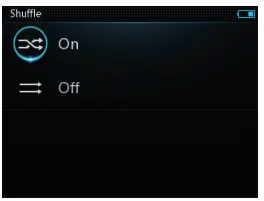
Shuffle
On Main Menu, select “Seting” then go to “Shuffle” to make your selection.
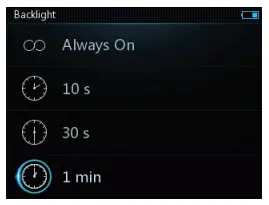
Backlight
You have the option to set the time for the player backlight as “always on, 10s, 30s, 1min and 2 mins”.
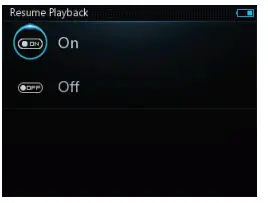
Resume Playback
On Main Menu, select “Setting” then go to “Resume Playback” to turn on of turn off this function.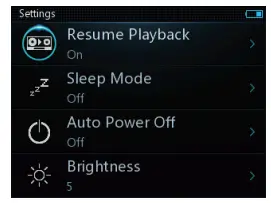
Stand by Mode
On Main Menu, select “Setting” then go to “Stand by Mode” to set up the Stand by function and desired amount of time. The player will Stand by at the pre-set time calculated by when the player was operated for the last time.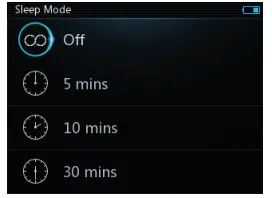
Auto Power Off
On Main Menu, select “Setting” then go to “Auto Power Off’. The player will be powered off at the pre-set time calculated by when the player (non-playing status) was operated for the last time.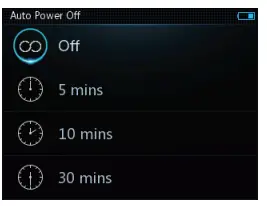
Brightess
Set the display brightness from 1 to 5.The brighter it is, more power will be consumed.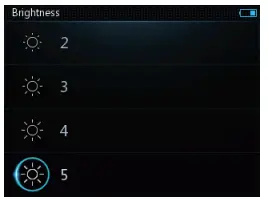
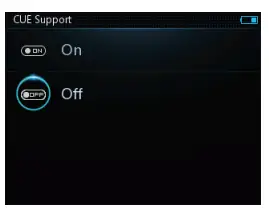
CUE Support
On main menu, please go to Settings and then select CUE Support to turn on/off this function.
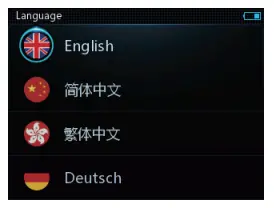
Language
On Main Menu, select “Setting” then go to “Language” to make your selection.
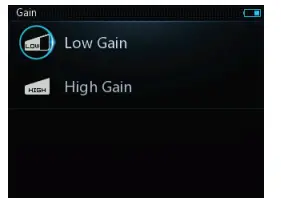
Gain
On Main Menu, select “Setting'” then go to “Gain” to make your selection.
S/P DIF
- Switch between DAP and S/P DIF.

- In S/P DIF menu, press the central button to select the input sampling frequency.

- In S/P DIF menu, press the Back button to exit S/P DIF

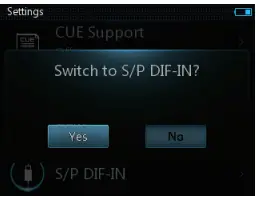
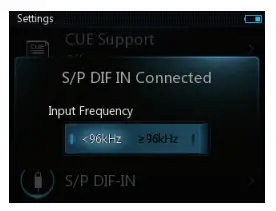
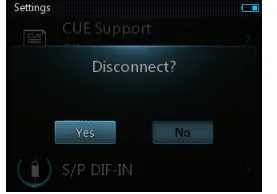
Note:
- lt is not necessary to select the sampling before playing as some frequency lower than 96KHz can be played while you select “> 96KHz” or the other way around.
- Only when you find that songs cannot be played rproperly, should you switch the sampling.
- Before you select the sampling, please pause the source to switch and then resume. It is not recom- mended to select the sampling in playing. This will cause silence
Digital Filer
On Main Menu, select “Setting” then go to “Digital Filer to turn on/off this function.
Updating Media Database
Refresh the files on the SD card and update the index information for all files in the data base.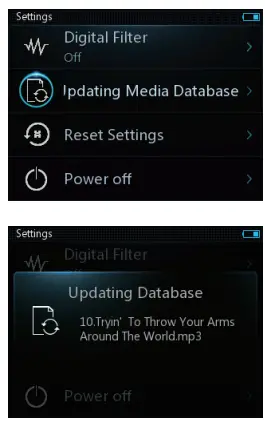
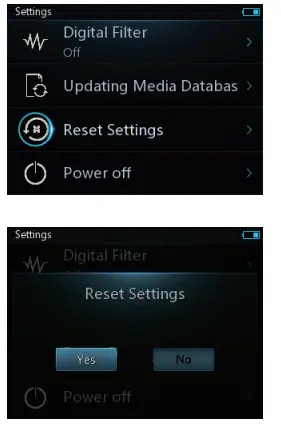
Reset Settings
Perfom Factory Data Reset.
Other information
Product Safety
Note
- Make sure not to place heavy items on HM901s to avoid possible damage to the player.
- Be careful not to drop or hit your player.
- Keep the player away from rain, water, drinks, chemicals and cosmetics, etc.
- Any damage caused by the player being soaked will not be covered in the warranty whether it is within or without the warranty period.
- Avoid putting the player in a humid, dusty or smoky environment.
- Any attempt to remove, repair or modify the player without permission is forbidden and will void the warranty.
- Keep the player from direct sunlight. Proper operating environment: 21.2 F-104 F (-6 C-40 C).
- Do not use any chemicals or detergents to clean the player.
- Do not disconnect the player with PC when the downloading do not complete.
- Do not plug any other device into the headphone output port eXcept for headphones.
- It is recommended not to use headphones while riding, driving or operating motor vehicles.
- if you experience ringing in your ears, please reduce the volume or turn off your player.
HM901s Service and Support
Should it become necessary to return your product to HIFIMAN for warranty or post-warranty service, please contact our customer service team to obtain an RA#. Return shipping to HIFIMAN or an authorized service facility is at the responsibility of the owner.
Disposal and Recycling Information
HM901s Disposal and Recycling:
Dispose of your HM901s according to your local environmental laws and regulations. The disposal of your HM901s should be separated from household waste because the player contains electronic parts and battery. When your HM901s reaches its end of life, please contact your local environ- mental department for disposal and recycling information or you could simply send it back to us. The battery will be removed and properly recycled.
European Union-Disposal information:
This symbol means that according to local laws and regulations your product should be disposed of separately from household waste. When this product reaches its end of life, take it to a collection point designated by local authorities. Consumers can be punished by penalty for inappropriate disposal of electronic device. The separate collection and recycling of your product at the time of disposal will help conserve natural resources and ensure that it is recycled in a manner that protects human health and the environment.
FAQS
The reason that smartphone manufacturers are ditching micro SD card slots in their devices, especially at the high end, is money. Manufacturers can’t charge a premium for an SD card slot, but they can charge a $100 for a few extra gigabytes of flash storage
SD standards-based memory cards, like most semiconductor cards, store information in flash memory. The current technology along with normal usage typically gives the card a lifespan of 10 years or more, allowing consumers to upgrade their devices for many years and reduce consumer electronic waste.
Most SD cards won’t retain data for more than about five years. The best practice for keeping your data safe is to copy it from your SD card to your computer as soon as you can.
Considering the same parameters as before, a 32GB SD card should be able to hold about 6,300 images shot on a smartphone with a 12MP camera. Similarly, on the GoPro, a 32GB SD card will be good for about 7,620 images.
microSDXC (Secure Digital eXtra Capacity) cards are designed to hold between 32GB and 2TB of data. It’s important to know what version your phone can use. Most modern phones — Android or otherwise — will be able to use a microSDHC card. Many newer phones are capable of using a microSDXC card
An SD card is a memory card that can be inserted into a device in order to increase the device’s available storage. By using an SD card, you can manage and store larger amounts of Procore data on your Android mobile device
For most people, a 32GB card is the smallest one you should consider, with 64GB likely to be the better option. And this brings us to our first acronym – all cards with a capacity of 32GB and under fall into the SDHC camp, while cards sized at 64GB and over are classed as SDXC
Most phones, even with a price of around Rs 10,000 come with 32GB storage. The microSD card is not needed anymore. In fact, microSD card is a technology from a time that no longer exists. It is so old that of all the technologies you can hope to see in a phone, it is the slowest and least reliable by the design.
Finally to answer your question, yes. it works fine as the OS and related information stored on the phone internal memory. Save this answer.
Memory cards act as electronic storage for your devices storing digital media such as photos and videos. If you have a camera, camcorder, drone or mobile device, chances are you use a memory card. The SD and microSD variants are most commonly used in smartphones and digital cameras.
On your device, swipe down from the top of the screen. Tap the notification SD card detected. To set up your SD card for: Portable storage, select Format. Adoptable storage, select Format another way. Once your SD card is formatted, you can choose to Move content or Move content later
A 128GB card or drive can hold about 35,500 photos. The number can vary depending on the picture quality, so that number assumes a lower-quality image. If your camera has more megapixels, each picture will take up more space. A 12MP camera can fill 128 gigs with about 35,500 photos.
You can move apps to an SD card from the Apps section of an Android phone’s Settings with just a few taps. If your Android phone has an SD card slot, you can move apps out of internal storage. Storing apps on an SD card can free up space on your phone for other apps and data
Yes unless it is encrypted. Any SD card will work in any SD card enabled device. If you change your SD card any app specific data may be re downloaded (can eat at your data plan). You can easily encrypted the SD card but be aware you can not reverse the process without deleting the encrypted information.
If you really must download everything off the SD card the easiest and quickest way is to take the sd card out and insert directly into your computer (if it supports SD media) and then simply drag and drop the files off the card to your computer.