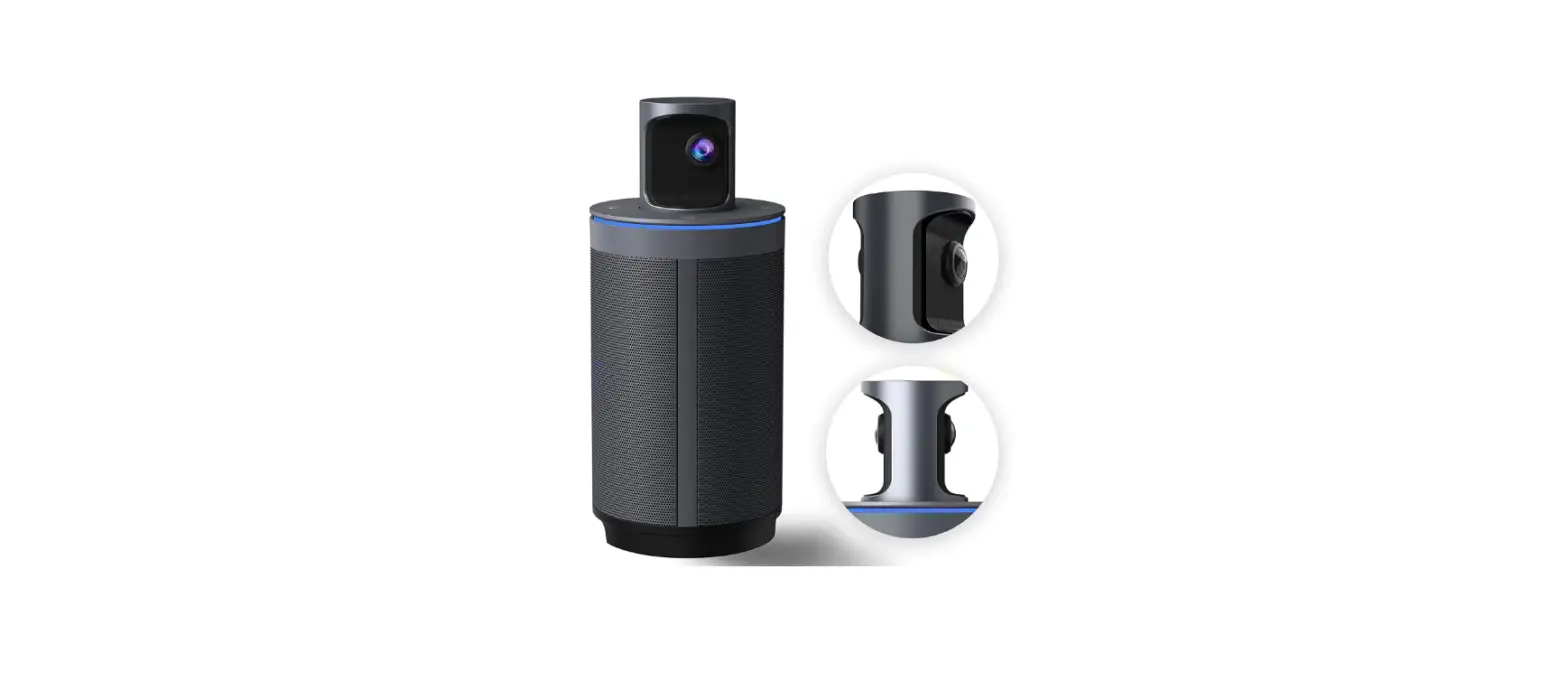
 Champion 360 Panoramic Camera
User Manual
BRAUN Champion 360 Panoramic Camera
User’s Manual
Overview
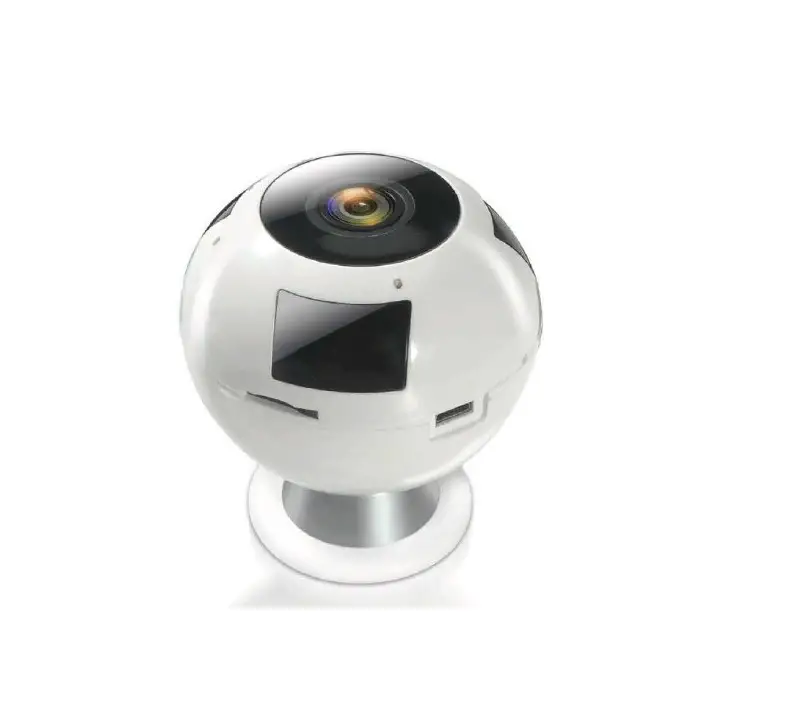
Thank you for purchasing this product! BRAUN Champion 360 Camera is a digital panoramic camera with two lenses. The application of up-to-date technologies enables you to take panoramic videos and photos, and create an experience of a brand new panoramic world.
Important
- Before using this product, please read this manual carefully
- Prepare a 32G (Class 6 ~ Class 10) Micro SD card
- Check the camera power. A full charge is recommended before use (charge until the charging indicator turns off)
- Scan the QR Code on the next page, or search for “SYVR360” on the Apple Store or Google Play, and then download and install it
About the Camera
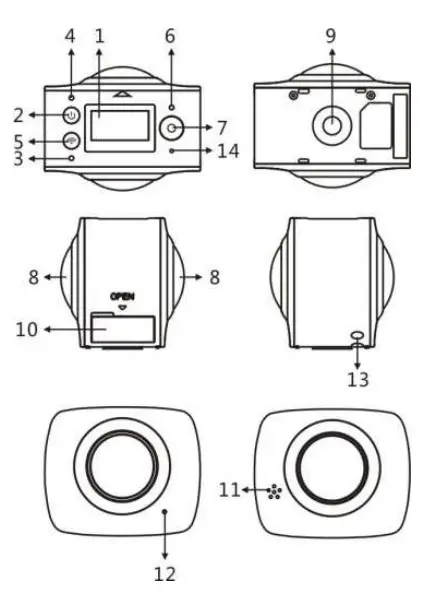
- LCD Display
- Power button/Mode button
- Wi-Fi indicator (red)
- Power indicator (red)/Charging indicator (blue)
- Wi-Fi button/MENU button
- Busy indicator (red)
- Shutter button/OK button
- Lens × 2
- Triangle nut
- Interface cover (USB/TF)
- Speaker
- Microphone
- Rope hole
- Reset hole
QR Code: For iOS systems, please scan this QR Code to access the Apple Store to download and install “SYVR360”. https://itunes.apple.com/app/id1079241452
For Android systems, please scan this QR Code to access Google Play to download and install “SYVR360”. https://play.google.com/store/apps/details?id=com.mitong.syvr360
Quick start guide
1. Install SD card:
Insert the Micro SD card you prepared into the slot as indicated on the right.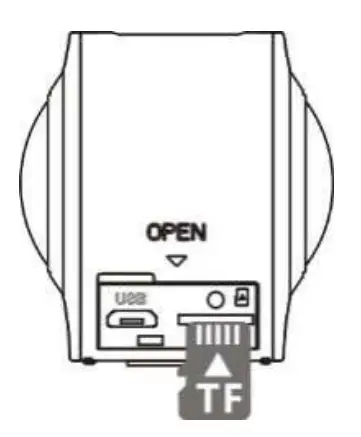 Important:
A high-speed Micro SD card between Class 6 ~ Class 10 must be used, or else this product may not function normally. Always turn off the camera before inserting or removing the card.
2. Power on/off
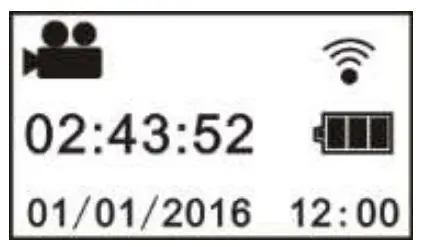
Power on: Press and hold the Power button for about 2 seconds until it beeps, then release. The display screen will light up, as shown below, indicating the device is ready (the default mode after power on is Shooting mode).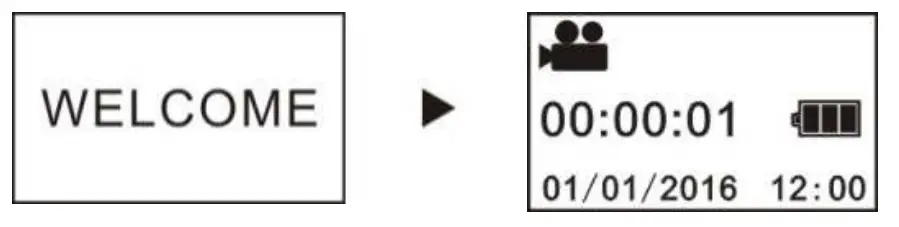 Important:
If power on fails, charge the camera first, and see whether the blue indicator lights up during charging. If so, this indicates the product is being charged.
Power off: After usage, press and hold the Power button for about 3 seconds and release. The display will show a “GOODBYE” message and turn off. If there are no operations for 3 minutes under Power save mode (default), the camera will automatically power off. 3. Charging
Use the data cable included with the product pack for camera charging. During charging, the indicator will be blue and on constantly; when charging is complete, the blue indicator will turn off.
Important: If another charger is used, check the output power before use to ensure it is within 5V/0.5A ~ 5V/2.0A.
4. Recording or shooting
This camera has Recording mode and Shooting mode. After power on, press MODE (Power button) to switch between different modes, the corresponding mode icon will be displayed on the screen.
Video: In Recording mode, press the Shutter button, the camera will start to record. The display screen displays the video recording time.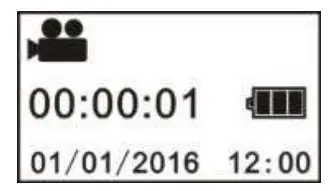 Stop recording: During recording, press the Shutter button to stop recording. The video will automatically be saved on your camera storage card. At that moment, the display screen will show the remaining time available for recording, as shown below:
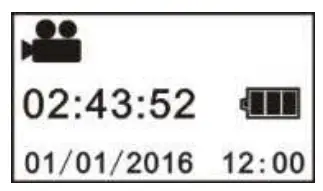 Shooting: In Shooting mode, press the Shoot button to take photos. After taking the photo, the display screen will display the number (estimated amount) of pictures you can save in the remaining camera storage space.
 5. Menu settings
To operate the Menu, press and hold the Wi-Fi button for about 2 seconds to enter menu settings (as shown below): Menu operation:
In Menu mode, press the Wi-Fi button to move the cursor. Press the Shutter button to confirm. Press and hold the Wi-Fi button to go back to the previous menu or to exit Menu mode.
Explanation of menu functions:
Power Save: Set Power Save mode. You may set the camera to enter Power Save mode after a certain period of time. The available options are 1min/3min/5min or Power Save mode off.
Date & Time: Set the camera system time manually.
Language: Set system language for the camera, English is the default language.
Factory Reset: Restore factory default settings.
System: Check system and storage card information.
Format: Format storage card.
Important: After formatting, all existing data on the storage card will be lost. Please be cautious of this operation!
6. How to use accessories properly
It is strongly recommended to use original accessories provided by the manufacturer. It helps create a better product use experience and better shooting/recording effect.
Tripod: Screw the tripod nut into the screw hole on the bottom of the camera. It serves both as a hand-held or fixed device.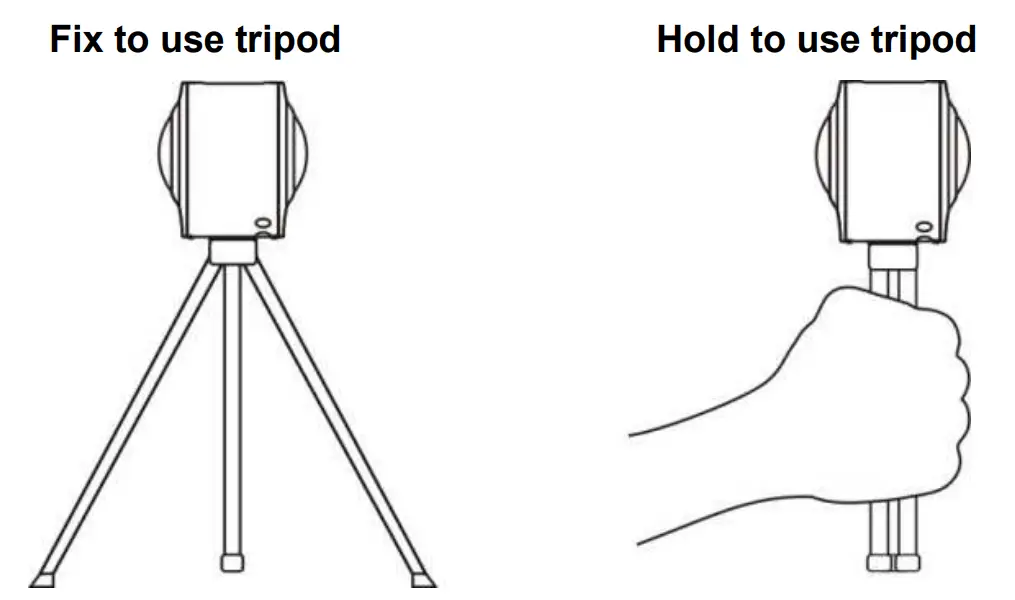
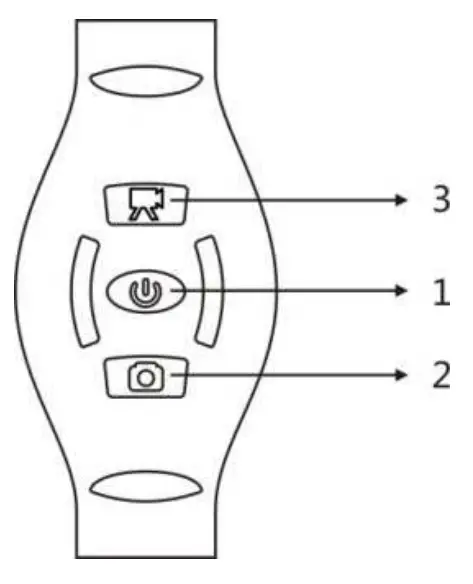
7. Use of remote control (optional)
- Power button
- Shoot button
- Record button
Play panoramic video or picture
Note: The videos or pictures may be viewed with its panoramic effects only on smart phones, tablets or PCs.
1. Use a mobile phone or tablet to play
Follow these steps to play panoramic videos or pictures on mobile phone or tablet.
Download the app:
Scan the QR Code on Page 4 or search for “SYVR360” on the App Store to download and install the app. Connect mobile phone and camera: Connect mobile phone and camera through Wi-Fi connection
i. Turn on camera Wi-Fi: Press camera Wi-Fi button, the display screen will display “Wi-Fi ON”, and then “P3600_XXXXX”. The default password is “1234567890”.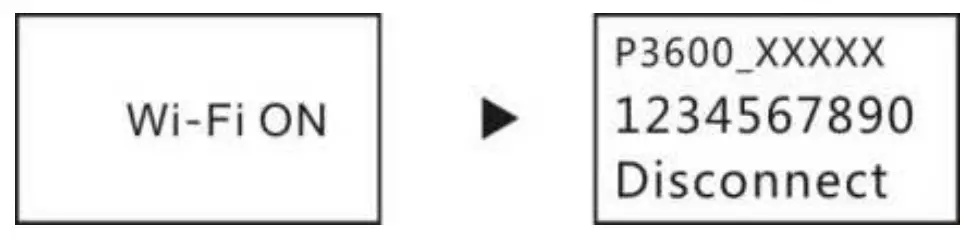 ii. Turn on mobile phone Wi-Fi, search for the AP hotspot “P3600_XXXXX” and select Connect.
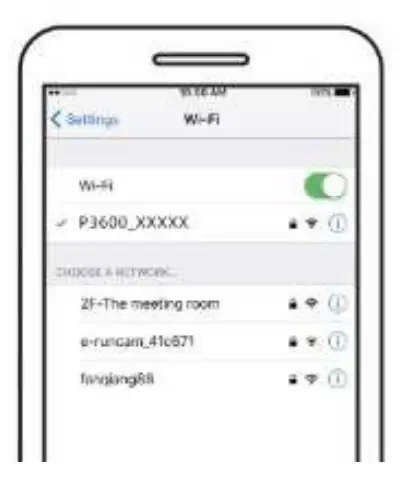 iii. When connected, the camera display screen will display the picture shown below.
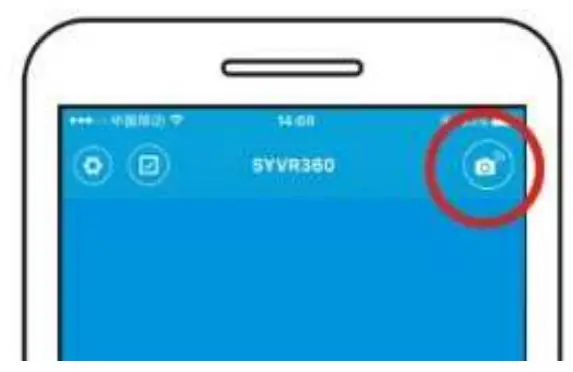
 Activating the app: Activate the “SYVR360” app on the mobile phone or tablet, then click “Search for Camera” on the upper right corner.
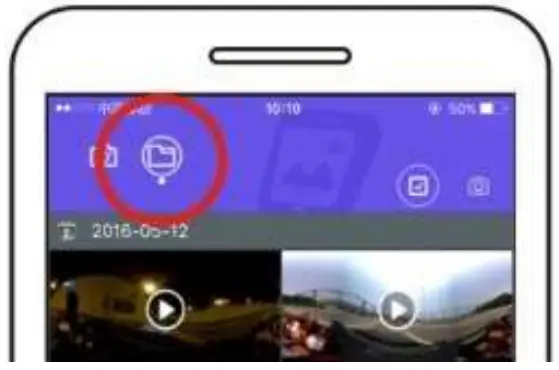
 Download: Enter the camera folder, select the file to download and click to download.
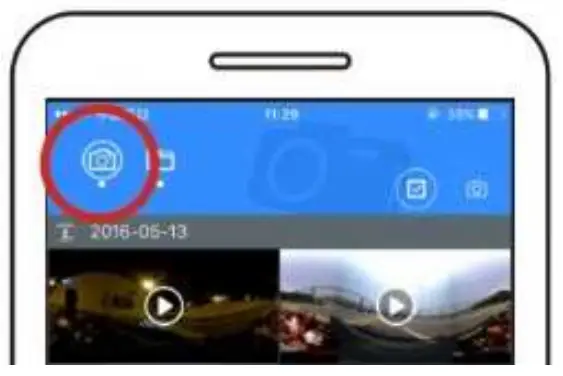 Play: Select the file on the mobile phone and click to play.
 Important It is recommended to follow the above steps in order to achieve the best HD video or picture viewing effects.
Before connection, remember to make sure the SD card is properly inserted into camera.
After connection, the 4G communication functions of the mobile phone or tablet will not be affected.
Share: Videos can be combined and shared after downloading from the camera to your mobile device.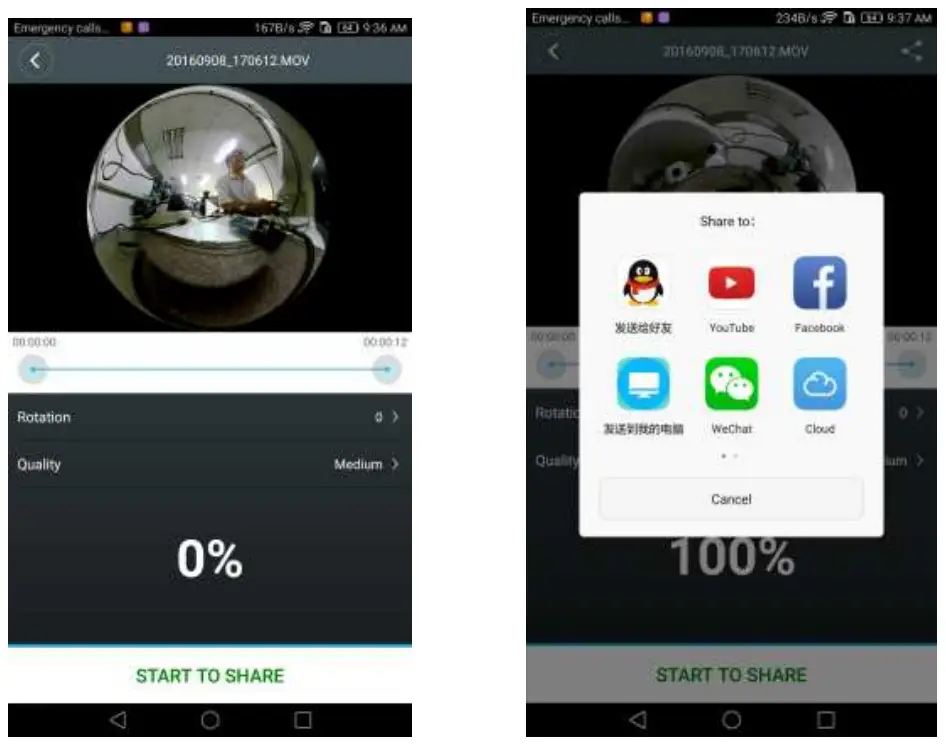 Click “START TO SHARE”, videos will begin to combine. After combining, videos can be shared via Youtube, Facebook, WeChat, QQ and etc.. The shared videos can be searched for on relevant websites or webpages.
Note: The combined video file is in .mp4 format.
Panoramic viewing
The following effects are available if played on the app player
Tiny planet mode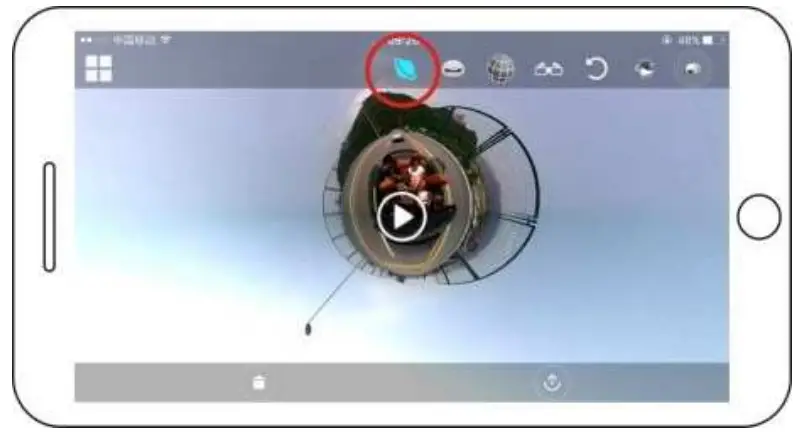
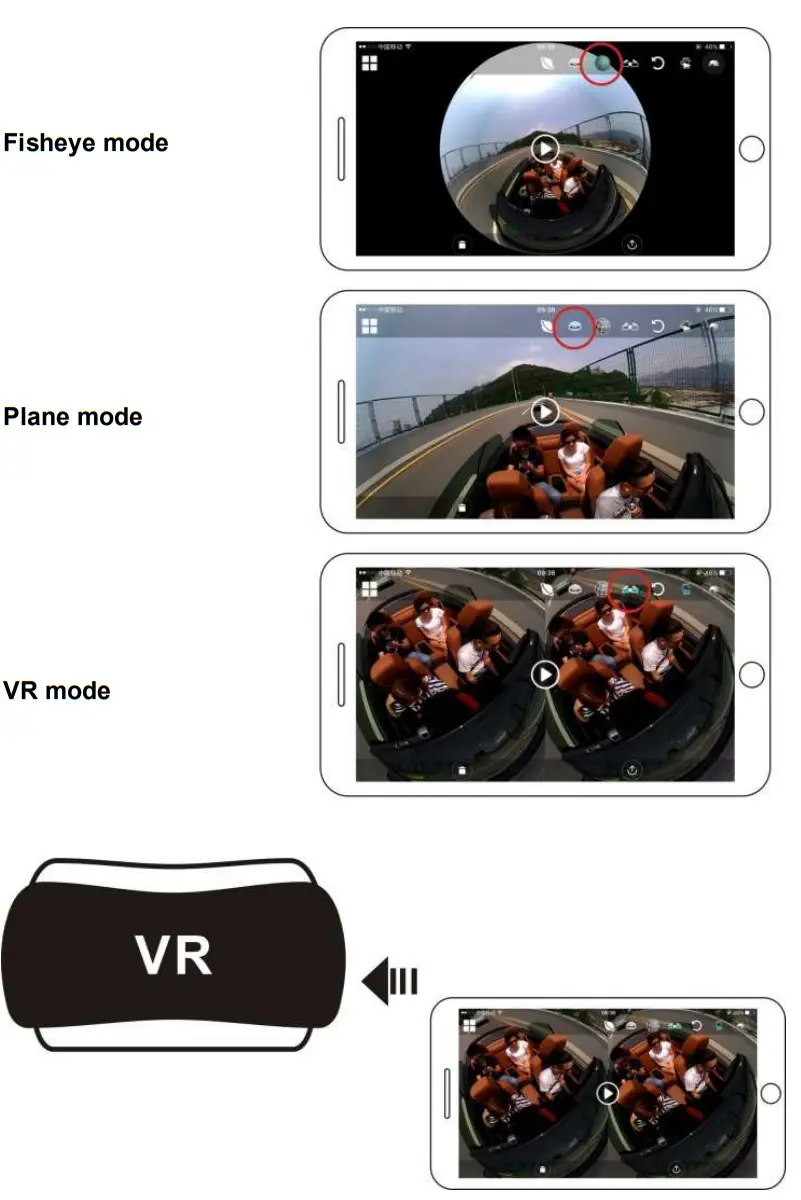 2. Use PC or notebook to view
You may use your PC to acquire a better playing experience, or edit/share videos. This can be achieved by following the steps below.
Download and install player: Open your PC browser and install the software in the CD ROM, or visit www.symax360.com to download and install the SYMAX360 Player. Reminder: If a dialog box like the below image appears during the installation process, please choose YES and continue the installation. Download video or pictures onto PC:
Use the USB data cable attached to this product to connect the camera to the PC. After connection, the camera display screen will display “MSDC”. Open “My computer” and select the “VIDEO” OR “JPG” folder under “Removable disks”. Select file to be downloaded and download it into your specified location on the PC.
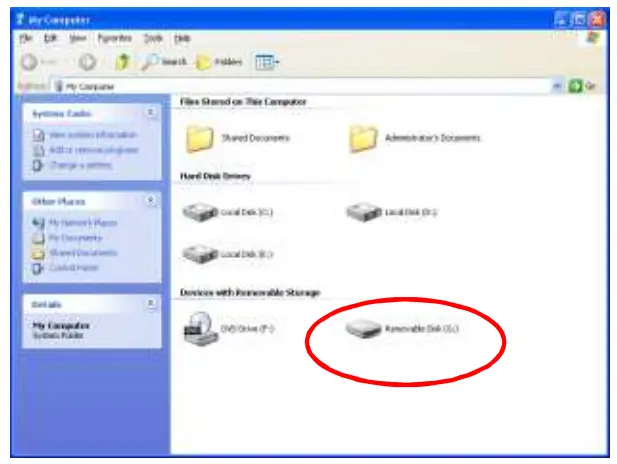 Run player: Open the downloaded video or picture in the player.
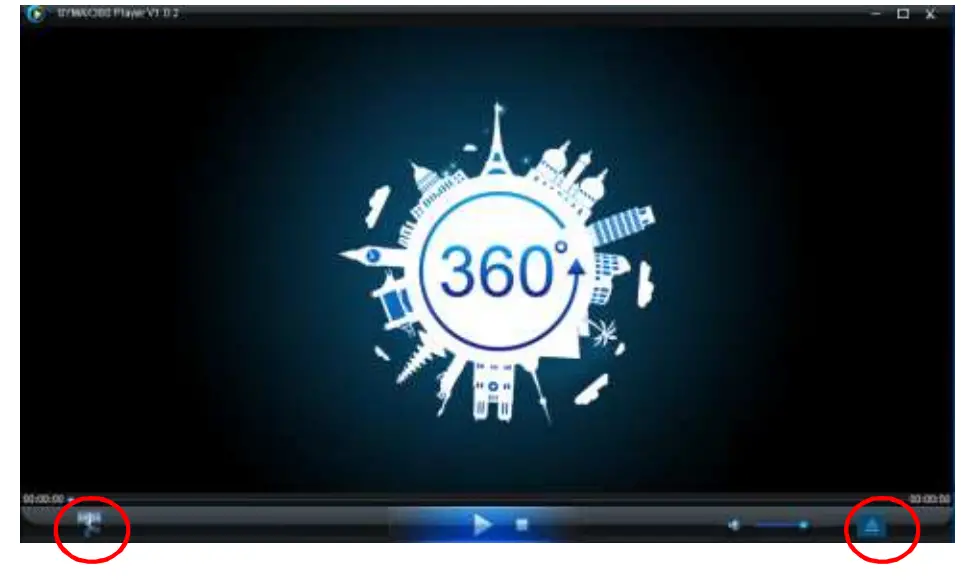 Playback video with player
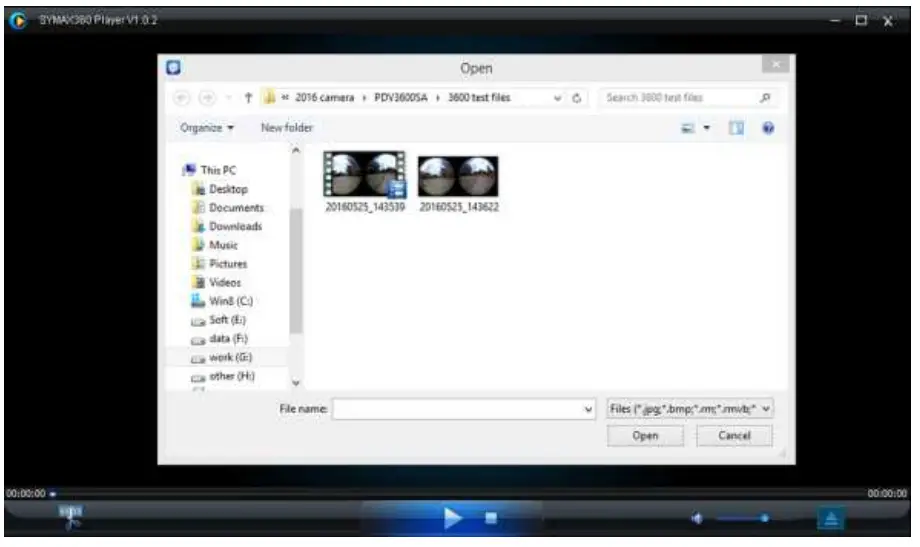
Click the icon  , choose the video which you want to play.
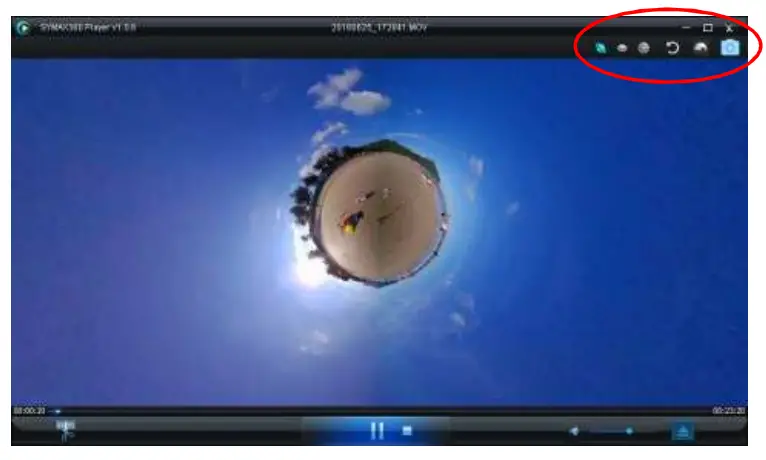
 While the video is playing, moving the mouse to the upper right corner will reveal some different mode options (Plane/Planet/Invert). Click the options for different effects. To enjoy the video in full 360 degree, please click and move the mouse.
 Edit and share video: The videos and photos taken by this device can be edited and shared, as shown in the picture above. They can be shared on YouTube, Facebook, Youku and other popular social websites.
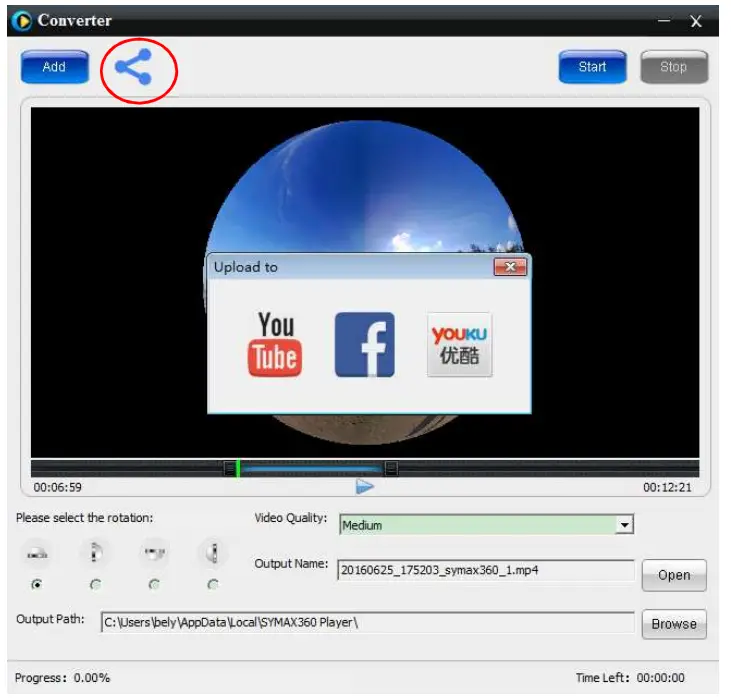 Important:
Videos uploaded to these websites by users are automatically compressed. This may lead to differences in the video between websites and local videos.
Technical parameters:
| Image sensor | 4.0M (CMOS) × 2 |
| Functional mode | Recording & shooting |
| Lens | F2.0 f = 1.1 mm |
| Video resolution | 1920*960 (30fps) |
| Picture resolution | 3008*1504 |
| File format | Video H.264 (MOV) Image JPG |
| Storage medium | TF card (supports 32GB max) |
| USB interface | High-speed USB 2.0 interface |
| Power supply | Built-in high voltage lithium battery 1500mAh |
| Size | 60.4*49.8*47.8 mm |
Instructions for use
- The product is equipped with a built-in battery. Do not put it directly into fire, or it may cause explosion or other dangers.
- The product may radiate heat due to long-time use or exposure to direct sunlight. This is normal.
- If the camera stops working or fails to respond to any operation during use, use a needle to press and hold the Reset button for about 3 seconds to restart the product.
- Do not use the camera in environments with temperatures lower than 0°C or higher than 40°C, or else it may not tu rn on normally.
- Do not use the camera in humid places, for humidity may damage important parts of the camera.
- Do not put the camera directly into water.
- Do not use the camera while charging, for it may cause the system to halt or other failures due to improper heat dissipation.
- Keep the lens away from hard objects to avoid damage.
Thank you again for purchasing this product. Have fun with it!
BRAUN PHOTO TECHNIK GmbH
Merkurstrasse 8
72184 Eutingen
Deutschland
 symax360.com