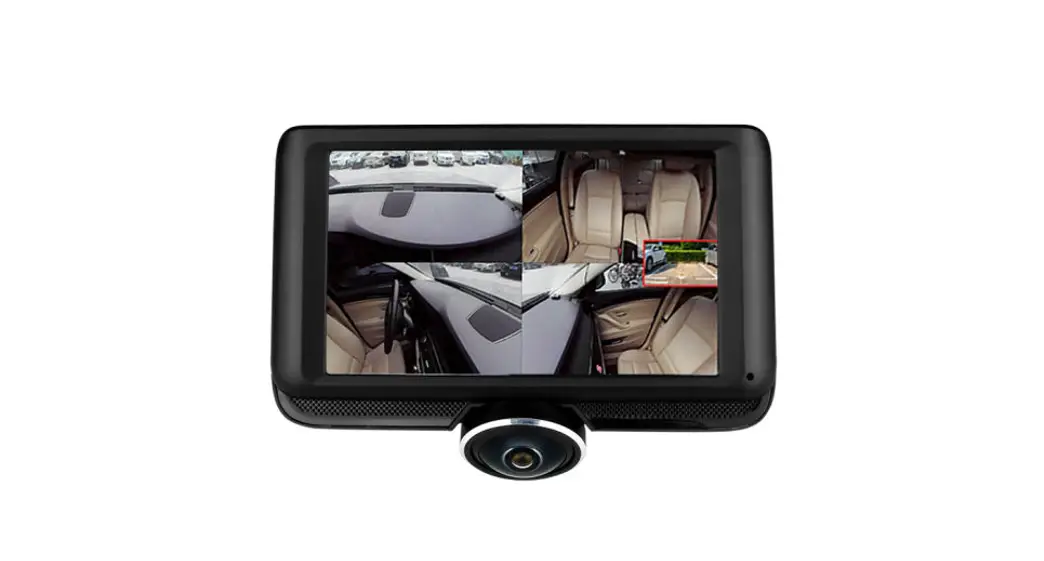
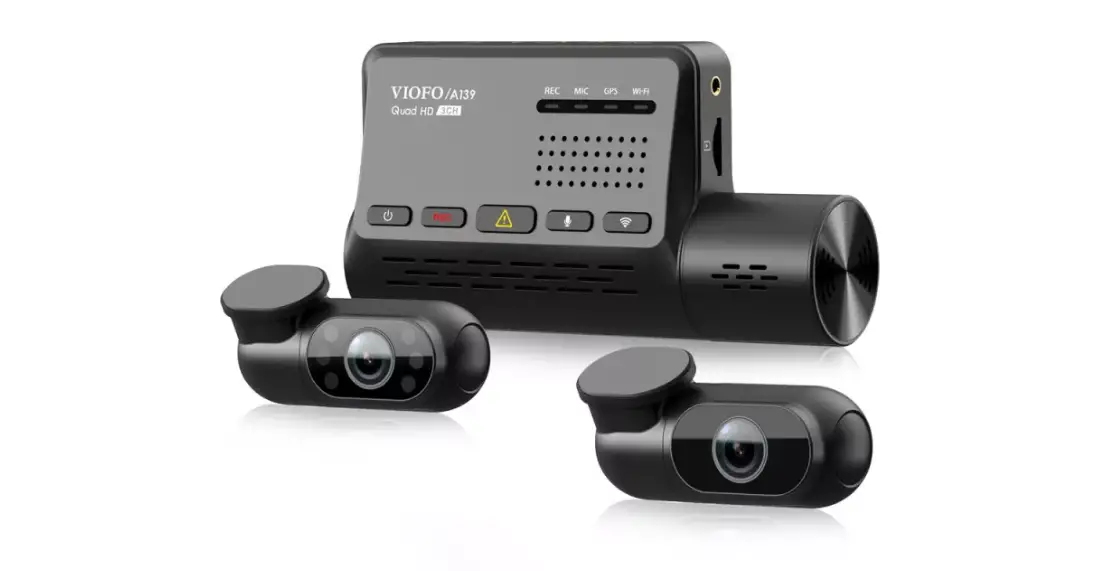
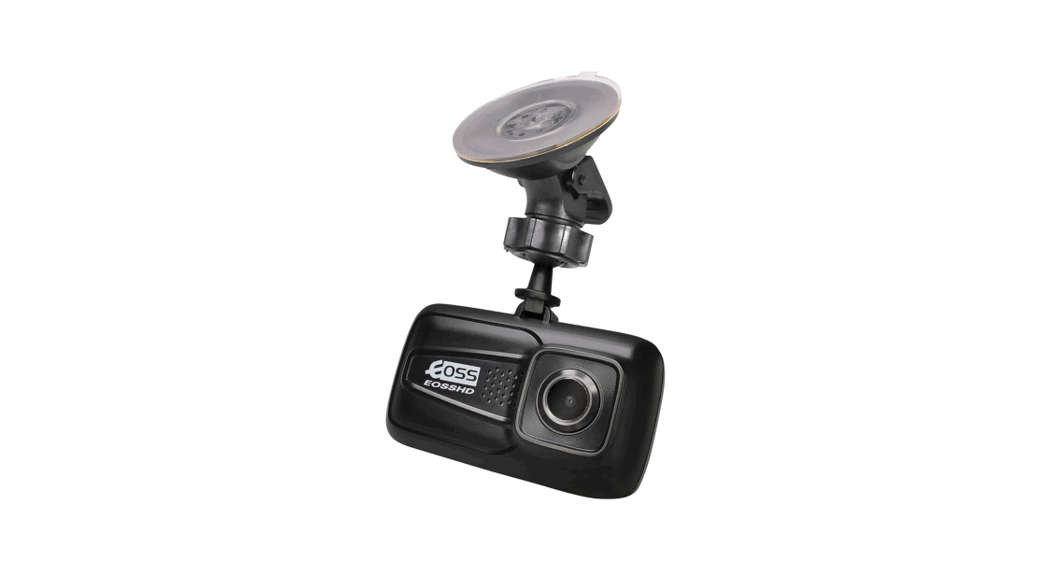
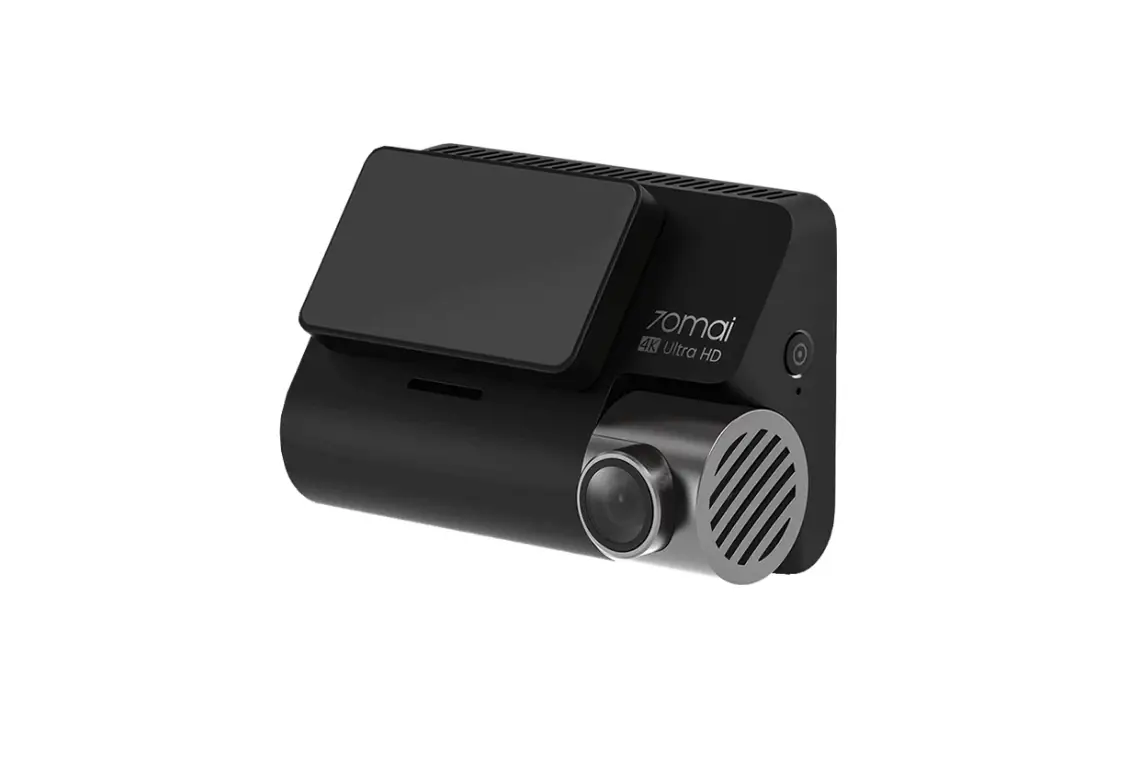
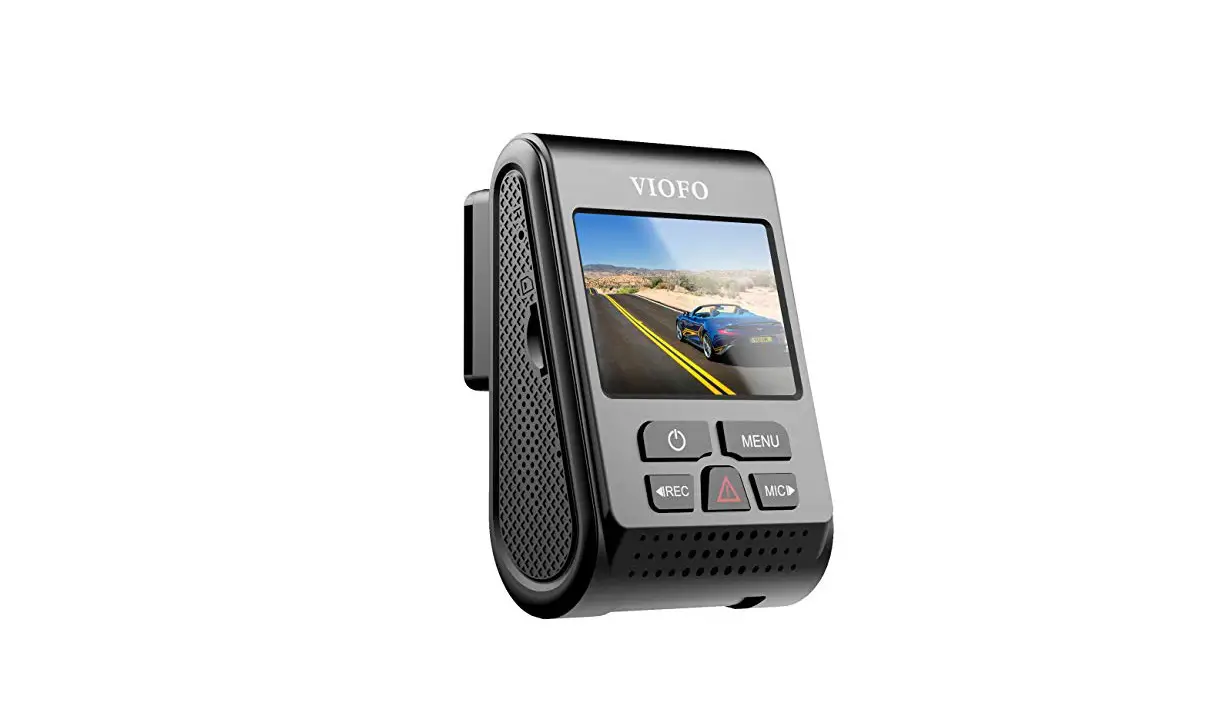
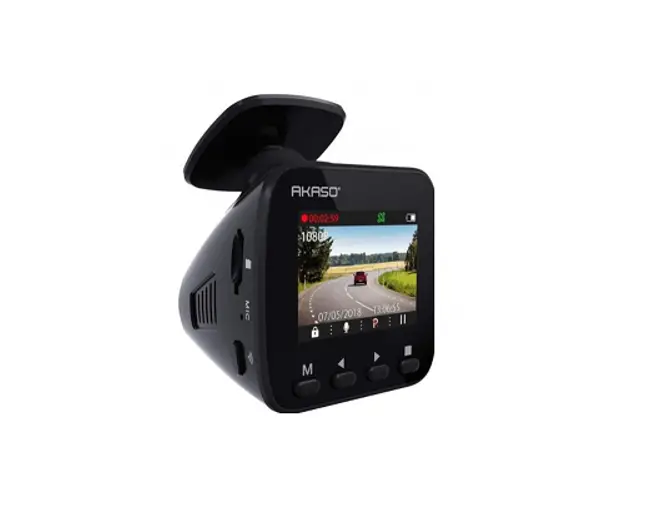
V80-4CH 360 Degree Dash Cam
Product Information:
The product is a dash camera with the model number 5VSO0O4DSFFO.
It is designed to be used inside a vehicle and is intended for
recording videos and capturing images while driving. The dash
camera features a high-speed U3 micro SD card slot with a
recommended capacity of 8GB-256GB. It is important to use a U3
high-speed card to avoid issues such as video stuttering, black
screen, and inability to record or play videos.
Product Usage Instructions:
- Please read the instruction manual carefully before using the
camera. It contains important safety information, as well as
operating and maintenance instructions. - Follow all safety precautions to prevent damage due to improper
use of the camera. - Ensure that the dash camera is not installed in a way that
obstructs or reduces the driver’s view. Comply with the relevant
vehicle codes of your state, province, territory, or country. - Avoid extended exposure of the dash cam to direct sunlight or
extreme temperatures, as this can degrade or damage the unit and
its functionality. - Regularly examine, check, and verify the dash cam, including
the memory card, at least every 6 months to ensure proper video
reception and recording. Verify that the unit, visible lights, and
audible sounds are working normally before each use. - Do not attempt to open the cover or repair the dash cam
yourself. Contact the seller for assistance if there are any
problems with the accessories or device. - When cleaning the lens surface, use a soft, moist cloth to
avoid compromising video quality. - Use the dash cam unit as intended. Do not use it in a way that
is illegal, physically damages the unit, or poses a danger to the
safe operation of the vehicle and its occupants. - The device should only be used inside the vehicle and should
not be exposed to rain, moisture, or water under any circumstances
to prevent external or internal damage. - Do not operate or install the camera while driving or attempt
to change settings. Failure to follow instructions may void the
warranty. - Before installation, check the accessories to ensure that the
product and accessories are correct and complete. - Format the micro SD card before use to ensure proper
functioning of the device. - During installation, avoid inserting the car key into the power
supply, and do not insert or remove any machine accessories like
the micro SD card or rear camera while the dash cam is powered on.
These actions should be performed when the power is turned
off. - When the car key is plugged into the vehicle, the dash cam will
automatically turn on. Check if the power on/off function and the
display of the camera are normal. - If you need to download the recording videos and images, turn
off the camera first before removing the micro SD card. - Ensure that you use a U3 high-speed card with recommended
capacity (8GB-256GB). Using a lower speed card may result in issues
such as video stuttering, black screen, and inability to record or
play videos. - If you encounter connectivity issues between the TsCam APP and
your mobile phone’s preview, try turning on the airplane mode of
your mobile phone.
a®}
®§§q¨
5VSO0O4DSFFO -PDLUIF7JEFP 5VSO04DSFFO 5BLF1IPUP 7JEFP4UBSU 7JEFP4UPQ 4IPX’SPOU$BNFSB 4IPX3FBS$BNFSB 4IPX#PUI$BNFSB 5VSO0O”VEJP 5VSO0″VEJP 5VSO0O8J’J 5VSO08J’J
THANK YOU FOR CHOOSING HUPEJOS® After-Sales Services:[email protected]
H U P E J O S ® a
N$
6
N$
6
S1=
X¿»§¨» ÅŨNÅq»Å
&¨¿Åq¢¢qÅ®¨q¨}q|¢¨ G»®Ê}Å=Ó»ÓÔ =¸»qÅ®¨q¨NÅŨ¿ ʨ}Å®¨¿¸¢qÚ®q¿}q§¿¸¢qÚ G¢qÚ|q} ®¸»qÅ®¨¿q¨¿ÅŨ¿ N¸}è}qÅ®¨¿ bq»»q¨ÅÚNʸ¸®»Å
X¿»§¨»
1.Please read this instruction manual carefully before using
the camera.lt contains important information for your safety
as well as operating andmaintenance instructions.
2.Follow all safety precautions in order to prevent damage
due to improperuse of the camera.
3.You should not install this dash camera at a place that
would obstruct orreduce a driver’s view.Make sure your
usage complies with pertinentvehicle codes of your state,
province, territory or country.
4.You should avoid extended exposure of the dash cam to direct sunlightor extreme temperatures (either high or low temperature) which tend todegrade or damage the unit and its normal functionality.
5.You should examine, check and verify the dash cam at least every 6months, including the memory card, to ensure the video reception andrecording are working properly. For each use, you should verify that thedash cam unit, the visible lights and the audible sounds are working normally.
6.Do not try to open the cover or try to repair it yourself. If the accessoriesfor this device have any problem, please contact the seller for assistance.
7.Pay careful attention when cleaning the lens surface.Use a soft, moist cloth to clean the lens to avoid compromising video quality.
8.You should use the dash cam unit in the way it is intended.You use the dash cam unit in a way that would be illegal or that tends to physically damage the unit, or tend to cause danger to the safe operation ofthe vehicle or the occupants.
9.This device is intended to be used inside the vehicle only.
‘ 10.Do not exposethis productto rain, moisture orwater
under anycircumstances or it will result in external or internal damage. 11.Do not operate or install the camera while driving, or attemptto changeany setting etc. 12.If any damage is caused by failure to followthe instructions, the warrantywill be voided.
ÅŨNÅq»Å
Before installation, please check the accessories carefully to ensure that theproduct and accessories are correct and complete.
In order to ensure that the device is running well, please format the micro SD card first before use.
During installation, be sure not to insert the car key into the power supply, and donot insert or remove any machine accessories like microSD card or rear camera when the dash cam is powered on. These actions should be completed when power is turned off.
When the car key is plugged into the vehicle, the dash cam will automatically turn on. Please check whether the function of power on/off, the cameras display is normal.
If you need to download the recording videos and images, please turn off the camera first before removing the microSD card.
You must use U3 high-speed card (recommended capacity 8GB-256GB),lower than U3 will cause problems like video stutter, black screen, and video cannot be recorded or cannot be played.
For some mobile phone models, if find that the TsCam APP cannot be connected to the preview, please turn on the airplane mode of the mobile phone and try.
&¨¿Åq¢¢qÅ®¨q¨ }q|¢¨
G»®Ê}Å=Ó»ÓÔ
Optimum installation position of front camere
Optimum installation position of rear camera
3FTFUQPSU 5’DBSETMPU #SBDLFU 3JHIUDBNFSBJOTJEFUIFDBS -FGUDBNFSBJOTJEFUIFDBS 8PSLJOHJOEJDBUPSMJHIU 6QCVUUPO %PXOCVUUPO
3FBSDBNFSBJOUFSGBDF 5ZQF$QPXFSQPSU *3MBNQ ‘SPOUDBNFSB %JTQMBZ .FOVCVUUPO 1PXFSCVUUPO 0,CVUUPO
=¸»qÅ®¨ NÅŨ¿
Button operation Menu button [Menu/Mode switching]
1.When the recording is stopped, short press to enter the menu 2.Long press to switch between recording mode and playback mode
Up button [Up/Lock key/Switch recording]
1.During the recording mode, short press to lock the video
2. In video recording mode, long press to switch recording function
3. In menu or playback mode, short press for upturn function
‘ Power Button[Switch machine/Switch screen] 1. Short press to power on; long press for 2 seconds to power off
2. Short press the switch screen in the power-on state
3. Short press in playback mode to return to video recording mode
Down button [Scroll down/Switch the lens screen/Take a photo]
1. In video recording mode, short press to switch front, rear, left and right camera images
2. In the video recording mode, long press to take pictures
3. Short press the menu or playback mode to turn down the function
OK button [Record/OK/Switch WiFi]
1. In video recording mode, short press to start or stop recording 2. In video recording mode, long press to turn on or off WiFi
3. Menu or playback mode, short press to confirm the effect
Reset button [short press the machine to reset and restart] Working indicator light Blue indicator light
1When recording, the blue light flashes
2Stop recording, the blue light is always on
&¨¿»Åŧ§®»Ú }q»
Push the TF memory card straight into the slot in the direction of the screen print until you hear a “click” sound. Remove the card: Push the TF memory card forward, and the card will be removed when it is ejected. Note: Removing the TF card in the video state may reduce the file and damage the life of the TF card, please turn off the dashcam first before inserting and removing the TF card
Function display of dash cam display Main Interface
In video recording mode, short press the menu button to enter the main interface
Dash Cam:Driving recorder mode
Playback:Playback video or picture mode
Voice ControlVoice control function setting
Dashboard: Dashboard driving mode
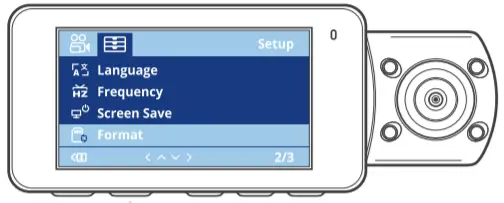
Settings:System settings
q¿
q§ 1
12
14 6 7
8
9
5
2
3
4 13 15
10
11
Number: Function description of the video recording interface
1
*UEJTBQQFBSTBVUPNBUJDBMMZXIFOZPVTUPQSFDPSEJOH
8IFOUIFSFBSDBNFSBJTOPUDPOOFDUFE
UIFSFTPMVUJPOPGUIF GSPOUDIBOOFMJT,XIFOUIFSFBSDBNFSBJTDPOOFDUFE
UIF
2 3FDPSEJOH SFTPMVUJPOPGUIFGSPOUDIBOOFMJT,
GVODUJPO ‘SPOU,9,9 -FGU93JHIU9 3FBS9
3 3FDPSEJOH
GVODUJPO
*OEJDBUFT UIBU UIF TPVOE SFDPSEJOH GVODUJPO JT FOBCMFE
*OEJDBUFT UIBU UIF TPVOE SFDPSEJOH GVODUJPO JT EJTBCMFE
4 (14
*OEJDBUFTUIBUUIF(14JTOPUMPDBUFE *OEJDBUFTUIBUUIF(14MPDBUJPOJTDPNQMFUF
5
*OEJDBUFT UIBU UIF SFDPSEFE WJEFP JT QSPUFDUFE CZ B
MPDL
6 8J’J
*OEJDBUFTUIBU8J’JJTOPUFOBCMFE *OEJDBUFTUIBU8*’*JTFOBCMFE *OEJDBUFTUIBU8J’JJTOPUFOBCMFE
7
*04BOE”OESPJE”11/BNF5T$BN5T$BN1MVT
8
44*%BOE8J’JQBTTXPSE
9
5IFDVSSFOUTZTUFNUJNF
10
“GUFS TVDDFTTGVM (14 QPTJUJPOJOH
UIF DVSSFOU WFIJDMF
TQFFEXJMMCFEJTQMBZFEJOSFBMUJNF
11
“GUFSTVDDFTTGVM(14QPTJUJPOJOH
JUXJMMEJTQMBZUIFDVSSFOU
WFIJDMFESJWJOHEJSFDUJPOJOSFBMUJNF
12
‘SPOU7JEFP
13
3FBSDBNFSB7JEFP
14
-FGU7JEFP
15
3JHIU7JEFP
Playback Playback operations and settings Button operation during playback
Playback file preview screen – icon status. Video/picture switching button: Long press the menu button to switch from video file preview to picture file preview
Menu: Press and hold the menu to enter the playback menu mode
Previous page: Short press the up button to view the previous video/picture.
Next page: Short press the down button to view the next video/picture.
Exit playback mode: Short press the power button or long press the menu button twice to return to video recording mode
Playback settings
Volume:0~ 100 [Default value: 50]
Video type: Normal/Parking mode/Emergency
Camera: A/B/C/D
Delete: Delete one or all of them
Protect: Protects selected files/deprotects selected files/Protects all files/deprotects all files
Voice Control
Press the OK button to turn on or off the voice control function
Indicates that voice control is off Indicates that voice control is on After pressing the OK button to turn on the voice control, the voice command instructions will pop up, press any button to return to the main interface, say the following voice control commands to the machine, and the machine will respond with corresponding functions. Voice commands only support English wake-up, other languages are invalid.
q¿|®q»
Settings:
§q®¿|®q»»Ó¨ Driving safety tips: when driving speed exceeds 50mph or
‘ 80km/h speed will become red font tips driving safety.
Wi-Fi: ON/OFF(default)Wi-Fifrequency:2.4G/5G(default) Note:lf your phone does not support 5G,switch to the 2.4G option. IR Led: On/Off / Auto (Default) Note: When the scene is dark, it automatically opens, and when the scene is bright,it closes.
Loop Record:1min/2min/3min(Default)
G-sensor: sensitivity setting, OFF/high/medium low (default)
Special attention to tips GPS positioning is not success-
Parking:When parking, if there is a collision when opening, the dashcam will automatically start recording for 60 seconds and then close it.High/medium/low sensitivity can beset
ful, the GPS icon flashing state, and the dashboard speed and direction is not functional. For example, if there is no
Language: English (Default) /Espanol/ Portugal/Pyccknn//Deutsch/ Italia/Frangais//Korean/Turkiye/Thai/Nederland
GPS signal in the underground garage or the machine is working outdoors for the first time, the dashboard speed and bearing will not be functional within 2 minutes. Dashboard speed and bearing functions are functional only after successful GPS positioning.
Screen Saver:Off (default) You can set 1 minute to automatically close the screen and 3 minutes to automatically close the screen
Clock Settings: Set the date and time (theregional time will be automatically updated during GPS positioning)
Format card: select whether to format the memory and(Format the memory card before using the dash cam)
Reset Select: whether to restore factory Settings
GPS Status: GPS satellite CN value real-time screen
Speed Adjust +5mph(Default)and you can choose from +12 to- 12 Note:When the speed displayed by the dash cam deviates from the actual. it can be adjusted.
Speed unit: off/km/h/mph(default value) Time zone selection:default- 5:00 Warm tip:can be set according to the local time zone used by the user
Daylight Saving:On/Off(Default)
N¸}è}qÅ®¨¿
7=¨q§
1.Resolution Video resolution
¿}»¸Å®¨
4-way:Front:4K 3840X2160/2K 2560X1440,Left/Right:1920X1080 Rear camera:1920X1080
2.Audio and video formats
3.File format Image
H.265 format
Image: JPEG Video: mp4
7=¨q§ 4.Seamless Video
5.Power failure file ecovery function
6.Year/month/day/ hour
¿}»¸Å®¨ Support Support
Support
7.SD Card
Supports up to 256G Note: The SD card must be formatted on the machine before it can be used for the first time.
8.Multi-language support
English /Español / Portuguêse / Russian/ / / Deutsch / Italiano/ Français // / T ürkiye /Nederlands
9.WIFI APP
Support
10.Lens
6G F/NO 1.8
11.DDR 12.Battery
DDR3 4G None
13.Display resolution 854*480
14.SENSOR
4 megapixels
7=¨q§
¿}»¸Å®¨
15.Lens angle
150 degrees
16.Speaker specifications 8R 1.5W
17.G-SENSOR
three-axis gravity sensor
18.IR infrared fill light
8pcs 940
19.Operating voltage
5V 2.5A
20.Static current
20uA
21.Operating temperature -30 degrees +60 degrees
bq»§S¸¿
1. The dash cam supports standard Micro SD cards.
2.Please use memory cards with the 32G(MINIMUM)-256G (MAXIMUM) of Class 10, U3(UHS-1) Speed or above. We recommend using Class 10, U3 of SAMSUNG or LEXAR High Endurance Micro SD cards.
3. When you insert a new card into the machine, please format the card on the Dash Cam before you use it. You can find the Format option on the menu of Dash Cam.
4. On the 1st and 15th of every month, after the machine is started up, there will be a prompt for formatting. This is just a prompt, and it doesn’t matter if the user does not format it. Please don’t worry about the machine formatting automatically.
5. Temperature protection: In the case of abnormal high temperature, it will automatically turn off WiFi and automatically turn off the device
6. Automatic resolution switching function: when the rear camera is not connected, the front resolution will automatically switch to 4K, and when the rear camera is connected, the front resolution will be 2K
7. WiFi is turned off by default every time you turn it on. When you need to use it, please press and hold the OK button to turn it on or enter the settings to turn on the WiFi function
8. The memory card may become damaged or deteriorated after repeated cycles of overwriting, and this may affect its ability to save video and image files.
Package Contents 1: HUPEJOS Dash Cam 2: Car Charger with Type C USB Cable 3: Suction Cup Mount 4: Car Wiring Tool 5: 3M Adhesive Mounts 6: GPS Module and 2.5m Cable 7: User Manual 8: 128GB SD Memory card
bq»§S¸¿Nʸ¸®»Å
Warranty The HUPEJOS Dash Cam comes with a full 12-month warranty. you can extend the warranty to 18 months.
Support If you have any questions regarding your product, please do not hesitate to contact us via Amazon or drop us an email at [email protected]. These are typically answered within 12-24 hours.
Your opinion matters HUPEJOS is firmly committed to always improving our products and services. and user experience. if you have any thoughts on how we can do even better, we welcome your constructive feedback and suggestions.
S$7/h=X=J
$==N&7
 Camera.lt