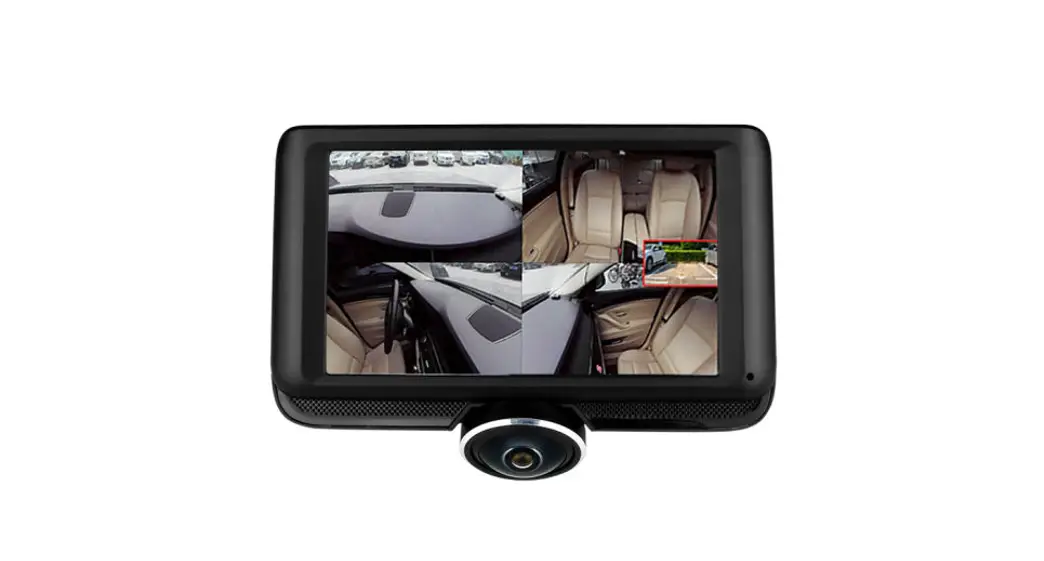
V80 360 Degree Dash Cam
Product Information:
The product model is 5VSO0O4DSFFO -PDLUIF7JEFP 5VSO04DSFFO
5BLF1IPUP 7JEFP4UBSU 7JEFP4UPQ 4IPX’SPOU$BNFSB 4IPX3FBS$BNFSB
4IPX#PUI$BNFSB 5VSO0OVEJP 5VSO0VEJP 5VSO0O8J’J 5VSO08J’J. It is
equipped with a 24-hour parking monitoring function that requires
the purchase of a hard wire kit for usage. The product can be
connected to a mobile phone through WiFi for real-time video
previews, camera settings changes, file downloads, and video
playback. However, GPS track playback and video sharing functions
require internet or telecom value-added services. The WiFi function
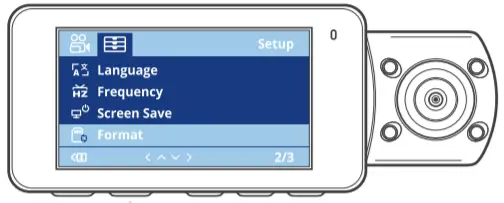
can be turned on or off. The product has a display screen that
shows the WiFi ID and ID password when the WiFi is turned on. The
product supports video preview, playback, download, and snapshot
features through the TsCam app.
Product Usage Instructions:
- Download the TsCam app by scanning the QR code provided or
searching for it in the relevant app store (App Store, GooglePlay
Store, or Amazon App Store). - Ensure that the WiFi function on the product is turned on.
- In the phone’s WiFi settings list, select the WiFi name
(SSIDHUPEJOS-V8-***) of the product and enter the password
(PWD1234567) to connect. - Open the TsCam app and click the Connect button to establish a
connection with the product. - Once the WiFi connection is successful, the app will
automatically connect to the camera and display the current
real-time recording situation. - In the app’s real-time preview, you can perform the following
operations:- Video Preview: Enter the real-time preview page and click the
full-screen icon or place the phone horizontally to switch to
full-screen preview mode. You can also switch between front, rear,
and cabin video windows (only available for multi-channel dash
cams). - Video Playback: View and play back video and photo files
recorded on the SD card by clicking on the file. - Video Download: Select the desired video or picture in the SD
card browsing interface or video playback area. After downloading,
you can play the video in the local file section of the app
interface. - Video Snapshot: Capture the current screen in the real-time
preview interface of the app.
- Video Preview: Enter the real-time preview page and click the
- To view the track of a downloaded video, open the app, go to
Native Album, select Looping Video, and click Play video. Note that
for Android systems, the WiFi connection between the phone and the
product must be closed to access the playing tracks on the app.
This is not required for iOS systems.
a®}
®§§q¨
5VSO0O4DSFFO -PDLUIF7JEFP 5VSO04DSFFO 5BLF1IPUP 7JEFP4UBSU 7JEFP4UPQ 4IPX’SPOU$BNFSB 4IPX3FBS$BNFSB 4IPX#PUI$BNFSB 5VSO0O”VEJP 5VSO0″VEJP 5VSO0O8J’J 5VSO08J’J
THANK YOU FOR CHOOSING HUPEJOS® After-Sales Services:[email protected]
H U P E J O S ® a
N$
6
N$
6
S1=
®Ê»Gq» ¨6®¨Å®»¨ 6®|¢¸®¨}®¨¨}Å®¨GG ®Ô¨¢®qGG b
®¨¨}Å®¨ GG
®¨¨}Å®¨ ¸¸=¸»qÅ®¨ GG GNÓ®¸¢qÚ|q} G
GNÓ®¸¢qÚ|q} ¨¿Åq¢¢ gG¢qÚ»¸¢qÚ» X¿ gG¢qÚ» N}q»»}®»è¢¿q»¿}»|
®Ê»Gq» ¨6®¨Å®»¨
The 24-hour parking monitoring function can only be used after pur-
chasing a hard wire kit. After purchasing a hard wire kit, connect the
harness according to the following figure
Make sure the engine is off when connecting the harness, and then
disconnect the negative terminal to prevent short circuit
GND wire is connected to the ground terminal of the car
+BATT connected to the car standing 12V
ACC wiring to the car ignition switch
&¨¿Åq¢¢qÅ®¨®q» Ô» Å
6®|¢¸®¨ }®¨¨}Å®¨GG
1.Download APP APP Name: TsCam Please scan the QR code for the relevant version below to download the app and install it. Search for the “Tscam” app in App Store Search for “TscamPlus” in GooglePlay Store to find the app and then download and install it on your phone. Search for the “Tscam” app in Amazon App Store
Note: After this camera is successfully connected to your mobile phone through Wifi, it can perform real-time video previews, change camera settings, download files without an
internet connection, and play back videos on the mobile phone. However, the GPS track playback and video sharing functions will depend on the internet or telecom value-added services (requires you to turn off/disconnect the camera WiFi).
b
®¨¨}Å®¨
When WIFI is turned on, the display screen will display ID and ID password
Not enabled
Enabled
Connected
1Please make sure the WiFi function on the machine is on
2Open the phone WiFi settings list, select the WiFi name (SSIDHUPEJOS-V8-***) on the machine, and enter the password (PWD1234567) to connect
3Open “TsCam”APP, click the “Connect” button and connect to use.
GG
®¨¨}Å®¨
After the WiFi connection is successful, click “connect” when opening the app, and then the app will automatically connect to the camera and display the current real-time recording the situation of the camera.
¸¸=¸»qÅ®¨
After entering the App’s real-time preview, you can perform the following operations: Video preview: After the app is successfully connected to the camera, enter the real-time preview page, click the full-screen icon or place the phone horizontally, and the real-time screen will automatically switch to the full-screen preview mode. Click the window switch icon to switch the front rear and cabin video windows, but
only multi-channel dash cams can use this feature.
Video playback: The video and photo files recorded on the SD card can be viewed in the app, and the video can be played back after clicking the file.
Video download: You can select the video or picture you want to download in the SD card browsing interface or in the video playback area. After downloading the video, if you play it in the local file of the app interface.
Video snapshot: You can capture the current screen in the real-time preview interface of the app.
GG GNÓ®¸¢qÚ|q}
Open the APP and download the video to the local album. Select Native Album and Looping Video. Click Play video to view the track of the video. Note: Android system must close the Wi-Fi connection between the phone and the local machine to see the playing tracks on the APP, otherwise, the phone can’t access the Internet. iOS system doesn’t need to.
G
GNÓ®¸¢qÚ|q} GNʨ}Å®¨
Video interface indicates: that the GPS is not positioned, Flashing status means the GPS positioning is successfulNo flashing. The system time will be synchronized after successful positioning (according to the time zone time set in the menu) In the “GPS status” of the general settings, you can view the real-time GPS CN value
&¨¿Åq¢¢ gG¢qÚ»¸¢qÚ»
1MAC system computer: Search “GXPlayer” on the application market of Apple computer to install it. 2Windows system computer: the installation method is as follows. Windows systems, you can automatically generate the GXPlayer installation file from the memory card used in V8 Dash Cam, find GXplayer in the file, and click download, and install GXplayer player to use.
Installing a GPS Player: Open after the installation is complete:
X¿ gG¢qÚ»
Import the video file after GPS positioningFigure1, number 1 Show track of travelFigure1, number 2 Show the position in the process of drivingFigure1, number 3 The real-time speedFigure1, number 4 General SettingsFigure1, number 5. The Figure 2 menu Settings feature will appear
N}q»»}®»è¢¿q» ¿}»|
SD Card name: Storage file Event: Store video files that are locked in an emergency or manually
Normal: Store of conventional driving video files Photo: Store snapshots Parking: Store video files recorded by parking surveillance cameras Share: For the reserved function, no files are stored Secondary folder A/B/C/D A: Store video/pictures of front shots B: Store video/pictures of left shots C: Store video/pictures of right shots D:Store the video/picture of the rear shot