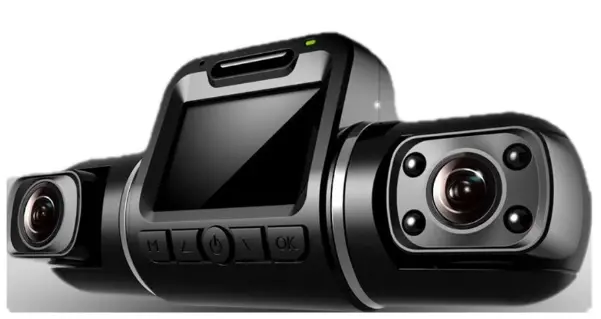
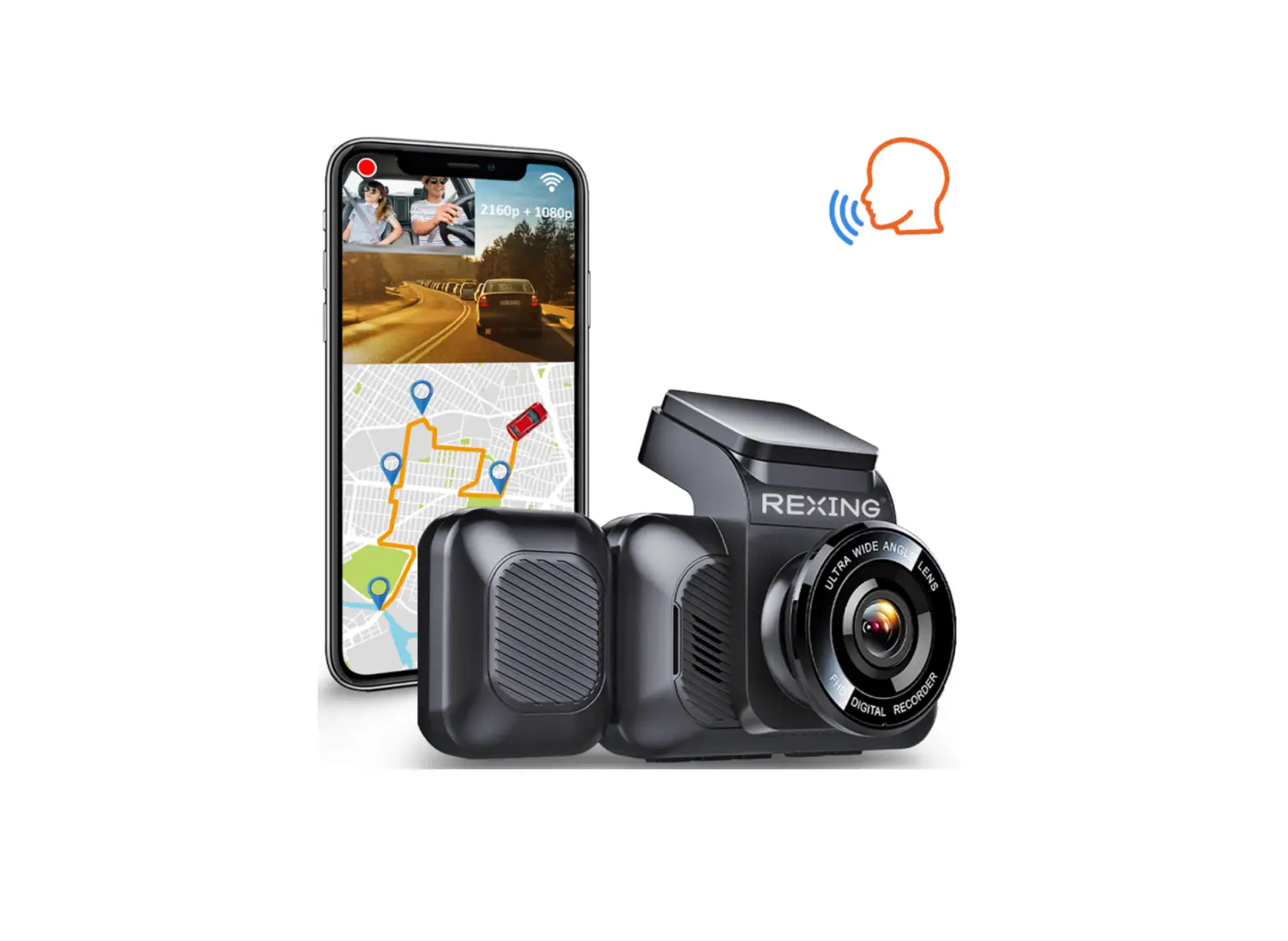
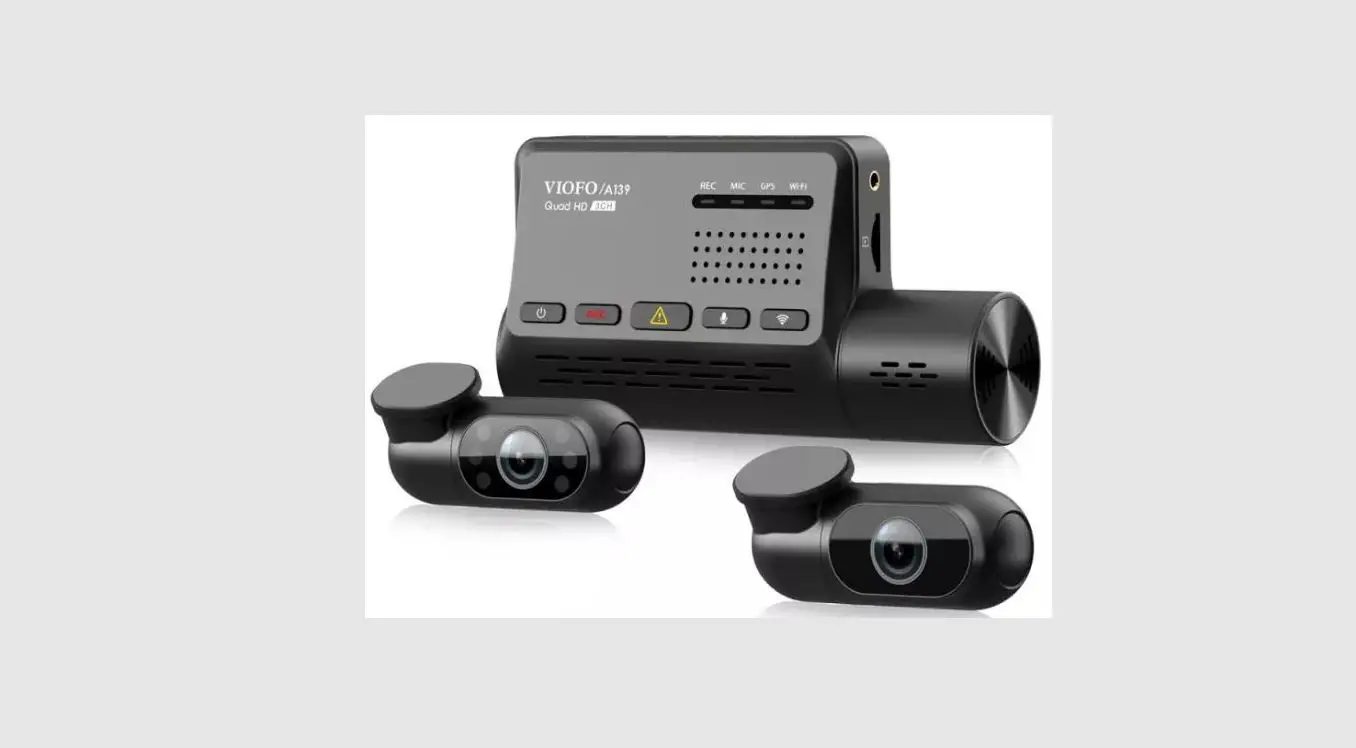
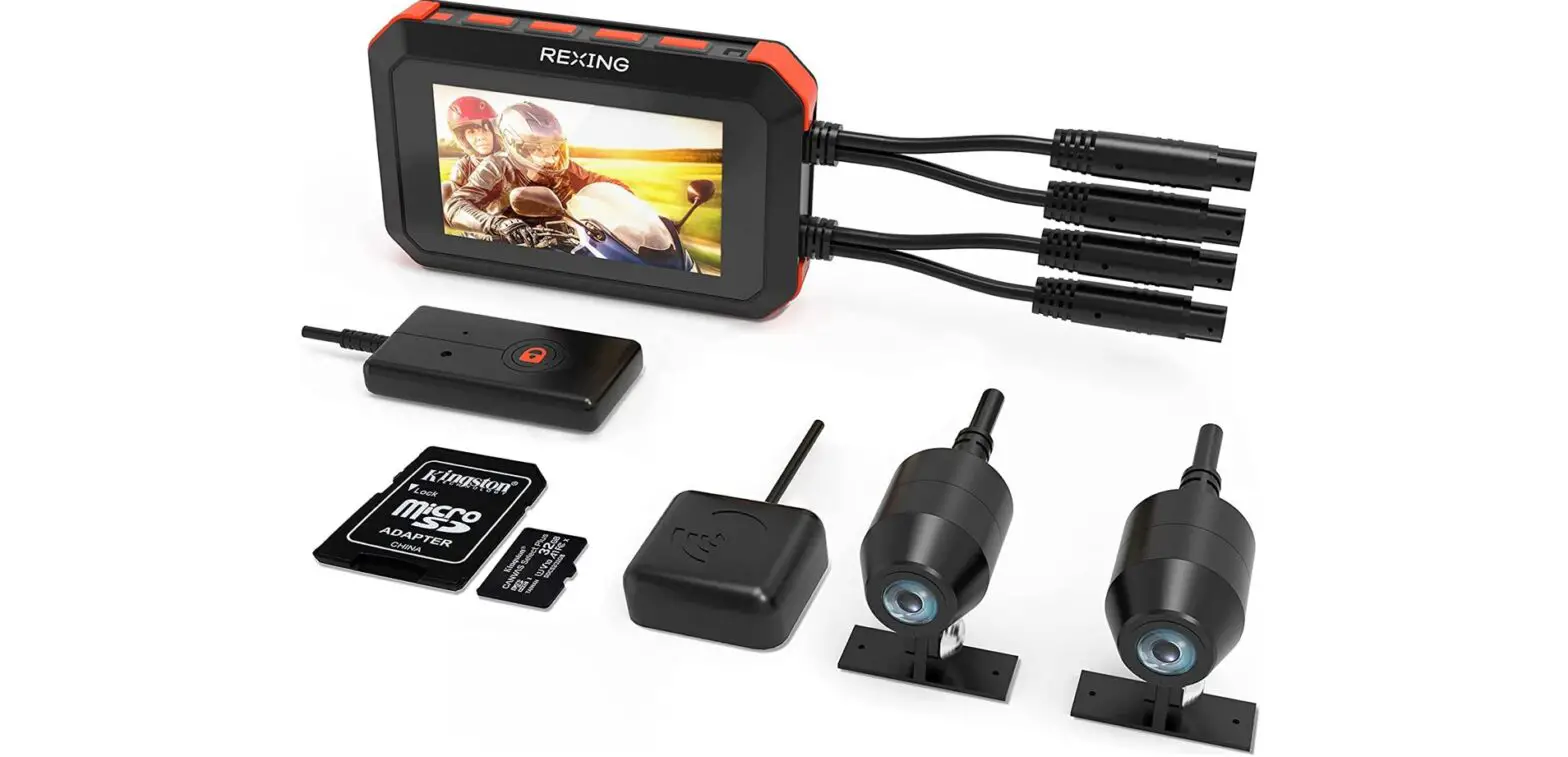
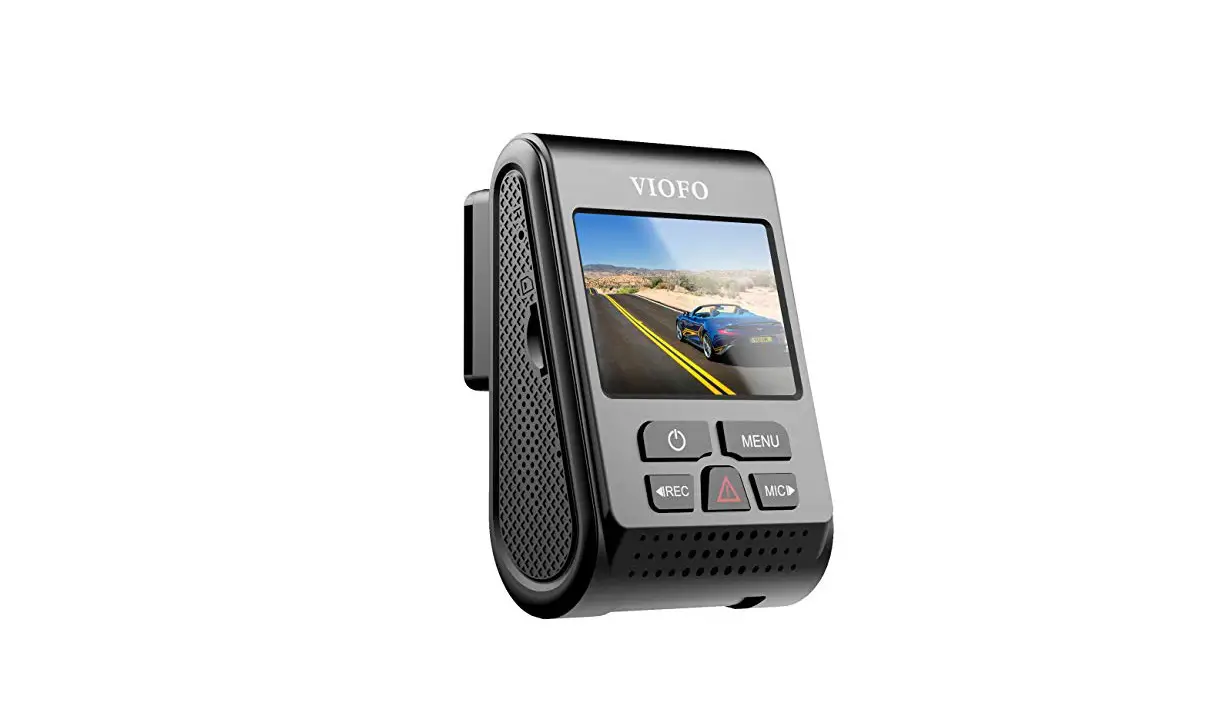
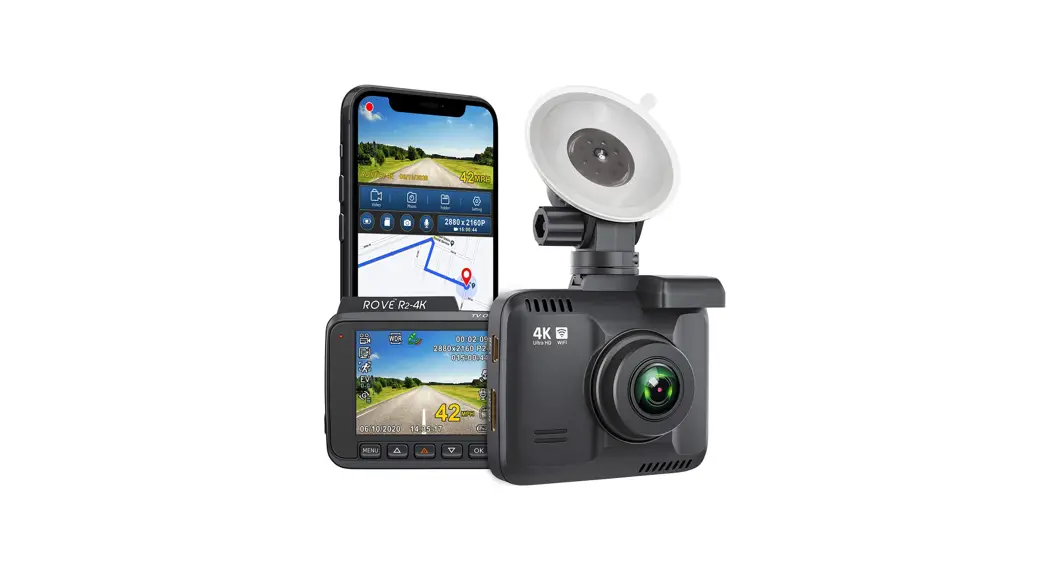
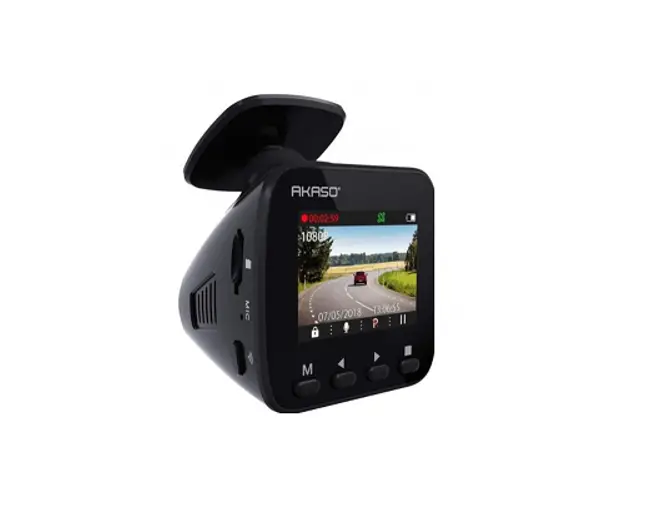
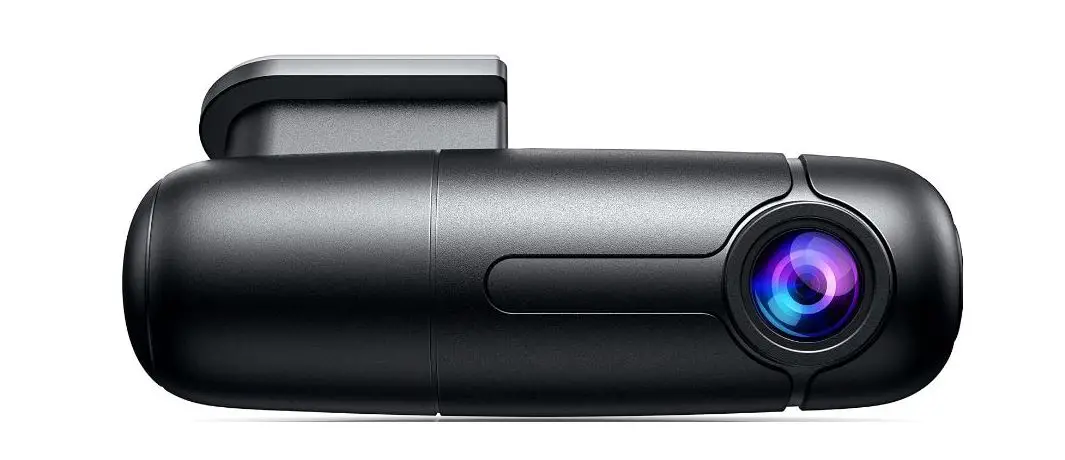
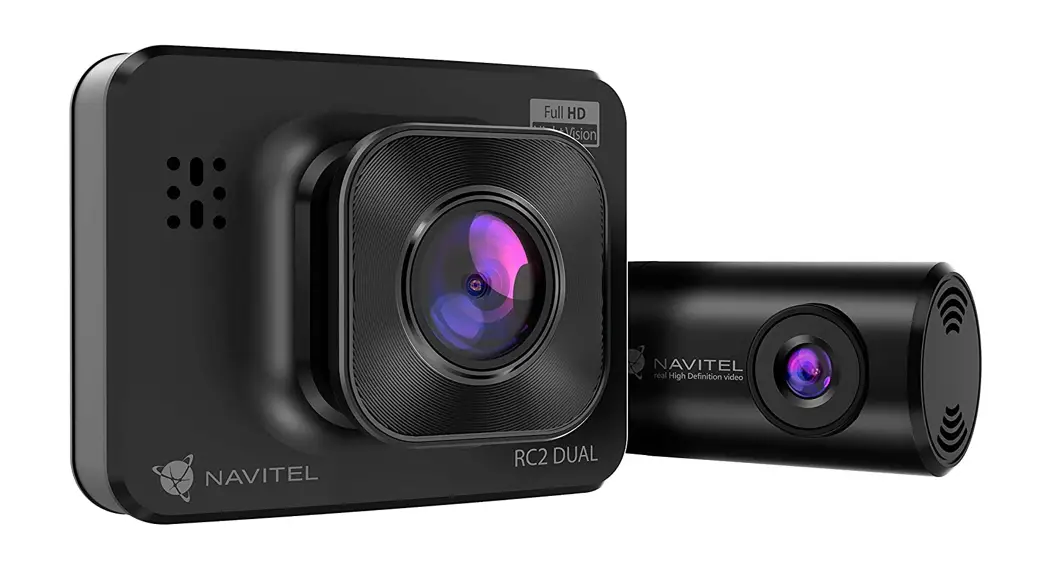
A2 Dash Cam
Product Information:
The Dash Cam is a compact and versatile device designed to
capture high-quality video footage while driving. It features a
front camera, with an optional inside camera, and supports GPS
tracking. The device has a 4.0 inch IPS HD screen for easy viewing
and comes with a built-in 64M DDR and 8M SPI nor flash. It has a
maximum resolution of 1080P and supports a Class 10 TF card with a
maximum capacity of 32GB.
In addition to video recording, the Dash Cam also has various
features such as WDR HDR, motion detection, G-sensor, loop
recording, sound recording, and parking monitoring. It is equipped
with a monophonic speaker and a standard omnidirectional microphone
for audio recording. The device is powered by a 320mAh polymer
lithium battery and can be charged using the included 5V/2A power
adapter via the Mini USB port.
Product Usage Instructions:
Installation:
1. Front Camera Installation:
- Turn off the car engine before installing the camera.
- Place the driving recorder on the glass near the rear-view
mirror. - Connect the power cord to the camera and plug it at the
intersection of the ceiling and the glass. - Guide the power cord along the seam of the A-pillar and down to
the bottom of the storage box. - Run the power cord along the door seam towards the cigarette
lighter and insert the cigarette lighter plug into the cigarette
lighter hole.
Note: Ensure proper cable management to prevent interference
with driving or any loose cables.
2. Rear Camera Installation:
- Install the rear camera above the license plate frame either by
a professional or yourself. - Connect the camera to the reversing light power supply. The red
power wire on the rear camera should be connected to the reversing
light power supply.
Note: Professional installation is recommended for the rear
camera to ensure proper functionality and wiring.
Press the [M] button to enter the video menu settings. The
following options can be adjusted:
- Resolution: Choose between 1296P, 1080P, or
720P. Recommended setting is 1080P. - Loop Recording: Set the recording duration for
each video segment (Off, 1, 2, 3, or 5 minutes). - High Dynamic Range: Enable or disable improved
image quality and better visual effect. - Exposure Compensation: Adjust the exposure
level from +2.0 to -2.0. - Motion Detection: Enable or disable automatic
recording when motion is detected in standby mode. - Record Audio: Turn on or off audio
recording. - Date Stamp: Add or remove date stamp on
recorded videos. - G-sensor: Adjust the sensitivity level of the
G-sensor (Off, High, Medium, or Low). The G-sensor locks the
current video in case of a collision or accident. - Park Mode: Enable or disable parking
monitoring for unattended surveillance. - Date/Time Adjustment: Adjust the date and time
settings. - Auto Power Off: Set the duration for automatic
power off when the device is idle (Off, 1, or 3 minutes).
Follow the user manual for detailed instructions on accessing
and navigating the video menu settings.
Dash Cam USE MANUAL
Product Specification
DDR
Built-in 64M
FLASH Display screen
8M SPI nor flash 4.0 inch IPS HD screen
LCD resolution External port
1080P MINI USB 5V/2A power adapter port Max support 32G Classl0 TF cardInclude
2.5mm digital 720P rear view lens port
Speaker
Monophonic 15*10mm speaker
MIC
4015 Standard Omnidirectional Microphone
Features
Front camera
6-glass/F2.0aperture/170°wide angle
Inside camera (optional)
VGA 120°
GPS tracker AV OUT
Rear camera Photo
Lens rotates
NO NO 6M cable/2.5mm port Support Adjust manually
WDR HDR
Support Support
Reversing visual Video format Image format
Compression format
Support AVI JPG
H.264
Battery
320mAh polymer lithium battery
Language
Support multi-language
G-sensor
Support
Motion detection
Support
Delay shutdown
Support
Loop recording
Support, Do not leak seconds
Sound record
Support
Fill light for night
Support(Open manually)
Parking monitoring
Support
Front camera
1080P (30f/s)
In-car camera resolution
1080P
Camera resolution
Max support 3M
Working Environment
Operating temperature Operating humidity
-40°C~70°C 15-65%RH
Storage temperature
-40°C~70°C
Installation
1. How to install the front camera? ( Please install camera after turning off the car engine. 1.1. Install the driving recorder on the glass near the rear-view mirror 1.2. Connect the power cord to the machine and plug the cord at the intersection of the ceiling and the glass
1.3. Go down the power cord along the seam of the A-pillar 1.4. Run the power cord along the door seam to the bottom of the storage box 1.5. Run the power cord along the bottom of the storage box towards the cigarette lighter and insert the cigarette lighter plug into the cigarette lighter hole.
engine.
Here are some suggestions for installing the dashcam. 1.1. It should be installed near the rear-view mirror of the car, but not obstructing the driver’s view. 1.2. Make sure that the lens is within the range of the windshield wipers, so that the video can monitor road conditions clearly when it rains. 1.3. Please not touch the lens with your fingers, to prevent fingerprints from affecting the clarity of the video.
1.4. If you need to remove the suction cup holder from the windshield, be careful as it may damage the adhesive and cause the dashcam to fall off. 2. How to install the rear camera? (Note: please ensure that the view of the rear camera is normal before installing your rear camera. The length of the rear camera cable is 18ft, supporting car and SUV for five seats. ) There are two installation methods, 2.1. The rear camera is installed above the inner of the rear windshield. ( It can be installed by yourself, the reversing visual function cannot be achieved, and it can only record rear videos)
2.2. The rear camera is installed above the license plate frame by a professional or yourself. And connect the camera to the reversing light power supply, which can achieve the reversing visual function. (The red power wire on the rear camera can be connected to the reversing light
power supply.)
Product Details
Q and A
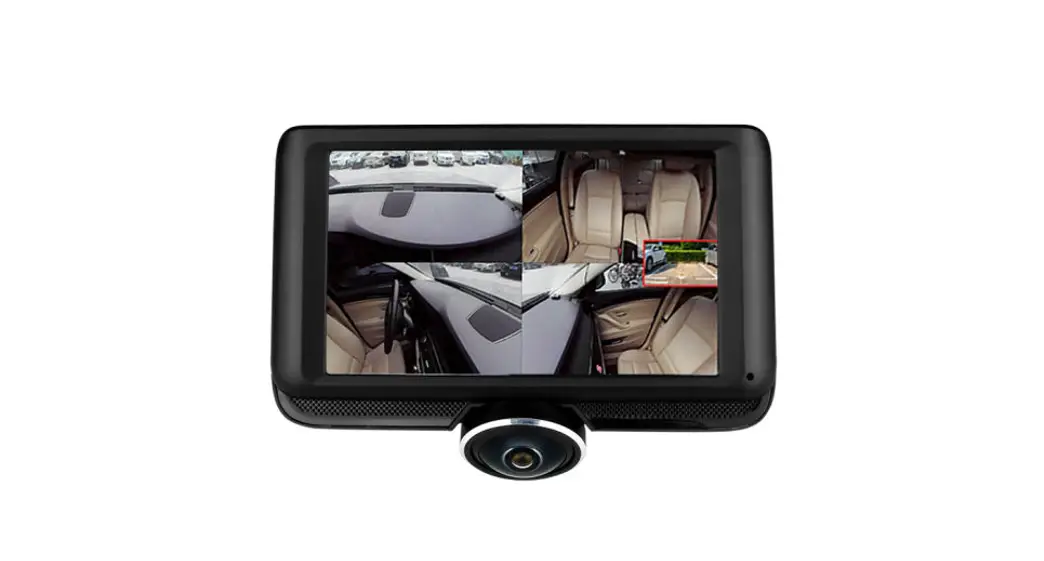
1. How to change front inside rear dash camera views? In video and photo modes, short-pressing [], the dash cam can only display 1 or 2 cameras on the screen, Front, Front+Cabin, Front+Rear, Cabin, and Rear are the choices. 2. How to turn on/off the Sound record? In video and photo modes, short-pressing [] to turn on/off the sound record. 3. How to lock the video and stop video recording? In video mode, short-pressing [M] to quick lock video, the lock file will not be overwritten. Short-pressing [OK] to stop video recording. 4. How to change video, photo and playback modes? [M] Button, video, photo playback mode change (long press)/ Menu (short press) 5. To change mode, long press [M] to enter Video mode, then short
press [M] to enter video menu settings as follows:
Video Menu
1
Resolution 1296P/1080P/720P
Recommend 1080P
2 Loop recording
Off/1 /2 /3 / 5 minutes
3 High dynamic range
On/ Off
Improved image quality. Better visual effect
4
Exposure
compensation
5 Motion detection
6 Record audio 7 Date stamp
+2.0 to -2.0
On/ Off On/ Off On/ Off
In standby mode, it will automatically record while an objective moves
Turn on/off sound record
8
G-sensor
Off / High (2G) / Medium(4G) / Low
(8G) sensitivity
When a car occurs collision/accident, it will lock the current video and can’t be
covered. Recommend to set the sensitivity to 4/8G
9
Park mode
On/ Off
Parking monitor, unattended surveillance
Adjustment Years
10 Date/Time
/Months /Date/Hours
/Minutes /Seconds
11 Auto power off Off/ 1 / 3 minutes
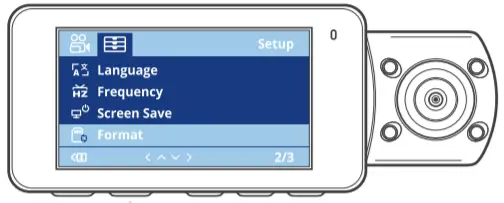
12 Screen saver
Off/ 3 / 5 / 10 minutes
13 Buttons sound
On/ Off
14
Language
Support
15 Frequency
50HZ/60HZ
Choose the Light source frequency
16
Format
OK/ Cancel
Format TF card
18 Default settings
OK/ Cancel
19
Version
Machine software
5.1. To change mode, long press [M] to enter Photo mode, then short
press [M] to enter Photo menu settings as follows:
Photo Menu
1
Resolution
5M/ 8M/ 10M/ 12M/ 3M/ 2MHD/ 1.3M
2
Sequence
3 Continuous
On/ Off On/ Off
4
Quality
5
Sharpness
6 White balance
Fine/ Normal/ Economy Strong/ Normal/ Soft
Auto/ Daylight/ Cloudy/ Tungsten / Fluorescent
7
ISO
Auto/100/200
8
Exposure
+2.0 +5/3 +4/3 +1.0 +2/3 +1/3 +0.0 -1/3 -2/3 -1.0 -4/3 -5/3
Compensation
-2.0
9 Anti- shacking 10 Quick review 11 Date stamp
On/ Off Off/ 2 seconds/ 5 seconds
Off/ Date/ Date/Time
5.2. To change mode, long press [M] to enter Playback mode, then
short press [M] to enter Playback menu settings as follows:
Playback Menu
1
Delete
Delete current/ Delete all
2
Protect
Lock current/ Unlock current/ Lock all/ Unlock all
6. How to prevent the SD card from frequently getting full and needing to be formatted? 6.1. When driving normally, please turn off parking monitoring and motion detection. They can occupy storage space and may cause automatic shutdown or freezing of the device. Please turn them on when parking, and configure a voltage reduction line or mobile power supply to retain the electricity. 6.2. Set the G-sensor to 4/8G with low sensitivity. Otherwise, under 2G high sensitivity, There will lock the video just a brake. 6.3. Remember not to press the [M] to lock the video recording during normal video recording. 6.4. Turn on loop recording to automatically overwrite old videos. 6.5. Regularly format the videos to get more storage space. 7. How to download the video and image file to computer? Please remove the SD Card and use an adapter to USB to copy the videos
to your computer. 8. How can I install the hardwire kit? After you install the hardwire kit, you needn’t to plug the lighter car charger power cable. Please insert the hardwire kit interface into the power interface of dash cam. And the other end of the hardwire kit is connected to the car battery. 9. What is the use of the red line on the rear camera? The red power wire on the rear camera can be connected to the reversing light power supply for the reversing visual function. 10. How to use the button to set the function, such as Date/Time setting? In video or photo mode, short press the [ M] twice to enter the setup menu. Press [] to choose the date/time, short press the [ OK] to enter date/time menu. Press [] and [] to adjust time details. Finally, press the [M] to exit. [Please note] Please set the correct time firstly, in order to effectively record the time of traffic accident for evidence. 11. What type of vehicles is the dash cam suitable for?
The length of the rear camera cable is 18ft, supporting car and SUV for five seats.
12. What other functions do the buttons have? [ ] Power button, short press to turn on/off screen, long press to switch on/off the device. [] and [], short press to select function at the Menu interface. [OK] Confirm button, short press to confirm in the menu interface, and short press to turn on/off video record in the video mode. [Please note] If a rear camera is installed and Front+Cabin mode is selected, when the “R” gear is engaged, it will automatically display the complete image of the car’s reversing vision. It will not affect the front car video recording, and will automatically switch back to the front car image after canceling the “R” gear. (The red power wire on the rear camera needs to connect the reversing light power supply.)
Features Introduction
1. Use the automatic recording function Start the car engine, the recorder automatically starts to open the recording function. Close the car engine. The recorder automatically saves the contents of the log and shuts down, recorded video segments are stored on the TF
card. When the TF card is full, the recorder will overwrite the oldest recorded image preferentially. (Overwrite must turn on the Loop Recording.) [Please note] Overwrite must turn on the Loop Recording, loop recording can be set to 1/2/3/5 minutes in the menu. 2. Use motion detection In standby mode, enter the menu screen and open the motion detection mode. When the lens is sensitive to the peripheral area of a moving object, the state machine into the camera, recording 30 seconds after the system stops recording. [Please note] When driving normally, please turn off parking monitoring and motion detection. They can occupy storage space and may cause automatic shutdown or freezing of the device. Please turn them on when parking, and configure a voltage reduction line or mobile power supply to retain the electricity. 3. G-sensor With the built-in gravity sensor (G-sensor), if serious vehicle collision, the recorder will lock the first 5 seconds and 10 seconds after the image date when the accident occurred while the bottom left of the display screen displays a lock icon. Locked images will be saved as a special file, the file
will not be overwritten cycle. [Please note] Gravity sensor (G-Sensor) adjustment support needs to set sensitivity at the setup menu, recommend to set the sensitivity to 4/8G.
4. Key lock the video The lock file will not be overwritten. In the video mode, short press [M] to lock the entire video image.
5. File playback
In the playback mode, press the [ OK] to playback. To exit playback mode, press the [M] button again.
6. Reversing visual function
First, you must connect the DVR with the car charger, the rear-view camera connect the reversing lights. Insert the car charger, the machine will automatically start recording the status. Screen switch R position in the recording mode automatically switches to the rear-view camera, displaying the reverse image. After reversing the visual machine automatically return to video mode. [Please note] Please test if rear camera is normal before installation. The red power wire on the rear camera can be connected to the reversing light power supply.
7. Parking monitor(To achieve unattended surveillance video)
To achieve this function, the dash cam must remain electricity (requires connection of hardwire kit, sold separately), and open the motion detection and parking monitoring function in the menu. When the dash cam detects a collision while parked, it will automatically turn on and then record a lock video for 30 seconds, and automatically shut down. [Please note] This function is only used when park stopping. Please turn off the motion detection and stop the monitoring function during normal driving.
FAQ
The machine appears “file Format TF card. The general problem is TF
error’ message
card
The screen appears with horizontal stripes interference
Please select the correct power supply frequency 50HZ(PAL)
How to properly turn on the 24-hour parking monitoring
function
While normal driving, please do not open. It easily leads to automatic shutdown or crash. Please open park mode when parking. This
function requires connecting hardwire kit
Night shooting screen is not clear enough
Recorder shooting depends on the outside strong light source (such as streetlights or car
light)
The machine always reverts You can use car charger or mobile power
to the default date and time
supply to add power
Why during recording, the Please turn off the parking monitoring
machine automatically shut function. Ambient temperature exceeds 70°C
down suddenly
will cause automatic shutdown
[Warm note]Most of the problems from the SD card
The information provided in this manual is for reference only. Please prevail in kind (some special features depend on different models). All rights reserved.