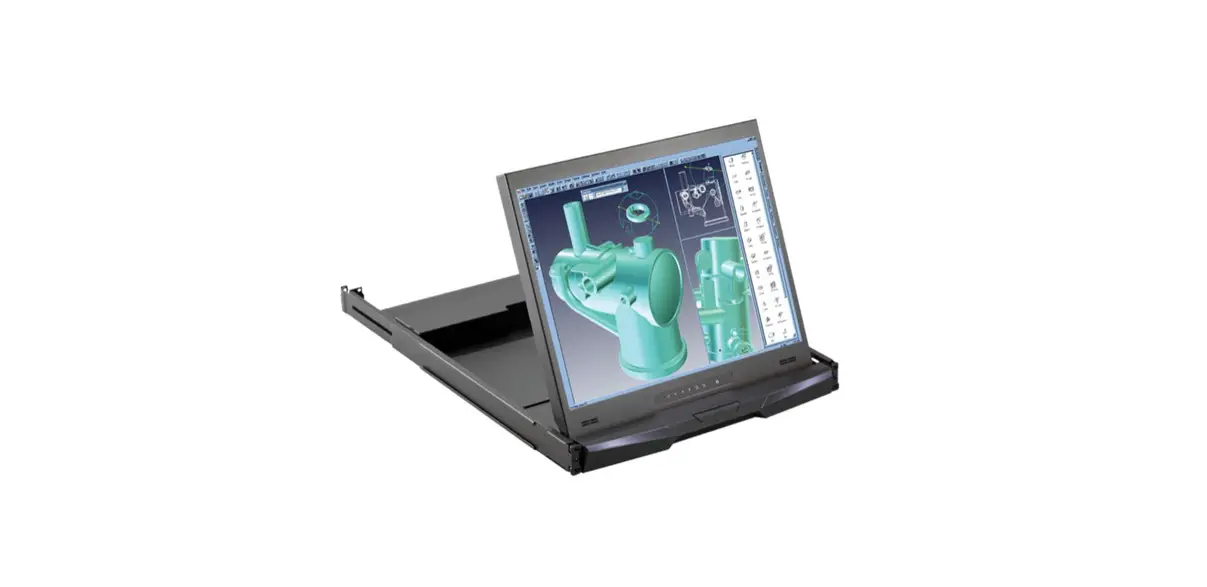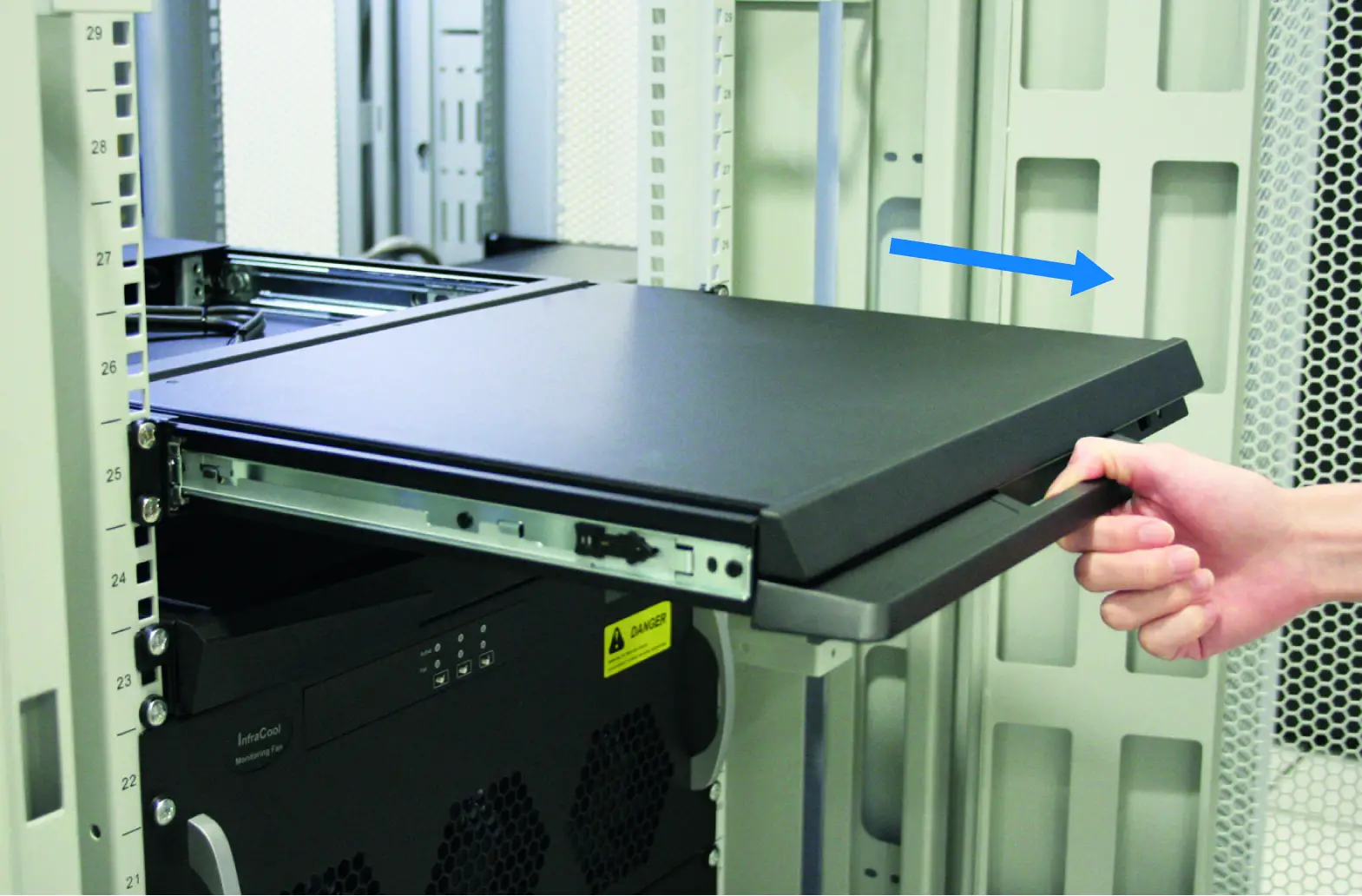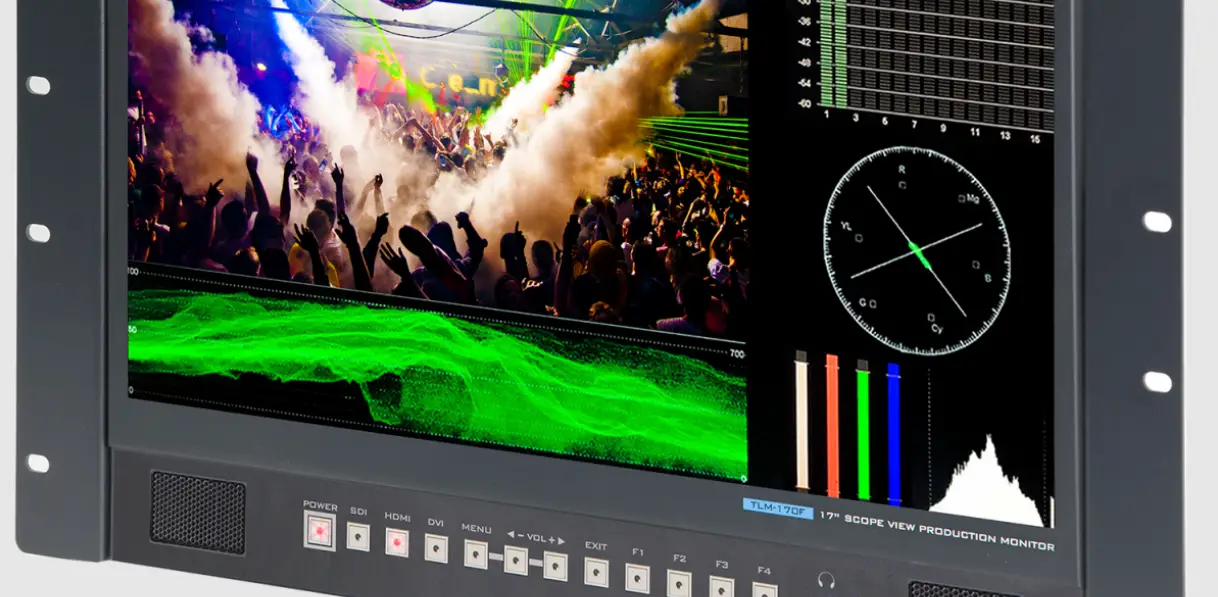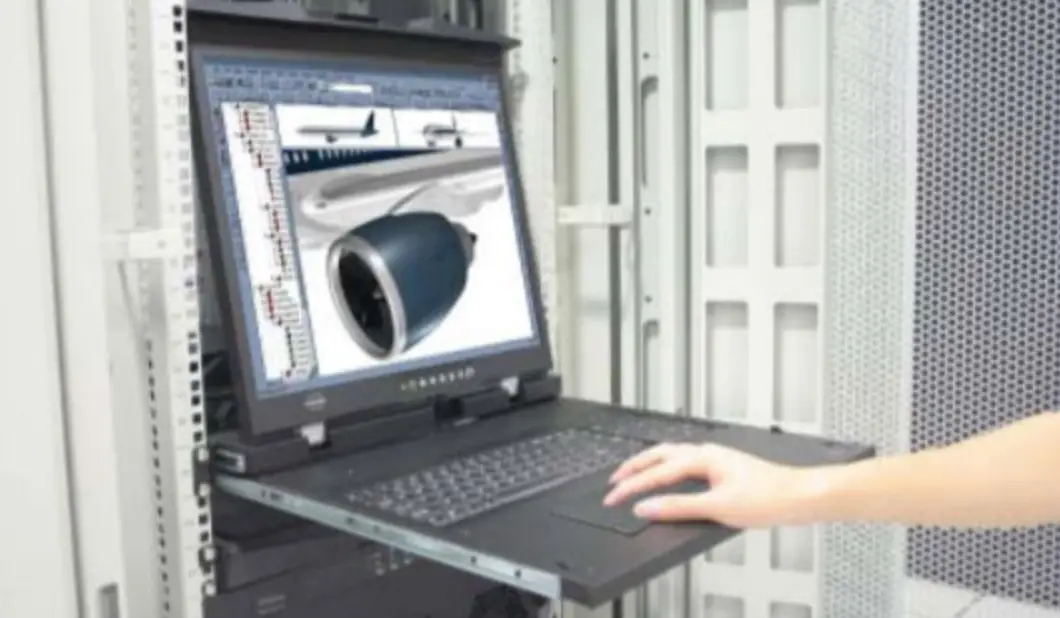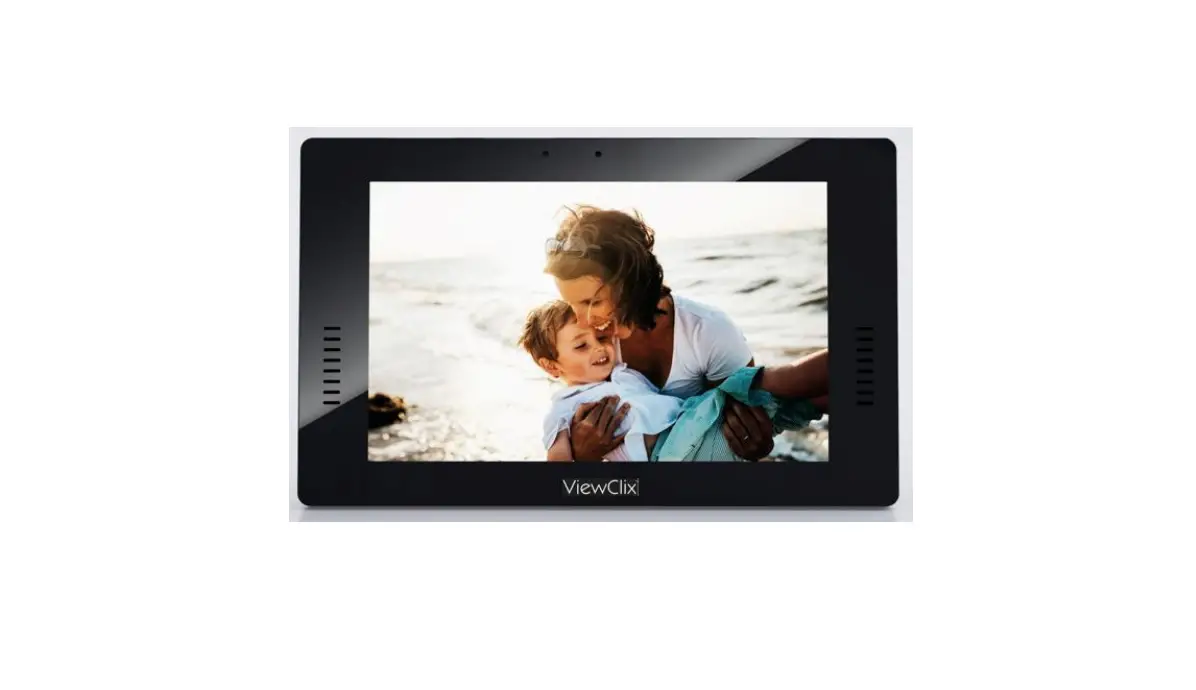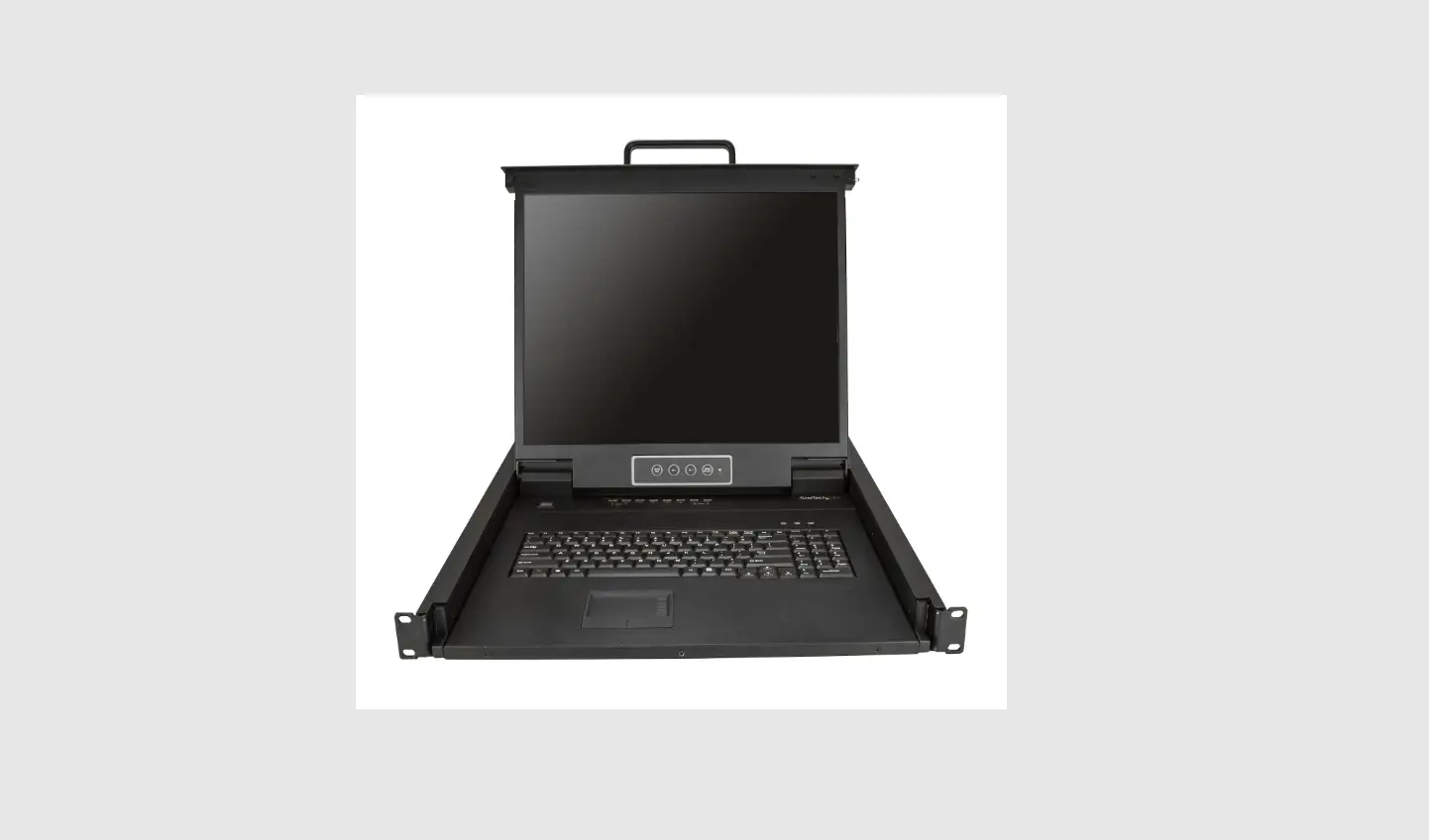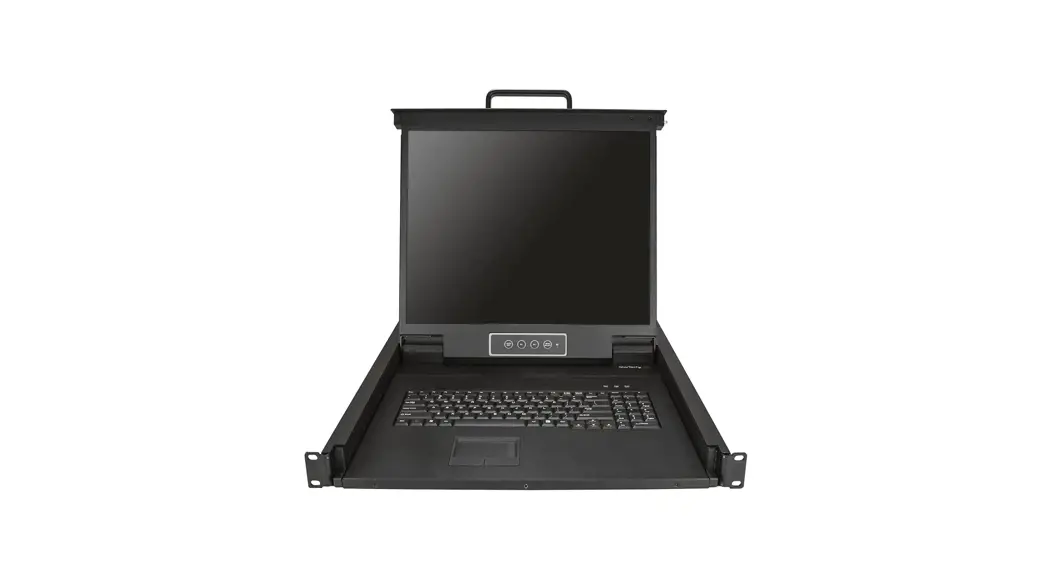

dedicated KVM switch and rackmount screen technology
User Manual
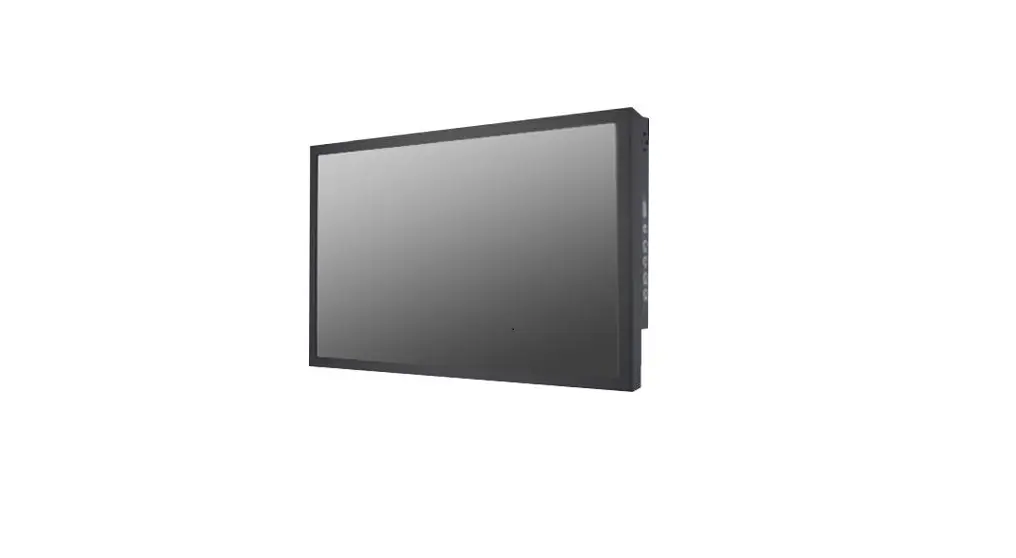
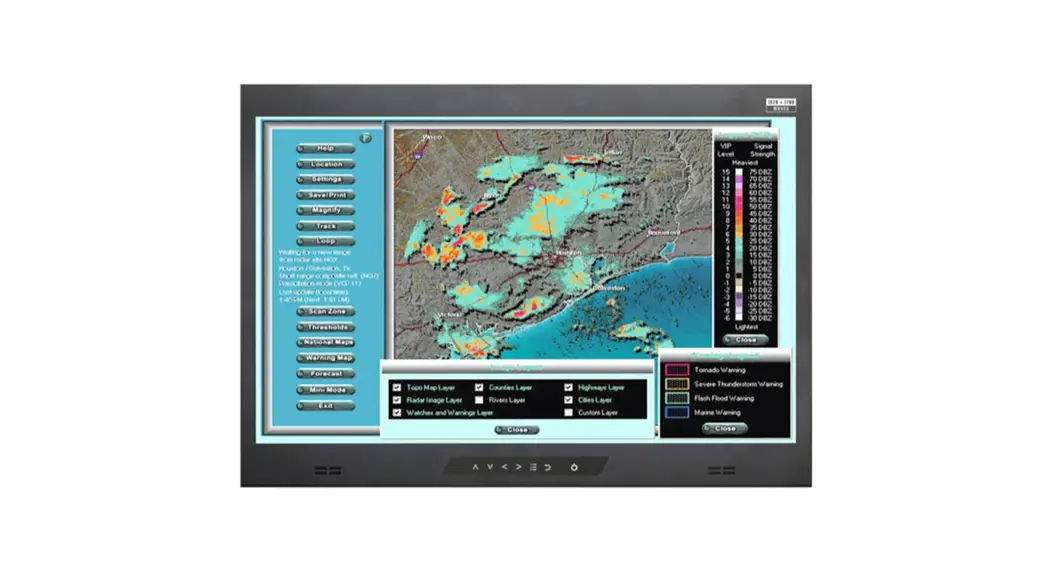
24” WUXGA 1920 x 1200 LCD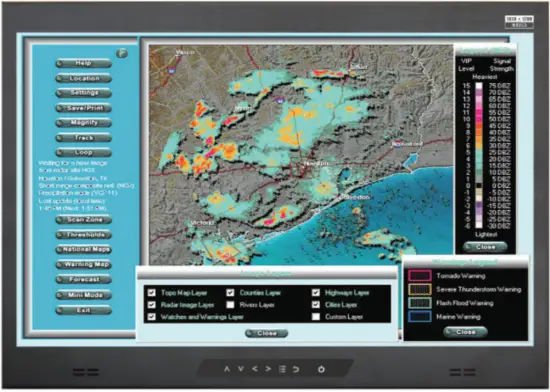
RP-X924
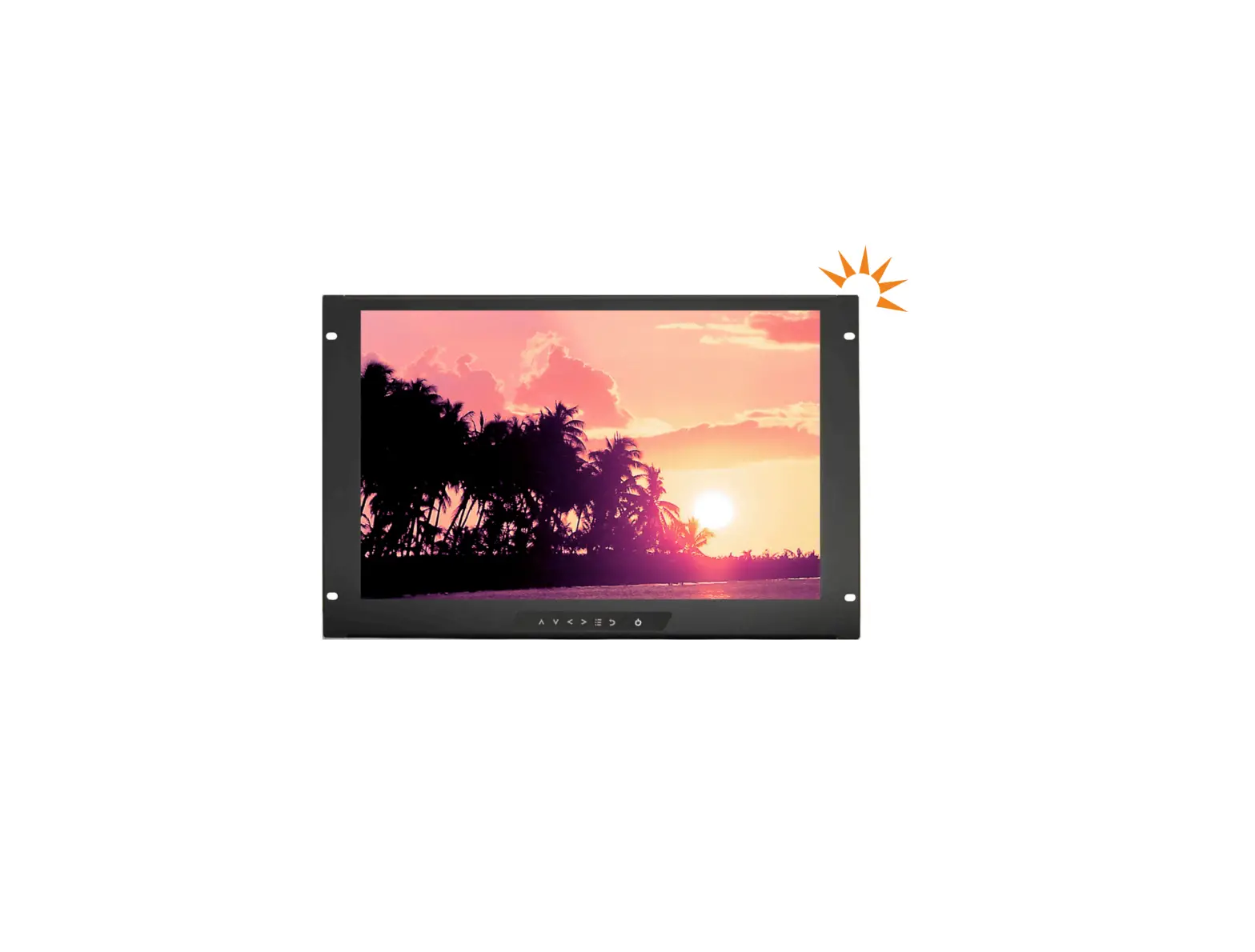
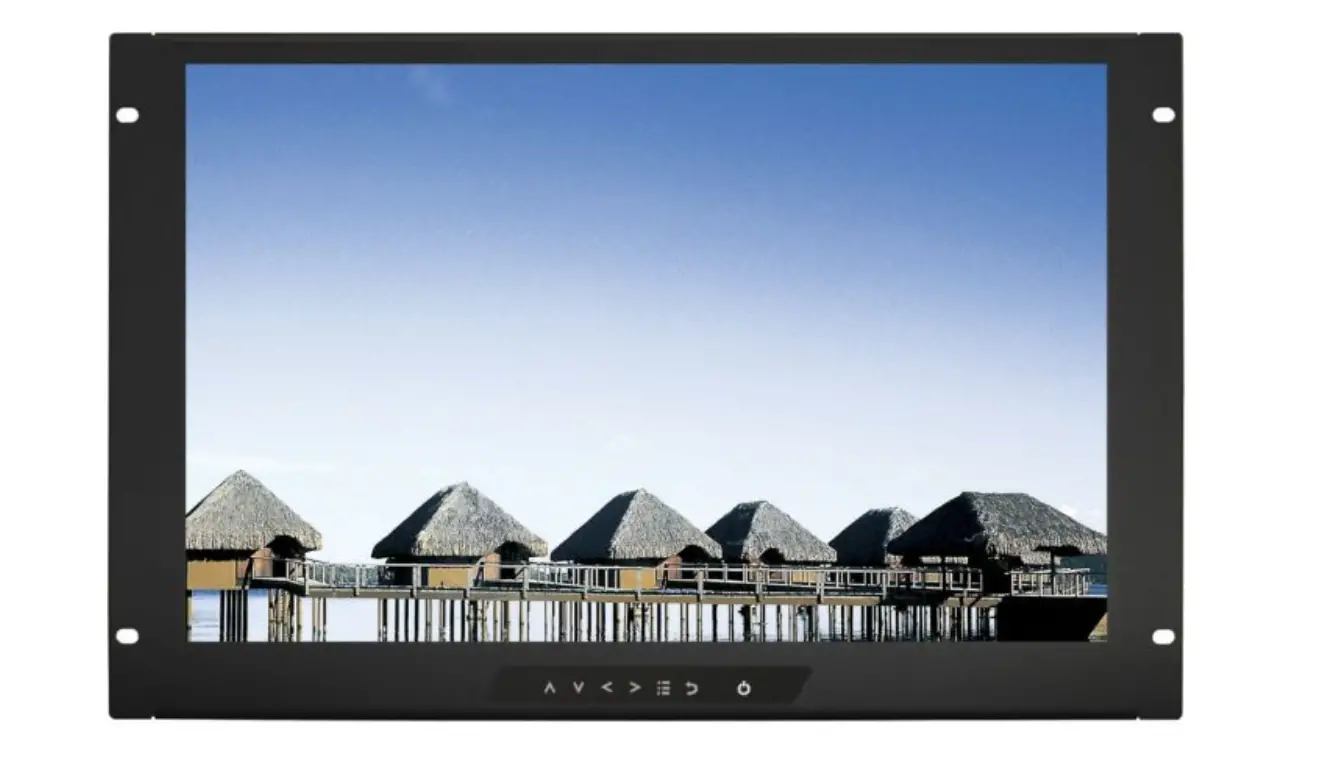
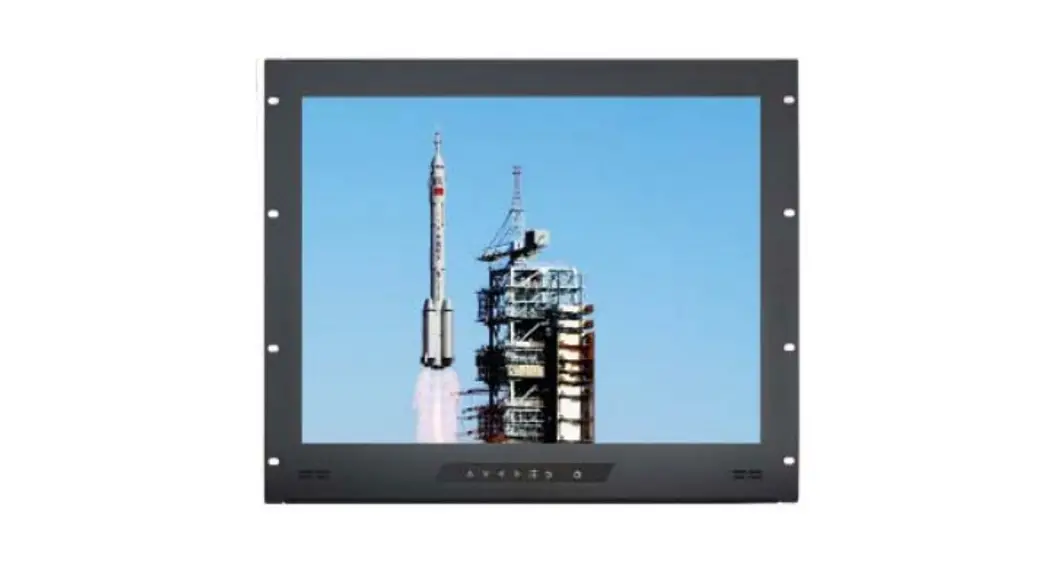
9U Rackmount Display Panel
Options :
– SDI / MCS
– Audio
– Touchscreen / DC power
– MIL-type or lockable connector
Designed and manufactured by Austin Hughes
Legal Information
First English printing, November 2020
Information in this document has been carefully checked for accuracy; however, no guarantee is given of the correctness of the contents. The information in this document is subject to change without notice. We are not liable for any injury or loss that results from the use of this equipment.
Safety Instructions
Please read all of these instructions carefully before you use the device. Save this manual for future reference.
- Unplug equipment before cleaning. Don’t use liquid or spray detergent; use a moist cloth.
- Keep equipment away from excessive humidity and heat. Preferably, keep it in an air-conditioned environment with temperatures not exceeding 40º Celsius (104º Fahrenheit).
- When installing, place the equipment on a sturdy, level surface to prevent it from accidentally falling and causing damage to other equipment or injury to persons nearby.
- When the equipment is in an open position, do not cover, block or in any way obstruct the gap between it and the power supply. Proper air convection is necessary to keep it from overheating.
- Arrange the equipment’s power cord in such a way that others won’t trip or fall over it.
- If you are using a power cord that didn’t ship with the equipment, ensure that it is rated for the voltage and current labeled on the equipment’s electrical rating label. The voltage rating on the cord should be higher than the one listed on the equipment’s ratings label.
- Observe all precautions and warnings attached to the equipment.
- If you don’t intend on using the equipment for a long time, disconnect it from the power outlet to prevent being damaged by transient over-voltage.
- Keep all liquids away from the equipment to minimize the risk of accidental spillage. Liquid spilled onto the power supply or on other hardware may cause damage, fire or electrical shock.
- Only qualified service personnel should open the chassis. Opening it yourself could damage the equipment and invalidate its warranty.
- If any part of the equipment becomes damaged or stops functioning, have it checked by qualified service personnel.
What the warranty does not cover
- Any product, on which the serial number has been defaced, modified, or removed.
- Damage, deterioration, or malfunction resulting from:
- Accident, misuse, neglect, fire, water, lightning, or other acts of nature, unauthorized product modification, or failure to follow instructions supplied with the product.
- Repair or attempted repair by anyone not authorized by us.
- Any damage to the product due to shipment.
- Removal or installation of the product.
- Causes external to the product, such as electric power fluctuation or failure.
- Use of supplies or parts not meeting our specifications.
- Normal wear and tear.
- Any other causes which do not relate to a product defect.
- Removal, installation, and set-up service charges.
Regulatory Notices Federal Communications Commission (FCC)
This equipment has been tested and found to comply with the limits for a Class B digital device, pursuant to Part 15 of the FCC rules. These limits are designed to provide reasonable protection against harmful interference in a residential installation.
Any changes or modifications made to this equipment may void the user’s authority to operate this equipment. This equipment generates, uses, and can radiate radio frequency energy and, if not installed and used in accordance with the instructions, may cause harmful interference to radio communications. However, there is no guarantee that interference will not occur in a particular installation. If this equipment does cause harmful interference to radio or television reception, which can be determined by turning the equipment off and on, the user is encouraged to try to correct the interference by one or more of the following measures:
- Re-position or relocate the receiving antenna.
- Increase the separation between the equipment and receiver.
- Connect the equipment into an outlet on a circuit different from that to which the receiver is connected.
Before Installation
- It is very important to mount the equipment in a suitable cabinet or on a stable surface.
- Make sure the place has good ventilation, is out of direct sunlight, and is away from sources of excessive dust, dirt, heat, water, moisture, and vibration.
Unpacking
The equipment comes with the standard parts shown in the package content. Check and make sure they are included and in good condition. If anything is missing or damaged, contact the supplier immediately.
How To Clean Your LCD Monitor Caution :
- To avoid the risk of electric shock, make sure your hands are dry before unplugging your monitor from or plugging your monitor into an electrical outlet.
- When you clean your monitor, do not press down on the LCD screen. Pressing down on the screen can scratch or damage your display. Pressure damage is not covered under warranty.
- Use only cleaners made specifically for cleaning monitors and monitor screens. Cleansers not made to clean monitors and monitor screens can scratch the LCD display or strip off the finish.
- Do not spray any kind of liquid directly onto the screen or case of your monitor. Spraying liquids directly onto the screen or case can cause damage that is not covered under the warranty.
- Do not use paper towels or abrasive pads to clean your monitor. Using an abrasive pad or any wood-based
a paper product such as paper towels can scratch your LCD screen.
Cleaning Your Monitor
To clean your LCD safely, please follow these steps :
- Disconnect the power cord.
- Gently wipe the surface using a clean, dry microfiber cloth. Use as little pressure as possible.
Cleaning Tough Marks and Smudges
To remove tough marks and smudges, please follow these steps :
- Disconnect the power cord.
- Spray a small amount of non-abrasive cleanser on a microfiber cloth.
Caution: Do not spray or apply any liquids directly onto the monitor. Always apply the solution to your microfiber cloth first, not directly on the parts you are cleaning.
- Gently wipe the surface. Use as little pressure as possible.
- Wait until your monitor is completely dry before plugging it in and powering it up.
< Part 1 >
Package Content
RP-X924 unit X 1
- 6ft VGA cable X 1
- Power adapter X 1
- Power cord X 1
- Fastener screw for rear bracket x 2
Structure Diagram
Front view
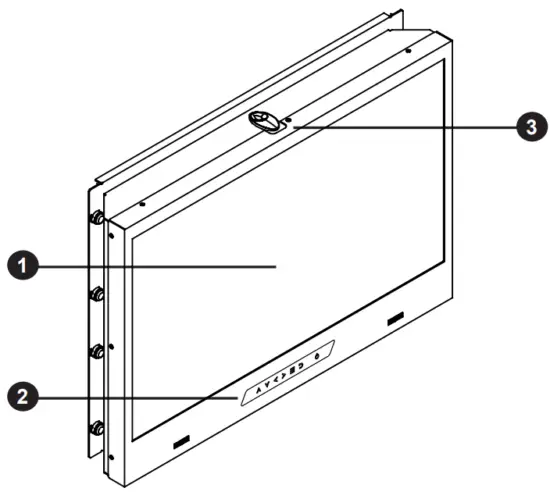
- LCD panel
- LCD membrane

- Latch to release the display panel from the
- rear bracket
- Rear mounting bracket
- Power adapter basket
Rear view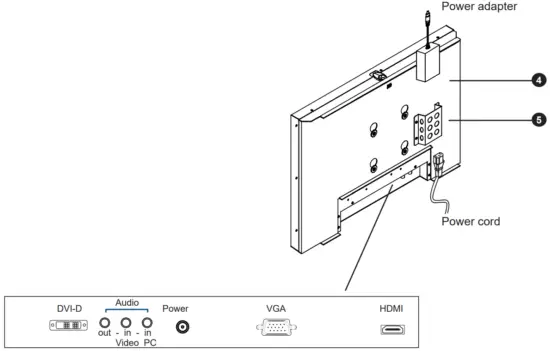
Basic I/O: DVI-D + VGA + HDMI w/ speaker
Options: SDI, Audio, USB for touchscreen & DC power
Dimension
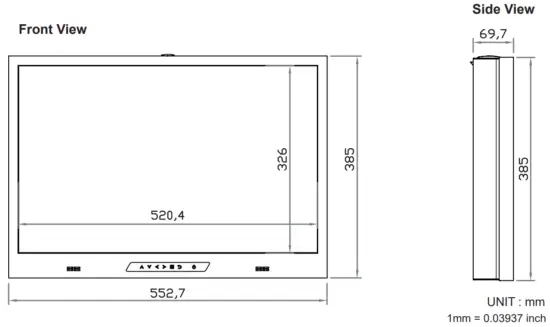 Rear View
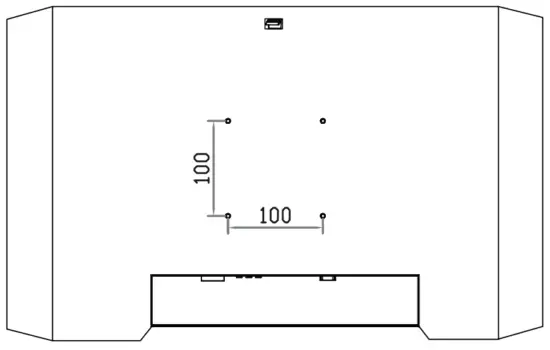
Bottom View

| Model | Product Dimension (W x D x H) | Packing Dimension (W x D x H) | Net Weight | Gross Weight |
| RP-X924 | 553 x 70 x 385 mm 21.8 x 2.8 x 15.2 inch | 583 x 124 x 529 mm 23 x 4.9 x 20.8 inch | 11.4 kg 25.1 lb | 12.7 kg 28 lb |
VESA mount Installation
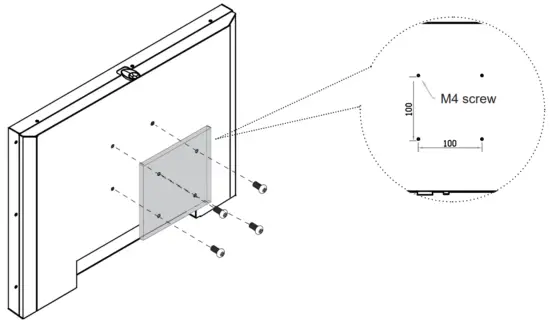
VESA mount ( 100*100mm )
- Hardware and M4*4 pcs for VESA mount are not provided
Rear Mounting Bracket Installation
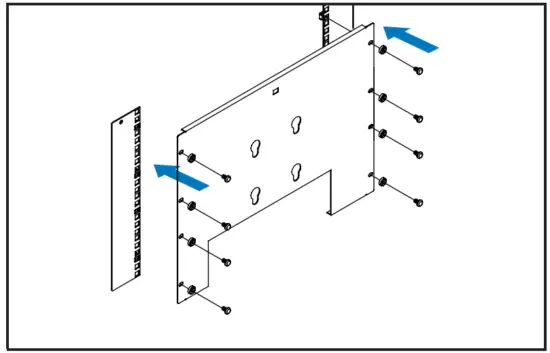
Step 1
- Mount the rear bracket with an M6 screw set.
- 8 x M6 screw set are required.
M6 screw sets are not provided.
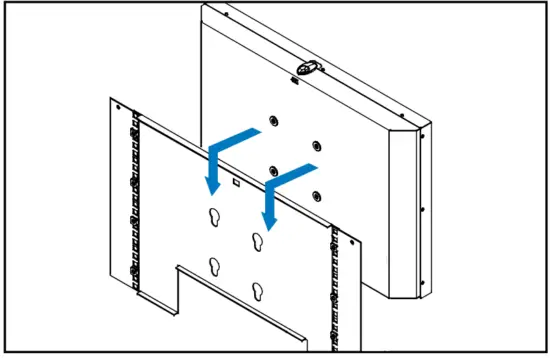
Step 2
- Insert the RP-X924 display panel into the rear bracket.
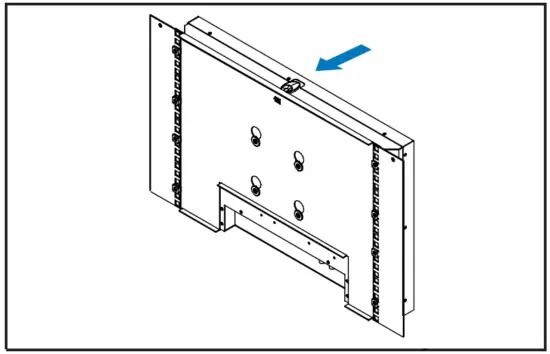
Step 3
- Fix the unit to the bracket with the top latch.
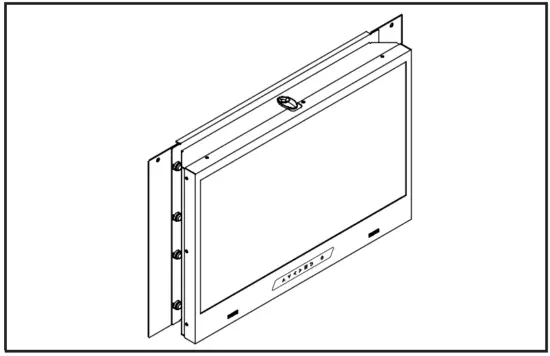
Step 4
Complete the installation
< Part 2 >
Product Specifications
RP-X924
LCD Panel
| Panel Size ( diagonal ) | 24.1-inch Widescreen TFT color LCD |
| Display pixel ( dots x lines ) | 1920 x 1200 |
| Brightness ( typ. ) | 300 |
| Contrast Ratio ( typ. ) | 1000.1 |
| Color | 16.7 M |
| Viewing Angle ( L/R/U/D ) | 89/89/89/89 |
| Response Time ( ms ) | 14 |
| Dot pitch ( mm ) | 0.27 |
| Display Area ( mm ) | 518.40H x 324.0V |
| Surface treatment | Anti-glare, Hard-coating |
| Surface hardness | 3H |
| Backlight Type | LED |
| MTBF ( hrs ) | 30,000 |
Video Connectivity
| Digital | HDMI | HDMI 1.3 / HDCP 1.3 |
| DVI | DVI-D, TMDS single link | |
| Analog | VGA | Analog 0.7Vp-p |
| Plug & Play | DVI / VGA | VESA EDID structure 1.3 |
| Synchronization | VGA | Separate, Composite & SOG |
Audio Connectivity
| Audio Input | Connector | 3.5mm stereo jack |
| Impedance / Power level | 30k1) / 750mV | |
| Audio Output | Connector | 3.5mm stereo jack |
| Resistance / Power level | 30k0 / 2.8V | |
| Speaker | Dual Stereo Speaker | 10W x 2 |
* When the audio output is connected, speaker output is OFF
Power
| Power Supply | Range | Auto-sensing 100 to 240VAC, 50 / 60Hz |
| Power Consumption | Screen ON | Max. 33W |
| Power saving mode | Max. 2W | |
| Power button OFF | Max. 1W |
Compliance
| EMC | FCC & CE certified |
| Safety | CE / LVD certified |
| Environment | RoHS3 & REACH compliant |
Environmental Conditions
| Operating | Temperature | 0 to 55°C degree |
| Humidity | 20~90%, non-condensing | |
| Altitude | 16,000 ft | |
| Storage / Non-operating | Temperature | -20 to 60°C degree |
| Humidity | 5~90%, non-condensing | |
| Altitude | 40,000 ft | |
| Shock | 10G acceleration (11ms duration) | |
| Vibration | 10~300Hz 0.5G RMS random |
Physical Specification
| Product (Wx D x H ) | 553 x 70 x 385 mm 21.8 x 2.8 x 15.2 inch |
| Packing (WxDxH) | 583 x 124 x 529 mm 23 x 4.9 x 20.8 inch |
| Net Weight | 11.4 kg / 25.1 lb |
| Gross Weight | 12.7 kg / 28 lb |
* All dimensions stated are subject to change if options are selected/integrated to base model part codes
Applicable Format
| DVI-D / VGA Input | PC Signal | 1920 x 1200 x 60Hz |
| 1360 x 768 x 60Hz | ||
| 1280 x 1024 x 60 / 75Hz | ||
| 1280 x 960 x 60Hz | ||
| 1280 x 768 x 60 / 75Hz | ||
| 1152 x 864 x 75Hz | ||
| 1024 x 768 x 60 / 70 / 75Hz | ||
| 848 x 480 x 60Hz | ||
| 800 x 600 x 60 / 72 / 75Hz | ||
| 720 x 400 x 70Hz | ||
| 640 x 480 x 60 / 72 / 75Hz | ||
| 640 x 400 x 70Hz | ||
| 640 x 350 x 70Hz | ||
| HDMI Input * | PC Signal | Same as VGA |
| Video Signal | 1080p : 60Hz | |
| 720p : 50 / 60Hz | ||
| 480p : 60Hz | ||
| 576p : 50Hz | ||
| Audio Signal | 2ch Linear PCM ( 32 / 44.1 / 48 KHz ) |
* In some circumstances, if the user connects the LCD to PC via HDMI port for video and audio signals, the LCD may display incorrectly on a full screen. If so, please adjust the display card setting on display size to fix the issue.
On-screen Display Operation ( OSD )

| Membrane Switch | Function |
 | Turn the monitor on or off |
 | Display the OSD menu Act as an Enter key to select screen setting options |
 | Scroll through menu options and adjust the displayed control |
 | Exit the OSD screen Go back to the previous on-screen sub-menu or main menu |
Remark: All LED touch buttons in WHITE light.
The LED of the Power touch button will flash continuously when there is no signal input.
- All the LED touch buttons will automatically turn off after 10 minutes of idle status ( except the Power
 ).
). - Light up all membrane buttons, please press any button for 1 – 2 seconds ( except the Power ).
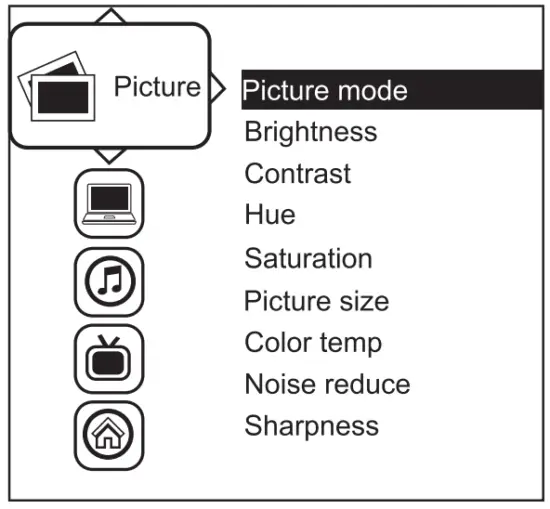
Picture
| Picture mode : | Standard / Vivid / Soft / User mode to choose |
| Brightness : | Adjust the background black level of the screen image |
| Contrast : | Adjust the difference between the image background (black level) and the foreground (white level) |
| Hue: | Adjust the screen hue value |
| Saturation : | Adjust the saturation of the image color |
| Picture size : | Adjust the image size |
| Color temp : | Standard / Cool / Warm / User to choose |
| Noise reduces: | Reduce the noise of the image |
| Sharpness : | Adjust the image from weak to sharp |
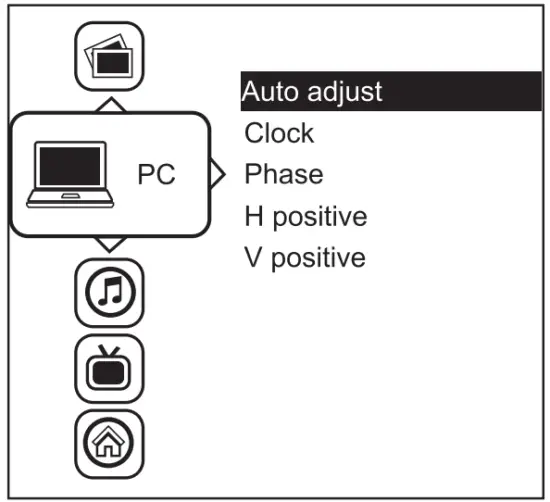
PC
| Auto adjusts: | Automatically adjust sizes, and centers, and fine-tunes the video signal to eliminate waviness and distortion. |
| Clock : | Adjust the clock value |
| Phase : | Adjust the phase value |
| H. Position : | Align the screen image left or right |
| V. Position : | Align the screen image up or down |
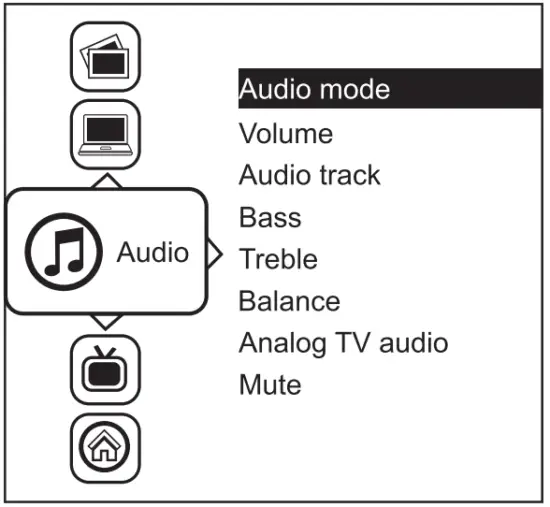
Audio
| Audio mode : | Movie / Voice / Normal / Music mode to choose |
| Volume : | Adjust the volume of sound |
| Bass : | Set the value of the bass sound |
| Treble : | Set the value of the treble sound |
| Balance : | Set the balance value of treble and bass sound |
| Analog TV audio : | Set the value of analog TV audio sound |
| Mute : | Turn off the surrounding sound |
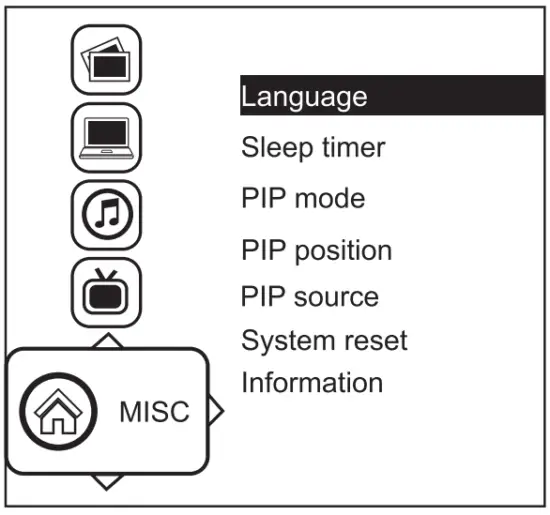
| Language : | Select the language in which the OSD menu is displayed – English |
| Sleep timer : | Set the off time |
| PIP mode : | Adjust picture in picture setting |
| PIP position : | Enter into the PIP position |
| PIP Source : | Enter into the Sub source and sound source |
| System reset : | Return the adjustment back to the factory setting |
| Information : | Select for Help |
How to Use Picture In Picture ( PIP ) / Picture By Picture ( PBP )
< 2.3.1 > Picture in Picture ( PIP )
Mode
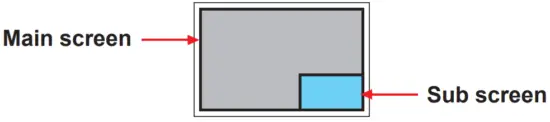
Display the Sub screen in the main screen.
OSD Menu → MISC → PIP Mode → Large / Small / OFF
Position
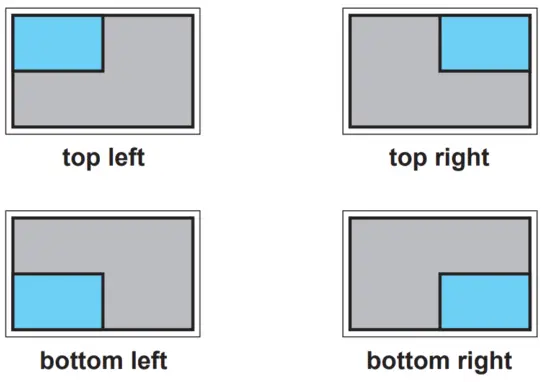
Adjust the position of the Sub screen ( top left, bottom left, top right, bottom right ) OSD Menu → MISC → PIP Position → top left / top right / bottom left / bottom right
Size
Adjust the size of the Sub screen ( Large / Small ) OSD Menu → MISC → PIP Mode → Large / Small
Size of Sub screen
| LCD Monitor | Large Sub screen | Small Sub screen |
| 1920 x 1200 | 552 x 414 | 480 x 360 |
| 1920 x 1080 | 552 x 414 | 480 x 360 |
| 1440 x 900 | 414 x 310 | 360 x 270 |
| 1366 x 768 | 392 x 294 | 340 x 254 |
| 1280 x 1024 | 368 x 276 | 320 x 240 |
< 2.3.2 > Picture By Picture ( PBP )
Mode
Display the Sub screen next to the main screen. OSD Menu → MISC → PIP Mode → PBP
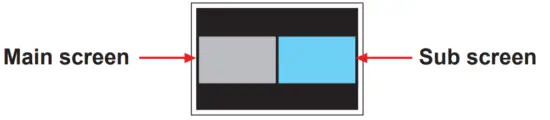
Size
| LCD Monitor | Main/Sub screen |
| 1920 x 1200 | 955 x 716 |
| 1920 x 1080 | 955 x 716 |
| 1440 x 900 | 715 x 536 |
| 1366 x 768 | 678 x 508 |
| 1280 x 1024 | 635 x 476 |
< 2.3.3 > PIP / PBP Source
To select an input signal for PIP / PBP Sub screen. OSD Menu → MISC → PIP Source → VGA / DVI / HDMI / SDI
The PIP / PBP is operable in the following table :
| Sub/Main | VGA | DVI-D | HDMI | SDI |
| VGA | X | 0 | 0 | 0 |
| DVI | 0 | X | X | 0 |
| HDMI | 0 | X | X | 0 |
| SDI | 0 | 0 | 0 | X |
< Part 3 >
Options : 3G / HD / SD-SDI input
RP-X924
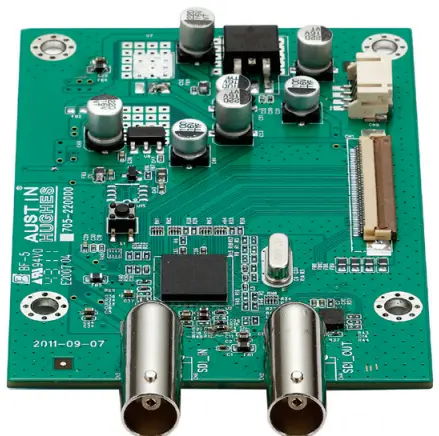
Austin Hughes’ SDI input is an ideal solution for the broadcast-grade video and high-resolution CCTV market.
Designed for use with CyberView displays, an SDI input the module can support up to 1080p @60Hz resolution without using additional space or power and it comes standard with a 2-year warranty.

*** For the SDI option, the AD board will be upgraded to AV3.0, and this comes standard with HDMI, DVI-D, VGA and audio inputs.
INPUT
| 3G-SDI IN | BNC x 1 / 0.8Vp-p ( 75 ohm ) |
| 3G-SDI OUT | BNC x 1 / Active through, equalized & relocked |
Standard Compliance
| Video | SMPTE 425M / 274M / 296M / 125M ITU-R BT.656 |
| Audio | SMPTE 299M / 272M-C |
Compatible Video Format
| 3G-SDI | 1080p | ©60 / 50Hz, 4:2:2 |
| 1080p | ©30 / 25 / 24Hz, 4:4:4 | |
| 1080i | ©60 / 50Hz, 4:4:4 | |
| 720p | (60 / 50Hz, 4:4:4 | |
| HD-SDI | 1080p | ©30 / 25 / 24Hz, 4:2:2 |
| 1080i | ©60 / 50Hz, 4:2:2 | |
| 720p | (60 / 50Hz, 4:2:2 | |
| SD-SDI | 480i | ©60Hz, 4:2:2 |
| ITU-R BT.656 | 576i | ©50Hz, 4:2:2 |
Compatible Audio Format
| 3G-SDI | 48kHz, 16 / 20 / 24 bit, 2 CH, Synchronized Video |
| HD-SDI | 48kHz, 16 / 20 / 24 bit, 2 CH, Synchronized Video |
| SD-SDI | 48kHz, 16 / 20 / 24 bit, 2 CH, Synchronized / Asynchronized Video |
Max. Transmission Distance 75 ohm coaxial cable
| 3G-SDI | 150m at 2.97Gb/s |
| HD-SDI | 250m at 1.485Gb/s |
| SD-SDI | 480m at 270Mb/s |
Options : MCS ( Multi-display Control )
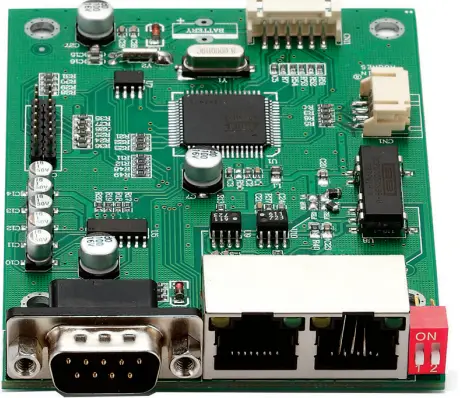
More control is always good. Especially when it is necessary and easy. Austin Hughes provides an MCS solution to control the OSD of various CyberView LCD display up to 64 units.
The RS-232C is used for the communication between the PC and the first display via a 15 feet serial cable while the CAN bus is used for the various LCD displays cascade together via CAT 5/6 cable, and daisy chain up to 1,000 meters.
Designed for use with CyberView LCD displays, Austin Hughes provides an MCS input module without using additional space or power and it comes standard with a 2-year warranty.
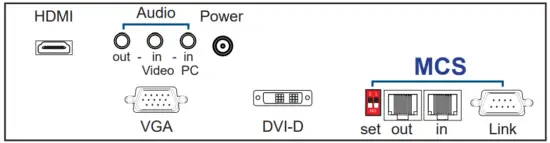
*** Please download the protocol of MCS control at : http://www.austin-hughes.com/support/usermanual/cyberview/UM-CV-MCS.pdf
*** For the MCS option, casing depth will be changed.
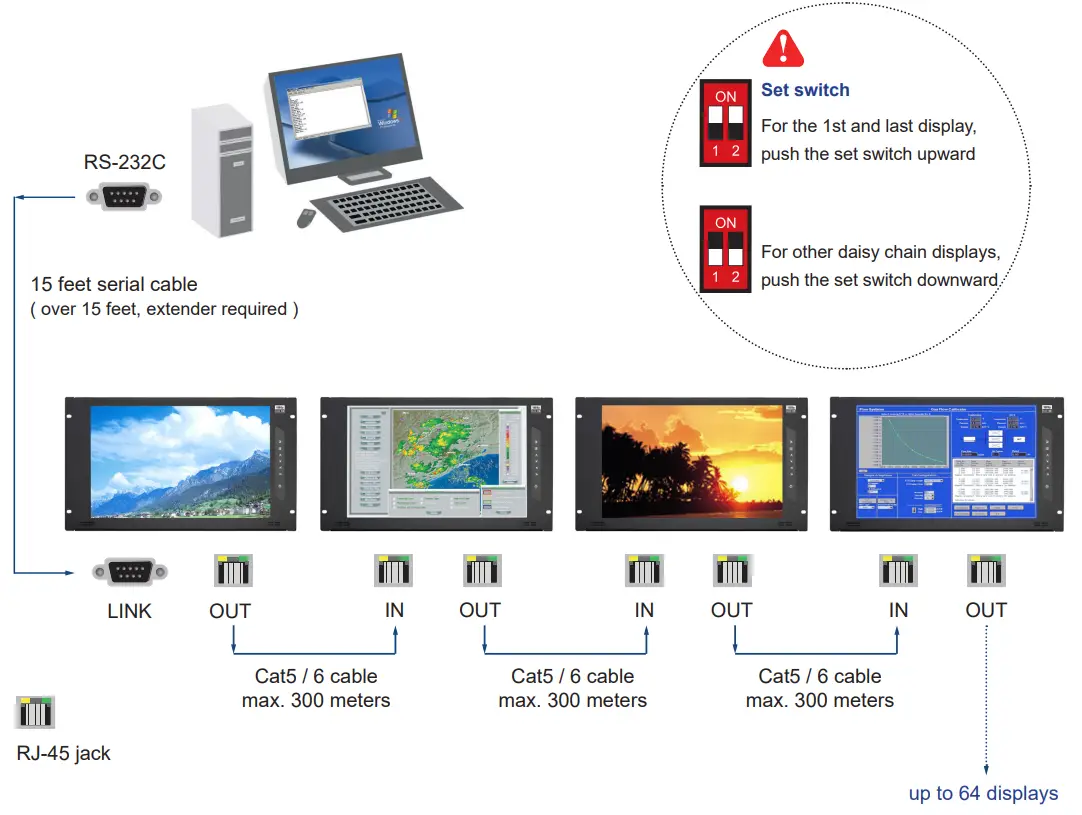
Daisy chain up to 1,000 meters and 64 displays
< 3.3 > Options : Audio
– Audio
( Built-in Dual Stereo Speakers, 10W x 2 )
( 3.5mm audio jacks for audio in & out )

< 3.4 > Options : Touchscreen & driver
X24″ USB Touchscreen Specification
| Model | TRB e-Resistive |
| Technology TouchPoint Input Type | 5-Wire Resistive |
| Single | |
| Finger or Stylus | |
| Resolution | 2048 x 2048 |
| TouchPoint Accuracy Response Speed Activation Force | – |
| 15 ms | |
| ≤ 50 g | |
| Surface Hardness | 3H |
| Light Transmission Haze | 80% ± 3% |
| 8% ± 3% | |
| Durability | 10 million touches |
| Top Layer Bottom Layer Thickness | ITO Film |
| ITO Glass | |
| 2.2 ± 0.2 mm | |
| Connector | USB Type-A |
| Compatibility | Windows 7 / XP / Vista, Linux |
- USB touchscreen package includes 1 x 6ft USB cable, quick reference guideline, and CD disc
- For detailed information, please refer to the attached CD disc
- As the touchscreen unit is not made of toughened glass, please handle it carefully

< 3.4 > Options : Touchscreen & driver
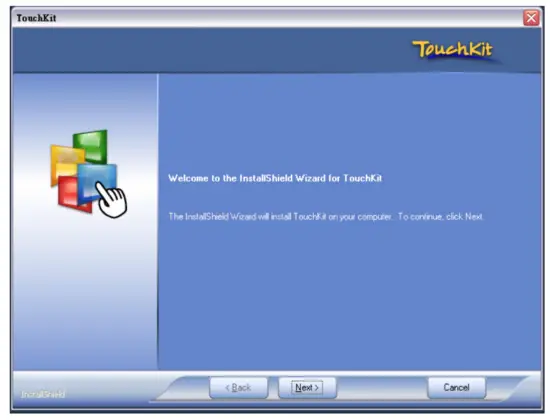
TRB Driver
Please follow the below steps to setup the touch screen:-
Step 1. Run the bundled CD disc or download the driver from the link below :
http://www.austin-hughes.com/resources/driver/rackmount-display
Step 2. Double click the Setup.exe
Step 3. Follow the installation instruction to finish the setup
Step 4. After installation, run the TouchKit program & the “4 point calibration”
Please do the initial calibration after the first setup
< 3.5 > Options : DC Power
| Model | 12V | 24V | 48V | 125V |
| Input rating Input voltage: Input range: Input current – No-load – Full load Output rating Output voltage: Output current: Efficiency | 12-Volt 9 ~ 18V 50 mA 7183 mA 12-Volt 6.25A 87% | 24-Volt 18 ~ 36V 50 mA 3551 mA 12-Volt 6.25A 88% | 48-Volt 36 ~ 75V 50 mA 1755 mA 12-Volt 6.25A 89% | 110-Volt 66 ~ 160V 35 mA 749 mA 12-Volt 6.25A 91% |
*** For DC power option :
( 1 ) If the unit with LCD, earthing may be required
< 3.6 > Options : MIL-type or Lockable Connector
MIL-type Connector
| Input | Part no. | MIL Standard |
| DC Power *** ( Male ) | MS3470W8-33P 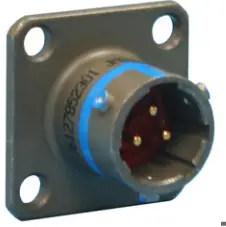 | MIL – DTL – 26482 |
| VGA *** ( Male ) | MS3470W14-15P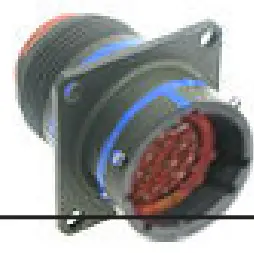 | MIL – DTL – 26482 |
*** There are several additional MIL DC and VGA connector types with varying design characteristics to meet cost considerations and to provide users with the most design flexibility possible. For more information, please contact us.
Lockable Connector
| Input | Part no. | Standard |
| DC Power ( Male ) | YM-Ext-461CP001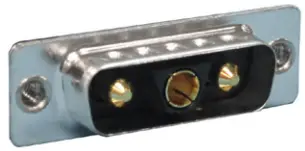 | D-type 3W3 |
| USB | USB – A111 – 00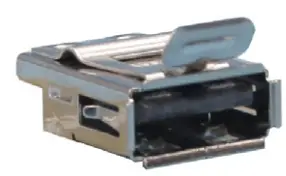 |
*** MIL – type or Lockable connectors above can be integrated with our LCD displays. Sale service just for connectors not provided.
The company reserves the right to modify product specifications without prior notice and assumes no responsibility for any error which may appear in this publication.
All brand names, logos, and registered trademarks are properties of their respective owners. Copyright 2021 Austin Hughes Electronics Ltd. All rights reserved.
UM-CV-751-RP-X924-Q221V1
www.austin-hughes.com
 Austin Hughes | Data Center Solutions, Server Rack Power Management, Rack Access, KVM Switch