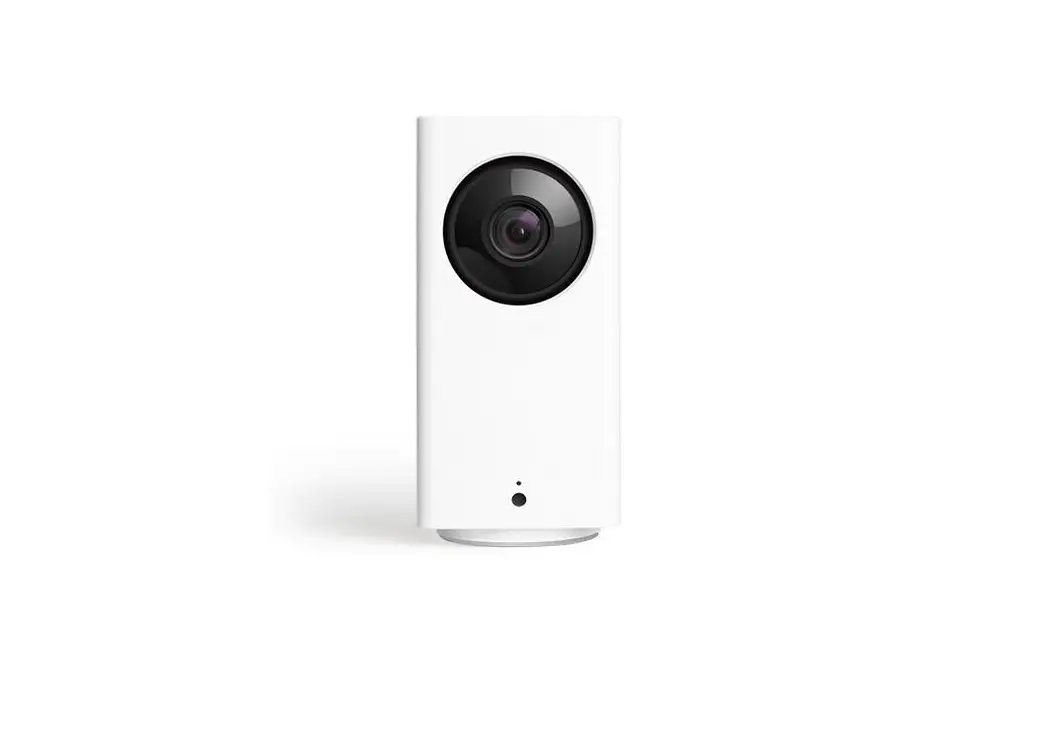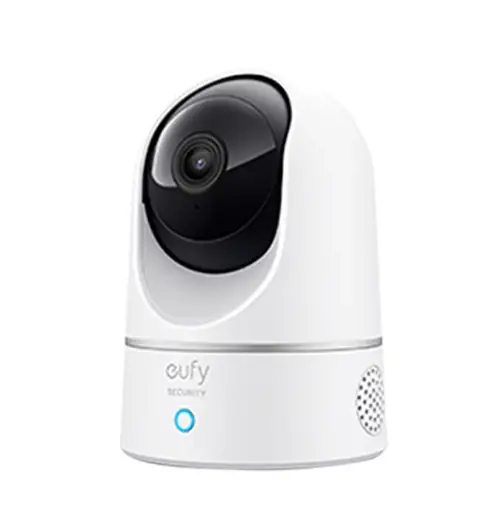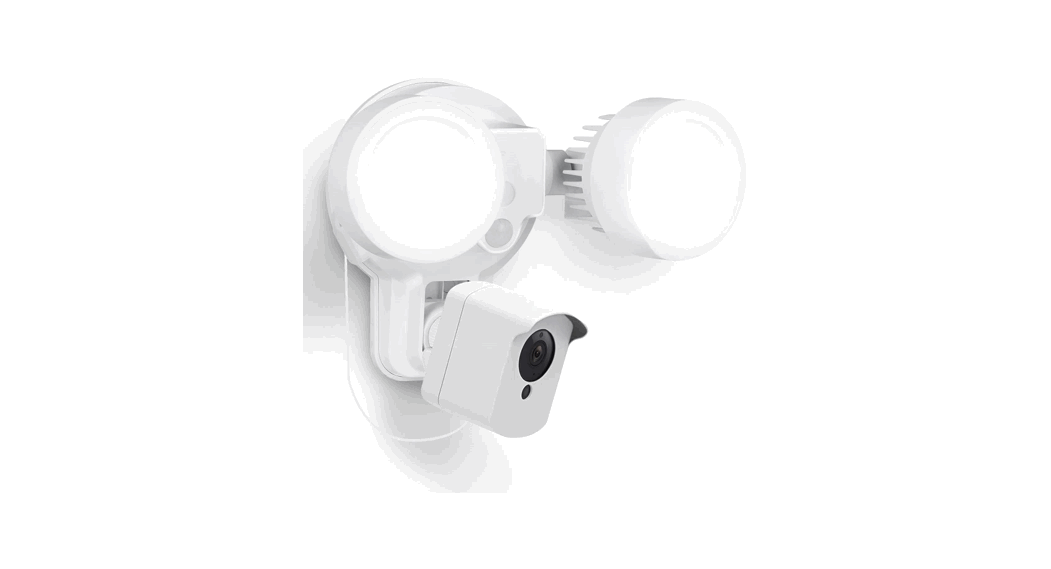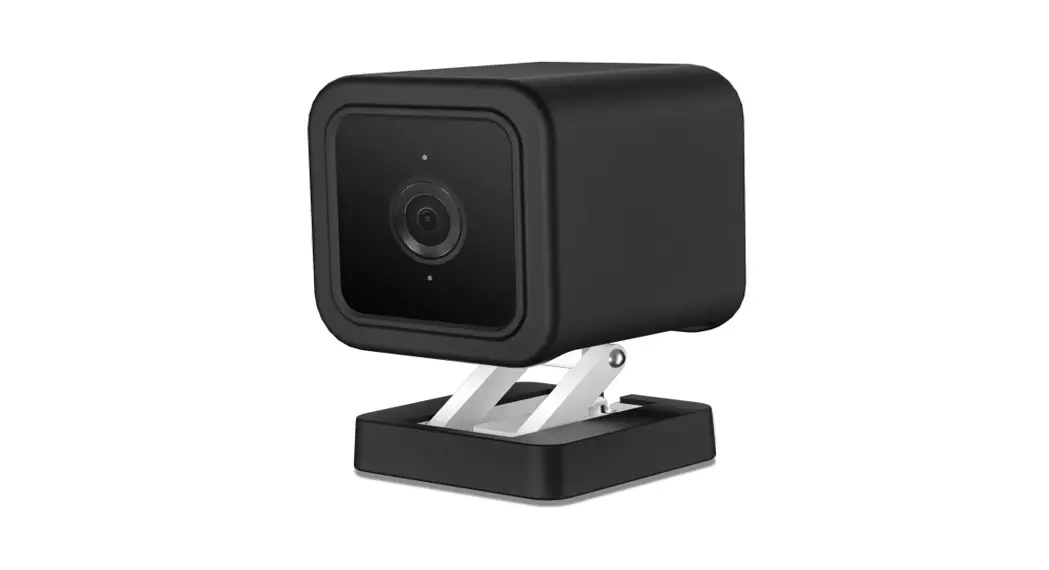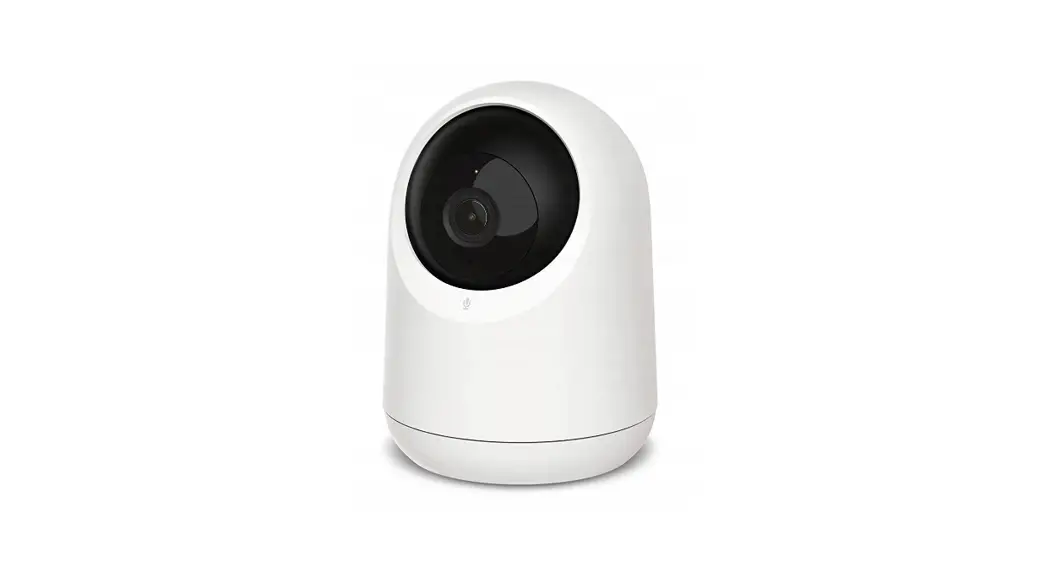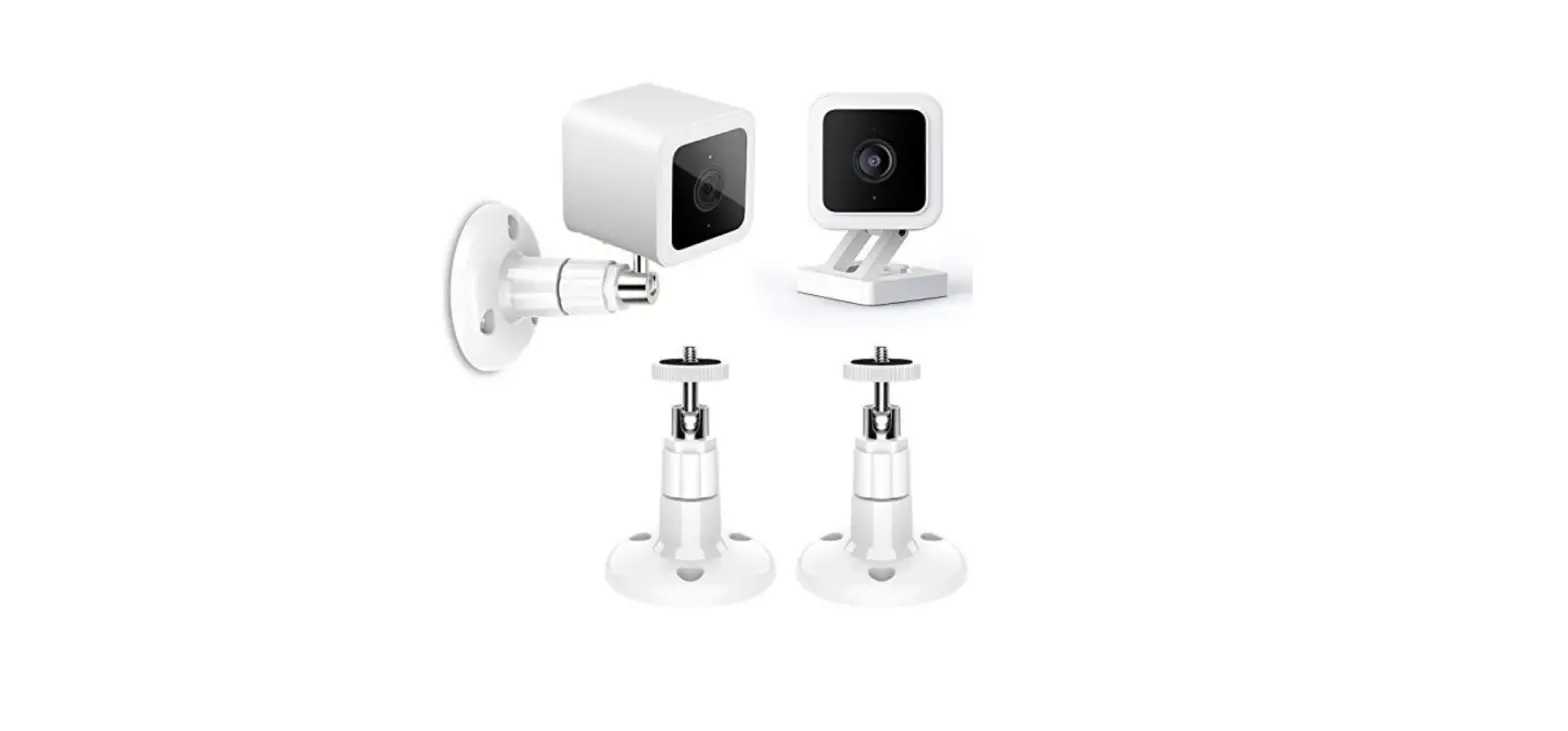

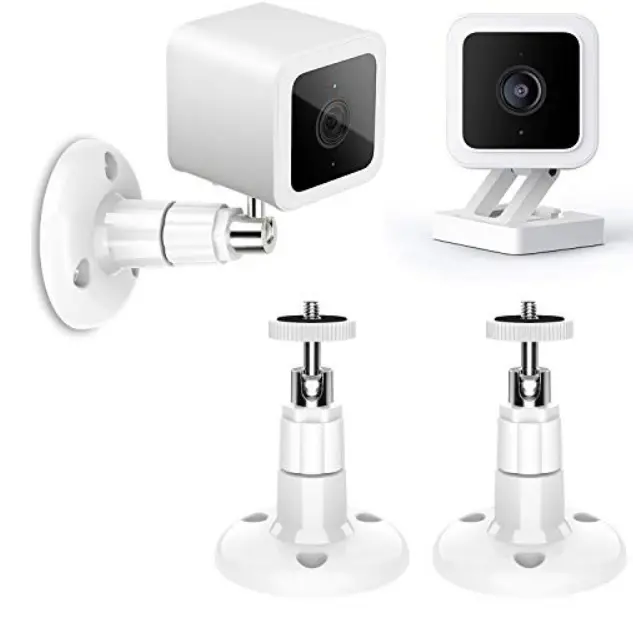
wyze Mounting Cam Pan
What you need to get started
To get started, you will need:
- Wyze Cam
- smartphone or tablet
- Your Wi-Fi network name and password.
The setup should take about 5 minutes.
Step 1: Download the Wyze app & Connecting to a Wi-Fi network
Download the Wyze App from the Google Play Store or the Apple App Store.
Once downloaded, open the Wyze app and login or create an account. To create a new account:
- Tap “Sign up” on the app screen
- Enter your email address, then enter your password twice
- You can tap the icon in the password field to view the password and make sure you entered the same password in each field.
- Tap “Continue”
- Follow the rest of the instructions in the app
Connect your phone to your 2.4gHz Wi-Fi network and have your network password ready.
Step 2: Plug in the camera using the included USB cable and power adapter
When setting up your camera, make sure to use the included USB cable and power adapter to ensure the right amount of power is going to the camera and prevent performance issues.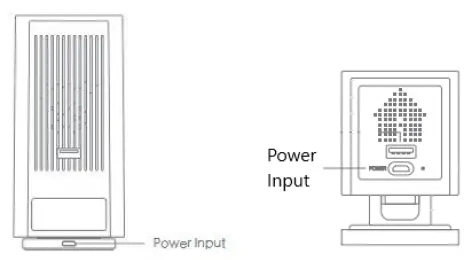
The LED light will be a solid yellow to tell you the camera has power. Once the light starts flashing, your camera is ready for setup.
Step 3: Adding a new device in the Wyze App
- In the Wyze app, press the
 button in the center of the screen. Select Wyze Cam.
 button in the center of the screen. Select Wyze Cam.
Note: If you already have a device set up in your account, you can add another by tapping […]in the top right of the Home tab, followed by “Add a Product.” Press and hold the SETUP button on the bottom of the camera until you hear a beep and “Ready to Connect.” Tap the Next button in the app.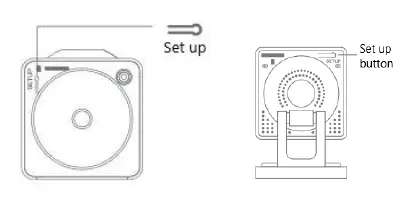
Step 4: Adding your Wi-Fi Information
Enter your Wi-Fi network name and password. Tap the icon in the password field to display the password to ensure it was entered correctly. Tap next.
Note: Wyze cameras only work on 2.4 GHz Wi-Fi networks. They do not work on 5 GHz networks. Most Wi-Fi Routers that are 5 GHz also have a 2.4 GHz band as well. Make sure you are not connected to “Wi-Fi name 5GHz”.
Step 5: Scan the QR Code
The app screen displays a QR code. Face the lens of your camera toward the QR code on your phone. The camera will scan the QR code and you will hear “QR code scanned, please wait.”
If you’re having trouble scanning the QR code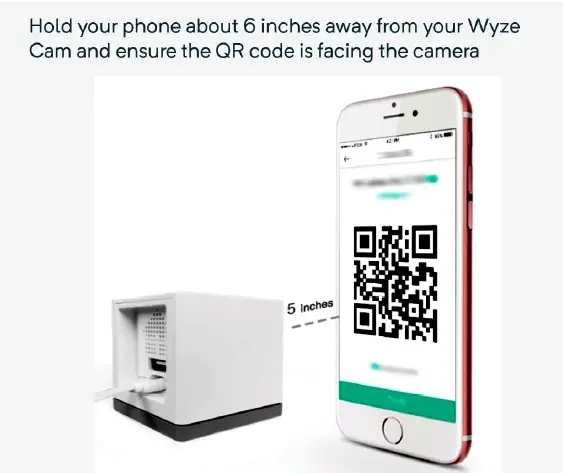
- Hold the phone steady about 5 inches in front of your camera. It may take a few seconds for the camera to scan the code.
- If it doesn’t scan, change the distance between your phone and the camera slightly and hold both steady. Keep adjusting the distance until the camera scans the code, but hold at each new distance for a couple of seconds to let the camera adjust.
- If it still doesn’t scan, tilt the screen slightly in case there are light reflections not allowing the camera to see the QR code correctly. LED lights, in particular, can cause reflections that stop the QR code from being scanned easily.
- Cracks or scratches on the screen can distort the QR code. Try again using a phone or tablet that doesn’t have a cracked screen.
Step 6: Finishing Setup
Once you hear “QR code scanned, please wait” tap the button in the Wyze app.
Wyze Cam will then complete the setup.
The LED light indicator on the back will flash yellow and blue, then flash blue, and when setup is complete, it turns to a solid blue and says, “Setup is completed.”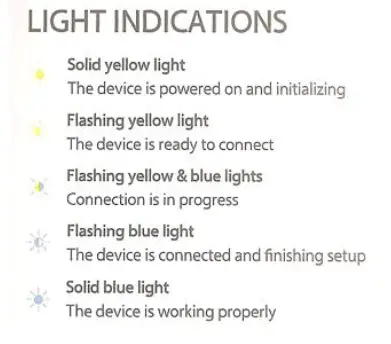
Now you can name your camera and you are good to go.
Moving your Wyze Cam
At any point, you can move your Wyze Cam. Unplug the device and move. Once it is plugged in, it should power up and automatically connect to the same Wi-Fi. If you have changed the Wi-Fi, you will have to reset the device and start the setup process again to generate a new QR code and with the latest Wi-Fi settings. Please Note: You do not need to delete the cameras from the Wyze app. Doing the Setup process again will override the previous Wi-Fi setup. Other camera settings will be retained. On the Home tab of the Wyze app, tap the […] in the upper right, then select “Add a Product” to initiate a new setup. Follow the prompts on the screen to setup your camera again. See the articles below for detailed setup instructions. Once you get your camera set up, you’ll probably start thinking of where you want to put it. We designed the Wyze Cam and Wyze Cam Pan to give you lots of options.
Mounting the Wyze Cam
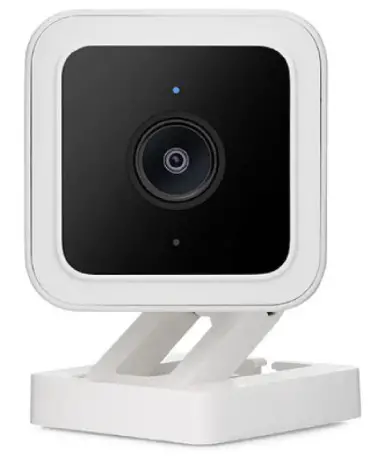
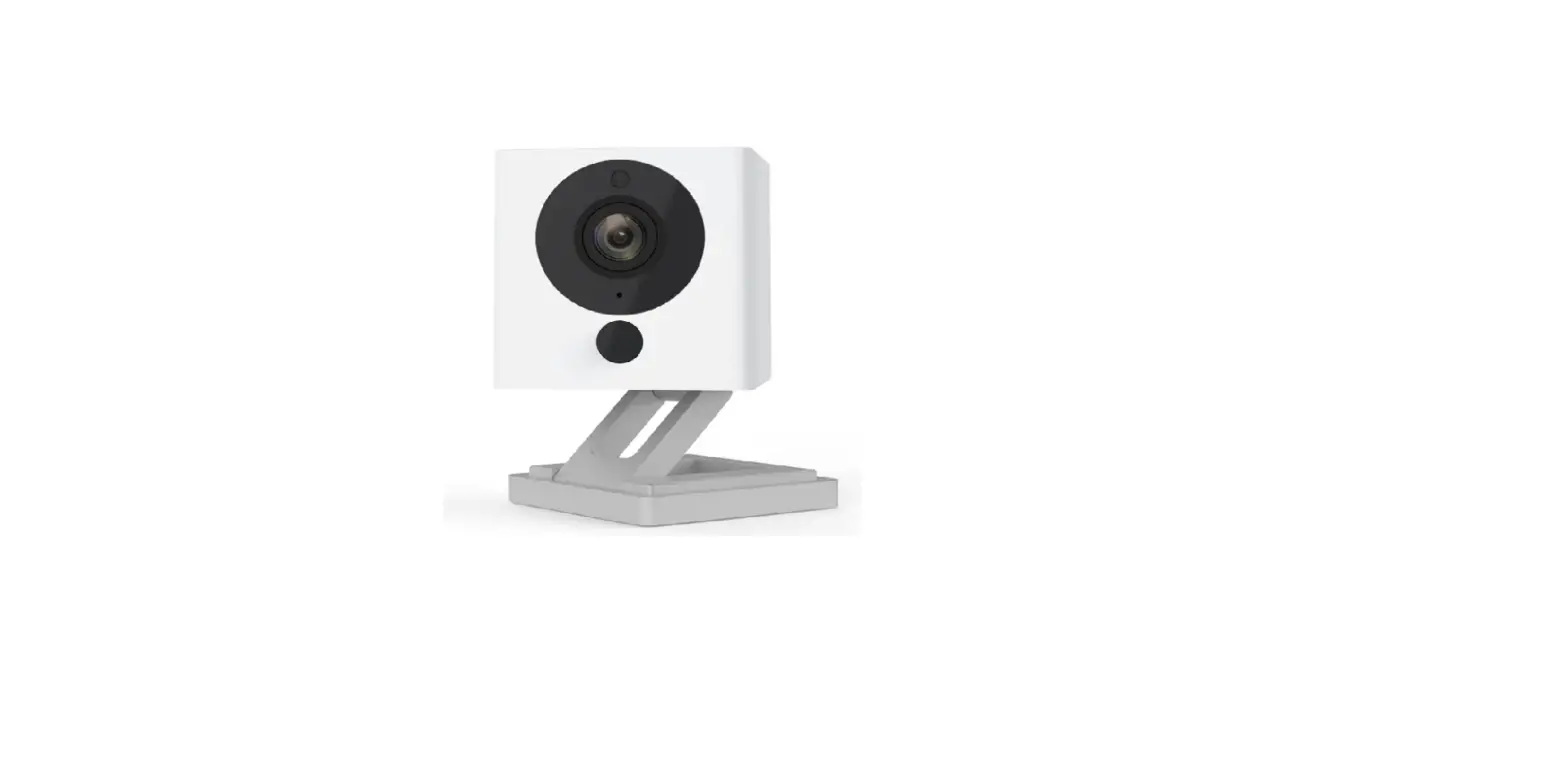
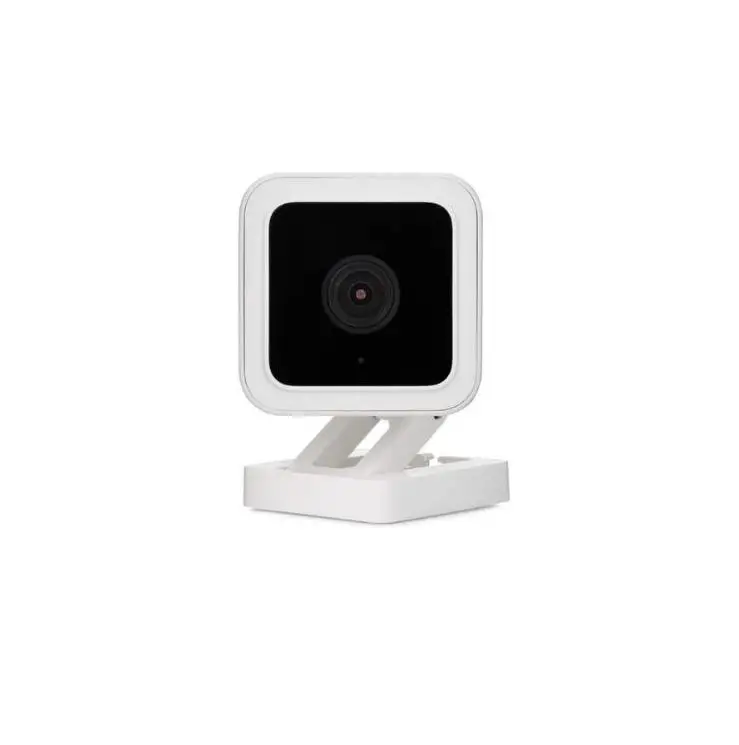
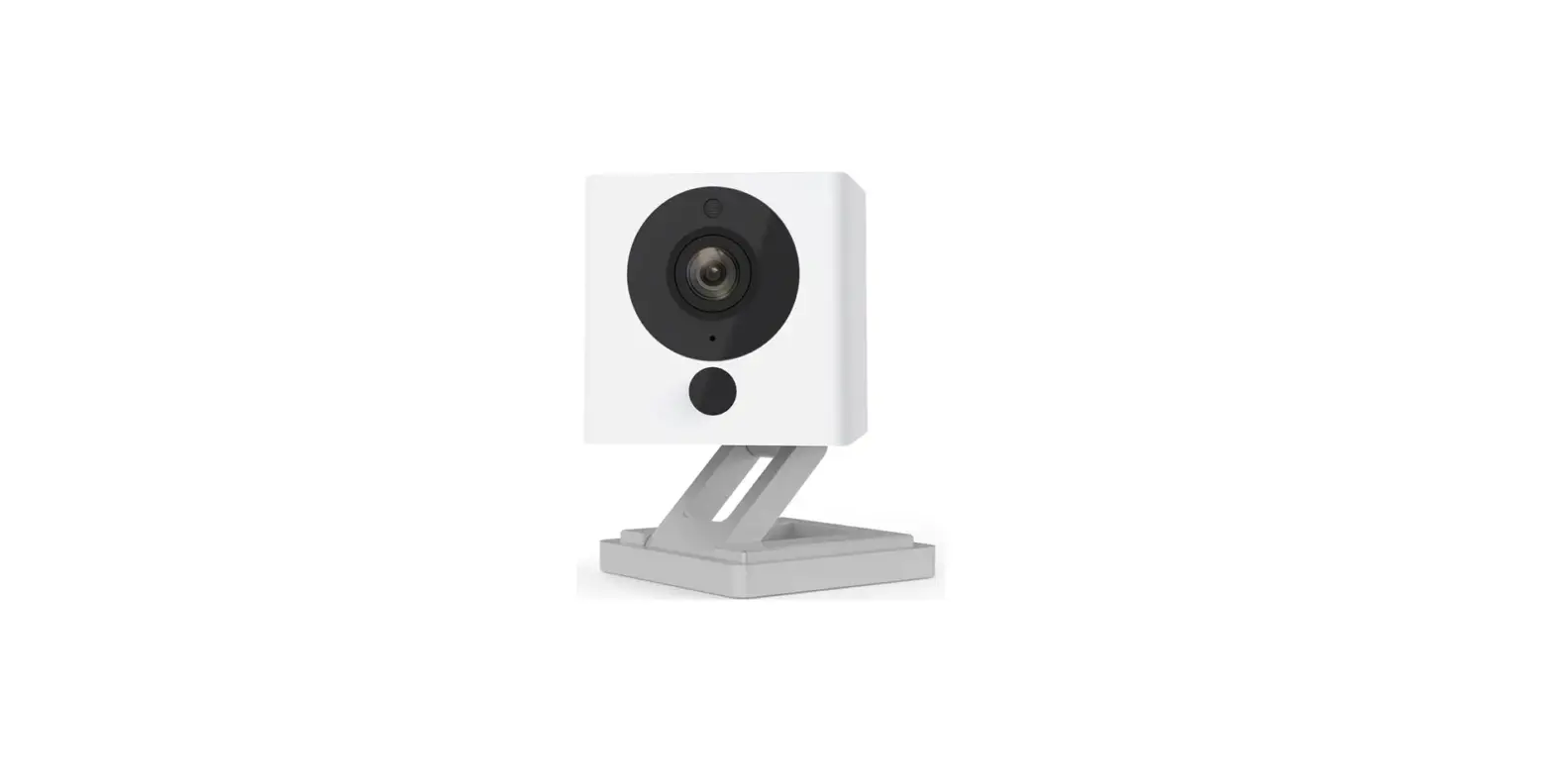
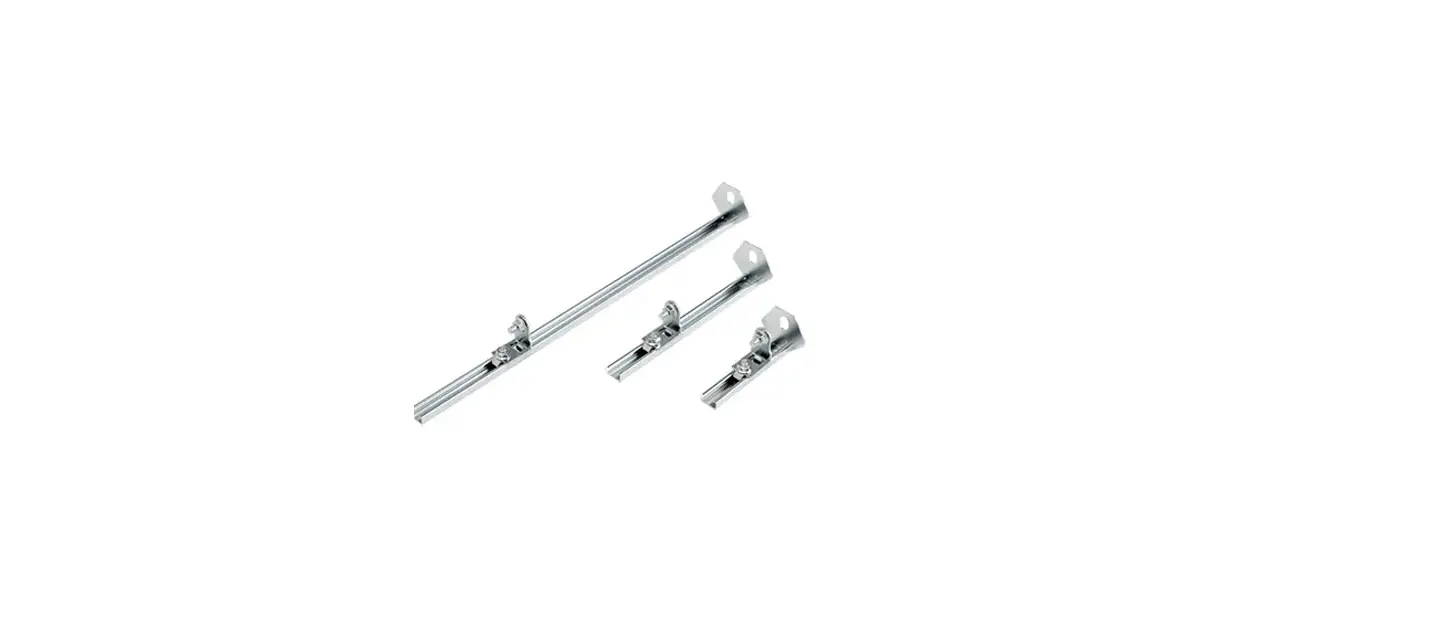
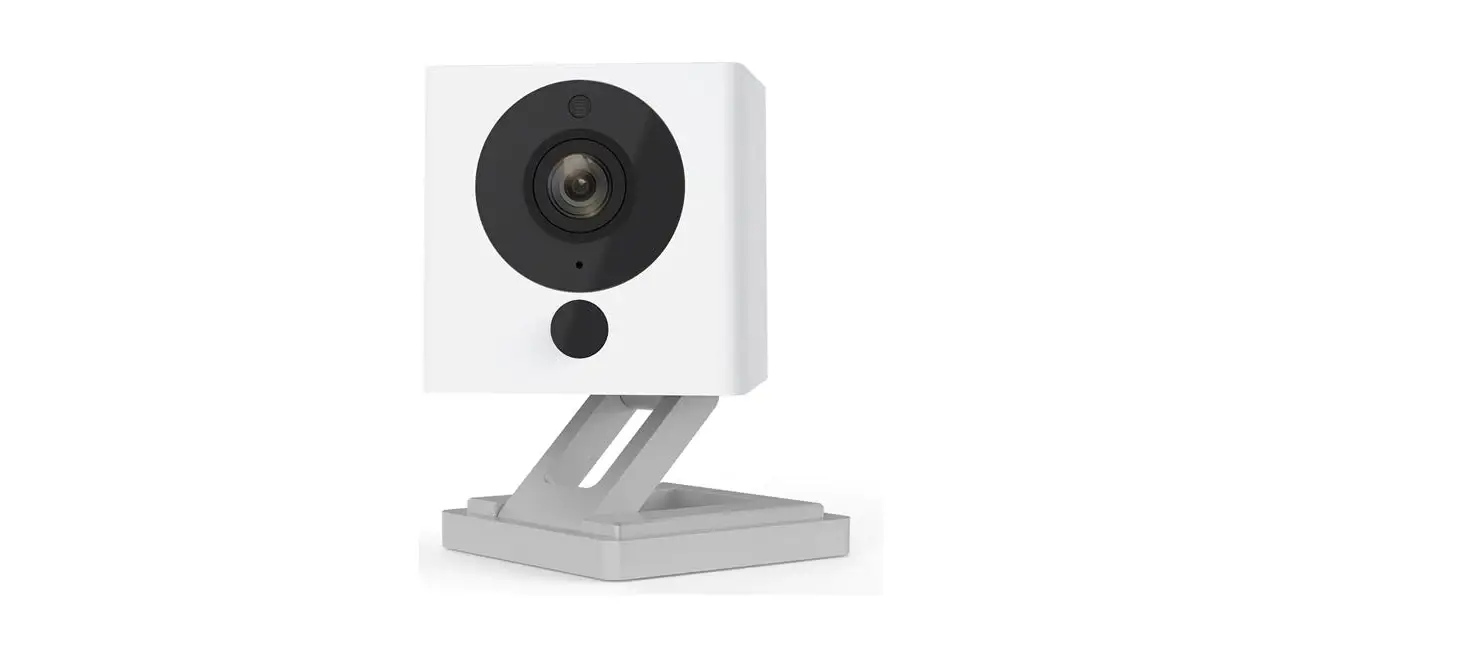
Wyze Cam’s gives you lots of options in placing your camera. Its magnetic base works on existing steel surfaces, or you can use the included adhesive tape to set the metal mounting plate on a wall. If you need an additional mounting plate or extension cable, the Wyze Cam Mounting Kit is available for purchase.
Note: The adhesive tape is very strong and is not easy to remove. You should consider the mounting of the metal plate using the adhesive is permanent. If you’d like a less permanent solution, the metal plate included in the Wyze Cam Mounting Kit has a hole that you can use to screw the plate into the wall.
Notes for placing your Wyze Cam:
- Wyze Cam can be mounted upside down. To flip the display of your video feed, enter the Advanced Settings for your camera and toggle Rotate Image 180° on/off.
- Wyze Cam can also be mounted sideways, but there is no 90° rotation setting.
- Wyze Cam is not waterproof and is not designed to be mounted or left outdoors for an extended period.
Mounting the Wyze Cam Pan
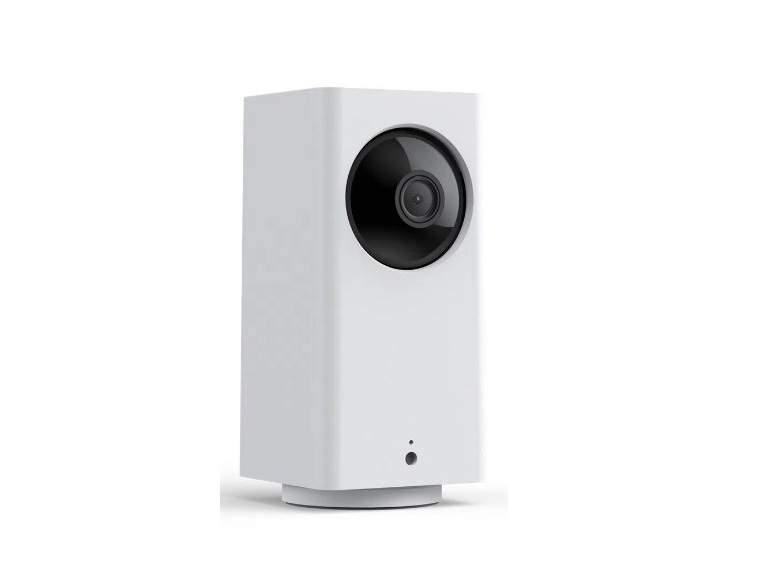
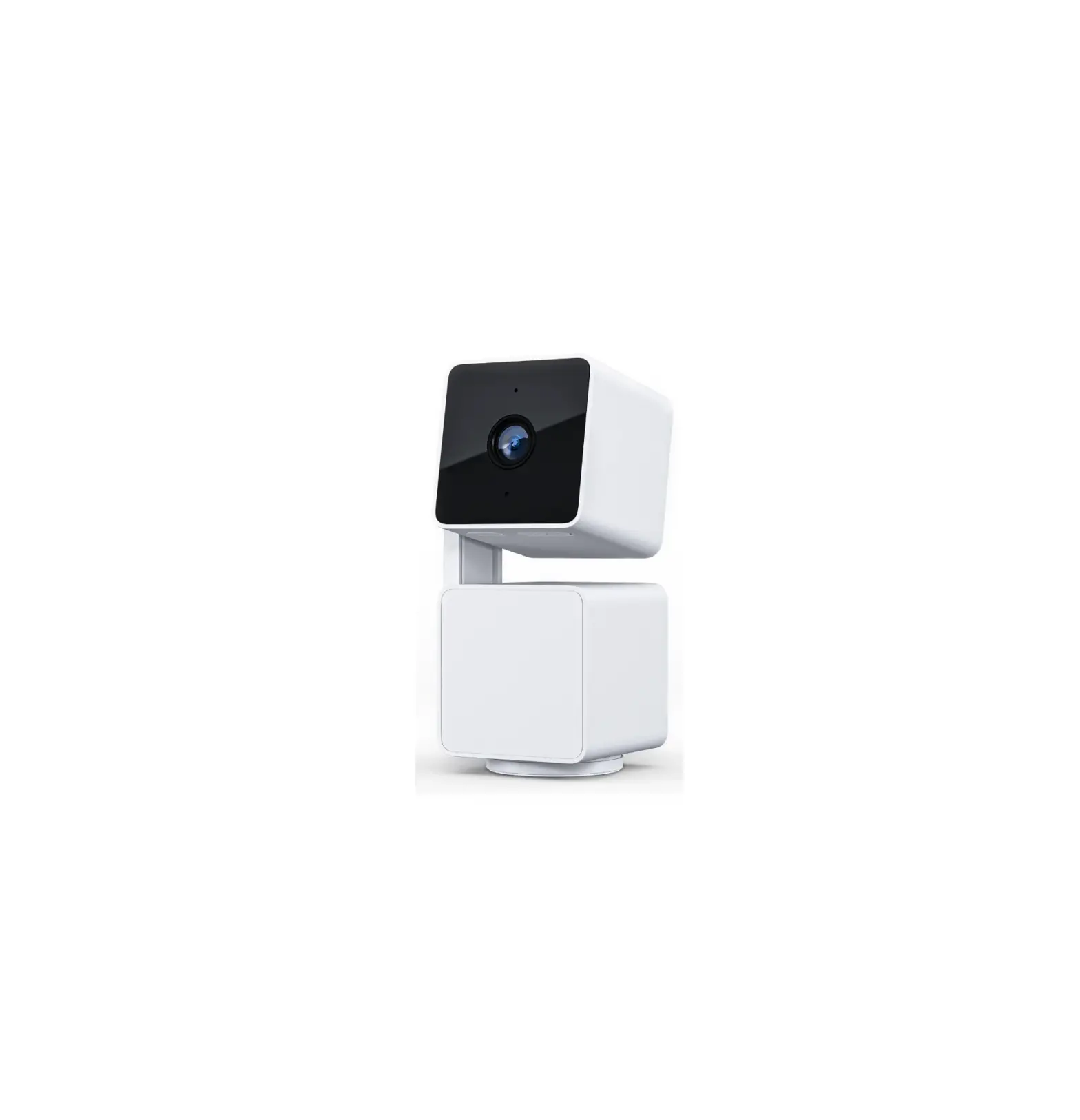
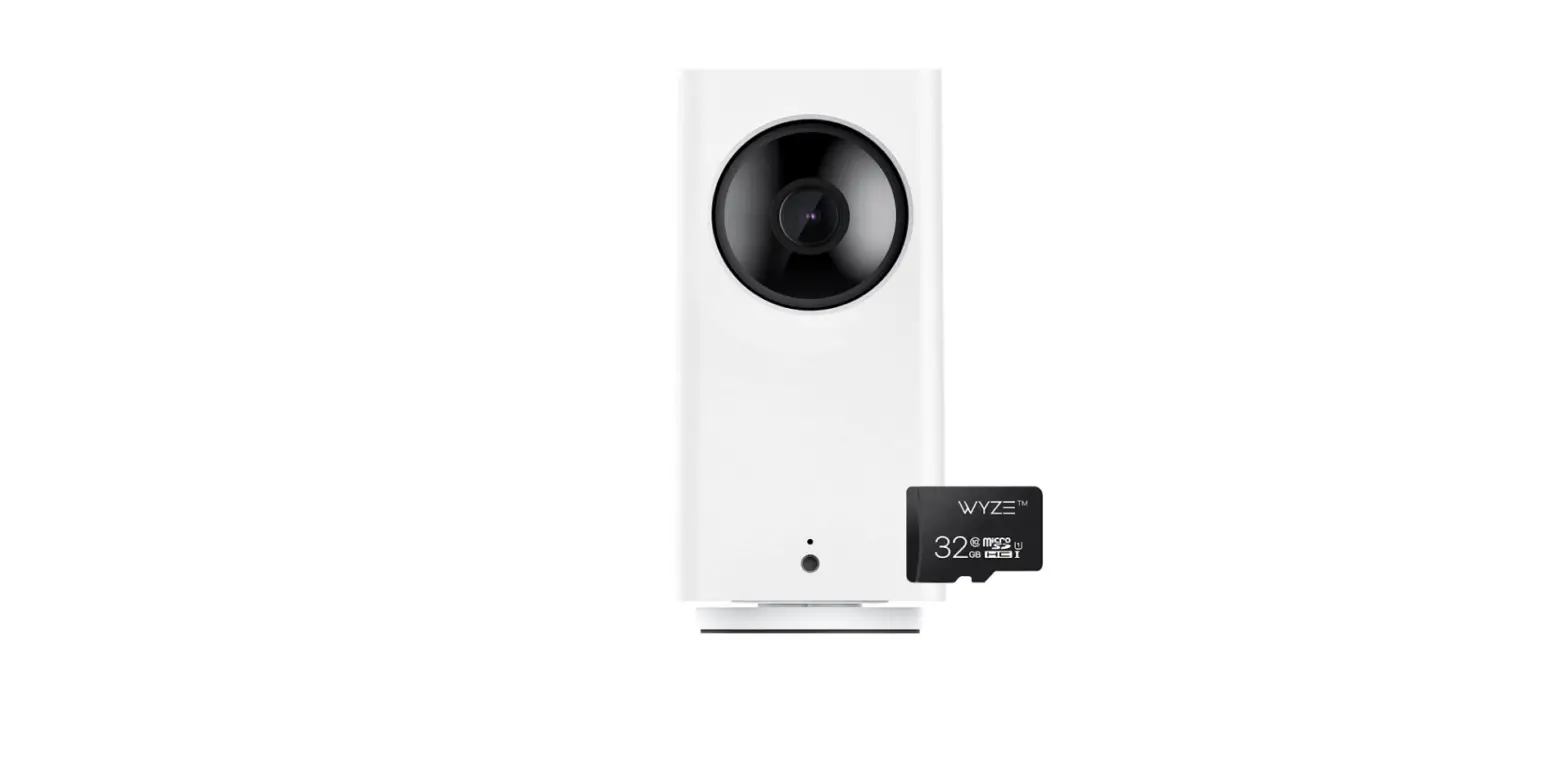
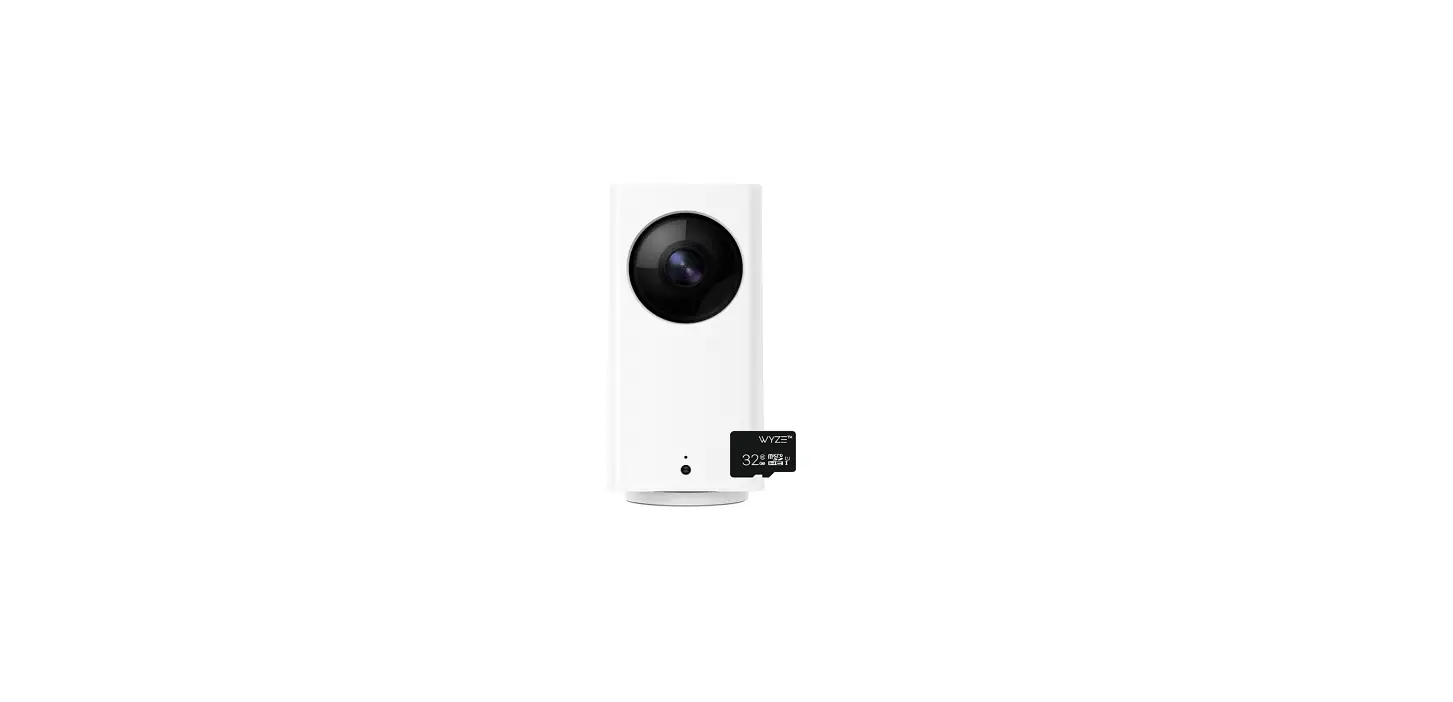
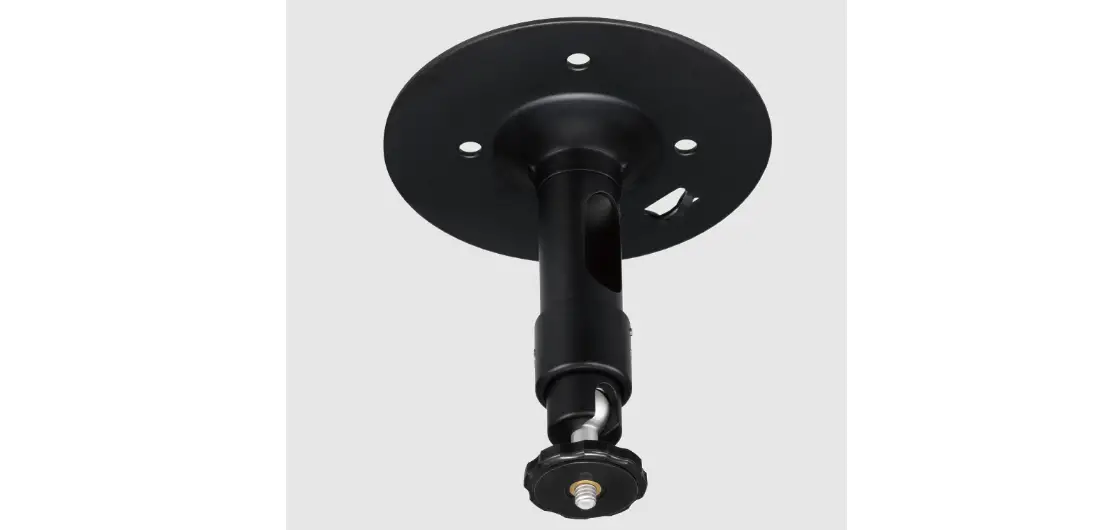
Wyze Cam Pan has a 1/4”-20 threaded screw hole in the base that will fit a standard tripod mount. A mount is not included with the Wyze Cam Pan and must be purchased separately.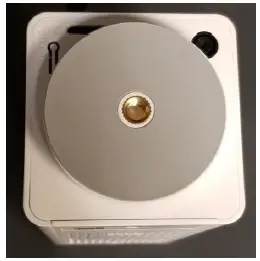
Depending on the type of mount, your Wyze Cam Pan can be safely mounted anywhere: ceilings, walls, desktops, and shelves! The Wyze Cam Pan Mounting Kit is available for purchase on our site.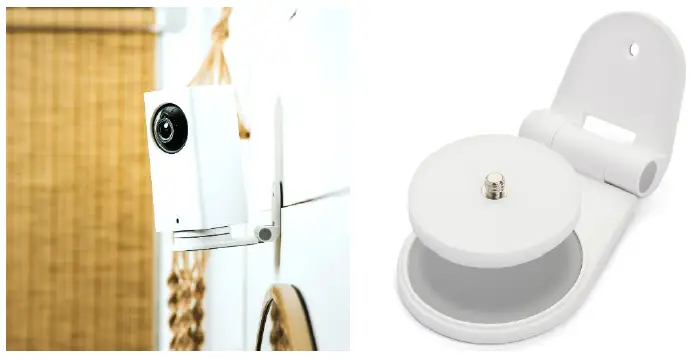
(Optional Wyze Cam Pan Mounting Kit)
Notes for placing your Wyze Cam or Wyze Cam Pan:
- Wyze Cam Pan can also be mounted upside down. To flip the display of your live stream, enter the Advanced Settings for your camera and toggle Rotate Image 180° on/off.
- Wyze Cam Pan can be mounted sideways, but there is no 90° rotation setting.
- Wyze Cam Pan is not waterproof and is not designed to be mounted or left outdoors.
Creative Mounting Options
The Wyze Community is full of DIY enthusiasts who are coming up with inventive ways to mount the Wyze Cam and Wyze Cam Pan. If you want to look at other creative solutions, check out our community forum where users have shared their ideas. Or you can search the Wyze Reddit Community to learn new tips and tricks. Wyze continues to add new features, bug fixes, and updates to the Wyze app. To ensure you have the best experience and access to the latest feature set, you will want to make sure you are using the newest version of the camera firmware and Wyze app.
Updating the Wyze app
The best way to keep your Wyze app up to date is to set your Wyze app to update automatically. This is done through a setting on your phone or tablet. You can see what version of the app you are using in the Account tab of the Wyze App by tapping About.
Firmware Upgrade
Firmware is the software that runs on the camera itself. It is important to keep your camera’s firmware up to date so that it can function properly and enable new features as they are released. You will be prompted to update your camera’s firmware when there is a new version available. You can also check what version of firmware your camera has installed, and if there is a new version available through the Wyze app. To do this, go to Account > Firmware Upgrade. Here you will be able to see if you have the newest version. You also have the option to Upgrade All if a new firmware version is available.
At any time you can rename your Wyze Cam. An example is if you move your Wyze Cam from one area to another, you might want to give it a name to reflect its new location. There are two ways to change your Wyze Cam’s name.
- After you scan your QR code during the setup process, you can choose to name your camera before pressing “Start.”
- At any time you can change the camera’s name in the Camera Settings. From the Home tab, select the camera you want to rename. This will take you into that camera’s Live Stream. From here, tap the Settings icon
 and then select the Name tab.
 and then select the Name tab.