 Wyze 4 LED Night Vision cam User Manual
 Wyze 4 LED Night Vision cam User Manual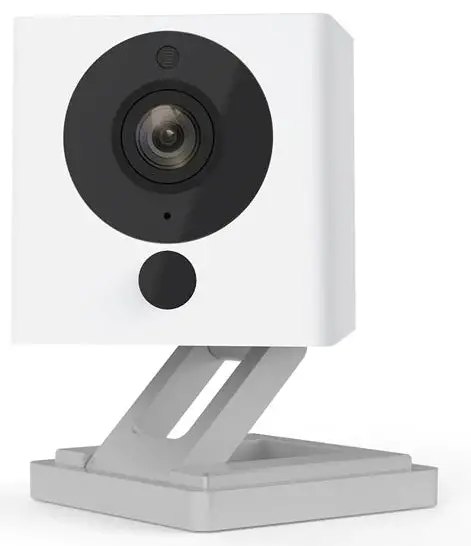
Articles in this section
- Night Vision
Night Vision
Using night vision makes you instantly feel like Batman. To turn on Night Vision, go to the Wyze app and select the Live Stream of the Camera you want. Now click on the Night Vision Icon (image) found in the top right. Here you will be able to turn Night Vision to On Off
Off or Auto
How Does It Work?
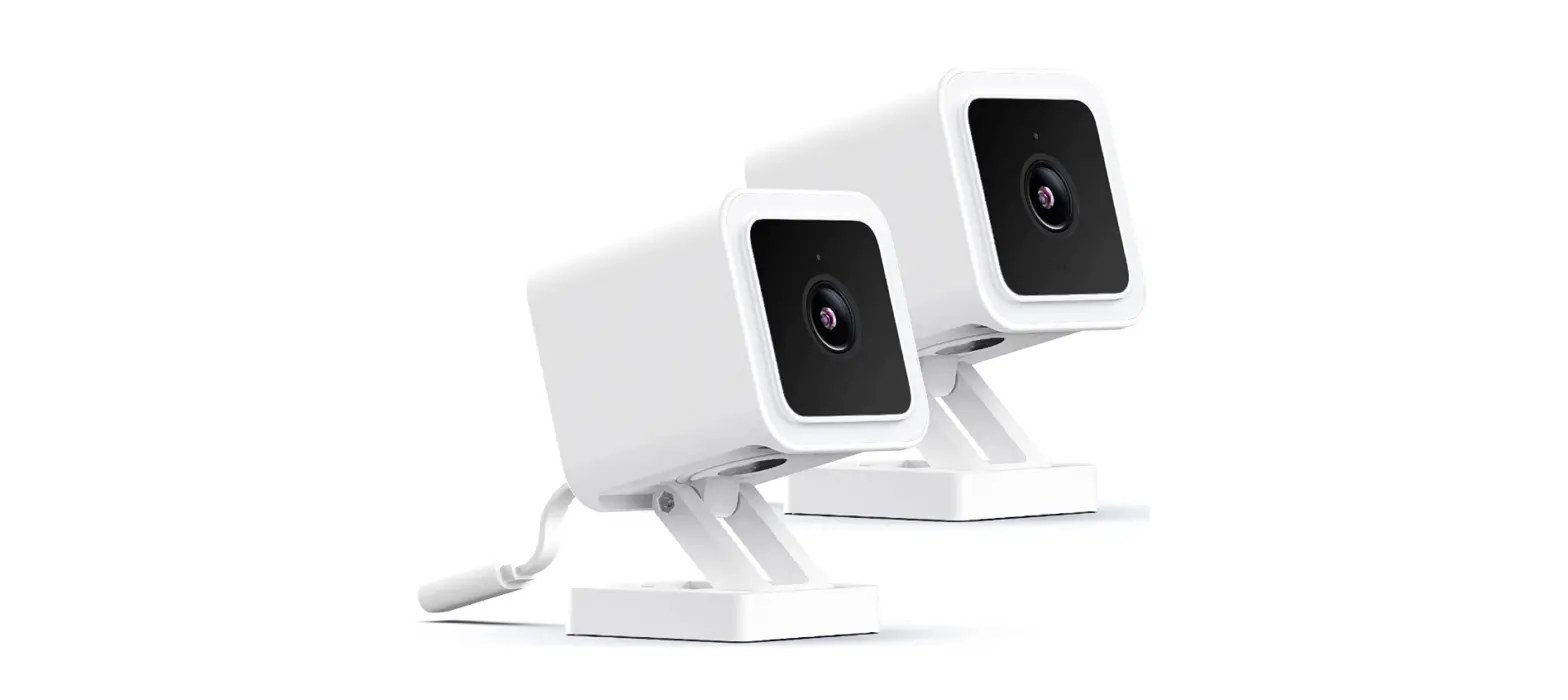
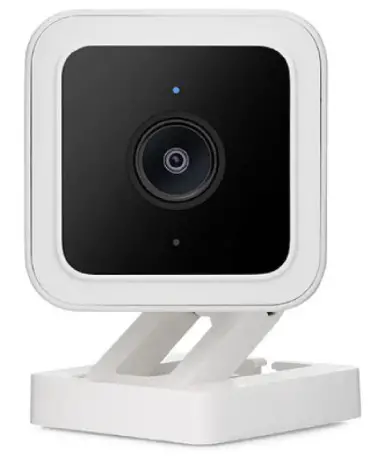
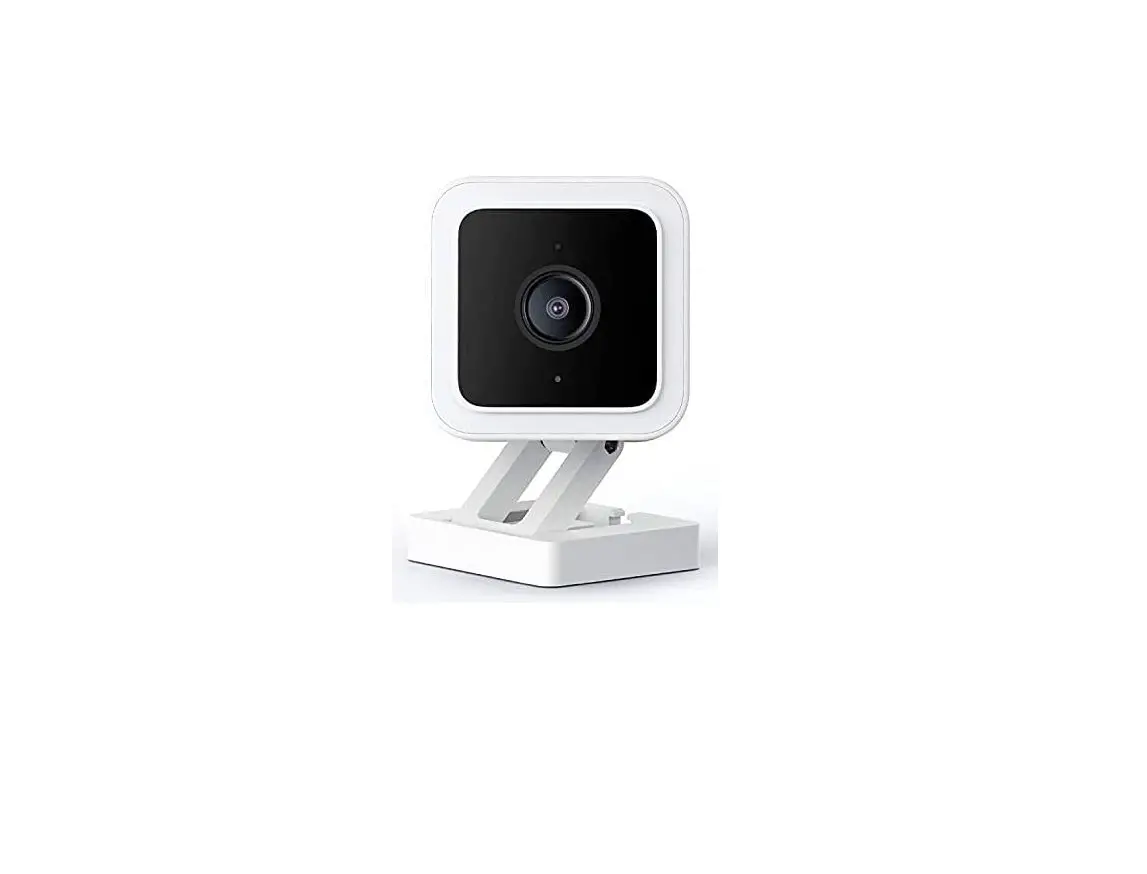
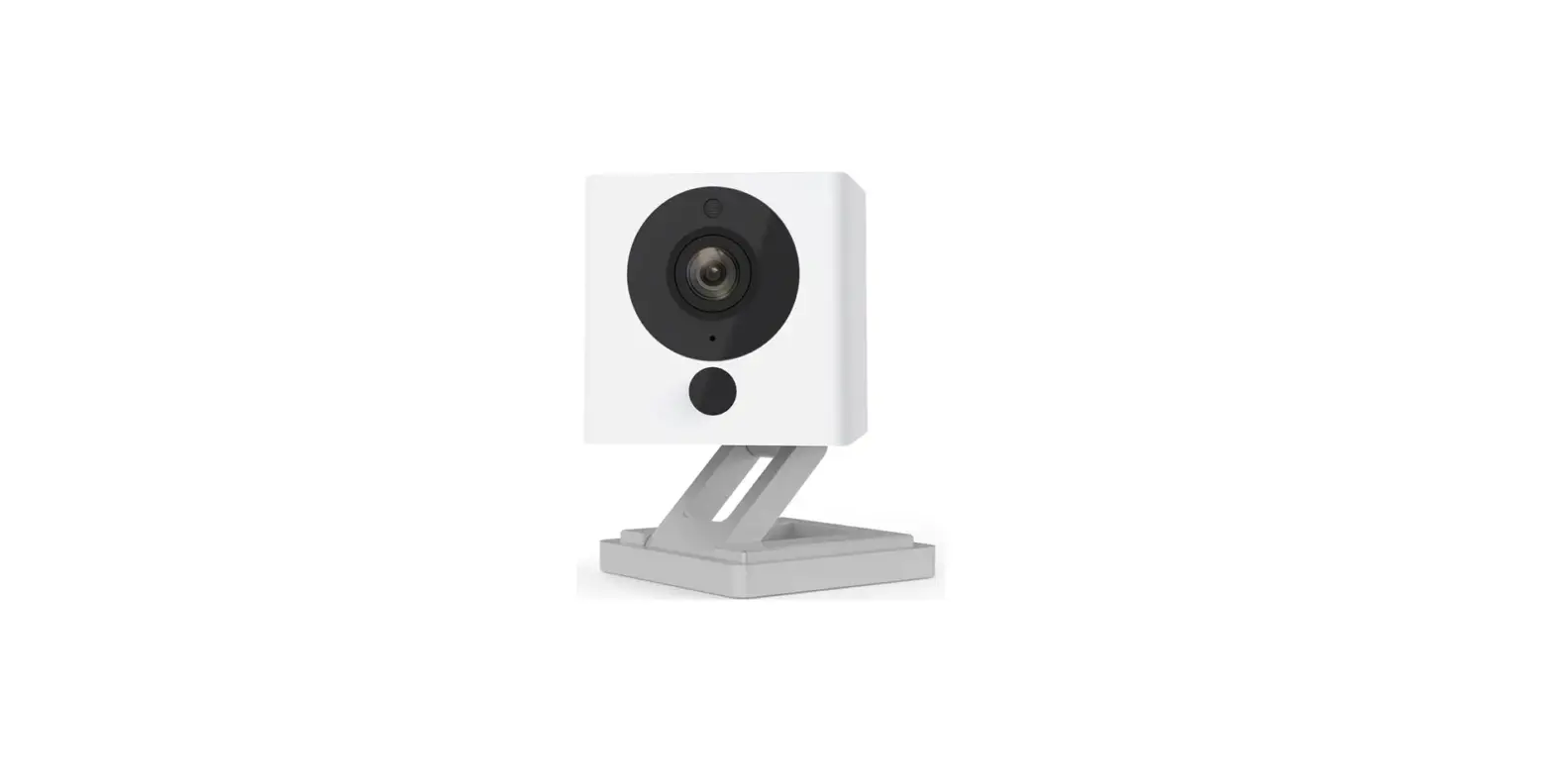
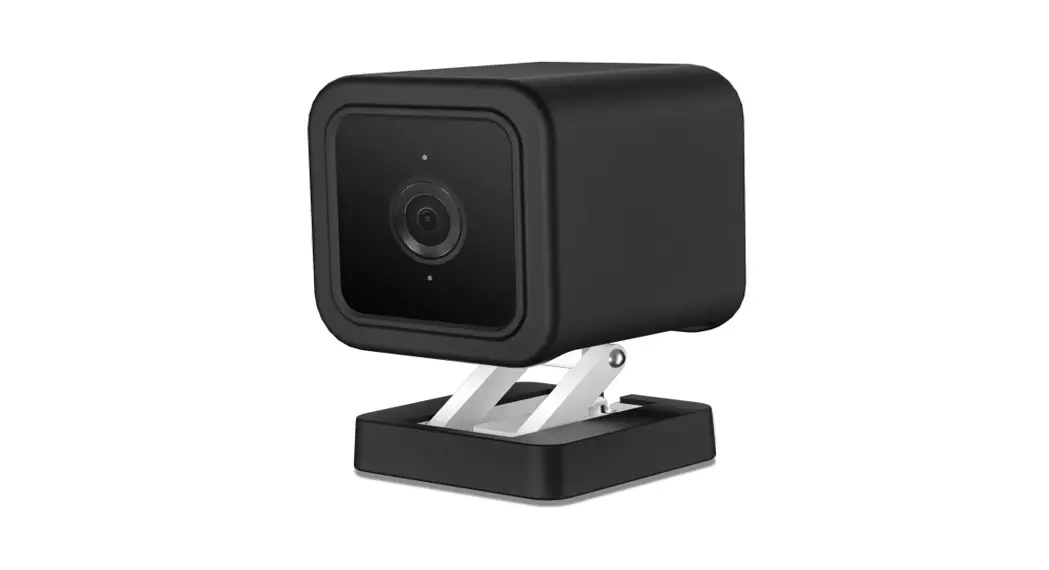
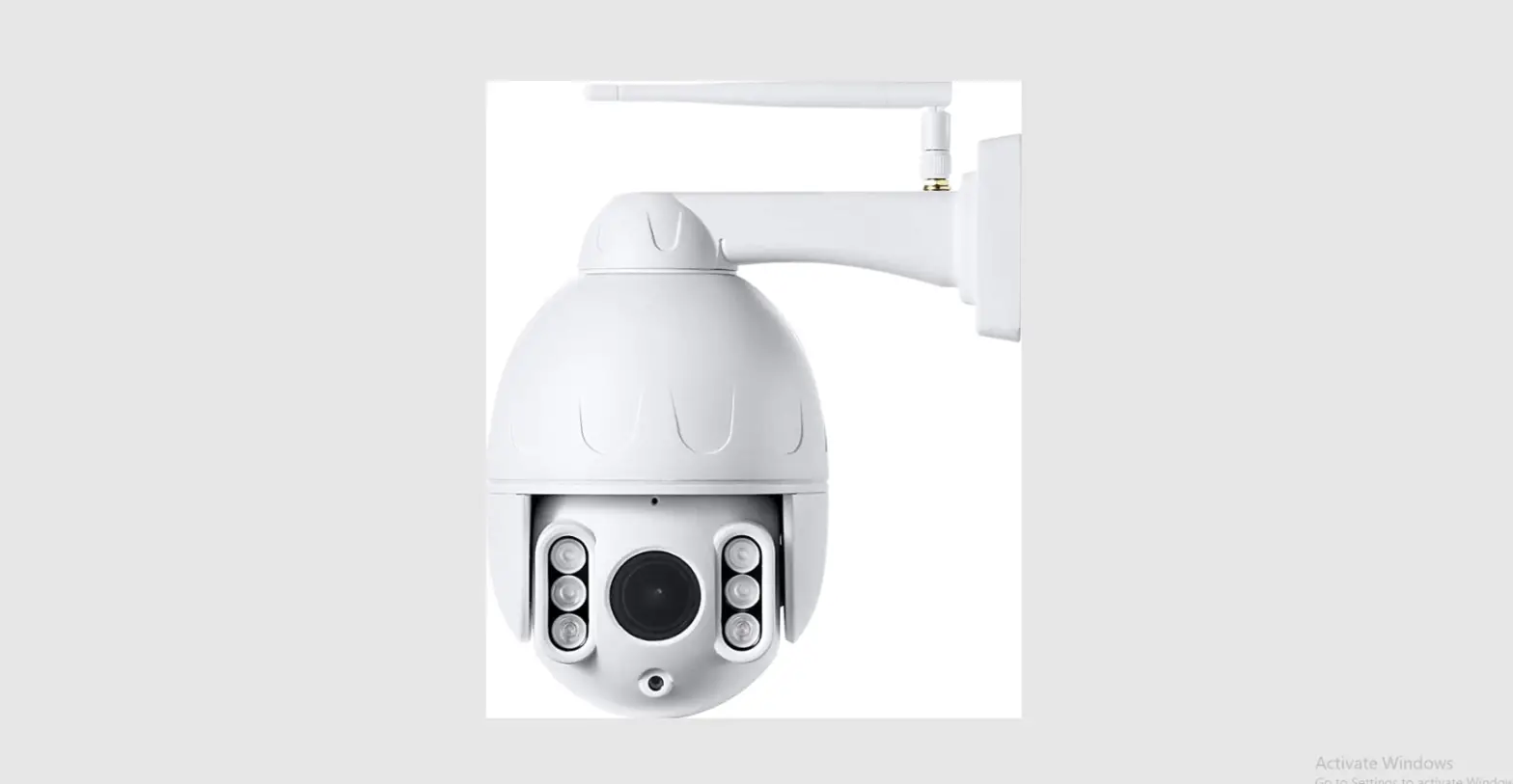
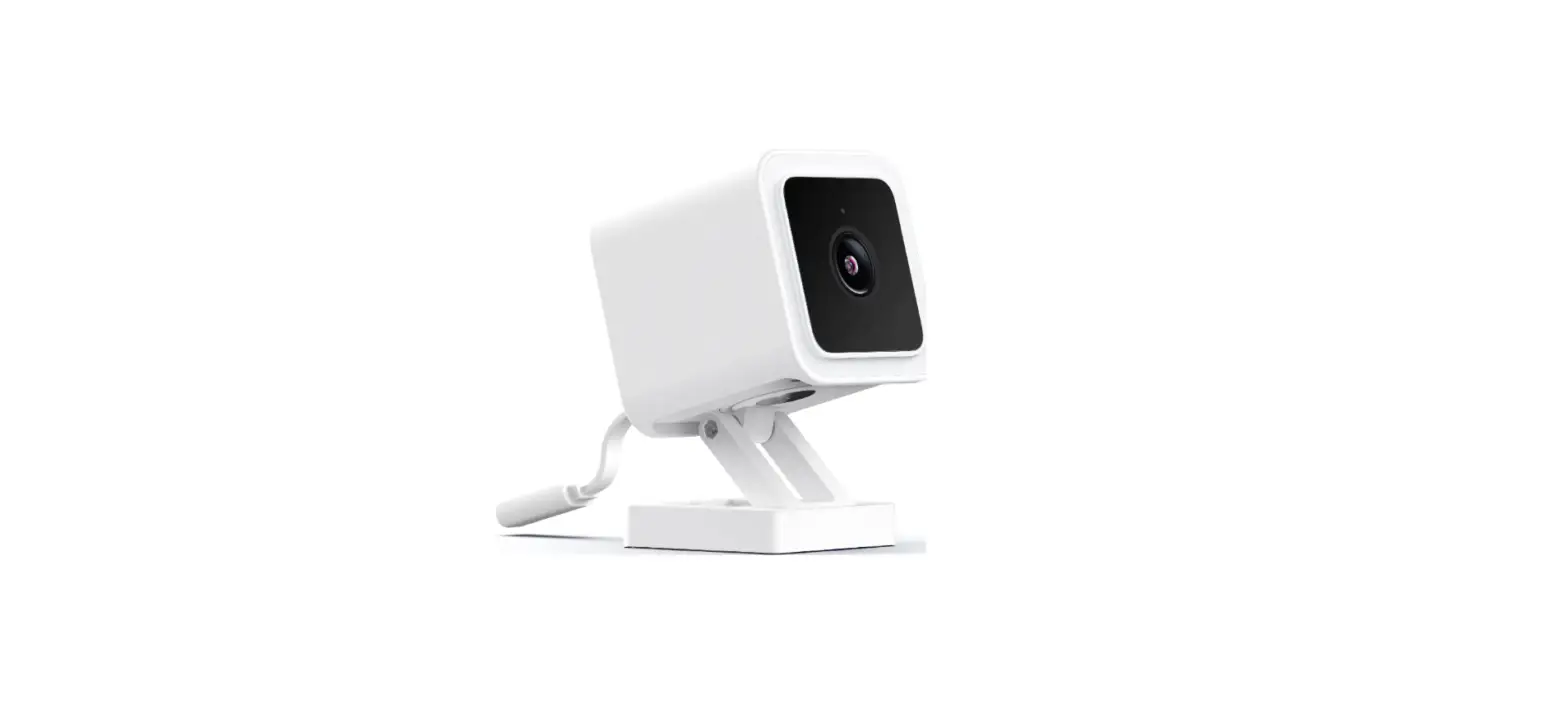
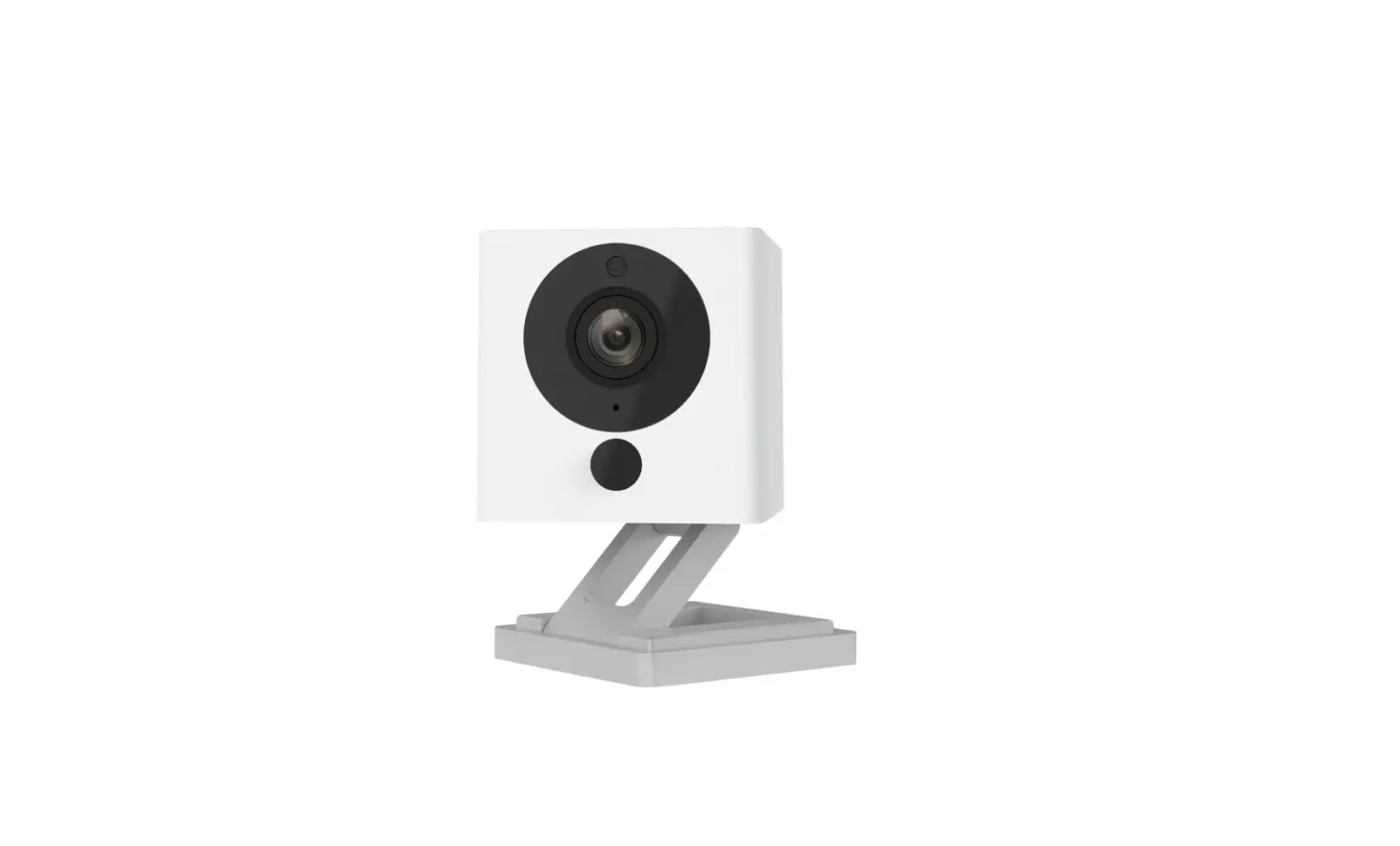
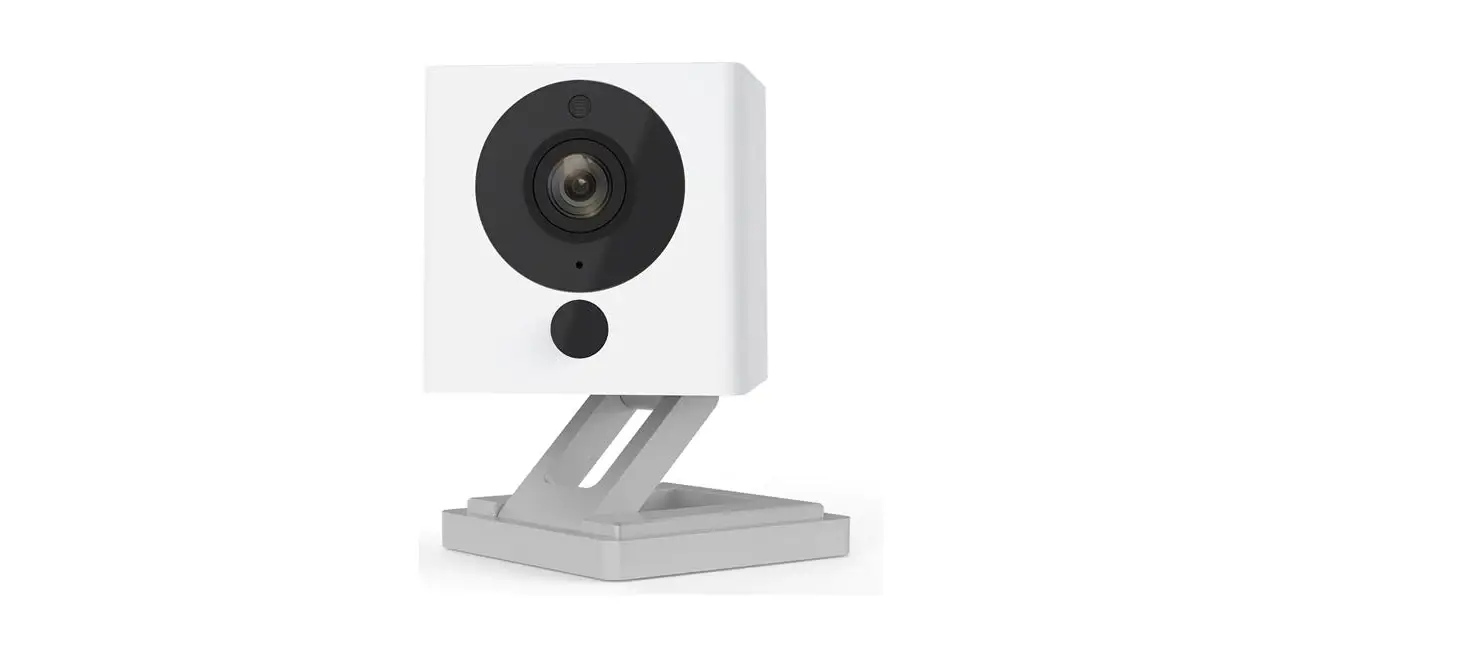
The Wyze Cam has 4 LED infrared lights, and the Wyze Cam Pan has 6 LED infrared lights that are turned on when Night Vision is on. The camera also has an infrared light filter that drops in front of the camera lens to view the video feed using infrared light. You may hear a clicking sound when Night Vision is turned on or off. This is the sound of the infrared light filter moving within the camera.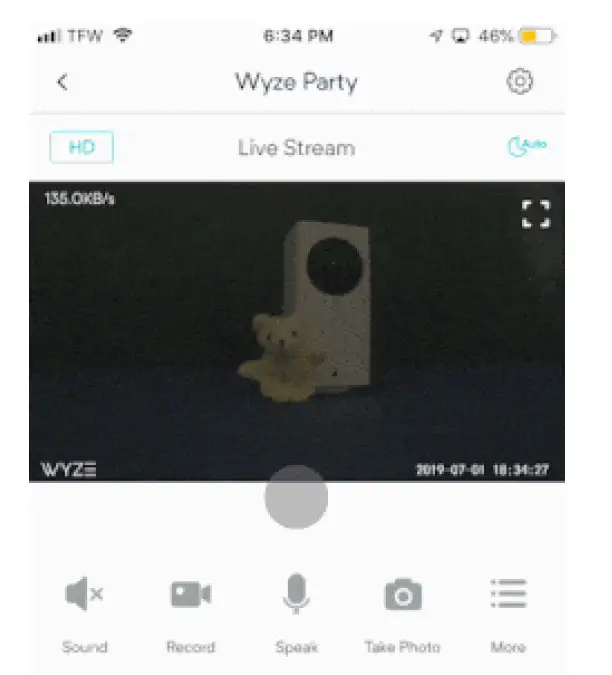
IR lights on/off
The Wyze Cam can toggle the IR lights on/off when using Night Vision. This can help if you want to have your Wyze Cam looking through a window and are getting an IR glare.
To turn the IR lights on/off, use the following process:’
- Open the Wyze app
- Navigate to the camera’s Live Stream
- Go to Settings by tapping
 the icon in the top right of the screen
 - Go to “Advanced Settings”
- 5. From here, you should see an option labeled “IR Emission”. Toggle this setting off to turn the IR lights on the camera off
 the icon in the top right of the screen
Note
While Wyze Cams do have a decent low-light vision on their own, due to variations in lighting conditions, we can’t guarantee that you’ll have full visibility with the IR lights disabled. If the range of the camera seems to be lacking at all, we recommend using a motion-activated floodlight or an IR Blaster placed outside the window that the camera is looking through.