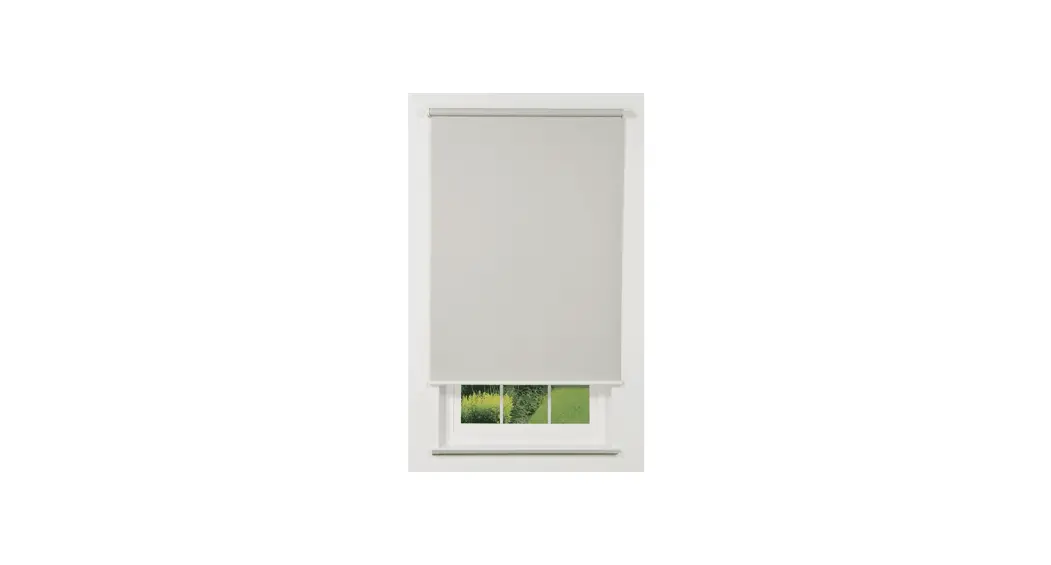
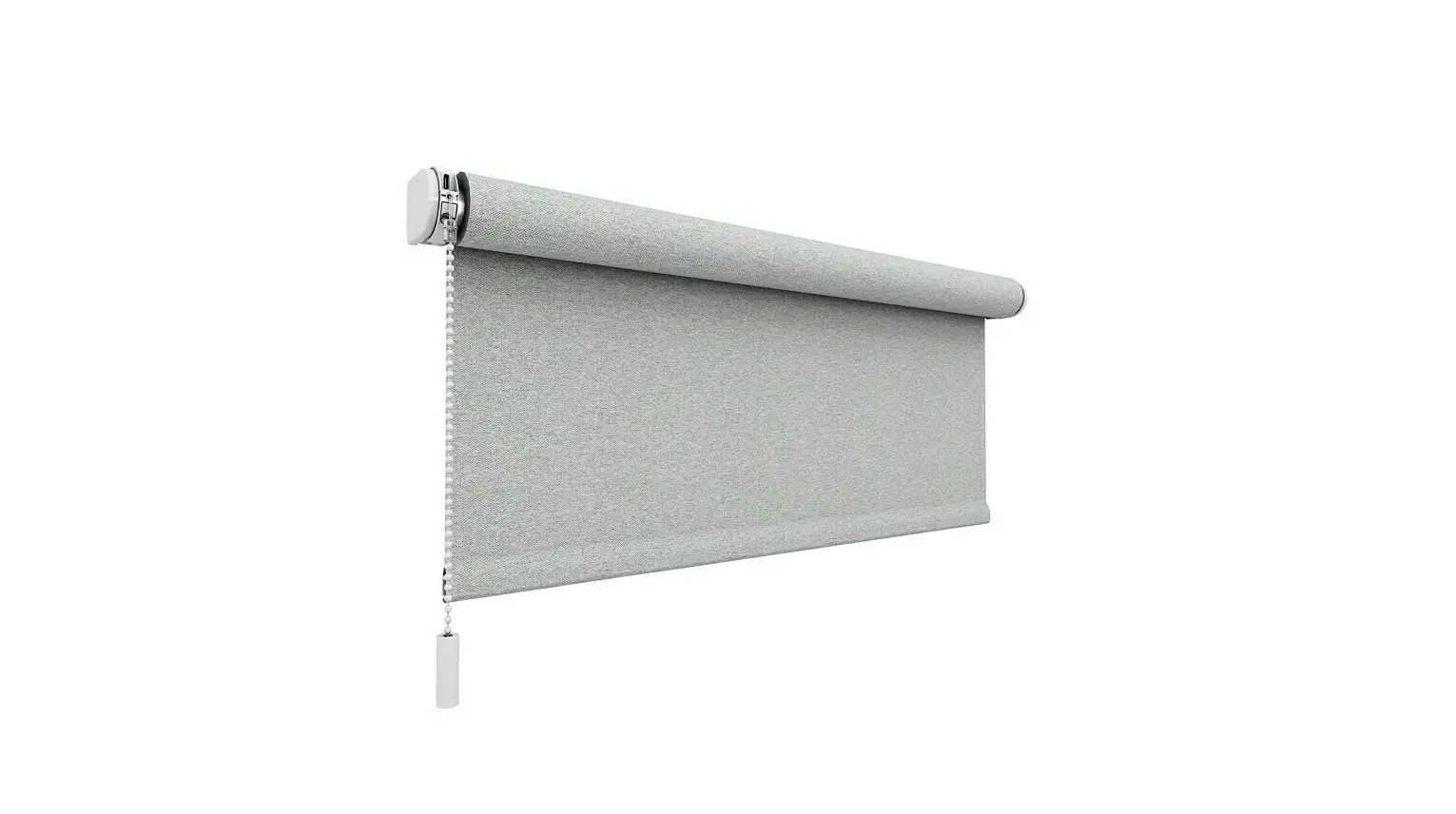
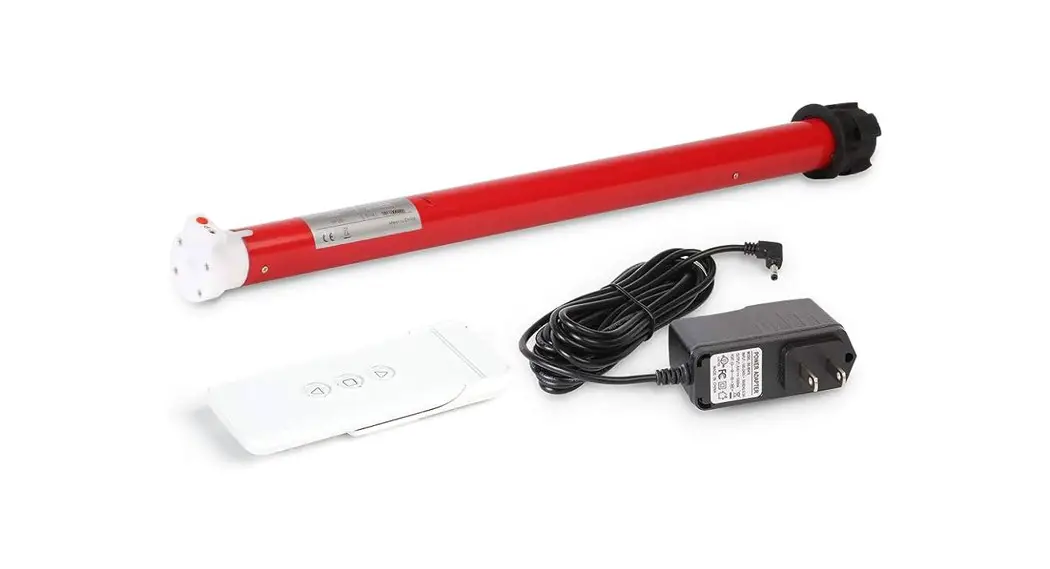
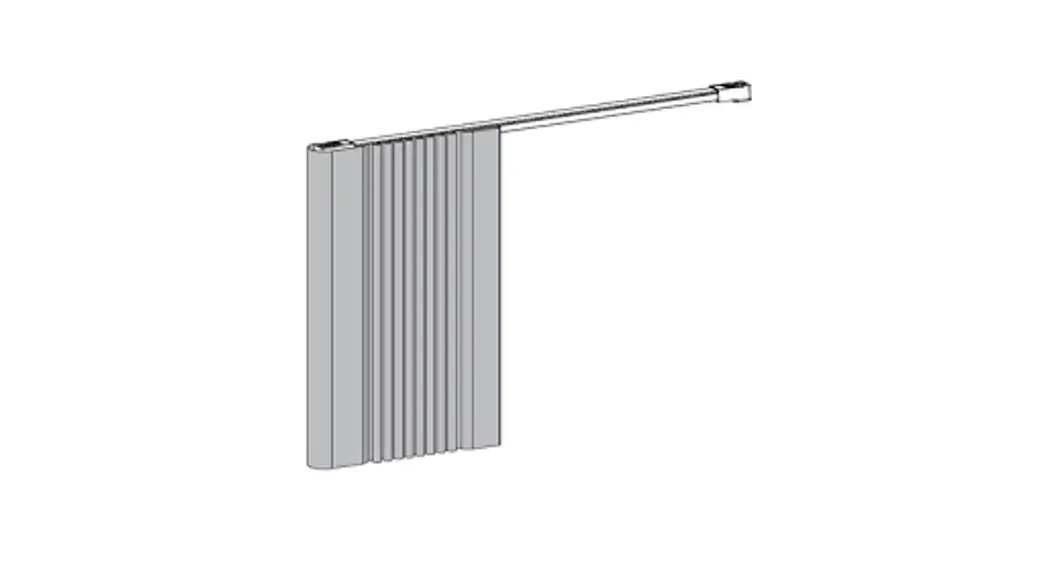
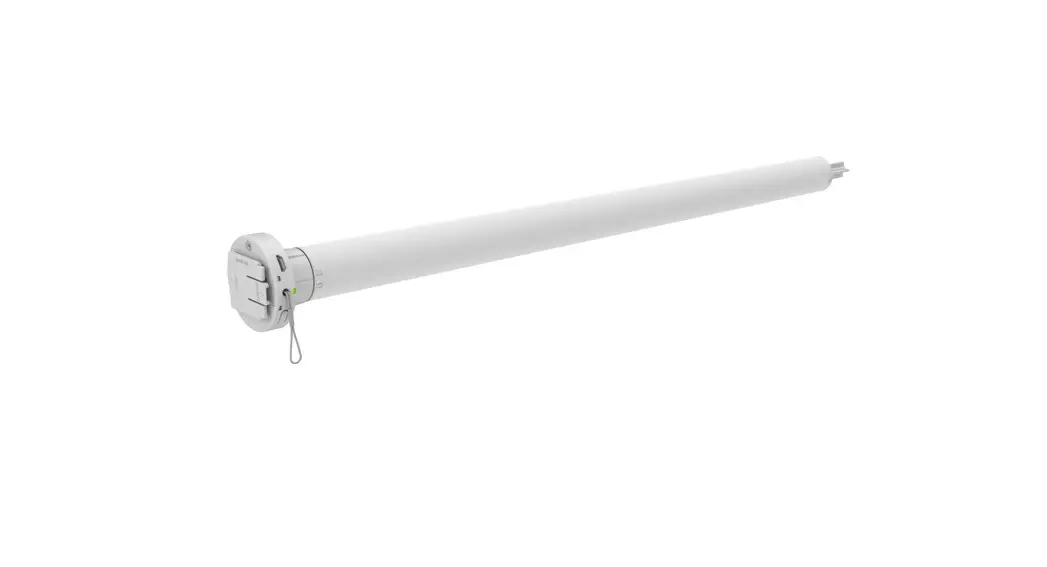
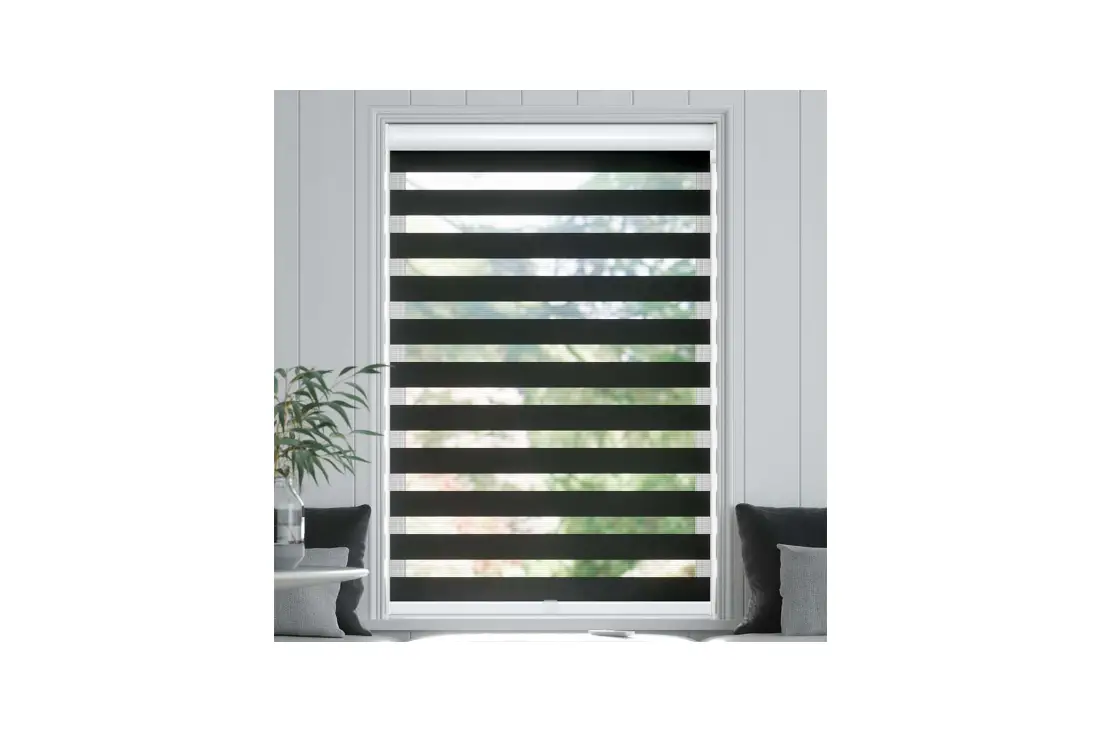
ABC-01 Panel Track with Motorization
Product Information
The product is a Panel Track with Motorization, designed for
indoor use only. It comes with a control panel and can be operated
manually or remotely. The product has a maximum width of 800mm
(31.5 inches) and a maximum height of 100mm (4 inches). It weighs
56 grams and operates on a frequency of 2.4 GHz. The motorization
is powered by two CR2032 1.5V batteries.
Important Safety Instructions
It is important to follow all instructions to ensure safe
installation and usage of the product. Failure to do so may result
in severe injury. Do not attempt to make repairs yourself or open
the device, as it may lead to electric shock and void the limited
warranty.
Young children should be kept away from the cords and control
mechanisms of the window coverings to avoid strangulation and
entanglement. Ensure that cords do not twist together and form a
loop. Move beds, cots, and furniture away from window covering
cords.
Product Usage Instructions
Installation
- Read the instructions carefully before assembling and using the
product. - The assembling process can be completed by
non-professionals. - Take care that the blind can move freely and is not blocked by
objects. - Hang the panel using the velcro provided.
Battery Replacement
To change the batteries, follow these steps:
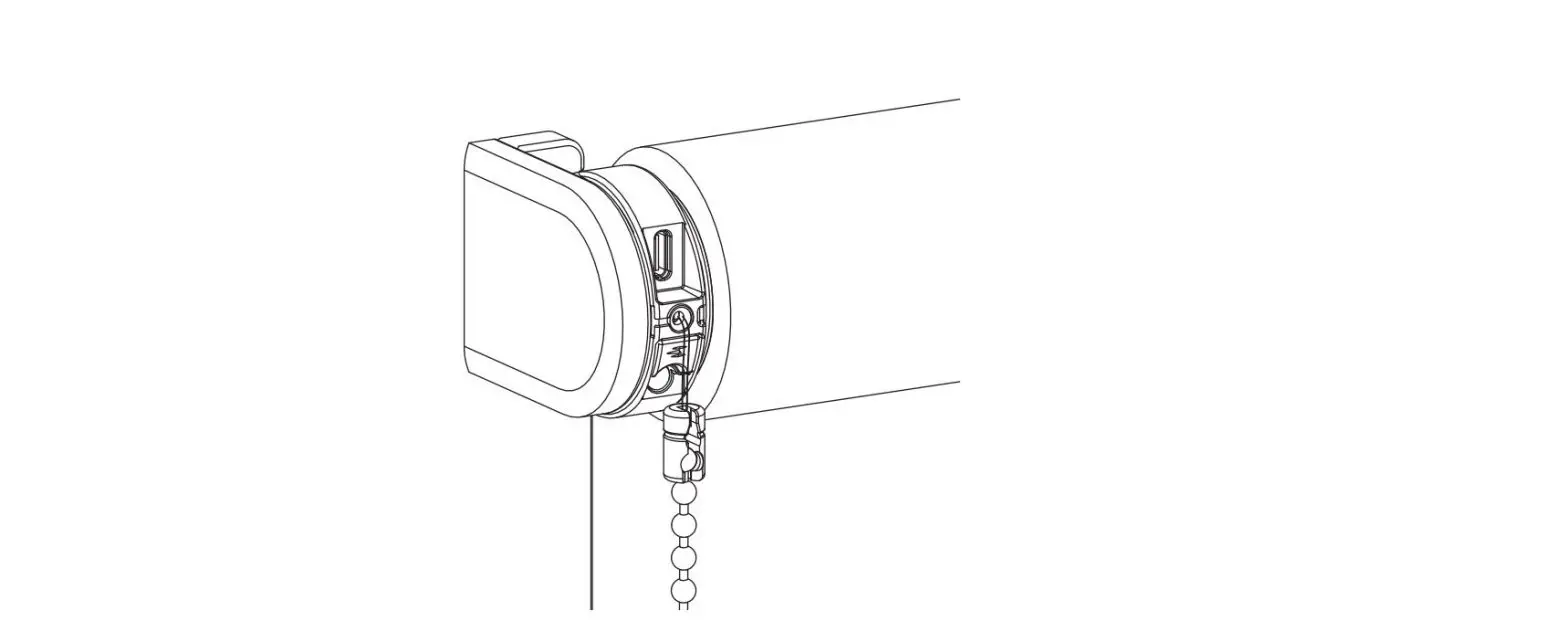
- Remove the battery cover.
- Replace the two CR2016 1.5V batteries with the correct polarity
(+/-). - Close the battery cover.
Programming
To program a blind, follow these steps:
- Set the blind in program mode using one of the following
methods:
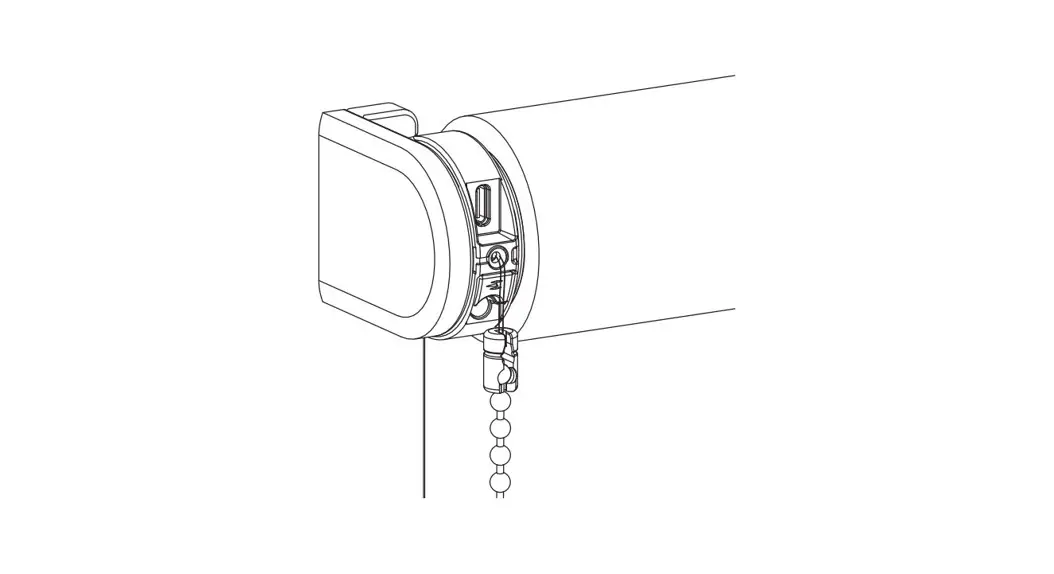
- Press the program button on the blind.
- Use the SingleSelect mode on the remote control by pressing the
center + program button simultaneously.
2.2 of the manual.
wait for the blind to automatically exit program mode after 4
minutes.
Note: The blind will show a stepping motion while in program
mode and can still be operated with the buttons. Once a program
action is confirmed, the blind will stop stepping for 3
seconds.
INSTALLATION MANUA L
Installation – Panel Track with Motorization
Read the instructions carefully before assembling and using the product. Assembling process can be completed by non-professionals. For indoor use only.
WARNING
Young children can strangle in the loop of pull cords, chains and tapes, and cords that operate window coverings. To avoid strangulation and entanglement, keep cords out of the reach of young children.
Cords may become wrapped around a child’s neck Move beds, cots and furniture away from window covering cords. Do not tie cords together.
Make sure cords do not twist together and form a loop.
max. 100mm max. 4 inches
max. 800mm
max. 31.5 inches
max. 100mm max. 4 inches
Click! Click!
1
1
Click!
2
Hanging panel with velcro
INSTALLATION MANUAL
2
INSTALLATION MANUA L
3
Control
INSTALLATION MANUA L
Take care that the blind can move freely and is not blocked by objects.
4
Manual Remote control
WARNING: Important safety instructions. Follow all instructions, since incorrect installation can lead to severe injury.
WARNING:
Do not make repairs yourself. Do not attempt to open the device or disassemble it. You run the risk of electric shock and voiding the limited warranty. No user-serviceable parts are inside.
indoor use only
1. General information
1.1 Performances
ABC-01
Battery Channels Max. blinds per channel Range (inside building) Frequency Weight
1.2 Buttons
CR2032 1.5V 5
infinite 20m, 2 concrete walls
2.4 GHz 56 grams
Up
Left
Right
Down
Channel Indicator LED’s (1 to 5)
Center button
(stop – favorite)
ChannelSelect button
Program button
1.3 Changing the battery
+
+ –
2X CR2016 1,5V
+ –
CR2032 1,5V
2. Programming
To program a blind: 1. Set blind in program mode, chapter 2.1 2. Program the blind, chapter 2.2 3. Exit the program mode, chapter 2.1
2.1 Set a blind in program mode Setting a blind in program mode can be done in three ways. If a blind is in program mode it will show a stepping motion. The blind can still be operated with the buttons. If a program action is confirmed, the blind stops stepping for 3 seconds. A blind will exit the program mode automatically after 4 minutes.
1. By hand: press the program button on the blind It is possible to set multiple blinds in program mode and program them simultaneously.
Set in Program mode: Press program button
on the blind, The blind starts
stepping
Program the blind
Go to chapter 2.2 for program options
Exit Program mode: Press program button
on the blind, The blind stops
stepping
2. By remote: SingleSelect mode The SingleSelect mode is a patented method to set a blind in program mode by remote control. When a remote and blind are in SingleSelect mode, the blind can be operated, paired to one or more channels and programmed. Other blinds are disconnected from the remote, untill the SingleSelect mode has ended.
+
To start the SingleSelect mode: press center + program button
(use pen)
Searching: indication LED’s are
flashing up and down Please wait: remote is
searching for blinds
Blind found: Indication LED is flashing in selected channel
The blind is in program mode and stepping
Go to chapter 2.2 for
program options
To search the next blind: press right (press left to find
previous)
Exit the SingleSelect mode Press right during search
3. By remote: ChannelSelect ChannelSelect is a method to set all blinds that are paired in the same channel, into program mode.
Select the channel
+
To start the channel select mode: press channel
select + program button (use pen)
All blinds are in program mode and stepping
Go to chapter 2.2 for
program options
+
To exit the channel select mode: press channel
select + program button (use pen)
2.2 Programming a blind 1. Pair a blind to a channel To pair a blind to a channel, the blind must be in program mode. See chapter 2.1 how to set a blind in program mode and exit program mode.
Action confirmed: blind stops stepping for 3 seconds
Choose channel to pair by pressing the ChannelSelect button
Pair/unpair by pressing the program button (use pen)
2. Pair multiple blinds simultanously to a channel or other remote To pair multiple blind simultanously to a channel or other remote, all blinds must be in program mode. See chapter 2.1 how to set a blind in program mode and exit program mode. Pairing multiple blinds simultanously to a channel is not possible for Singleselect
Set multiple blinds in program mode
by hand or by ChannelSelect. (See chapter 2.1)
Action confirmed: blind stops stepping for 3 seconds
Choose channel to Pair/unpair by pressing
pair by pushing the the program button
ChannelSelect button
(use pen)
3. Set the favorite position To program a blind, the blind must be in program mode. See chapter 2.1 how to set a blind in program mode and exit program mode.
Action confirmed: blind stops stepping for 3 seconds
Set the blind in the desired position
Set your position by pressing the center button for two seconds
4A. Switch the blind’s direction of rotation To program a blind, the blind must be in program mode. See chapter 2.1 how to set a blind in program mode and exit program mode. Example: when you press left/down on the remote and your blind moves to the right/up, you have to switch the rotation direction of the blind.
Switch UP & DOWN
Switch LEFT & RIGHT*
Action confirmed: blind stops stepping for 3 seconds
Hold the up and down button to switch the direction of rotation
Hold the left and right button to switch the direction of rotation.
* When SingleSelect
! method is used: follow step 4B to switch LEFT & RIGHT.
4B. SingleSelect mode: Switch direction of rotation for panel and vertical blinds
Switch LEFT & RIGHT
The remote recognizes a vertical or paneltrack blind automatically and switches the buttons up&right and down&left. The channel indicator is also reversed
For Panel and Vertical blinds: Hold the up and down button to switch the left&right rotation
Action confirmed: blind stops stepping for 3 seconds
5. Set blind in BatteryMode (Greenmode) To program a blind, the blind must be in program mode. Important: BatteryMode can be only turn on by using SingleSelect method, see chapter 2.1 how to set a blind in program mode en exit program mode by single select.
The RF-unit in the blind forwards radio signals to increase the range of the remote.
BatteryMode On / Off
!
BatteryMode can be only turned on by using SingleSelect method
BatteryMode ON: Press up to put the
BatteryMode on.
Hold the left and right to read out the BatteryMode
setting in the blind
BatteryMode OFF: Press down to put the
BatteryMode off.
To confirm: Press center button
3. Operating
3.1 Select a channel
Channel 1
Channel 2
Channel 3
Channel 4
3.2 Operate a blind
Press the buttons shortly for small movements, press the buttons for 2 seconds and the blind will move automatically. Press the stop/center button to stop the movement.
Channel 5
4. Remote Holder OR
5. Safety & Cleaning
5.1 Safety
WARNING:
Do not make repairs yourself. Do not attempt to open the device or disassemble it. You run the risk of electric shock and voiding the limited warranty. No user-serviceable parts are inside.
– Do not let children play with the blind and/or remote control – Do not paint the device – Keep the device dry. Precipitation, humidity, and all types of liquids or moisture can contain
minerals that will corrode electronic circuits. If your device does get wet, remove the battery, and allow the device to dry completely before replacing the battery. – Do not drop, knock, or shake the device. Rough handling can break internal circuit boards.
5.2 Cleaning Follow these general rules when cleaning the outside of the device and its components:
– Make sure the device is unplugged. – Use a damp, soft, lint-free cloth. Avoid getting moisture in openings. – Don’t use aerosol sprays, solvents, alcohol, or abrasives.
1 sec
Buttons
>2 sec
1 sec
Up / tilt
Down / tilt
Left
Right
Stop
2 sec: Favorite position