Select Blinds Motors
Product Information:
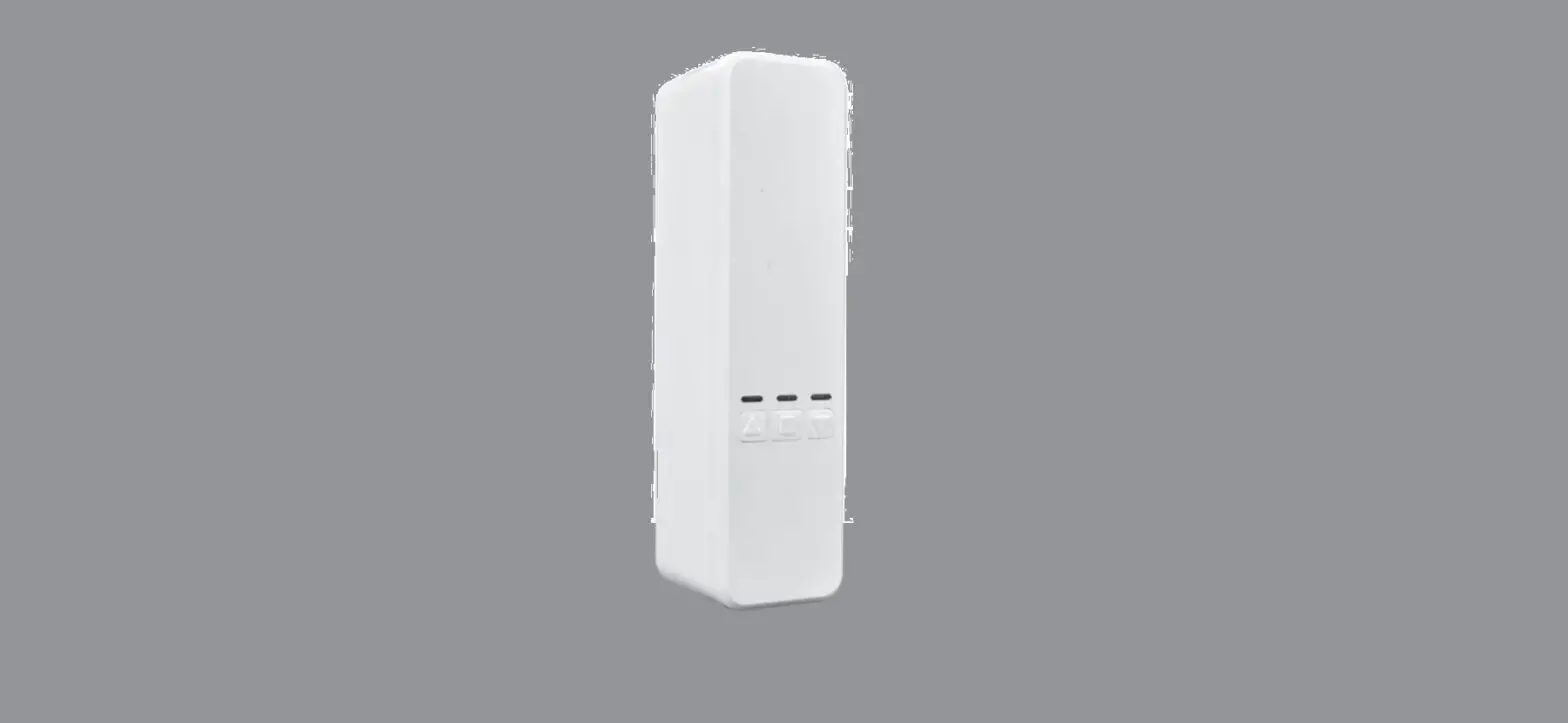
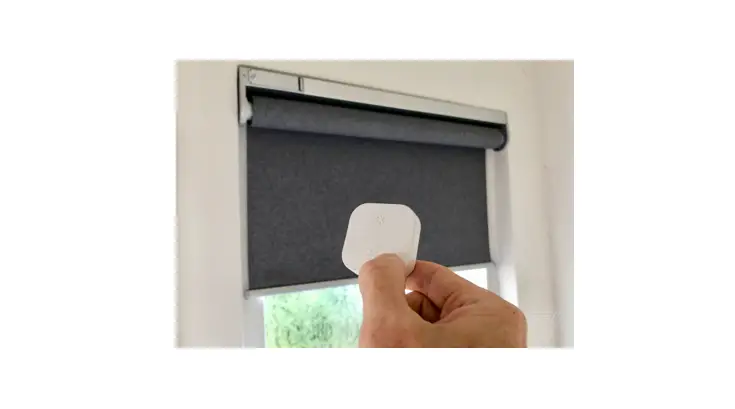
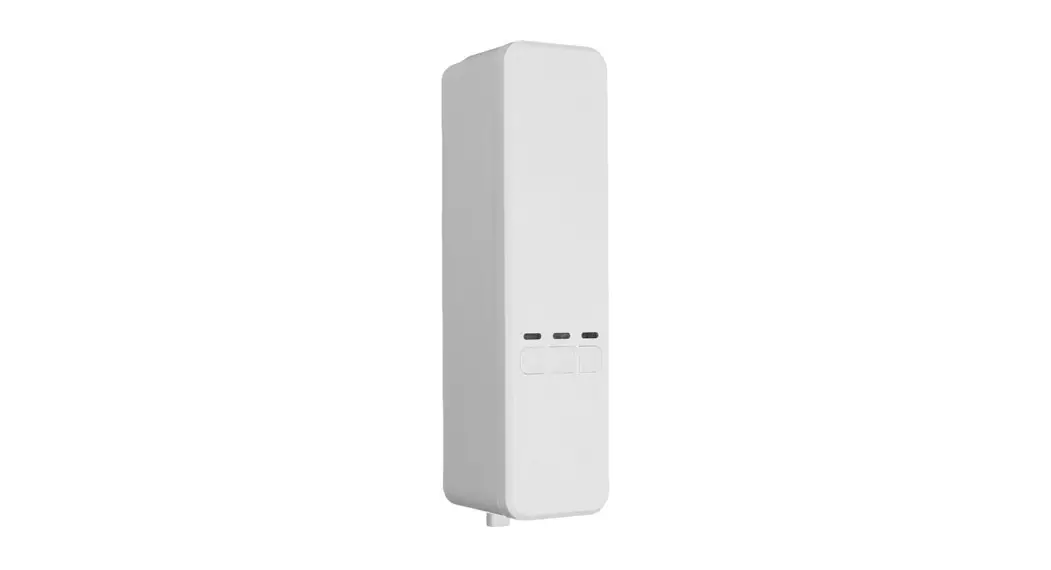
The Select Blinds motors powered by Eve MotionBlinds are roller
shades that work with Apple Homekit technology. They come with a
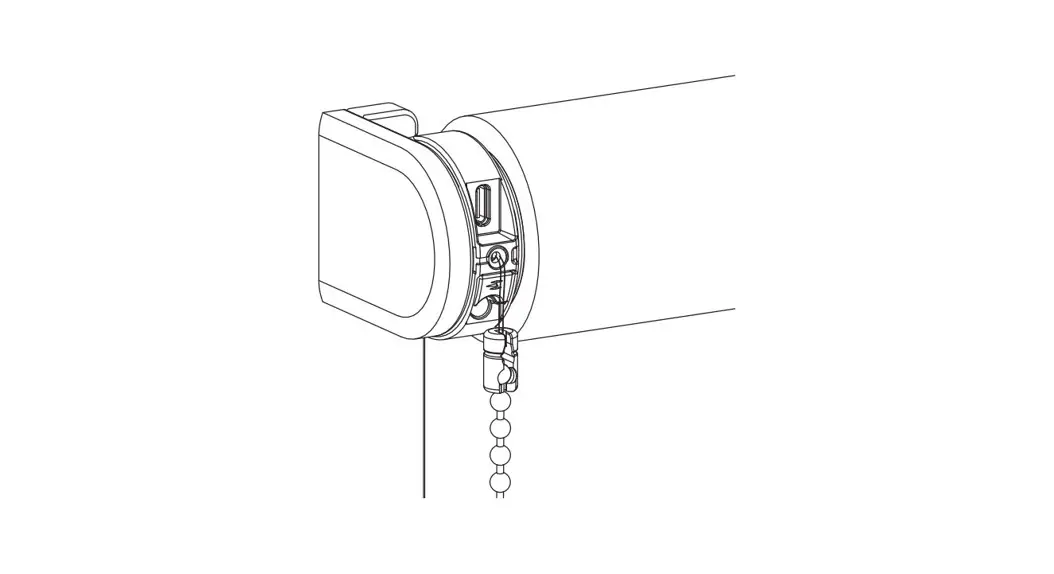
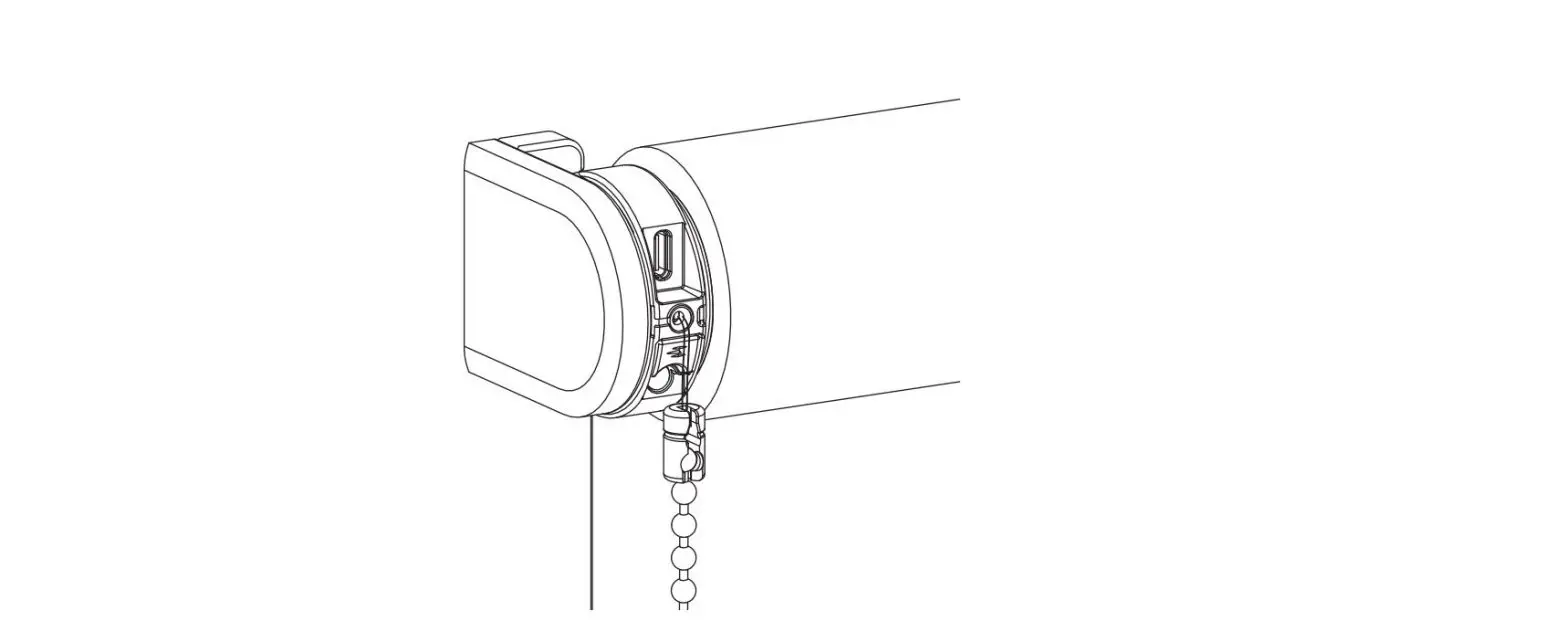
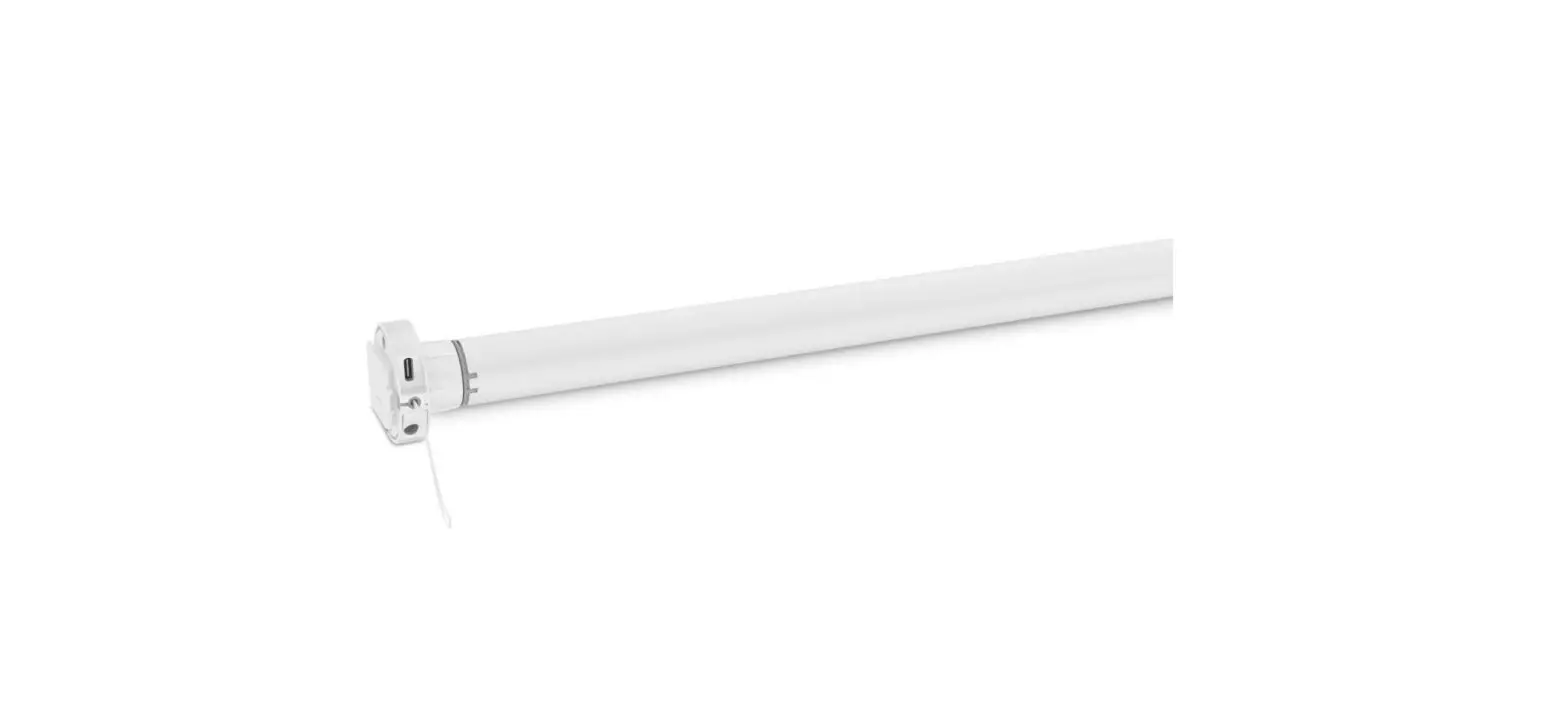
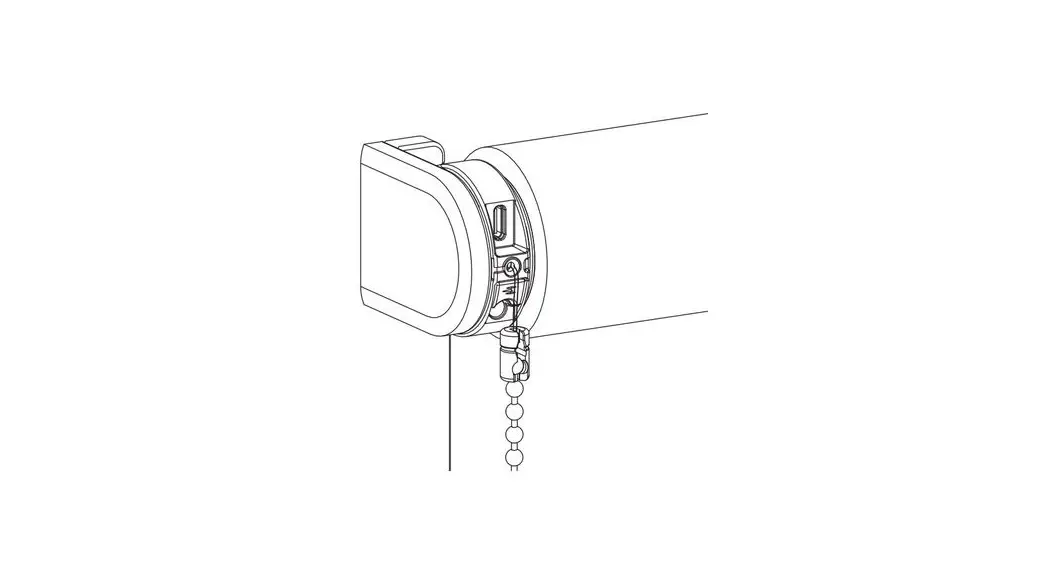
USB-C charging port, LED indicators for battery/reset, end position
buttons, a reset/program button, and a pull control.
Product Usage Instructions:
- Install: Follow the installation instructions
provided to install the shade. There are different options for
installation, including outside mount and inside mount. - Activate: To activate the shade, connect it to
a standard USB-C 5V power supply using a USB-C cable. You can use
your iPhone’s power adapter for this. - Download the Eve app: Go to the App Store and
download the Eve app. - Setup the shade: Open the Eve app and tap on
“Add Accessory”. Follow the instructions provided by Eve to set up
the shade. If you have previously set up an accessory, go to
Settings and tap “Add Accessory”. You can adjust the end positions
of the shade (top and bottom) by following the steps in the
app. - Hide the HomeKit Setup Code: Slide the tassel
up and rotate it a quarter turn to hide the HomeKit Setup Code into
the tassel. - Recharge the shade: To charge the blind,
connect it to a standard USB-C 5V power supply using a USB-C cable.
You can use your iPhone’s power adapter for this.
The LED indicator on the shade provides different signals:
- If the LED light flashes red during operation, it indicates
that the battery needs to be charged. - If the LED light flashes green, it means the battery is
currently being charged. - If the LED light is constantly green, it indicates that the
battery is fully charged.
Select Blinds motors powered by Eve MotionBlinds works with Apple Homekit technology.
setup guide
ROLLER SHADE
Buttons and functions
USB-C charging port LED (Battery/Reset indicator)
End position button Reset/Program button
Pull control
1 Install Follow the steps in the installation instructions to install shade.
Installation
4 x
Outside mount
2 x
2 x Inside mount
2 x
BOutside mount
Deduwctid1th1/fo4rinsccrhefwropmosoitpioennisng
Inside mount
Max. 1/8 ”
2 Activate
To activate the shade, connect it to a standard USB-C 5V power supply via a USB-C cable. This can be your iPhone’s power adapter, for example.
3 Download the Eve app
Download the Eve app from the App Store.
4 Setup the shade
Open the Eve app and tap Add Accessory. Eve will now guide you through the setup process. If you have previously set up an accessory, go to Settings and tap Add Accessory. The end positions of the shade, top and bottom, are pre-programmed. These can be adjusted by following the steps in the app.
5 Hide the HomeKit Setup Code
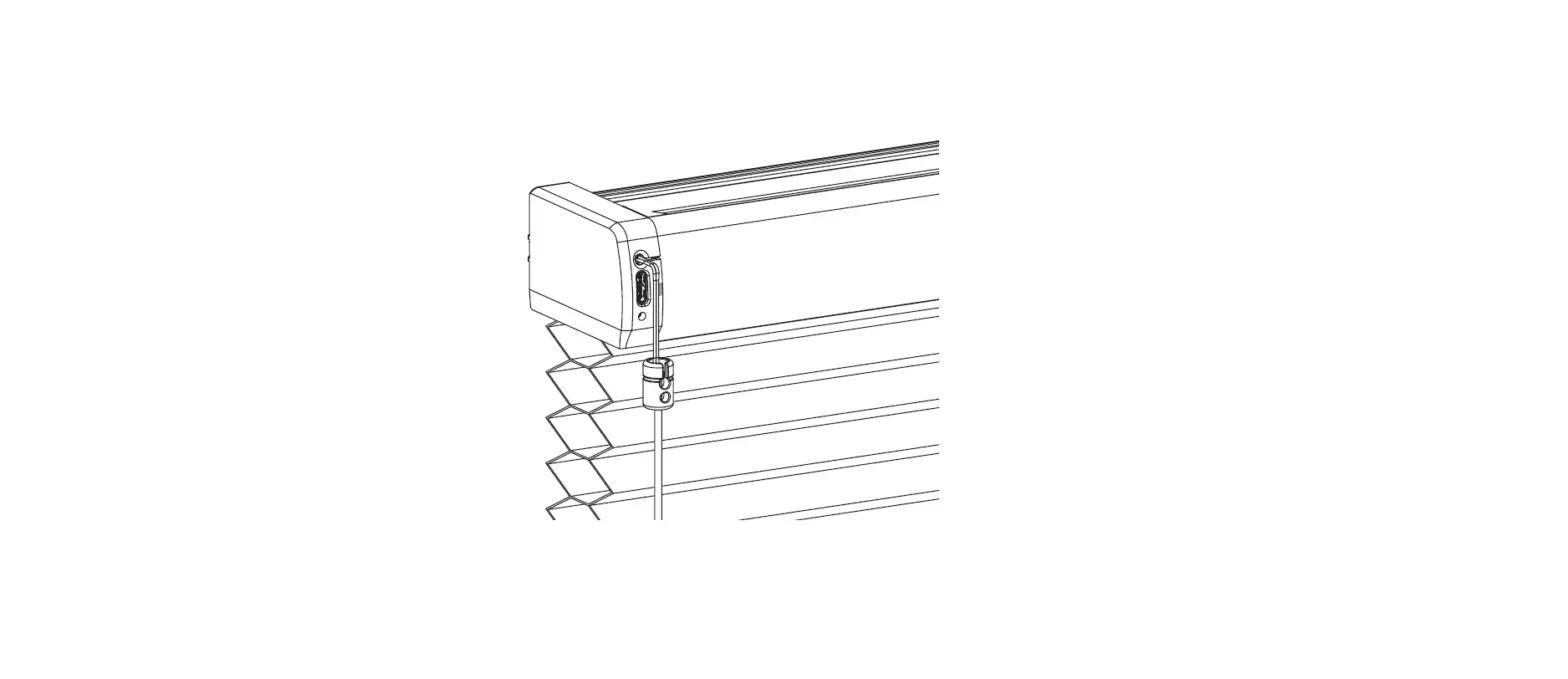
Slide the tassel up and rotate a quarter turn to hide the HomeKit Setup Code into the tassel.
Recharge the shade
To charge the blind, connect it to a standard USB-C 5V power supply via a USB-C cable.
This can be your iPhone’s power adapter, for example.
LED light flashes red during operation; Charge the battery
LED light flashes green;
battery is charging
LED light constantly green;
battery is fully charged