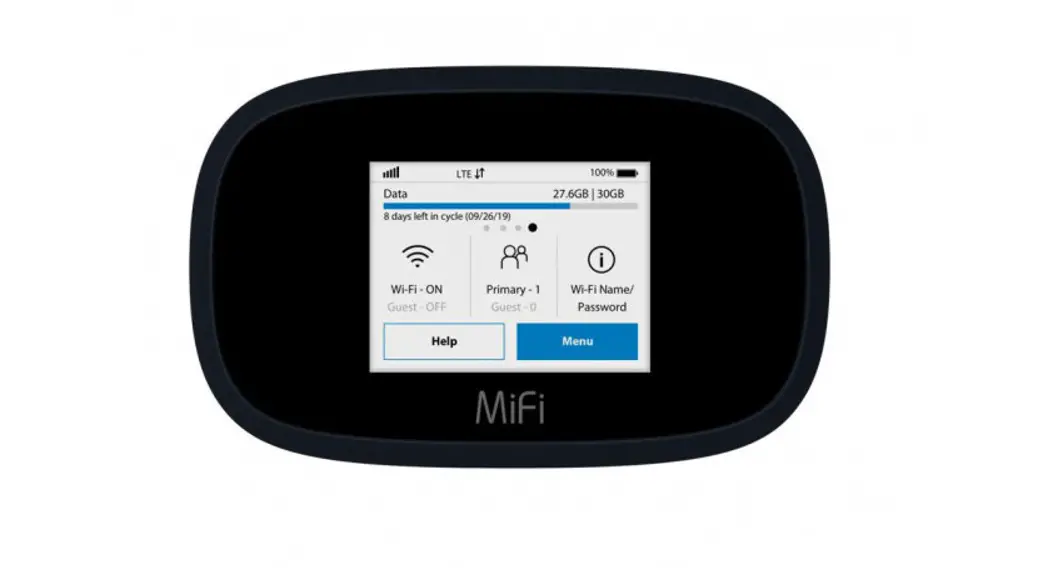
IML-C6400W LTE Mobile WiFi
Product Information
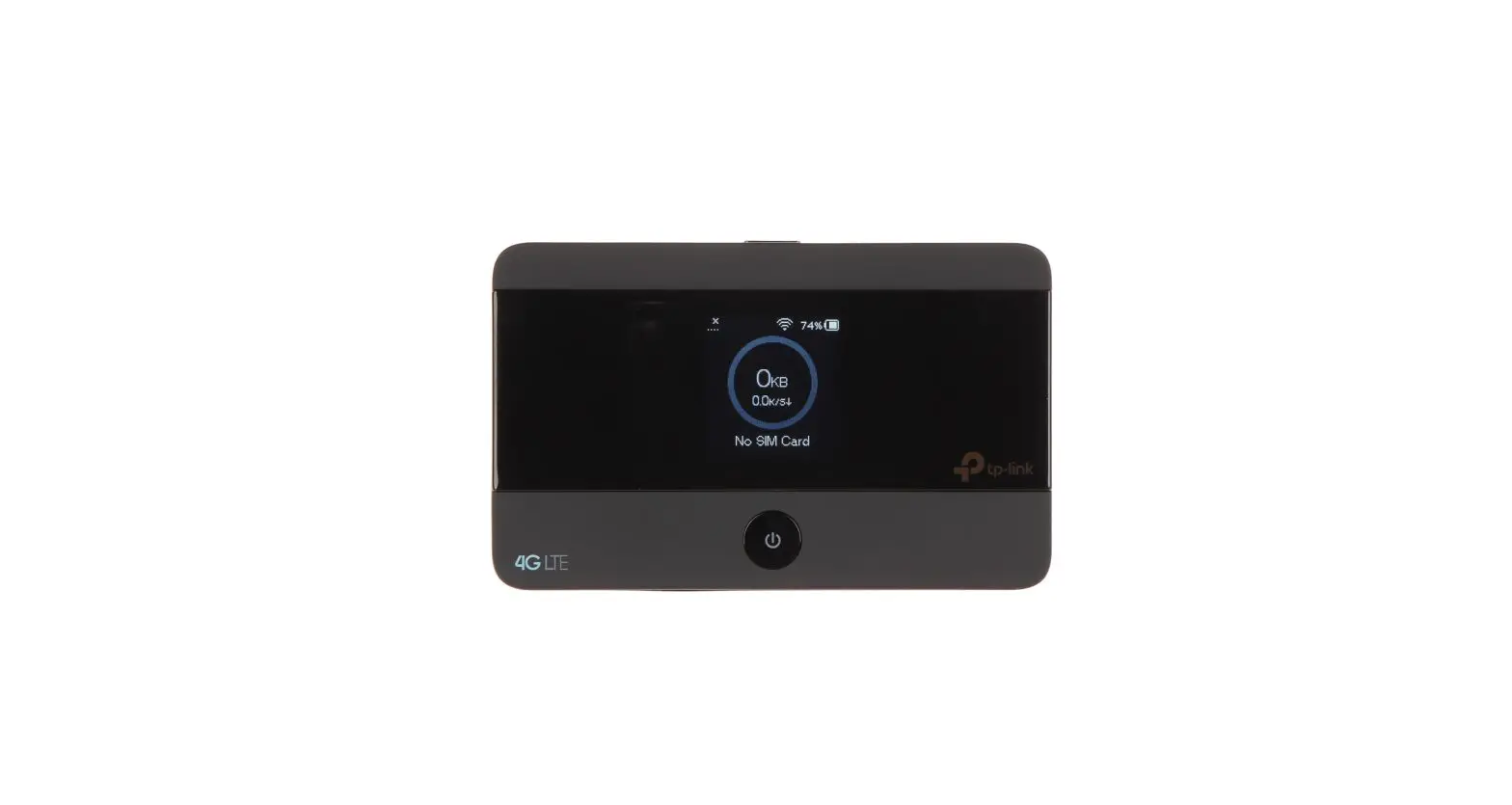
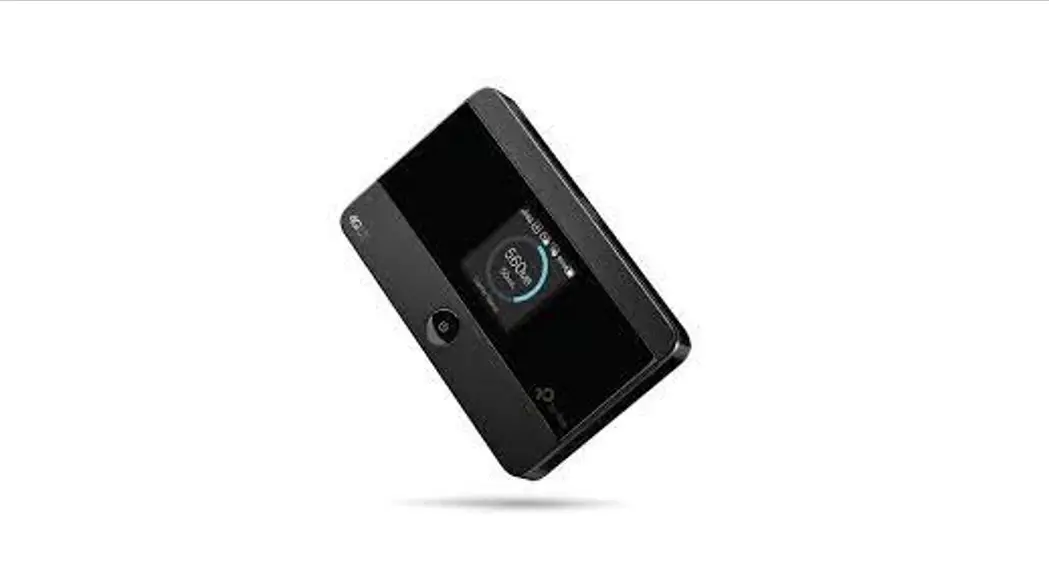
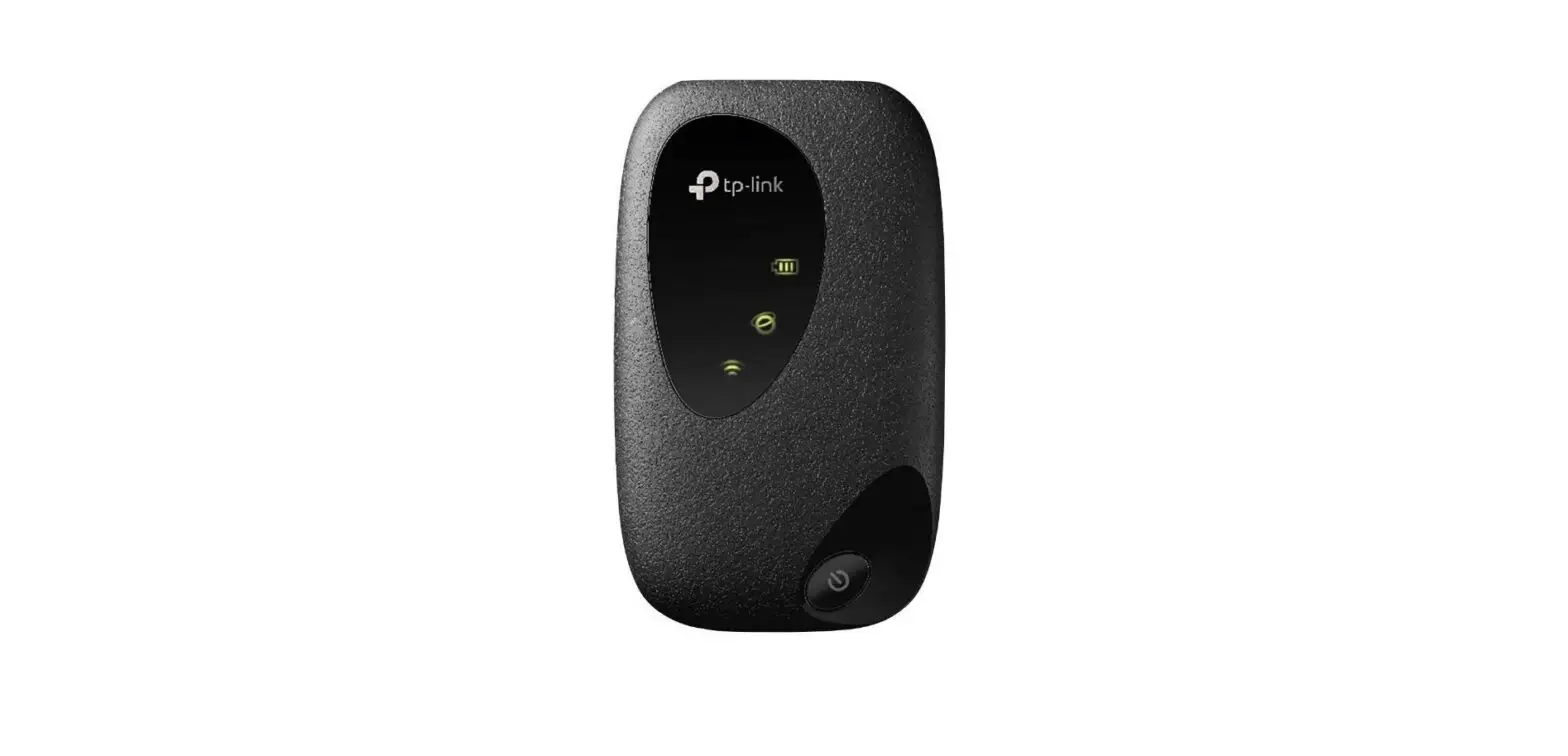
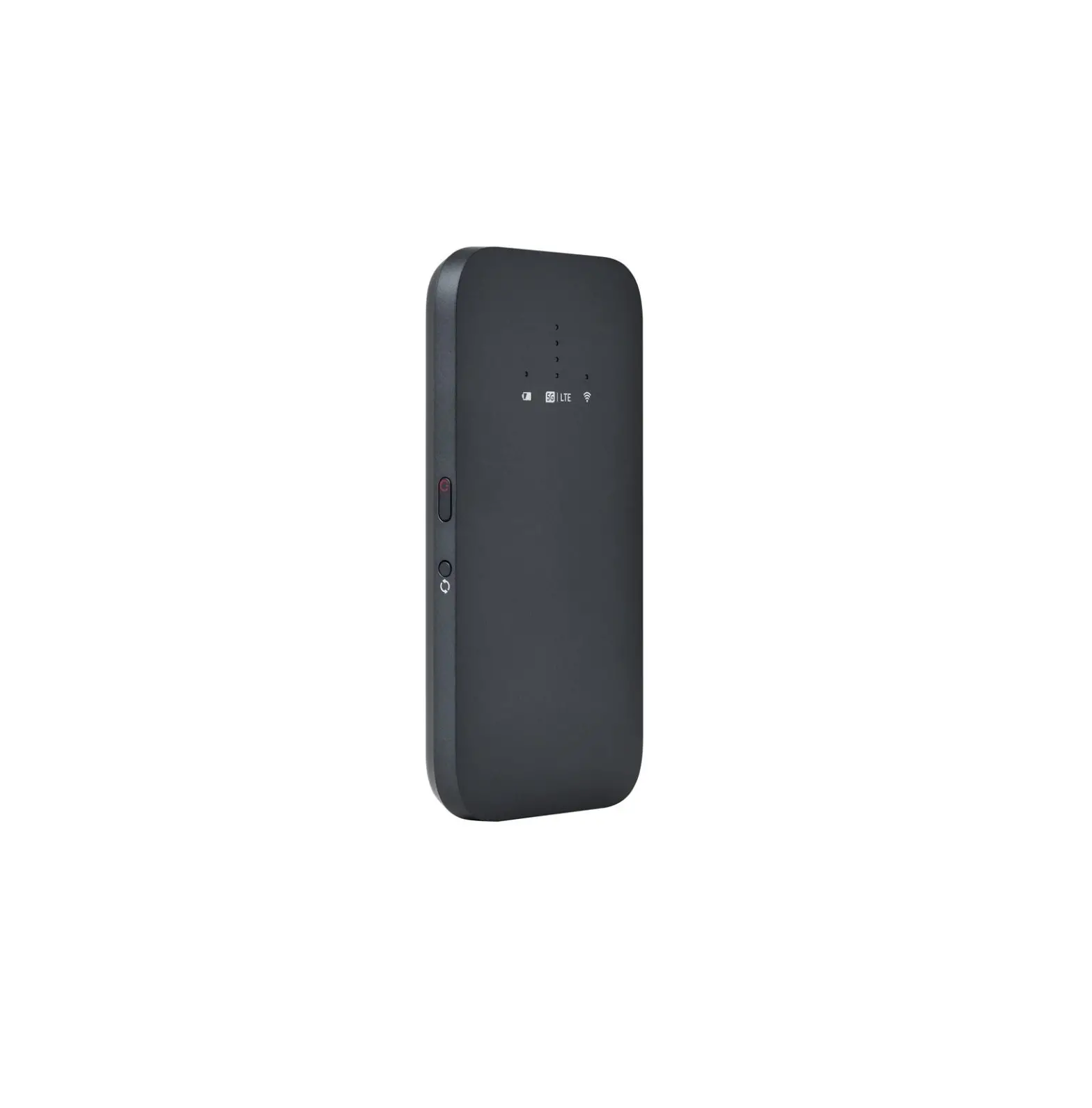
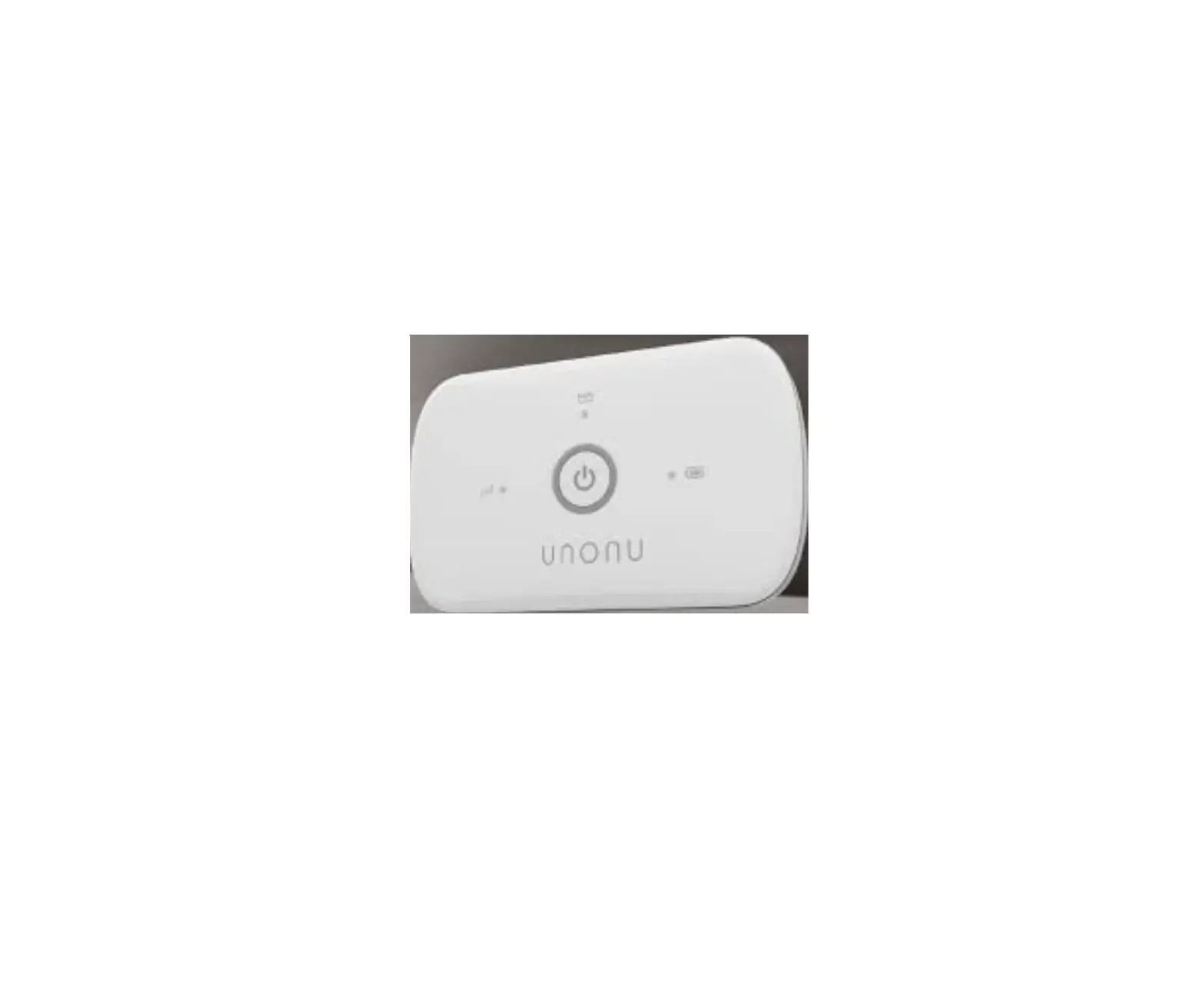
The IML-C6400W is a portable wireless router used both indoors
and outdoors to provide Internet services to wireless Internet
terminals using the government’s own network. It features LED
indicators for displaying various statuses and comes with a USB
Type-C cable, a user manual, and a USIM pin.
Package Contents:
- IML-C6400W
- USB Type-C Cable
- User Manual
- USIM Pin
LED Status:
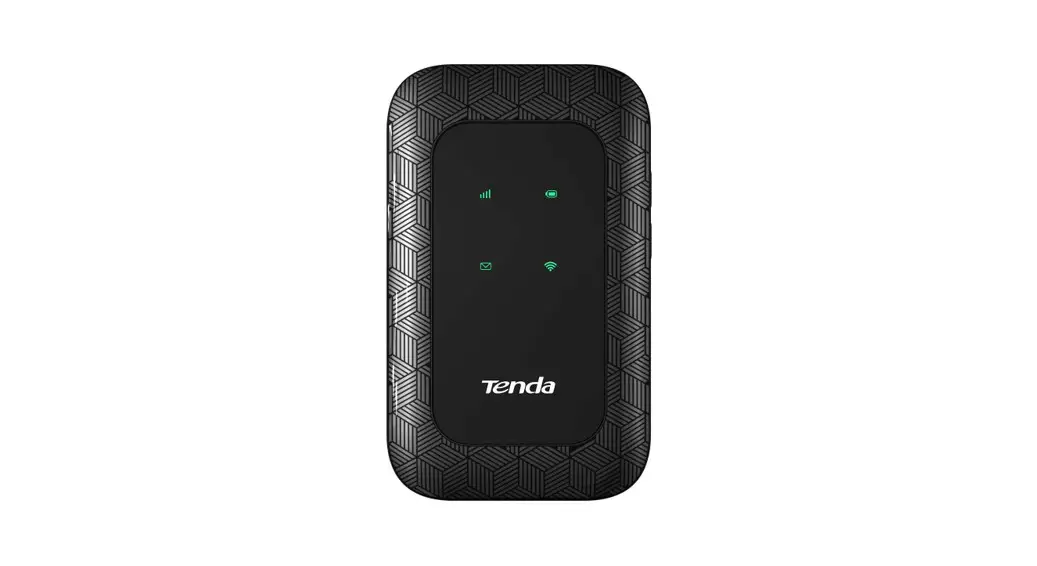
The device has four LEDs that indicate different statuses:
- LTE: Green (Strong signal), Yellow (Medium
signal), Red (Weak signal), Red Blinking (Network connection
failure), Yellow Blinking (LTE is connecting) - LoRa WiFi: Green (Strong signal), Yellow
(Medium signal), Red (Weak signal), Red Blinking (Connecting and
Authenticating), Yellow Blinking (Network connection failure) - BATT: Yellow (No device connected), Green
(Device connected), Green Blinking (Interval 1 sec – Battery level
50-100% at Power on state), Yellow Blinking (Interval 1 sec –
Battery level 15-49% at Power on state), Red Blinking (Interval 1
sec – Battery level 0-14% at Power on state)
Inserting the SIM Card:
To insert the SIM card, use the provided USIM PIN to remove the
USIM cover and insert the USIM as shown in the shape.
- Power On: Press and hold the Power button for
3 seconds at Power off state. All LEDs will turn on
sequentially. - Power Off: Press and hold the Power button for
3 seconds at Power on state. All LEDs will turn off. - Mode Change (LTE/LoRa): Press and hold the
LTE/LoRa button for about 3-7 seconds at Power on state. The LTE
& LoRa LED will blink yellow before switching to the designated
mode. - Hibernation Wake up: Press and hold the
LTE/LoRa button for about 7-10 seconds at Power on state. The LoRa
& WiFi LED will blink yellow before showing the
LTE/WiFi/Battery LED. - Hibernation Check: Press and hold the LTE/LoRa
button for about 1 second at hibernation on state. The LoRa &
WiFi LED will blink yellow. An interval of 15 seconds is required
to check the hibernation mode repeatedly.
IML-C6400W User Guide
IML-C6400W User Guide
Caution
Thank you for purchasing our product.
Use the information in this quick start guide to learn about your product’s components and features, and how to install and set up the device.
Microsoft, Windows, and Windows 7, 8, 8.1, 10 are trademarks or registered trademarks of US Microsoft Corporation for USA or other regions. Internet Explorer is a trademark or a registered trademark of US Microsoft Corporation for USA or other regions.
Firefox is a trademark or a registered trademark of US Mozilla Corporation for USA or other regions. Safari is a trademark of Apple Inc. Other trade names, product names and logos indicated on this document are trademarks or registered trademarks of the respective companies. In order to use this product, the user is required to make a separate access line contract with the service provider. When using service, be sure to check the service area. In regions other than the service area, it is not available. This quick start guide is explained using Windows 10 screens as examples.
This product is a portable wireless router used in indoors and outdoors to provide Internet services to wireless Internet terminals using the government’s own network.
2 / 26
Copyright Informark Co., Ltd.
1. Package Contents
Checking the Components
IML-C6400W
USB Type-C Cable
2. Appearance
User Manual
USIM Pin
3 / 26
Copyright Informark Co., Ltd.
3. LED Status
LED information
– There are four LEDs for displaying MiFi status.
LTE
Green
Signal strength (Strong)
Yellow
Signal strength (Medium)
Red
Signal strength (Weak)
Red (Blinking)
Network connection failure
Yellow (Blinking)
LTE is connecting
LoRa WiFi
Green Yellow Red Red (Blinking) Yellow (Blinking)
Signal strength (Strong) Signal strength (Medium) Signal strength (Weak) Connecting and Authenticating Network connection failure
Green
A device has been connected
BATT
Yellow
Green
Green (Blinking) Interval 1 sec. Interval 0.5 sec. Yellow Yellow (Blinking) Interval 1 sec. Interval 0.5 sec.
Red
Red (Blinking) Interval 1 sec. Interval 0.5 sec.
No device has been connected
50~100% battery level at Power on state Charging complete at Power on/off/Sleep state Charging stops as charging temperature exceeds at Power off state.
Recharging battery to 50~99% at Power on state Charging stops as charging temperature exceeds 15~49% battery level at Power on state
Recharging battery to 15~49% at Power on state Charging stops as charging temperature exceeds 0~14% battery level at Power on state Charging at Power off/Sleep state
Recharging battery to 0~14% at Power on state Charging stops as charging temperature exceeds
4 / 26
Copyright Informark Co., Ltd.
4. Inserting the SIM Card
Using the USIM PIN provided, remove the USIM cover and insert the USIM in the shape as shown.
5. Button Operation
Power On – Press & hold Power button for 3 seconds at Power off state. All LED is on sequentially. Power Off – Press & hold Power button for 3 seconds at Power on state. All LED is off.
Mode Change Change LTELoRa: Press & hold the LTE/LoRa button for about 3~7 seconds at Power on state, The LTE & LoRa LED will show a blinking yellow before switching to the designated mode (LTE/LoRa).
5 / 26
Copyright Informark Co., Ltd.
The end state is a steady LED for LTE or LoRa. Change HibernationWake up: Press & hold the LTE/LoRa button for about 7~10 seconds at Power on state, the LoRa & WiFi LED will show a blinking yellow, before showing the LTE / WiFi / Battery LED. Hibernation Hibernation Check: Press & hold the LTE/LoRa button for about 1 second at hibernation on state, the LoRa & WiFi LED will show a blinking yellow. An interval of 15 seconds is required to check the hibernation mode repeatedly.
Factory Reset – Press & hold the Power button and LTE/LoRa button for about 10 seconds at Power on state,
and all LED will show a blinking red.
6. Charging before use
Please fully charge the product before using. Charging with USB cable – Connect the MiFi to the Power Adapter or PC using a USB cable.
6 / 26
Copyright Informark Co., Ltd.
7. Network Settings
How to connect to WiFi
– Identify the SSID on the back of the product and PASSWORD to connect.
– The default credentials are used to connect the external device to the MiFi.
SSID
PASSWORD
MiFi_XXXXXX
12345678
SSID : XXXXX is last 6 characters of MAC address.
– This product can be used and controlled with a monitoring app and Web Portal. – Enter http://192.168.233.1 in the addresss bar of web browser to access the Web Portal.
7 / 26
Copyright Informark Co., Ltd.
8. MiFi Monitoring App How to use
Launch MiFi Monitoring App on the handset.
App screen UI components.
· Header section – MiFi Monitoring Application (app title) – Setting icon (button) – LTE connection status and signal level(indicator)
· Upper section – Network mode and status – Battery status – Charging status – [Reboot] (button) – [Power Off] (button) – [To LoRa] or [To LTE] (button)
· Lower section – Network status : LTE, LoRa, WiFi Disconnected – Network information LTE : MCC/MNC, eNB ID , SRSP/RSRQ, RSSI/SINR, Data Rate, TAC, PCI LoRa : RSSI, SNR, Class, Channel, Activation Mode
For details, please refer to the MiFi Monitoring App User Manual.
8 / 26
Copyright Informark Co., Ltd.
9. MiFi Web Portal How to use
1. Web Portal
The WEB server connection is necessary to change the WiFi settings or to set its detailed functions. Go to http://192.168.233.1 to access the MiFi Web Portal, and then the login screen will appear upon connected.
– PC must be connected to the MiFi through USB Tethering or WiFi before accessing the MiFi Web Portal.
– After executing the web browser, enter “http://192.168.233.1” in the address window.
ID Password
user admin
How to change the Web Portal Password:
Web Log-in Device Settings Change Password
9 / 26
Copyright Informark Co., Ltd.
Web Portal Layout Displays basic MiFi device status information and operation menu.
Item
Description
Web Portal Log out button
The current number of connected devices / Maximum number of allowed devices for connection Display of battery status
Discharging Charging Stop charging (Beyond charging temperature)
Network mode (LTE/LoRa) and signal strength
Switch network mode between LTE and LoRa Reboot button Power off button
10 / 26
Copyright Informark Co., Ltd.
Summary Displays summary information for each network serviced by the MiFi device.
Item LTE Information LoRa Information WiFi Information
Subordinate Item
Connected Status Connected Time IP Address MTU Size Connected Status Activation Mode WiFi Name(SSID) WiFi Channel WiFi Security
Description
Connection status of LTE. LTE Service Time. LTE IP Address. Maximum transmission unit. Connection status of LoRa. Current Activation Mode. Device Name of WiFi Network. Wireless Frequency (Channel). Security Mode of Network.
11 / 26
Copyright Informark Co., Ltd.
WiFi Settings Provides device’s WiFi and security settings.
Item WiFi Settings
WiFi Security Access Control Setting
Subordinate Item
Description
Channel Max Connected Device WiFi Name(SSID)
SSID Show/Hide
WiFi Range Autentication Encryption WPA Password WiFi Access Control MAC Address
WiFi Frequency (Channel).
Set the maximum numbers of WiFi devices connecting to MiFi
Device Name of WiFi Network. If set to Hide, the device name will not be displayed on other WiFi devices. Change the WiFi signal coverage of the device. WiFi authentication method setting. WiFi Security Algorithm. Set the password required for WiFi connection. Allow (Whitelist) or Deny (blacklist) setting. Register the MAC address to be applied.
The changed WiFi settings take effect after a reboot.
12 / 26
Copyright Informark Co., Ltd.
LTE Information LTE LTE Information Provides device’s LTE Network Status Information.
Item Basic Infomation
Subordinate Item
Link Status Connected Time Phone Number IMEI APN NAME MCC/MNC RF Status MTU Size IP Address Subnet Mask Default Gateway Primary DNS Secondary DNS
Description
LTE network connection status. Elapsed time after connecting to LTE network. Device’s phone number. Device’s IMEI. The APN name used to access the LTE network. Mobile Country Code and Network Code. LTE network radio signal information. Maximum data packet size that a networked device can accept. IP address the device is using. LTE network IP address the device is using. LTE network Gateway address the device is using. LTE network Primary DNS address the device is using. LTE network Secondary DNS address the device is using.
13 / 26
Copyright Informark Co., Ltd.
USIM Management LTE USIM Management Provides device’s USIM Management.
Item USIM Card Lock
PIN Code Change
Subordinate Item
USIM Card Lock Input PIN Code Input Code is Entered Existing PIN Code New PIN Code New PIN Code Retry
Description Set to enter a PIN code when connecting to an LTE network. Enter Device’s PIN code.
Number of times entered incorrectly.
PIN code currently in use. New PIN code to change.
Enter the new PIN code again.
PIN code is only numeric 4~8 digits. The PIN code will be blocked, if user keys in the incorrect PIN for 3 times. If the PIN block state is reached, you should input the correct PUK. Entering PUK incorrectly too many times (normally ten) can get your SIM
disabled.
14 / 26
Copyright Informark Co., Ltd.
APN Setting
LTE APN Setting The APN name is to be defined by the user or Administrator. The MNC, MCC information should be included with the APN name to match the SIM card inserted. A maximum of 4 APNs can be provisioned.
Item APN Settings
Subordinate Item MCC MNC
APN Name
Description Mobile Country Code Mobile Network Code The APN name used to access the LTE network.
The changed APN settings take effect after a reboot.
15 / 26
Copyright Informark Co., Ltd.
LoRa Setting
LoRa LoRa Setting Provides device’s LoRa Activation Setting.
Activation Mode Setting – Change the setting of the device’s LoRa Activation Mode (`OTAA’ or `ABP’).
Item Activation Mode Setting
Activation Info Setting
Subordinate Item Activation Mode
Device EUI
Application EUI Application Key Device Address
Application Session Key
Network Session Key
Description
Activation mode setting. Device classification. Requires pre-provisioning of N/W server and device when operation. Service division. Requires pre-provisioning for N/W server and device when opening operation. Main Root-Key for Encryption/Decryption Key Generation. Assigned to LoRa device during the opening call processing procedure. Key value for encrypting and decrypting application data in device and N/W server. Key value for encrypting and decrypting application data and checking data integrity in device and N/W server.
16 / 26
Copyright Informark Co., Ltd.
Device Settings
Provides device’s IP lease status, Auto Power Saving Setup, Web Password Setup, Factory Reset, USB Tethering Setup.
IP Lease Status – The client connected to the MiFi (IML-C6400W) currently is shown.
Auto power saving setting – Automatic power saving time setting.
Change Password – Please enter your current password. – Type in new password to use from now on. – Type in the same password twice to confirm the new password and then click on `Save’ Button.
Reset Settings – Reset to the default configuration. The device will restart when the factory reset button is selected.
USB Tethering 17 / 26
Copyright Informark Co., Ltd.
– USB Tethering can be set to `Active’ or `Deactive’.
Upgrade System can be updated by firmware files downloaded from the manufacturer’s homepage. System shall be rebooted after updating.
Firmware Information – Shows the current software version for MiFi device, including the LTE and LoRa firmware version.
Upgrade Download the latest version into your computer. Select the file downloaded in the file selection window, and click the `Search..’ button. Click the `Apply’ button, then update will start. Software update takes about 3 minutes, and the device will restart after finishing the update.
Do not move to other menu in the web site, disconnect, or turn off power. Malfunction may result. The device may malfunction is the wrong firmware file is applied.
18 / 26
Copyright Informark Co., Ltd.
10. Troubleshooting Guide
1. Unable to connect to the network
Check the power of the MiFi device – If there is no light on the LED, press & hold the Power button for 3 seconds to turn on the Mifi device.
Check the network signal strength through the LTE/LoRa signal strength LED. Reboot the MiFi device.
2. How to Factory Reset MiFi
Initialize the MiFi settings – If you have changed your Login Password and forgotten it, reset your MiFi device to the factory default settings as follows.
– 1) Initialization method using buttons Press & hold Power button and LTE/LoRa button for about 10 seconds at Power on state.
– 2) Initialization method using Web Portal – After logging in to the Web Portal Click [Device Settings] menu Click [Factory
Reset(Default Setting)] – [Apply] button.
Note: LoRa setting is initialized after factory reset. Please contact the Administrator for the LoRa settings.
19 / 26
Copyright Informark Co., Ltd.
11. Product Specification
Model Name Product Name FCC ID
Standard LTE
Frequency Size / Weight Battery Capacity Charging Current Rating Charging Time Charging Temperature Operating Temperature Manufacturer / Made in Manufacturing Date
IML-C6400W LTE Mobile WiFi YCO-IML-C6400W 3GPP E-UTRA LTE-FDD UE Category 4 B26 61x91x15mm / 105±5g 3300mAh DC 5V 2A 3 Hr 30m 0 ~ +45 -20 ~ +60 Infomark Co., Ltd. / Republic of KOREA Refer to product label
20 / 26
Copyright Informark Co., Ltd.
For Safe and Proper Use
The followings are compliance matter in order to prevent hazard on the user or other persons or property damage and safely and properly use this product. It includes matters on the main body, accessory AC Adaptor. We are not responsible for any problems if unapproved accessories are used.
These basic accessories are subject to change without prior notice.
Meaning of Symbols
Symbols requiring warning and caution
Caution on Ignition Symbols prohibiting actions
Caution on Electric Shock
General Prohibitions Do not use with Wet Hands Symbols directing actions
Do not Wet Do not use fire
Do not Disassemble
General Direction
Separate Consent from Power Plug
Danger
A serious or fatal injury may result if instructions are not followed.
It may cause heating, explosion or ignition. – For charging, never use other chargers other than the standard charger provided. – Do not make short circuit of battery terminals, expose the product to fire or water,
21 / 26
Copyright Informark Co., Ltd.
disassemble or modify it.
Warning
A serious or fatal injury may result if instructions are not followed.
If the product generates abnormal sounds, a burning smell or smoke, disconnect the power cord immediately and contact the Administrator. A fire or electric shock may result.
Do not submerge or wet this product in the water, etc. When using it outdoor, be careful not to make it wet with rain, etc. If any water permeates into the product, promptly turn OFF power of it. If it continues to be used, it may cause fire, electric shock or fault.
Do not place objects containing liquid (vases, pots, bottles, etc) or metallic objects on top of the product. – Be sure to power off the product and disconnect the power cord when
water or other foreign substances have entered the product. Contact the Administrator. – Product failure, an electric shock or fire may result.
Do not drop objects on the product or apply impact. – A fire, electric shock may result.
There is a high voltage inside the product. Never disassemble, modify or repair the product yourself. – A fire or electric shock may result. – Contact your Adminstrator for repairs.
Do not handle the product with wet hands. Otherwise, an electric shock may result.
When mounting any implantable pacemaker or implantable cardioverterdefibrillator (ICD), carry and use the product away from mount 22cm or more. Radio wave may have effect on operation of the implantable pacemaker or implantable cardioverter-defibrillator (ICD).
When inside the medical facilities, please use this product complying the followings: – Do not carry this product into the operation room, intensive care unit (ICU), or coronary care unit (CCU). – Within the ward, please turn OFF the product. Even on the lobby, etc. where medical instruments exist, please turn OFF the product.
22 / 26
Copyright Informark Co., Ltd.
– In areas of prohibited use or carriage, please follow instructions from each medical institute.
In areas where the use of wireless equipment is restricted e.g. within airplane or hospital, etc., please turn OFF the product. – Accidents may result due to possible effect on the electronic appliance or
medical instrument.
If it may have effect on the automatic control equipment such as automobile, elevator or automatic door, etc., please turn OFF power of this product promptly. It may obstruct safe running or safe progress.
Do not keep containers with fluid such as flower vase, flower pot, cup, cosmetics, medicine, water, etc. or small metal piece near this product. Content spills to contact this product or enters into this product, please turn OFF power of this product promptly.
– A fire, electric shock or fault may result if the product continues to be used.
Do not use or keep this product on the places with high humidity such as within bathroom, around humidifier, etc. It may cause fire, electric shock or fault.
Pay attention not to allow a child to handle with this product. If a child enters this product in the mouth, it may cause suffocation.
Caution
A serious or fatal injury may result if instructions are not followed.
Do not expose the product to direct sunlight, heat, or a hot object such as a stove. – The product lifespan may be reduced or a fire may result.
Do not keep the product in a vehicle or a place exposed to dust, moisture (water drips, etc.), oil, or smoke. – A fire or electric shock may result.
Do not put the product on unstable places such as swinging base or inclined place, etc. In addition, do not place any heavy object on this product. – Product failure or personal injury may result
Do not put this product on the places with extreme temperature change such as around refrigerator, heater, etc. – A fire, electric shock or fault may result.
During a lightning or thunderstorm, power off the product and remove the power cable. When at outdoors, please evacuate to the safe area promptly.
23 / 26
Copyright Informark Co., Ltd.
– An electric shock or fire due to lightning may result.
This product may increase temperature even under normal state (during or after using). Extensive contact or body touch may cause cold burn.
Do not carry this product in the pocket. Any applied force may cause damage or fault.
Depending on physical habitude, paint or metal, etc. used in this product may result in symptoms such as itching or allergy, etc. Please stop using the product promptly and seek medical attention.
Keep this product at -10 to 60
Caution on Use
For safe and proper use of this product, do not use it in the following places.
– Places with vibration
– Places where evaporated chemical is stacked or there is direct contact with the chemical
– Around equipment with strong magnetic field such as microwave, oven or radio, TV, etc.
– Around electric welding machine or high frequency sewing machine with high frequency noise.
Do not expose the product to hot temperature or direct sunlight. In addition, do not store or leave it at high temperature such as inside the car, etc. for a long time during the summer, but use it on the place with good ventilation.
When using this product around TV, radio, wireless phone, etc. and it results in receiving obstruction, etc., please use it away from the equipment.
Do not clean this product with benzene, thinner, alcohol or detergent, etc. It may cause discoloration, damage or fault. Please clean with soft cloth.
If the computer turns OFF during communication or this product is disconnected, communication may not operate or data may be damaged. Please check and compare important data with the original data after communication.
Though this product does not generate much heat, if it becomes too hot to touch with hand, please stop using it promptly and visit the customer support center.
24 / 26
Copyright Informark Co., Ltd.
Restrictions on use
It is a pre-requisite to use this product within the country. It cannot be used in any foreign country.
It cannot be used in other areas except for WiMAX service areas.
Where the WiMAX signal is difficult to be transmitted even within the service area (indoor, within a car, underground, within a tunnel, shadow area, mountainous area, etc.), it cannot be connected or communication speed becomes slow. In addition, please note that it may not be used in open area such as high-rise buildings, etc.
Propagation status or transmission speed of WiMAX may vary depending on building structure, or material, furniture arrangement, moving speed of the user, etc.
When propagation conditions become worsen under a certain level, communication may be suddenly disconnected. However, even under good propagation conditions, communication may be disconnected.
Though this product may be available for safe communication using authentication and encryption technology, as it uses RF wave, communication may be monitored by the third party. For safe communication security, please apply the security settings on the computer for use before using this product.
When using the product in a pocket or a bag for a long time, it may increase heat.
25 / 26
Copyright Informark Co., Ltd.
FCC Statements
This device complies with Part 15 of the FCC Rules. Operation is subject to the following two conditions: (1) this device may not cause harmful interference, and (2) this device must accept any interference received, including interference that may cause undesired operation.
This equipment has been tested and found to comply with the limits for a Class B digital device, pursuant to part 15 of the FCC Rules. These limits are designed to provide reasonable protection against harmful interference in a residential installation. This equipment generates, uses and can radiate radio frequency energy and, if not installed and used in accordance with the instructions, may cause harmful interference to radio communications. However, there is no guarantee that interference will not occur in a particular installation. If this equipment does cause harmful interference to radio or television reception, which can be determined by turning the equipment off and on, the user is encouraged to try to correct the interference by one or more of the following measures: – Reorient or relocate the receiving antenna. – Increase the separation between the equipment and receiver. – Connect the equipment into an outlet on a circuit different from that to which the receiver is connected. – Consult the dealer or an experienced radio/TV technician for help.
Any changes or modifications not expressly approved by the party responsible for compliance could void the user’s authority to operate this equipment. This device must not be co-located or operating in conjunction with any other antenna or transmitter.
Your device is a radio transmitter and receiver. It is designed and manufactured not to exceed the exposure limits for Radio Frequency (RF) energy set by the Federal Communications Commision (FCC) of the U.S. Government.
The product complies with the FCC portable RF exposure limit set forth for an uncontrolled environment and are safe for intended operation as described in this manual.
26 / 26
Copyright Informark Co., Ltd.