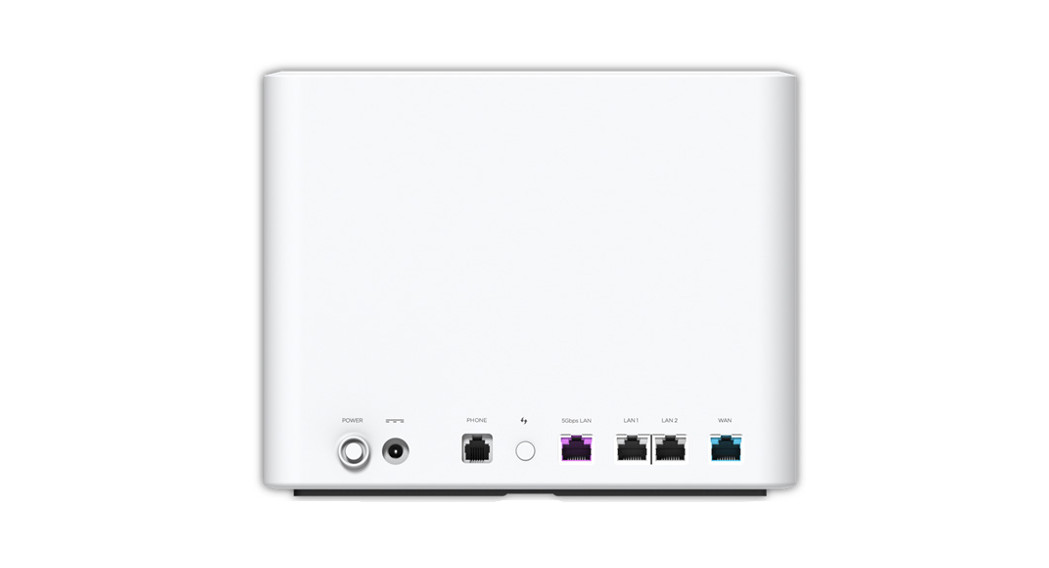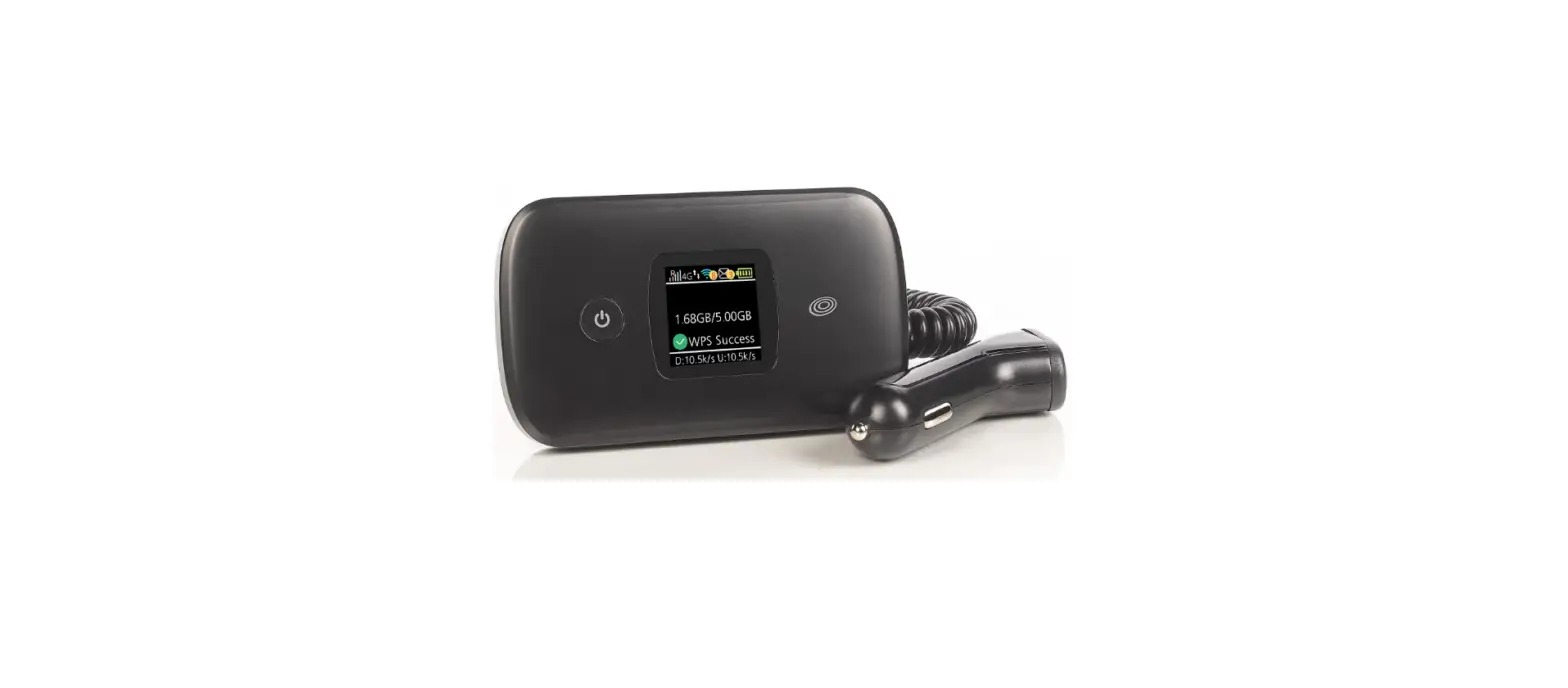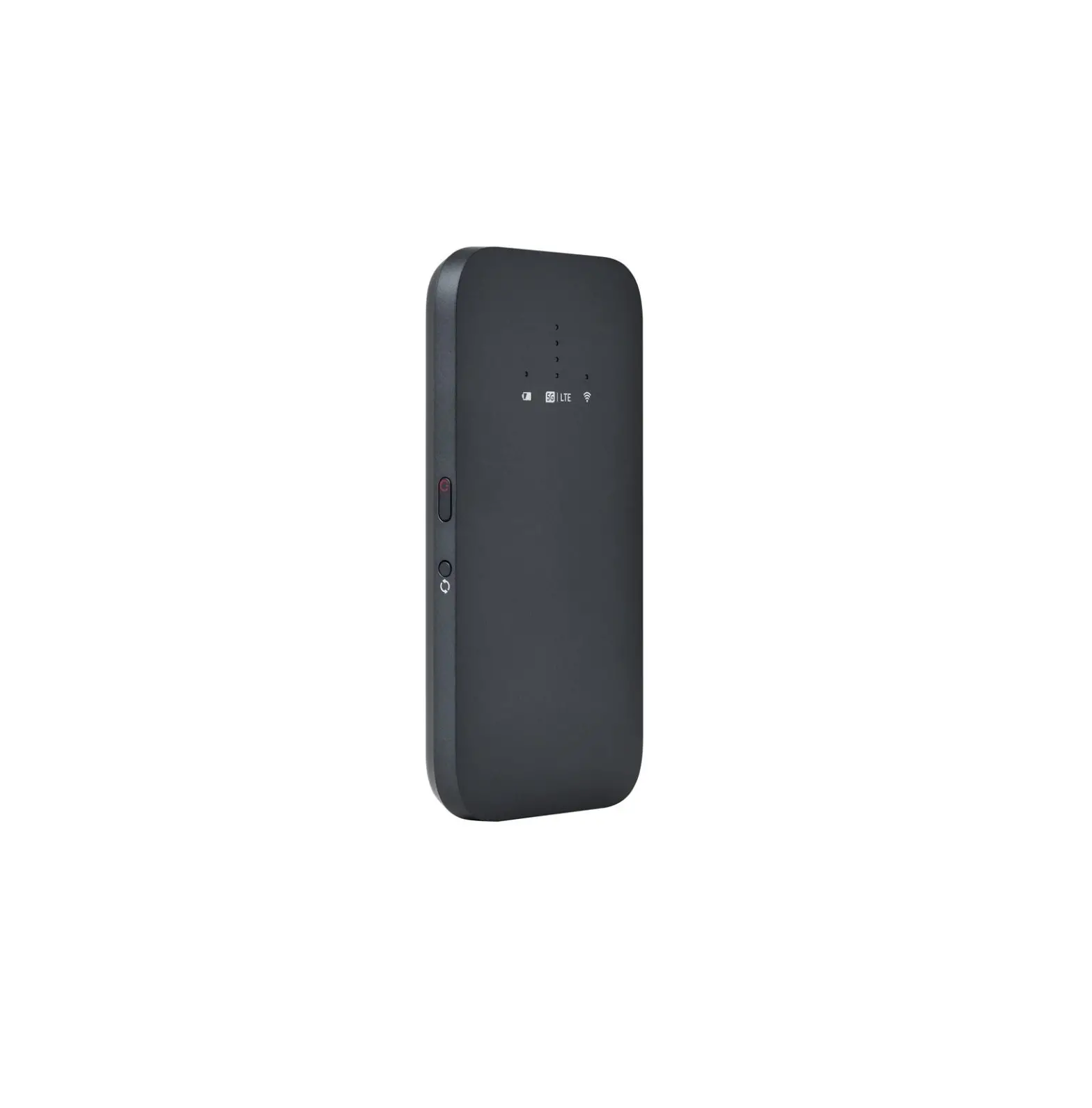
LINKSYS FGHSAX1800-ME 5G Mobile Hotspot
Safety Instructions
- Do not use your 5G Mobile Hotspot while driving.
- Do not leave your 5G Mobile Hotspot in direct sunlight or other places where the temperature is high (near a heater or stove, or in a hot car).
- Do not take apart or otherwise try to modify your 5G Mobile Hotspot. Use a designated service center for repairs.
- Use the provided charger. Using third-party charging cables could result in fire or electric shock and might shorten the useful life of your 5G Mobile Hotspot.
Overview
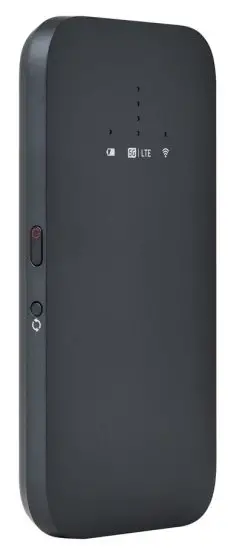
Front
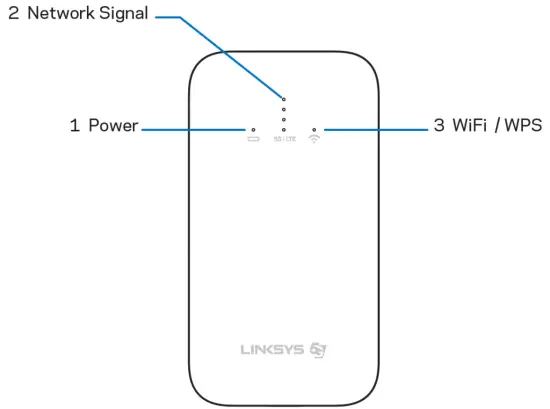
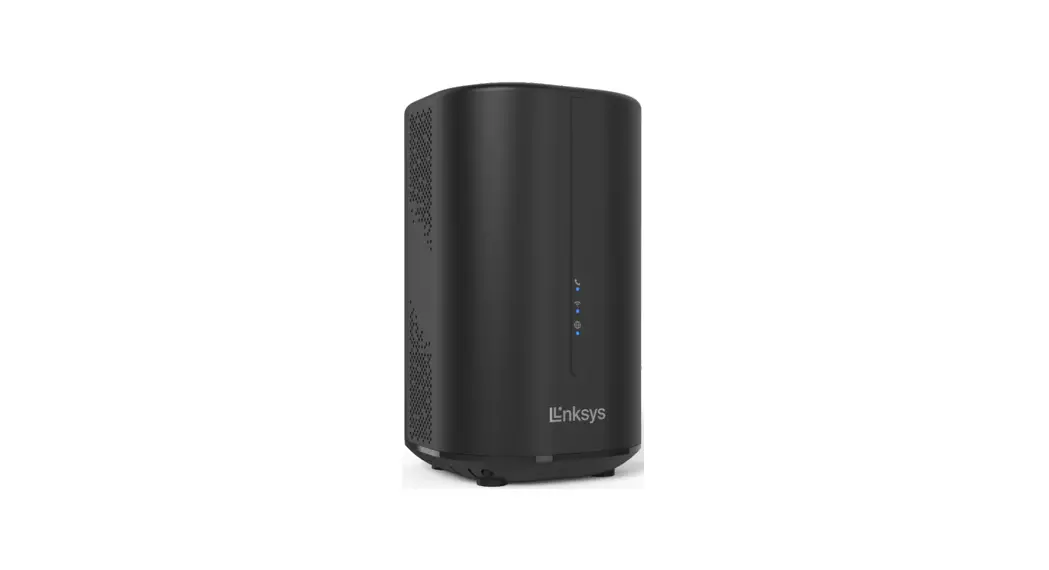
- Power/Battery LED
- Network Signal LED
- WiFi/WPS LED
What do the lights on the 5G Mobile Hotspot tell me?
Battery Remaining |  | Solid white 100% – 50% |
 | Solid orange 49% – 16% | |
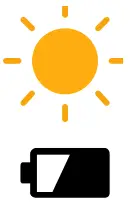 | Blinking orange 15% – 1% | |
Battery Charging | | Solid white 100% |
| Solid orange 99~50% | |
| Blinking orange 49~1% | |
 | 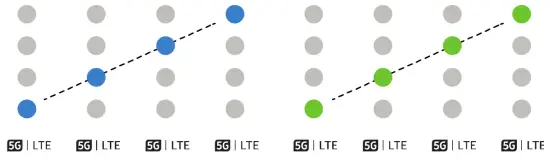 | Sequentially blue alternating with green (bottom to top) Searching for LTE / 5G signal. If this takes longer than 10 minutes, move to another area and try again. |
 | Solid blue 5G connected; number of lights indicate signal strength | |
 | Solid green LTE connected; number of lights indicates signal strength | |
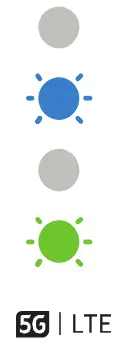 | Third light blinking blue, bottom light blinking green No SIM card / SIM card error | |
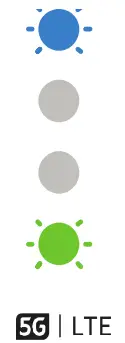 | Top light blinking blue, bottom light blinking green Failed connection or failed number registration | |
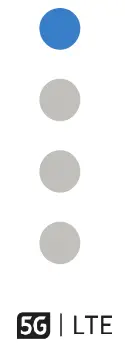 | First light solid blue Connected to 5G | |
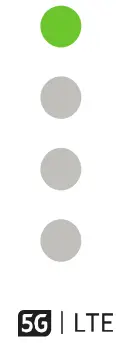 | First light solid green Connected to LTE | |
WiFi |  | Off WiFi turned off in WebUI settings or Sleep Mode |
 | Solid white WiFi working | |
 | Blinking orange WiFi signal failure | |
WPS |  | Blinking white WPS pairing in progress |
 | Slowly blinking orange WPS pairing failed |
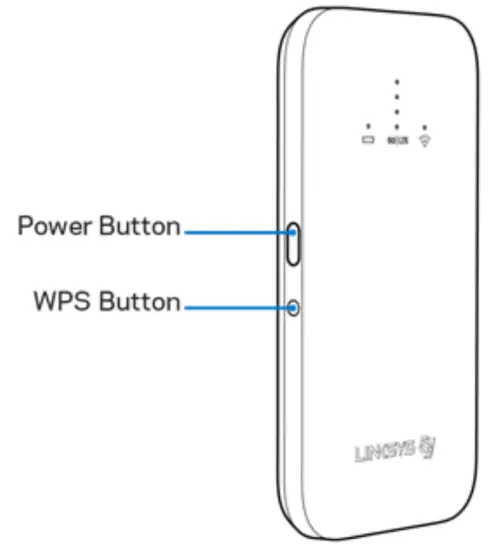
- Power
- WPS
SIM Card Tray
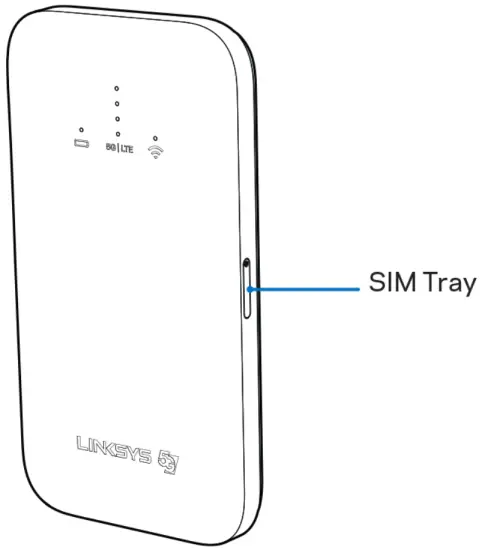
SIM Tray
Setting Up: Basics
Where to find more help
In addition to this user guide, you can get help in the Linksys app or by calling Linksys.
Note—Licenses and notices for third party software used in this product may be viewed on
http://support.linksys.com/en-us/license. Please contact http://support.linksys.com/enus/gplcodecenter for questions or GPL source code requests.
5G Mobile Hotspot Setup Guide
Be sure you have a 5G SIM card before setting up your 5G Mobile Hotspot
- Insert your 5G SIM card in the slot on the right side of your 5G Mobile Hotspot. Poke the hole to release the SIM card tray.
- Press and hold the power button on the left side of your 5G Mobile Hotspot for more than 2 seconds to turn it on.
- Wait while the 5G Mobile Hotspot turns on and finds the 5G network.
When the WiFi light is solid white you should be able to connect to WiFi. This takes about 2 minutes. - In your device’s WiFi settings, connect to one of the default WiFi names. The names are on the sticker on your setup guide that came with your 5G Mobile Hotspot.
- Enter http://myhotspot.linksys.com or http://192.168.1.1 in a browser to visit the 5G Mobile Hotspot’s settings screens. This is how you will log in each time you want view or change settings.
6. Enter the default password on the [box / insert / sticker on this guide] to log in.
7. Use the settings screens to customize your login password and WiFi names and passwords.
8. Recommend writing down the login password after it’s changed.
For best results, make sure you have a good cellular signal when setting up your 5G Mobile Hotspot
WPS Pairing
To pair devices with your 5G Mobile Hotspot, press and hold the WPS button for more than 2 seconds.
Turn On | 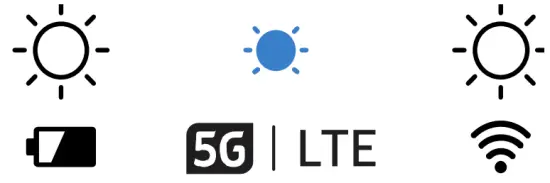 | The battery, network signal and WiFi LEDs will blink white/blue/white during booting |
Turn Off | 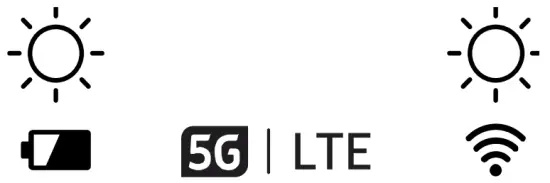 | The battery and WiFi LEDs will blink white until power is off |
Restart | 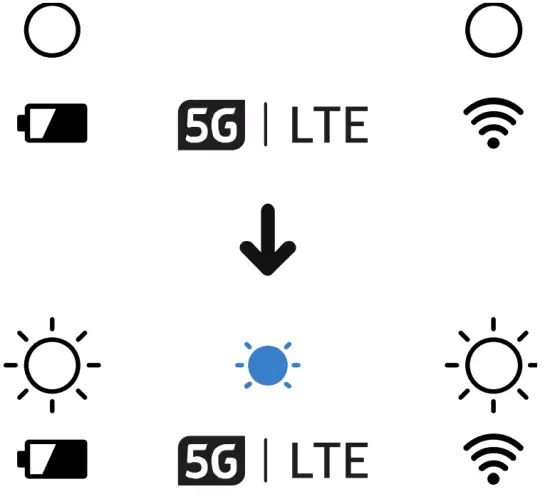 | The 5G Mobile Hotspot will turn off and back on automatically while you hold the button. |
Factory Reset | 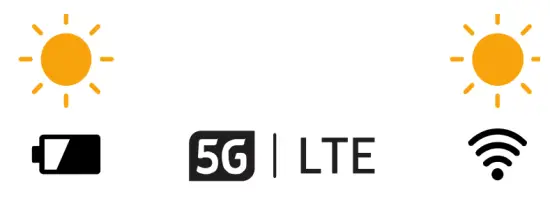 | The power LED and WiFi LED will blink orange |
Features
You can view or change your 5G Mobile Hotspot settings in a web browser on a phone, tablet or computer. All features are available regardless of the device used, but screens might look a little different because of their size and format. All screens in this user guide are from a phone browser.
Tap the menu icon  to navigate around the app.
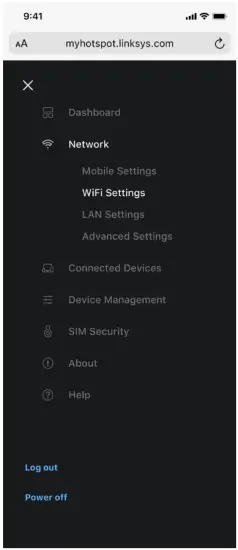
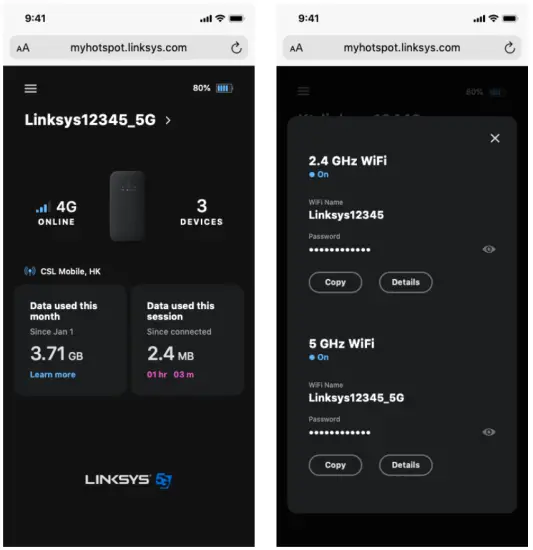
Dashboard
Dashboard is a snapshot of your 5G Mobile Hotspot. Follow your data usage, see whether your 5G
Mobile Hotspot is online and how many devices are connected to it. You also can copy your WiFi
name and password to share with others over email or text message.
Note: Data usage numbers are approximate. Check with your carrier for actual usage.
Network Settings
WiFi Settings
View or change your Wi-Fi name and password, secruity type, channel width and WiFi channel.
Use Wi-Fi Protected Setup to connect devices to your 5G Mobile Hotspot without having to enter the WiFi name and password.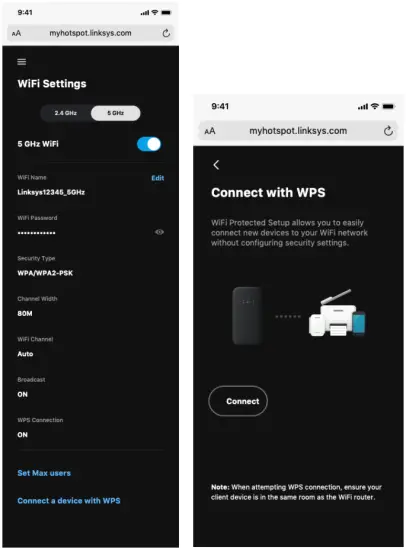
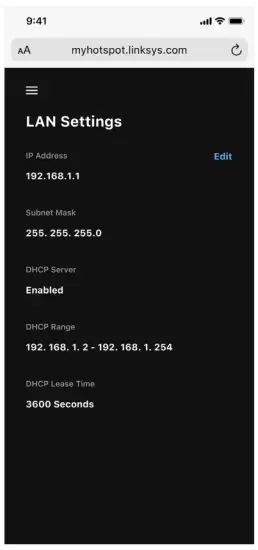
LAN Settings
View or change your 5G Mobile Hotspot’s local area network settings. Turn on/off DHCP server, set a DHCP range or change the client lease time.
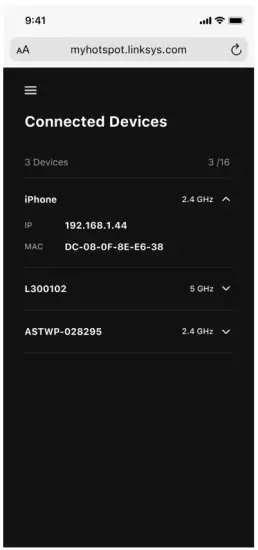
Connected Devices
See all devices connected to your 5G Mobile Hotspot.
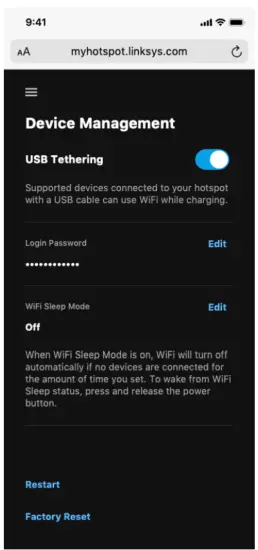
Device Management
Turn on USB Tethering to allow devices to connect to your 5G Mobile Hotspot directly with a USB cable. Sleep Mode allows you to set a timer that will shut down your 5G Mobile Hotspot if there is no WiFi activity for the designated amount of time. Press the power button for 2 seconds or less to activate WiFi in sleep mode. You can also change your login password here. A factory reset will erase all customized settings
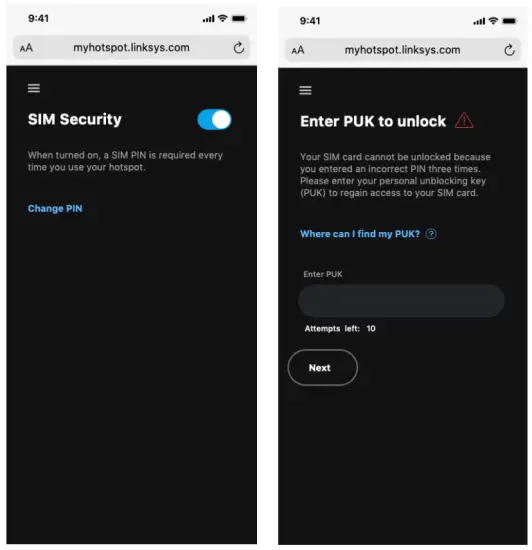
SIM Security
When you turn on SIM Security, you must enter a PIN to unlock your SIM card each time you use the 5G Mobile Hotspot. You get three chances to enter a correct PIN. If you enter an incorrect PIN three times, you will need your personal unblocking key (PUK) to unlock the SIM card.
About
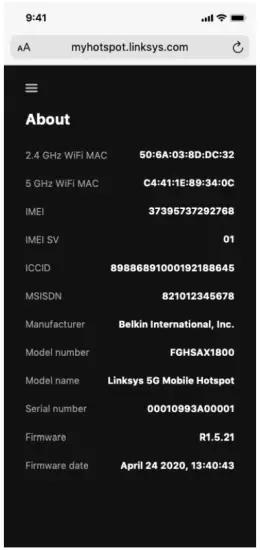
Specifications
5G Mobile Hotspot
| Model Number | FGHSAX1800-ME |
| Radio Frequency | WiFi: 2400 ~ 2483.5 MHz, 5180 ~ 5725 MHz UMTS: LTE: 5G NR: |
| Security Features | WPA2, WPA3 |
| Security Key Bits | Up to 128-bit encryption |
Environmental
| Dimensions | 140 mm x 75 mm x 15.5 mm |
| Unit Weight | 181 g |
| Rated Voltage | 3.85 Vdc |
| Certifications | CE, Wi-Fi a/b/g/n/ac/ax |
| Operating Temperature | 32 to 104°F (0 to 40°C) |
| Storage Temperature | -4 to 140°F (-20 to 60°C) |
| Operating Humidity | 10% to 80% relative humidity, non-condensing |
| Storage Humidity | 5% to 90% non-condensing |
Specifications are subject to change without notice.
Linksys Customer Support
UAE 04 455 6801
Saudi Arabia 800 844 5905 and 800 850 0629
BELKIN, LINKSYS and many product names and logos are trademarks of the Belkin group of companies. Third-party trademarks mentioned are the property of their respective owners.
Licenses and notices for third party software used in this product may be viewed here:
http://support.linksys.com/en-us/license. Please contact http://support.linksys.com/enus/gplcodecenter for questions or GPL source code requests.
© 2021 Linksys Holdings, Inc. and/or its affiliates. All rights reserved.
LNKPG-00881 RevA00