5G Mobile Router
Product Information:
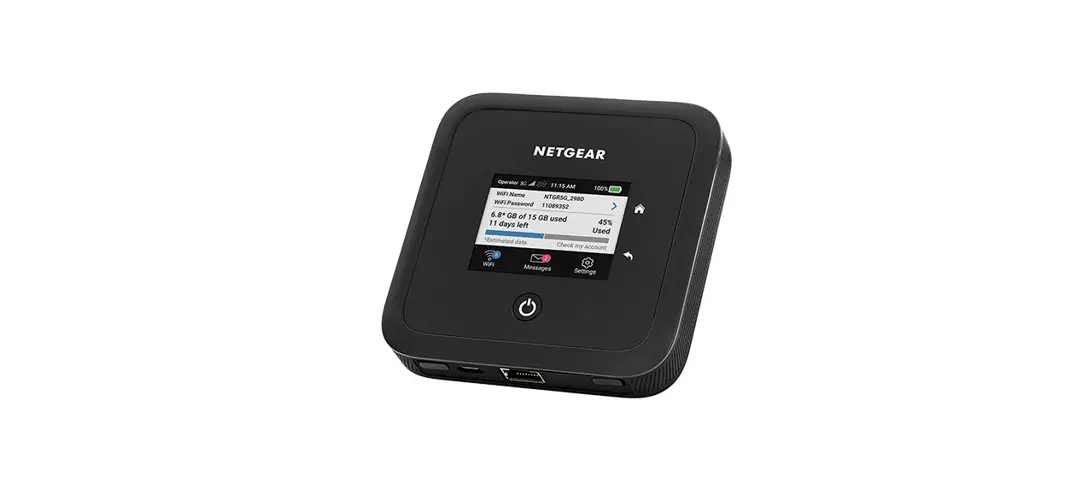
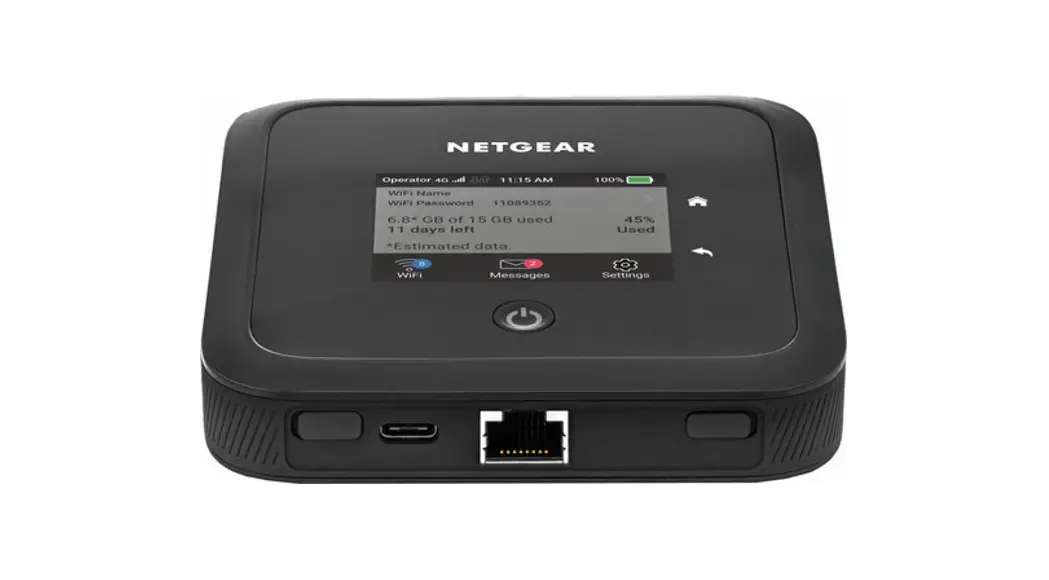
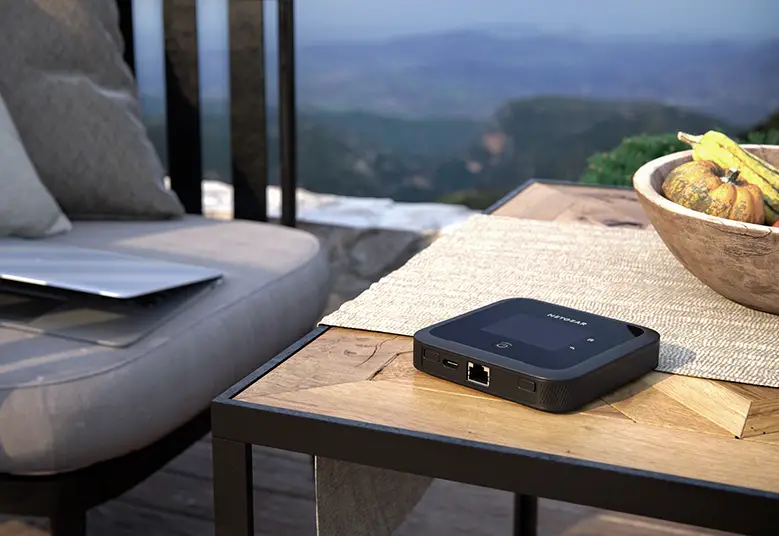
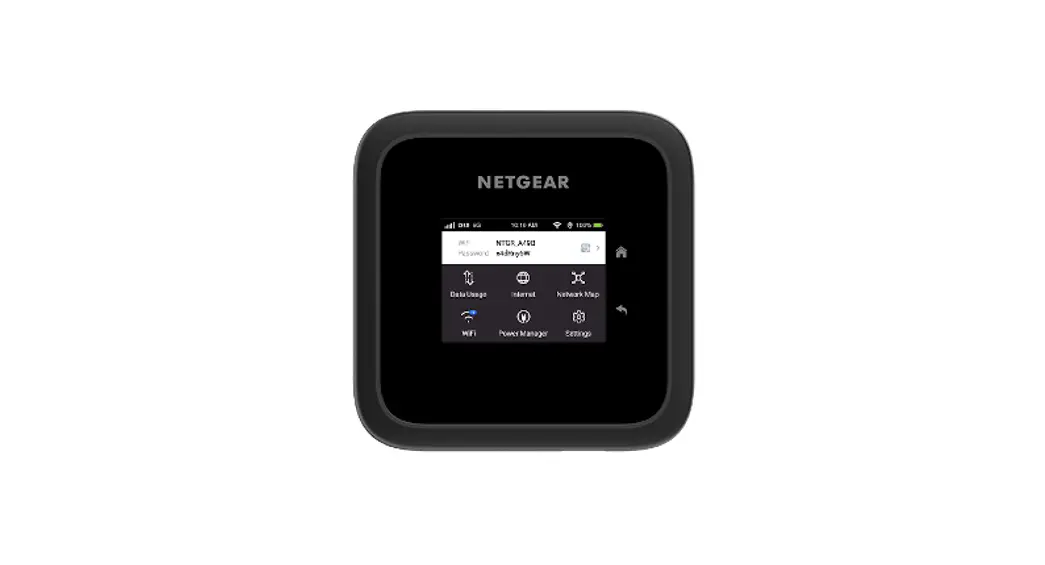
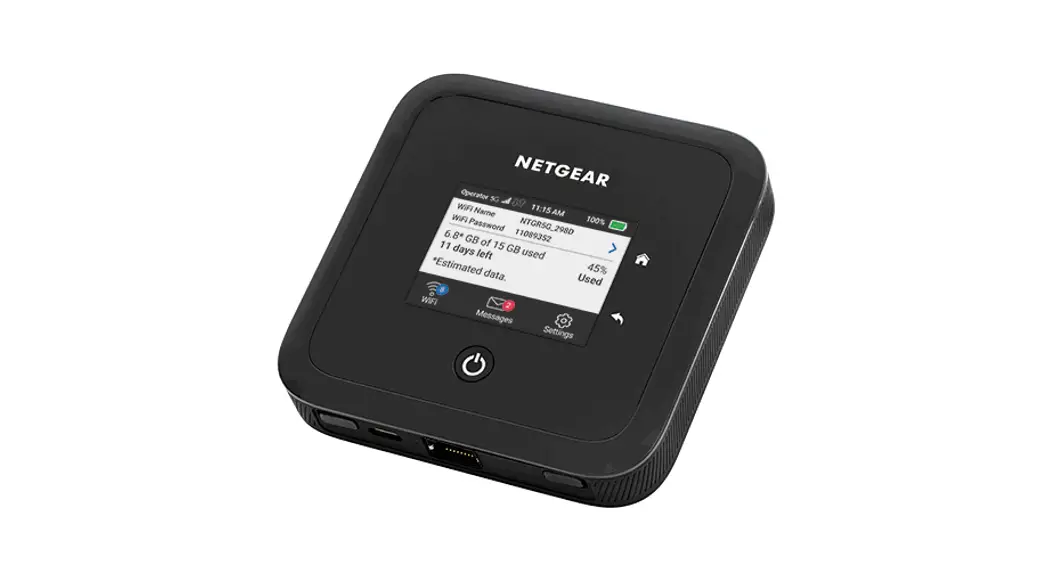
The product is a mobile hotspot device, specifically the NETGEAR
Nighthawk M6. It allows users to create a WiFi network and connect
multiple devices to the internet using a cellular data connection.
The device has a touch screen LCD display that can be used to
change settings such as the WiFi password, WiFi Manager login
password, and WiFi standby time. It comes with a preinstalled SIM
card and requires activation on a data plan with AT&T. The
device can be powered by a battery or by connecting it to a power
outlet using the provided AC adapter.
Product Usage Instructions:
- Installing the Battery:
- Insert the battery into the mobile hotspot.
- Install the back cover.
- To charge the battery, connect the USB cable to the USB port on
the device and the AC adapter, then plug the AC adapter into a
power outlet. - Note: The mobile hotspot comes with a preinstalled SIM card.
The SIM must be activated on a data plan with AT&T.
- Connecting to the Internet:
- On a smartphone:
- Tap the QR code icon on the mobile hotspot LCD Home
screen. - Point your phone’s camera at the displayed QR code.
- Your phone will connect to the mobile hotspot WiFi
network. - Launch your Internet browser to start browsing.
- Tap the QR code icon on the mobile hotspot LCD Home
- On a laptop or other WiFi device:
- Open your WiFi network connection manager.
- Find your mobile hotspot’s WiFi network name (ATT-WIFI-XXXX)
and connect to it. - Enter your mobile hotspot’s WiFi password.
- Launch your Internet browser to start browsing.
- On a smartphone:
- Managing the WiFi Network:
- On the mobile hotspot LCD Home screen, tap the WiFi tile to
access the WiFi Manager. - To change the WiFi network name and password, follow the
instructions on the WiFi Manager screen.
- On the mobile hotspot LCD Home screen, tap the WiFi tile to
- Accessing Mobile Hotspot Settings:
- On a WiFi device connected to the mobile hotspot, open a web
browser. - Type “http://attwifimanager/” or “http://192.168.1.1” in the
browser bar. - Log in using your admin password. The default admin login
password is “attadmin”. - You can now view device information, messages, and change
mobile hotspot settings through the browser interface.
- On a WiFi device connected to the mobile hotspot, open a web
Let’s get started
Nighthawk® M6
What’s in the Box
· Nighthawk® M6 with pre-installed SIM card
· Battery cover · Battery · USB Type C cable · AC adapter
Set Up Your Mobile Hotspot
You can use the mobile hotspot LCD screen to change settings such as the WiFi password, WiFi Manager login password, and WiFi standby time.
1 Press and hold the Power button for 2 seconds.
Get to Know Your Mobile Hotspot
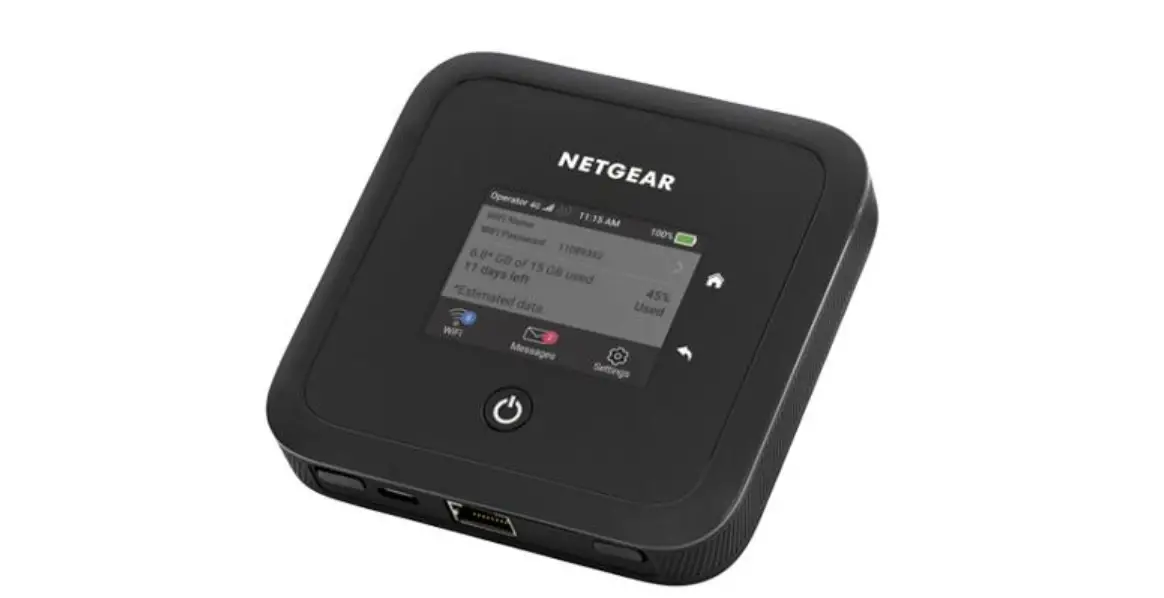
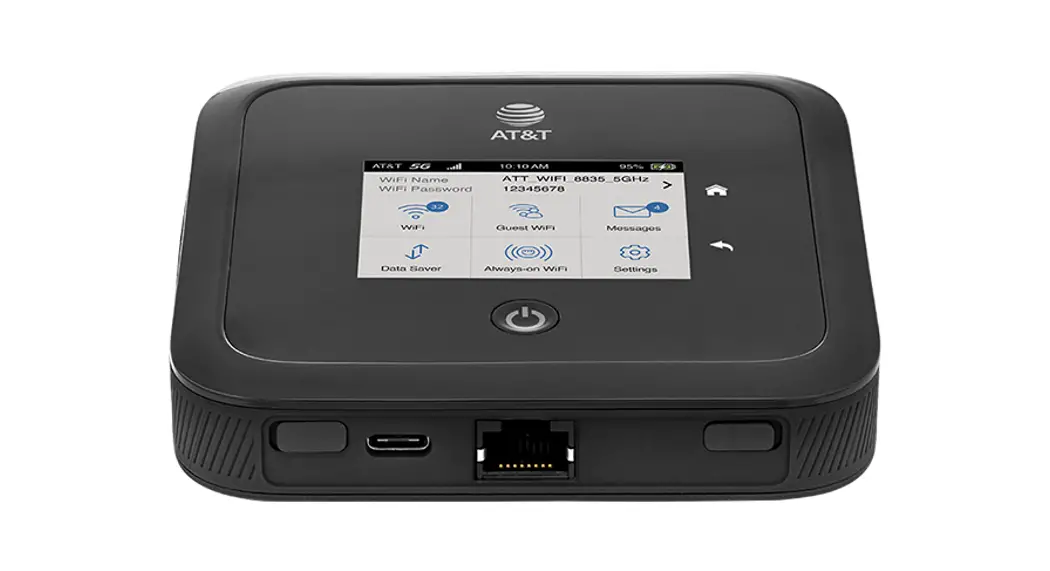
Touch screen Home Back
Antenna port
Antenna port Ethernet port
USB Type C port
To better safeguard your network, the first time you turn on your mobile hotspot, you are asked to set up your login credentials.
2 Follow the instructions to customize your mobile hotspot settings.
AT&T Eco Rating 2.0 only applies to the NETGEAR Nighthawk M6. For limited factors evaluated visit att.com/EcoSpace. Wireless Emergency Alerts is a registered Trademark and Service Mark of CTIA.
NETGEAR and Nighthawk are trademarks of NETGEAR, Inc. 5G is a trademark of 3GPP. 5G not available everywhere. Contains Lithium ion battery – recycle or dispose of properly.
© 2022 AT&T Intellectual Property. All rights reserved. AT&T, the AT&T logo and all other AT&T marks contained herein are trademarks of AT&T Intellectual Property. All other marks are the property of their respective owners.
Printed in USA
201-29107-01
Power button
Install the Battery
1 Insert the battery. 2 Install the back cover.
USB C port SIM card (preinstalled) 3 To charge the battery, connect the USB cable to the USB port and the AC adapter, and plug the AC adapter into a power outlet.
Note:The mobile hotspot comes with a preinstalled SIM card. The SIM must be activated on a data plan with AT&T.
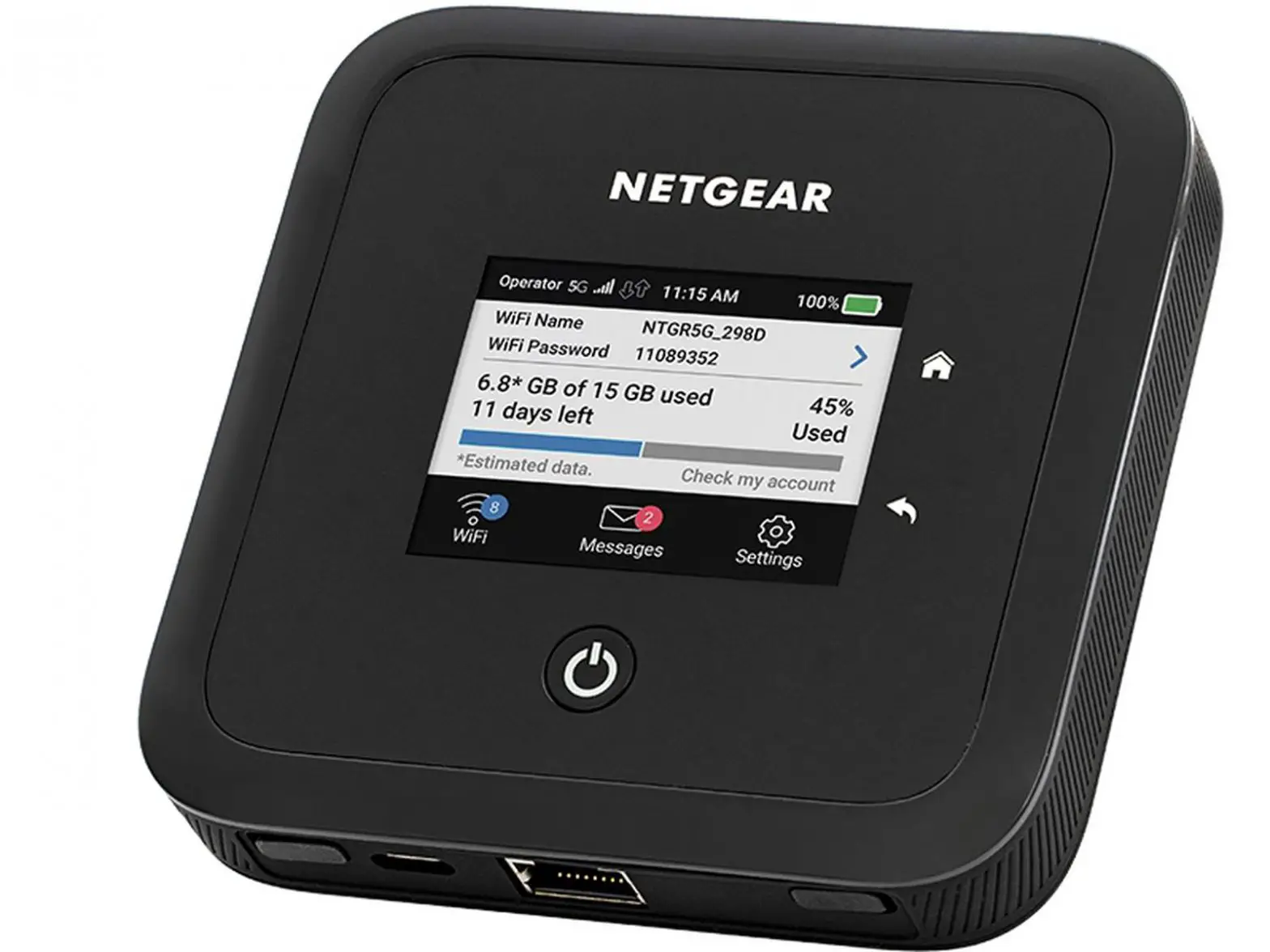
Home Screen
The Home screen displays the mobile hotspot’s WiFi network name and password, and the AT&T wireless network signal strength and connection type.
Signal strength
Network connection type
Battery
WiFi network name and password
QR code for quick connect to WiFi
Use the battery or AC power
Rely on battery power when you’re away from home or the office. The Power Manager lets you optimize battery life.
Your mobile hotspot can operate without the battery. Remove the battery and plug the provided AC adapter into a power outlet. Refer to the user manual for more details.
Connect to the Internet
Note:The mobile hotspot Home screen goes dark to save power. Quick press and release the Power button to wake the screen.
QR code connect from a smartphone 1 Tap the QR code icon on the mobile hotspot
LCD Home screen.
QR code for quick connect to WiFi
A QR code displays. 2 Point your phone’s camera at the QR code.
Your phone connects to the mobile hotspot WiFi network. 3 Launch your Internet browser.
On your laptop or other WiFi device 1 Open your WiFi network connection
manager. 2 Find your mobile hotspot’s WiFi network
name (ATT-WIFI-XXXX) and connect. 3 Enter your mobile hotspot’s WiFi password. 4 Launch your Internet browser.
Your mobile hotspot might become warm when you’re using it. This is normal for a fast 5G network device.
LCD WiFi Manager
You can manage the WiFi network from the LCD screen.
Change the WiFi network name and password 1 On the Home screen, tap the WiFi tile.
WiFi Manager
You can use a browser to view the device information and messages, and to change the mobile hotspot settings. Log In 1 On the WiFi device that is connected to your
mobile hotspot, type http://attwifimanager/ or http://192.168.1.1 in the browser bar. 3 Log in using your admin password. The default admin login password is attadmin.
NETGEAR Insight Pro Cloud Management Manage, deploy, and configure enterprise mobile hotspots with complete visibility and simple control–centrally applying company policies, profiles, monitoring, and more for one or a group of devices. For more information about NETGEAR Insight Pro, visit this site https://www.netgear.com/insight/mobile-hotspot or scan this QR code:
For more information
Manage your account
On the web: att.com/my ATT Compatible device and online account required. Data and messaging rates may apply for download and app usage.
Need more help?
On the web: att.com/DeviceHowTo
Give us a call
611 from any AT&T wireless phone, or 800.331.0500. When prompted, enter your device’s 10-digit number.
2. Tap WiFi and then select an available WiFi network.
3. Tap WiFi Name and enter your changes.
4. Tap WiFi Password and enter your changes.
Manage settings using the NETGEAR mobile app
1. Make sure your device is connected to the Internet.
2. Download the NETGEAR mobile app from netgear.com/mobileapps.
 att.com/DeviceHowTo
 NETGEAR Nighthawk App | NETGEAR
 Insight Pro for Mobile Hotspot Management | NETGEAR