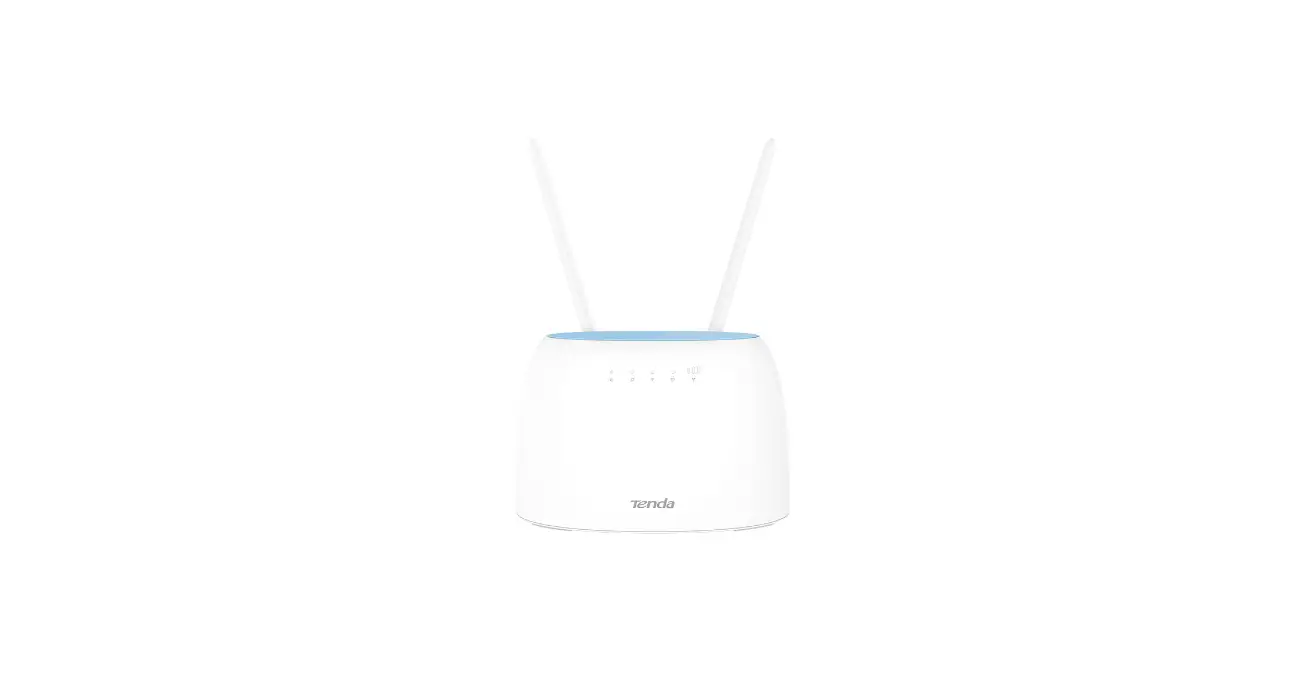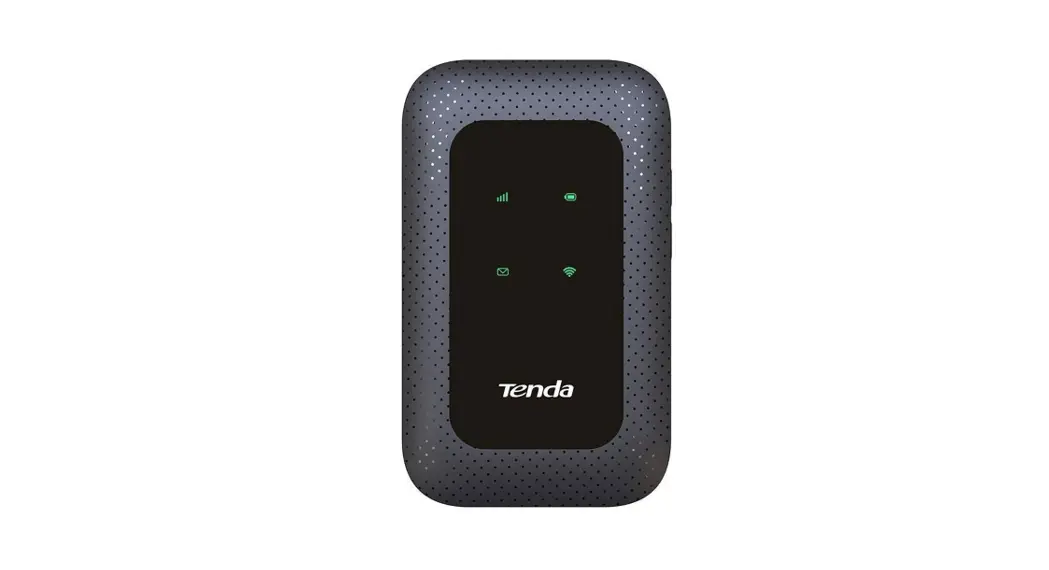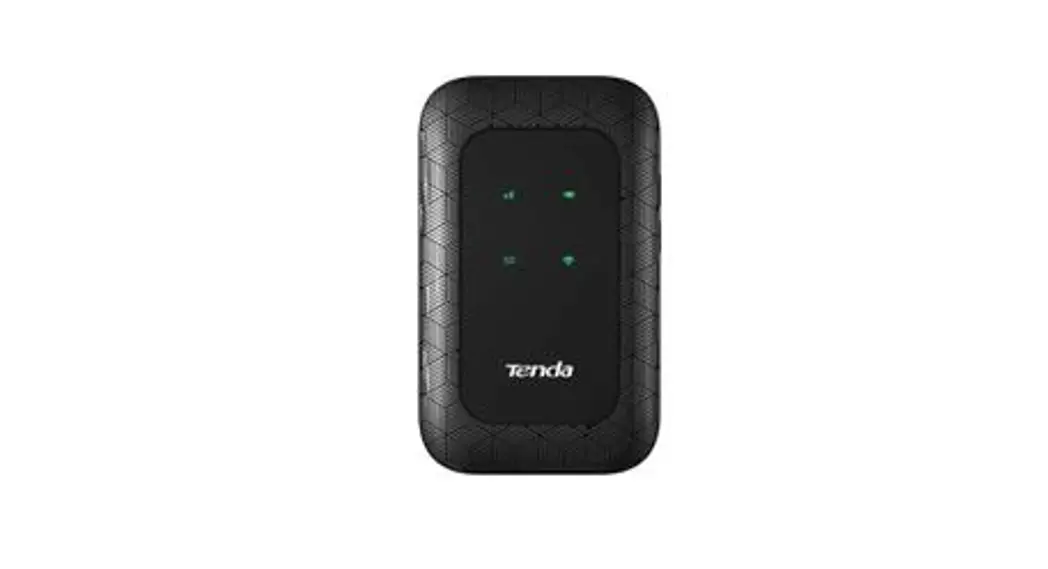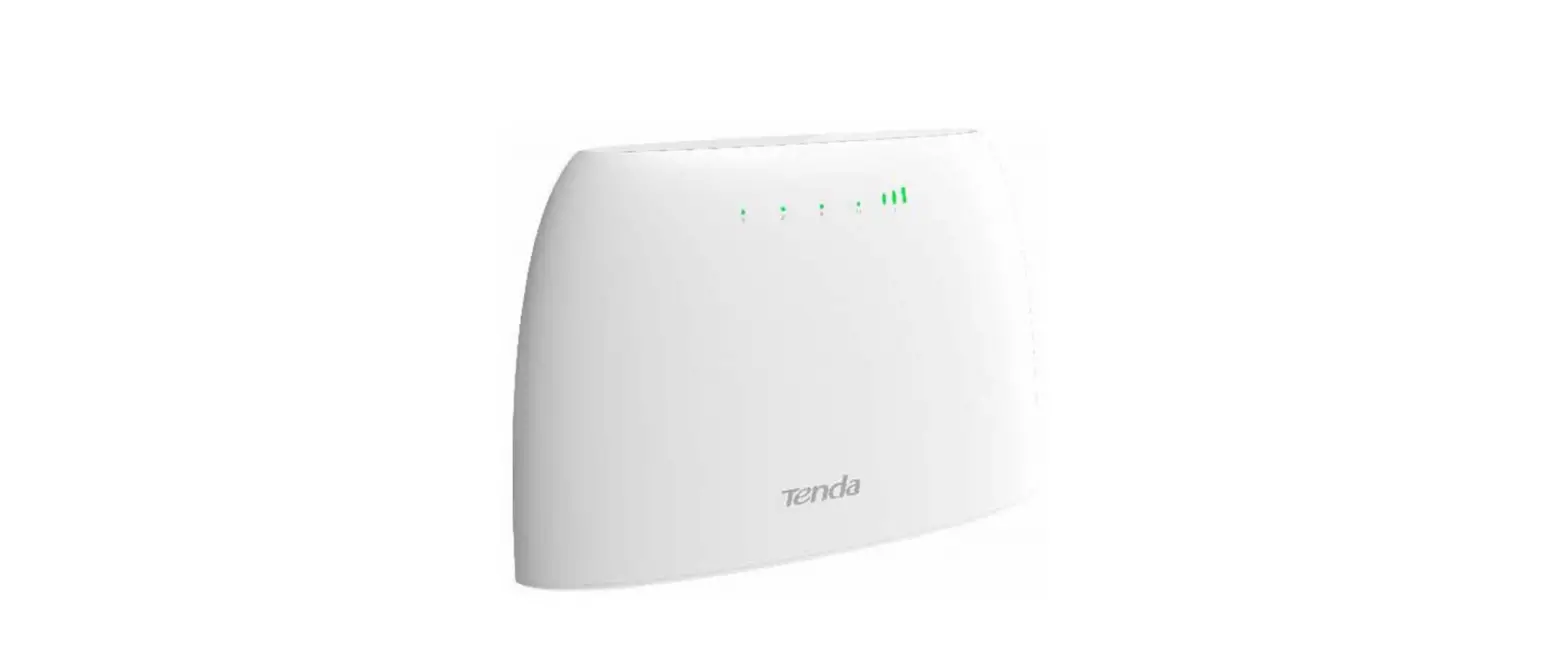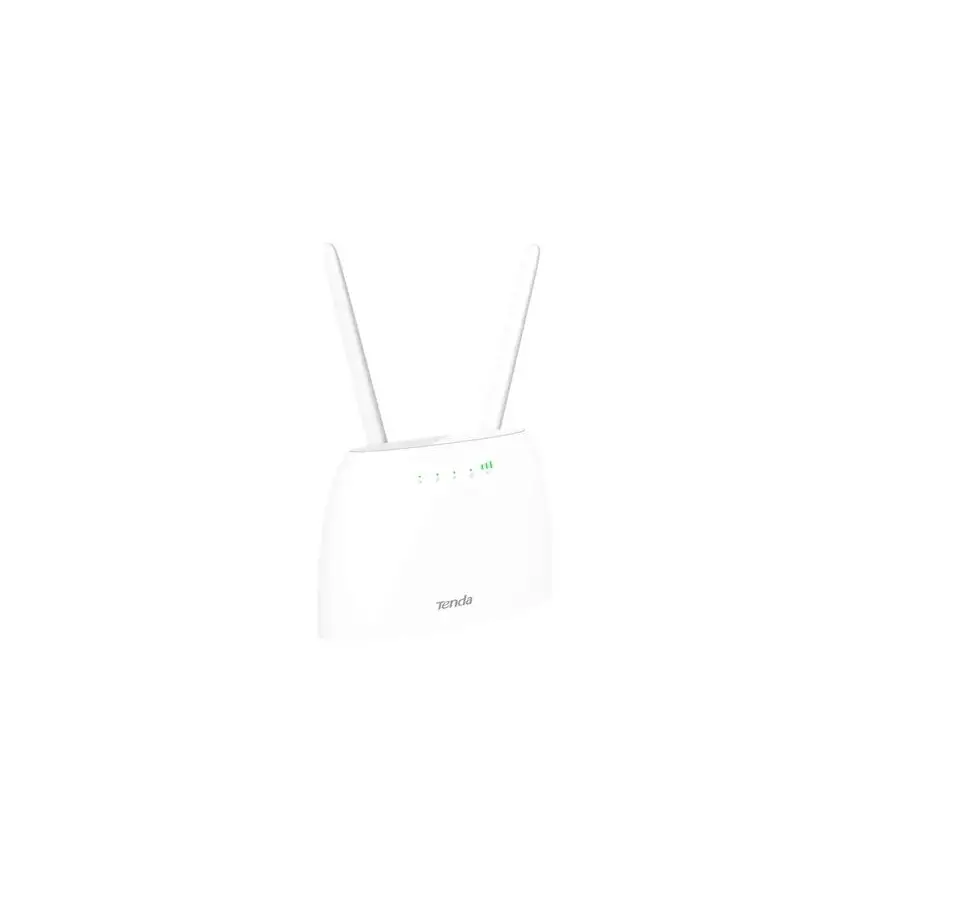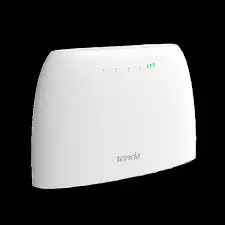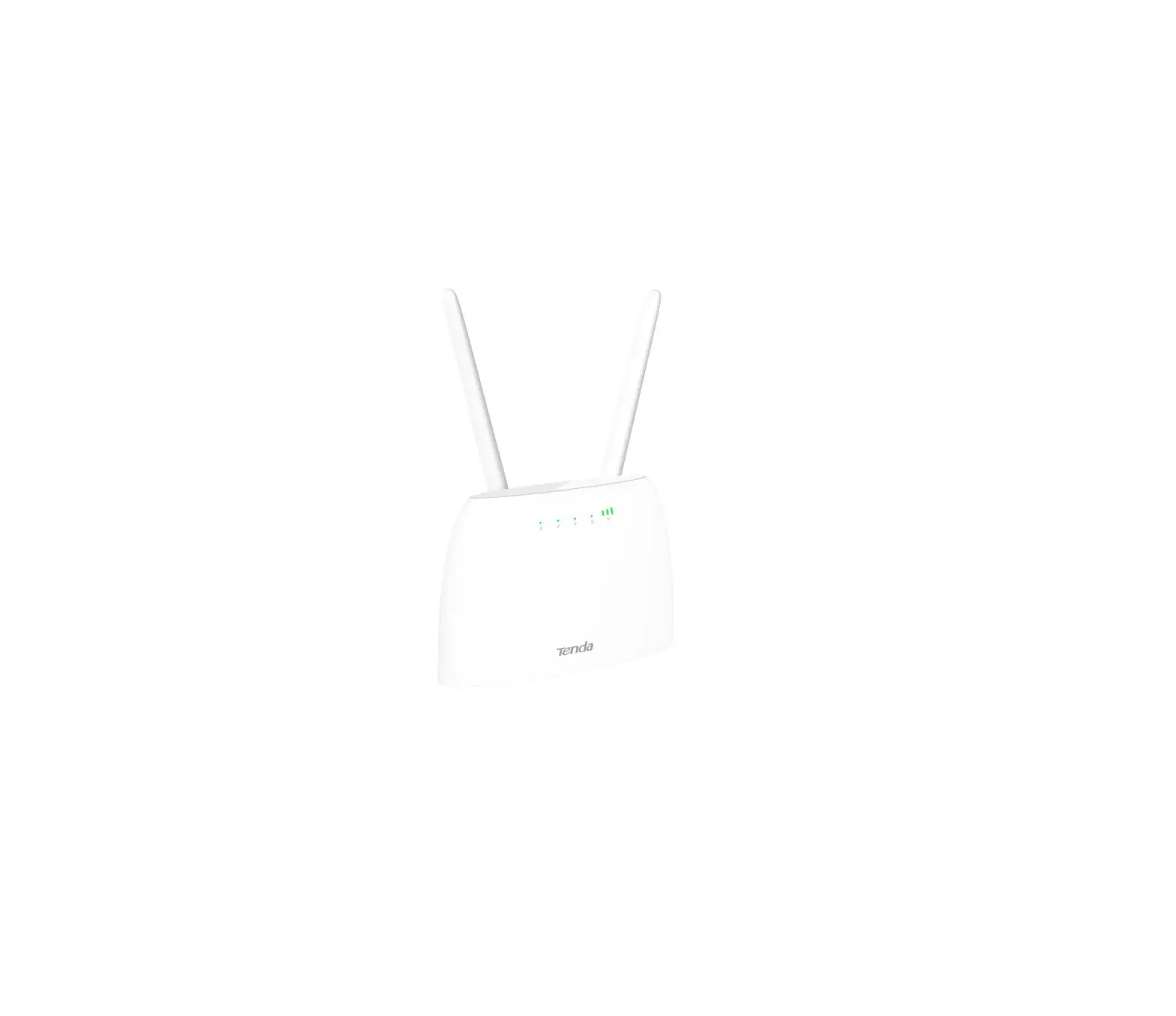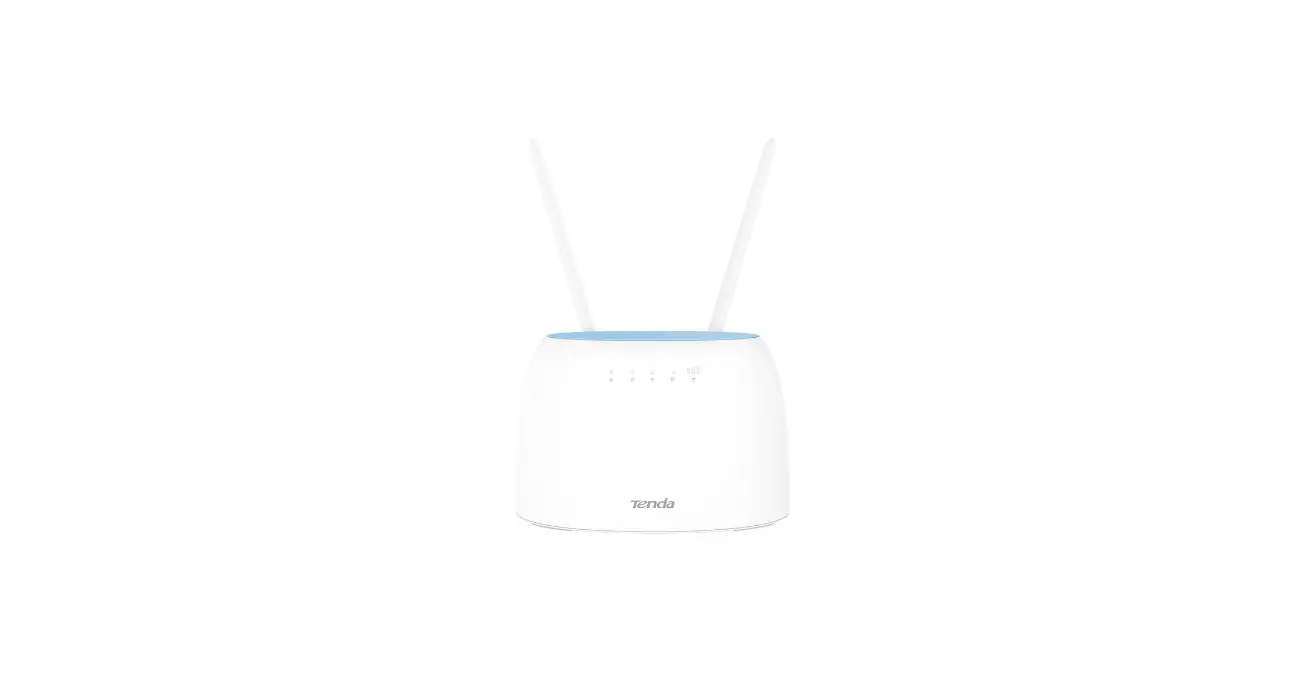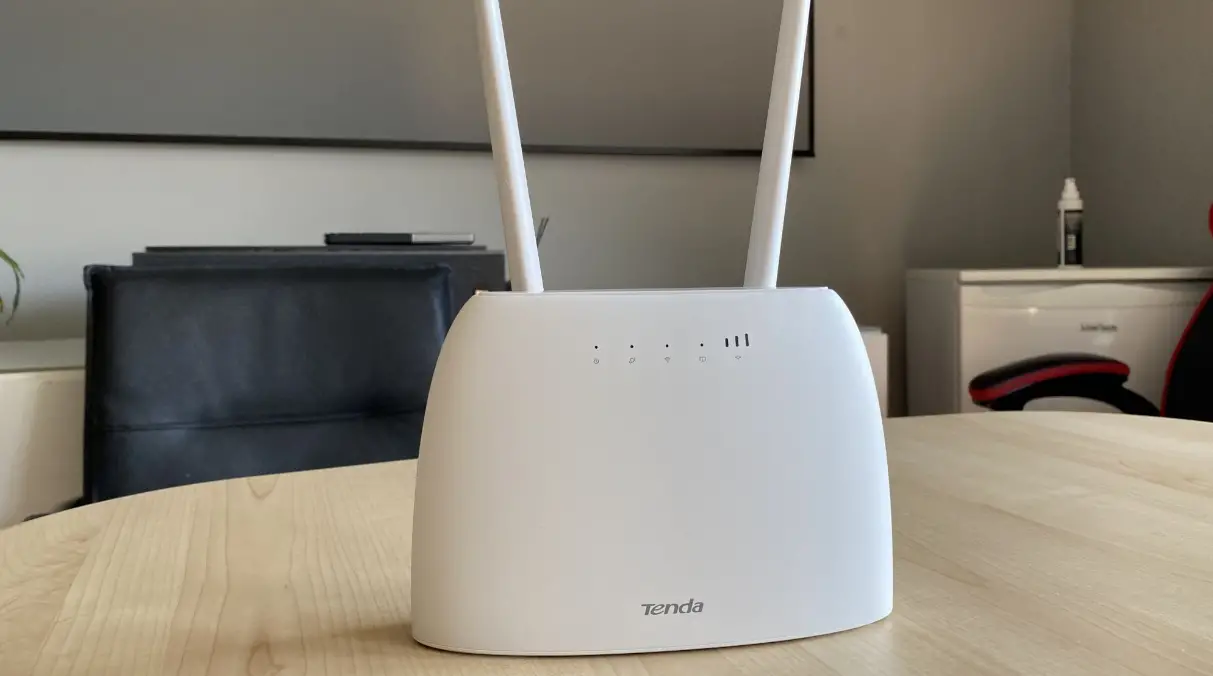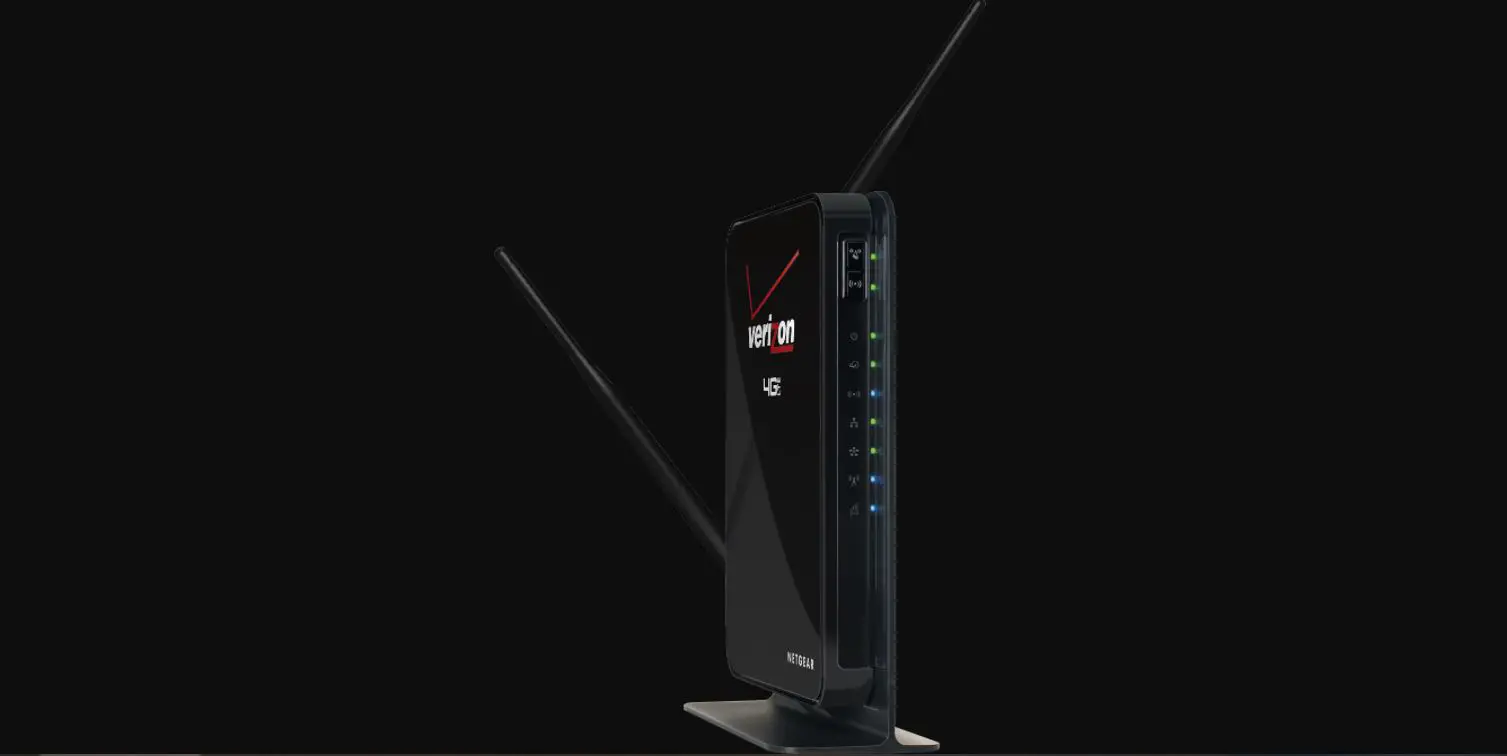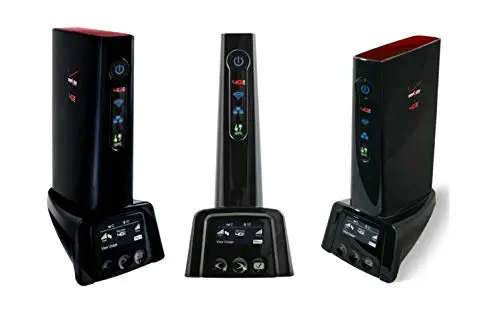

4G180 4G LTE Advanced Pocket Mobile Wi-Fi Router
User Manual
Package content
- Mobile Wi-Fi × 1
- Li-ion battery × 1
- USB cable × 1
- SIM Card Adapter× 1
- Quick installation guide × 1
For product or function details, please go to www.tendacn.com to download the user guide.
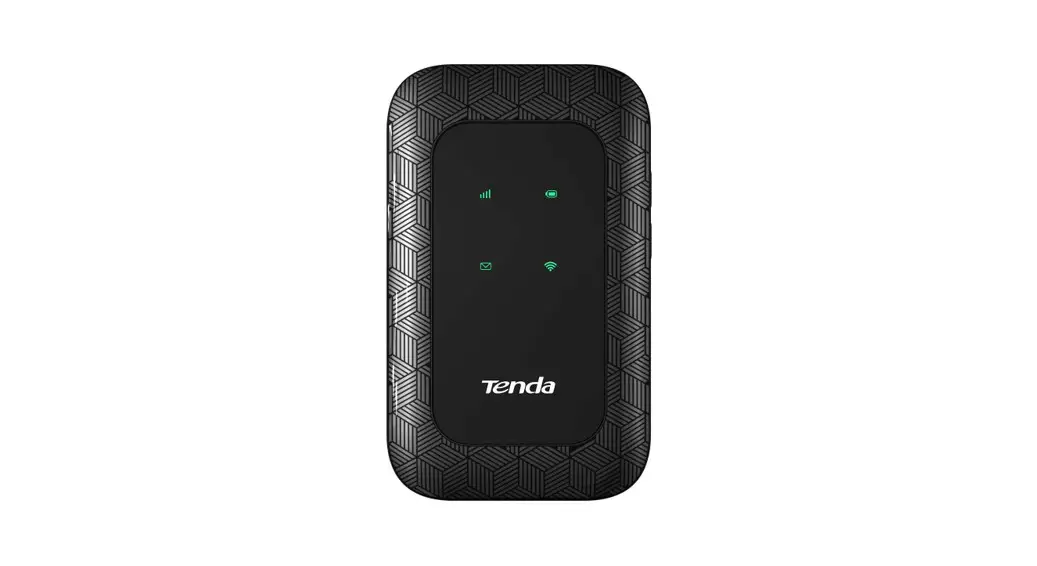
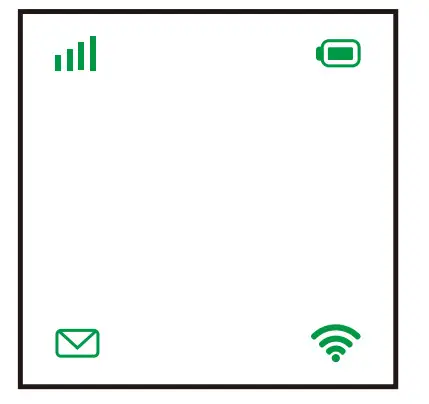
LED indicators/LCD Screen
4G180
| LED | Status | Description |
Signal | Solid green | Connected to the internet. |
| Blinking green | Signal detected, but no internet access. | |
| Solid red | No signal. | |
Battery | Solid green | The remaining battery percentage is above 25%. |
| Blinking green | Charging the battery. | |
| Solid red | The remaining battery percentage is between 20% and 25%. | |
| Blinking red | The remaining battery percentage is below 20%. | |
Message | Blinking green for 5 times | The new SMS message is received or the storage is full. |
| Solid green | There are unread SMS messages. | |
| Off | No unread SMS messages. | |
Wi-Fi | Solid on | No device is connected to the Wi-Fi network. |
| Blinking | There is at least one device connected to the Wi-Fi network, or a WPS negotiation is in process. | |
| Off | The Wi-Fi network is disabled. |
4G185
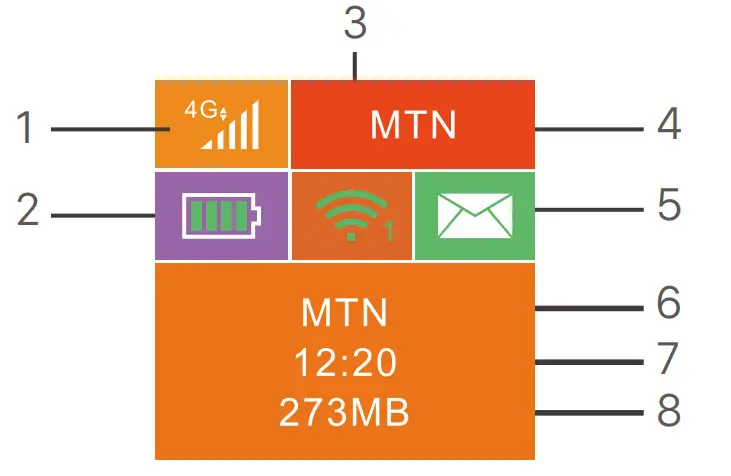
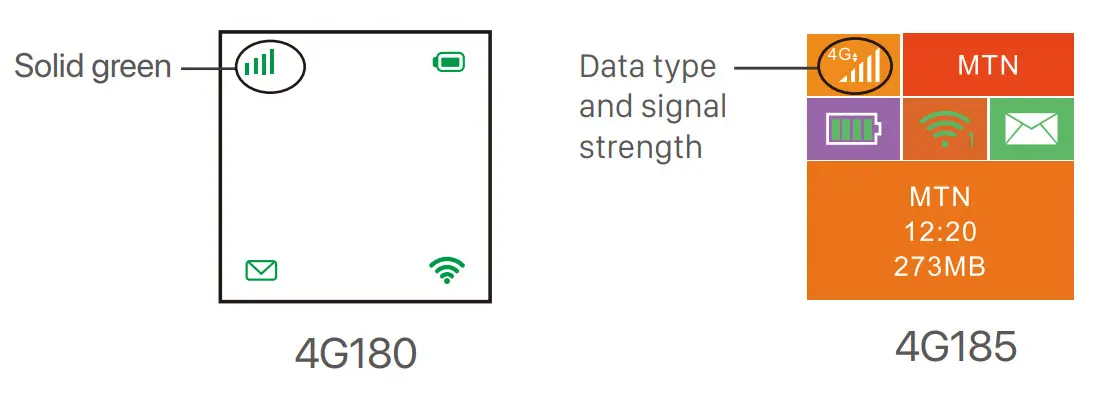
- Data type and signal strength
- Battery meter
- Wi-Fi status and connected Wi-Fi clients
- Operator name
- Message status
- Operator name/Tip information
- Internet connection duration
- Used data traffic
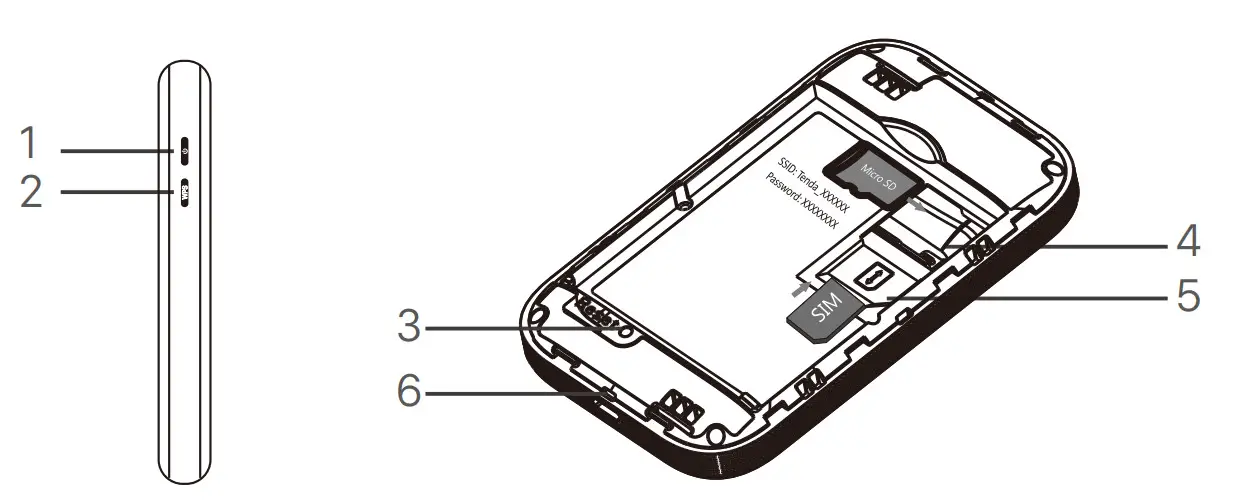
| No. | Buttons/Port/Slot | Description |
| 1 |  | Power button. • Hold it for about 3 seconds to turn on/off the Hotspot. • Press it once to turn on its LED indicators/LCD screen.  Tips: Tips:When the LCD screen of 4G185 is on, press it once to show the SSID and Wi-Fi key. Press it twice to show a QR code of the Wi-Fi information. |
| 2 | WPS | WPS button. When the WPS function is enabled: • 4G180: The Wi-Fi LED indicator will blink. • 4G185: WPS Active will be shown on the LCD screen. Hold the button down for about 3 seconds to enable the WPS function. Enable the WPS function on a WPS-supported device to establish a WPS negotiation. |
| 3 | Reset | Reset button. Hold the button using a sharp object for about 6 seconds to reset the Hotspot. |
| 4 | SD card slot | Insert your SD card here to increase storage space. |
| 5 | SIM card slot | Insert your SIM card here. |
| 6 | Charging/ Micro USB port | Used to charge the Hotspot, or to provide wired device internet access using the USB cable. |
Install SIM card and battery
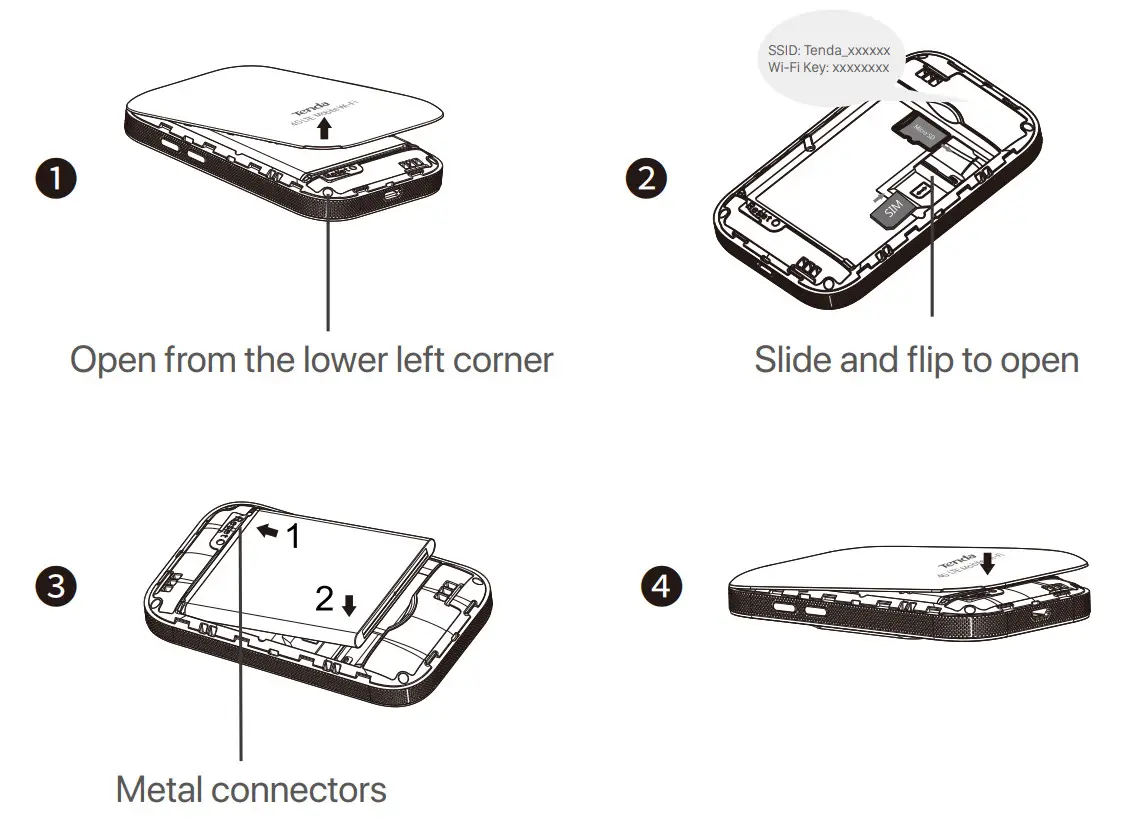
Turn on the Hotspot
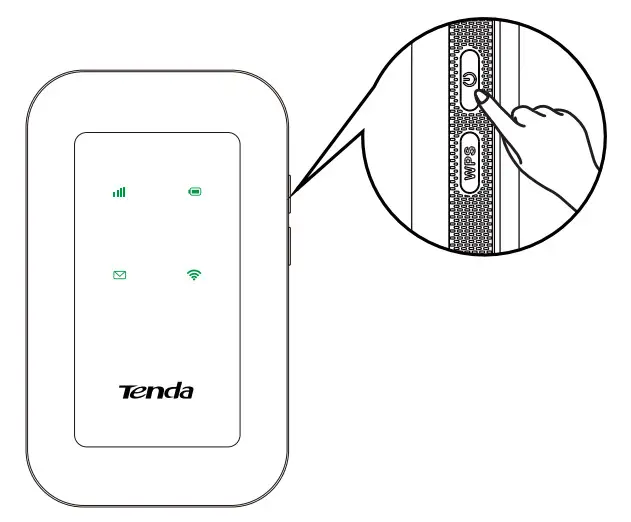
- Hold the button
 till all LED indicators flash once (4G180) or the LCD screen lights up (4G185).
- When the Hotspot is connected to the internet, you will find:

Tips
If the Hotspot is not connected to the internet after a long time, refer to Q1 in FAQ.
Access the internet
- To access the internet through the Hotspot:
Wireless: Connect your wireless device to the Wi-Fi network of the Hotspot with the SSID and Wi-Fi key at the top of the device after opening the back cover.
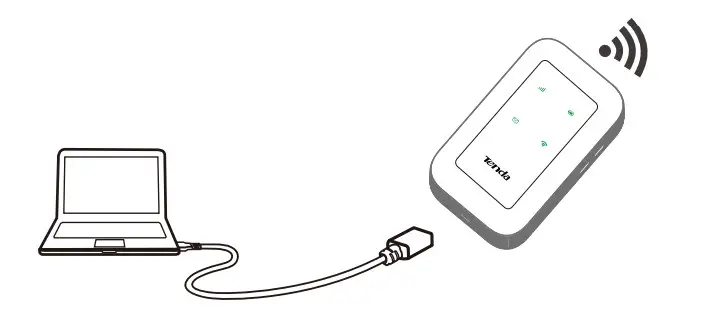
Wired: Connect a PC or laptop to the Hotspot using the USB cable.
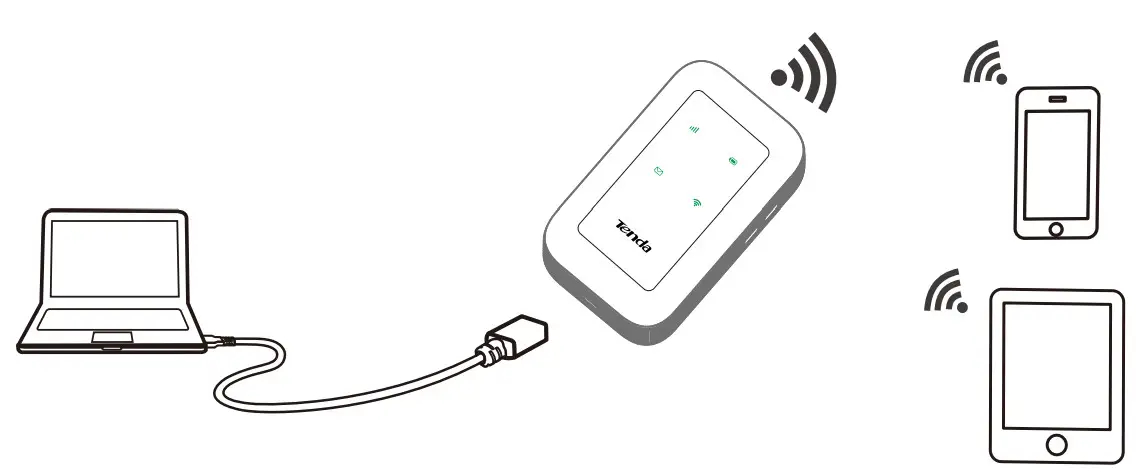
You can log in to the web UI by visiting 192.168.0.1 to further configure the Hotspot.
 Tips
Tips
For a new computer connected in a wired manner for the first time, you need to double-click the CD drive installed on the computer before you can access the internet.
If you cannot access the internet, refer to Q2 in FAQ.
If you cannot log in to the web UI, refer to Q3 in FAQ.
Charge your Hotspot
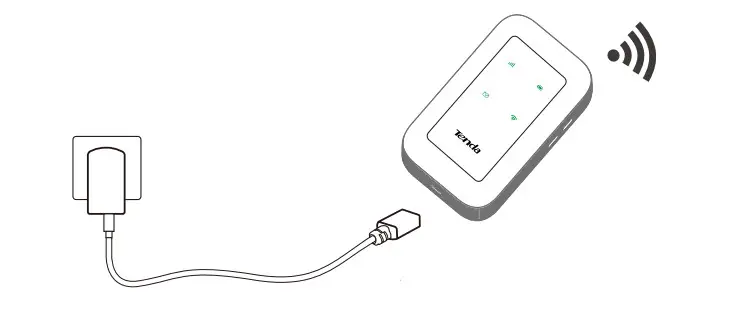
- Charge your Hotspot

- Method 2: Connect to a power socket

FAQ
What should I do?
A1: Try the following solutions:
– Ensure that your SIM card is pre-paid and has enough balance.
– Check if your SIM card is locked with a PIN code. If so, contact your ISP for the PIN code, visit the web – – UI (default: 192.168.0.1) on a connected device, and follow the instruction on the web UI to unlock the SIM card.
– Try another SIM card.
– Reset the Hotspot.
A2: Try the following solutions:
– Ensure that the Hotspot is connected to the internet. if not, refer to Q1.
– Ensure that your wireless device is connected to the Wi-Fi network of the Hotspot.
– Try with your wireless device closer to the Hotspot.
– Ensure that your wired device is connected to the Hotspot properly and set to obtain an IP address automatically.
A3: Try the following solutions:
– For wireless devices:
– Ensure that you connect your device to the Wi-Fi network of the Hotspot.
– Ensure that you have disabled the mobile data (if any) of your wireless device.
– For wired devices: Ensure that the wired device, such as a computer, obtains an IP address automatically.
– Ensure that you entered 192.168.0.1 correct in the address bar of a browser.
– Try another browser or with another device.
– If the problem persists, reset the Hotspot and try again.
A4: Follow the steps below:
– Start a web browser on a connected device and visit 192.168.0.1 to log in to the web UI.
– Enter the login password (default: admin) and click Login.
– Find Network Settings and choose Wi-Fi Settings.
– Change Network Name (SSID) and Wi-Fi Key (or Pass Phrase) as required.
A5: Follow the steps below:
– Remove the back cover.
– Find the Reset hole in the lower part of the Hotspot.
– Hold the button using a sharp object for about 6 seconds.
CE Mark Warning This is a Class B product. In a domestic environment, this product may cause radio interference, in which case the user may be required to take adequate measures.
This equipment should be installed and operated with a minimum distance 20cm between the device and your body.
NOTE:
- The manufacturer is not responsible for any radio or TV interference caused by unauthorized modifications to this equipment.
- To avoid unnecessary radiation interference, it is recommended to use a shielded RJ45 cable.
Declaration of Conformity
Hereby, SHENZHEN TENDA TECHNOLOGY CO., LTD. declares that the radio equipment type 4G180/4G185 is in compliance with Directive 2014/53/EU.
The full text of the EU declaration of conformity is available at the following internet address:
http://www.tendacn.com/en/service/download-cata-101.html
Operating Frequency: 2.4 GHz: EU/2400-2483.5MHz (CH1-CH13)
EIRP Power (Max.): 2.4 GHz: 12.64dBm
Software Version: V3.1_SM_FX_TD_P032
RECYCLING
This product bears the selective sorting symbol for Waste electrical and electronic equipment (WEEE). This means that this product must
be handled pursuant to European directive 2012/19/EU in order to be
recycled or dismantled to minimize its impact on the environment.
User has the choice to give their product to a competent recycling
organization or to the retailer when he buys a new electrical or
electronic equipment.
Operating Temperature: 0°C – 40°C
Operating Humidity: (10% – 90%) RH, non-condensing

 Caution:
Battery Model: 4G
Manufacturer: Shenzhen Power come to Electronics Co., LTD
Technical Support
Shenzhen Tenda Technology Co., Ltd.
6-8 Floor, Tower E3, NO.1001, Zhongshanyuan Road, Nanshan District,
Shenzhen, China. 518052
USA hotline: 1-800-570-5892
Toll-Free: 7 x 24 hours
Canada hotline: 1-888-998-8966
Toll Free: Mon – Fri 9 am – 6 pm PST
Hong Kong hotline: 00852-81931998
Global hotline: +86 755-2765 7180 (China Time Zone)
Website: www.tendacn.com
E-mail: [email protected]
Copyright
© 2021 Shenzhen Tenda Technology Co., Ltd. All rights reserved.
Tenda is a registered trademark legally held by Shenzhen Tenda Technology Co., Ltd. Other brand and product names mentioned herein are trademarks or registered trademarks of their respective holders. Specifications are subject to change without notice.