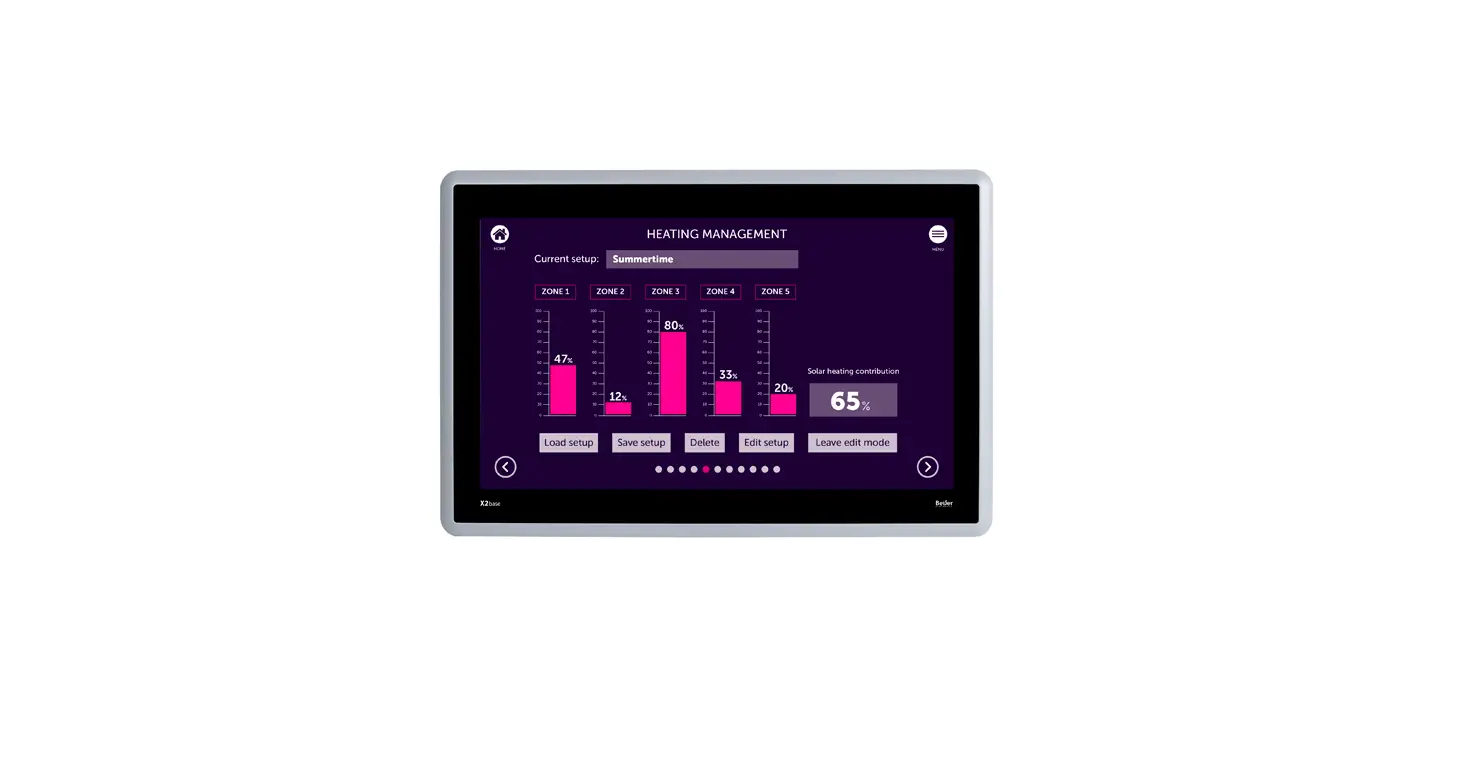
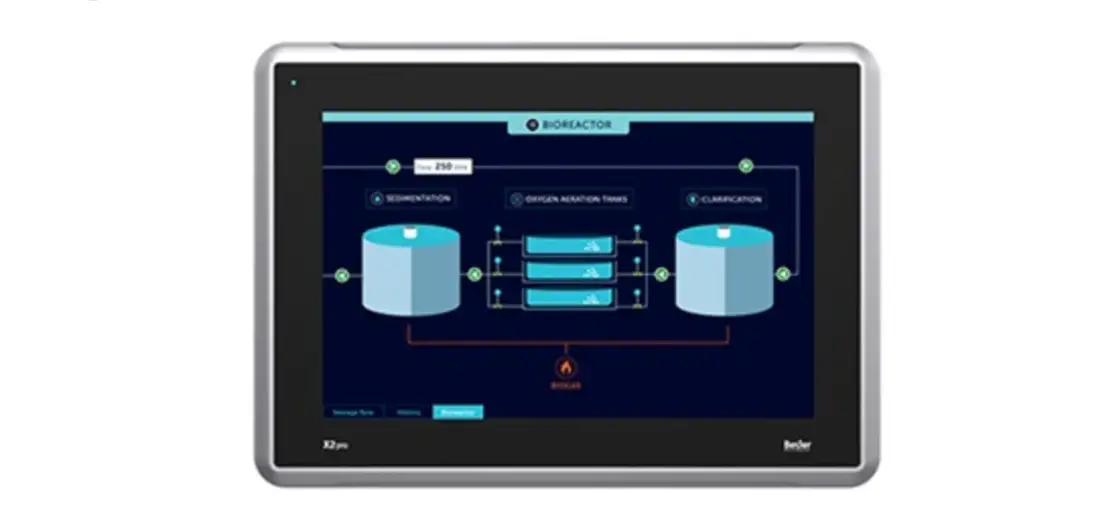
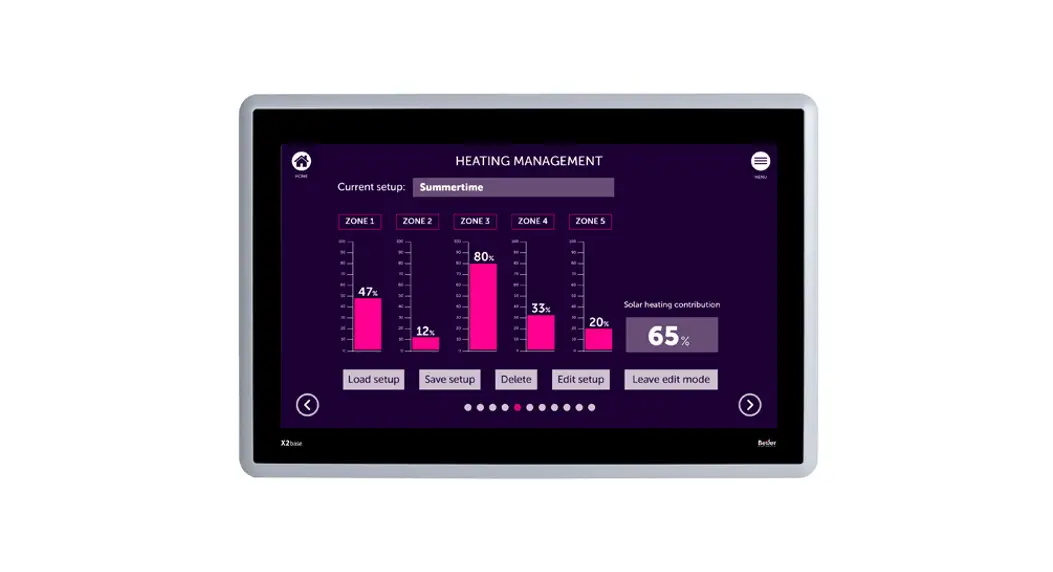
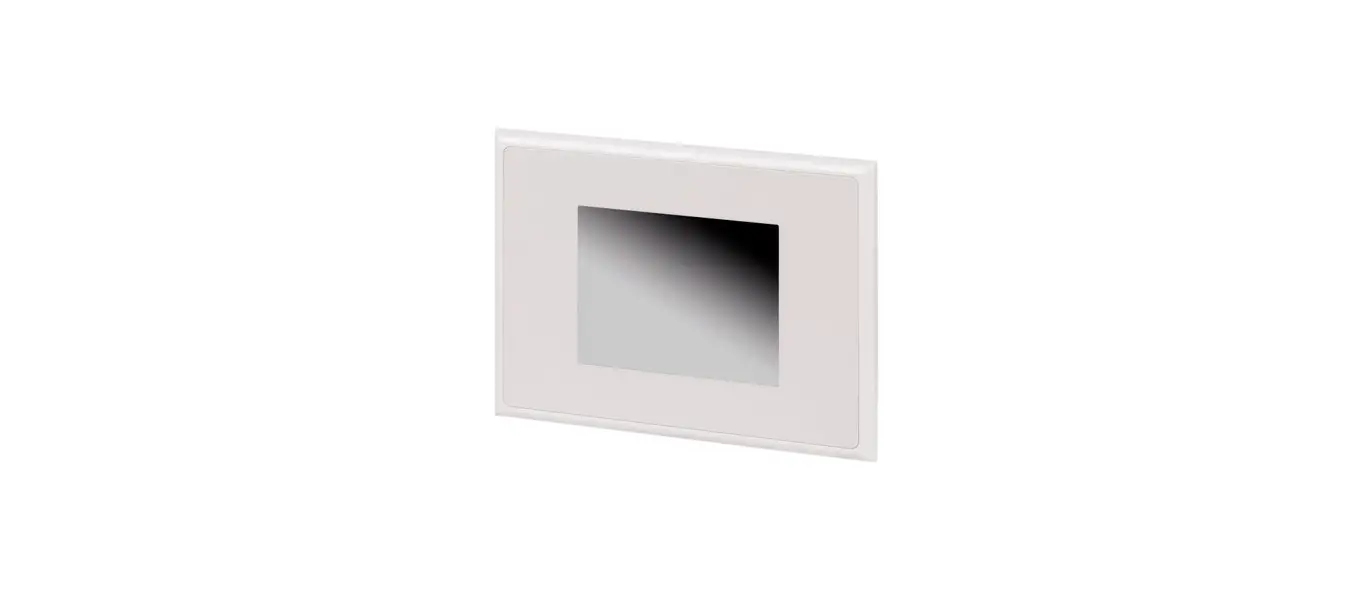
X2 Web HMI Panel
Product Information: X2 web Image Manual
The X2 web is a Human Machine Interface (HMI) panel manufactured
by Beijer Electronics. The product comes with a user manual that
provides information on safety precautions, references, open source
software notice, booting instructions, navigation, and settings.
The installation manual for each HMI panel contains information on
installation, technical data, cutout, and outline dimensions of the
panels. The product is designed to provide users with an
interactive interface for controlling and monitoring machines and
processes.
Safety Precautions
Both the installer and users of the HMI panel must read and
understand the user manual before using the product. The manual
contains safety precautions that must be followed to prevent
accidents and injuries.
References
The user manual contains references to installation manuals for
different models of the X2 web. These installation manuals provide
detailed information on the installation process, technical
specifications, and dimensions of the panels.
Open Source Software Notice
The X2 web contains open source software under GPL, LGPL and
other open source licenses. Users can obtain the source code and
license terms by contacting [email protected].
Product Usage Instructions
Boot
The X2 web device requires a first-time boot when powered up
from delivery. Follow the steps below to change the default
Configtool user password or PIN:
- Enter the factory default PIN (1234) at Login as ConfigTool
User. - Input the Admin password in the subsequent step. The Admin
password is an additional password that is printed on the flyer
included in the shipment.
The X2 web panel has a touch screen interface that allows users
to navigate through different screens and menus. Use your finger to
touch the screen and select the desired option.
Settings
The Settings menu allows users to change passwords and other
settings. The Admin password can be changed in the Settings
menu.
Image Manual
X2 web
MAEN341 2023-02
Foreword
The information in this document is valid for the latest versions of the panel images at the time the document was released. For information and updates, see https://www.beijerelectronics.com.
Copyright © 2023 Beijer Electronics AB. All rights reserved.
The information in this document is subject to change without notice and is provided as available at the time of printing. Beijer Electronics AB reserves the right to change any information without updating this publication. Beijer Electronics AB assumes no responsibility for any errors that may appear in this document. All examples in this document are only intended to improve understanding of the functionality and handling of the equipment. Beijer Electronics AB cannot assume any liability if these examples are used in real applications.
In view of the wide range of applications for this software, users must acquire sufficient knowledge themselves in order to ensure that it is correctly used in their specific application. Persons responsible for the application and the equipment must themselves ensure that each application is in compliance with all relevant requirements, standards, and legislation in respect to configuration and safety. Beijer Electronics AB will accept no liability for any damage incurred during the installation or use of equipment mentioned in this document. Beijer Electronics AB prohibits all modification, changes, or conversion of the equipment.
Head Office Beijer Electronics AB Box 426 201 24 Malmö, Sweden www.beijerelectronics.com / +46 40 358600
Table of Contents
1. Introduction …………………………………………………………………………………… 5 1.1. Safety Precautions ……………………………………………………………………. 5 1.2. References …………………………………………………………………………….. 5 1.3. Open Source Software Notice ………………………………………………………… 5
2. Boot …………………………………………………………………………………………… 6 2.1. First Time Boot ……………………………………………………………………….. 6
3. Navigation …………………………………………………………………………………….. 7 4. Settings ……………………………………………………………………………………….. 8
4.1. Change Passwords …………………………………………………………………….. 9 4.2. Change Settings From Terminal ………………………………………………………. 9
4.2.1. Network ………………………………………………………………………. 11 4.2.2. Diagnostics …………………………………………………………………… 12 4.3. Settings Tabs …………………………………………………………………………. 12 4.3.1. General ………………………………………………………………………. 12 4.3.2. Display ……………………………………………………………………….. 12 4.3.3. Network ………………………………………………………………………. 13 4.3.4. Diagnostics …………………………………………………………………… 13 4.3.5. Licenses ………………………………………………………………………. 13 5. Image Update ………………………………………………………………………………… 14 5.1. Updating the Panel Image Using USB/SD Card ………………………………………. 14 6. Certificate Utility and Allowlist ……………………………………………………………… 15 6.1. Adding Certificate From File …………………………………………………………. 15 6.2. Add Current URL to the Allow List …………………………………………………… 15
Beijer Electronics, MAEN341
3
2023-02
4
Introduction
1. Introduction
1.1. Safety Precautions
Both the installer and users of the HMI panel must read and understand this manual.
1.2. References
Name MAEN215 MAEN221 MAEN225B MAEN251B MAEN256B MAEN261B
Description Installation Manual X2 control/motion 7 – B2 Installation Manual X2 control/motion 10 – B2 Installation Manual X2 control/motion 15 – B2 Installation Manual X2 extreme 7 HP Installation Manual X2 extreme 12 HP Installation Manual X2 extreme 15 HP
The installation, technical data, as well as cutout and outline dimensions of the panels, are described in the Installation Manual for each HMI panel. Please refer to the Installation Manual for further information.
NOTE
Current documentation and software updates can be found on https:// www.beijerelectronics.com
1.3. Open Source Software Notice
To obtain the source code under GPL, LGPL and other open source licenses that are contained in this product, please contact [email protected]. In addition to the source code, all referred license terms, warranty disclaimers and copyright notices may be disclosed upon request.
Beijer Electronics, MAEN341
5
2023-02
Boot
2. Boot
1. Apply power to the HMI panel. 2. Within 1520 seconds, the Browser will appear. If a start address is defined in the configuration, it will be loaded automatically. Otherwise, you will be directed to the configuration. The X2 web is pre-configured from factory with a URL to a HTML5 demo page.
2.1. First Time Boot
When powering up the X2 web device, first time from delivery, a dialog is shown in order to change the default Configtool user password, or PIN. The procedure is as follows: 1. At Login as ConfigTool User, input the factory default PIN (The default password from factory is
1234). 2. In the subsequent step, it is required to input the Admin password. This password is an
additional password, similar to the PUK code on a mobile phone SIM card. The Admin password is printed on the flyer, included in the shipment.
NOTE
The admin password can later be changed in the Settings.
3. With correctly stated Admin password, input the new PIN/Configtool User password, two times consecutively.
The PIN/Configtool User password is now changed.
2023-02
6
Beijer Electronics, MAEN341
Navigation
3. Navigation
To reach the right-click context menu, tap the touch surface and keep it pressed for at least 1.5 seconds. A drop-down menu will show with navigation commands. The following commands are currently implemented: · Back · Forward · Reload The right-click context menu can be disabled or enabled from the Settings.
Beijer Electronics, MAEN341
7
2023-02
Settings
4. Settings
Normally, the X2 web device will browse the default URL on startup. To access the device settings: 1. Touch the upper, approximately one centimeter area, of the display, and hold it for at least 1.5
seconds. 2. After holding the touch for 1.5 seconds, a button will appear in the upper central part of the
screen. 3. Tap/Click on the button to go to Settings. Tap/Click outside the button to make the Settings
button disappear again.
X2 extreme 15 web
2023-02
8
Beijer Electronics, MAEN341
Settings
X2 pro 15 web
4.1. Change Passwords
To change the config tool user password, in the Settings menu, go to the Display tab and click the Change configtool password button. The change password feature requires being logged in as admin. The application will restart and prompt the user to select either admin or configtool user followed by input of the old password. Changing the configtool user password, requires the admin password, followed by the new password entered twice. The new password entered must be at least four characters in length. There is no limitation on the maximum password length.
NOTE
Any limitations stated above are reflected in the config tool app for changing passwords. If using the OS built in ‘passwd’ command, there are no limitations.
4.2. Change Settings From Terminal
The X2 web has some additional settings, some of which are only available to be edited from a terminal. The built-in editor in X2 web is vi. A basic manual for the various vi commands can be found here: https://cs.stanford.edu/people/miles/vi.html
The file /etc/beijer/misc.conf contains general settings.
Beijer Electronics, MAEN341
9
2023-02
Settings
NOTE
Any changes made to the OS, file system etc, is solely on behalf of the owner. Beijer Electronics AB shall not be held responsible for any damages caused by connecting to the device as a root user.
misc.conf
Setting parameter brightness
Type, interval Integer [0, 100]
login_valid_sec
screensaver_timeout update_dirs
drawer_open_ direction
Integer [0, N] Rec. [120, N] Integer [0|1, N] String, comma separated string
Comment
Controls the backlight brightness level. If the screen was mistakenly set to 0, from the config UI, this parameter can be edited from the terminal to solve the problem.
Controls the time until the user is automatically logged out from the config UI.
Controls the screen saver timeout. If 0, the screen saver is disabled.
The paths control which mounted interfaces are allowed for updating the firmware.
Controls swiping direction for opening the Config [Down, Right, Left].
2023-02
10
Beijer Electronics, MAEN341
Settings
web.conf
Setting parameter initscale_workaround
url
disable_con- text_menu
Type, interval Bool [true, false]
String
Bool [true, false]
Comment
Controls whether the workaround for known issues with progressive apps (also WebVisu SP14 zoom issues).
Address to the web server. Editing this parameter from terminal may be a better option in various deployment scenarios.
Enables or disables the long touch menu as referred in section 3.
The file /etc/beijer/touch.conf only contains the result from touch calibration. It is recommended to use the built-in touch calibration app instead.
4.2.1. Network
The following parameters can be set:
· IP address · Subnet mask · Default gateway · DNS settings for the Ethernet port on the HMI panel · LAN A / LAN B One config per port (separate tabs in the top of the UI)
· Method DHCP or Static. · IP · Net mask · Gateway · DNS 1 · DNS 2 · Save Saves the new settings.
The default setting is DHCP.
Beijer Electronics, MAEN341
11
2023-02
Settings
4.2.2. Diagnostics
Displays the following list of parameters for the panel:
· CPU load · System uptime · Memory total · Memory usage
4.3. Settings Tabs
4.3.1. General
· Model Model name of the device model. · Software Version Currently installed software version.
4.3.2. Display
Tab URL Load page Default scale fullscreen
Brightness Screensaver timeout Activate Calibrate touchscreen
Change password Disable context menu Certificate Util/ Allowlist Ping SSH Docker Docker Config Touch mouse emulation
Logout
Description Start page Makes the browser go to the URL. Controls the zoom level and stretching of the web application. This is workaround for known issues in, for instance, Codesys WebVisu.
If there are issues with the graphics, setting or resetting this parameter may help solve the problem. Brightness setting for the display (scale 0-100). Set time before screen saver activates, 30 sek – 10 min.
Start the screen saver immediately. Will initialize the calibration of the touch.
The touch calibration screen enables the function to recalibrate the touch screen. The recalibration consists of nine steps, where a crosshair on the screen is pressed and held. Take care and try to do this as precise as possible, an incorrect calibration makes it hard to use the HMI panel. Click button to change passwords/PIN. When checked, the long-press context menu in the browser is disabled.
Utility to control white listed URL’s as well as adding server certificates from either USB or SD-card. Configure firewall to allow for Ping (ICMP) calls. Configure firewall to allow for terminal connection over SSH. Enable or disable Docker runtime. Utility menu for Docker, like pruning unused containers etc. Emulate touch as mouse input. When enabled, this feature changes the behavior of the touch and only allows for tap/click, i.e., no scrolling or gestures. Logout or change current user.
2023-02
12
Beijer Electronics, MAEN341
Tab Save button
Description Saves the URL, your brightness and screen time out.
Settings
NOTE
Depending on the size of the screen, users may have to scroll down to find all setting parameters in the Display tab.
4.3.3. Network
The following parameters can be set:
· IP address · Subnet mask · Default gateway · DNS settings for the Ethernet port on the HMI panel · LAN A / LAN B One config per port (separate tabs in the top of the UI)
· Method DHCP or Static. · IP · Net mask · Gateway · DNS 1 · DNS 2 · Save Saves the new settings.
The default setting is DHCP.
4.3.4. Diagnostics
Displays the following list of parameters for the panel:
· CPU load · System uptime · Memory total · Memory usage
4.3.5. Licenses
Shows a full table of all the licenses used in the software in terms of:
· Package · Version · License
Beijer Electronics, MAEN341
13
2023-02
Image Update
5. Image Update
The HMI panel comes pre-loaded on delivery with an image.
5.1. Updating the Panel Image Using USB/SD Card
To update the image in an HMI panel, use a USB flash drive or an SD card. This makes it possible to upgrade the panel image without the use of a PC. Do the following: 1. Download the system-beijer.raucb file and store it in the root on a USB flash drive or SD card. 2. Attach the USB flash drive or SD card to the device, a dialog will show to install the new version. 3. A dialog will notify when the update is finished. 4. Detach the USB flash drive or SD card and reboot the device. 5. Check the new version number in the Settings.
NOTE
The X2 web allows updating either from USB, SD card or via file transfer and manual install, using the command `rauc install system-beijer.raucb`.
2023-02
14
Beijer Electronics, MAEN341
Certificate Utility and Allowlist
6. Certificate Utility and Allowlist
Connecting the X2 web browser to a server over TLS, which lacks a CA root authority signed SSL certificate is prohibited. To bypass X2 web from blocking, either the URL can be added to a whitelist or users can install the server certificate on the X2 device as a valid server certificate. If a user connects to a web server, where the server lacks a valid certificate, the user will be notified by a message on the screen, `Insecure Page’. The notifier will be displayed for 10 seconds.
6.1. Adding Certificate From File
In order to add certificates from a file, the following has to apply:
· The USB flash drive or SD card is either vfat or ext3 formatted. · The USB flash drive or SD card contains a certificate folder with *.crt files.
Attach the USB flash drive or SD card to the X2 web device and go to the Certificate Util/Allowlist dialog. All certicates found on the drive will be listed in the upper list. Select which certificate to be added, followed by clicking on the Add button. If the operation succeeded, the browser will restart. If the operation failed, users will be notified.
6.2. Add Current URL to the Allow List
To add the current URL address to the allow list, simply check the Add current URL to allowlist checkbox, followed by clicking the Add button. White-listed URL domain addresses are listed in the lower list box. Existing, white-listed, URLs can be removed by selecting it and clicking the Remove button.
Beijer Electronics, MAEN341
15
2023-02
16
 Beijer Electronics