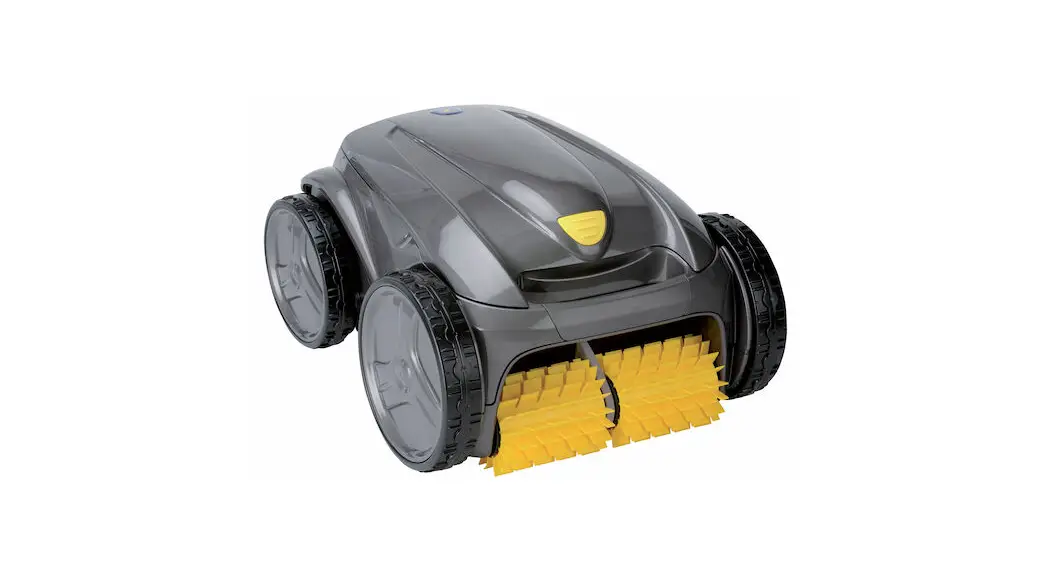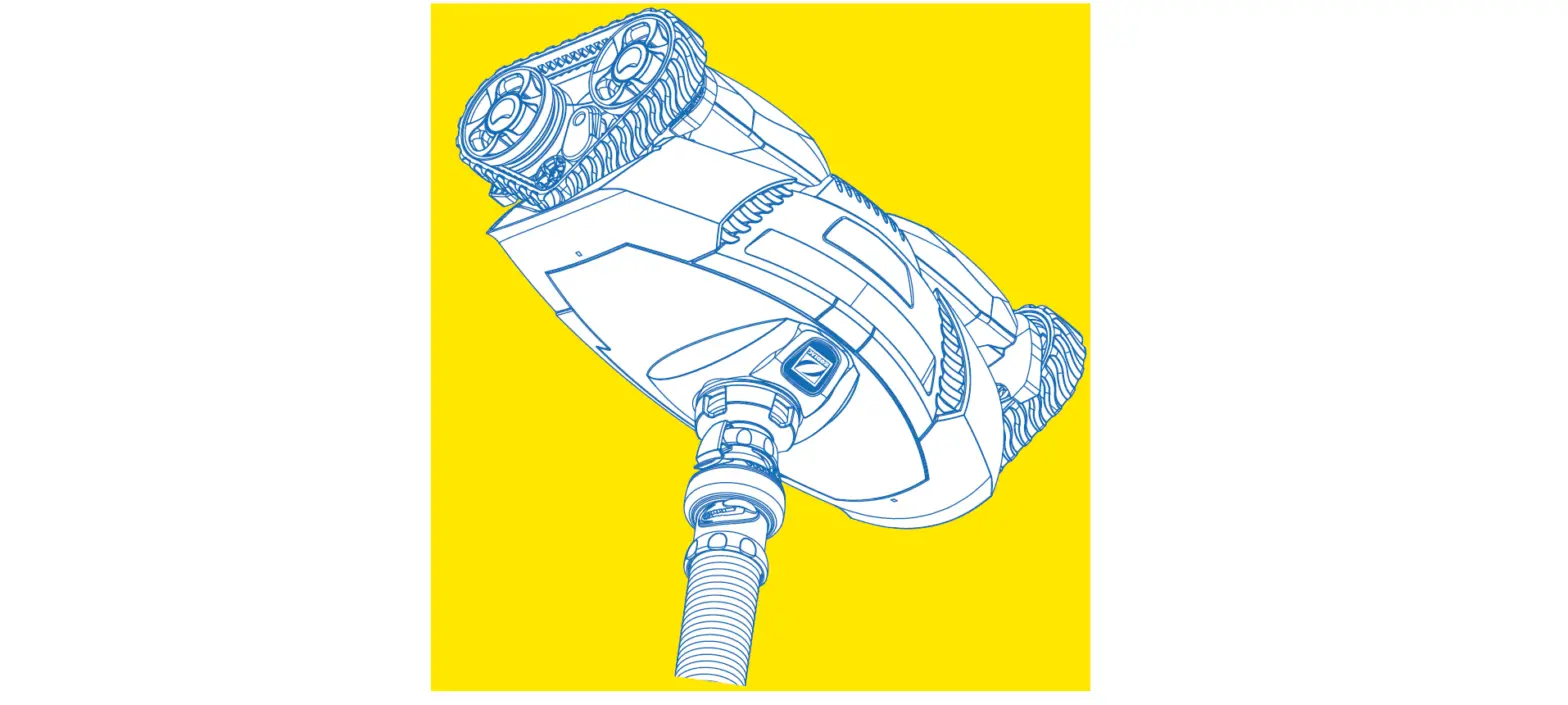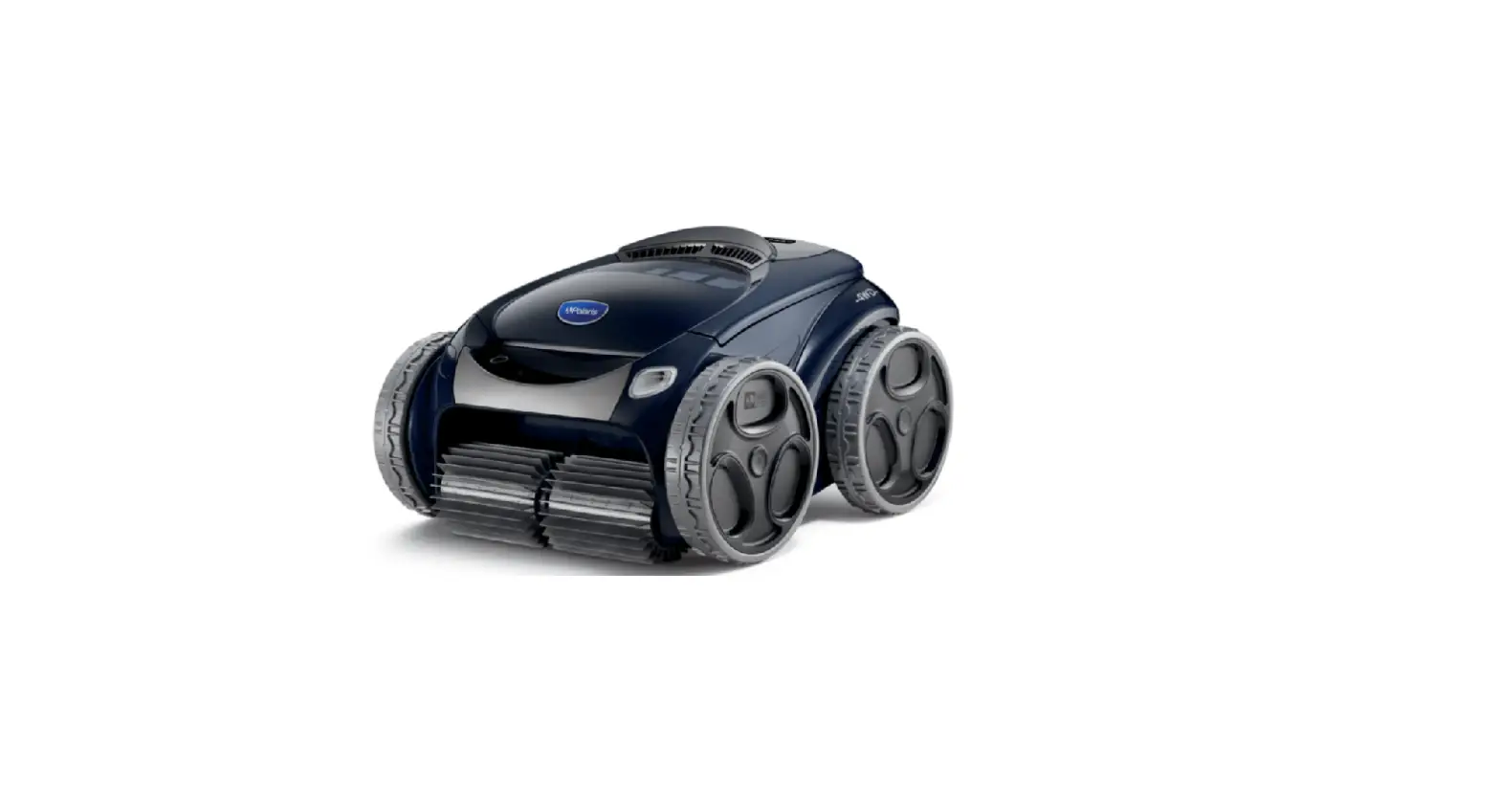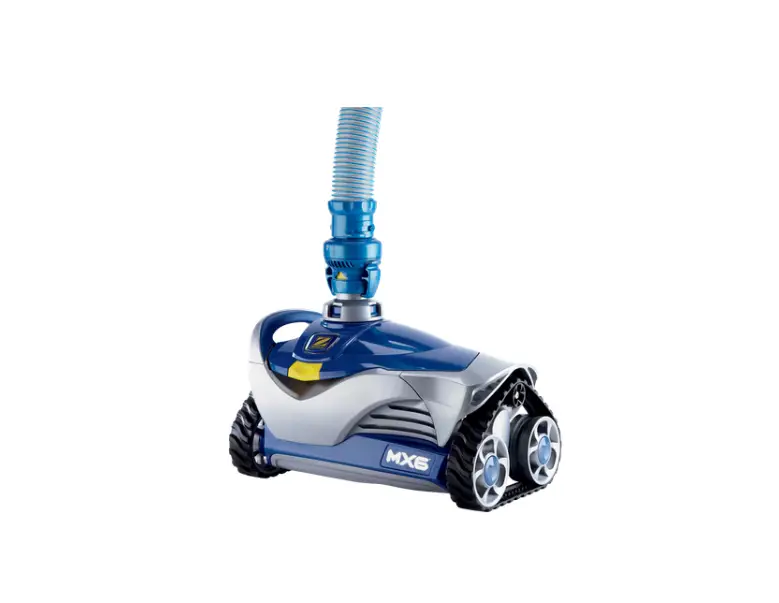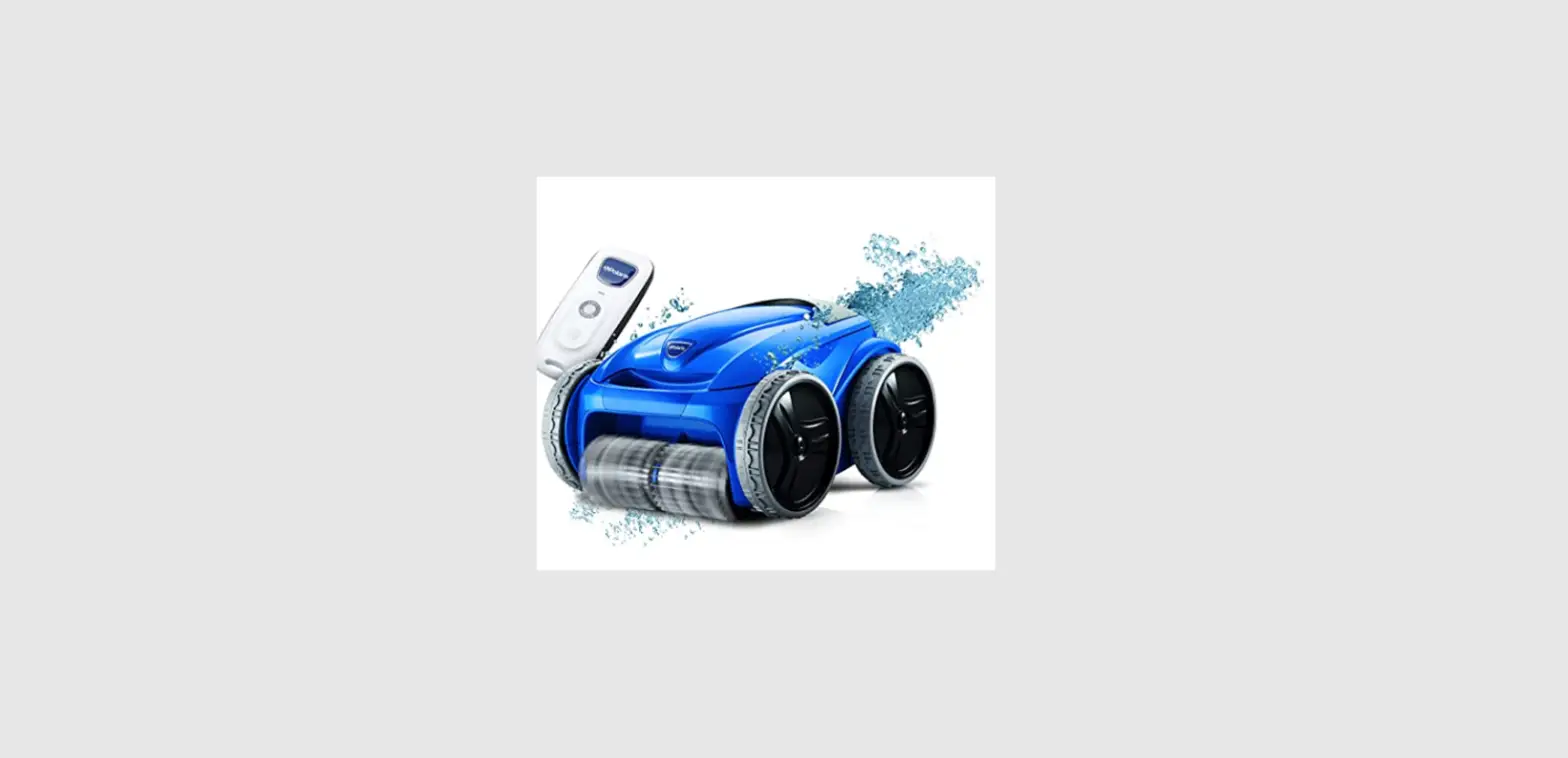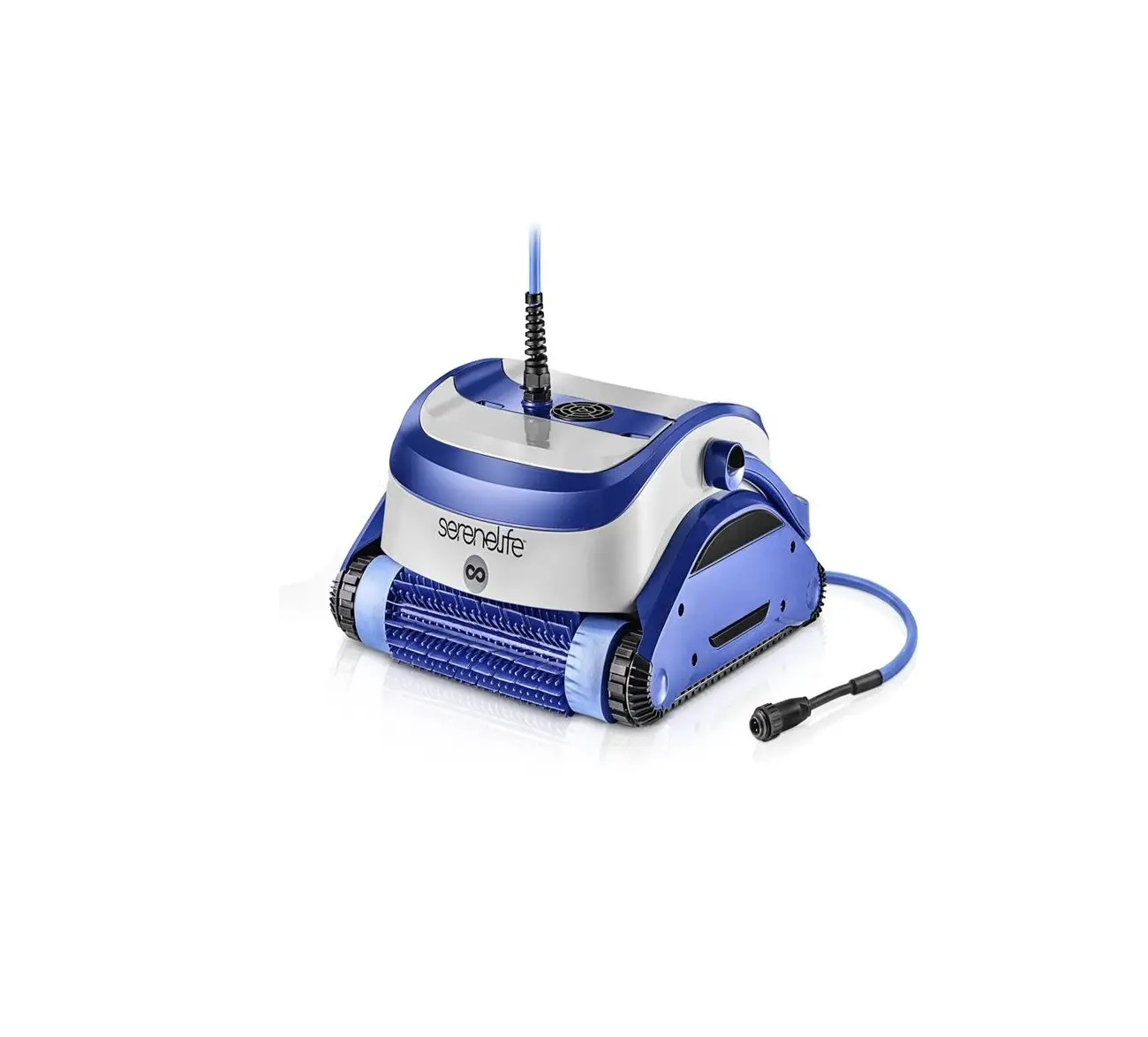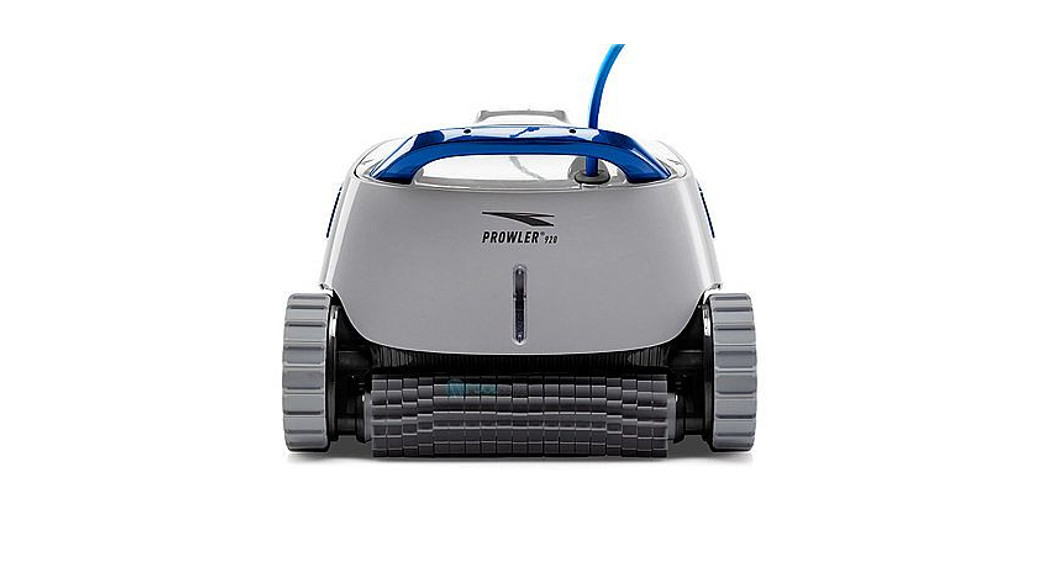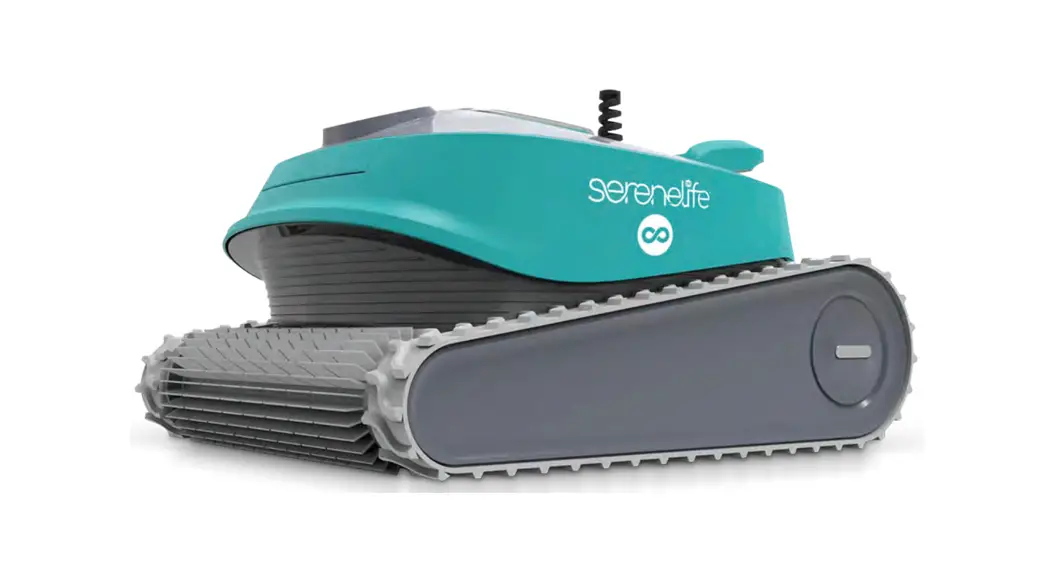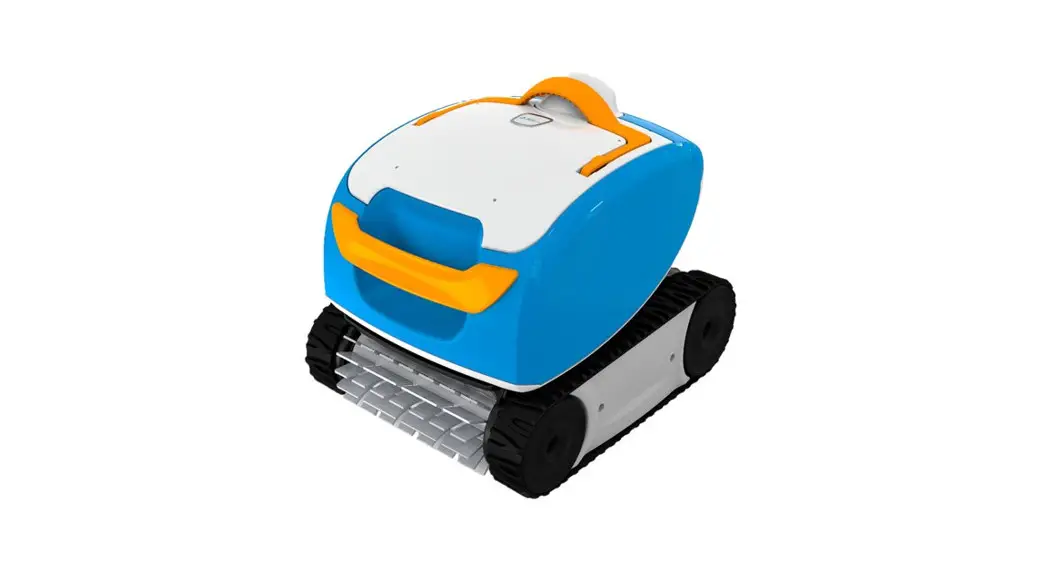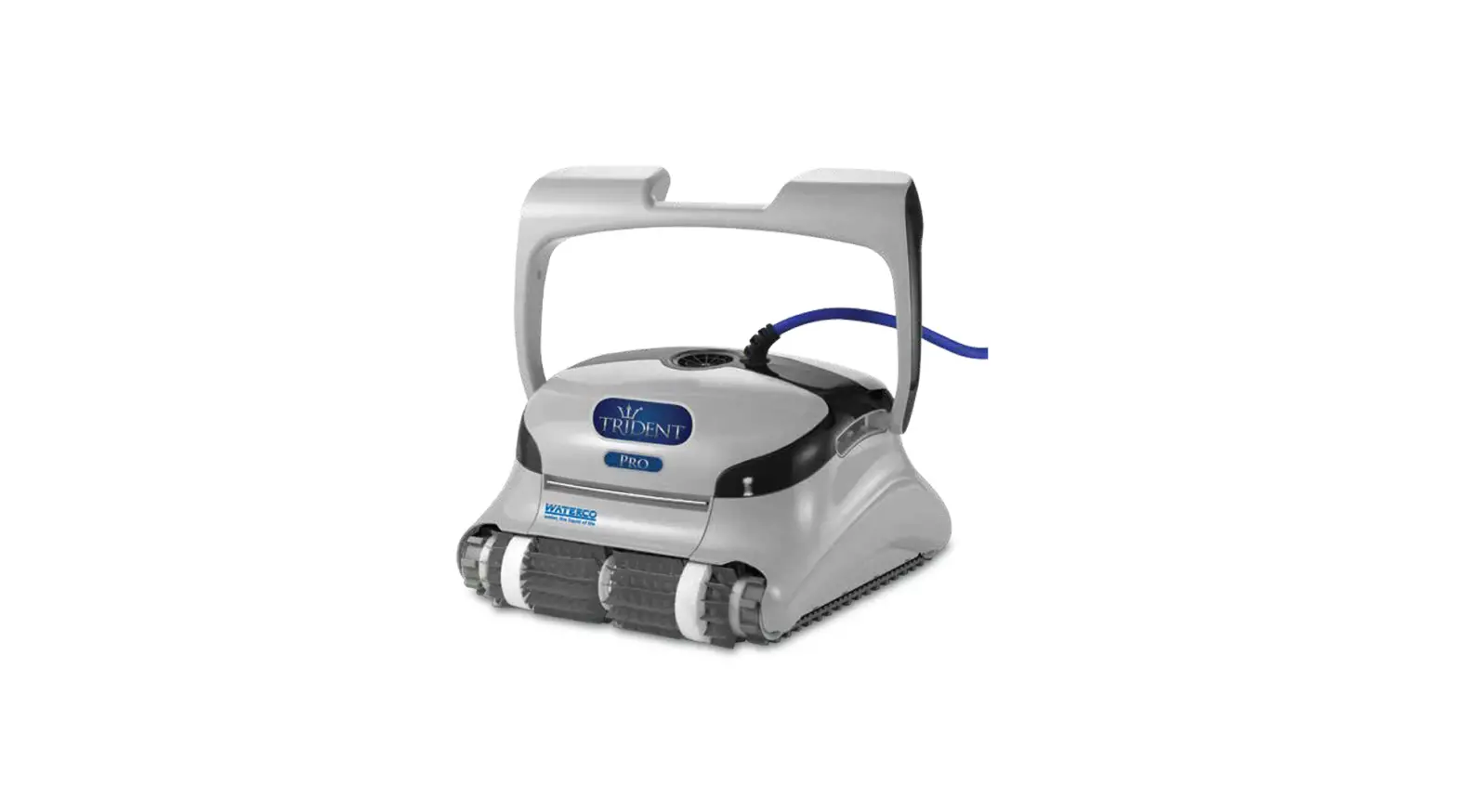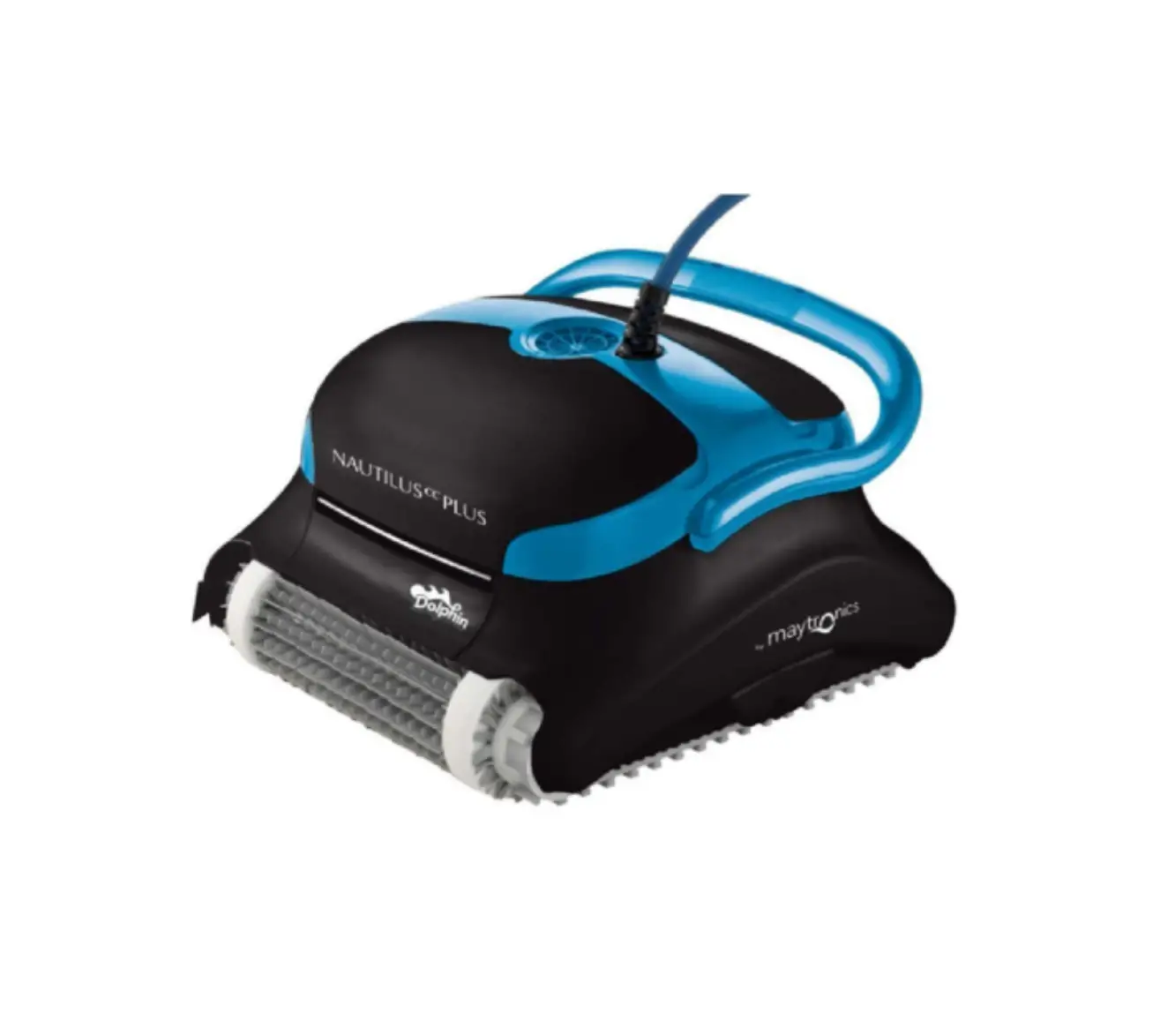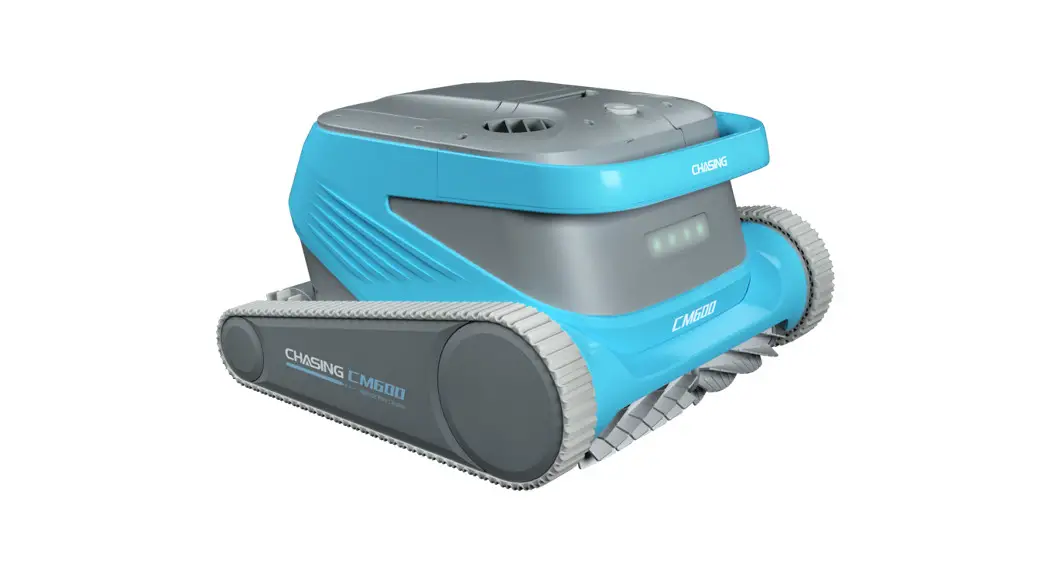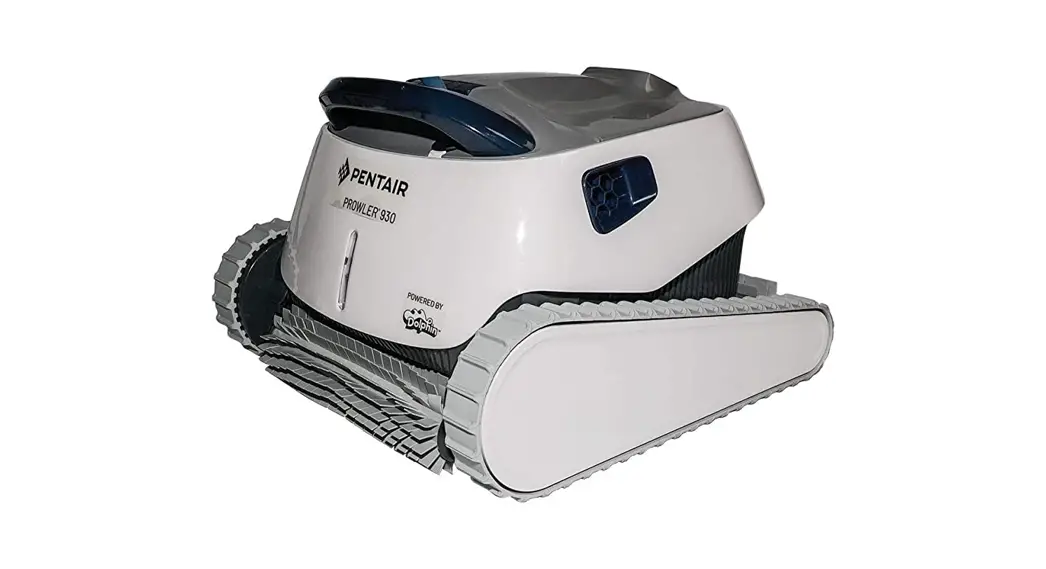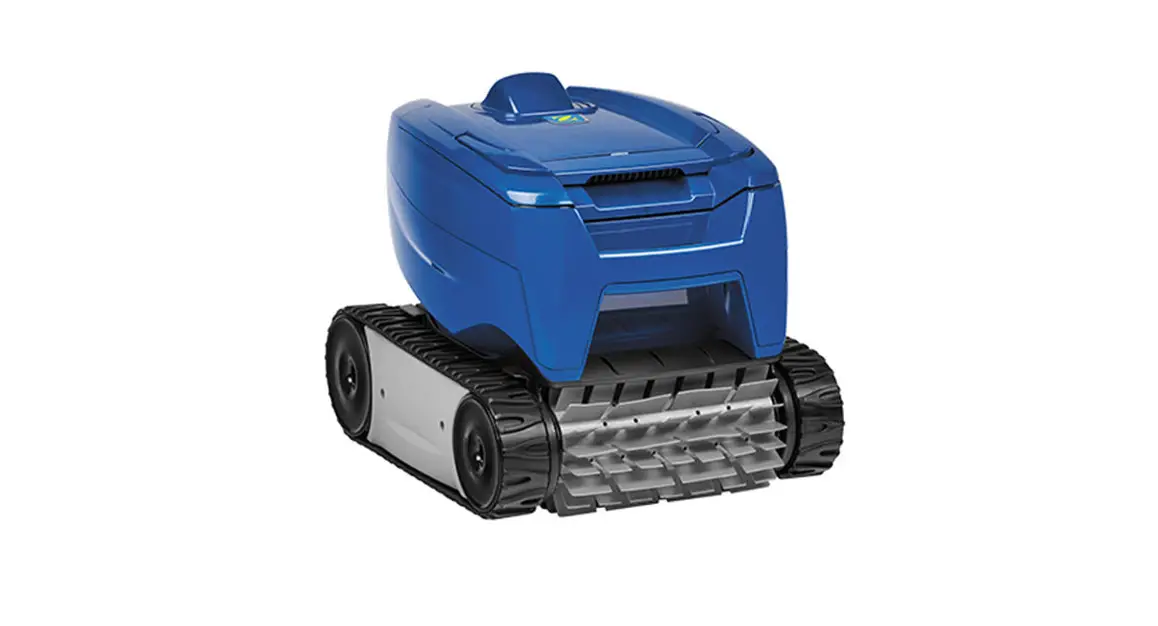

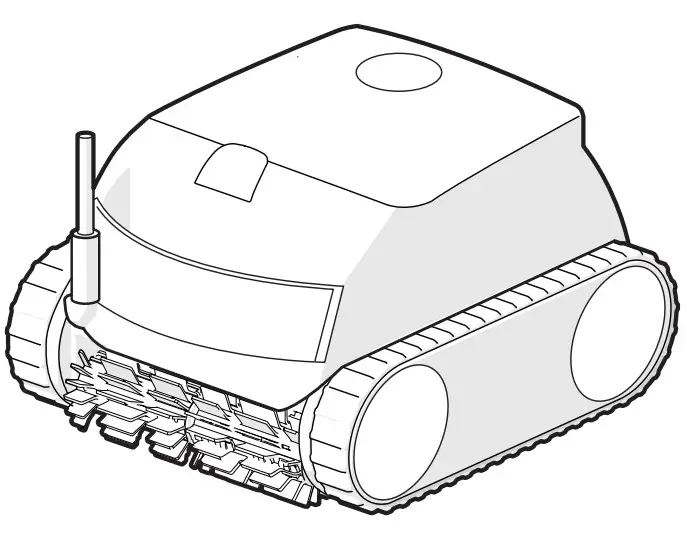
TYPE EN27-
TYPE EN37–
Quick Start Guide
 Before You Start
This Quick Start Guide contains essential installation and startup instructions. Read the complete manual and all safety warnings before commencing installation.
Contents
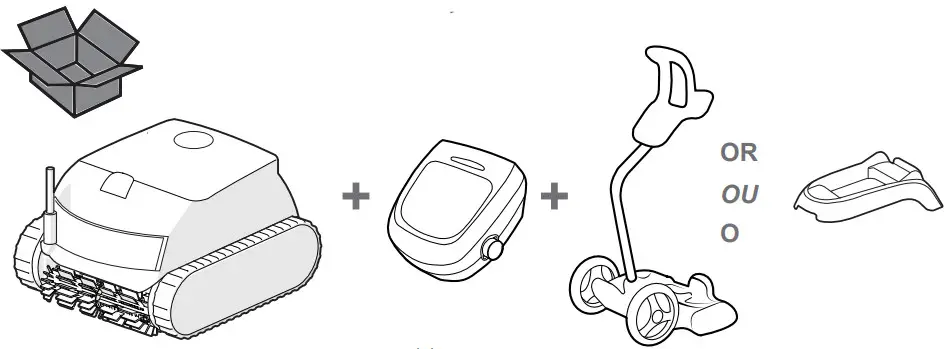
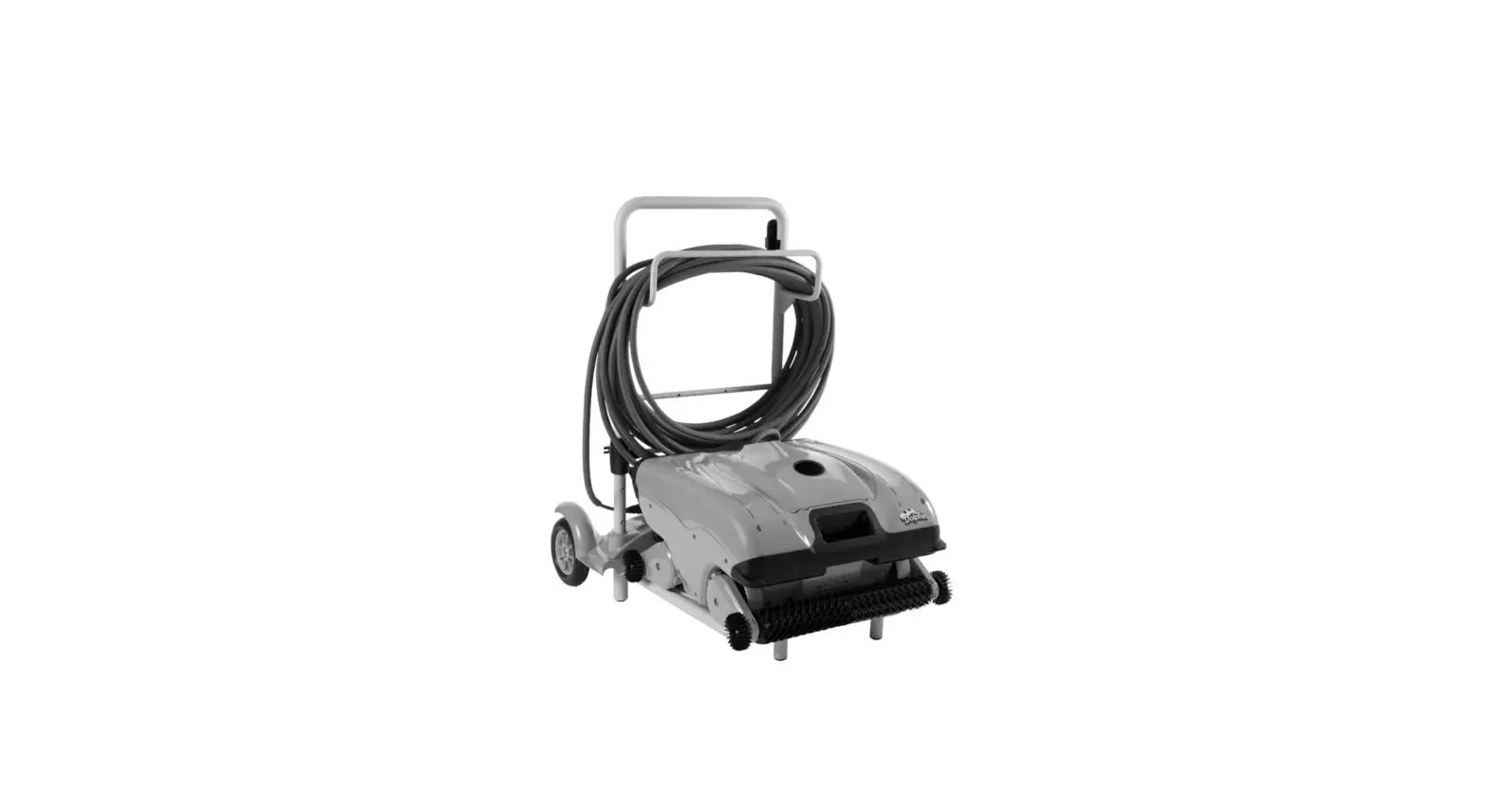
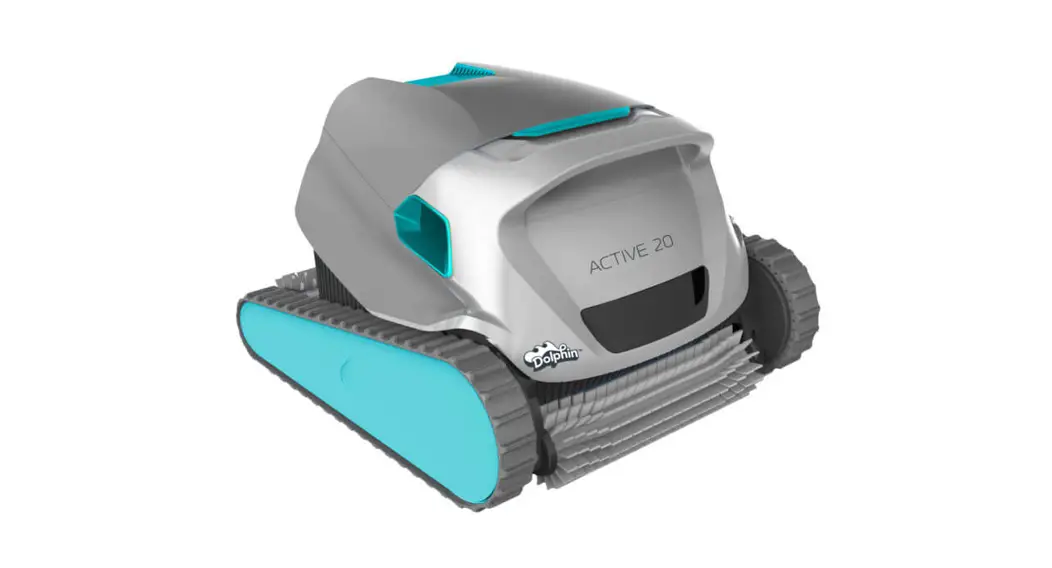
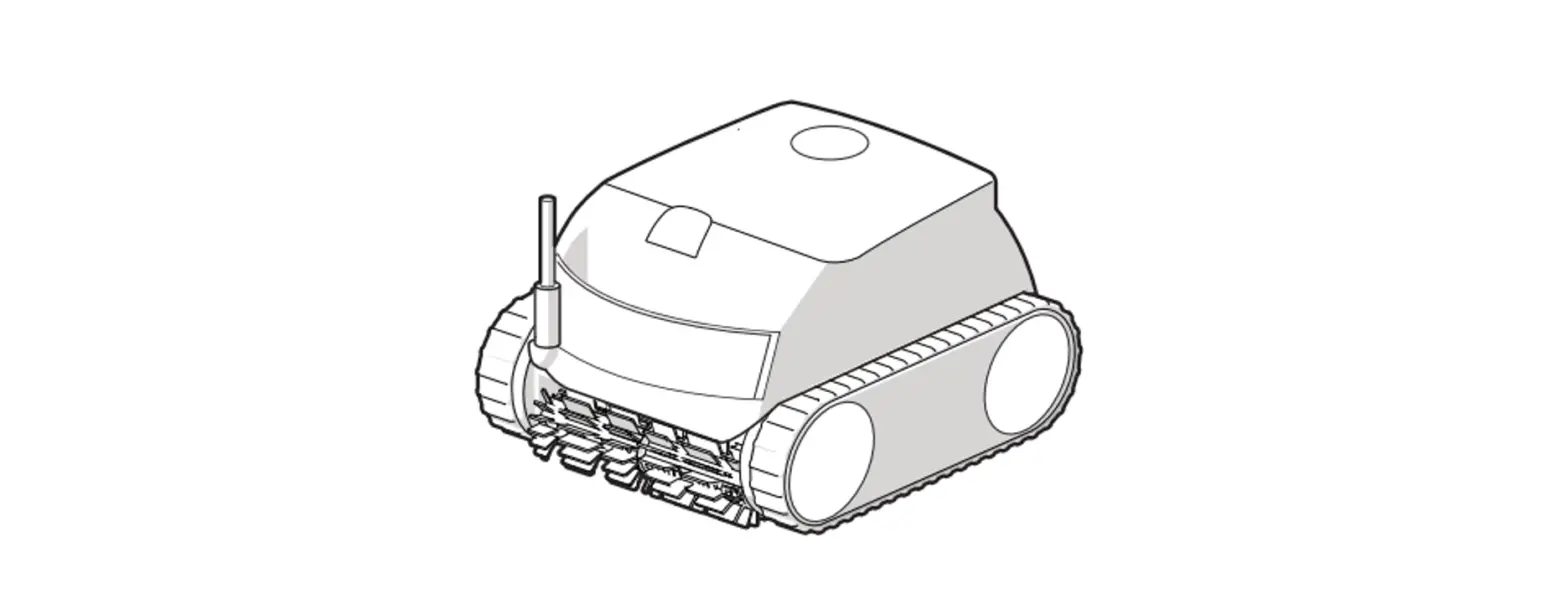
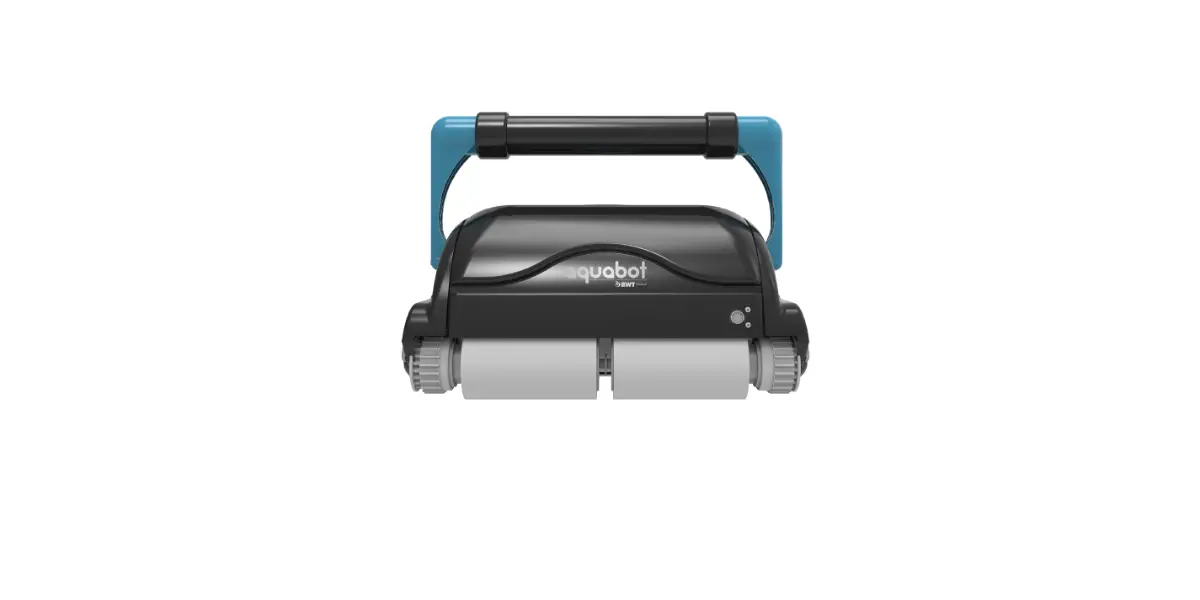
Representative model shown
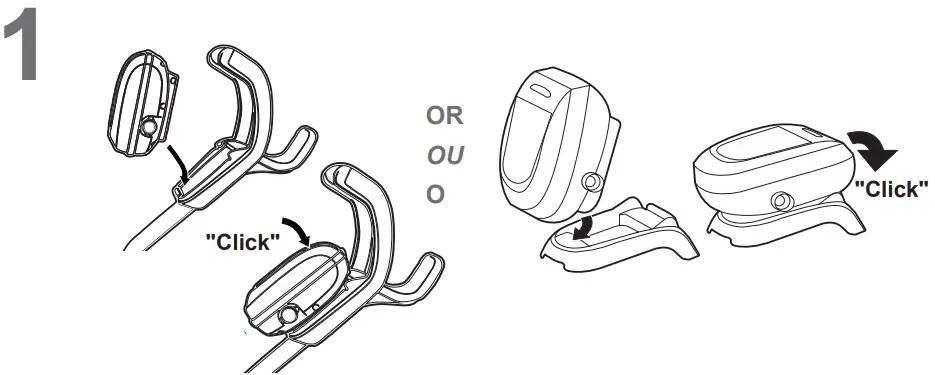
Full caddy assembly instructions are found separately
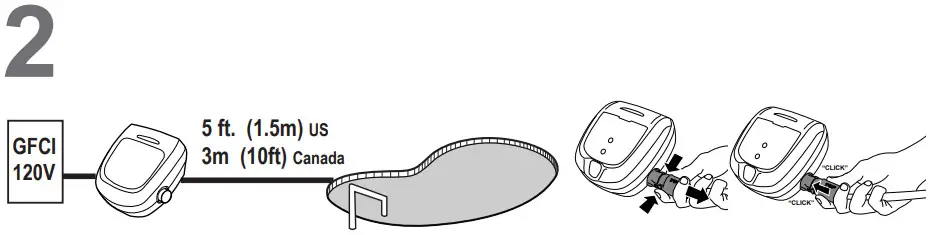
 Never turn on the cleaner unless it is fully submerged in the water. Doing so may void the warranty and may cause severe damage to the cleaner motors.
Submerge Robotic Cleaner in Pool
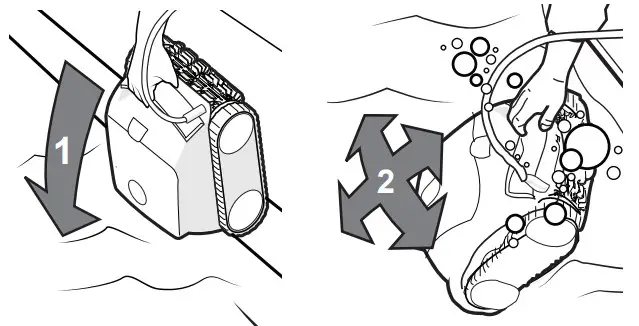
Wait for bubbles to stop completely, then let the cleaner sink to the bottom of the pool.
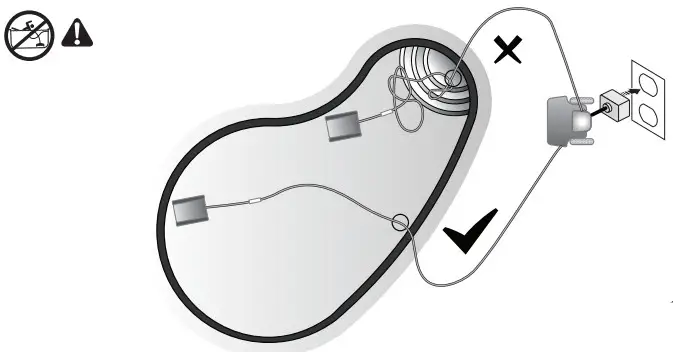
The ideal entry point in the pool
Start Cleaning
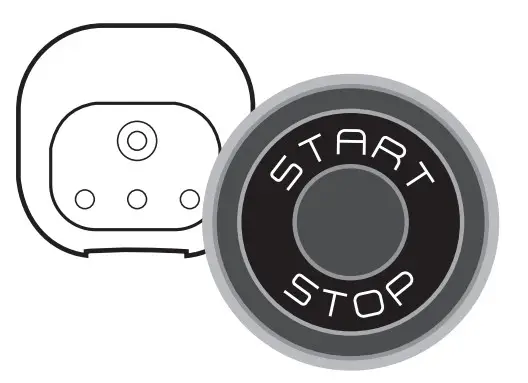
To set up models with app control – please go to the “Install iAquaLink” section.
Proper Removal from Pool
NOTE: Never lift the cleaner out of the pool by the floating cable.
(A) Activate Lift System (not available on all models) or gently pull cable until cleaner is within reach.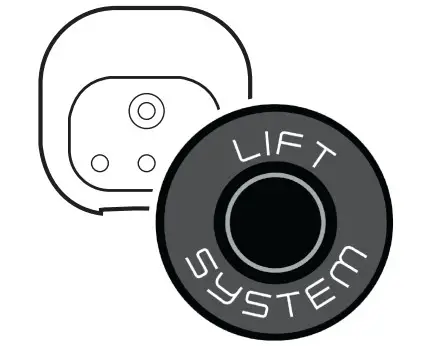 (B) Remove the cleaner from the pool using the handle.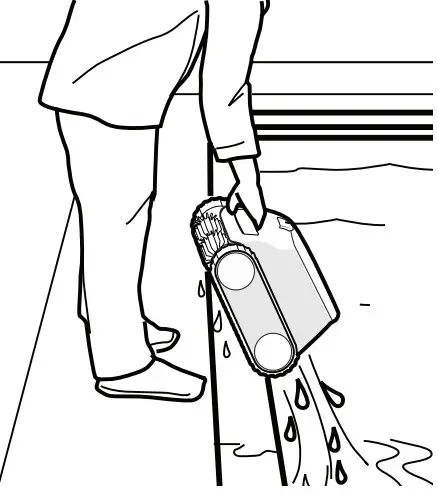
(C) Unplug & Untangle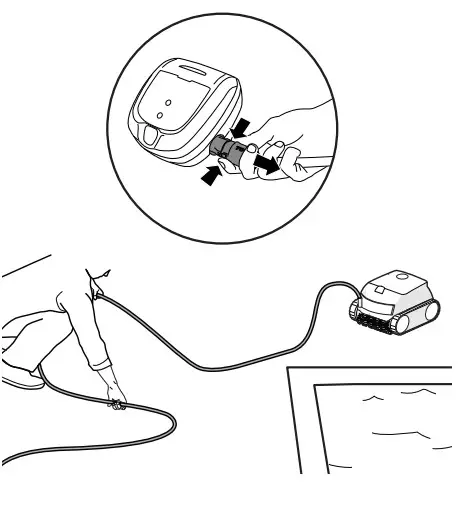 (D) Clean the Filter Canister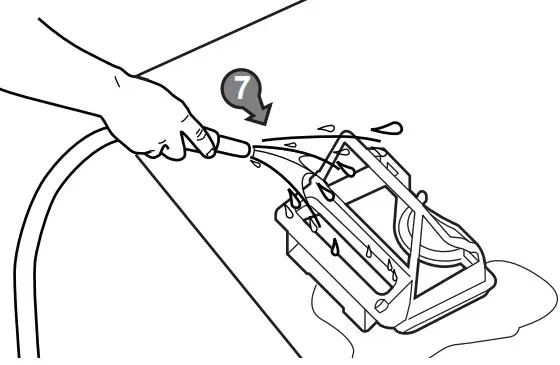
- Remove
- Empty
- Rinse
Install the App and Add your Cleaner Optional. Not available on all models.
Before you begin installing iAquaLink, make sure you have the following:
- Robotic Cleaner submerged in the pool.
- Control Box connected and plugged into a GFCI outlet.
- Wi-Fi and Bluetooth-enabled smart device (phone or tablet).
- Wi-Fi router with sufficient signal strength at the Control Box.
- IMPORTANT: Have your Wi-Fi network password available.
- Download the iAquaLink app from the App Store or Google Play.
- Open the iAquaLink app, then Sign Up or Log In.
 If you have problems connecting, the Wi-Fi signal may not be strong enough next to the pool. Try placing the Control Box in another location closer to your home router.
 | (1) Follow on-screen instructions to connect your robot. |
 | (2) Press the connect button on the control box. Then follow the on-screen prompts in the app. |
 | Bluetooth light indicates status: indicates status:BLINKING – searching for signal SOLID – paired with a phone |
 | (3) Follow the on-screen prompts to connect to Wi-Fi. |
Wi-Fi light indicates status: indicates status:BLINKING – connected to a router SOLID – connected to the internet |
 | Start/Stop cleaning |
 | Select cleaning mode* |
 | Remove cleaner from the pool* |
 | Initiate connection and set up iAquaLink® control* |
*Not available on all models
©2020 Zodiac Pool Systems LLC. All rights reserved.
All trademarks are property of their respective owners.
Zodiac Pool Systems LLC
2882 Whiptail Loop # 100
Carlsbad, CA 92010 USA
1-800-822-7933
www.PolarisPool.com
Zodiac Pool Systems Canada, Inc.
3365 Mainway, Unit 2
Burlington, ON L7M 1A6 CANADA
1-888-647-4004
www.polarispool.ca
 Home | Polaris Pool
 Home | Polaris Pool