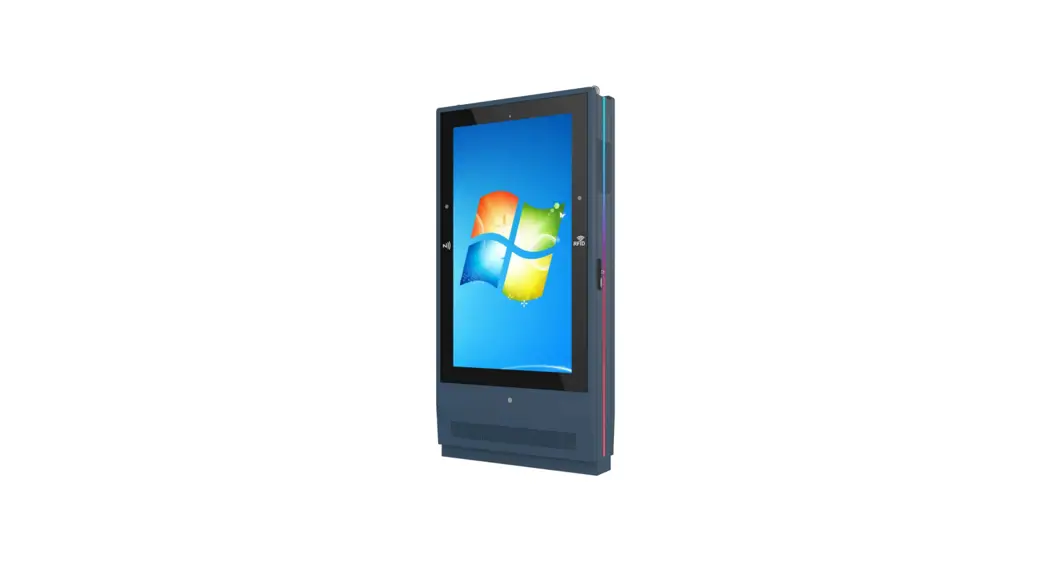
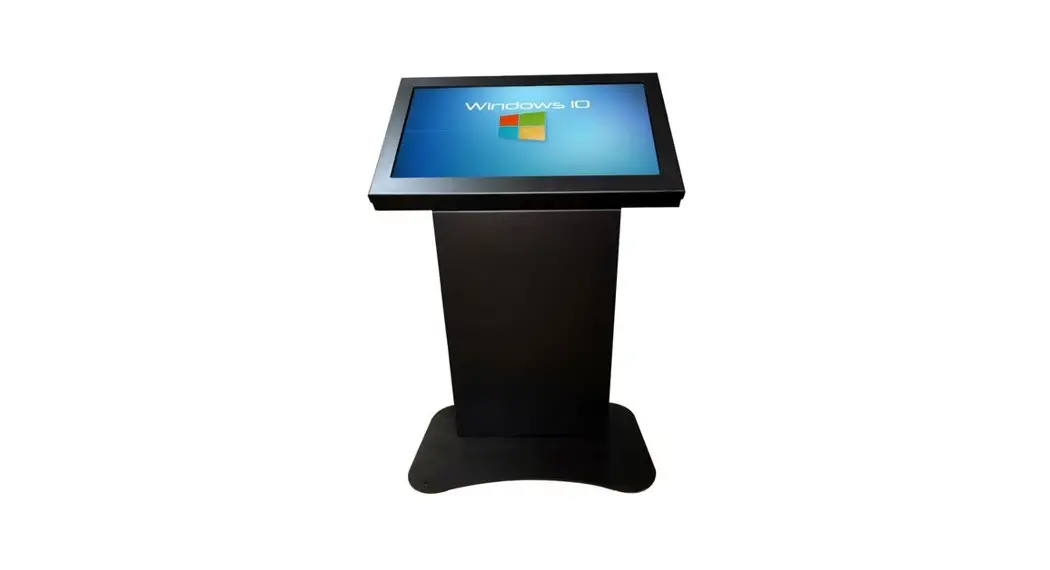
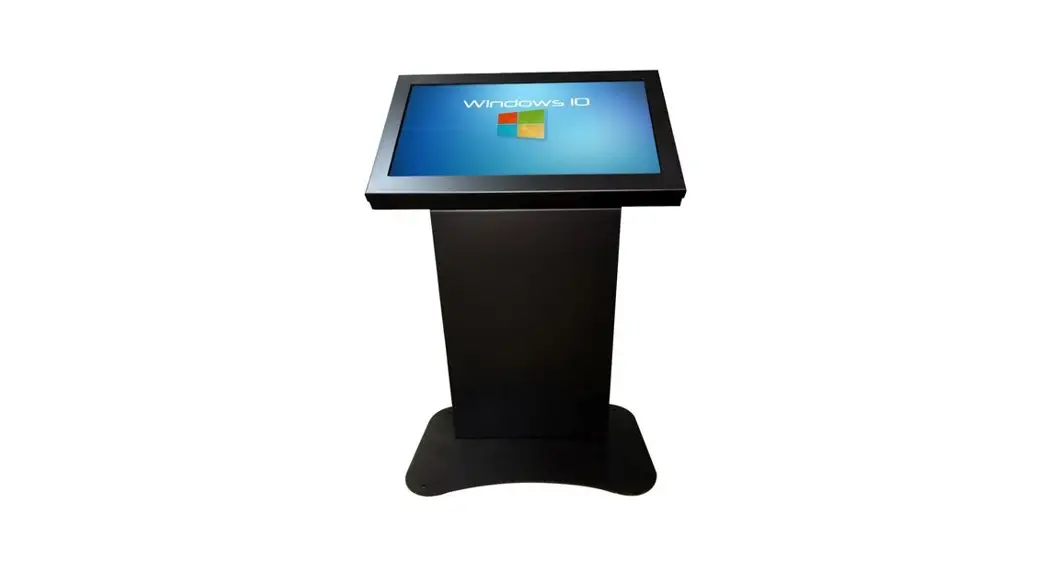
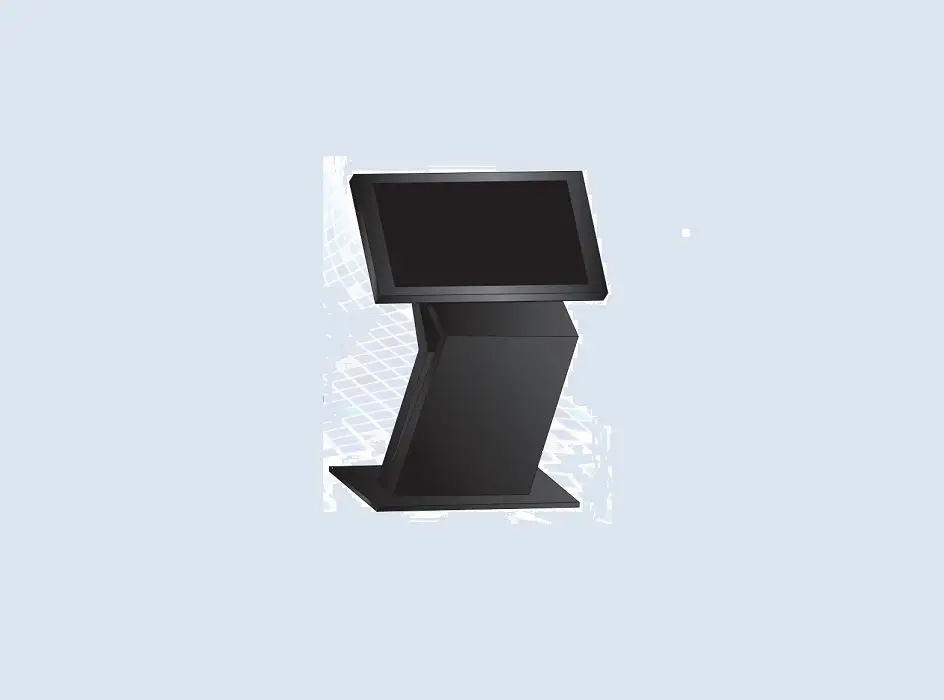
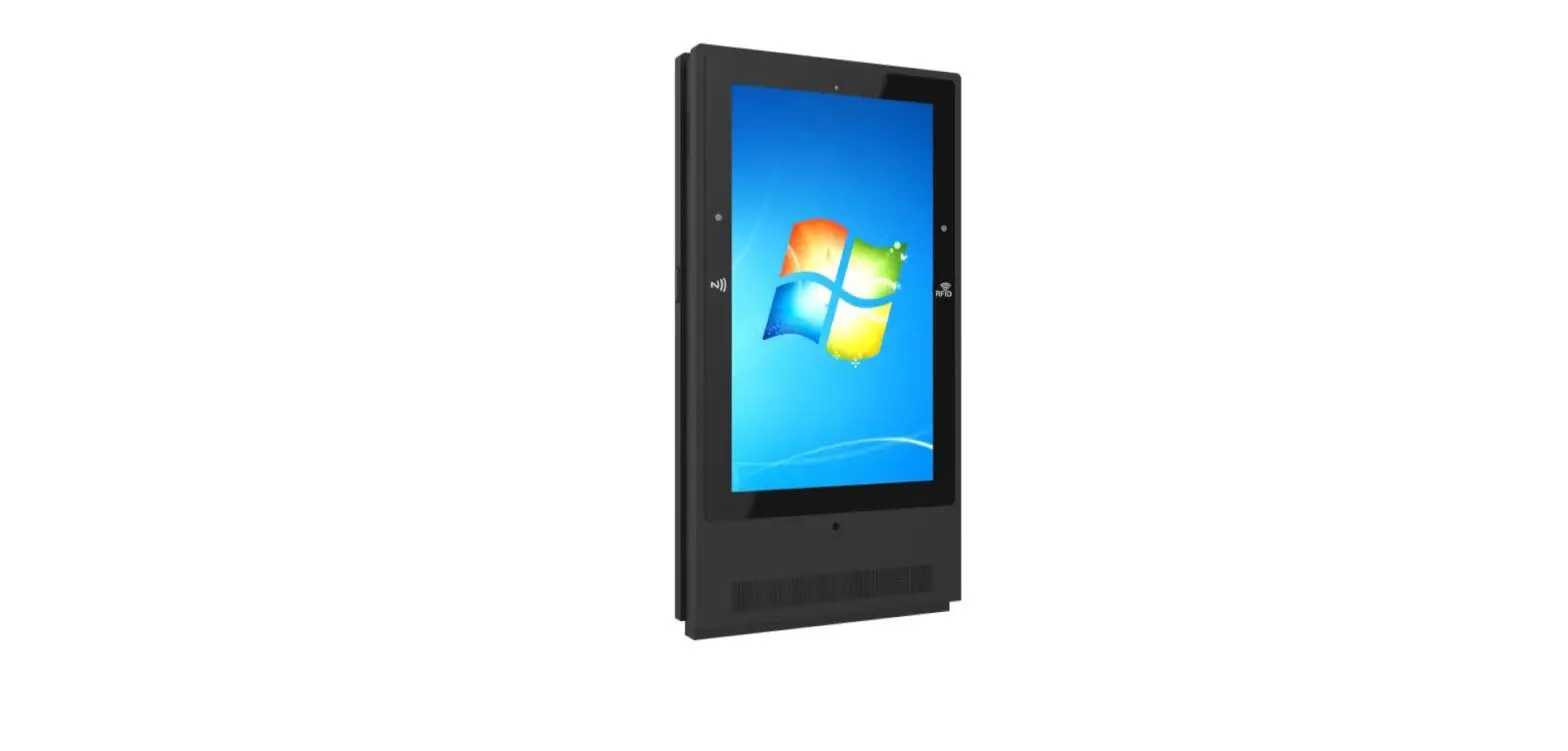
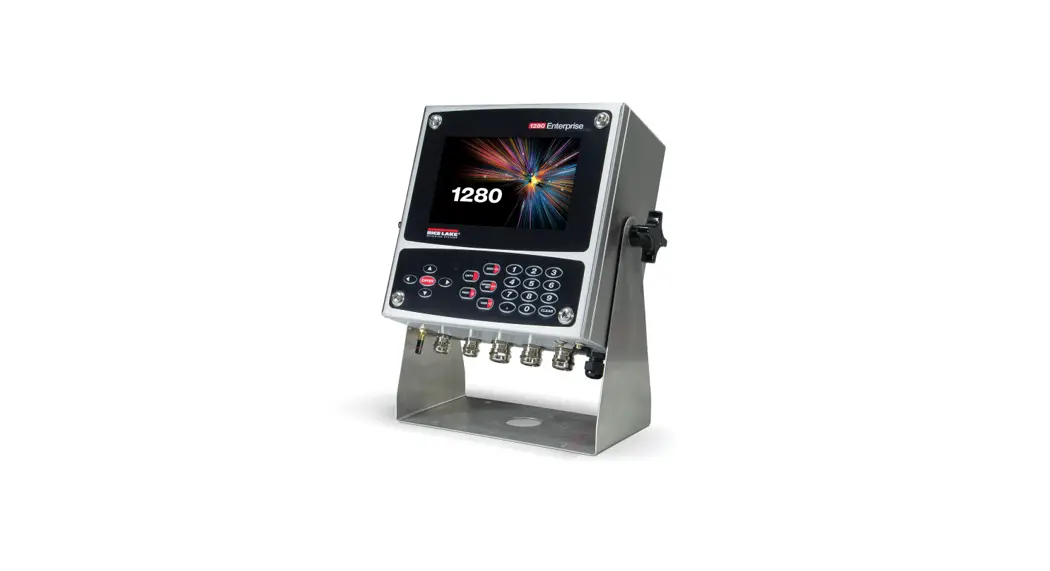
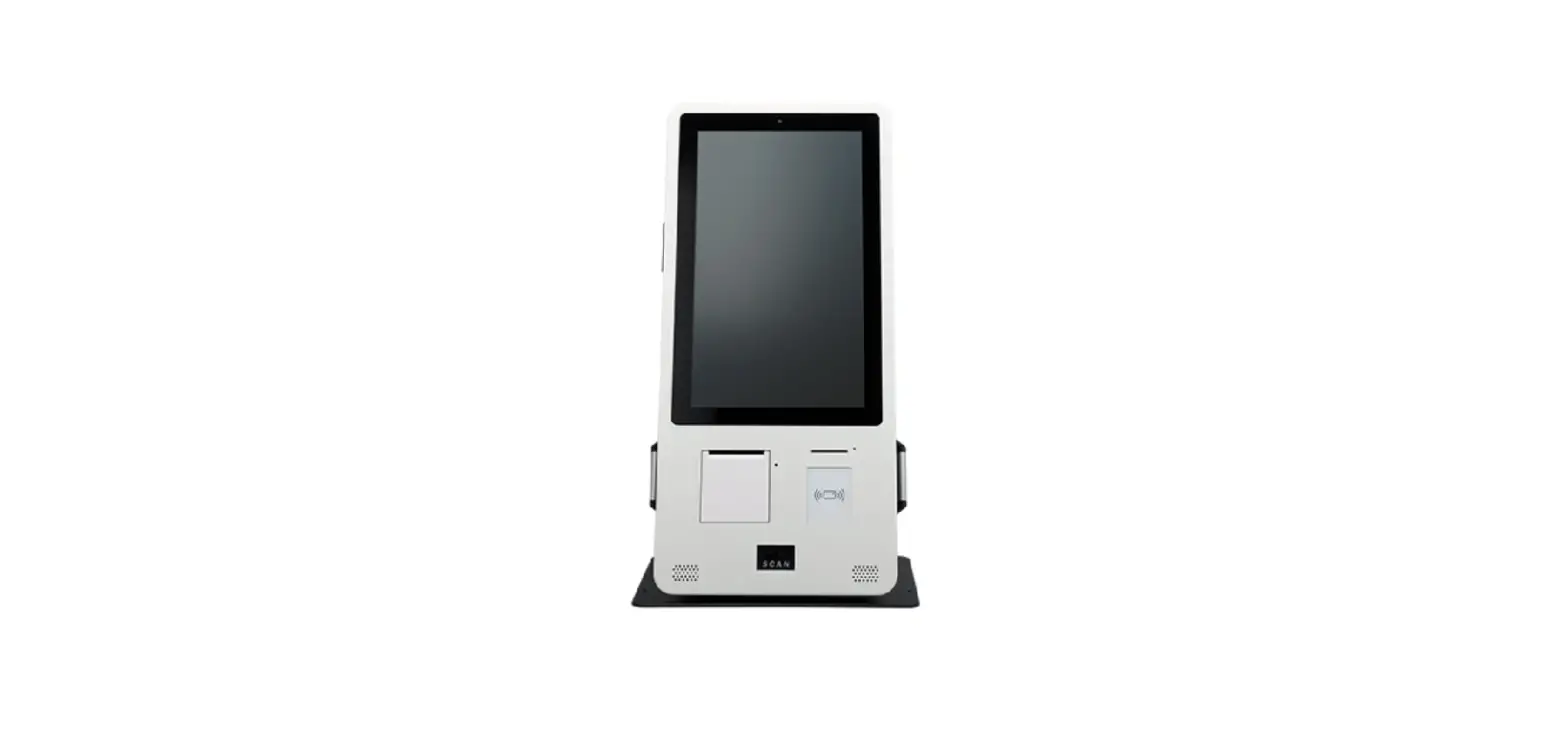
65AMVF32 65inch Interactive kiosk
Product Information:
- Embedded with Windows 10 smart operating system and unique UI
design. - Massive APPs support functions such as chatting, searching,
learning, shopping, and reading. E-mail system supports sync
sending and receiving. - Supports USB mouse and keyboard.
- Uses energy-saving LED Ultra-high brightness backlight module
with LCD screen brightness up to 1500nits. - High resolution, high contrast, high brightness, visible under
strong light. - Automatic brightness adjustment according to ambient light for
maximum energy saving. - Temperature control system adjusts internal temperature (-10°C
to 50°C) for optimal performance. - Excellent cooling fan cooling system for stable and reliable
performance. - Supports playback of various multimedia file formats such as
MP4, AVI, DAT, MPG, RM, RMVB, AVC, FLV, etc. - High integration modular design for easy maintenance and fast
repairs. - Long service life with 7*24 hours uninterrupted work for up to
50,000 hours. - Intelligent On/Off switch.
Product Usage Instructions:
Installation and Connection:
- Cement Foundation Installation Method:
- Install the concrete foundation in advance (refer to Figure 1
in the manual). - Place anchor bolts and conduit pipes in the concrete foundation
as shown in Figure 2. - Allow the concrete foundation, anchor bolts, and conduits to
set for at least 24 hours (refer to Figure 3).
- Install the concrete foundation in advance (refer to Figure 1
- Expansion Bolt Installation Method:
- Before installing the digital sign, install the expansion bolt
in advance (refer to Figure 1 in the manual). - Install the expansion bolt and conduit on the cement floor as
shown in Figure 2. - Refer to Figure 3 for the schematic diagram of the expansion
bolt and conduit after installation.
- Before installing the digital sign, install the expansion bolt
Note: Please refer to the provided figures in the manual for
detailed dimensions and hardware requirements for both installation
methods.
User Manual
Note: Before using the product, please read the instructions carefully! Do not attempt to disassemble this product. If the product does not work properly, please contact your supplier.
1 / 16
Contents
Product performance………………………………………………………………………………………… 3 Product description ………………………………………………………………………………………….. 4 Installation and connection……………………………………………………………………………….. 5 Description of distribution board ………………………………………………………………………. 9 Power on wiring Guide ……………………………………………………………………………………. 10 Remote Control ………………………………………………………………………………………………. 12 Description of Basic Operation ……………………………………………………………………….. 13 Technical Specifications …………………………………………………………………………………. 14 Safety precautions ………………………………………………………………………………………….. 15 FCC STATEMENT ……………………………………………………………………………………………. 16
2 / 16
Product performance
1. Embedded with Windows 10 smart operating system and unique UI design, bringing you a more convenient operation and better visual experience.
2. Massive APPs support such functions as chatting, searching, learning, shopping, and reading. E-mail system supports sync sending and receiving.
3. Support USB mouse and keyboard. 4. Using energy-saving LED Ultra-high brightness backlight module, LCD screen brightness up
to 1500nits. 5. High resolution, high contrast, high brightness, visible under strong light. 6. Automatic brightness adjustment, according to the ambient light automatically adjust the
screen brightness (maximum energy saving). 7. The temperature control system can adjust the internal temperature of the equipment to
ensure that the equipment runs in the environment temperature of – 10 ~ 50 . 8. Excellent cooling fan cooling system, stable and reliable performance. 9. Support playback of various multimedia file formats: MP4, AVI, DAT, MPG, RM, RMVB, AVC,
FLV, etc. 10. The device adopts high integration modular design, standardized design, working state at a
glance, can realize fast maintenance. 11. Long service life, 7*24 hours uninterrupted work, up to 50,000 hours. 12. Intelligent On/Off switch. Statement: Due to the continuous improvement and update of our products, we reserve the right to amend the contents of this guide without prior notice.
3 / 16
Product description
Do not cover or block the heat sink
Note: the pictures and instructions in the manual are for reference only. If they are inconsistent with the actual product, please refer to the actual product.
4 / 16
Installation and connection
1. The installation method of cement foundation can be selected, or the expansion bolt can be installed directly on the solid cement ground; (1) Concrete foundation: a. Install the concrete foundation in advance. Figure 1 shows the size of the foundation.
(Fig. 1)
5 / 16
b. Place anchor bolts and conduits pipes in the concrete foundation, as shown in Figure 2, c. Concrete foundation, anchor bolts and conduits should be kept for more than 24 hours, as shown in Figure 3.
(Fig. 2)
(Fig. 3)
Note:
1. M14 * 400 anchor bolt, M14 nut * 8, M14 spring washer * 8, M14 flat washer * 8 (provided by
the customer)
2. The diameter of HDPE corrugated pipe is 50mm, which is used for cables to come through
(2) Expansion bolt installation: a. Before installing the digital sign, install the expansion bolt in advance. Figure 1 shows the installation dimensions of the expansion bolt
(Fig. 1) 6 / 16
b. Install the expansion bolt and conduit on the cement floor, as shown in Figure 2, c. Schematic diagram of expansion bolt and conduit after installation, as shown in Figure 3.
(Fig. 2)
(Fig. 3)
Note:
1. M14 * 250 expansion bolt, M14 nut * 8, M14 spring washer * 8, M14 flat washer * 8 (provided
by the customer)
2. The diameter of HDPE corrugated pipe is 50mm, which is used for cables to come through
2. Open the case 2-1. Remove the wooden box first, as shown in Figure 2, 2-2. Then remove the EPE form, as shown in Figure 3,
(Fig. 1)
(Fig. 2)
(Fig. 3)
7 / 16
2-3. Open the door lock. Use 12 mm hex socket wrench to remove the hex socket screw connecting the digital sign and the base, as shown in Figure 4, 2-4. Figure 5 is the schematic diagram of equipment and base removal, 2-5. Before hanging the digital sign onto the concrete foundation, the door should be closed and locked tightly, as shown in Figure 6.
(Fig. 4)
(Fig. 5)
(Fig. 6)
3. Installation steps 3-1. Digital signage, as shown in Figure 1, 3-2. Lift the device to the concrete foundation, as shown in Figure 2, 3-3. Open the door lock, install the M14 nut, spring washer and flat washer matching the anchor bolt. Place the digital signage on the concrete foundation. Check whether the installation is firm and reliable, as shown in Figure 3, 3-4. The reference figure after the concrete foundation is installed, as shown in Figure 4.
(Fig. 1)
(Fig. 2)
8 / 16
(Fig. 3)
(Fig. 4)
Description of distribution board
1 2
1. External AC input terminal block: Gray is the fire line. Blue is the zero line. Yellow green is the ground line. 2. Leakage protector
9 / 16
Power on wiring Guide
1. Open the door lock of the device and get three core power cords from the bottom, as shown in the figure below:
There is a hole in the middle of the bottom, through which power lines can be introduced 2-1. Connect L, N and G of the power cord to the grey, blue and yellow green terminals at the left end.
1
10 / 16
2-2. Use a screwdriver (recommended dia3mm) to insert into the hole. At the same time, connect the power cord L, N and G to the gray, blue and yellow/green terminals. 2-3. As shown in the figure below, the L pole of the power cord is connected to the gray terminal, the N pole of the power cord is connected to the blue terminal, and the G pole of the power cord is connected to the yellow green terminal. The picture shows that the power cord is well connected. 2-4. After the power cord is connected, pull each wire to confirm whether it is fastened. 2-5. After the above steps are confirmed, the device can be turned on.
Connect the power cord
Use a screwdriver (recommended dia3mm) to insert into the hole
3. Set the leakage protector to power on mode.
Dial the upward direction to “ON” mode Dial the downward direction to “OFF” mode
4. After the above steps are completed, you can boot up completely, and then you will automatically enter the main interface of Android OS.
11 / 16
Remote control
1. Precautions for using the remote control Aim the remote control at the receiver window. Do not place any object between the remote control
and the receiver window to avoid interference with the normal operation. Keep the remote control away from violent vibration. In addition, do not set or place the remote
control in direct sunlight, or else the remote control may be deformed by heat. The remote control may be invalid when the receiver window of the unit is in direct sunlight or
strong lighting, in this case, please adjust the angle of the lighting or the unit or approach the receiver window to use it. The distance of remote control will be shortened if the battery voltage is insufficient, in this case, please replace with new batteries, if the remote control won’t be used for a long time or the batteries are run out, please take out the batteries to avoid corrosion due to battery leakage, which will damage the remote control. Do not use batteries of different types or mix new batteries with old ones. Always replace the batteries in pairs. Do not put the batteries in fire, or charge or disassemble them, or charge, short circuit, disassemble, heat or burn used batteries. Please dispose of waste batteries in accordance with local environmental regulations. Do not expose the batteries in overheated environments such as sunlight and fire.
2. Screen remote control
2-1. Installing batteries for the screen remote control:
Remove the battery cover and insert two AAA batteries (1.5V). Ensure that the battery polarity
matches the “+”/”-” marks in the battery compartment of the remote control.
2-2. Description of screen remote control buttons:
LOG Button
Function
Power Control main board power on/off
MUNE Open or close the MENU
Source Open input source item
UP
Press the key can up to choose the item after
Down Press the key can down to choose the item after
1.Press the key Can display source information,
OK
Enter
2.Enter the menu. Select the item to be adjusted
and press this key to enter the parameter
adjustment interface.
1.To the left to choose after open menu,
Left
2.When entering the parameter adjustment
interface, press this key to reduce the value.
Remark: The real appearance of the remote control may be different from the picture, please refer to the actual product.
Right
1.To the right to choose after open menu, 2.When entering the parameter adjustment interface, press this key to increase the value.
–
Vol –
Reduce volume value
+
Vol +
Increase volume value
Press this key to play or pause multimedia in Play/Pause
USB
Back Mute
Press this key to exit the menu Press this key to switch on and off the sound
12 / 16
Description of Basic Operation
After the product equipment is powered on, you can enter the system interface.
13 / 16
Technical Specifications
Panel
Power supply Environment
Functions Structure Language
ITEM LCD size Light source Resolution Brightness (cd/m2) Contrast Viewing angle Viewable area Chromaticness Voltage Power Consumption Operating temperature Storage temperature Operating humidity Storage humidity Operating system Processor
RAM ROM Touch support Net weight Gross weight Unit dimensions (W*D*H) Package dimensions (W*D*H) OSD
SPECIFICATION 65″
High Brightness LCD Module 3840*2160 (pixels) 1500 1100: 1 178° (H)/178° (V)
1428.5(H) mm * 803.5(V) mm 1.07G
100V~240V, 50-60Hz 900W
-10~50°C -20~60°C 20~80% RH Non-condensing 10~60% RH Non-condensing Windows10
I5 16G 256G 10 Points Capacitive Touch 210kg 318kg 1060*240*2080mm 1240*810*2300mm (Wooden box) English/Simplified Chinese
14 / 16
Safety precautions
Don’t wipe the product with volatile oil, diluent, etc. which may deteriorate the housing or damage the painted surface. If rubber or vinyl are exposed to this product for a long time, it may cause stains.
If the housing is dirty, clean it with water, and then wipe it with a soft cloth. LCD screen is a modern high-tech product. There are millions of pixels providing high-quality
and clear picture. Occasionally there are random bright or dark spots on the panel. Please note that it i does not affect the performance of the product. There is high voltage in the equipment. Please don’t try to disassemble the product by yourself, which may cause damage to the product and human body, and invalidate the product warranty. Do not remove the back cover. The internal adjustment and inspection of the product should be done by professionals. Please do not cover or block the air vent at the side of the housing. Please do not put sharp objects, metal, etc. into the air vent in case causing short circuit and product damage. This product should avoid the strong magnetic field (next to a loudspeaker, etc). The installation site of this product should be at an open area without high temperature objects close to the air vent. This product needs regular maintenance and surface cleaning after it is put into use.
This Manual is for reference only and is subject to change without prior notice.
15 / 16
FCC STATEMENT:
This device complies with Part 15 of the FCC Rules. Operation is subject to the following two conditions: (1) This device may not cause harmful interference, and (2) This device must accept any interference received, including interference that may cause undesired operation.
Warning: Changes or modifications not expressly approved by the party responsible for compliance could void the user’s authority to operate the equipment. NOTE: This equipment has been tested and found to comply with the limits for a Class B digital device, pursuant to Part 15 of the FCC Rules. These limits are designed to provide reasonable protection against harmful interference in a residential installation. This equipment generates uses and can radiate radio frequency energy and, if not installed and used in accordance with the instructions, may cause harmful interference to radio communications. However, there is no guarantee that interference will not occur in a particular installation. If this equipment does cause harmful interference to radio or television reception, which can be determined by turning the equipment off and on, the user is encouraged to try to correct the interference by one or more of the following measures: Reorient or relocate the receiving antenna. Increase the separation between the equipment and receiver. Connect the equipment into an outlet on a circuit different from that to which the receiver is connected. Consult the dealer or an experienced radio/TV technician for help. FCC Radiation Exposure Statement: This equipment complies with FCC radiation exposure limits set forth for an uncontrolled environment. This equipment should be installed and operated with minimum distance 20cm between the radiator & your body.
16 / 16