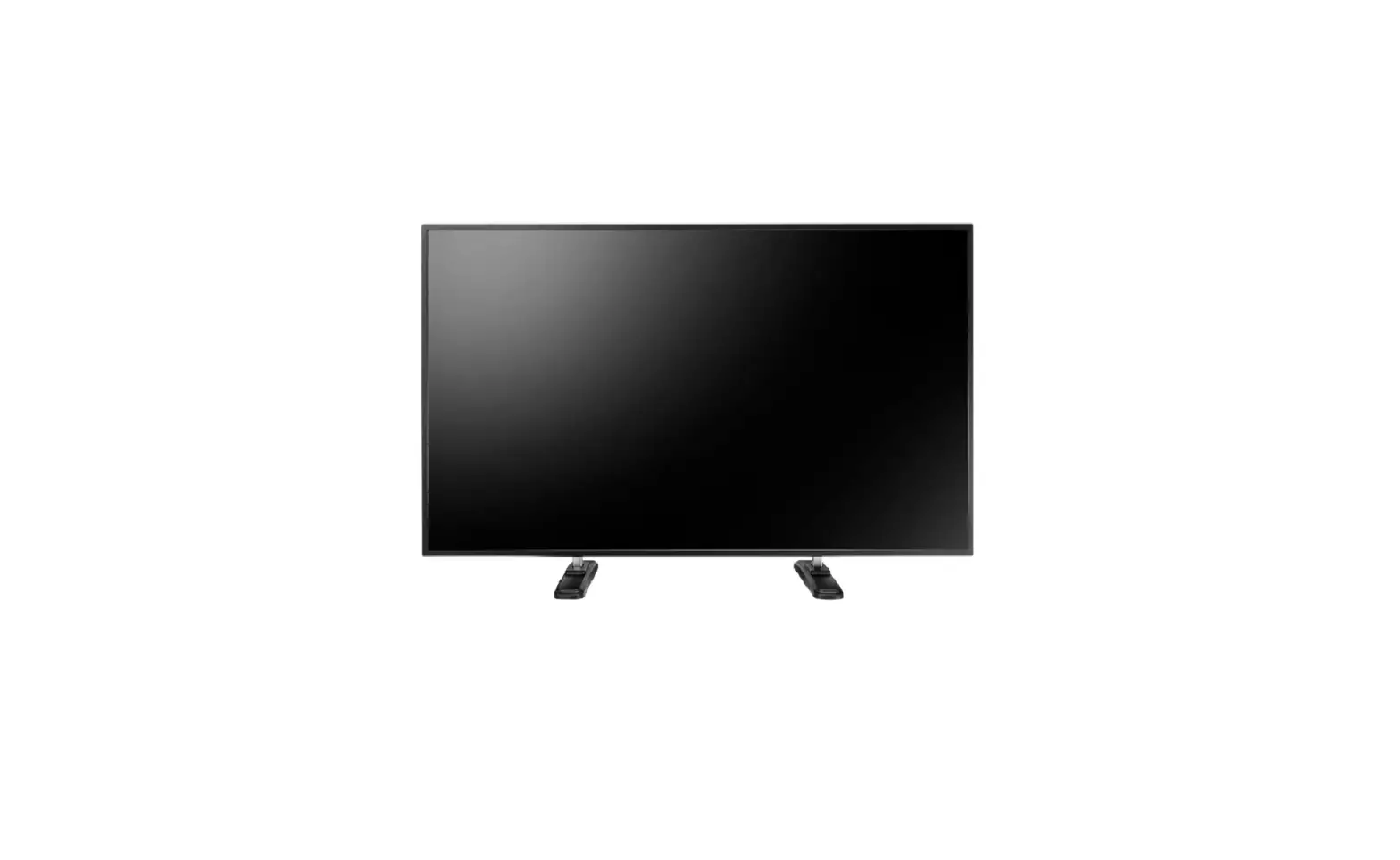
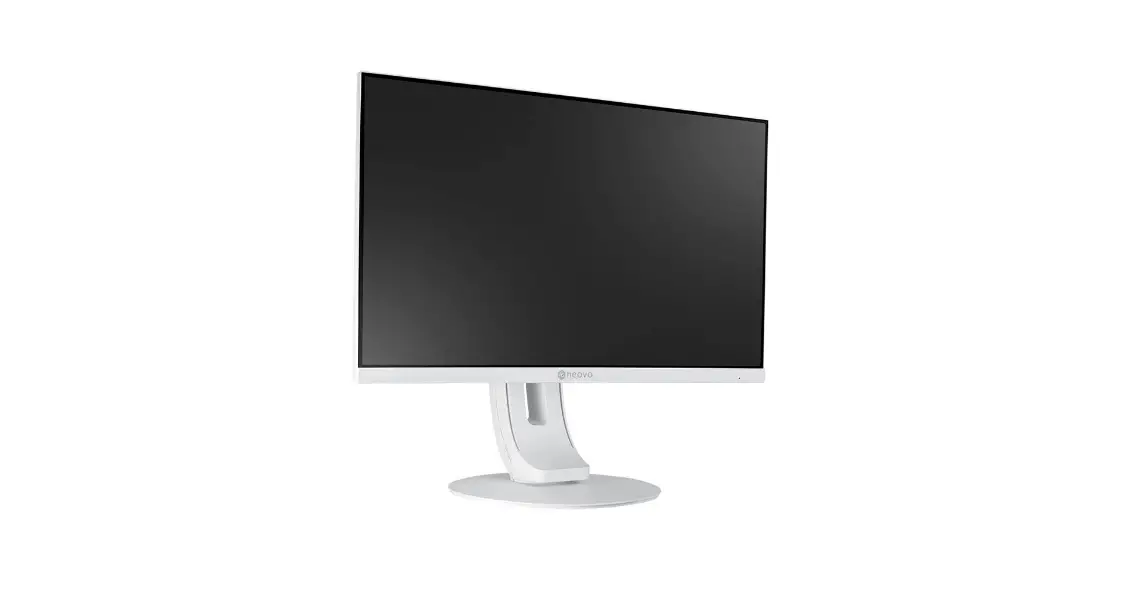
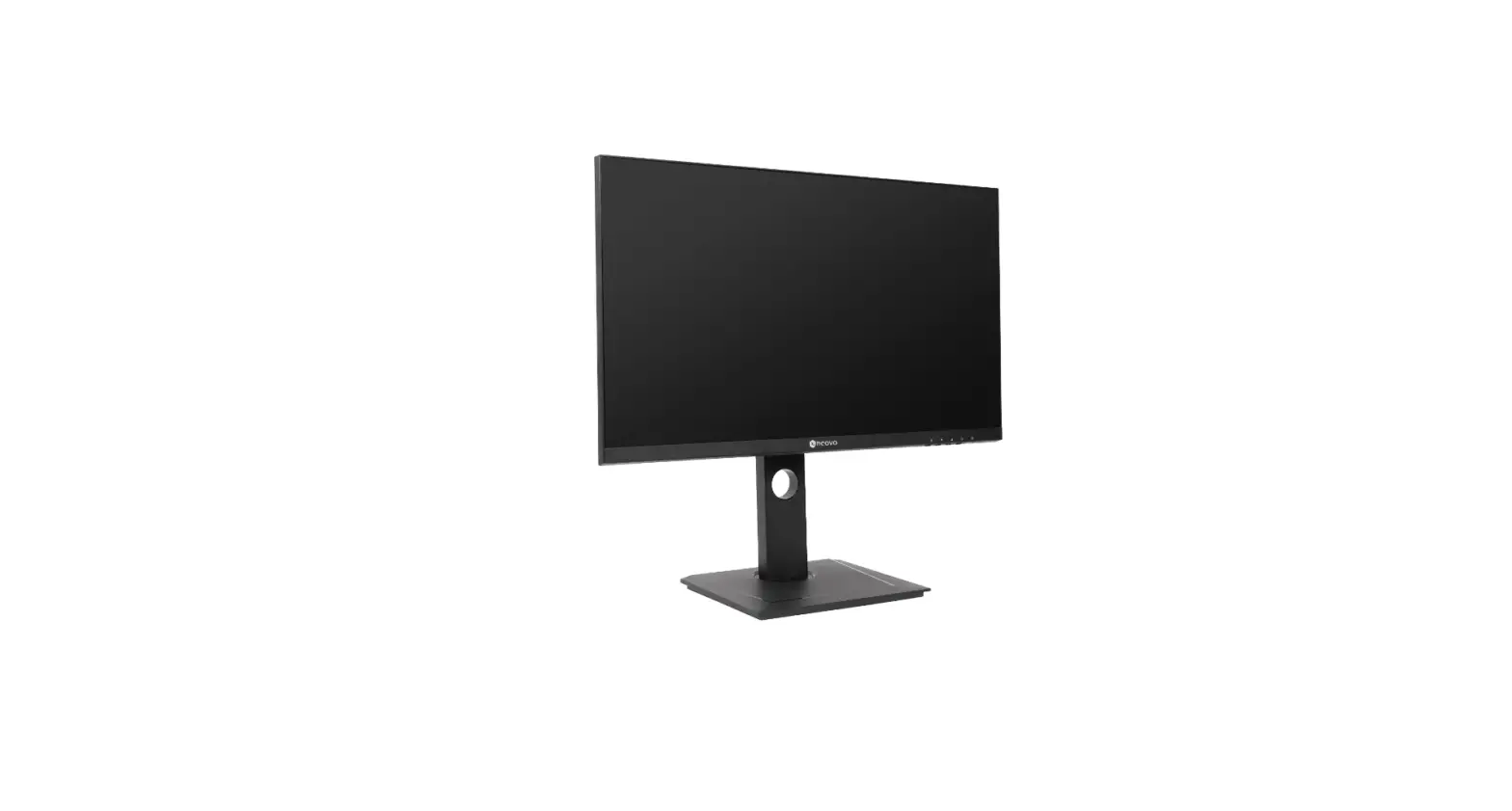
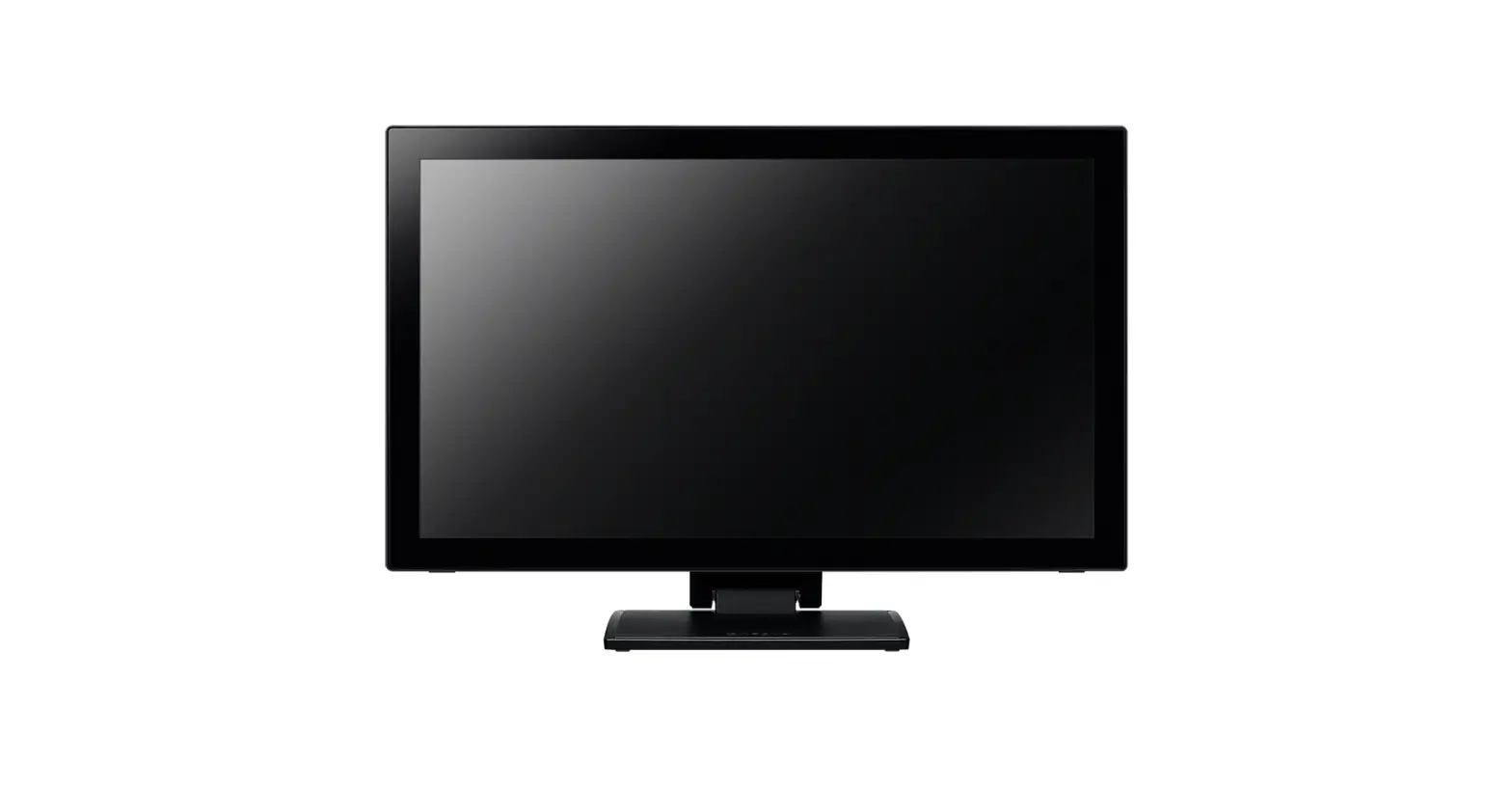
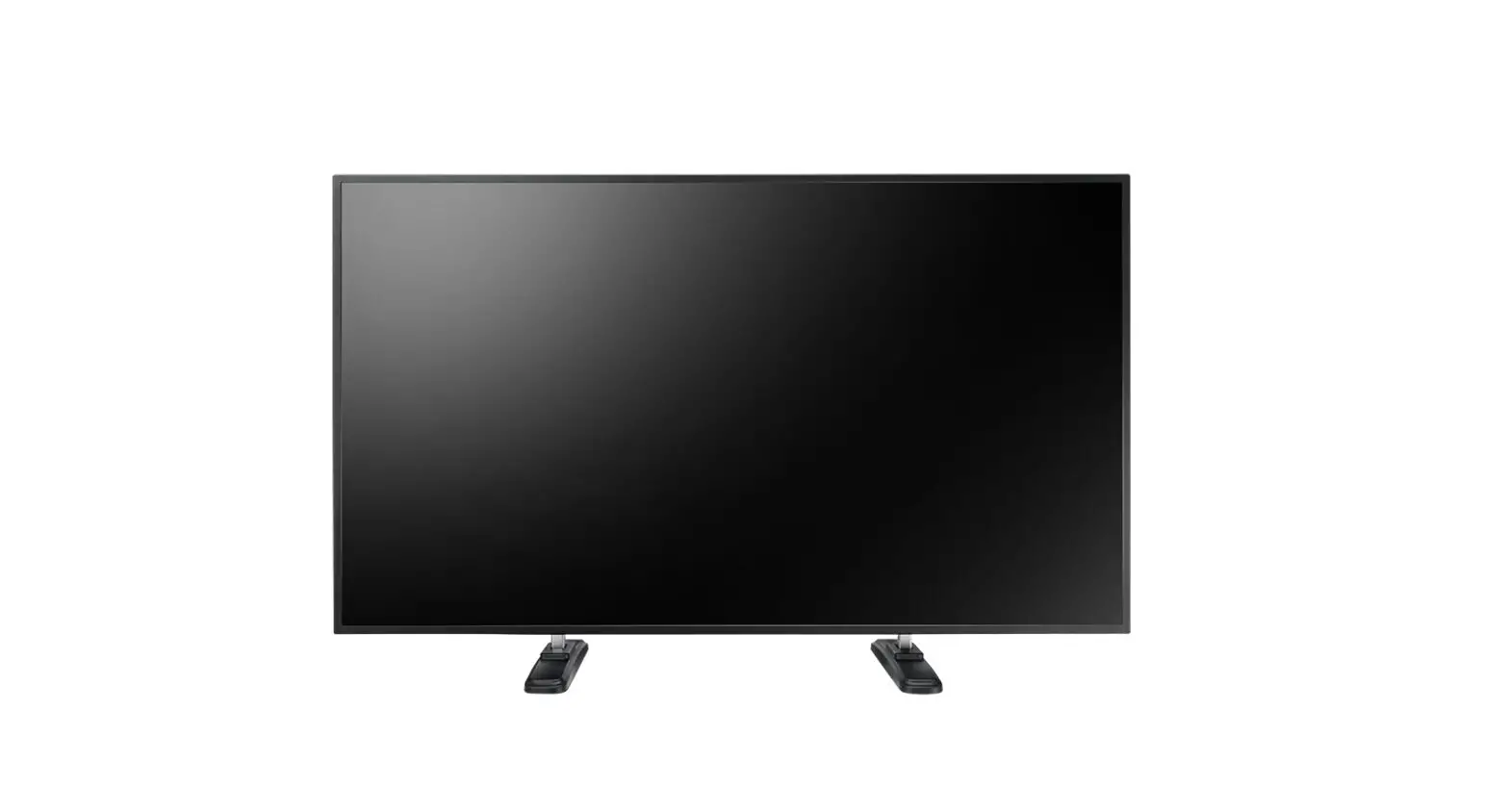
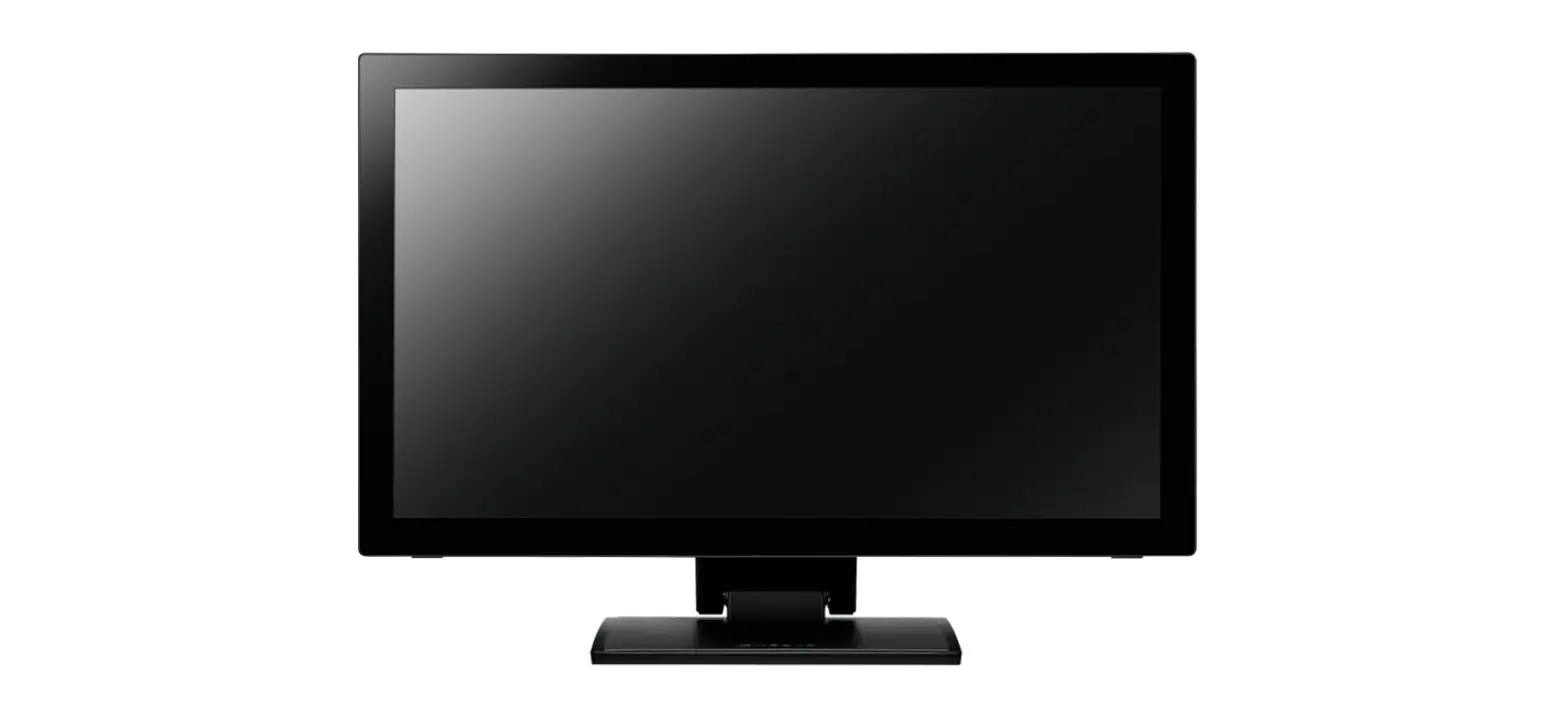
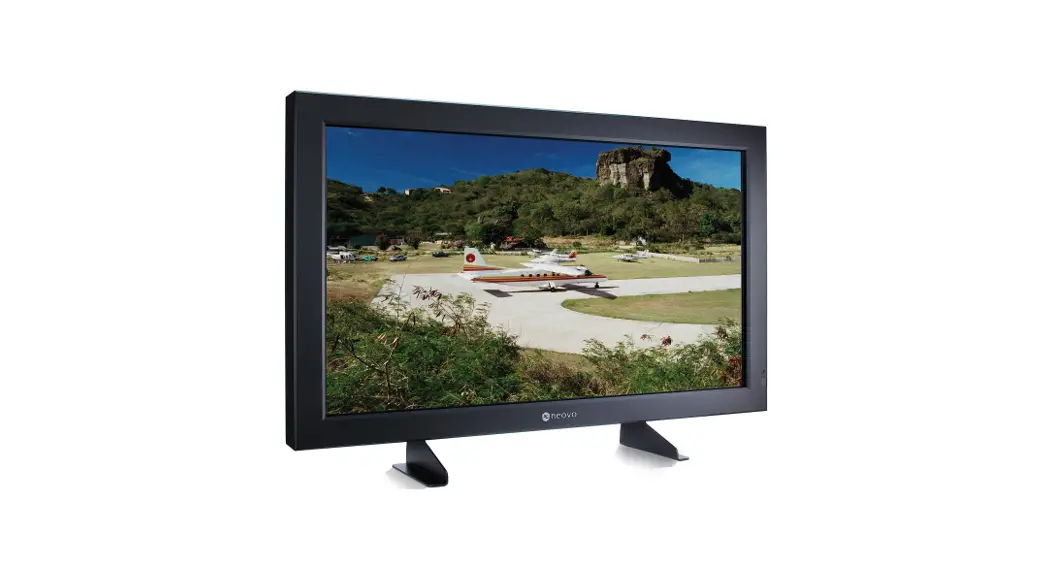
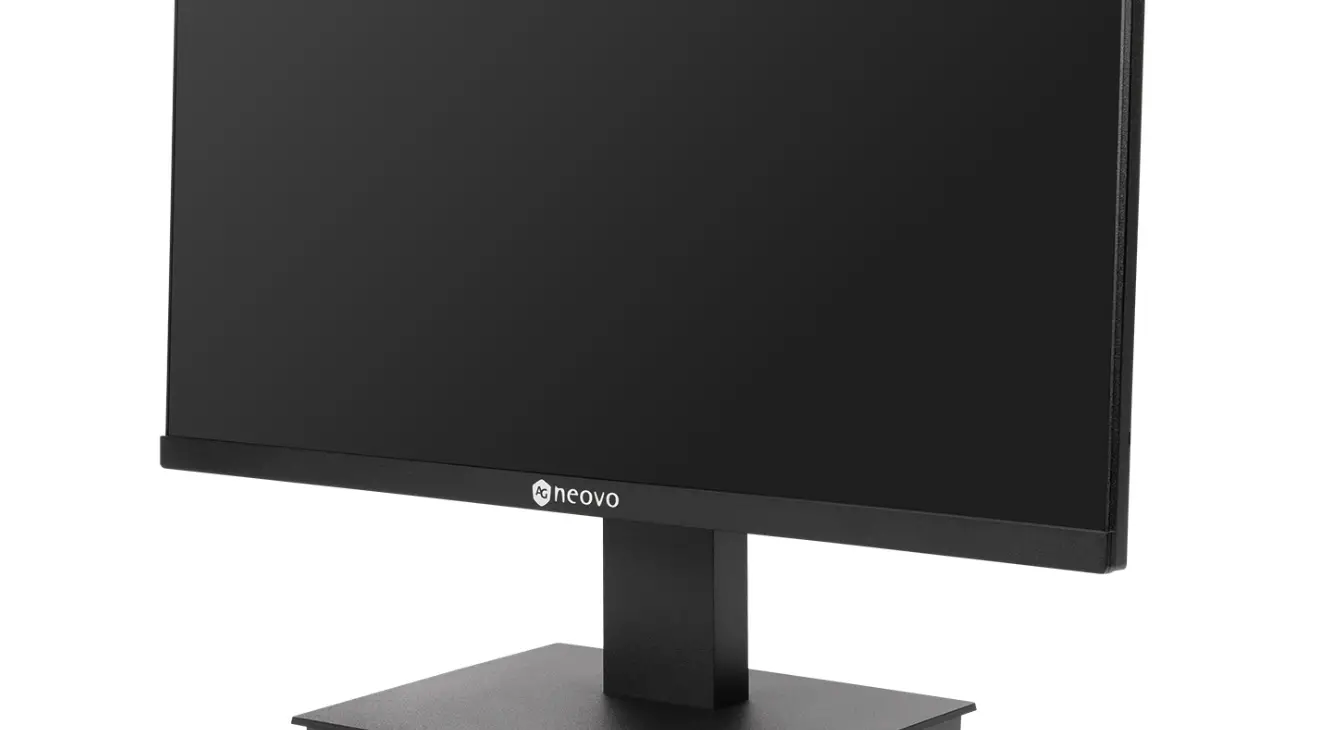
PF-55H LCD Display Kiosk
Product Information
- Model: [Product Model]
- Compliance: Class A of EN55032/CISPR 32
- CE Marking: This equipment is compliant with Class A of
EN55032/CISPR 32. In a residential environment, this equipment may
cause radio interference. - WEEE Symbol: The symbol on the product or its packaging
signifies that this product has to be disposed separately from
ordinary household wastes at its end of life.
Product Usage Instructions
- Before using the product, read the instructions provided in the
manual and retain it for future reference. - Comply with the standard operating methods stipulated for this
product. - Ensure that the voltage provided at the site of use is
compatible with the product’s voltage requirements. - Do not block the heat ventilation ports at the back of the
display. Leave some space around the display for ventilation and
heat dissipation. - Do not open the rear cover of the display as any damage caused
by improper operations will not be covered under warranty. - When switching on the display power, do not cover or block any
ventilation ports or openings. Periodically clean the ventilation
ports for effective heat dissipation. - Avoid inserting fingers or other objects into the gap between
the display and lower frame to prevent injuries or structural
damage. - Keep candles or other flame-producing devices far from the
display to prevent accidental fires. - Avoid subjecting the display to excessive pressure or force to
prevent damage to its structure. - Avoid placing the display in close proximity to water, such as
bathing pools or swimming pools, and areas exposed to water
splashes. - Avoid placing the display near sinks, electric heaters,
radiators, and other heat-generating products. - Pay attention to and comply with all warning and instruction
labels on the display. - Avoid placing the display under direct sunlight or strong
lighting as it may damage the display or affect the quality of
displayed contents. - Avoid placing the display on unstable, sloped, or poorly
secured platforms or carts. Secure the display at a fixed location
to prevent toppling or falling, especially during earthquakes.
Table of contents
Safety warnings and precautions…………………………………………………….3 Product Description ………………………………………………………………………..6 Parts and functions…………………………………………………………………………7 Input/Output Terminals ………………………………………………………………………7 Rear side buttons ……………………………………………………………………………..7 OSD Menu ………………………………………………………………………………………8 OSD Main Menu……………………………………………………………………………….8 Function Menu: Color ………………………………………………………………………..8 Function Menu: Image setting…………………………………………………………….10 Function Menu: OSD Menu………………………………………………………………..11 Function Menu: Signal source…………………………………………………………….12 Function Menu: Audio………………………………………………………………………..13 Function Menu: Special……………………………………………………………………..14 Installation Notes ……………………………………………………………………………16 Troubleshooting ……………………………………………………………………………..18 Product Dimensions ……………………………………………………………………….20 Specification …………………………………………………………………………………..21
2
Safety warnings and precautions
CE
WARNING: This equipment is compliant with Class A of EN55032/CISPR 32. In a residential environment this equipment may cause radio interference.
WEEE
Information for users applicable in European Union countries. The symbol on the product or its packaging signifies that this product has to be disposed separately from ordinary household wastes at its end of life. Please kindly be aware that this is your responsibility to
dispose electronic equipment at recycling centers so as to help conserve natural resources. Each country in the European Union should have its collection centers for electrical and electronic equipment recycling. For information about your recycling drop off area, please contact your local related electrical and electronic equipment waste management authority or the retailer where you bought the product.
3
Safety warnings and precautions
Please read these instructions before using the product, and retain for future reference.
Please comply with standard operating methods stipulated for this product.
Please ensure that the voltage provided at the site of use is compatible with the products voltage requirements.
Do not block the heat ventilation ports at the back of the display. Be sure to leave some space around the display for ventilation and heat dissipation.
Do not open the rear cover of the display. Any damage caused by improper operations will not be included in the scope of our warranty.
In order to prevent potential damages and to extend the effective usage life of the display, please comply with the following points when installing and operating the display:
When the display power is switched on, do not cover or block any ventilation ports or openings. It is regaired to clean the ventilation ports on the equipment periodically to ensure effective heat dissipation.
Please do not insert your finger or other objects into the gap between the display and lower frame, in order to prevent causing injuries to the person or structural damage to the display.
Please ensure that candles or other fame-producing devices are kept far from the display to prevent accidental fires.
Please do not subject the display to excessive pressure or force to prevent damaging its structure.
4
Safety warnings and precautions
Please do not place the display in close proximity to water, such as bathing pools or swimming pools, and do not place the display at areas that may be exposed to water splashes such as windows.
Please do not place the display in close proximity to sinks, electric heaters, radiators, and Other heat-generating products(including sound amplifiers)
Please pay attention and comply with all warning and instruction labels on the display.
Please do not place the display under direct sunlight or strong lighting. Excessive heat from sunlight may damage the display, while direct exposure to strong light may also affect the quality of the displayed contents.
Please do not place the display on unstable, sloped, or poorly secured platforms or carts as this may cause the display to topple or fall, leading to serious equipment damage or human injury. We recommend secure the display at a fixed location. This will help prevent the display from falling over during earthquakes.
Please do not place the display in a poorly ventilated environment.
5
Product Description
Package Contents
When unpacking, check if the following items are included in the package. If any of them is missing or damaged, contact your dealer.
Kiosk Display
Power Cord
HDMI Cable
User’s Manual
6
Parts and functions
Input/Output Terminals
Rearside buttons
PW LED AUTO VV+ MENU
PW LED AUTO V-
V+ MENU
Press this button to turn the display on or off
Green: ON Red: OFF 1. When the OSD menu screen is not activated, press this button to automatically switch to another input source. 2. When the OSD menu screen is active, press this button to return to the previous menu. 1. When the OSD menu screen is active, press this button to select a menu or sub menu or to reduce the value of the selected menu option. 2. In VGA mode, press this button to perform Auto adjust function. 3. No functions in HDMI/DVI mode. 4. To adjust the volume, press [V+] first to activate the volume function. Then press this button to decrease the volume level. 1. When the OSD menu screen is not activated, press this button to increase the volume level. 2. When the OSD menu screen is active, press this button to select a menu or sub menu or to increase the value of the selected menu option. 1. When the OSD menu screen is not activated, press this button to open the OSD menu. 2. When the OSD menu screen is active, press this button to enter the submenu.
7
OSD Menu
OSD Main Menu
Press the [MENU] button to call out the OSD window.
Press the [V+] or [V-] buttons to select the desired option.
To exit, press the [AUTO] button.
Function Menu: Color
Press the [MENU] button to select Color.
Press the [V+] or [V-] buttons to select the Color option.
To exit, press the [AUTO] button.
8
OSD Menu
Under Color menu, the available menu options are: 1. Contrast 2. Brightness 3. Color Adjust 4. Color Temp (color temperature)
Select Contrast / Brightness and press the [MENU] button, then use [V+] or [V-] buttons to adjust the values.
To exit, press the AUTO button.
Color Adjust is used to adjust the display color. To use this function, set the Color Temp setting to User mode.
To exit, press the [AUTO] button.
9
OSD Menu
Color Temp is used to adjust color temperature according to the user’s requirements.
When the Color Temp setting is set to User mode, you may implement display color adjustments in Color Adjust.
To exit, press the [AUTO] button.
Function Menu: Image setting
Press the [MENU] button to bring up the menu.
Use the [V+] or [V-] buttons to select the item desired. Select Image Setting and press the [MENU] button to enter.
Image setting is only available for VGA input.
To exit, press the [AUTO] button.
10
OSD Menu
Function Menu: OSD Menu
Under Image Setting menu, the available menu options are: 1. Clock: adjusting the clock 2. Phase: adjusting the phase 3. Sharpness: adjusting sharpness 4. H. Position: moves the display up and down 5. V. Position: moves the display left and right
To exit, press the [AUTO] button.
Press the [MENU] button to bring up the menu.
Use the [V+] or [V-] buttons to select the item desired. Select OSD Menu and press the [MENU] button to enter.
To exit, press the [AUTO] button.
11
OSD Menu
Under OSD Menu menu, the available menu options are: 1. OSD H. POS: moves the OSD menu position up and down 2. OSD V. POS: moves the OSD menu position left and right 3. OSD Timer: selects the OSD interface dwelling time 4. Language: selects the OSD language
To exit, press the [AUTO] button.
Function Menu: Signal source
Press the [MENU] button to select signal source
Press the [V+] or [V-] buttons to select the desired option.
To exit, press the [AUTO] button.
12
OSD Menu
Function Menu: Audio
Under Signal Source menu, you can switch to the desired input signal source. The available option are: 1. D-SUB 2. DVI 3. HDMI 4. Auto Search: automatically detect the available signal source
To exit, press the [AUTO] button.
Press the [MENU] button to select Audio
Press the [V+] or [V-] buttons to select the desired option.
To exit, press the [AUTO] button.
13
OSD Menu
Under Audio menu, the available menu options are: 1. Volume: adjusts the volume 2. Mute: temporarily turns off all volume 3. Auto Select: automatically selects the audio source
To exit, press the [AUTO] button.
Function Menu: Special
Press the [MENU] button to bring up the menu.
Use the [V+] or [V-] buttons to select the item desired. Select Special and press the [MENU] button to enter.
To exit, press the [AUTO] button.
14
OSD Menu
Under Special menu, the available menu options are: 1. Aspect Ratio: No support. 2. Reset: resets all parameters to the factory default settings 3. Auto: automatic adjustments 4. Monitor ID: sets the name of the device
To exit, press the [AUTO] button
15
Installation Notes
16
Installation Notes
Space for IPC
Remark: B1: M3 screw x 7L B2: M4 screw x 7L B3: M4 screw x 8.4L B4: M4 screw x 9.4L Space: 550 x 376 x 50 mm
17
Troubleshooting
Problem Shift in displayed picture Adjusting the resolution
No image
No sound (when using VGA / DVI cable)
Solution 1. Check if the HDMI cable between PC/Media player
and the display is properly plugged in. Replace the HDMI cable if it appears to be damaged
1. Enter the graphics card adjustment menu (click the right button of the mouse on any location on the desktop to enter display control panel)
2. Make sure the player supports 1920 X 1080 resolution, if not please change with a suitable one.
1. Check if the red LED signal light on the KEYPAD is on. If not, turn on the main switch at the back of the display and use the KEYPAD to turn on the power.
2. Once the LED signal light turned green, the display will detect the signal automatically.
3. If there is still no image on the screen, press “MENU” and then “Source”, choose HDMI, VGA or DVI.
1. When using VGA / DVI input source, an extra audio cable should plugged in Audio In port from PC/Media player.
2. If the Audio Out port is connected with a device, the internal speakers will be switched off
3. Go to PC/Media player Control Panel/Sound/Play, and select the designated external speakers, and press OK.
4. Check if the audio cable from PC/Media player is
plugged in the Audio In port on the display correctly. If the audio cable appeared to be damaged please change to another audio cable.
5. Check if the external speaker has been turned on.
18
Troubleshooting
Problem No sound (When using HDMI cable)
Solution 1. Check if the volume is set to 0. 2. Check if the audio is set to OFF. 3. Ensure the HDMI supports audio output. If so, select
video under DVI source. If still not support, select PC (audio connection is required).
19
Product Dimensions
PF-55H
20
Specification
Panel
Frequency (H/V) Input Other Connectivity Audio
Power
Glass
Panel Type Panel Size Max. Resolution Pixel Pitch Brightness Contrast Ratio Viewing Angle (H/V) Display Colour Response Time H Freq. V Freq. HDMI DVI VGA
PF-55H LED-Backlit TFT LCD (VA Technology) 54.6″ FHD 1920 x 1080 0.630 mm 700 cd/m² 4000:1 178°/178° 1.07B 5 ms 10 kHz-88 kHz 10 Hz-93 Hz 1.2 x 1 24-Pin DVI-D 15-Pin D-Sub x 1
USB
2.0 x 1 (Service Port)
Audio In Audio Out Internal Speakers Power Supply Power Requirements On Mode Stand-by Mode Off Mode Thickness Hardness
Stereo Audio Jack (3.5 mm) Stereo Audio Jack (3.5 mm) 10W x 2 Internal AC 100-240V, 50/60 Hz 170W (On) < 1.0W < 1.0W 5.0 mm (0.20″) > 9H
21
Specification
Operating Conditions Storage Conditions
Dimensions
Weight
Temperature Humidity Temperature Humidity Product with Base (W x H x D) Packaging (W x H x D)
Product with Base
Packaging
PF-55H 0°C-40°C (32°F-104°F) 20%-80% (non-condensing) -10°C-50°C (14°F-122°F) 20%-80% (non-condensing) 815.0 x 1975.0 x 651.0 mm ( 32.1″ x 77.8″ x 25.6″) 2050.0 x 930.0 x 770.0 mm (80.7″ x 36.6″ x 30.3″)
105.0 kg (231.0 lb)
115.0 kg (253.0 lb)
Note: All specifications are subject to change without prior notice.
AG Neovo
Company Address: 5F-1, No. 3-1, Park Street, Nangang District, Taipei, 11503, Taiwan.
Copyright © 2019 AG Neovo. All rights reserved. 22
PF5H00_UM_V021