SmartDim Puck Uni Device
Product Information: SmartDim puck Uni
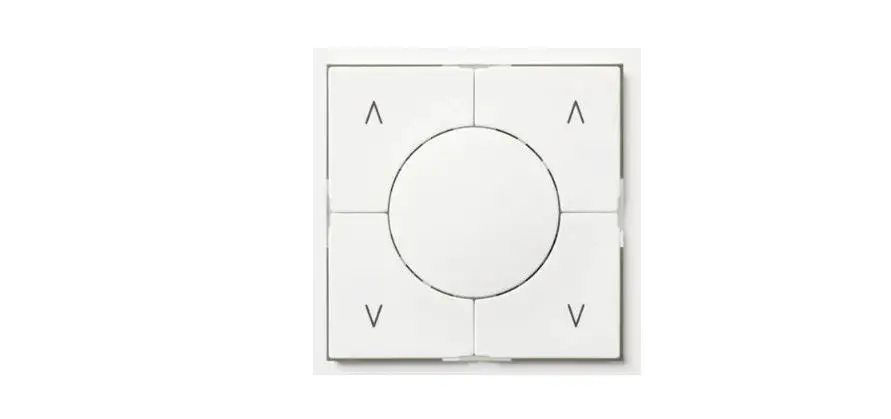
The SmartDim Puck Uni is a smart dimmer device that is designed
to convert ordinary mechanical push-button switches into connected
devices that can be controlled through the ELKO Smart app or from
the switch itself. The device is compatible with dimmable LEDs and
has the ability to switch and dim ohmic, inductive, or capacitive
loads.
Features:
- Smart dimmer functionality
- Compatible with dimmable LEDs
- Can switch and dim ohmic, inductive, or capacitive loads
- Can be controlled through the ELKO Smart app or from the switch
itself
Specifications:
- Manufacturer: ELKO AS
- Model: SmartDim puck Uni
- Compatibility: Dimmable LEDs and ohmic, inductive, or
capacitive loads - Control: ELKO Smart app or switch itself
Product Usage Instructions:
Before installing, operating, servicing, or maintaining the
device, it is important to read the user manual carefully and
become familiar with the device.
Installation:
- Ensure that the power supply to the switch is turned off before
installation. - Remove the existing mechanical push-button switch cover and
insert the SmartDim Puck Uni into the switch box. - Connect the wires according to the wiring diagram provided in
the user manual. - Install the mechanical push-button switch cover onto the
SmartDim Puck Uni. - Turn the power supply back on and test the device.
Operation:
- The SmartDim Puck Uni can be controlled through the ELKO Smart
app or from the switch itself. - To control the device from the switch, simply press the button
as you would with a traditional mechanical push-button switch. - To dim or brighten the lights, hold down the button until the
desired brightness is achieved. - The device is compatible with dimmable LEDs and can switch and
dim ohmic, inductive, or capacitive loads.
SmartDim puck Uni
Device User Guide
Commissioning instructions for the ELKO Smart system, devices and app. 02/2023
www.elko.no
Legal Information
The ELKO brand and any trademarks of ELKO AS and its subsidiaries referred to in this guide are the property of ELKO AS or its subsidiaries. All other brands may be trademarks of their respective owners.
This guide and its content are protected under applicable copyright laws and furnished for informational use only. No part of this guide may be reproduced or transmitted in any form or by any means (electronic, mechanical, photocopying, recording, or otherwise), for any purpose, without the prior written permission of ELKO.
ELKO does not grant any right or license for commercial use of the guide or its content, except for a non-exclusive and personal license to consult it on an "as is" basis. ELKO products and equipment should be installed, operated, serviced, and maintained only by qualified personnel.
As standards, specifications, and designs change from time to time, information contained in this guide may be subject to change without notice.
To the extent permitted by applicable law, no responsibility or liability is assumed by ELKO and its subsidiaries for any errors or omissions in the informational content of this material or consequences arising out of or resulting from the use of the information contained herein.
Table of Contents
Safety information……………………………………………………………………………4 SmartDim puck Uni………………………………………………………………………….5
For your safety ……………………………………………………………………………….5 About the device……………………………………………………………………………..6 Installing the device …………………………………………………………………………6 Testing the device……………………………………………………………………………6 Pairing the device with Smart Hub……………………………………………………….7
Pairing device manually……………………………………………………………….7 Pairing device with auto scan………………………………………………………..8 Configuring the device ……………………………………………………………………..9 Changing the device icon …………………………………………………………….9 Renaming the device ………………………………………………………………..10 Changing the device location ………………………………………………………10 Setting RL-LED mode ………………………………………………………………. 11 Setting brightness level …………………………………………………………….. 11 Toggle mode setting ………………………………………………………………….12 Removing the device ……………………………………………………………………..12 Resetting the device ………………………………………………………………………13 Using the device……………………………………………………………………………14 Manual operation ……………………………………………………………………..14 Adjusting the brightness level using app ………………………………………..14 Setting up a schedule………………………………………………………………..15 Creating a moment …………………………………………………………………..15 Creating an automation ……………………………………………………………..18 LED indication ………………………………………………………………………………22 Troubleshooting ……………………………………………………………………………22 Technical data ………………………………………………………………………………23
DUG_SmartDim Puck_ELKO-00
3
Safety information
Safety information
Important information
Read these instructions carefully and look at the equipment to become familiar with the device before trying to install, operate, service, or maintain it. The following special messages may appear throughout this manual or on the equipment to warn of potential hazards or to call attention to information that clarifies or simplifies a procedure.
The addition of either symbol to a “Danger” or “Warning” safety label indicates that an electrical hazard exists which will result in personal injury if the instructions are not followed.
This is the safety alert symbol. It is used to alert you to potential personal injury hazards. Obey all safety messages that accompany this symbol to avoid possible injury or death.
DANGER
DANGER indicates a hazardous situation which, if not avoided, will result in death or serious injury. Failure to follow these instructions will result in death or serious injury.
WARNING
WARNING indicates a hazardous situation which, if not avoided, could result in death or serious injury.
CAUTION
CAUTION indicates a hazardous situation which, if not avoided, could result in minor or moderate injury.
NOTICE
NOTICE is used to address practices not related to physical injury.
4
DUG_SmartDim Puck_ELKO-00
SmartDim puck Uni
SmartDim puck Uni
EKO07090
For your safety
DANGER
HAZARD OF ELECTRIC SHOCK, EXPLOSION, OR ARC FLASH Safe electrical installation must be carried out only by skilled professionals. Skilled professionals must prove profound knowledge in the following areas: · Connecting to installation networks. · Connecting several electrical devices. · Laying electric cables. · Safety standards, local wiring rules and regulations. Failure to follow these instructions will result in death or serious injury.
DANGER
HAZARD OF ELECTRIC SHOCK · Make sure that the terminal connection area does not come in contact with
the metallic parts of any device installed in the same location. · Do not short the outputs to neutral. Failure to follow these instructions will result in death or serious injury.
CAUTION
EQUIPMENT DAMAGE · Always operate the product in compliance with the specified technical data. · Never connect any mixed inductive/capacitive loads. · Connect only dimmable loads. · Do not connect the dimmer output to the socket outlet. Failure to follow these instructions can result in injury or equipment damage.
DUG_SmartDim Puck_ELKO-00
5
About the device
SmartDim puck Uni
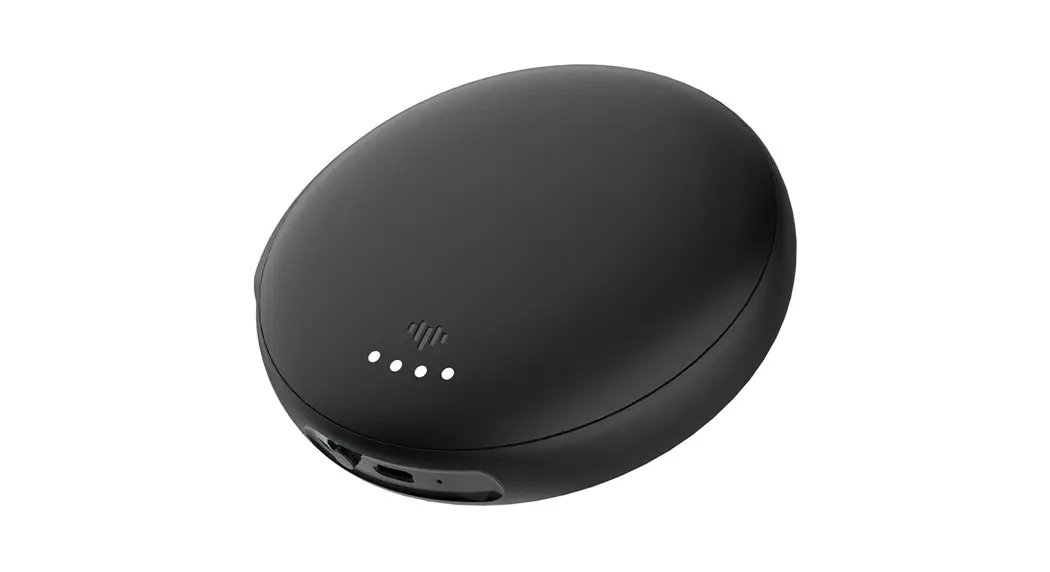
The SmartDim Puck Uni (hereinafter referred to as Puck / Micro Module Dimmer) combines the advantages of smart dimmer functionality with ordinary mechanical push-button switches. It transforms a conventional switch into a connected device which can be controlled from the switch or through the ELKO Smart app. It can switch and dim the ohmic, inductive, or capacitive loads and it is also compatible with dimmable LEDs.
NOTE: Do not control any devices that depend on a permanent power supply.
Additional features:
· Remote control with maximum of 10 single mechanical push-buttons.
· Setting the LED operating mode manually (RL LED mode).
· Electronic overload protection, overheating protection, and short-circuit protection.
· Setting the dimming range: minimum and maximum brightness.
· Setting a time schedule.
Installing the device
Refer to the installation instruction supplied with this product. See SmartDim puck Uni.
Testing the device
Before using the Puck, manually test the Puck and make sure that it works when connected to the lighting devices.
WARNING
HAZARD OF ELECTRIC SHOCK · Observe the regulations for working on live parts. · Only actuate the device buttons using insulated auxiliary equipment that
meets the requirements of EN 60900. Failure to follow these instructions can result in death, serious injury, or equipment damage.
· Short press the test button once, the connected lighting device turns On/Off. · Press and hold the test button to adjust the dimming level of the connected
lighting device.
L
1
< 1 s >1s
6
DUG_SmartDim Puck_ELKO-00
SmartDim puck Uni
Pairing the device with Smart Hub
Using the ELKO Smart app, first pair your device with the ELKO SmartHub to access and control the device. You can either add the device manually or do an auto-scan to pair it.
Pairing device manually
To pair the device manually: 1. On Home page, tap +.
2. Tap and select ELKO SmartHUB on the slide-up menu and tap Done. 3. Select any one of the options to add device (A):
Add Device with Install Code Add Device without Install Code
Add Device
Install Code is Recommended
Add Device without Install Code
A
TIP: It is recommended to add the device with install code. 4. To pair the device with install code, tap Add Device with Install Code to
display the slide-up menu. Select any one of the options (B): Scan Install Code: you can scan the device for the install code. Enter Install Code Manually: you can manually enter the install code
from the device. TIP: you can find the install code on the rear side of the device. After scanning or entering the install code, proceed to Step 7.
Add Device
Install Code is Recommended
Add Device without Install Code
B
5. To pair the device without install code, tap Add Device without Install Code.
DUG_SmartDim Puck_ELKO-00
7
SmartDim puck Uni
6. Select any one of the options to add the device: Short press the S/R (setup/reset) button 3 times (<0,5 s) on the Puck with a screwdriver. Short press the push button 3 times.
L
1
3 × < 0,5 s
3 × < 0,5 s
The LED blinks orange. NOTE: If the puck is located behind the push button, the status LED is not visible.
7. In the app, select Confirm LED is flashing orange and tap Start Configuration (C).
Cancel
How to Pair Device
Short-press S/R button 3 times.
1
2
x3
C
After a few seconds, a solid green LED indicates that the device is successfully paired to the ELKO SmartHUB.
8. Tap Done when the pairing is successful..
Pairing device with auto scan
Pairing the device with auto scan automatically discovers the device when the corresponding device is powered on.
1. On the Home page, tap +. 2. Tap Auto scan > Confirm. 3. Enable permissions to Access location and Wi-Fi for scanning device and
tap Start scanning. NOTE: If you have multiple hubs, do Step 4 or proceed to Step 5.
4. Tap Select hub and select the ELKO SmartHub from the slide-up menu.
8
DUG_SmartDim Puck_ELKO-00
SmartDim puck Uni
5. Short press the setup/reset button 3 times (< 0,5 s) and wait for a few seconds until the device search is complete. The LED blinks orange. TIP: If you want to pair multiple devices at once, perform step 5 on each device and wait for a few seconds for them to be detected.
6. Tap Next (A) and select Micromodule Dimmer.
Auto Scan
Available devices found
Micro Module Dimmer
Next
A
7. Once the device is added successfully, tap Done.
Configuring the device
Changing the device icon
You can change the device icon using the ELKO Smart app. 1. On the Home page, select the device for which you wish to change the icon. 2. At the top-right corner of the screen, tap . 3. Tap edit next to the device name. 4. Tap Icon to view the menu.
DUG_SmartDim Puck_ELKO-00
9
SmartDim puck Uni
5. In the slide-up menu, select any one of the following (A) to change the device icon: Take photo – allows you to click a photo from the mobile camera. Select from Icon Library – allows you to select an icon from the app library. Select from Album – allows you to select a photo from the mobile gallery.
Renaming the device
You can rename the device using the ELKO Smart app. 1. On the Home page, select the device for which you wish to rename. 2. At the top-right corner of the screen, tap . 3. Tap edit next to the device name. 4. Tap Name, enter the new name (A) and then tap Save.
Name
Rename Save
A
Changing the device location
You can change the device location using the ELKO Smart app. 1. On the Home page, select the device for which you wish to change the location. 2. At the top-right corner of the screen, tap .
10
DUG_SmartDim Puck_ELKO-00
SmartDim puck Uni
3. Tap edit next to the device name. 4. Tap Location. 5. Select the desired location from the list (A) and then tap Save.
Device location
Save
Living Room Master Bedroom
Dining Room Study Room Kids Room
A
Setting RL-LED mode
You can change the dimming mode in the app if you have problems with light flickering. By changing the dimming mode, the dimming quality is also improved. To set the RL-LED mode:
1. On the Home page, Tap All devices > Micromodule Dimmer
2. Tap Settings. 3. Tap Dimming Mode and Select Leading Edge (RL-LED) (A) from the slide-
up menu. NOTE: · Refer to Technical Data, page 23 for more information. · Manual operation (Optional): Press the TEST button 14 times. If the status LED blinks 3 times in green, RL-LED mode is enabled. If the status LED blinks once in green, Auto mode is enabled.
Settings
Auto
Auto Cancel
A
Setting brightness level
If the dimmer is connected to an LED, the minimum and maximum brightness should be set to avoid flickering and switching off the LED. To set the minimum and maximum brightness level:
DUG_SmartDim Puck_ELKO-00
11
SmartDim puck Uni
1. On the Home page, Tap All devices > Micromodule Dimmer. 2. Tap Settings. 3. Tap Dimming Range then drag the sliding bar to increase or decrease the
Minimum Brightness and Maximum Brightness (A). 4. Tap Close (B).
Settings
Auto
A
Close
B
Toggle mode setting
You can toggle between the last used brightness level or with 100% brightness level when the dimmer is turned on. To toggle between the brightness level:
1. On the Home page, tap All devices > Micromodule Dimmer.
2. Tap Settings. 3. Tap Toggle Mode Setting and select either one of the function for default
action. 100% (A) : to set the brightness level to 100% by default when ever the
device is turned on. Last Level (B) : to set the previously used brightness level by default
when ever the device is turned on.
Settings
Auto
A B
100% Cancel
Removing the device
Using the ELKO Smart app, you can remove a device from the device list. To remove the device:
12
DUG_SmartDim Puck_ELKO-00
SmartDim puck Uni
1. On the Home page, tap All devices > Micromodule Dimmer.
2. Tap to display more details. 3. Tap Remove and Factory Reset Device (A).
More
Micro Module Dimmer
Device Information Moment and Automation
Others
FAQ & Feedback Add to Home Screen
No updates available.
Remove and Factory Reset Device
A
TIP: Alternatively, you can long tap on the Micromodule Dimmer on the Home page to remove the device. NOTE:
· Removing the device will reset the Puck. After reset the LED turns orange indicating that the Puck is ready to pair with another network.
· If there is a problem while pairing or resetting the Puck, refer to Resetting the device manually, page 13.
Resetting the device
You can reset the device to factory default manually.
1. Short press the Setup/Reset button 3 times (< 0.5 s) and then long press the Setup/Reset button once (>10 s). or Short press the push button 3 times and then long press the push-button once for 10 s.
L
1
3 × < 0,5 s + 1 × 10 s
3 × < 0,5 s + 1 × 10 s
2. After 10 s, LED starts blinking red, then release the push-button. NOTE: All configuration data, user data, and network data are deleted. After which · No connectivity to other devices or rooms. · Memory function is active. · Automatic load detection is active, RC mode is set. · Dimmer settings will reset to default.
The LED stops blinking upon successful reset of the device. The Puck restarts and blinks green for a few seconds.
DUG_SmartDim Puck_ELKO-00
13
Using the device
SmartDim puck Uni
Manual operation
When the puck is connected to a mechanical push button, the connected lighting devices can be controlled manually.
· Short press the push button to turn on/off the light. · Press and hold the push button to adjust the dimming level of the light.
< 1 s > 1 s
Adjusting the brightness level using app
Using the ELKO Smart app, you can increase/decrease the brightness level remotely. To increase/decrease the brightness level:
1. On the Home page, tap All devices.
2. In Micromodule Dimmer tap the power button (A) to turn on/off the device.
My Home
Welcome Home
Set your home location for more information.
Home
Away
All Devices
· · ·
A
Micro Module Dimmer
Home
Automations
3. Tap for slide-up menu.
4. In the slide-up menu, drag the sliding bar (B) to increase/decrease the brightness.
My Home
Welcome Home
Set your home location for more information.
Home
Away
All Devices
· · ·
Micro Module Dimmer
75%
Home
Automations
B
14
DUG_SmartDim Puck_ELKO-00
SmartDim puck Uni
5. Alternatively, you can navigate to device menu and tap on (C) to turn on/off the device. When the device is turned on, drag the sliding bar (D) up/down to increase/decrease the brightness.
Micro Module Dimmer
C
D
ON
75%
Schedule
Setting up a schedule
The device can be fully controlled by schedule. Once the schedule is set, the device operates at a given time.
1. On the Home page, Tap All devices > Micromodule Dimmer.
2. Tap Schedule > Add Schedule to add a schedule.
3. In Add Schedule menu, set the time (A). NOTE: The Schedule works according to the time zone where the device is located.
4. Tap Repeat (B) to select the days you want to set the schedule.
5. Tap Note (C), enter the note and tap Confirm.
6. Tap the toggle switch (D) to turn on the Notification for the schedule. The app will send a notification that the scheduled task is executed at the time of schedule.
7. Adjust the Brightness settings (E) through sliding bar.
Cancel
B Repeat C Note
Add Schedule
06 07
08
05 06
07
09
08
10
09
11
10
12 13
14
11 12
13
Save
A
Once
D
Micro Module Dimmer
50%
100%
E
device is located.
8. Tap Save
Creating a moment
Moment allows you to group multiple actions that are usually done together. Using the ELKO Smart app, you can create moments based on your needs.
DUG_SmartDim Puck_ELKO-00
15
SmartDim puck Uni
1. On the Home page, tap . 2. Go to Moment > + to create a moment. 3. Tap Edit name (A), enter the name of the moment and tap Save.
TIP: You can choose the cover image that represents your moment by tapping .
Cancel Moment settings Save
Edit name
A
Any condition is met Edit name
Add Task
(0/10)
Save
4. In the Action section, tap Add task (B) to open the slide-up menu. 5. In the Add task menu, you can do either or all of the following actions (C):
Run the device: select the devices that you want in a moment. Select Automation: select the automation that you want to enable or
disable. Delay: set the delay time.
NOTE: You can add one or more actions using .
16
DUG_SmartDim Puck_ELKO-00
SmartDim puck Uni
6. Tap Run the device > Micromodule Dimmer to select either or all the functions to add in the moment: Dimmer (D): turn on/off the device. Brightness (E): set the percentage of brightness required.
Select function
D Dimmer E
Next On 50%
7. Tap Next and once the actions are set, tap Save.
Cancel Moment settings Save
My Moment
Action Micro Module Dimmer Micro Module Dimmer
Dimmer:On
Show on Home Page
Editing a moment
To edit a moment:
1. On the Moment tab, locate the moment you want to edit and tap .
2. On the Edit page, you can tap each item (such as dimmer, shutter, delay, temperature, etc.) to change the settings. TIP:
· You can add one or more actions using . · To delete an existing action, slide the each item towards left and tap
Delete.
Deleting a moment
To delete a moment: 1. On the Moment tab, locate the moment that you want to delete and then tap . 2. Tap Delete and than tap Ok. NOTE: After deleting a moment, the device action can no longer be triggered.
DUG_SmartDim Puck_ELKO-00
17
SmartDim puck Uni
Creating an automation
An automation allows you to group multiple actions that are usually done together, triggered automatically or at scheduled times. By using the ELKO Smart app, you can create automations based on your needs.
1. On the Home page, tap the . 2. Go to Automation > + to create an automation.
3. Tap Edit name (A), enter the name of the automation and tap Save. TIP: You can choose the cover image that represents your automation by tapping .
Cancel Automation settings Save
My Automation
A
Any condition is met Edit name
Add Condition
(0/10)
Action
(ASdadvede 0/80)
Add Task
All-Day
4. Tap Any condition is met to select any one of the condition type (B): All conditions are met: the automation is triggered when all the conditions are met. Any condition is met: the automation is triggered when at least one condition is met.
5. Tap Add Condition to open the slide-up menu.
18
DUG_SmartDim Puck_ELKO-00
SmartDim puck Uni
6. In the Add Condition menu, you can do either or all of the following options (C): When weather changes: select the various weather settings. Schedule: set the time and day. When device status changes: select the device and it’s function.
NOTE: You can add one or more conditions using .
Cancel Automation settings Save
My Automation
Any condition is met
(0/10)
Add Condition
Add Condition
C
7. Tap When device status changes > Micro Module Dimmer and select either or both the functions: Dimmer: turn the Dimmer on/off (D). Brightness: adjust the brightness level (E).
D E
Select function
Next
8. Tap Add task to open the slide-up menu.
DUG_SmartDim Puck_ELKO-00
19
SmartDim puck Uni
9. In the Add task menu, you can do either or all of the following options (F): Run the device: select the devices that you want to trigger. Moment or Automation: select the moment which you want to trigger or select the automation that you want to enable or disable. Send notification: turn on notification for the automation. Delay: set the delay time.
NOTE: You can add one or more actions using .
Cancel Automation settings Save
My Automation
Any condition is met
(0/10)
Add Condition
Action
(Added 0/80) Add task Add Task
All-Day
F
10. Tap on Effective period to set the time range for the automation. You can select any one of the following (G): All-day – 24 hours Daytime – From sunrise to sunset Night – From sunset to sunrise Custom – User defined time period
Next
24 hours
From sunrise to sunset
G
From sunset to sunrise Custom
City
11. Once all the actions and conditions are set, tap Save. Once the automation is saved, it is visible on the Automation tab. You can tap the toggle switch on the automation to enable it.
Example of an automation
This demonstration shows you how to create an automation to turn on the dimmer at the scheduled time.
1. Go to Automation > + to create an automation. 2. Tap Edit name, enter the name of the automation and tap Save.
TIP: You can choose the cover image that best represents your automation by tapping .
20
DUG_SmartDim Puck_ELKO-00
SmartDim puck Uni
3. Tap Add Condition > Schedule. · Tap Repeat (A), select the days you want to set the schedule and tap Save. · Set the time (B) at which the automation must start and tap Next.
Schedule
Next
A Repeat
04 29 05 30 06 31
B
4. Tap Add task > Run the device > Micromodule Dimmer. 5. Tap Dimmer (C) and in the slide-up menu, select On and tap Save. 6. Tap Brightness (D) and update the required brightness level and tap Save.
Select function
C Dimmer D
Next On 50%
7. Tap Next. 8. In the Automation Settings page, tap Save.
Cancel Automation settings Save
My Moment
Any condition is met
Schedule:05:30
Action
Micro Module Dimmer Micro Module Dimmer
Dimmer:On
All-Day
Once the automation is saved, it is visible on the Automation tab. You can tap the toggle switch on the automation to enable it.
DUG_SmartDim Puck_ELKO-00
21
SmartDim puck Uni
Editing an automation
To edit an automation: 1. On the Automation tab, locate the automation you want to edit and tap . 2. On the Edit page, you can tap each item (such as dimmer, shutter, delay, temperature, etc.) to change the settings. TIP: · You can add one or more actions using . · To delete an existing condition or action, slide each item towards left and tap Delete.
Deleting an automation
To delete an automation: 1. On the Automation tab, locate the automation that you want to delete and then tap . 2. Tap Delete and tap Ok. NOTE: After deleting an automation, the device action can no longer be triggered.
LED indication
Pairing the device
User Action Short press the setup/reset button or push button 3 times.
LED Indication
LED blinks orange once per second.
Status
Pairing mode is active for 30 seconds. When pairing is completed, LED glows green for a few seconds before turning Off.
Resetting the device
User Action
LED Indication
Short press the setup/reset button or push
LED blinks red once per second.
button 3 times and hold it down once for > 10 s.
Status
The device is in reset mode. The device then restarts and LED turns orange indicating that the device is ready for pairing.
Troubleshooting
Symptom Dimming up not possible. Switching on not possible.
Flickering at minimum brightness.
22
Solution · Reduce/increase load. · Allow the Puck to cool in case of overheating. · Change the load (if the load is incompatible with the Puck). · Allow the Puck to cool in case of overheating. · Reduce load. · Change load. · Check wiring between the push button and the Puck. · Increase minimum brightness (if flickering still persists, install a 31LCDA load correction device).
DUG_SmartDim Puck_ELKO-00
SmartDim puck Uni
Symptom
Flickering Only slight dimming capability
The device is not ready to pair after the device is removed from the app.
Solution
· Change the load (if the minimum brightness is insufficient). · Set RL LED mode (it is advised to use 10 % of nominal load to avoid
overheating of the puck).
· Change load. · Set RL LED mode (it is advised to use 10 % of nominal load to avoid
overheating of the puck).
· Change dimming range. · Set RL LED mode (it is advised to use 10 % of nominal load to avoid
overheating of the puck). · Change the load (if the load is incompatible with the Puck).
Reset to factory default settings, refer to Resetting the device manually.
Technical data
Nominal power rating for load type LED Incandescent lamp Iron core transformer
Halogen lamp
5 100 VA RC 5 20 VA RL 14 200 W R
14 150 VA L
14 150 W R
Electronic step-down converter
C
Nominal voltage Dimming channel Standby Operating Temperature Neutral conductor Connecting terminals Extension connection Length of all cable sections Fuse protection Operating frequency Max. radio-frequency power transmitted IP rating Product dimensions (H x W x D) Communication protocol
14 200 VA C
AC 220-240 V, 50/60 Hz 1 Max. 0.4 W 0 ºC to 35 ºC Not required Max. 2 x 2.5 mm2, solid or stranded types Max. 10 mechanical push buttons Max. 50 m for 3-wire NYM cable 16 A circuit breaker 2405 – 2480 MHz <10 mW IP20 43 x 43 x 22 mm Zigbee 3.0 certified
DUG_SmartDim Puck_ELKO-00
23
Trademarks
This guide makes reference to system and brand names that are trademarks of their relevant owners.
· Zigbee® is a registered trademark of the Connectivity Standards Alliance. · Apple® and App Store® are brand names or registered trademarks of Apple Inc. · Google PlayTM Store and AndroidTM are brand names or registered trademarks
of Google Inc. · Wi-Fi® is a registered trademark of Wi-Fi Alliance®. Other brands and registered trademarks are the property of their respective owners.
ELKO AS Sandstuveien 68, 0680 Oslo Pb 6598 Etterstad, 0607 Oslo Norway
+47 67 79 39 00 [email protected] www.elko.no
As standards, specifications, and design change from time to time, please ask for confirmation of the information given in this publication.
© 2023 ELKO AS. All rights reserved. DUG_SmartDim Puck_ELKO-00
 ELKO - Forside