
robustel App
Revision History
Updates between document versions are cumulative. Therefore, the latest document version contains all updates made to previous versions.
| Release Date | App Version | Doc Version | Details |
| June 06, 2016 | 2.0.0 | v.1.0.0 | First Release |
| June 29. 2018 | 2.0.0 | v.1.0.1 | Revised the company name |
| December 25, 2021 | 2.0.0 | v.1.0.2 | Revised the company name Deleted the document status: Confidential |
Overview
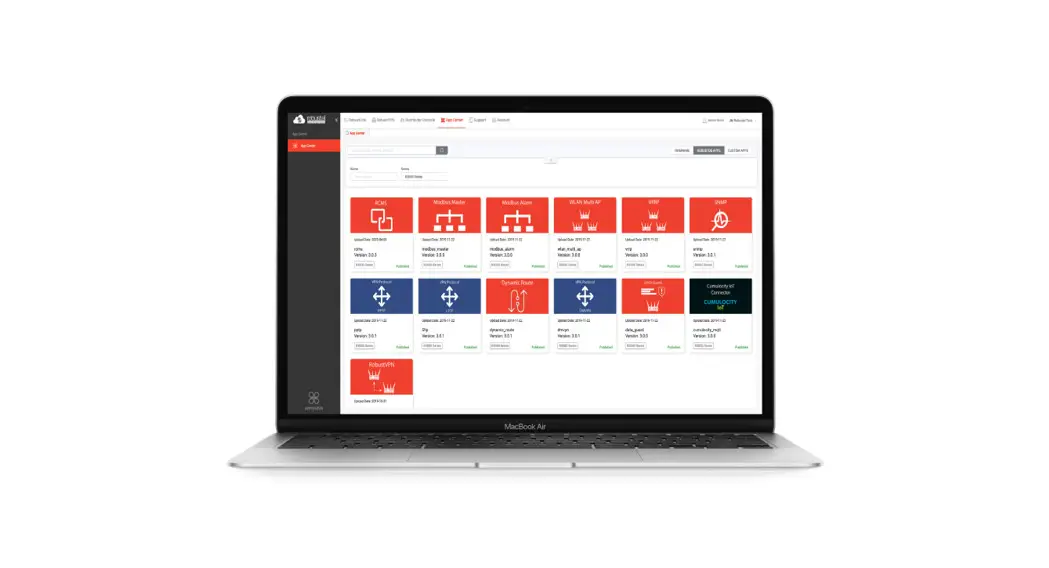
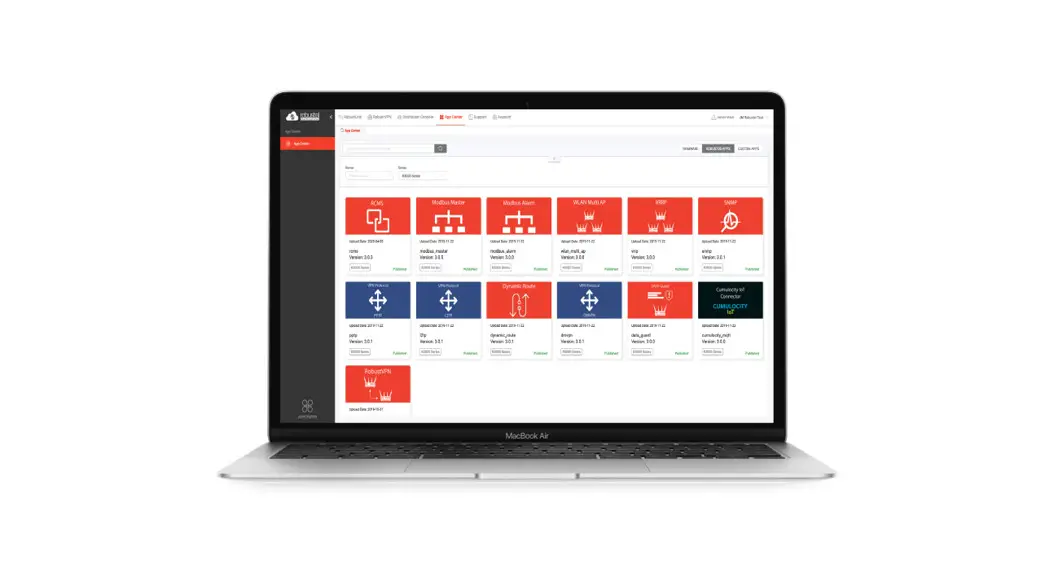
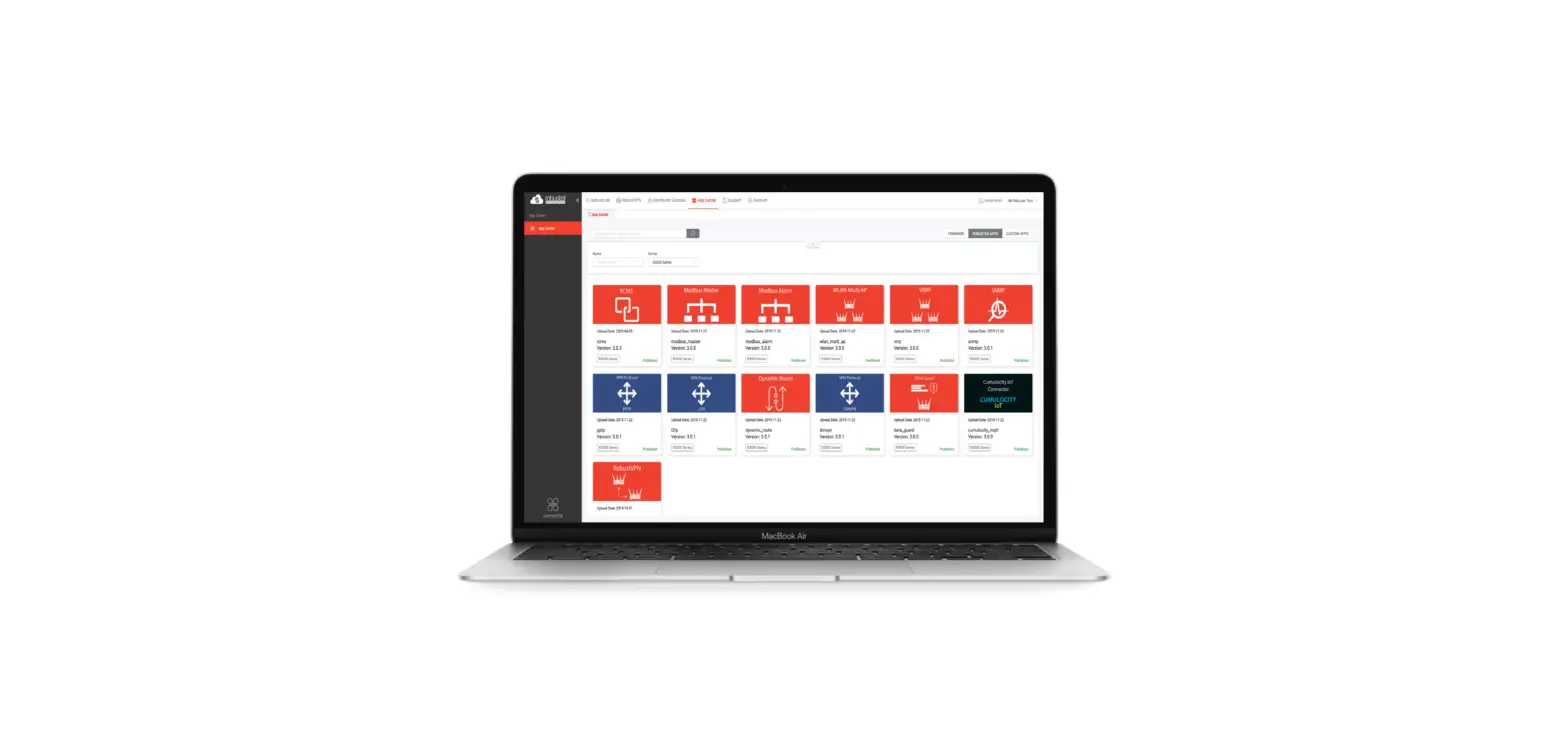
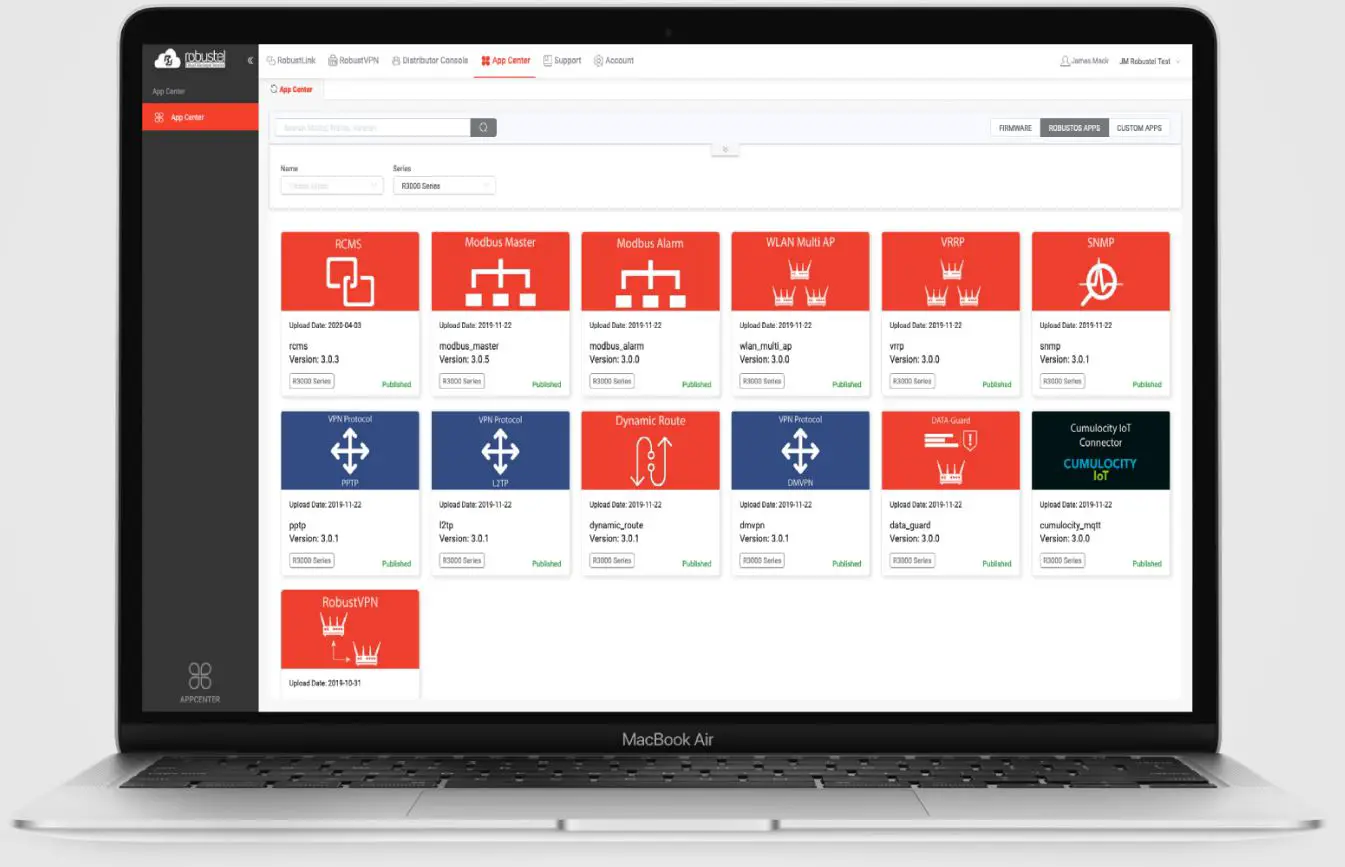
WLAN_multi_AP function is used to add more AP. router could connect to the available AP automatically which had preset in router. It is an App that needs to install into router in System->App Center unit.
App Installation
Installation
Path: System->App
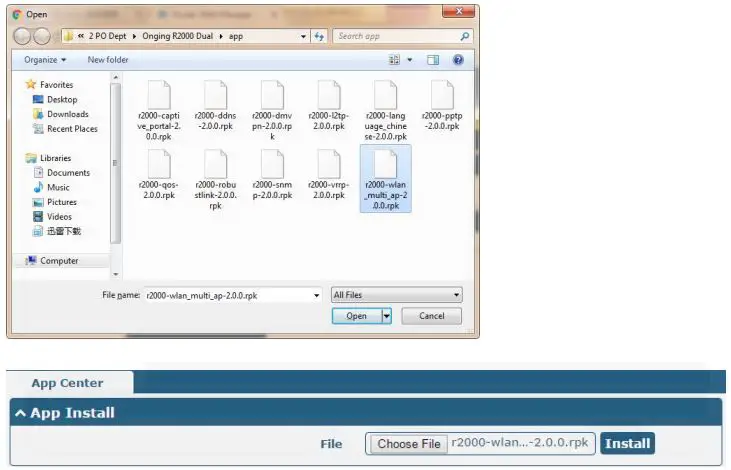
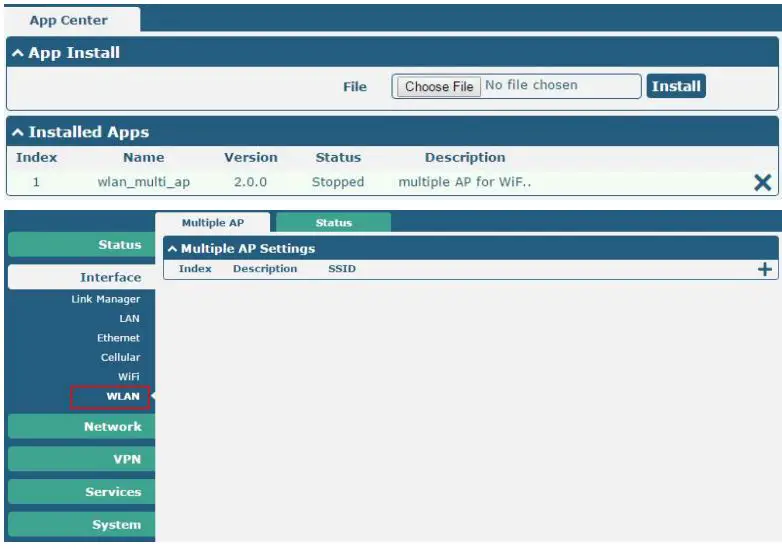
- Please place WLAN_multi_AP App .rpk file (e.g. r2000-wlan_multi_AP-2.0.0.rpk) into a free disk of PC. And then log in router configuration page; go to System->App as the following screenshot show.

- Click “Choose File” button, select WLAN_multi_AP App .rpk file from the PC, then click “Install” button of router configuration page.

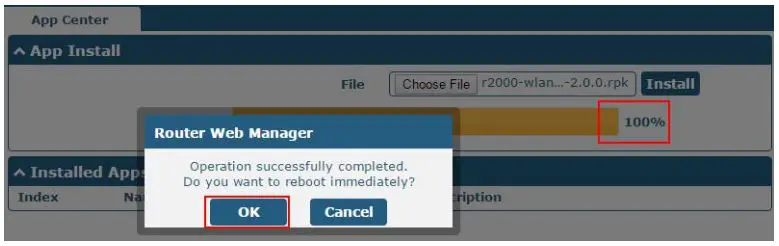
- When the rate of installation progress reach 100%, the system will pop up a reboot router reminder window. Please click “OK” to make router reboot.

- After router power on again, log in the configuration page, WLAN_multi_AP will be included in App Center’s “Installed Apps” list, and the function configuration will display in Interface->WLAN part.


Uninstallation
Path:System->App Center
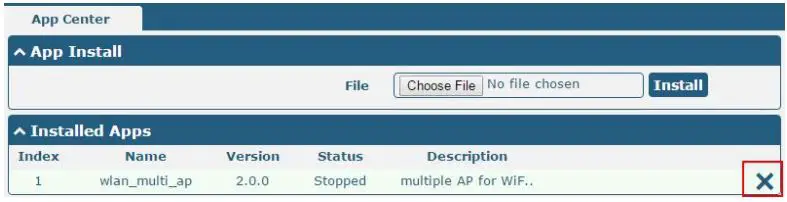
- Go to “Installed Apps”, find WLAN_multi_AP App and then click “ X ”.

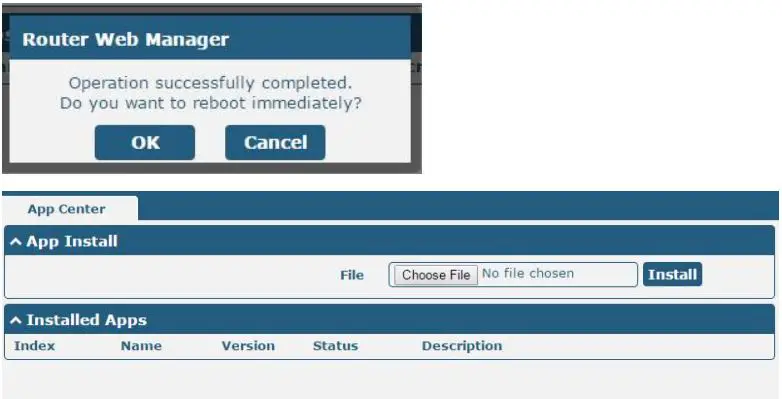
- Click “OK” in the router reboot reminder popup window. When router finish restart, WLAN_multi_AP had been uninstalled.

Parameters Description

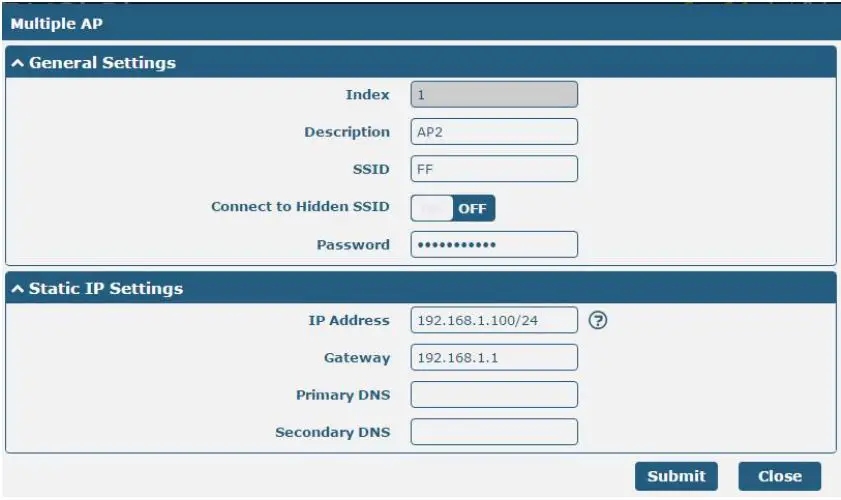
Click the “+” symbol to add a new AP for router, it will pop up the window of multiple AP configuration. The Maximum number of Wi-Fi AP is 10.
WLAN Setting
| WLAN Setting | ||
| Item | Description | Default |
| SSID | Enter SSID of the access point which router want to connect. Input from 1 to 32 characters. | Null |
| Connect to Hidden SSID | When router works as Client mode and need to connect to any access point which has hidden SSID, you need to enable this feature. | OFF |
| Password | Set the password for Wi-Fi connection authentication. | Null |
| IP Address | Enter the static IP address. IP address with netmask, e.g. 192.168.1.1/24 | Null |
| Gateway | Enter the WiFi AP’s IP address. | Null |
| Primary DNS | Enter the primary DNS server IP address. | Null |
| Secondary DNS | Enter the Secondary DNS server IP address. | Null |
Guangzhou Robustel Co., Ltd.
Add 501, Building 2, No. 63, Yong’an Avenue,
Huangpu District, Guangzhou, China 510660
Tel: 86-20-82321505
Email: [email protected]
Web: www.robustel.com
 4G/LTE/5G/Cellular Routers, Gateways and Modems for Industrial IoT - Robustel