 App User Guide
QoS
Version: 1.0.2
Date: December 25, 2021
Copyright© Guangzhou Robustel Co., Ltd.
All Rights Reserved.
Revision History
Updates between document versions are cumulative. Therefore, the latest document version contains all updates made to previous versions.
| Release Date | App Version | Doc Version | Details |
| June 6, 2016 | 2.0.0 | v.1.0.0 | First Release |
| June 29, 2018 | 2.0.0 | v.1.0.1 | Revised the company name |
| December 25, 2021 | 2.0.0 | v.1.0.2 | Revised the company name Deleted the document status: Confidential |
Overview
QoS (Quality of Service) is a network security mechanism. To quantitatively measure the quality of service, several related aspects of the network service are often considered, such as error rates, bit rate, throughput, transmission delay, availability, jitter, etc. QoS is designed to solve these problems mentioned above. QoS is particularly important in the transport of traffic with special requirements. QoS function is an App that needs to install into the router in the System->App Center unit.
App Installation
2.1 Installation
Path: System->App
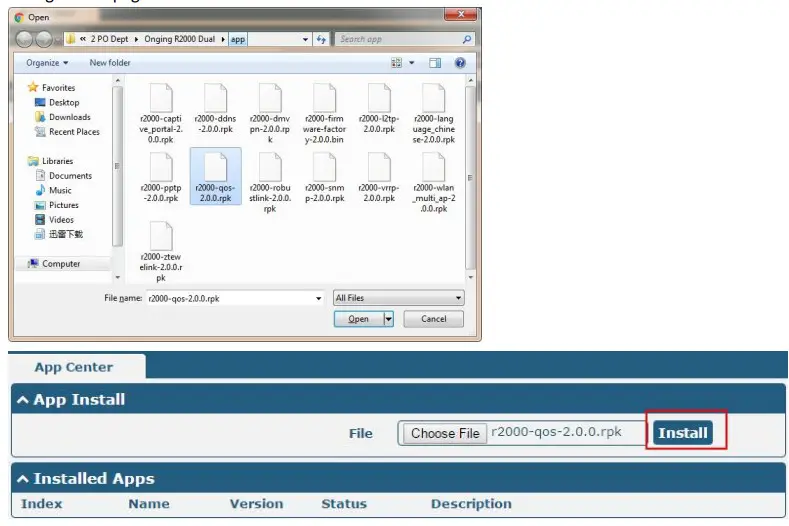
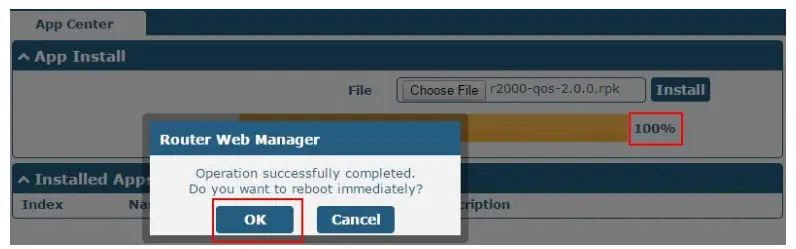
- Please place QoS App .rpk file (e.g. r2000-QoS-2.0.0.rpk) into a free disk of PC. And then log in the router configuration page; go to System->App as the following screenshot show.

- Click “Choose File” button, select QoS App .rpk file from the PC, then click the “Install” button of the router configuration page.

- When the rate of installation progress reaches 100%, the system will pop up a reboot router reminder window. Please click “OK” to make the router reboot.

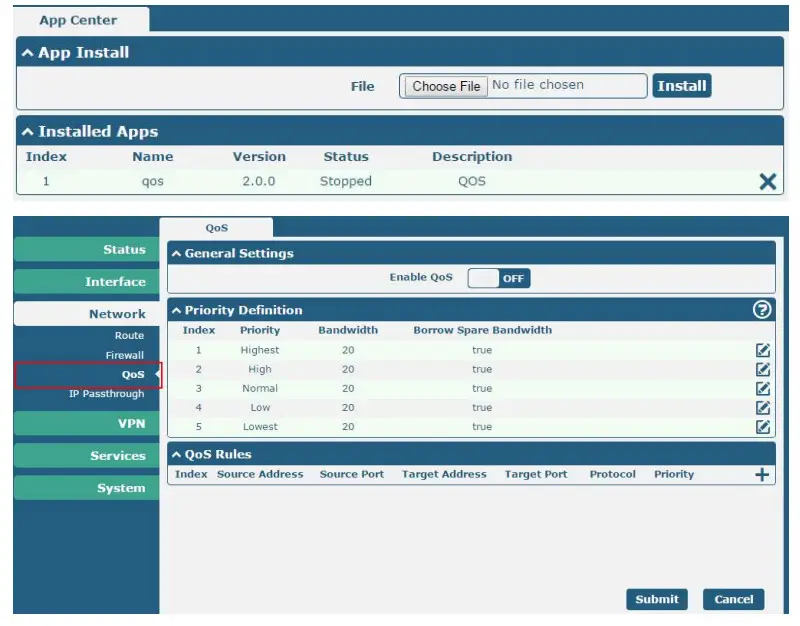
- After the router power on again, log in to the configuration page, QoS will be included in App Center’s “Installed Apps” list, and the function configuration will display in the Network part.


2.2 Uninstallation
Path:System->App Center
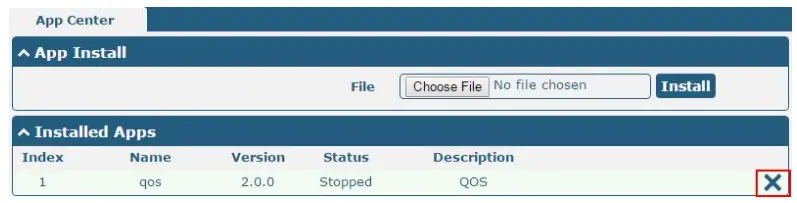
- Go to “Installed Apps”, find QoS App, and then click “ X”

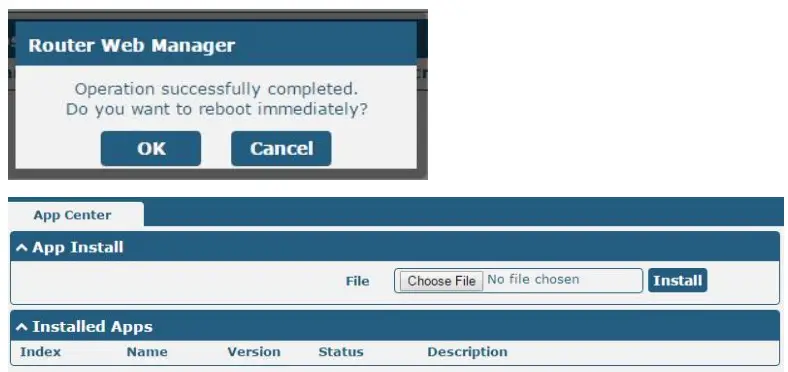
- Click “OK” in the router reboot reminder popup window. When the router finish restarting, QoS had been uninstalled.

Parameters Description
This section allows users to set the QoS parameters.
Please remember to set QoS upload and download bandwidth in the Interface->Link Manager WWAN/WAN before configuring QoS parameters.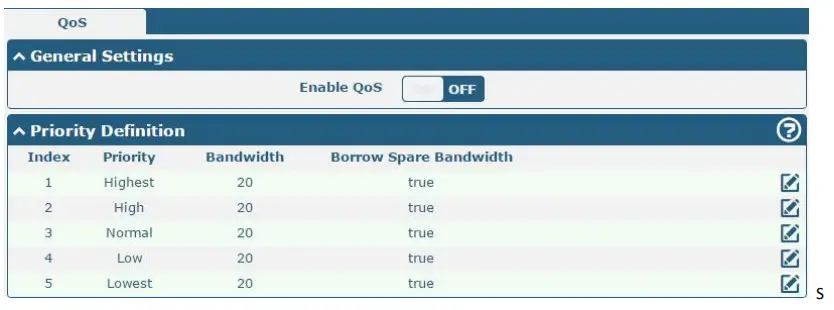
elect the priority, click  to enter the priority definition configuration window.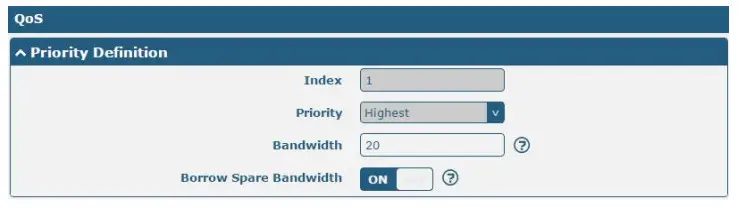
| QoS | ||
| Item | Description | Default |
| Enable QoS | Click to enable the “QoS” function. | Disable |
| Index | Show the index of priority. | / |
| Priority | Select from “Highest”, “High”, “Normal”, “Low”, “Lowest”. Users can select the priority level according to the requirement. | / |
| Bandwidth | Define bandwidth percent of “Highest”, “High”, “Normal”, “Low” and “Lowest”. All the bandwidth percent of priority defaults to 20%. Users can configure the bandwidth percent of priority according to the requirement. The sum of the bandwidth of all the priorities cannot be greater than 100%. | 20 |
| Borrow Spare Bandwidth | The traffic associated with this priority will borrow unused bandwidth from other priorities when this function is enabled and will be limited to the specified bandwidth when this function is disabled. Limited specified bandwidth algorithm: priority defined percent upload/download bandwidth set in Interface-Link Manager WWAN/WAN. | ON |

Click +to add a new QoS rule.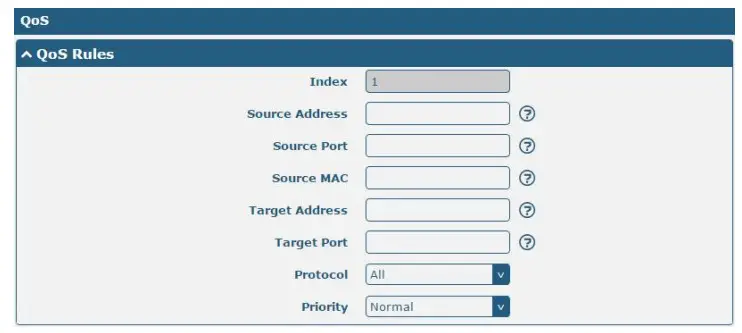
| QoS | ||
| Item | Description | Default |
| Source Address | Enter the IP address of the source host. format: x.x.x.x, x.x.x.x/xx, x.x.x.x-x.x.x.x, empty means anywhere | Null |
| Source Port | Enter the port number of the source host. | Null |
| Source MAC | Enter the MAC address of the source host. The router supports up to 20 users set with QoS MAC Control. The priority of QoS MAC Control is higher than that of QoS IP control. | Null |
| Target Address | Enter the IP address of the target host. | |
| Target Port | Enter the port number of the target host. | |
| Protocol | Select from “All”, “TCP”, “UDP”, “ICMP” and “TCP&UDP”. | All |
| Priority | Select from “Highest”, “High”, “Normal”, “Low”, “Lowest”. Those priorities had been defined in Network->QoS->Priority Definition. | Normal |
Note:
- If services are in the same priority level, the router will automatically start the Stochastic Fairness Queueing (SFQ) strategy to make a fair bandwidth allocation.
- If the link between a source host and target host had set QoS 3 rules. At this time it won’t consider the priority but will only choose the ranked first one to take effect.
Guangzhou Robustel Co., Ltd.
Add:501, Building 2, No. 63, Yong’an Avenue,
Huangpu District, Guangzhou, China 510660
Tel: 86-20-82321505
Email: [email protected]
Web: www.robustel.com
 4G/LTE/5G/Cellular Routers, Gateways and Modems for Industrial IoT - Robustel