

Q-Retail Pro Software
User Manual
VISEL CLOUD USER MANUAL
Platform for remote management of multimedia contents
General information about the use of the “Visel Cloud” platform.
Visel Italiana
General information about the use of “Visel Cloud”.
A platform for remote management of multimedia content.
Overview
Description and context of the product
This document outlines the procedures to be followed for the correct use and provision of content remotely, via the Visel Cloud online platform.
Requirements
The use of Visel Cloud is subject to the purchase of a product from the BOX PRO range and/or a license for use. No particular hardware requirements are required, except for a computer with an internet connection and a web browser (with the exception of Internet Explorer).
Minimum requirements
- Personal Computer with Windows, Linux, or macOS operating system
- Internet connection
- Compatible Web Browser (Firefox, Chrome, Safari, Edge, or Opera)
- Valid Visel Cloud license.
User Interface
Areas
The user interface is mainly presented in five macro areas, which can be reached through the left side menu as follows:
- Dashboard,
- Manage Media
- Playlist
- User Account
- User Manual and Software
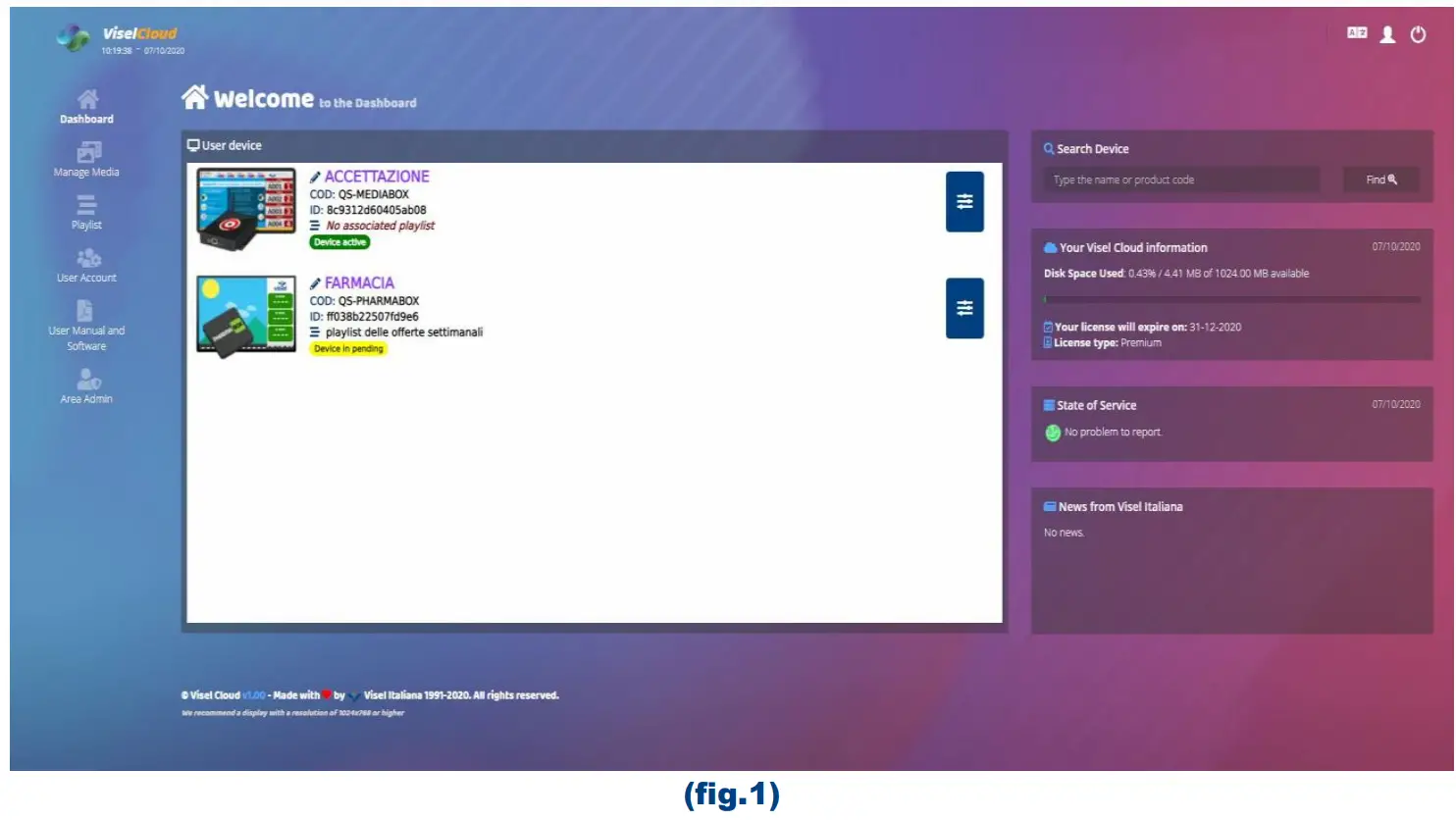 Premise
The user can manage all the areas listed above through the side menu, and can also control some important aspects such as  Your Account / License Info
 , the available space,
 the status of the Server services,
 any communications from Visel Italiana, and the
  search for Devices. Depending on the option chosen at the time of purchase, the user has available memory cuts of 256MB*, 512MB*, 1GB*, or unlimited, which represent the space available in the Cloud.
It is possible to change the language of the platform by clicking on the icon , located at the top right of the page.
* 1 MegaBytes equivalent to 1000000 Bytes | 1GB equivalent to 1000 MegaBytes
 Dashboard
 Dashboard
In the Dashboard (fig. 1) it will be possible to view the devices purchased, from which some information can be managed. In the area we will find in order: the Custom Name, the Product Code, the Product ID, the associated playlists and the status in which the Device is at that moment.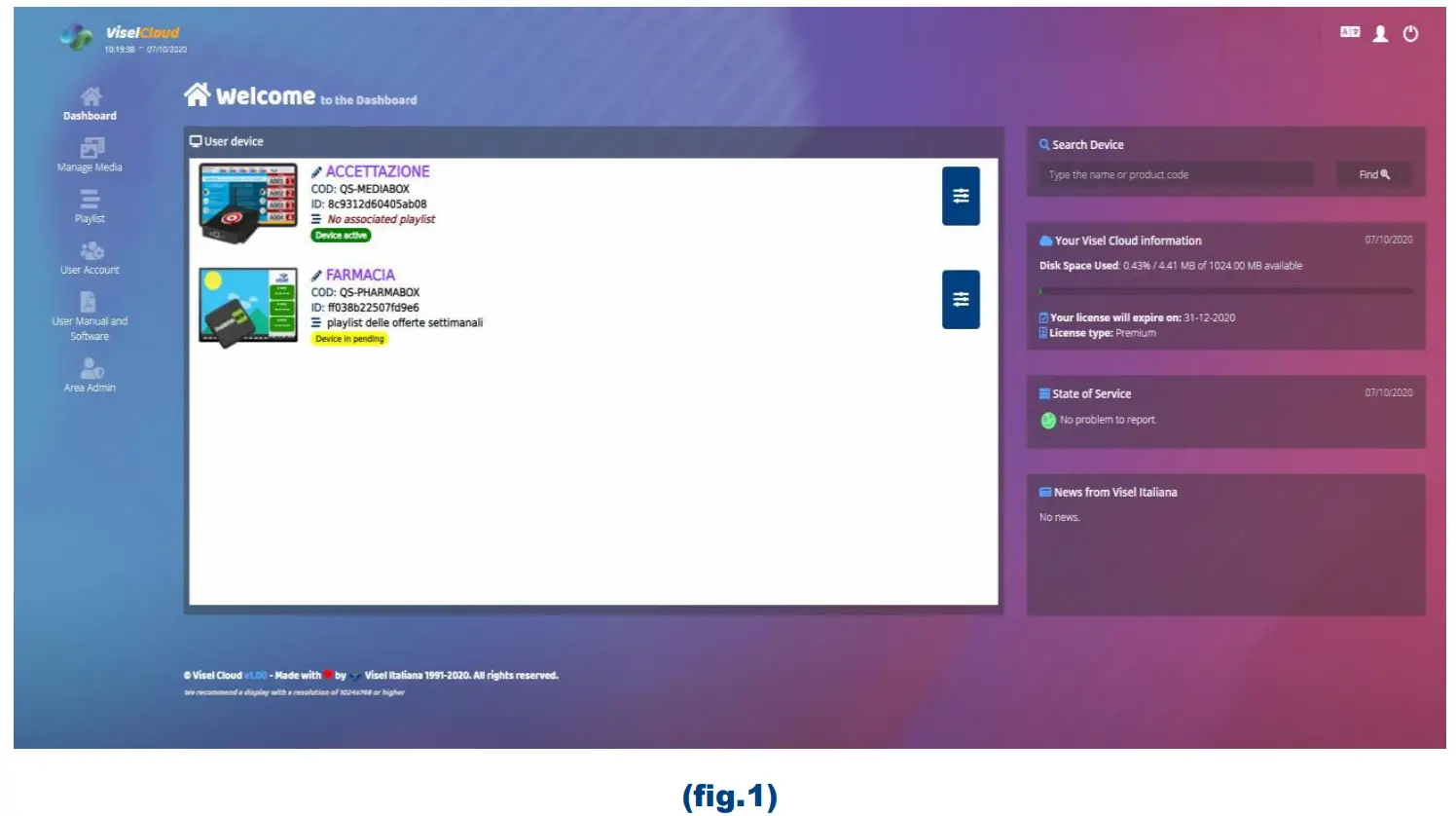
The device name can be customized by clicking on the icon and can be useful for quickly identifying one or more devices located in different structures. From the button you can select a Playlist (to be created in the Playlist area) to associate with the device for playback.
 Manage Media
How to upload Media It is possible to upload and manage individual media and their related information up to a maximum size of 50MB per file.
The platform supports the reproduction of JPG / JPEG, PNG, GIF image formats; of the video formats MP4 (h264), MPG; MP3, MP2, WAV audio formats as background to images (slide with audio).
Media can be loaded by clicking on the button or + Upload New File (fig.3).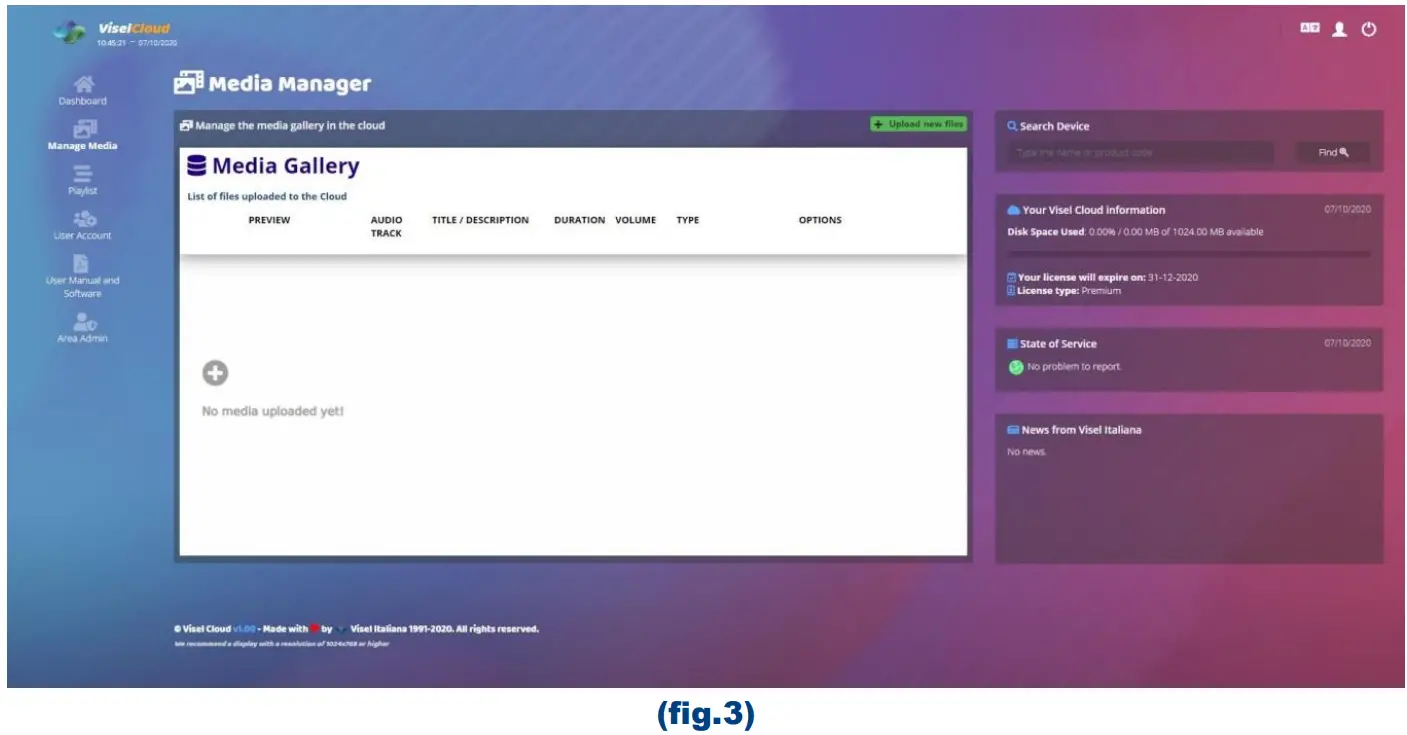 Select the file and do “Upload file!” (fig.4).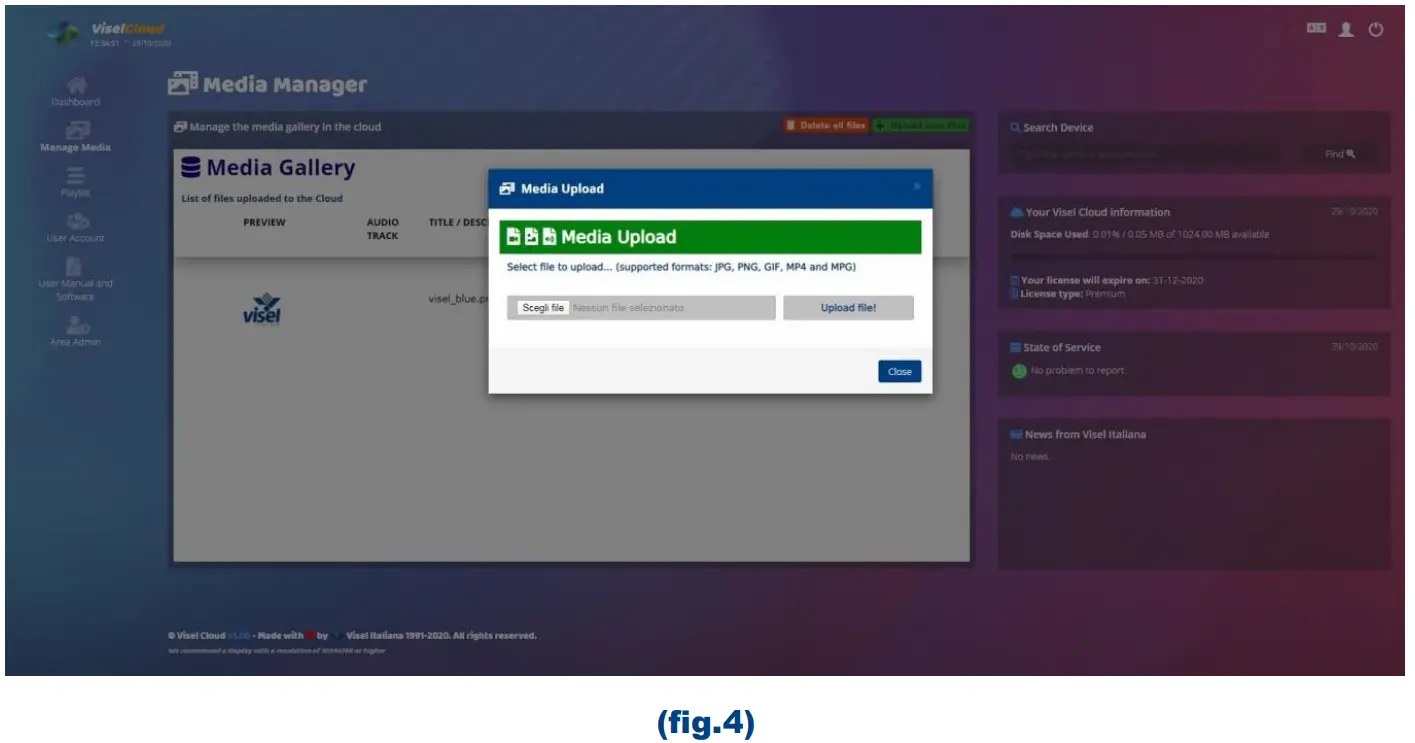
Customization of uploaded media
Visel Cloud offers the ability to customize individual media and/or create a slide, or the overlay of an audio track on an image.
To customize media information, we can click on the button present at the end of each line (fig.5), which will open the editing window.
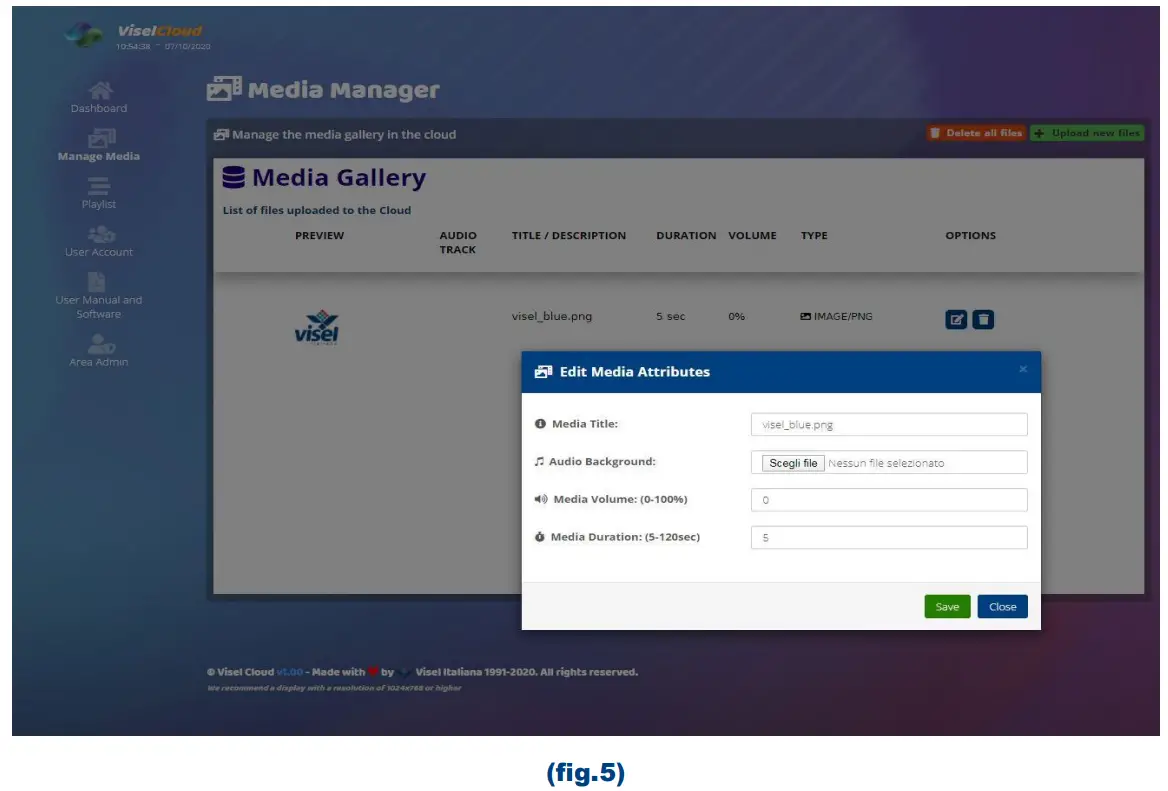 In the editing window, it is possible to edit some attributes such as the title of the media (useful for recognition), the background audio (which can only be used in editing images to create a slide), the playback volume (excluding simple images) and the playback duration (videos cannot be changed). Finally, it is possible to see a preview of the media by clicking with the mouse directly on the preview box in the case of images, and videos, or on the
  icon in the case of file audio.
Deleting Uploaded Media
To delete the media in the gallery, just click on the icon  at the end of each line (in case of single file elimination), or via the red button located at the top right of the box Delete All Files. (Attention, the operation will also delete the media from all active and existing Playlists) The operation is irreversible.
 Playlist
In this area it is possible to create and manage the Playlists that will subsequently be associated with the device for playback (see Dashboard section).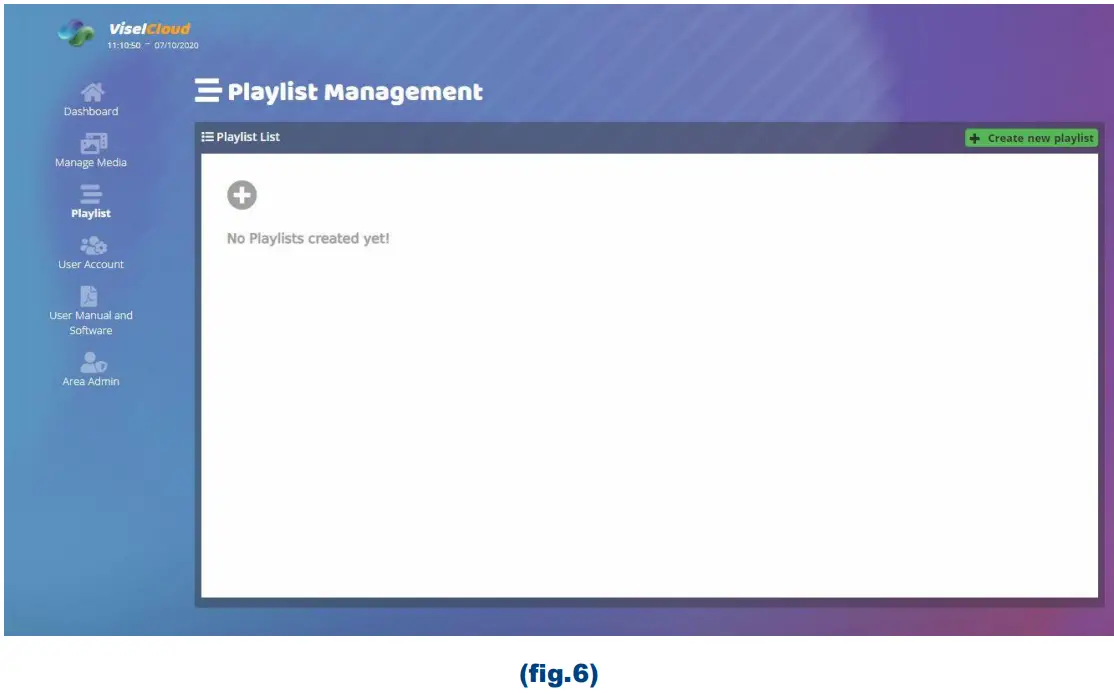 Playlist creation and customization It is possible to create a new Playlist by clicking on the button in the center of the window or on the item in green at the top right of the window + Create new Playlist (fig.6 and fig.7).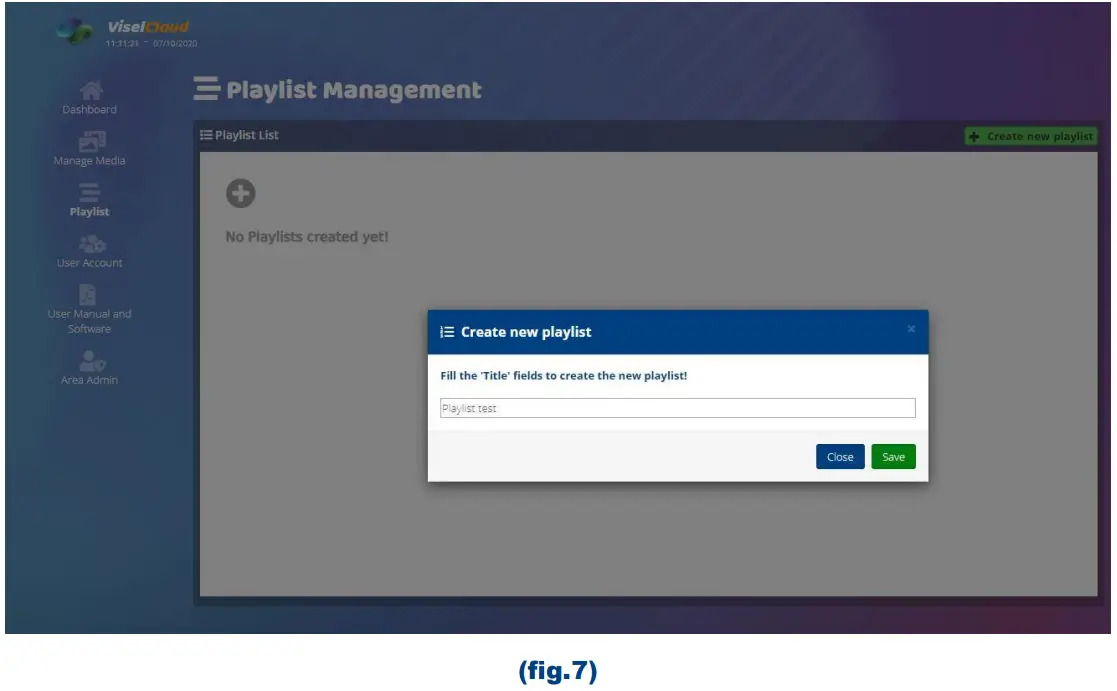
Once the name has been entered (fig.7), the new Playlist will be created and will be shown in the Playlist List area. From here it will be possible to customize or delete it using the buttons .
.
Customization of Playlist and Media Scheduling
Entering the Playlist customization via the button , we will find, if it is the first time that we insert a media, the empty window and we will have the possibility to insert the media we want through the button or + Add Media; alternatively we will find the list of media already added. To program the time duration (in dates) during which the media will be reproduced on the Summary Display, simply check the item Scheduled by entering the start and end date of programming (fig.8).
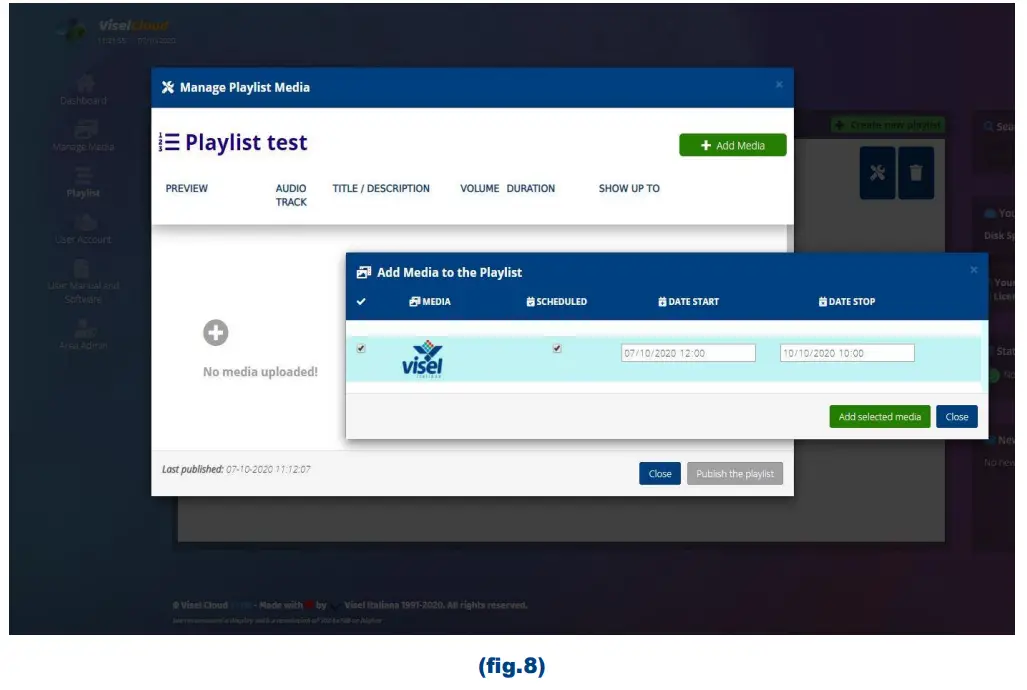 Once the media has been inserted, we will find it in the newly edited Playlist, which will show us the assigned programming date. In the event that the Scheduled option is not enabled (with the relative dates), the system will play the file indefinitely according to the chronological order of inclusion in the Playlist.
The order of reproduction of the media is subordinate to the order of insertion of the media in the Playlist.
The elements can however be reordered by dragging them with the mouse to the desired position.
Delete the Playlist
The Playlist can be deleted by pressing the button present in the Playlist page. It will also delete the media contained within, which will still remain available for other Playlists to which they have been associated.
 User Account
 User Account
In this area, the user can access information relating to their Account. It will be possible to change the Commercial name and the login password using the button located next to the relevant item, and in case of problems, ask for assistance (fig.9). The email associated with the account is unique and therefore cannot be changed by the user, who, however, can request the change directly to Visel Italiana to the email addresses ([email protected]/ [email protected]).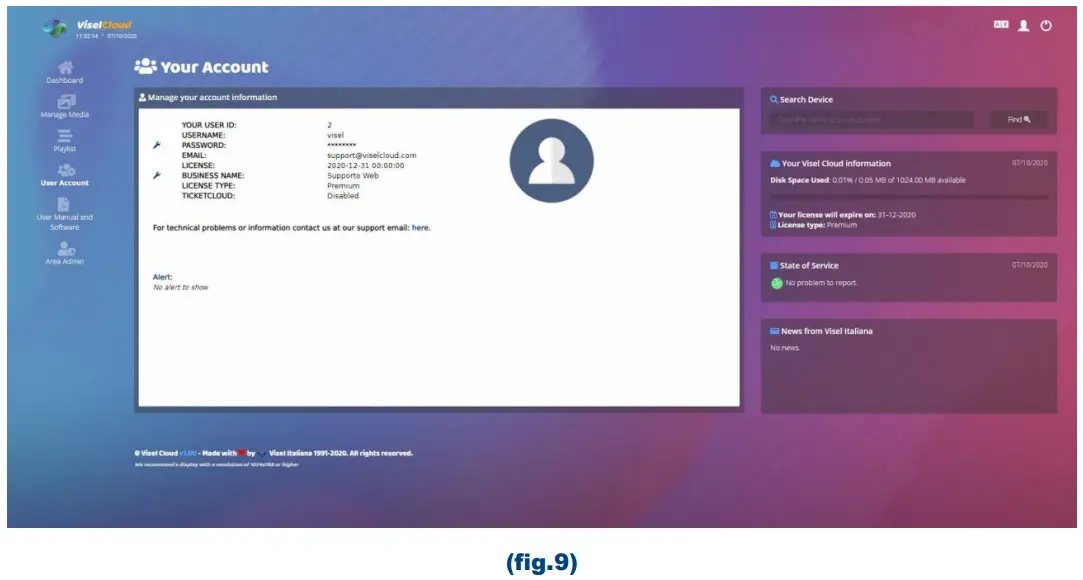
 Manuals and Software
 Manuals and Software
Finally, in the User Manuals and Software area, it will be possible to download the Visel Cloud user manual and the Visel Sync application for device management.
Visel Italiana Srl
Via Maira snc 04100 Latina (LT)
Phone: +39 0773 416058
Email:[email protected]/[email protected]
The document was drawn up on 22/04/2020
Updated on 29/10/2020