
Apps Robustel L2TP App
Revision History
Updates between document versions are cumulative. Therefore, the latest document version contains all updates made to previous versions.
| Release Date | App Version | Doc Version | Details |
| June 06, 2016 | 2.0.0 | v.1.0.0 | First Release |
| June 29. 2018 | 2.0.0 | v.1.0.1 | Revised the company name |
| December 25, 2021 | 2.0.0 | v.1.0.2 | Revised the company name Deleted the document status: Confidential |
Chapter 1
Overview
In computer networking, L2TP (Layer 2 Tunneling Protocol) is a tunneling protocol used to support virtual private networks (VPNs) or as part of the delivery of services by ISPs. It does not provide any encryption or confidentiality by itself. Rather, it relies on an encryption protocol that it passes within the tunnel to provide privacy
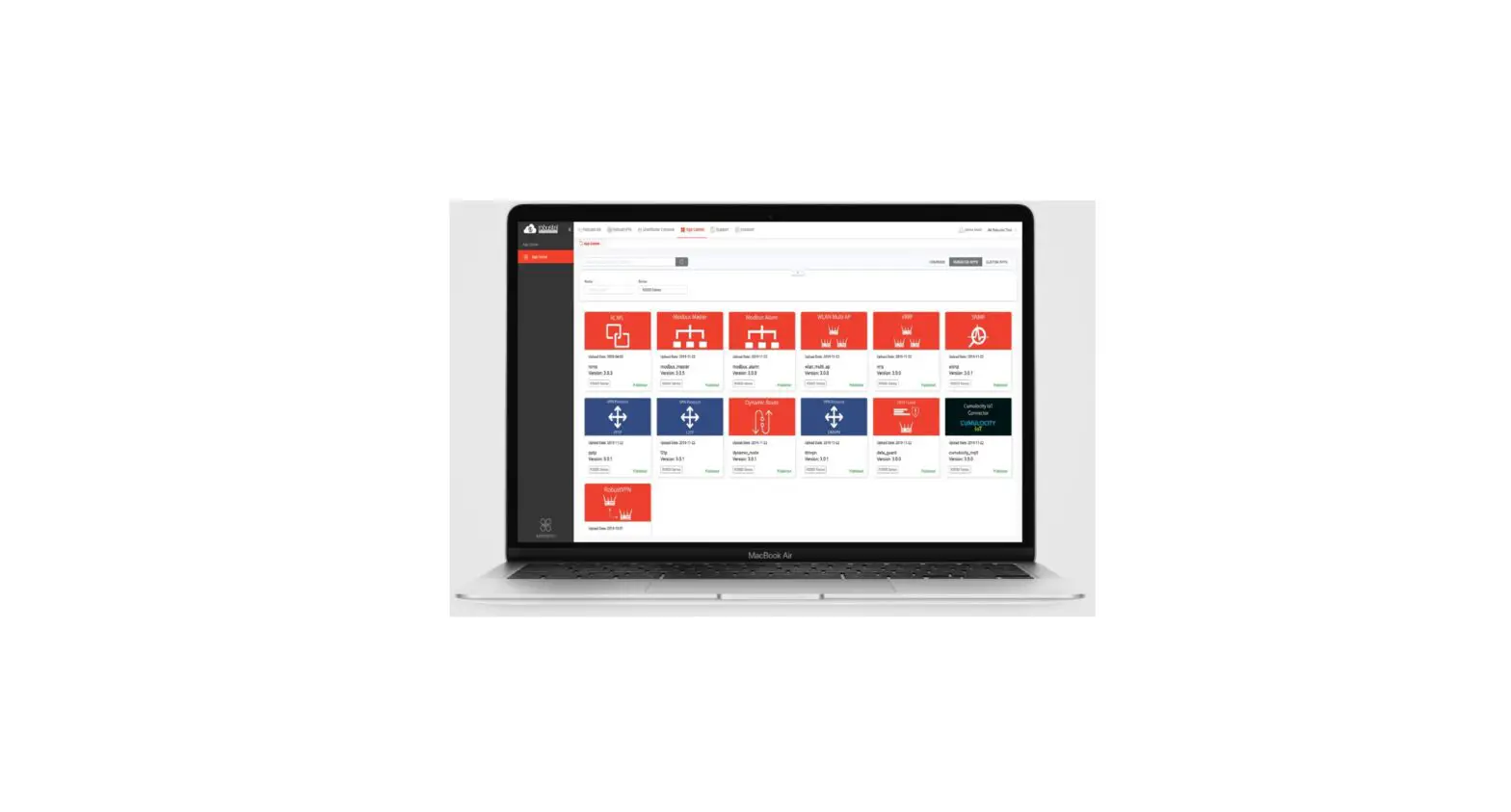
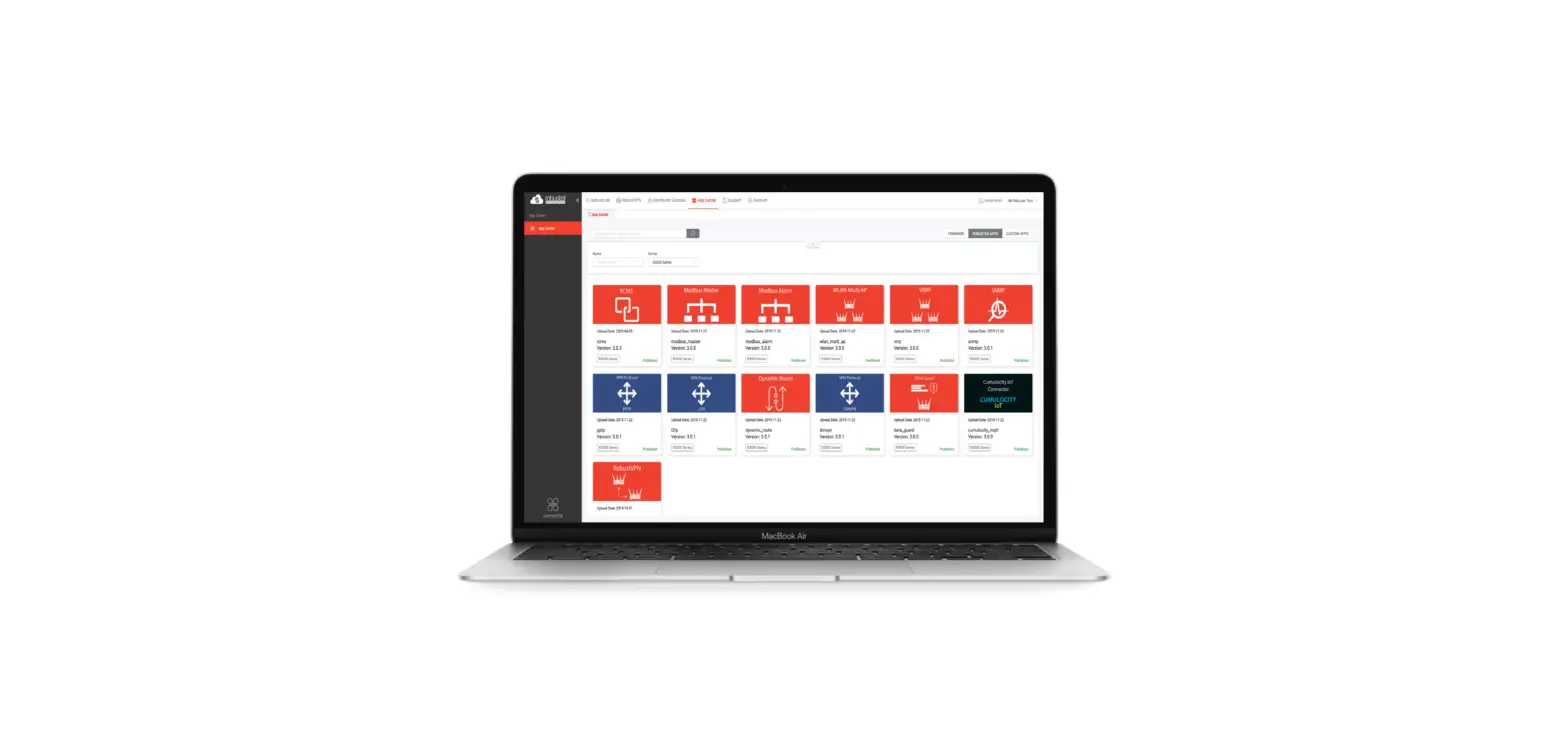
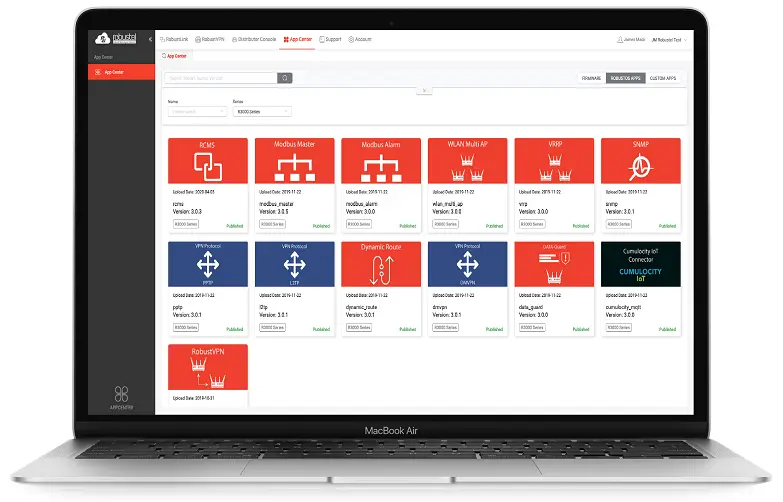
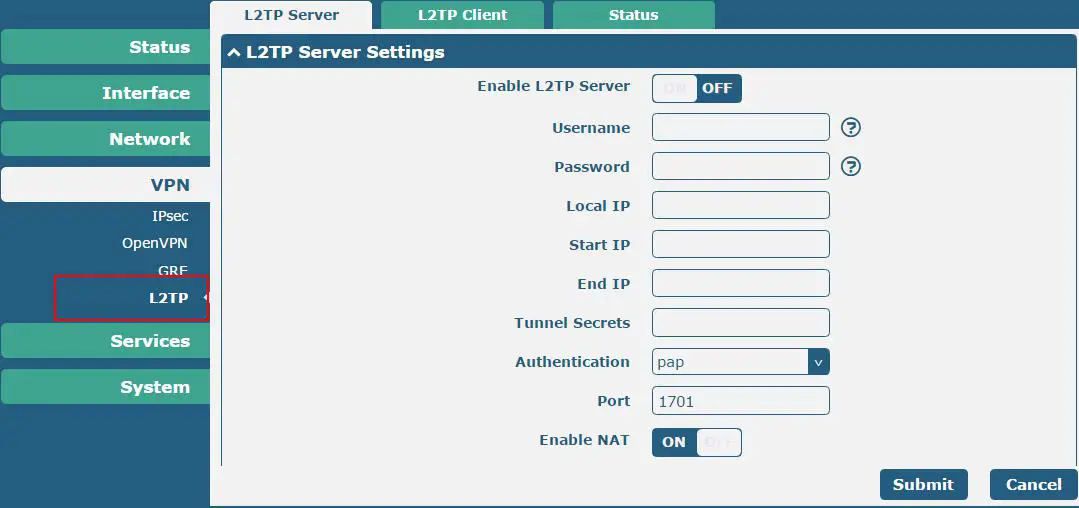
L2TP is an App that needs to install into the router in the System->App Center unit.
Chapter 2
App Installation
Installation
Path: System->App
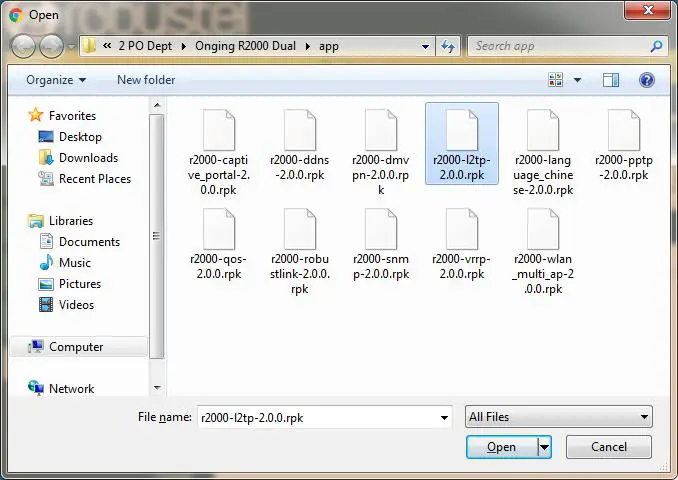
- Please place L2TP App .rpk file (e.g. r2000-l2tp-2.0.0.rpk) into a free disk of PC. And then log in the router configuration page, go to System->App as the following screenshot show.

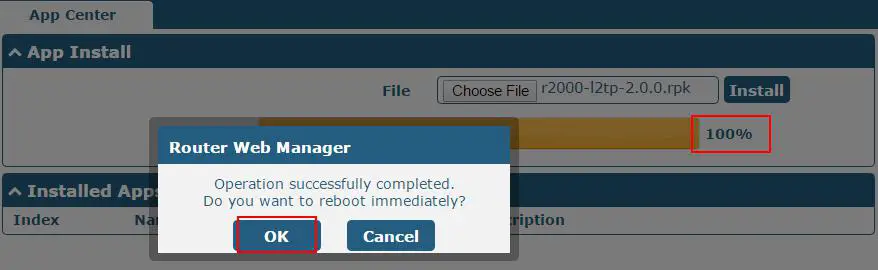
- Click the “Choose File” button, select the L2TP App .rpk file from the PC, then click the “Install” button of the router configuration page.


- When the rate of installation progress reach 100%, the system will pop up a reboot router reminder window. Please click “OK” to make router reboot.

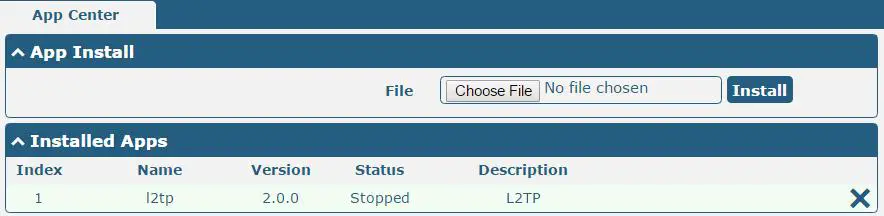
- After the router power on again, log in the configuration page, L2TP will be included in App Center’s “Installed Apps” list, and the function configuration will display in the VPN part.




Uninstallation
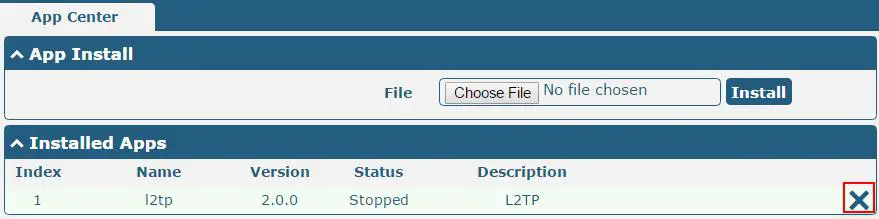
Path: System->App Center
- Go to “Installed Apps”, find L2TP App, and then click.

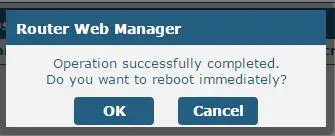
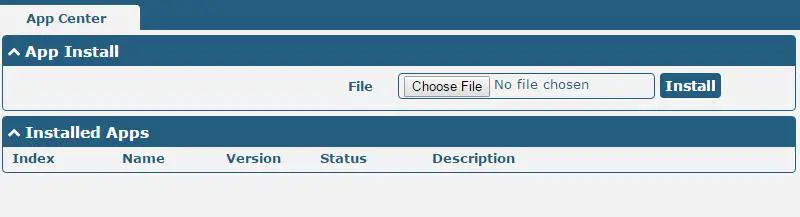
- Click “OK” in the router reboot reminder pop-up window. When the router finish restarting, L2TP had been uninstalled.


Chapter 3
Parameters Description
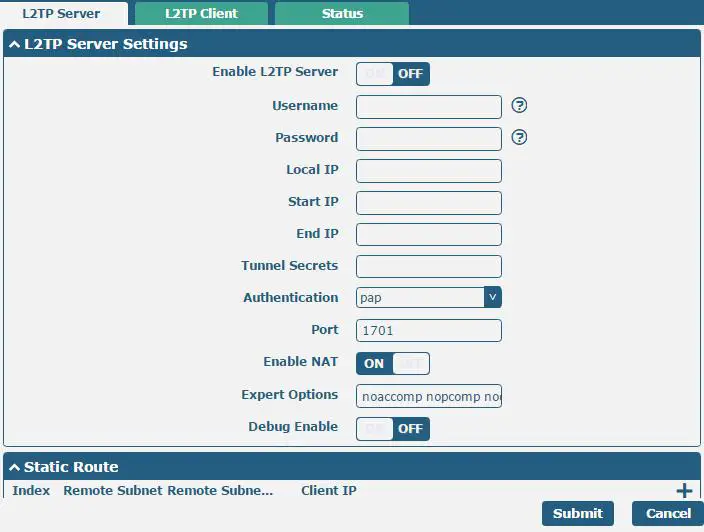
| L2TP Server | ||
| Item | Description | Default |
| Enable L2TP Server | Tick to enable L2TP server. | Disable |
| Username | Set the username which will assign to L2TP client. | Null |
| Password | Set the password which will assign to L2TP client. | Null |
| Local IP | Set the IP address of L2TP server. | 10.0.0.1 |
| Start IP | Set the IP pool start IP address which will assign to the L2TP clients. | 10.0.0.2 |
| L2TP Server | ||
| Item | Description | Default |
| End IP | Set the IP pool end IP address which will assign to the L2TP clients. | 10.0.0.100 |
| Tunnel Secrets | Enter the tunnel secret which will provide to L2TP client. | Null |
| Authentication | Select from “PAP”, “CHAP”, “MS-CHAP v1” and “MS-CHAP v2”. L2TP client need to select the same authentication method based on this server’s authentication method. | CHAP |
| Port | Set the Port number of the L2TP server. | Null |
| Enable NAT | Click to enable NAT feature of L2TP. The remote L2TP client’s source IP will be disguised before accessing router L2TP server | OFF |
| Expert Options | You can enter some other PPP initialization strings in this field. Each string can be separated by a space. | noccp nobsdcomp |
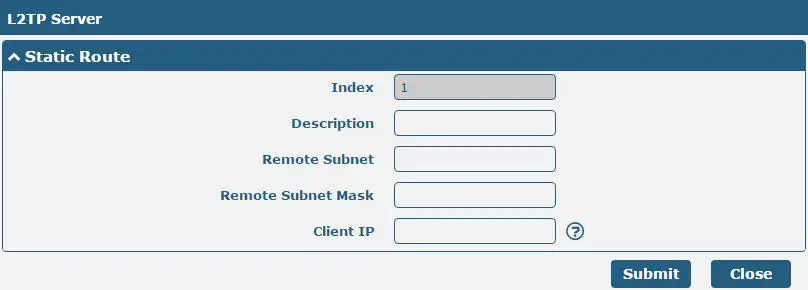
| Remote Subnet @ Static Route | Enter the remote peer’s private IP address or remote subnet’s gateways address. | Null |
| Remote Subnet Mask @ Static Route | Enter the remote peer’s subnet mask. | Null |
| Client IP @Static Route | Specifying the L2TP client IP address. Empty means anywhere. | Null |

Click the “+” symbol to add an L2TP client. The max tunnel accounts are 3.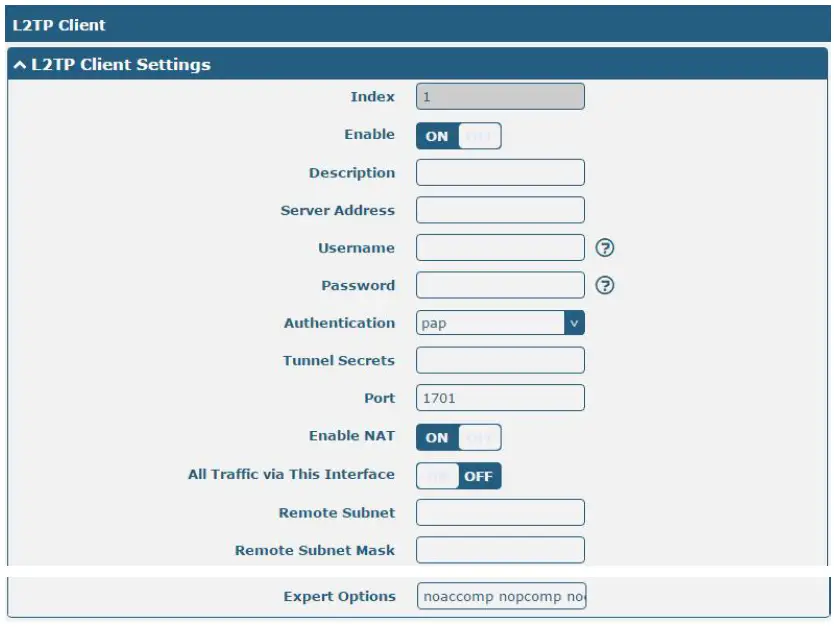
L2TP Client
| L2TP Client | ||
| Item | Description | Default |
| Server Address | Enter your L2TP server’s public IP or domain name. | Null |
| Username | Enter the username which was provided by your L2TP server. | Null |
| Password | Enter the password which was provided by your L2TP server. | Null |
|
Authentication | Select from “Auto”, “PAP”, “CHAP”, “MS-CHAP v1” and “MS-CHAP v2”. You need to select the corresponding authentication method based on the server’s authentication method. When you select “Auto”, router will auto select the correct method based on server. |
Disable |
| Tunnel Secrets | Enter L2TP tunnel secret in this item. | Null |
| Port | Set the Port number of the L2TP client. | Null |
| Enable NAT | Click to enable NAT feature of L2TP. The source IP address of host Behind R3000 will be disguised before accessing the remote L2TP server. | Disable |
| All traffic via this interface | After click to enable this feature, all data traffic will be sent via L2TP tunnel. | Disable |
| Remote Subnet | Enter L2TP remote Protected subnet’s address. | Null |
| Remote Subnet Mask | Enter L2TPremote Protected subnet’s mask. | Null |
| Expert Options | You can enter some other PPP initialization strings in this field. Each string can be separated by a space. | noccp nobsdcomp |
Go to Status to check the L2TP connection status
Guangzhou Robustel Co., Ltd.
- Add: 501, Building 2, No. 63, Yong’an Avenue, Huangpu District, Guangzhou, China 510660.
- Tel: 86-20-82321505
- Email: [email protected].
- Web: www.robustel.com.
 4G/LTE/5G/Cellular Routers, Gateways and Modems for Industrial IoT - Robustel