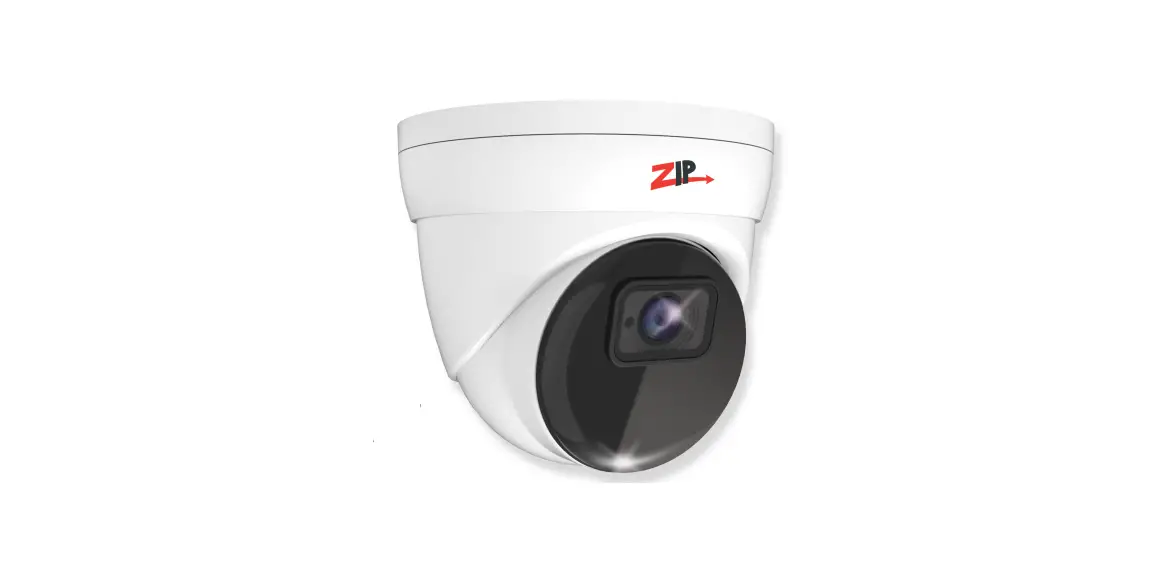
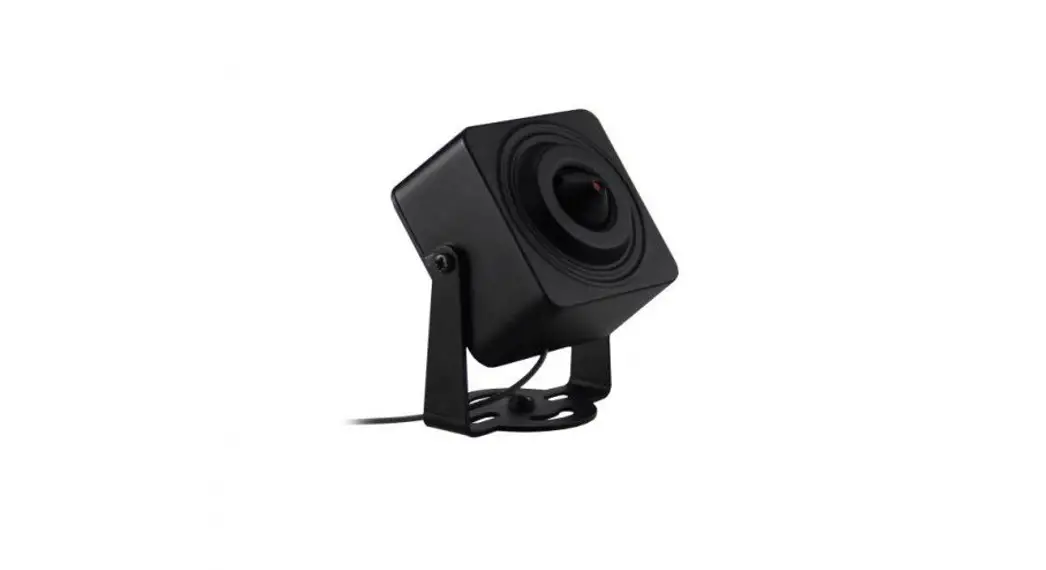
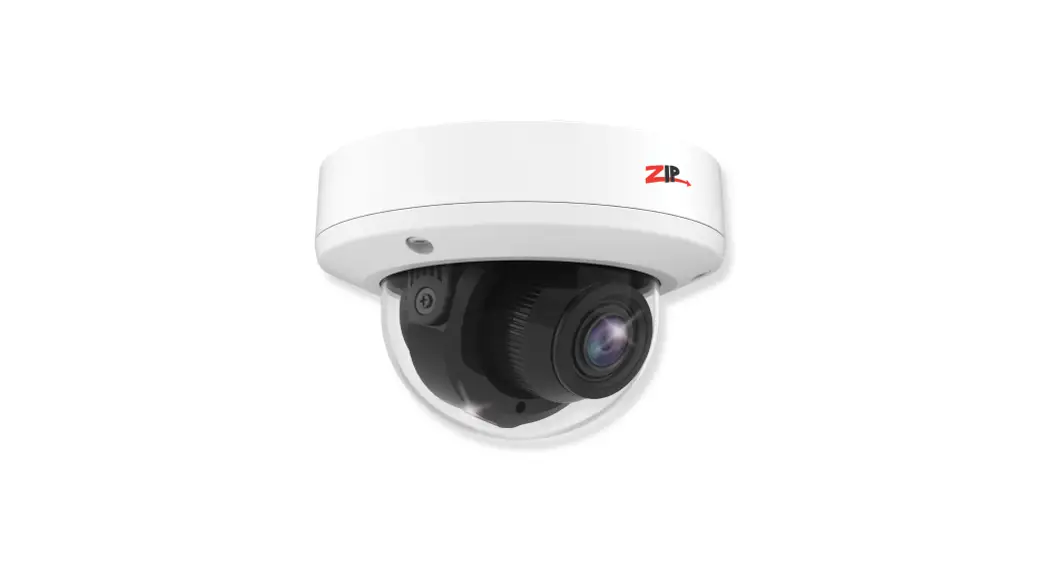
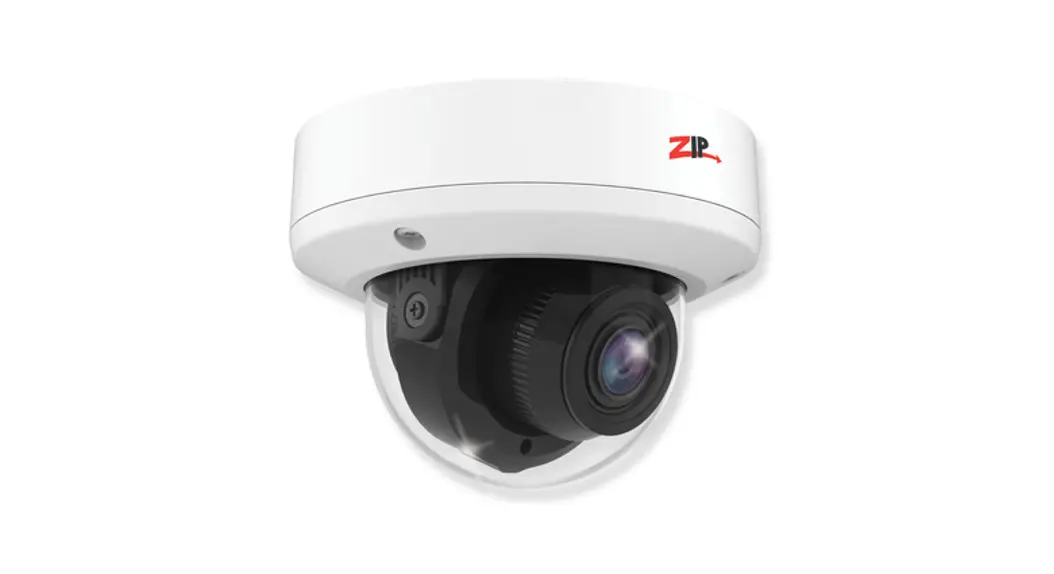
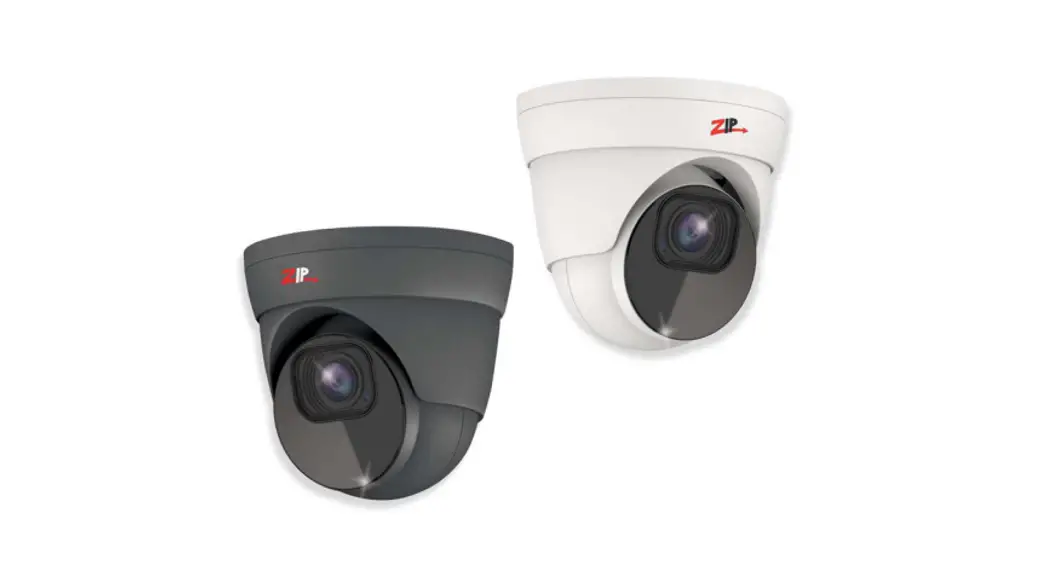
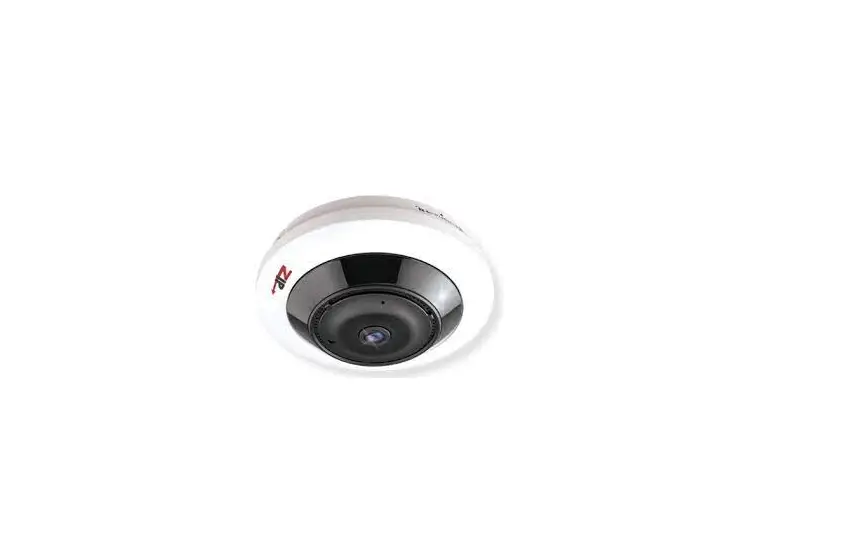
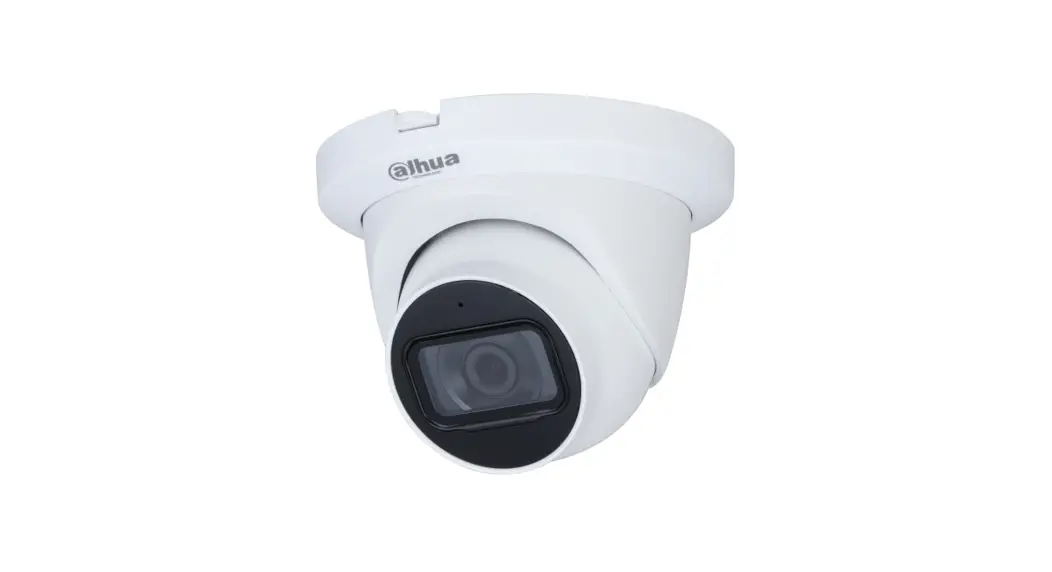
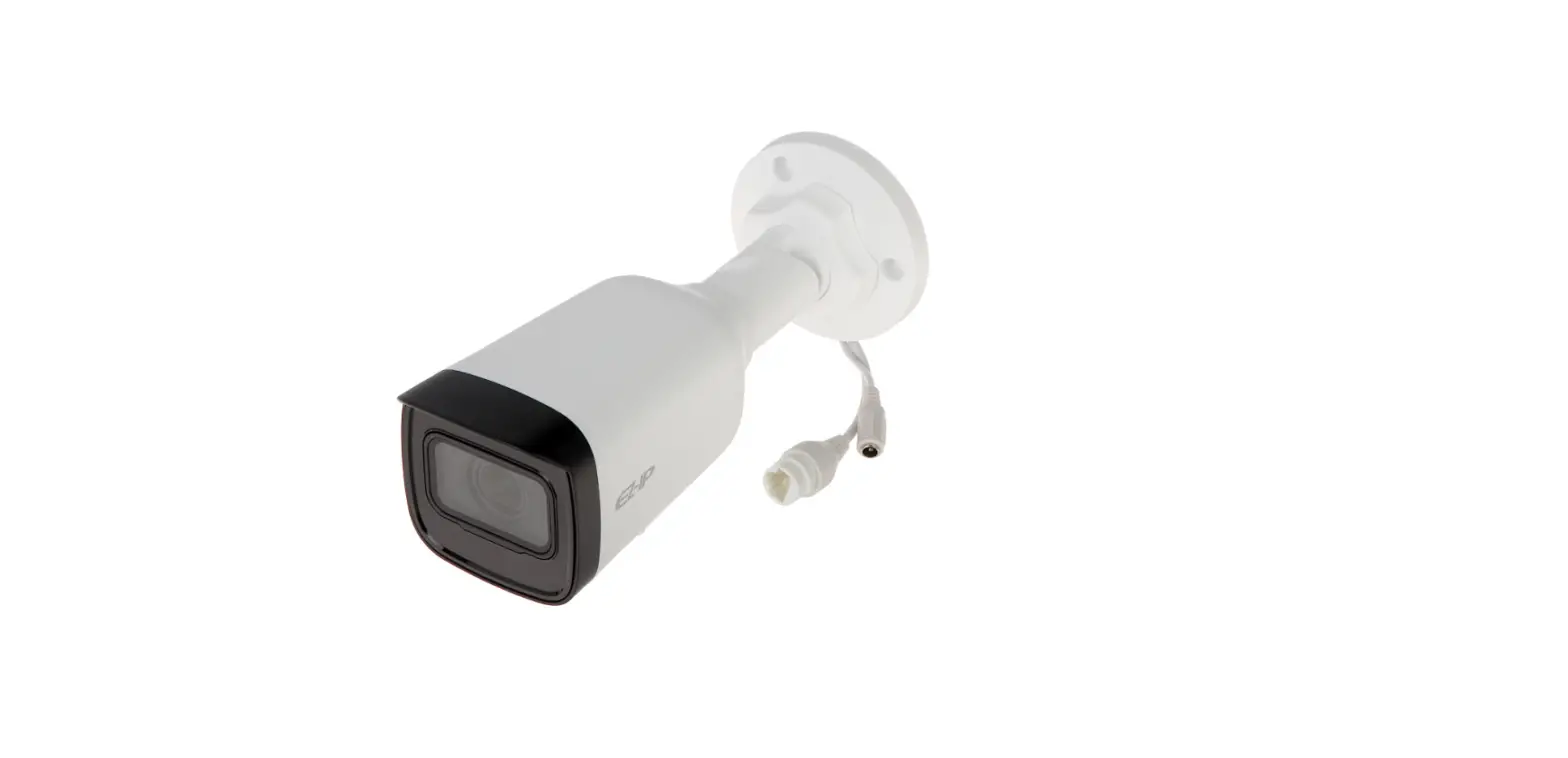
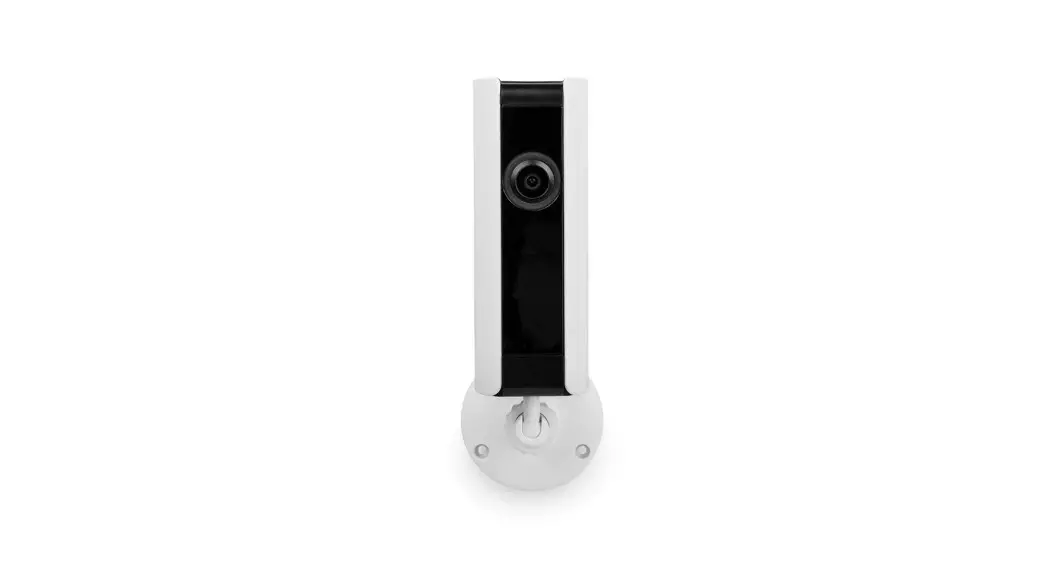
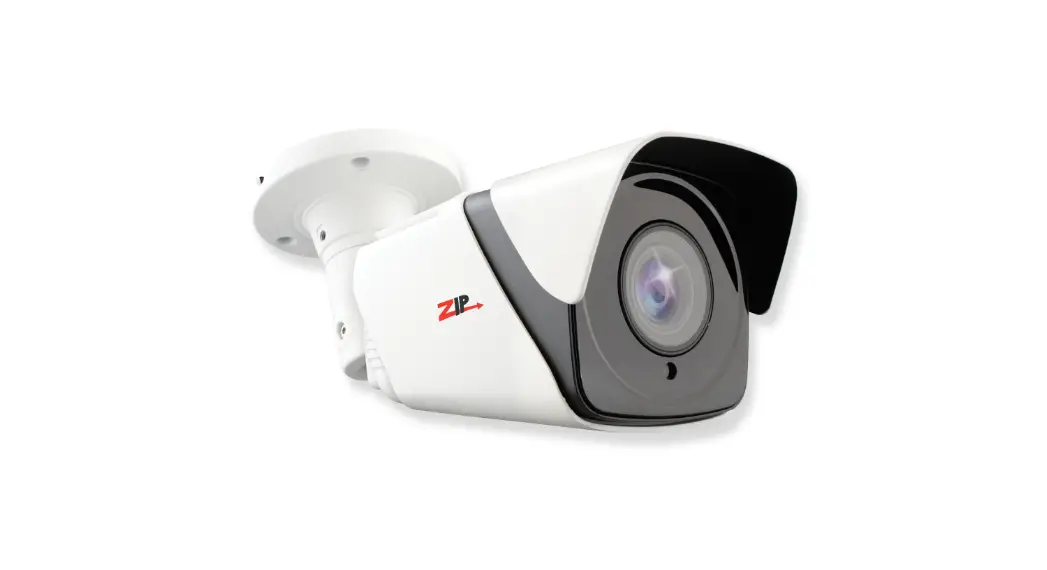
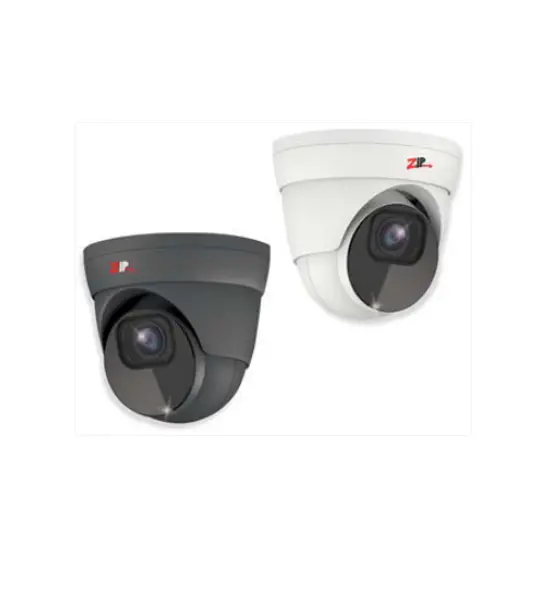
IP-CAM890 IP Eyeball iSense Camera
IP-CAM890 Instruction Manual
Introduction
1.1 Key Features – IP-CAM890
The IP-CAM890 is an attractive compact IP Eyeball with face
recognition and detection. It has a 2.8-12mm IP Eyeball with
iSense.
1.2 Essential Tools and ZipFinder
ZipFinder is a Windows PC software for discovering and
configuring IP cameras on a network. Use ZipFinder on non-PoE
installs, to help problem solving issues such as forgotten or
unknown IP Addresses. To download visit ZipNVR.com.
Connections and Dimensions
2.1 IP-CAM890
The camera can be powered in two ways:
- Option 1 – Power the camera from 12V DC (via the 2.1mm DC
Socket), the current consumption is 750mA. The camera is polarity
sensitive so connections must be correctly made. - Option 2 – Power the camera using a PoE 48V RJ45 Socket. When
connecting ZIP PoE NVR plug the camera directly into the NVRs
built-in PoE switch. The camera should automatically become visible
after being connected for approximately 1 minute.
The dimensions of the camera are:
*Dimensions Exclude Bracket
Mounting and SD Card Installation
For local recording on the camera itself, an SD card must be
installed. Recording time will vary dependent upon SD card size and
encoding settings. The camera can be set to only record when
triggered via motion detection, alarm input or AI smart, this
maximises the recording time achievable. Remove power from the
camera when inserting/removing the SD card.
3.1 Eyeball
A template is provided in the box for marking the hole positions
for the fixing screws.
Setup Options
4.1 PoE ZIP NVR
When connecting to a ZIP PoE NVR plug the camera directly into
the NVR’s built-in PoE switch. The camera should automatically
become visible after being connected for approximately 1 minute.
The 100m distance for a camera can be increased when the PoE Mode
is set to EPoE. In the menu on a ZIP PoE NVR go to: Video > IP
Channels > PoE Mode.
Instruction Manual
IP-CAM890
© 2023 System Q Ltd
ZipNVR.com
IP-CAM890
Table of Contents
Part 1 Introduction
1
1 Key Features – IP-CAM890 ………………………………………………………………………………….. 1 2 Essential Tools and ZipFinder …………………………………………………………………………….. 1
Part 2 Connections and Dimensions
2
1 IP-CAM890 ………………………………………………………………………………………………………. 2
Part 3 Mounting and SD Card Installation
3
1 Eyeball …………………………………………………………………………………………………………… 4
Part 4 Setup Options
5
1 PoE ZIP NVR ……………………………………………………………………………………………………. 5 2 Non-PoE ZIP NVR ……………………………………………………………………………………………… 6
Part 5 How to Login via Browser
7
Part 6 Browser Menu Settings
9
1 IP-CAM890 ………………………………………………………………………………………………………. 9
Part 7 Extra Resources
20
1 ZipNVR.com Website ………………………………………………………………………………………. 20 2 Adding IP Cameras to a ZIP recorder ………………………………………………………………… 20 3 AI Setup ………………………………………………………………………………………………………… 20 4 ZIP Firmware …………………………………………………………………………………………………. 21
Part 8 General Maintenance
22
Part 9 Specifications
23
1 IP-CAM890 ……………………………………………………………………………………………………… 23
Part 10 Conditions
24
Index
25
© 2023 System Q Ltd
I
ZipDVR.com
Introduction
1.1 Key Features – IP-CAM890
Attractive Compact IP Eyeball with Face Recognition & Detection 2.8-12mm IP Eyeball With iSense
· ANPR Built-in · Facial Recognition* · Micro SD Card Slot · Audio In – Audio Out · Human Detect & Vehicle Detect · Perimeter Intrusion Detect · Line Crossing Detection · Stationary Object Detect · Cross Counting · Facial Recognition* · Crowd Density Detect · Queues Length Detect · 2.8-12mm Motor lens · 5MP · IR · Perfect for ZIP NVR Kits
1.2 Essential Tools and ZipFinder
To install this product you will need: · Laptop / Windows PC · Screwdriver · Drill · Hammer · ZIP NVR or DVR · PoE Switch / 12V DC power supply · Ethernet CAT5/5e/6 Cable
ZipFinder – IP Camera Configuration Tool
ZipFinder is a Windows PC software for discovering and configuring IP cameras a network.
Use ZipFinder on non-PoE installs, to help problem solving issues such as forgotten or unknown IP Addresses.
To download visit ZipNVR.com
© 2023 System Q Ltd
ZipDVR.com
Index 1
IP-CAM890
Connections and Dimensions
2.1 IP-CAM890
Powering the camera
Option 1 – Power the camera from 12V DC (via the 2.1mm DC Socket), the current consumption is 750mA.
The camera is polarity sensitive so connections must be correctly made.
Option 2 – Power the camera using a PoE 48V RJ45 Socket
When connecting ZIP PoE NVR plug the camera directly into the NVRs built in PoE switch.
The camera should automatically become visible after being connected for approximately 1 minute.
09/05/2023
2
ZipDVR.com
Dimensions
Index
*Dimensions Exclude Bracket
Mounting and SD Card Installation
For local recording on the camera itself an SD card must be installed.
Recording time will vary dependent upon: SD card size and encoding settings
32GB SD Card 31 hours 64GB SD Card 62 hours 128GB SD Card (MAX) 124 hours 256GB SD Card (MAX) 248 hours
The camera can be set to only record when triggered via motion detection, alarm input or AI smart, this maximises the recording time achievable.
Remove power from the camera when inserting / removing the SD card.
© 2023 System Q Ltd
ZipDVR.com
3
IP-CAM890
3.1 Eyeball
A template is provided in the box for marking the hole positions for the fixing screws.
09/05/2023
4
ZipDVR.com
Index
Setup Options
4.1 PoE ZIP NVR
When connecting to a ZIP PoE NVR plug the camera directly into the NVR’s built in PoE switch. The camera should automatically become visible after being connected for approximately 1 minute. The 100m distance for a camera can be increased when the PoE Mode is set to EPoE. In the menu on a ZIP PoE NVR go to:Video > IP Channels > PoE Mode
© 2023 System Q Ltd
ZipDVR.com
5
IP-CAM890
4.2 Non-PoE ZIP NVR
When connecting cameras to a Non-PoE NVR, they are first connected to an external network switch which is in-turn connected to the NVR as shown below.
See Extra Resources 20 for more information on Adding IP Cameras manually to a ZIP Recorder.
09/05/2023
6
ZipDVR.com
Index
How to Login via Browser
The AI smart features can be configured in a ZIP recorder or directly in the browser interface of the camera (standalone)
Only one smart detection feature can be enabled at any given time.
See the NVR or DVR manual for information on configuring these features with a ZIP recorder.
Follow the steps below for configuring the settings directly in the camera via a browser for standalone setup.
You will need…
· Windows Based PC/ Laptop connected to router/ PoE switch · ZipVision Pro App on Mobile Device · PoE Switch connected to Network/ Router · Ethernet network cable · ZipFinder software, available via this link below:-
www.softcctv.com/store/Item/Zip-Finder-IP-CCTV-Security-Camera-Discovery-Tool
NOTE If the PC being used is on a different IP range to the PC then add the IP range of the camera to the PC using the below guide:-
PDF Version :- http://www.cctvmanuals.com/pdf/tips/How_to_add_an_IP_Range.pdf HTML Version :http://www.cctvmanuals.com/tips/How_to_add_an_IP_Range/index.html
1. Plug the camera’s RJ45 port with a network cable into a PoE switch
© 2023 System Q Ltd
ZipDVR.com
7
IP-CAM890
2. Using ZipFinder on a Windows Based PC/ Laptop Search and then tick the camera
3. Select Net Mode = DCHP, then click Modify
4. Search again, to get the updated IP address.
5. Select the IP address of the camera, Internet Explorer will pop-up, and ask to download and install the plug-in.
6. Download, install and follow the steps for the plug-in installation, then re-load the browser by selecting the IP address again.
5. Login to the IP Camera, the default login details are:-
Default IP DCHP
User Name Password
192.168.10.1 Off
admin 777777
09/05/2023
8
ZipDVR.com
Index
Browser Menu Settings
6.1 IP-CAM890
The menu be configured directly in the browser interface of the camera (standalone), in Remote Setting you will find the menu settings below:-
Channel
Live Image Control
Name
Customise Name
Date Format DD/MM/YYYY / MM/DD/YYYY /
YYYY/MM/DD
Time Format 24Hour / 12Hour
Flicker Control 50Hz / 60Hz
Transparency 1 ~ 128 (Default 64)
Show Name Untick / Tick
Show Time Untick / Tick
Refresh / Save
IR-CUT Mode Automatic Mode / Colour
Mode / Black White Mode /
Image Mode / Schedule
Corridor Mode Disable / Enable
Angle Trad 180 / 0
Mirror
Disable / Vertical / Horizontal / All
Exposure
Disable / HLC / BLC / WDR
Compensation
White Balance Automatic Mode / Manual
Privacy Mask ROI
Shutter
Automatic Mode / Manual
Time Exposure 1/5 / 1/8 / 1/15 / 1/25 / 1/50 /
1/100 / 1/150 / 1/180 / 1/200 /
1/240 / 1/250 / 1/300 / 1/360 /
1/480 / 1/500 / 1/600 / 1/700 /
1/1000 / 1/1500 / 1/2500 / 1/5000
/ 1/10000 / 1/12000 / 1/20000
3D Noise
Auto / Disable / Manual
Reduction
Refresh / Save / Default
Privacy Mark Untick / Tick
Refresh / Save
Stream Type MainStream / SubStream /
MobileStream
Region ID
1 ~ 8
Enable Region Disable / Enable
ROI Level
Lowest / Lower / Low / Medium /
Higher / Highest
Non-ROI Fps (1- 12
19)
Refresh / Save
© 2023 System Q Ltd
ZipDVR.com
9
IP-CAM890
Record
10
Encode
Mainstream Substream
Resolution
2880 x 1620 /
2560 x 1440 /
2304×1296 /
1920×1080 /
1280 x 720 /
1280×720
FPS
1 ~ 25 (Default
25)
Video Code H.265 / H.264
Type
Video Code Main Profile
Level
Bitrate Control CBR / VBR
Bitrate
256 / 320 / 384 /
448 / 512 / 640 /
768 / 896 / 1024
/ 1280 / 1536 /
1792 / 2048 /
3072 / 4096 /
5120 / 6144 /
8192
I Frame Interval 1 ~ 100 (Default
50)
Audio
Enable /
Disable
Refresh / Save
Resolution
1280×720 /
640×480 /
320×240
FPS
1 ~ 20 (Default
20)
Video Code H.265 / H.264
Type
Video Code Main Profile
Level
Bitrate Control CBR / VBR
Bitrate Mode Predefined /
User Defined
Bitrate
128 / 160 / 192 /
224 / 256 / 320 /
384 / 448 / 512 /
768 / 1024 /
1536 / 2048 /
3072 / 4096
Audio
Untick / Tick
I Frame Interval 1 ~ 80 (Default
50)
Refresh / Save
ZipDVR.com
09/05/2023
Event
© 2023 System Q Ltd
Record / Capture Schedule Setup
Alarm
Index
Mobilestream Enable
Enable /
Disable
Resolution
640×480 /
320×240
FPS
1 ~ 20 (Default
20)
Video Code H.265 / H.264
Type
Video Code Main Profile
Level
Bitrate Control CBR / VBR
Bitrate Mode Predefined /
User Defined
Bitrate
128 / 160 / 192 /
224 / 256 / 320 /
384 / 448 / 512 /
768 / 1024 /
1536 / 2048 /
3072 / 4096
Audio
Untick / Tick
I Frame Interval 1 ~ 80 (Default
50)
Refresh / Save
Stream Mode MainStream / SubStream
Record
Tick / Untick
PreRecord Tick / Untick
Customise Schedule
Refresh / Save / Default
Motion
Enable
Enable /
Disable
Sensitivity
1 ~ 8 (Default 3)
Sound
Enable
Enable /
Detection
Disable
Rise
Disable /
Enable
Rise Sensitivity 1 ~ 100 (Default
50)
Sound Intensity 1 ~ 100 (Default
50)
Decline
Disable /
Enable
Decline
1 ~ 100 (Default
Sensitivity
50)
Save / Schedule / Refresh
Motion
Latch Time 5s / 10s / 20s /
30s
Post Recording OFF / 5s / 10s /
20s / 30s
ZipDVR.com
11
IP-CAM890
AI Setup
Event Push
FD (Face Detection)
Send Email Enable /
Disable
FTP Picture Enable /
Upload
Disable
Cloud Picture Enable /
Disable
Alarm Out
Enable /
Disable
Enable Record Enable /
Disable
Event Report Enable /
Disable
Save / Schedule / Refresh
Sound
Alarm Type OFF / Normally-
Detection
Open / Normally-
Close
Latch Time 5s / 10s / 20s /
30s
Post Recording OFF / 5s / 10s /
20s / 30s
Send Email Enable /
Disable
FTP Picture Enable /
Upload
Disable
Cloud Picture Enable /
Disable
Alarm Out
Enable /
Disable
Enable Record Enable /
Disable
Event Report Enable /
Disable
Save / Schedule / Refresh
Enable
Enable / Disable
Name
Customise
Push Way
HTTP / UDP
Username
Customise
Password
Customise
Server Address Customise
Port
Customise (Default 123)
URL
API/AlarmEvent/EventPush
Method
POST / GET
Interval
OFF / 1 Min / 5 Min / 10 Min
Save / Refresh
Enable
Enable / Disable
Dynamic
Enable / Disable
Marking
09/05/2023
12
ZipDVR.com
© 2023 System Q Ltd
Index
Face Enhance Optimal Mode / Realtime Mode /
Interval Mode
Apply Mode Frontal View / Multi View /
Customize
Min Pixel
32 ~ 1080 (Default 64)
Max Pixel
320 ~ 1080 (Default 640)
Detection Mode Static Mode / Motion Mode
Rule Kind
Rect / Line
Detection
Full Screen / Customize
Range
Save / Refresh
PD & VD
Enable
Enable / Disable
(Person & Vehicle Detection)
Sensitivity
Dynamic Marking
0 ~ 100 (Default 60) Enable / Disable
Snap Mode Default / Realtime Mode / Interval
Mode
Min Pixel
64 ~ 1080 (Default 64)
Max Pixel
320 ~ 1080 (Default 640)
Detection Type Pedestrian & Vehicle / OFF /
Person / Vehicle
Detection Mode Motion Mode / Static Mode
Detection
Full Screen / Customize
Range
Save / Refresh
PID (Perimeter Enable
Enable / Disable
Intrusion Detection)
Sensitivity Dynamic
1 to 4 (Default 2) Enable / Disable
Marking
Detection Type Motion / Pedestrian & Vehicle /
Person / Vehicle
Rule Number 1 to 4
Rule Enable Enable / Disable
Rule Type
A B/
/
B
Save / Refresh
LCD (Line
Enable
Enable / Disable
Crossing Detection)
Sensitivity Dynamic
1 to 4 (Default 2) Enable / Disable
Marking
Detection Type Motion / Pedestrian & Vehicle /
Person / Vehicle
Rule Number 1 to 4
Rule Enable Enable / Disable
Rule Type
A B/
/
B
Save / Refresh
SOD (Stationary Enable
Enable / Disable
Object
ZipDVR.com
13
IP-CAM890 14
Detection)
Sensitivity
1 to 4 (Default 2)
Dynamic
Enable / Disable
Marking
Rule Number 1 to 4
Rule Enable Enable / Disable
Rule Type
Legacy / Lost / Lost & Legacy
Save / Refresh
CC (Cross
Enable
Enable / Disable
Counting)
Sensitivity
1 to 4 (Default 2)
Dynamic
Enable / Disable
Marking
Type
Person / Motion / Vehicle
Alarm Number 1 to 255
Start Time
User definable
End Time
User definable
Rule Number 1
Rule Enable Enable / Disable
Rule Type
/B A
Save / Refresh / Reset Count
HM (Heat Map) Enable
Enable / Disable
Rule Number 1
Rule Enable Enable / Disable
Save / Refresh
CD (Crowd Enable
Enable / Disable
Density)
Sensitivity
1 to 4 (Default 2)
Dynamic
Enable / Disable
Marking
Min Pixel
64 ~ 1080 (Default 64)
Max Pixel
320 ~ 1080 (Default 640)
Max Detection 1 ~ 500 (50)
Number
Detection
Customize / Full Screen
Range
Rule Number 1
Rule Enable Enable / Disable
Save / Refresh
QD (Queue Enable
Enable / Disable
Depth)
Sensitivity
1~ 4 (Default 60)
Dynamic
Enable / Disable
Marking
Min Pixel
64 ~ 1080 (Default 64)
Max Pixel
320 ~ 1080 (Default 640)
Max Detection 1 ~ 500 (50)
Number
Max Pro Time 1 ~ 3600 (60)
Detection
Customize / Full Screen
Range
ZipDVR.com
09/05/2023
© 2023 System Q Ltd
Index
Rule Number 1
Rule Enable Enable / Disable
Save / Refresh
LPD (License Enable
Enable / Disable
Plate Detection) LDP Enhance Enable / Disable
Day Time Level 0~ 255 (Default 220)
Night Time 0~ 255 (Default 99)
Level
Sensitivity
1~ 100 (Default 60)
Dynamic
Enable / Disable
Marking
Snap Mode Default / Realtime Mode / Interval
Mode
Min Pixel
64 ~ 1080 (Default 64)
Max Pixel
320 ~ 1080 (Default 640)
Detection Type European license plate /
American license plate
Detection Mode Static Mode / Motion Mode
Detection
Customize / Full Screen
Range
Save / Refresh
RSD (Rare Enable
Enable / Disable
Sound Detection)
Sensitivity
1~ 100 (Default 60)
Detection Type Baby Crying Sound / Dog
Barking / Gunshot
Save / Refresh
AI Schedule Customise Schedule
Save / Refresh
Alarm – FD / Post Recording OFF / 5s / 10s / 20s / 30s
LPR / PD&VD / Send Email PID / LCD / FTP Picture SOD / CC / CD /Upload QD / LPD / RSD Cloud Picture
Enable / Disable Enable / Disable
Enable / Disable
Alarm Out
Enable / Disable
Enable Record Enable / Disable
Event Report Enable / Disable
Save / Schedule / Refresh
Statistics
Human &
Select Date & Day / Intelligent /
Vehicle
Search / Export
Detection
Cross Counting Daily Report / Weekly Report /
Statistics –
Monthly Report / Annual Report
Report Type
Detection Type Motion / Person / Motor Vehicle /
Non-motorised Vehicle
Cross Type Cross In / Cross Out
System Time Select Date
ZipDVR.com
15
IP-CAM890
Network
16
General
PPPoE SNMP Port Configuration
Column Chart / Line Chart
Heat Map
Daily Report / Weekly Report /
Statistics Monthly Report / Annual Report Report Type
Date
Customise
Start Hour
Customise
End Hour
Customise
Space Heat Map /Time Heat Map
Spatial Density Legend
Search
DHCP
Enable / Disable
IP Address 192.168.10.1 Test
Subnet Mask 255.255.255.0
Gateway
192.168.10.254
IPv6 DHCP –
IPv6 Address –
IPv6 Gateway –
DNS 1
192.168.10.254
DNS 2
–
IPv6 DNS 1 192.168.10.254
IPv6 DNS 2 –
Multicast Main Enable / Disable
stream
Video
Enable / Disable
Encryption
Transmission
Save / Refresh
Enable PPPoE Enable / Disable
Username
User-definable
Password
IP Address
Save / Refresh
Enable
Enable / Disable
SNMP Version User-definable
SNMP Port
Read
Community
Write
Community
Trap IP Address
Trap Port
Save / Refresh
HTTP Port
Enable / Disable
Client Port
User-definable
HTTPS Port
RTSP Port
Muticast Port 1024 65535
P2P Enable Enable / Disable
ZipDVR.com
09/05/2023
Storage
Index
Email
FTP Settings
RTSP Port DDNS HTTPS IP Filter Disk Audio
Save / Refresh
Enable / Disable
Encryption
Disable / SSL / TLS / Auto
SMTP Port 25 / Customise
SMTP Server Customise
User Name
Password
Sender Email
Receiver1
Receiver2
Receiver3
Interval
1Min / 3Min / 5Min / 10Min
Refresh / Save / Test
FTP Enable Untick / Tick
Server
Customise
Port
21 / Customise
Username
Customise
Password
DIR Name
Transfer Images Untick / Tick
Refresh / Save
RTSP
Tick / Untick
RTSP Port 1240 / Customise
Anonymous Untick / Tick (No username or
Login
password required)
Instruction: rtsp://IP:Port/ch01/A A:0(MainStream),
1(SubStream), 2(MobileStream)
Refresh / Save
DDNS
Untick / Tick
Server
NO_IP / DYNDNS
Host Name Customise
Username
Password
Refresh / Save
Certificate Type Default / Custom
Refresh / Save
Enable
Enable / Disable
Filter Mode Allow all IP connections / Allow
the selected IP connections /
Block the selected IP connections
Refresh / Save
Disk Information
Refresh / Save / Format Hard Disk
Enable Audio Tick / Untick
Output Volume 0 ~ 10 (Default 5)
Input Volume 0 ~ 10 (Default 5)
© 2023 System Q Ltd
ZipDVR.com
17
IP-CAM890
System
18
Cloud General
Multi-User Maintain
Audio Code G711A / G711U / G726 16K
Type
Refresh / Save
Cloud Storage Enable / Disable
Cloud Type Dropbox
Driver Name Customise (Default IP-
PTZ650W)
Refresh / Save / Activate Cloud
Date and Time Time Setting Static / NTP
mode
server
synchronization
Date Format Day/Month/Year
Year-Month-Day
Month/Day/Year
Time Zone
GMT -12:00 to
GMT + 13:00
Time Format 24Hour / 12
Hour
System Time User-definable
Server Address Time.windows.c
om /
time.nist.gov /
pool.ntp.org /
Define User
Save / Synchronize computer
time / Refresh
Daylight Saving Daylight saving Enable / Disable
Time
time
Start Time
User-definable
End Time
User-definable
Time Offset 1Hour / 2 hours
Save / Refresh
Customize EachPassword (Edit) Username
user
Password
Password
Strength
Confirm
Refresh
Log
Log Type
System / CON. /
Alarm /
Account /
Record /
Storage /
Network / All
Start Time
User-definable
End Time
User-definable
Load Default All / Video / Record/ Event / AI /
Network/ Storage / System
Save / Refresh
ZipDVR.com
09/05/2023
Index
Information
Upgrade Save / Load
Auto Reboot
Path
Import File
Export File Name Automaintenance Time
Device ID Device Name Device Type Hardware Version Software Version Web Version Mac Address P2P ID Refresh
Search Local Files Search Local Files Search Local Files Enable / Disable
Date / Week / Month Mon / Tues / Wed / Thur / Fri / Sat / Sun Time Save / Refresh / Reboot
© 2023 System Q Ltd
ZipDVR.com
19
IP-CAM890
Extra Resources
7.1 ZipNVR.com Website
The Zip NVR has a range of information on the cameras and NVRs, manuals, software, tools and support:www.zipdvr.com
7.2 Adding IP Cameras to a ZIP recorder
How to guide on Adding IP Cameras:www.zipdvr.com/howto/TIP459-How-To-Add-IP-Cameras.html
7.3 AI Setup
See the ZIP NVR full manual for more information on AI setup; Note: AI Features will vary depending on model Full Instruction Manual
https://systemq.com/PDF/manual/xZIP4.pdf
20
ZipDVR.com
09/05/2023
7.4 ZIP Firmware
Firmware for the zip products are available online:www.zipdvr.com/firmware.html Compare the firmware in the product against that available online.
Index
© 2023 System Q Ltd
ZipDVR.com
21
IP-CAM890
General Maintenance
· Routinely clean the camera to prevent dust build up as this can effect the performance of the camera. It is recommended to use a damp non-abrasive microfibre cloth.
· Routinely check the connections for power and data to ensure no water ingress and corrosion.
· Check that the cameras are firmly attached to the wall or mounting bracket. · Check playback in the recorder to ensure the camera is recording and triggering
properly.
09/05/2023
22
ZipDVR.com
Index
Specifications
9.1 IP-CAM890
Image Sensor Resolution Lens Type Shutter Day/Night Min. Illumination IR Range Digital Noise Reduction Video Compression Video Bitrate Stream Options Smart Feature
System Compatibility Connection SD Card Audio (RCA) Input Voltage Consumption Operating Temperature Backlight Control Use Framerate
1/ 2.7″ Progressive CMOS 5MP 2880(H)×1620(V) 2.8-12mm Motorised 1/5 ~ 1/20000s
Mechanical (True Day-Night) 0 (With IR On) Up to 40m 3D DNR
H.264 / H.265
8Kbps ~ 8Mbps Mainstream, SubStream & MobileStream Perimeter Intrusion, Line Crossing, Pedestrian and Vehicle Detection, Facial Detection, Facial Recognition, Licence Plate
Detection ONVIF (Profile S, Profile G, Profile T)
RJ45 10M / 100M Ethernet PoE Micro SD Card Slot (up to 256GB)
1 Input / 1 Output PoE or 12V DC 750mA (PSU Required)
9W Max From -30 to 55 deg°C
BLC / D-WDR
IP66 For External Use 25fps (@50hz) / 30fps (@60hz)
© 2023 System Q Ltd
ZipDVR.com
23
IP-CAM890
Conditions
All specifications are approximate. System Q Ltd reserves the right to change any product specifications or features without notice. Whilst every effort is made to ensure that these instructions are complete and accurate, System Q Ltd cannot be held responsible in any way for any losses, no matter howthey arise, from errors or omissions in these instructions, or the performance or non-performance of the equipment that these instructions refer to.
This symbol on the products and/or accompanying documents means that used electronic equipment must not be mixed with general household waste. For treatment, recovery and recycling please return this unit to your trade supplier or local designated WEE/CG0783SS collection point as defined by your local council.
© Copyright 2020 NiteDevil is a registered trademark of System Q Ltd, Chesterfield. Derbyshire. S40 2WB
09/05/2023
24
ZipDVR.com
Index
– C –
Checking and cleaning the camera 22
– D –
Download 1
– E –
Extra Resources and help 20 Extras 1
– I –
Installation 3
– L –
Login via browser interface 7
– M –
Maintenance 22
– R –
Recording 3
– S –
SD Card 3 Setup and Connection Options 5 Software 1 Specification 23
– T –
Tools 1
– Z –
ZipFinder 1
© 2023 System Q Ltd
ZipDVR.com
Index 25
 pool.ntp.org: the internet cluster of ntp servers
 How to add an IP Range to a Windows PC
 Zip Finder - IP Camera Discovery Tool - SoftCCTV.com
 ZipNVR: Home
 ZipNVR: Home
 Zip Finder - IP Camera Discovery Tool - SoftCCTV.com