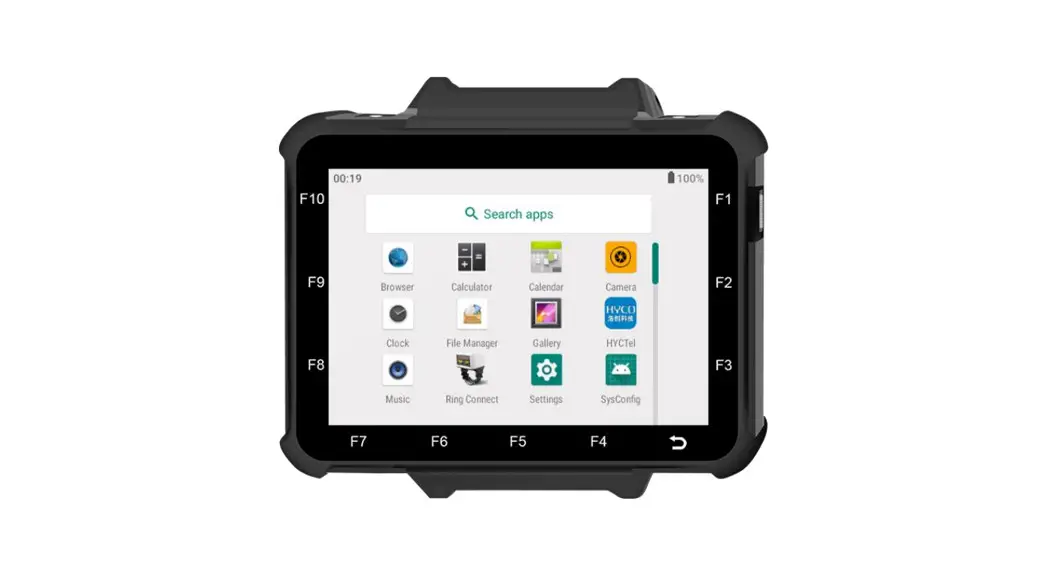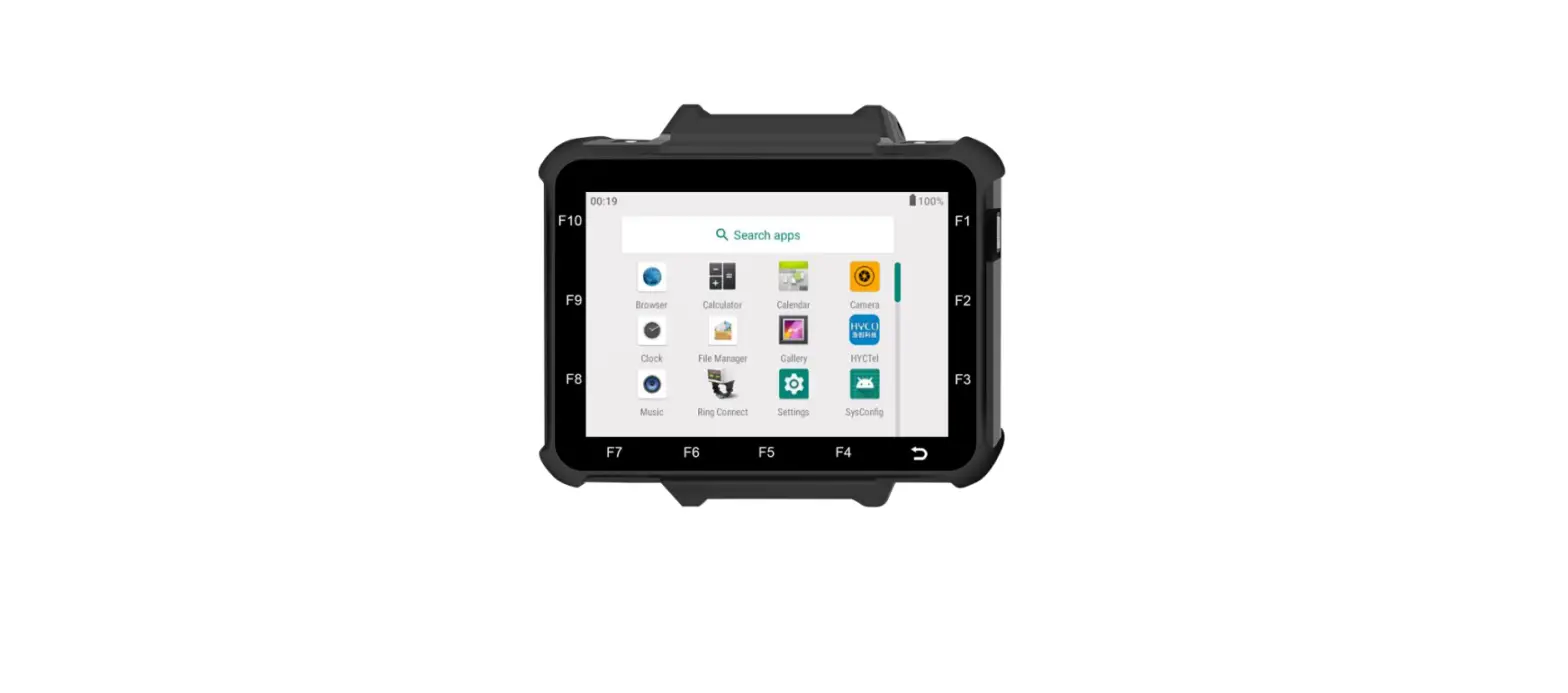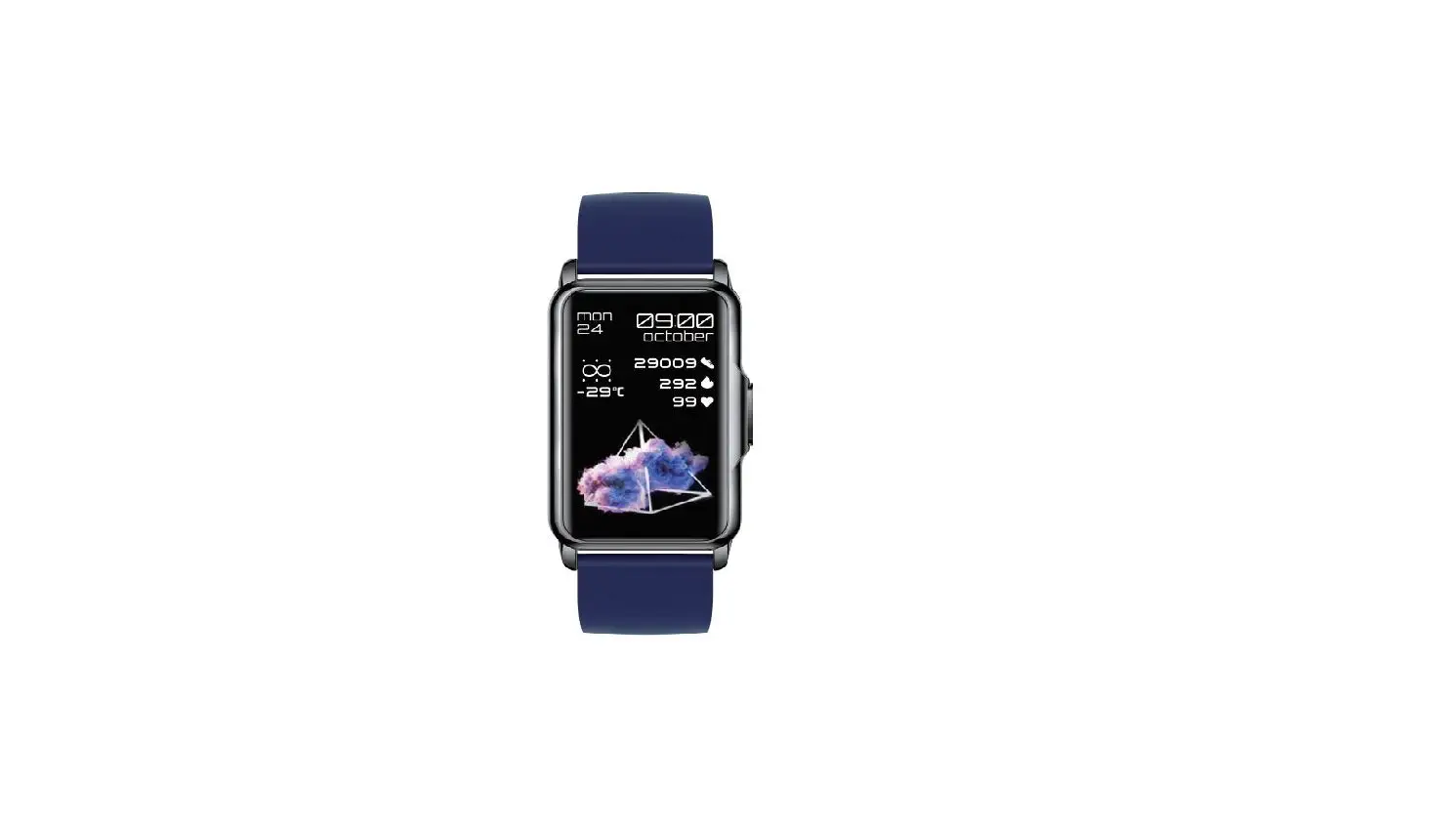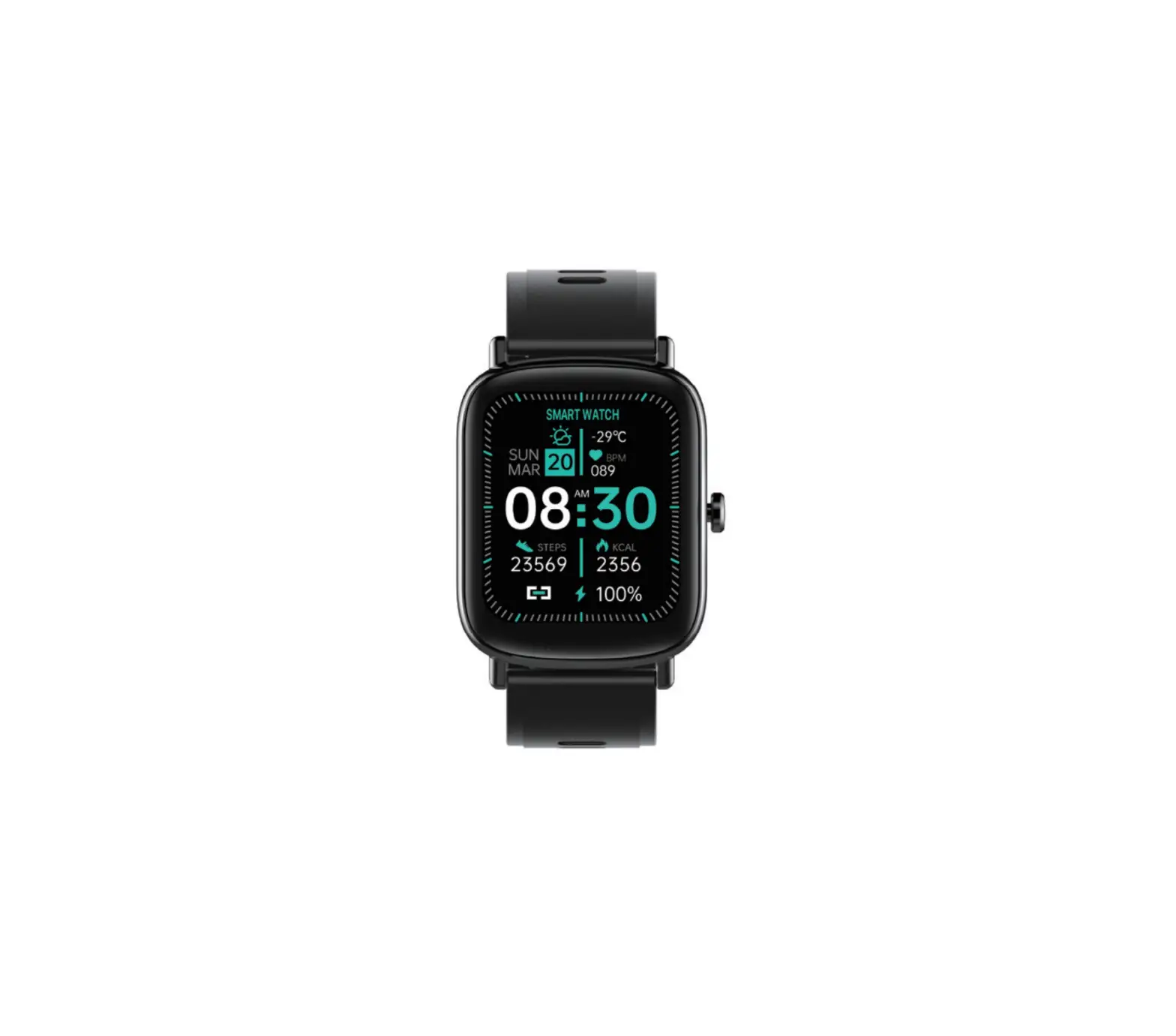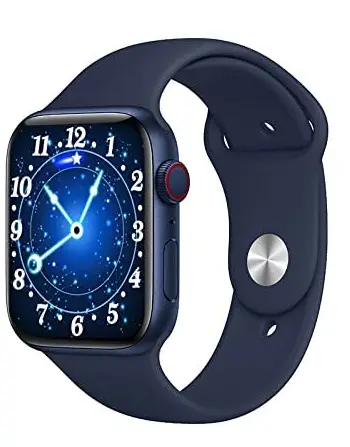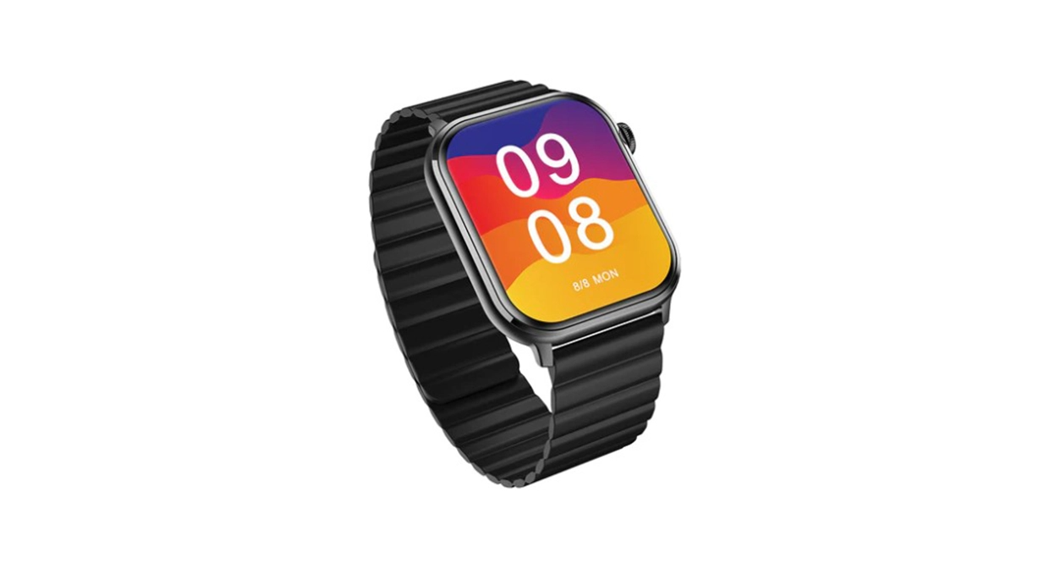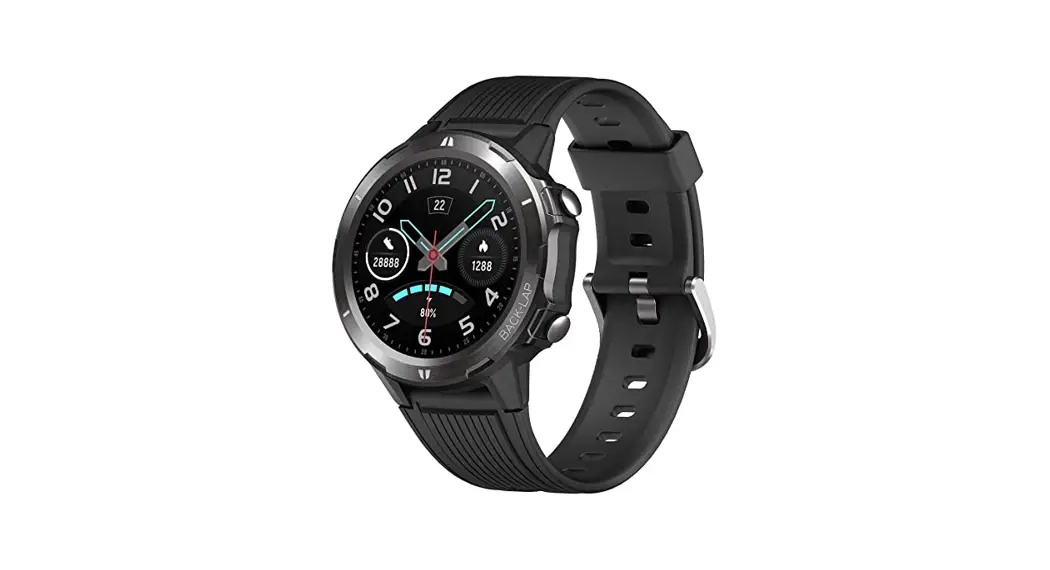

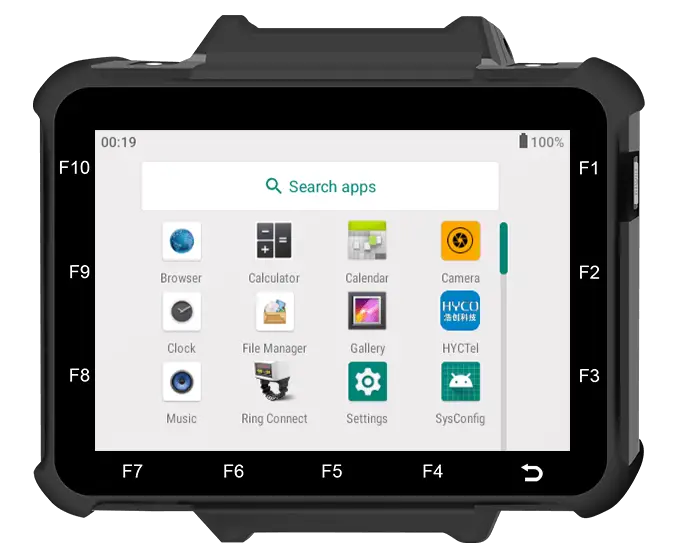
HYCO W563 Fast Barcode Scanning Smart Watch
Disclaimer
Disclaimer @2018 Shanghai Hyco Genyong Technology Co., Ltd. All rights reserved.
Please read through the manual carefully before using the product and operate it according to the manual. It is advised that you should keep this manual for future reference.
Do not disassemble the device or remove the seal label from the device. Otherwise, Shanghai Hyco Genyong Technology Co., Ltd. does not assume responsibility for the warranty or replacement.
All pictures in this manual are for reference only and actual product may differ. Regarding to the product modification and update, Shanghai Hyco Genyong Technology Co., Ltd. reserves the right to make changes to any software or product to improve reliability, function, or design at any time without notice. Besides, the information contained herein is subject to change without prior notice.
The products depicted in this manual may include software copyrighted by Shanghai Hyco Genyong Technology Co., Ltd. or a third party. The user, corporation or individual, shall not duplicate, in whole or in part, distribute, modify, decompile, disassemble, decode, reverse engineer, rent, transfer or sublicense such software without prior written consent from the copyright holders.
This manual is copyrighted. No part of this publication may be reproduced or used in any form without written permission from Hyco.
Please visit www.hycoiot.com or check the latest version of the specification sheet for the latest product information
Design
Components
| Components | Quantity | Usage |
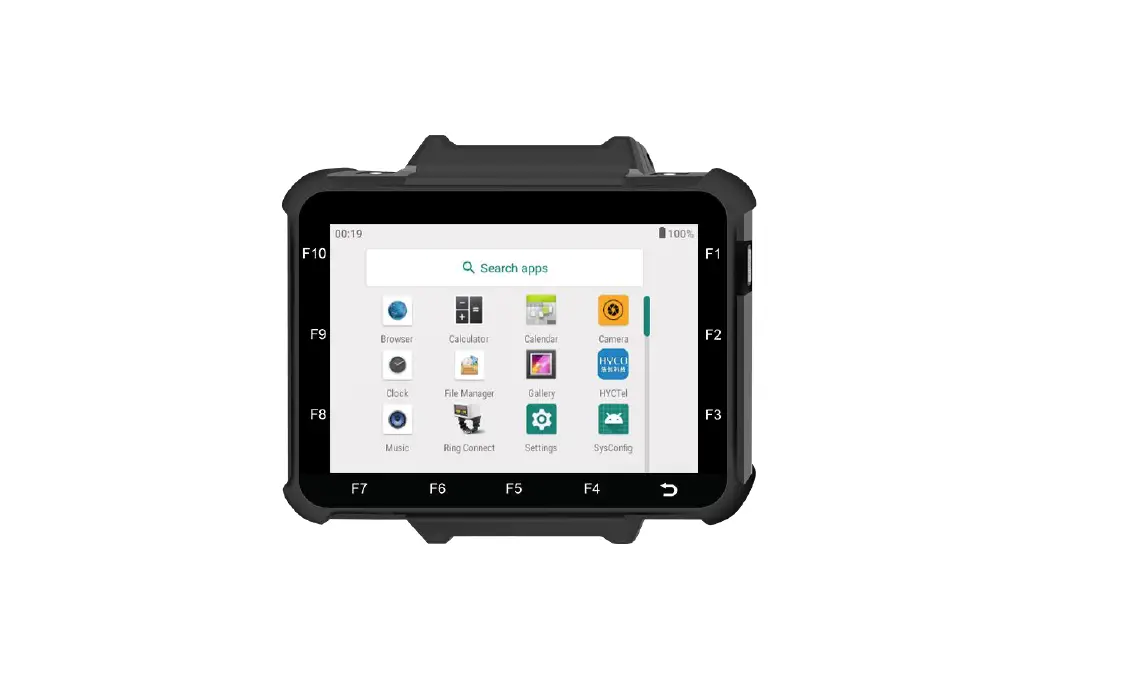
| Smart Watch | 1 | Receive with display scanning data, export to backend server |
| Adapter | 1 | Charging adapter to connect with power |
| USB Cable | 1 | Connect watch with adapter |
| Battery | 2 | Battery supply for watch |
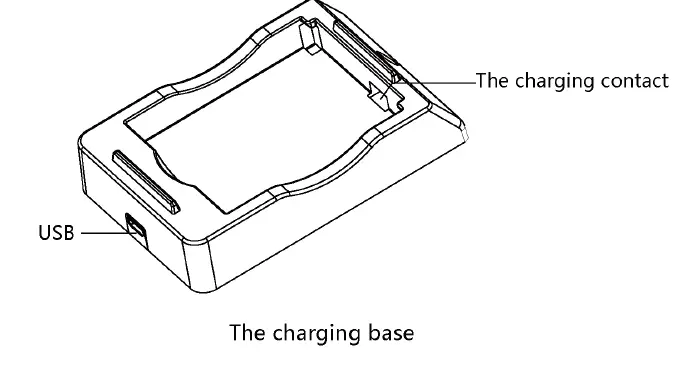
| Battery charger | 1 | Charging battery |
| Certificate | 1 | Factory certification |
| Manual | 1 | Device description and usage |
Specifications
| Model | W563 |
| Weight | 245g |
| Dimensions (W*D*H) | 96.5mm*87.4mm*26mm (without watch strap) |
| Display | 3.5-inch screen with resolution of 320*480/640*960 (optional) |
| CPU | Quad 2.0GHz Cortex-A53+Quad 1.5GHz Cortex-A53 |
| Storage | 64GB Flash ROM and 4GB RAM |
| Operation System | Android 9.0 |
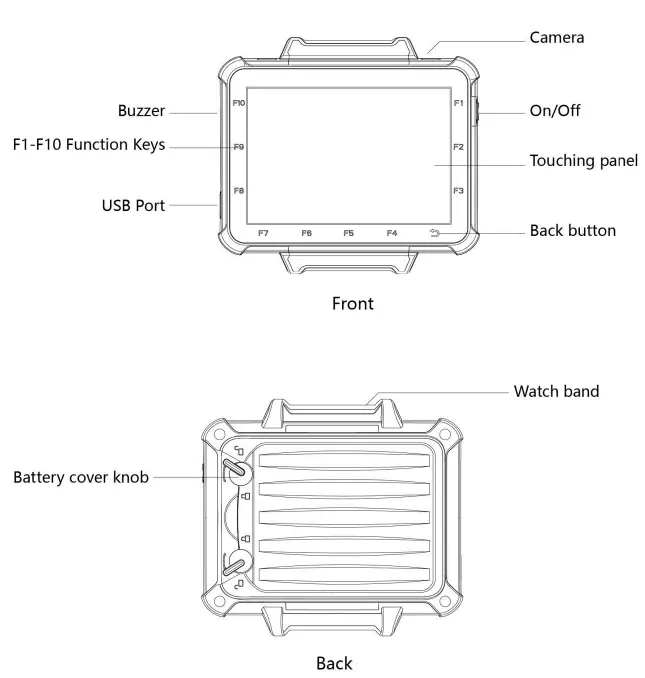
| Function Keys | F1-F10 customizable shortcut keys |
| Touching Panel | Capacitive touching panel |
| Camera | 8MP HD camera |
| Audio Output | Speaker, bluetooth headset |
| Audio Input | Highly sensitive waterproofing MIC |
| Communication | WiFi/4G (optional) |
| Bluetooth | BT4.1+HS, compliant V3.0+HS and V2.1+EDR. |
| USB | USB2.0 |
| Battery(Swappable) | 3600mAh @3.8V |
| GPS | GPS/Galileo/GLONASS |
| Battery Life | 15 hours |
| Wearing | On wrist/arm |
| IP Level | IP66 |
| Operating Temperature | -10℃ to 50℃ (14℉ to 122℉) |
| Humidity | 0%-95%RH (non-condensing) |
Functions
- Power on/off
Long press the power button on the right side of the watch for three seconds. - How to charge
Connect USB cable with adapter and watch, plug the adapter into power port. Tips: it is recommended to charge watch after watch is switched off. - How to replace the battery
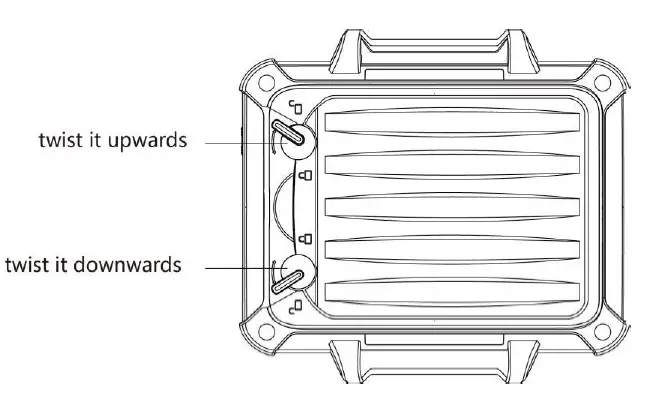
Twist the two battery locks and take the battery out of the watch, replace it with the replacement battery.
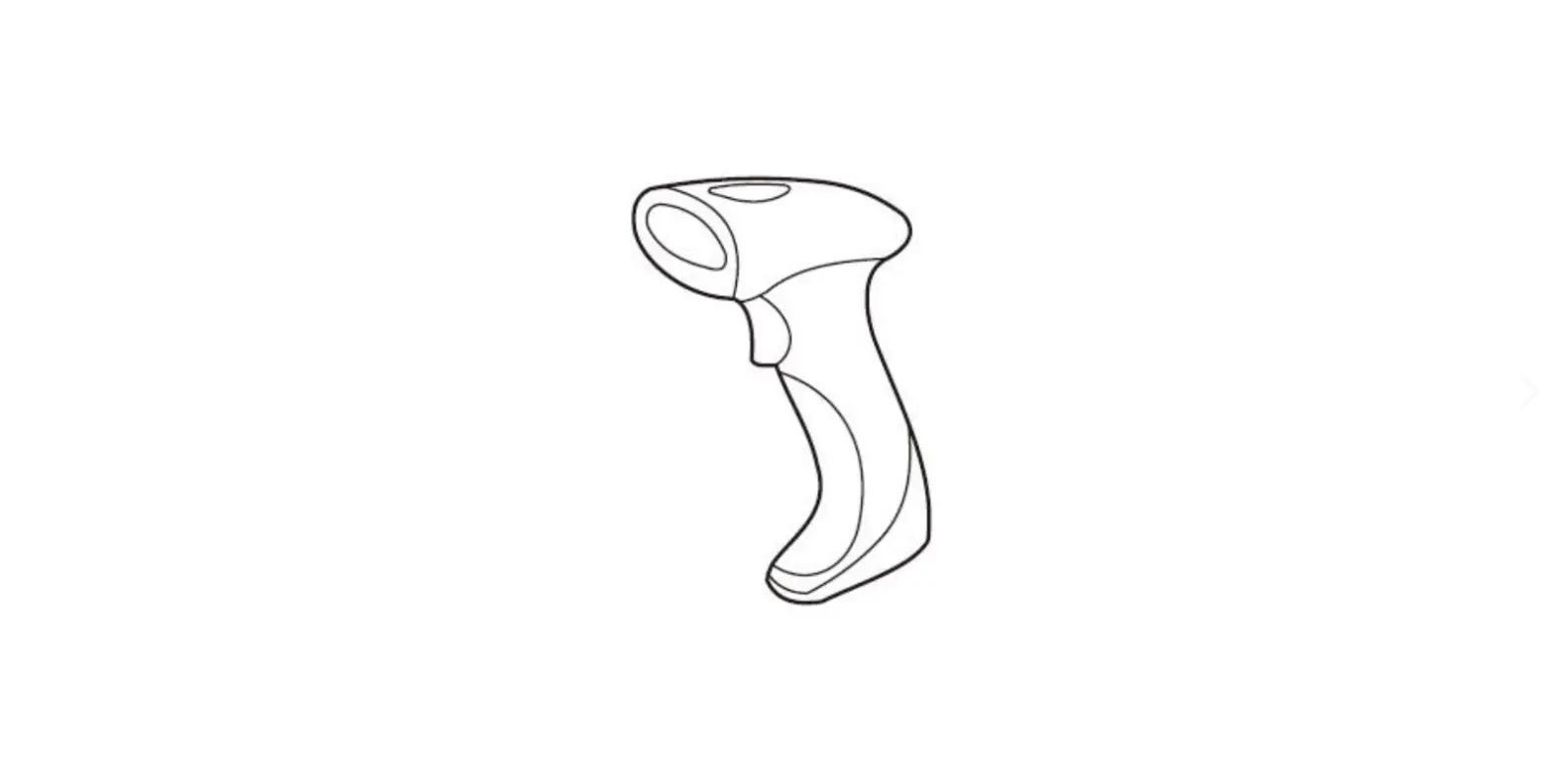
- How to pair with a ring scanner
Method 1:
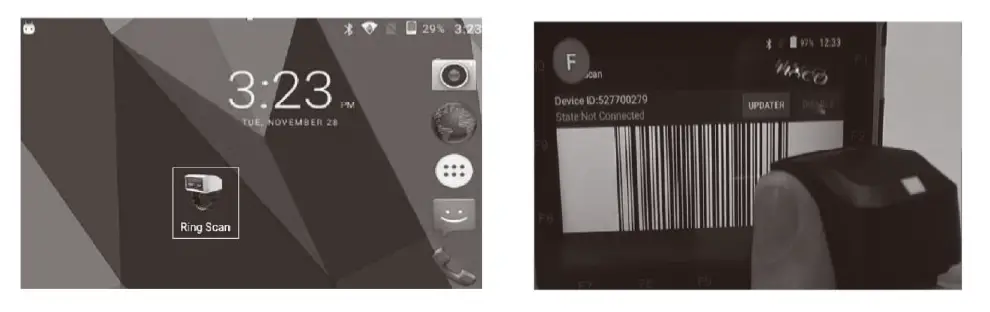
Click the “Ring Connection” icon in the drop-down menu or the “Ring Connection” app on the home page, and scan the barcode as closely as possible, when the ring light turns green, it will automatically jump back to the home page and shows successful connection icon on the top right corner in the watch.
Method 2:
2) In the Settings, click “Bluetooth”, turn on the Bluetooth, and choose the series number printed on the ring to connect, when the ring light turns on green, Bluetooth is connected successfully. - How to connect with Bluetooth headset?
In the Settings, click “Bluetooth”, turn on the Bluetooth, and choose the Bluetooth headset name to connect. - How to synchronize date and time
In the Settings, click the “Date and time” to set and synchronize the date and time. - How to export the scanning data into the text field in the watch?
- APP which is developed by HYCO could receive and display the scanning data from the ring directly.
- APP which is not developed by HYCO and the Browser needs to open the HID mode in a watch. How to open: In the Settings, click “Language and Input”, choose “Google Pinyin IME” to activate HID mode. Scanning data could be exported to any text field in the watch after HID is activated.
- Input method setting
Click “Language and Input”, and choose and change the keyboard mode in the current keyboard list. - How to change the on-screen keyboard color?
In the Settings, click the“Language and Input”, then choose the“Keyboard & Input Methods”–“Current Keyboard”–select “Google Pinyin IME”, choose the color of keyboard font (white, black, blue, yellow, red, green) in the “Google Pinyin IME” to differentiate the background color of the interface. - How to uninstall the APP
- Press and drag the APP icon to “Recycle Bin” on home page
- In the Settings – choose and click the app you want – click uninstall.
- USB debugging setting
Steps:
Click the “Settings”- System-Developer Options-Debugging-USB debugging, and click “confirm” to activate the debugging mode. It is only used when the user needs to develop procedures or install procedures from the PC into the watch. - How to upgrade the system?
Upgrade system online, steps: Settings – about Smart Watch – System Upgrade -Check Now – Choose new system version to upgrade.
Services
Warranty: one year for the smart watch, half-year for battery and accessories.
Notice
- The watch window must be kept clean. Improper usage will breach the limited warranty clauses
- Avoid rough objects scratching the window
- Remove stains from window by soft cloth
- Do not spray any liquid onto the window
- Use cleaning water to clean.
HYCO Technology
- Website: www.hycoiot.com
- Email: [email protected]
- Phone Number: +86 15201965826
 数据采集,工业4.0,指环扫描,无线扫描枪,演讲神器 - 浩创科技官网