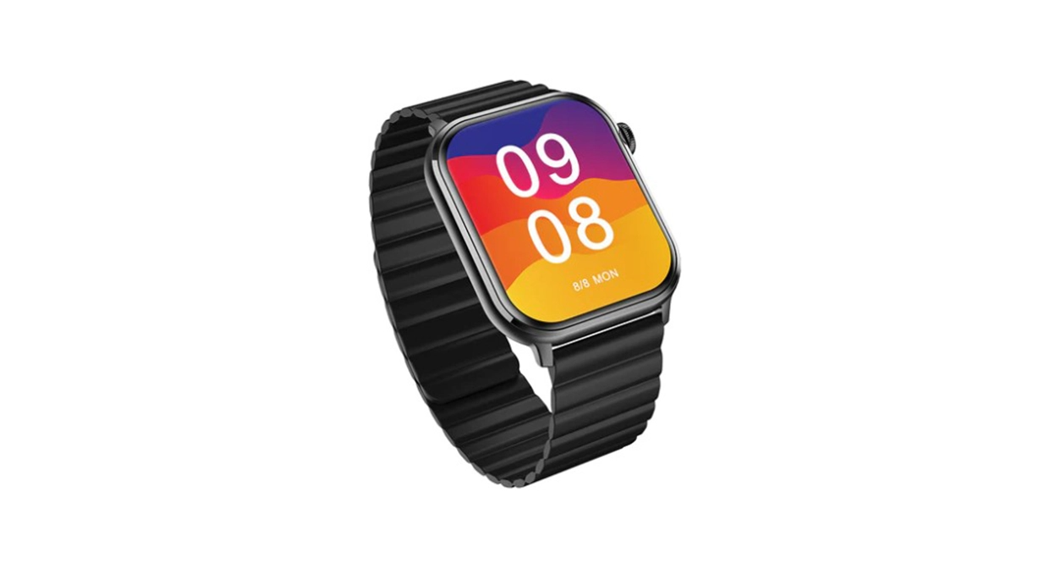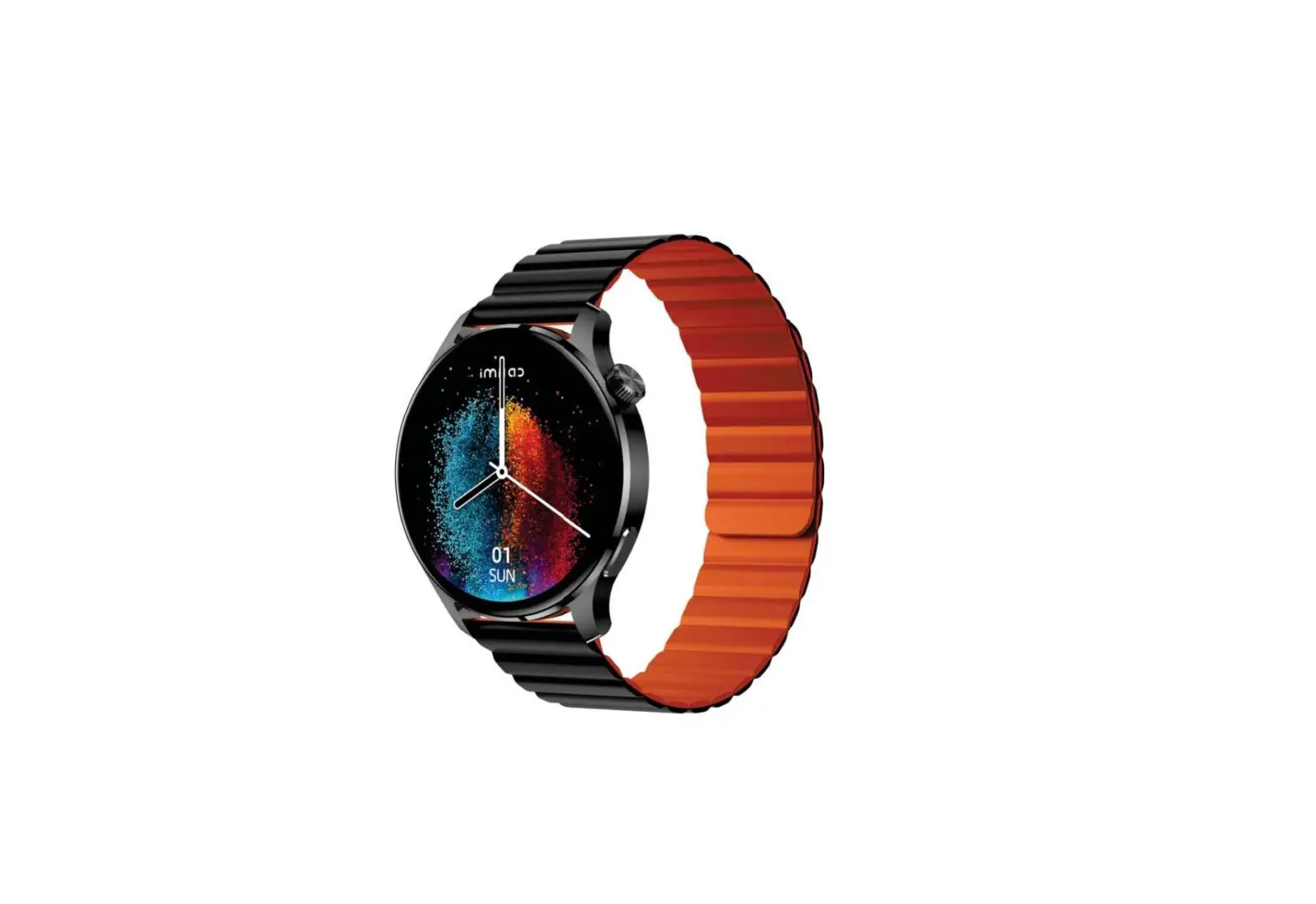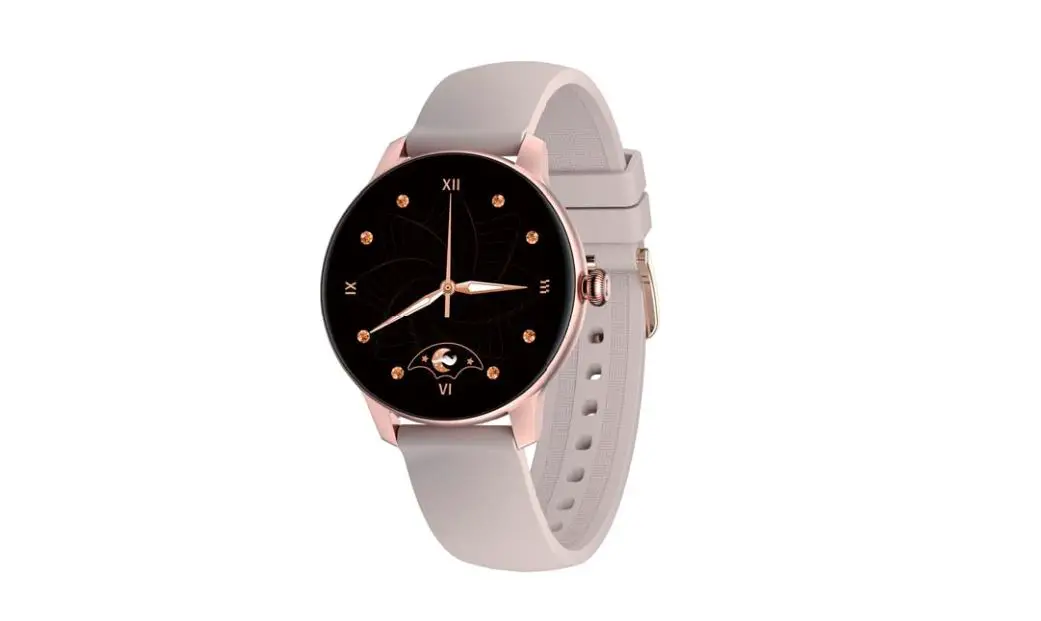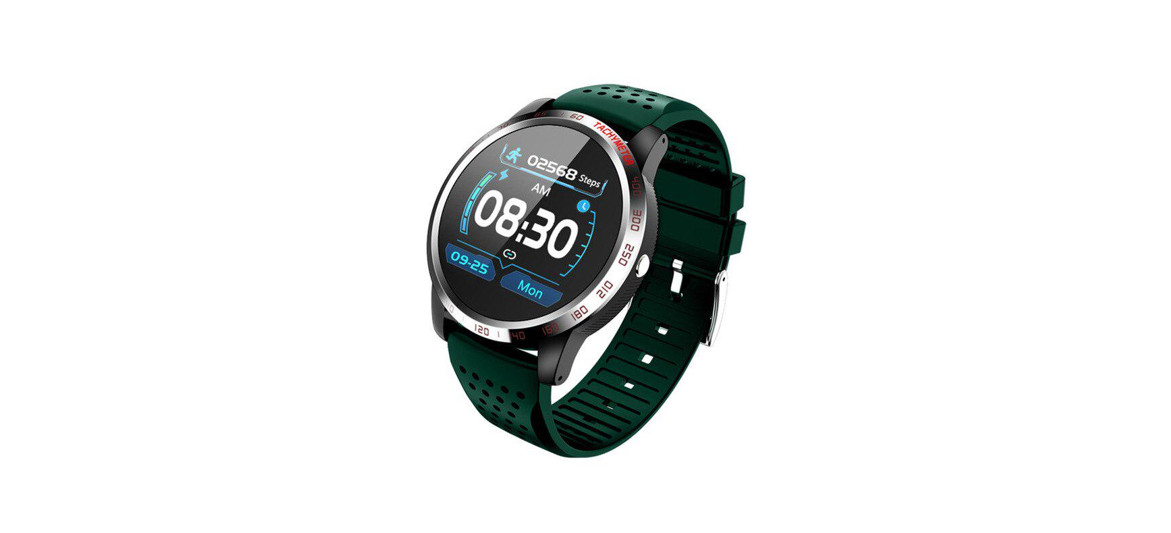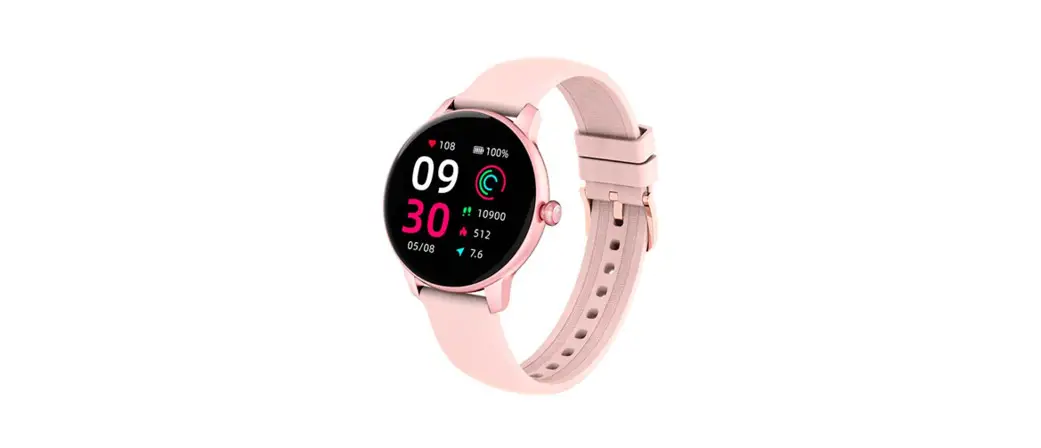
 W11L Smart Watch
User Manual
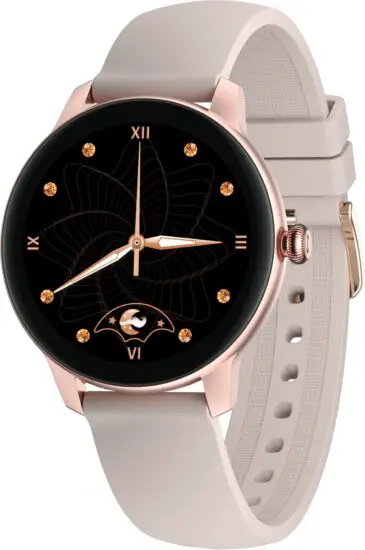
How to wear it correctly
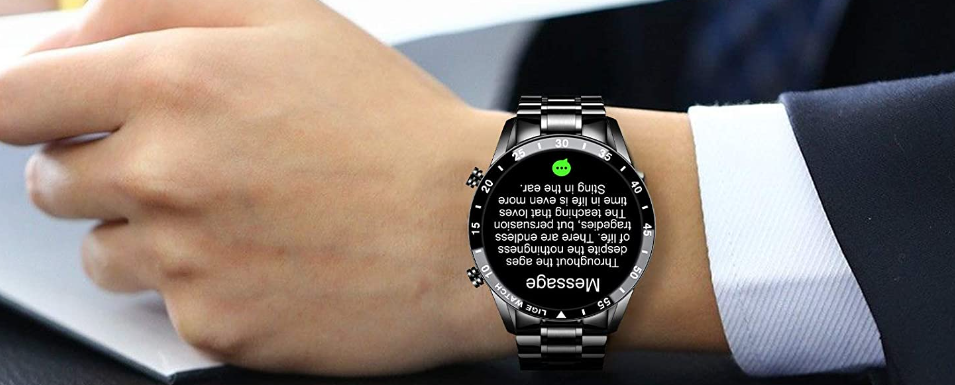
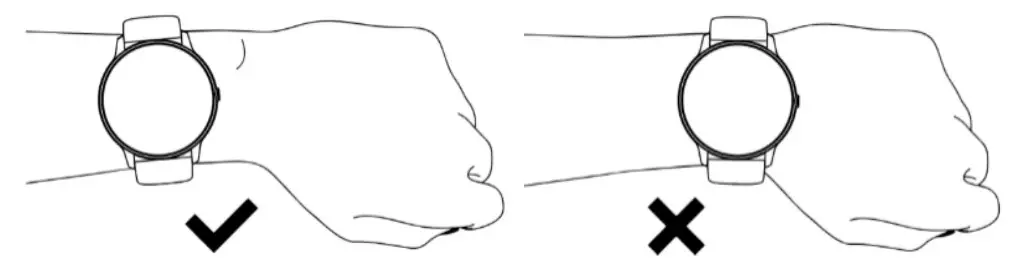
For comfortable daily use, before wearing please place the watch in a suitable position and adjust the tightness to fit your wrist. See below picture.
Tip: The heart rate data may be affected if worn too loosely.
How to pair the watch with your mobile phones
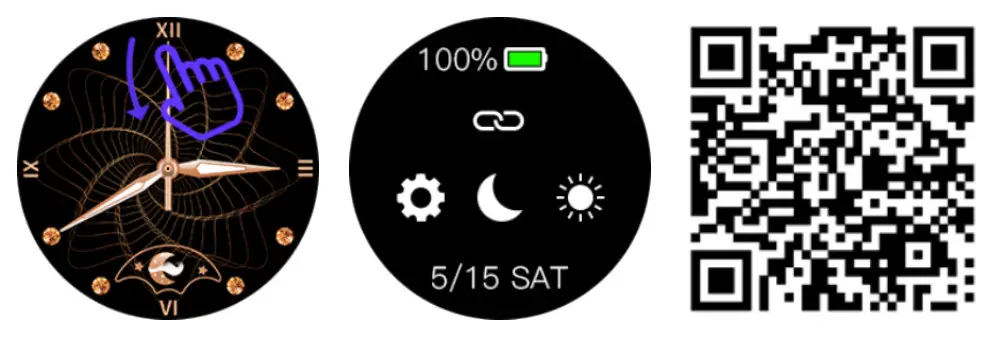
- Long press the side button to turn on the watch, slide the homepage of the dial from top to bottom, open the settings-download the QR code, scan the QR code with your mobile phone, you will get to download and install the APP. Or you can also scan the QR code below to download and install it in the mobile app market.
 https://app.help-document.com/gloryfit/download/index.html
 - Open the APP GloryFit, enter to device page and select the watch accordingly, then connect the device as guided steps.

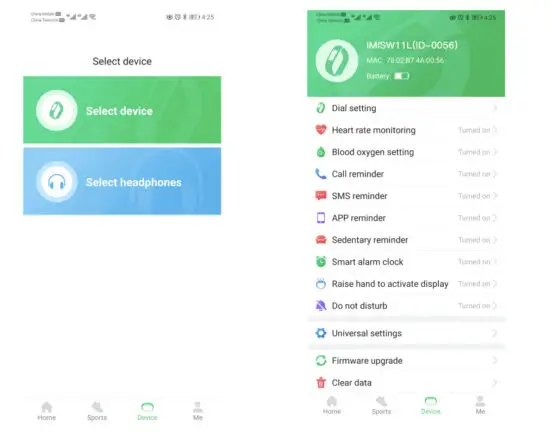
Tips:
- During paring, please ensure the mobile phone’s BT is on to ensure the normal connection.
- 2. If the device cannot be found or connected in the pairing process, please reboot the smartwatch by a long press power button, or choose to reset, then re-search the device.
How to use the watch
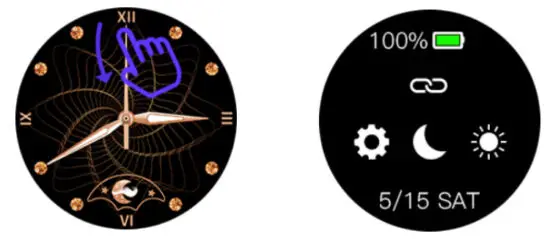
a.Slide down from the homepage to Shortcut Setting Page.
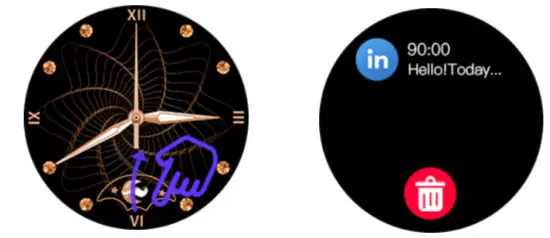
 b.Slide up from the homepage to the Message Page.
 c.Slide right from the homepage to Main Menu Page.
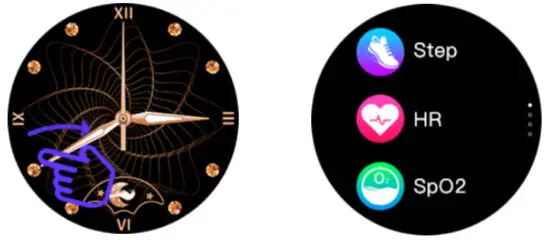 d.Slide left from the homepage to Main Function Shortcut Page.
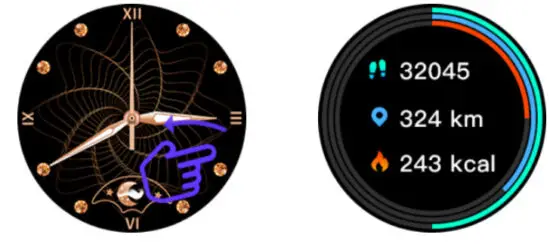 e.Long press the watch face page for 3s to enter into the selection page, then slide left or right and click the one you prefer to change dials.
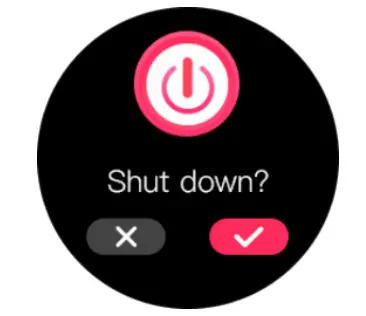
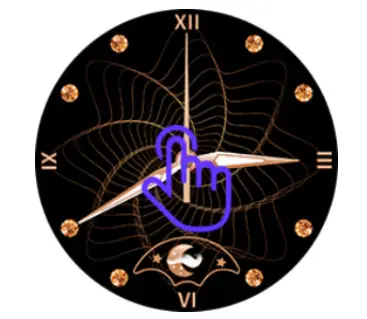 f.Long press the power button for 3s to Power ON; from the home page, long-press the power button for 3s, and tap√ to Power OFF.
 g.Press the power button to pause or continue on the Stopwatch page.
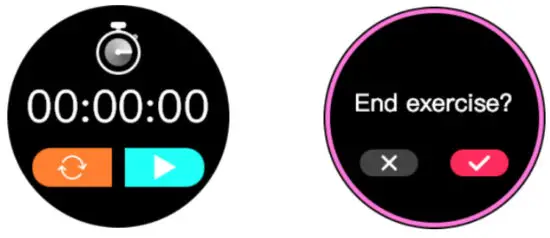 h.Tap the power button:
Back to the previous menu during normal operation.
The screen on / Screen off at watch face homepage.
Functions
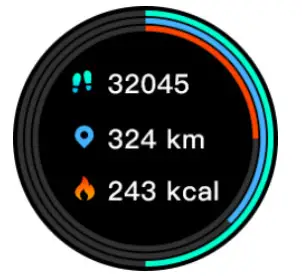 | Pedometer: Record daily steps, calories, and distance; Historical data details can be viewed on APP. |
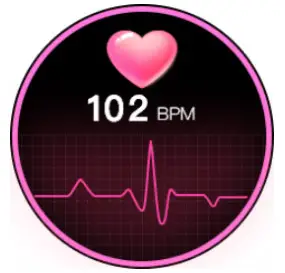 | Heart Rate Monitor: 24H real-time heart rate monitor. Daily records and Historical data could be viewed on APP. |
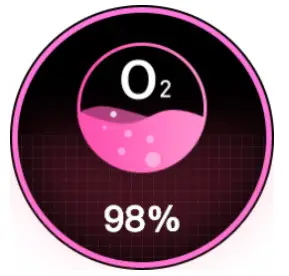 | Blood Oxygen: Blood oxygen monitor. Daily records and Historical data could be viewed on APP. NOTE: Data is for reference only, not for medical purposes. |
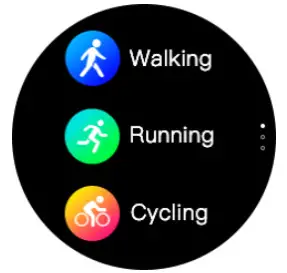 | Sports modes: walking, running, cycling, climbing, yoga, skipping, badminton, spinning bike, and sit-ups. Daily records and Historical data could be viewed on APP. |
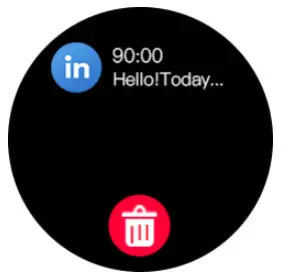 | Notifications: Different notifications can be pushed from mobile phones. It can keep up to 8 notifications on this page. |
 | Sleep Monitor: Record sleep time and status. Daily records and Historical data could be viewed on APP. |
 | Remote Music Control: Remote control the music player of the mobile phone, pause/ switch to the previous or next song. |
 | Stopwatch: timing |
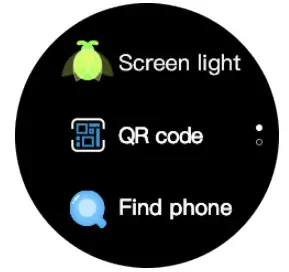 | Settings: Brightness adjustment/ QR code for APP download/ Find mobile phone/ About watch/Restore factory/Shut down |
Main Functions Shortcut Page:
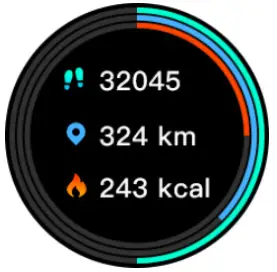 | Pedometer: Record daily steps, calories, and distance; Historical data details can be viewed on APP. |
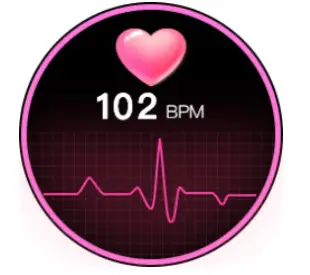 | Heart Rate Monitor: 24H real-time heart rate monitor. Daily records and Historical data could be viewed on APP. |
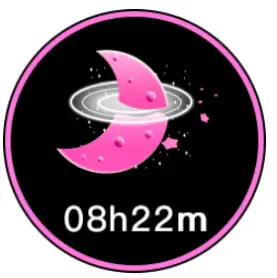 | Sleep Monitor: Record sleep time and status. Daily records and Historical data could be viewed on APP. |
 | Menstrual Cycle Reminder: Set the gender as “female” on the app of personal information page, and turn on the menstrual cycle function. Only then this function will appear in the watch menu. The corresponding safety period, menstrual period, and ovulation period reminder will be displayed on the smart watch accordingly. |
Other functions
Alarm clock, Sedentary reminder, Remote Camera Control, Low battery reminder, Call reminder, Find smartwatch, Watch Face Customized Feature, 12H/24H time format, KM/Mile unit format, Language setting.
Charging
- Place the charging cable into the watch charging port, ensuring the metal pins are fully connected.
- Please use the correct charging adapters which are 5V 0.5A above.
If the smart watch can not be powered on after being left unused for a long time, please clean up the charging metal pins to make sure connecting well.
Warranty
- The one-year warranty is for default hardware defectives, and half of a year is for battery and charging cable.
- Below reasons cause to defectives are not included in the free warranty service:
1) Personal assemble or disassemble.
2) Falling damage during use.
3) All man-made damage or due to the third party’s fault, improper use(such as water in the smartwatch, external force shattering, scratch during use, etc. - Please provide a warranty card with the details filled when requested for after selling service.
- Please contact direct dealers for warranty service.
- Please note all functions of the product are based on physical objects.
| Warranty Certificate | |||
| Client Into | |||
| Product Type | Vendor | (Stamp) | |
| Client Name | Contact Info | ||
| Vendor’s Contact | Purchase Date | ||
| Product IMEI Code | |||
| Client’s Address | |||
| Vendor’s Address | |||
| Warranty Record | |||
| Date | Problems | Diagnosis | More Info |