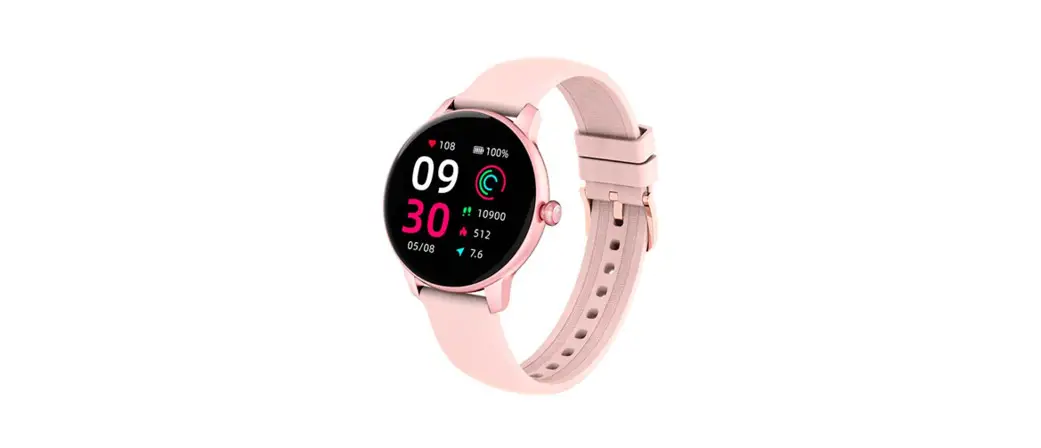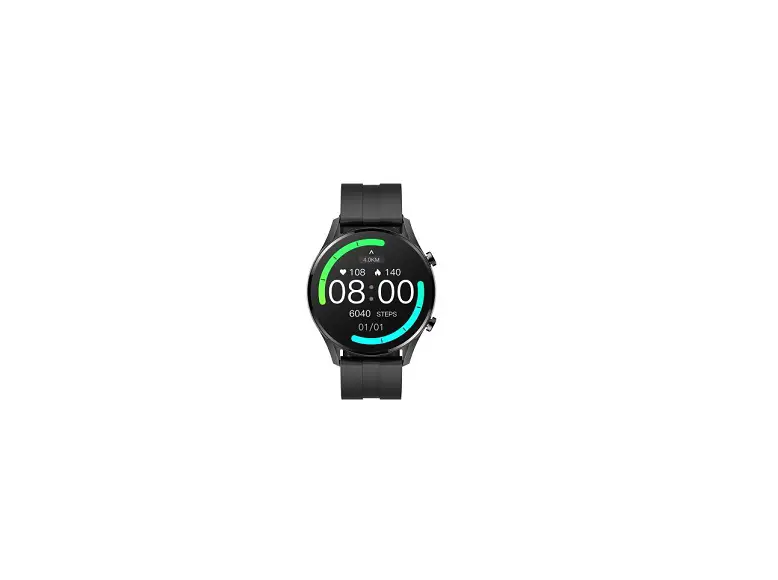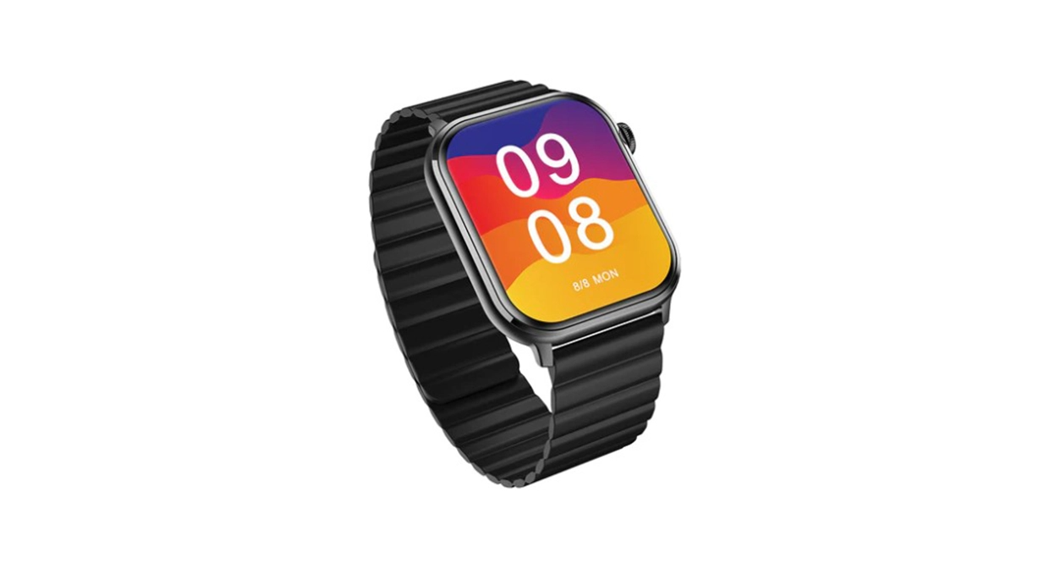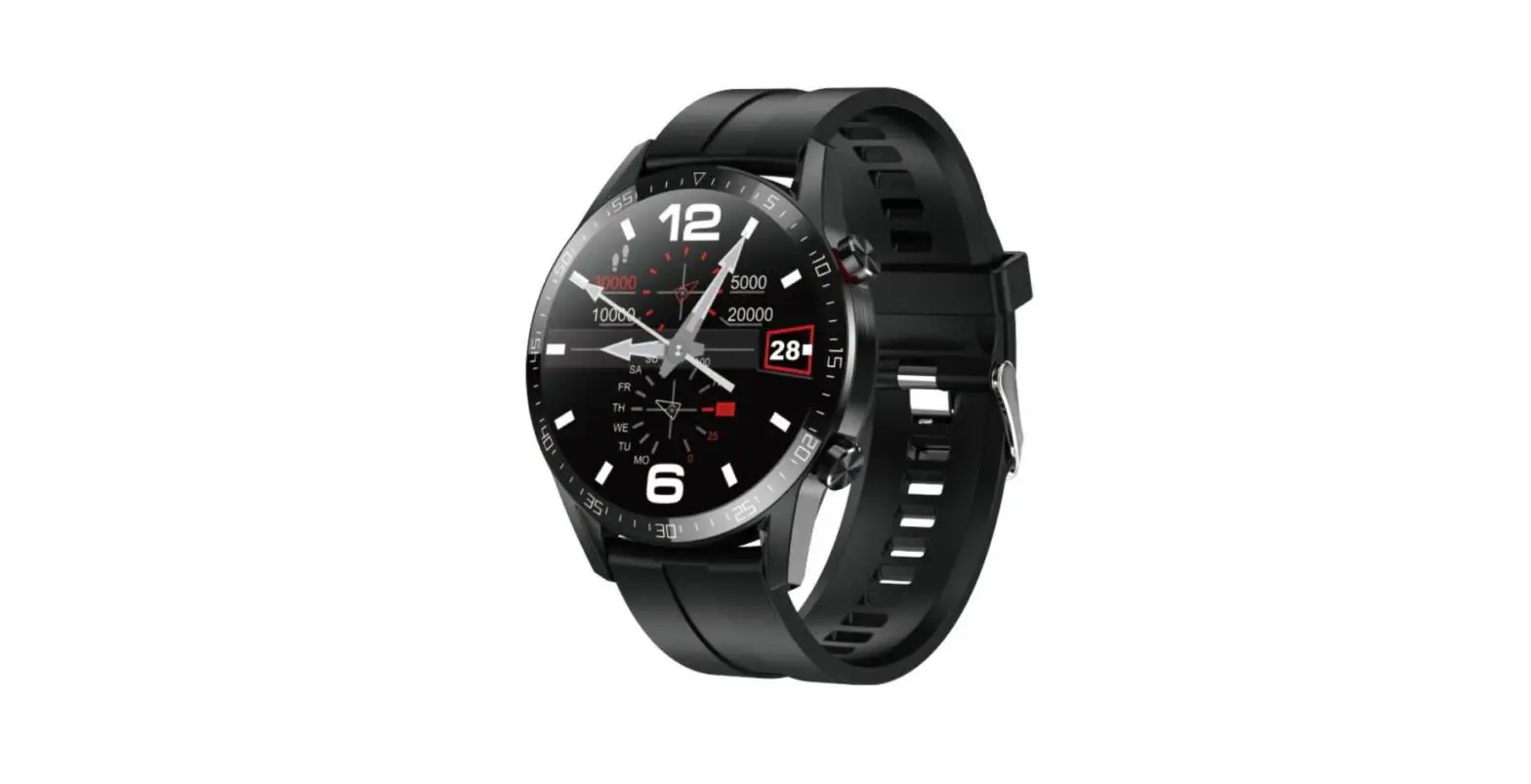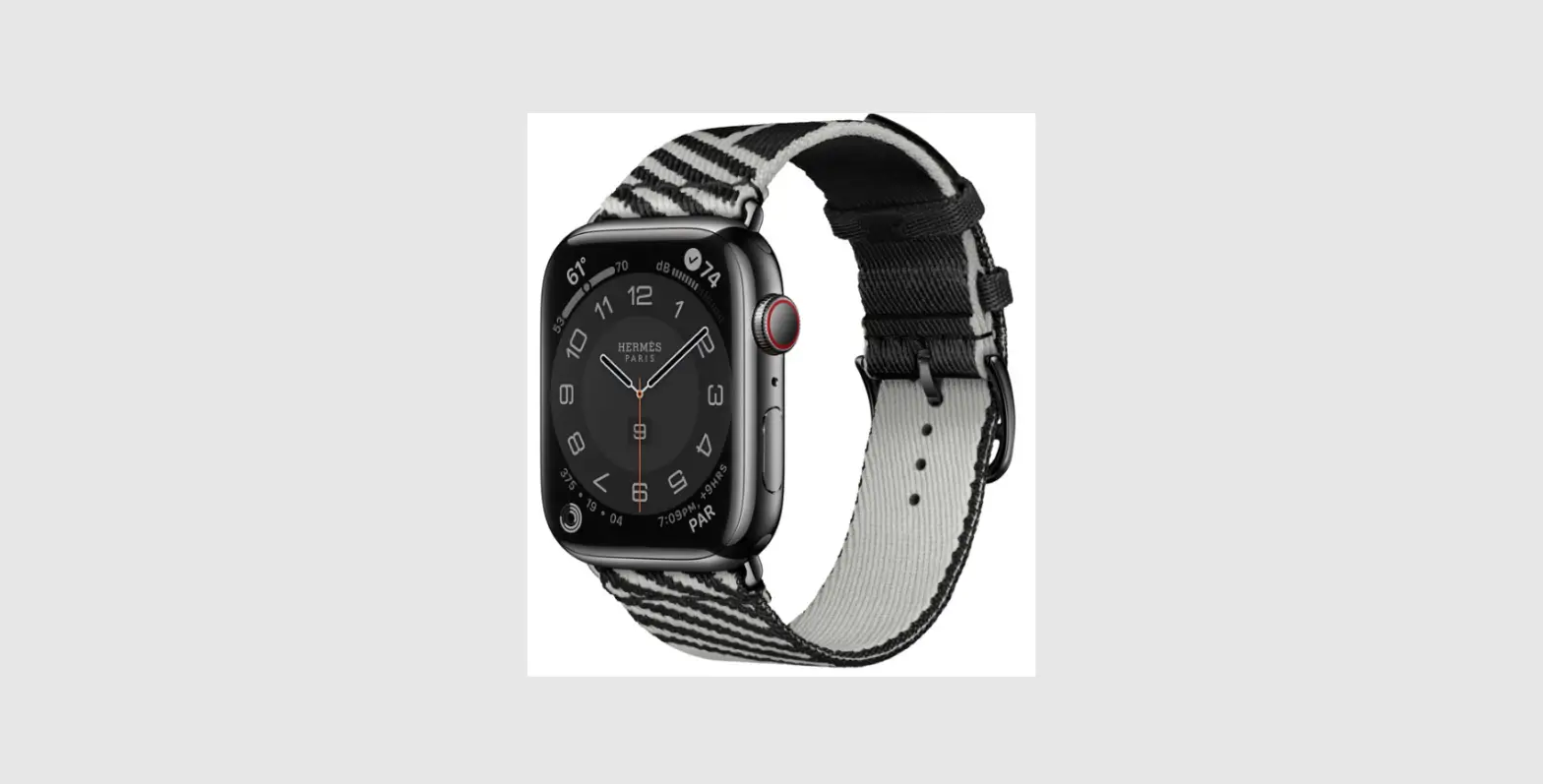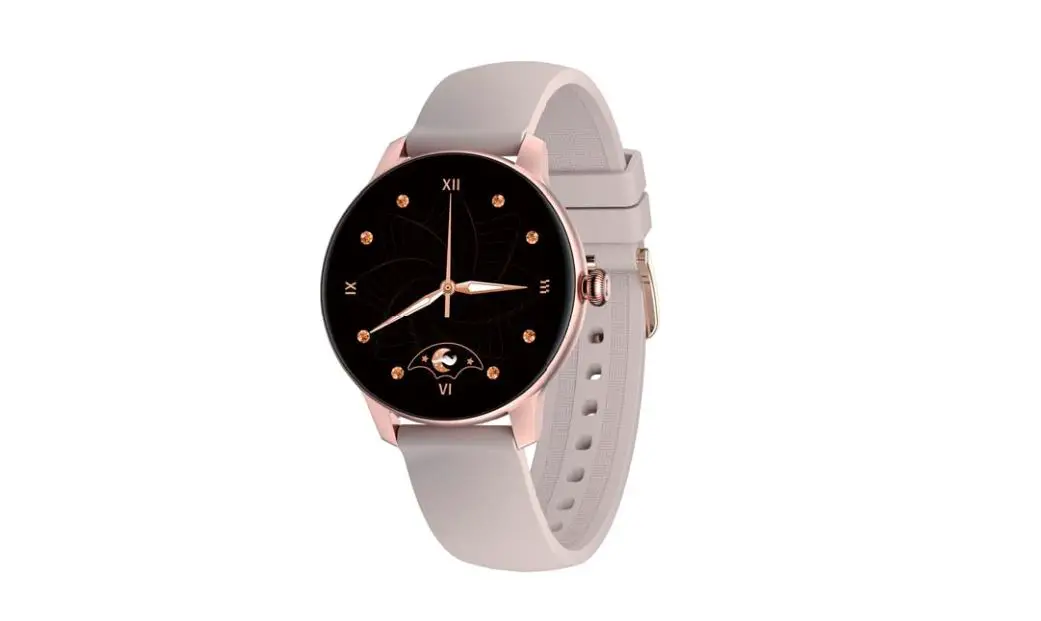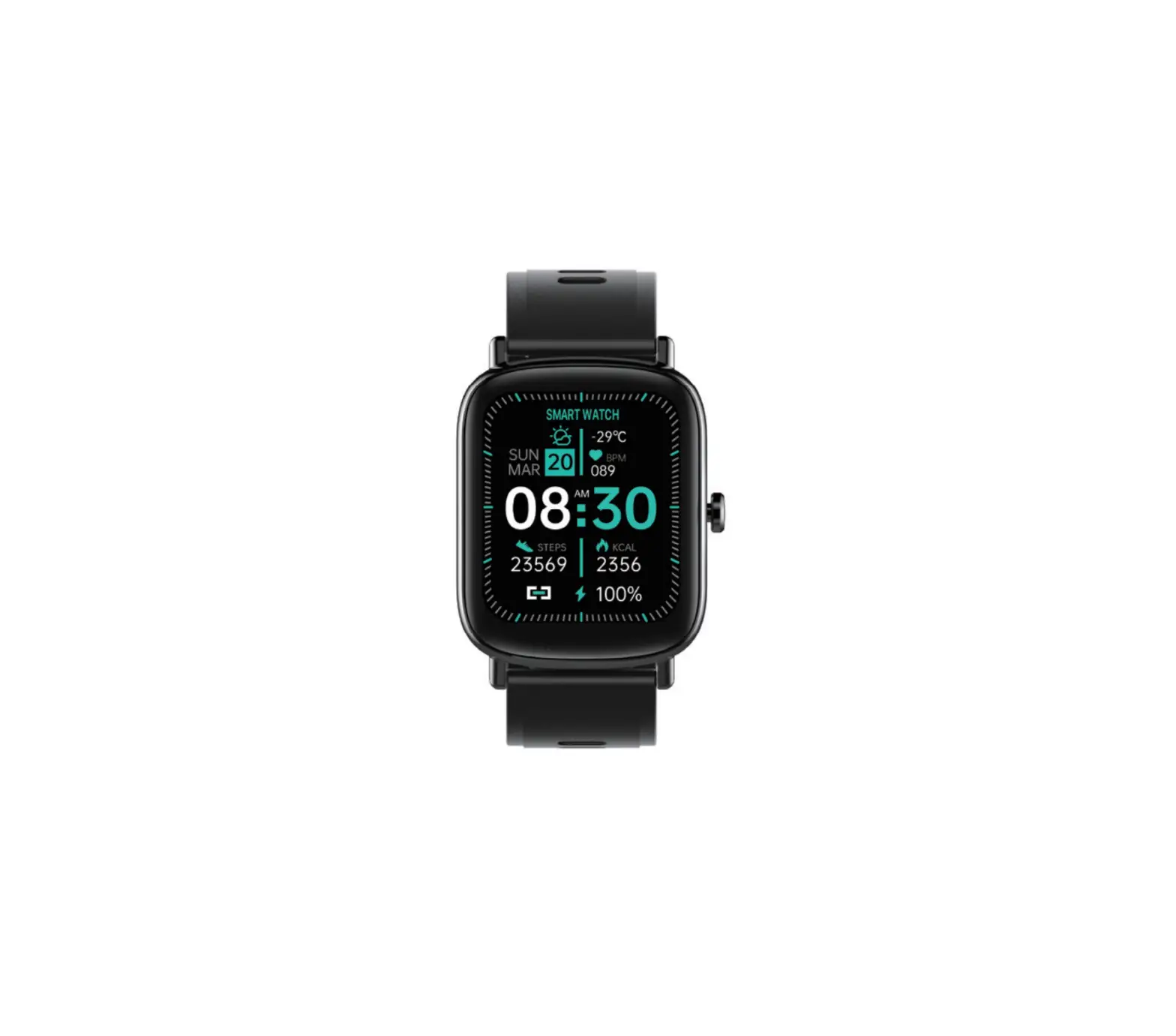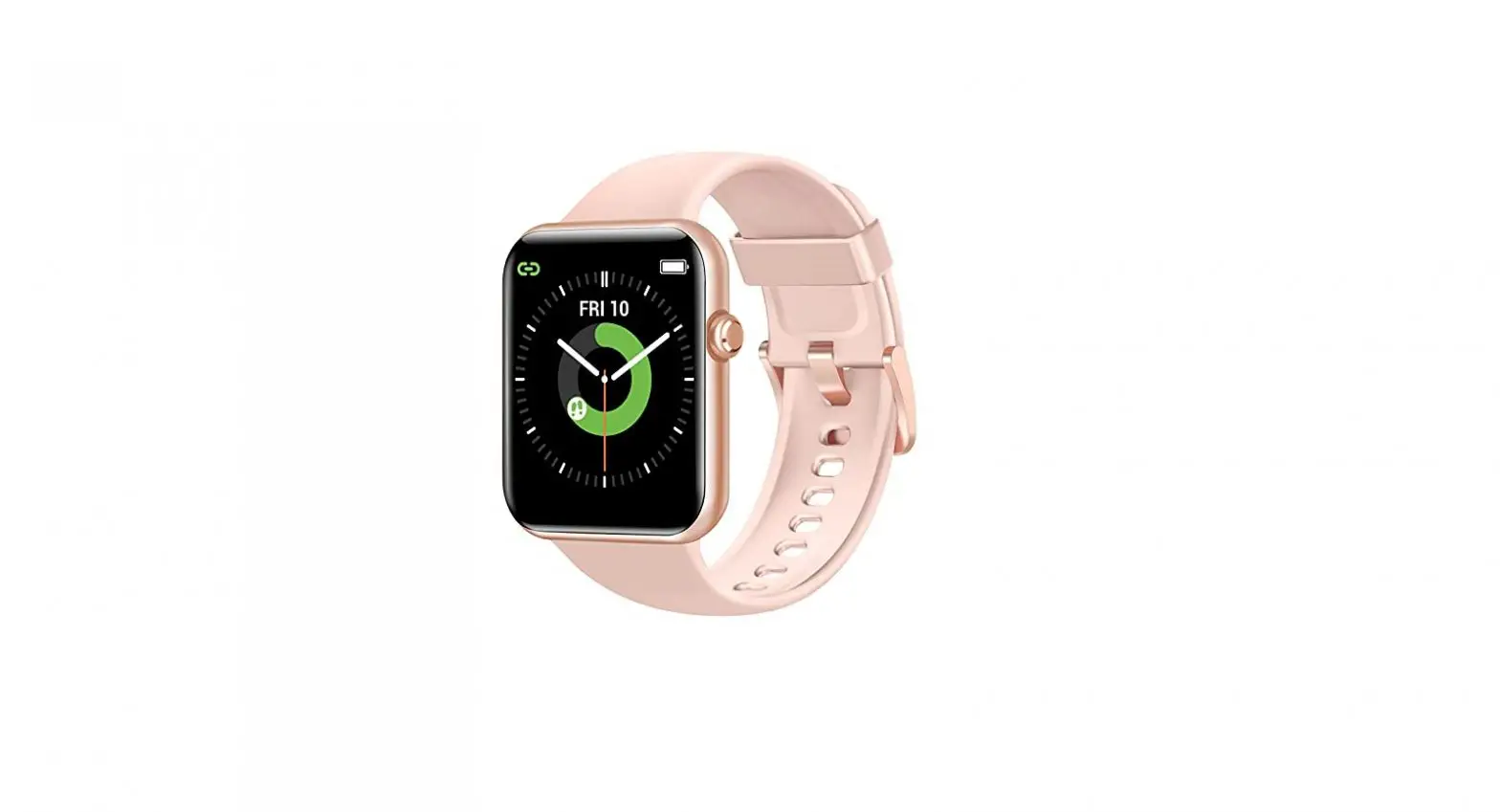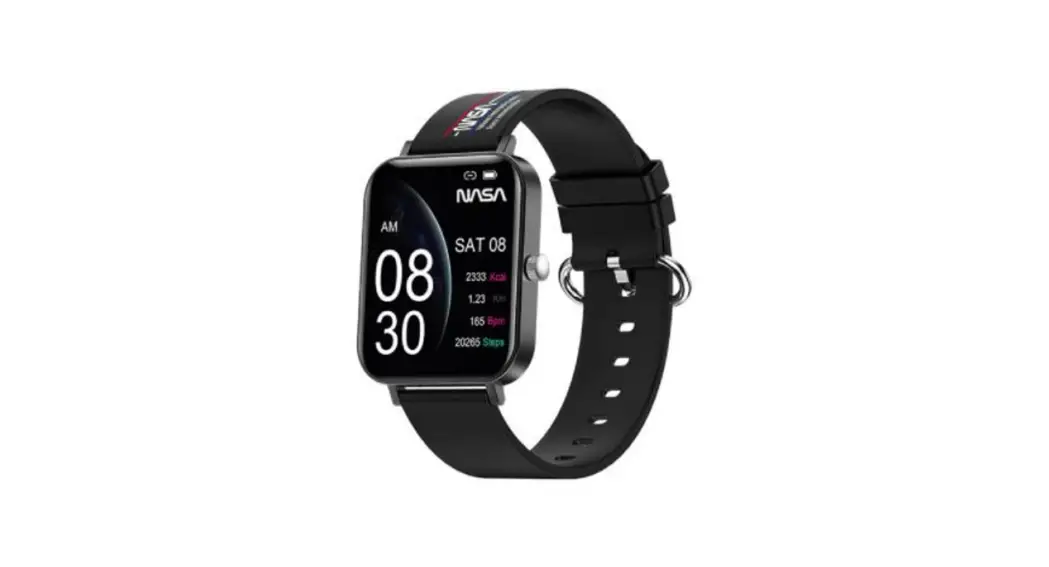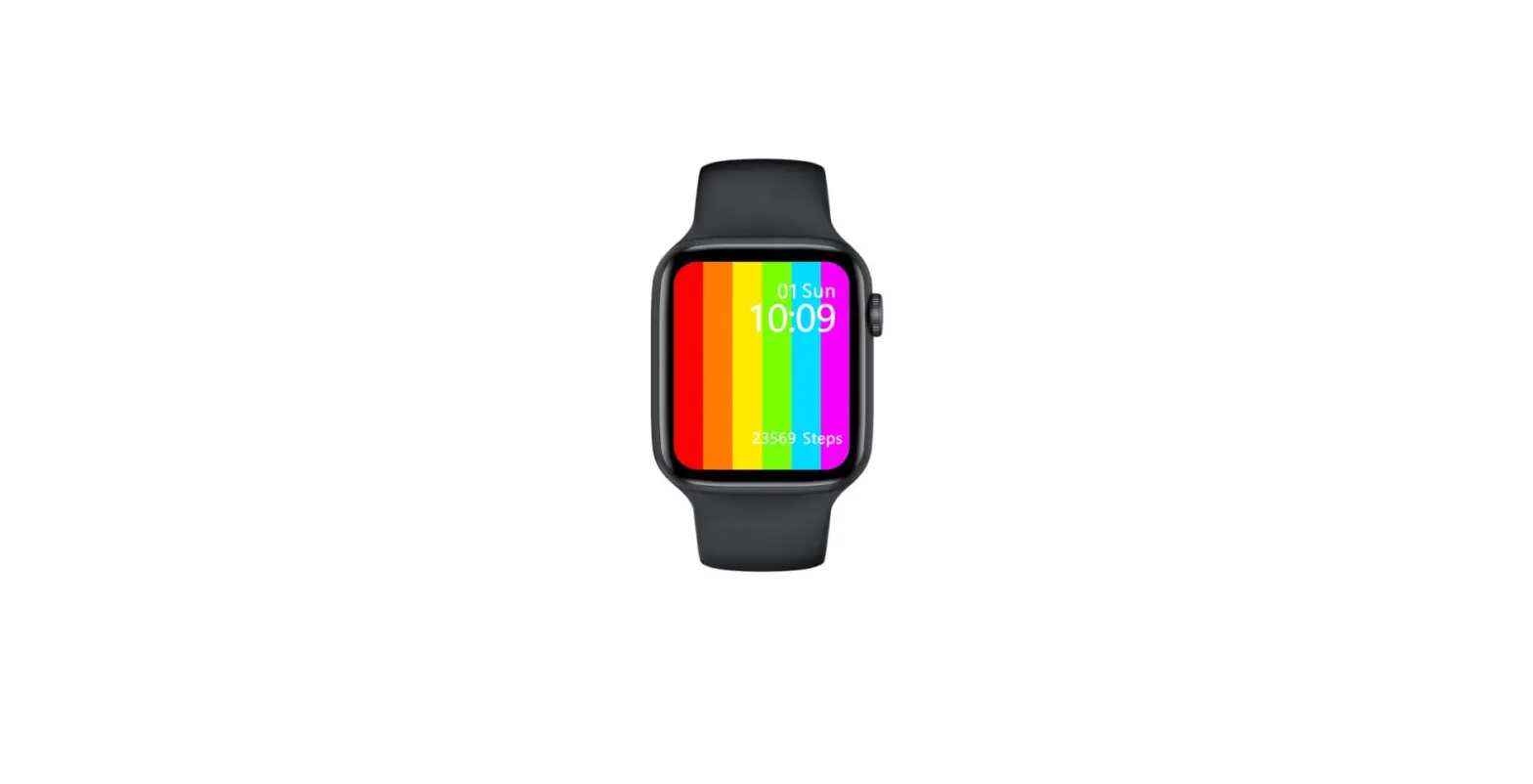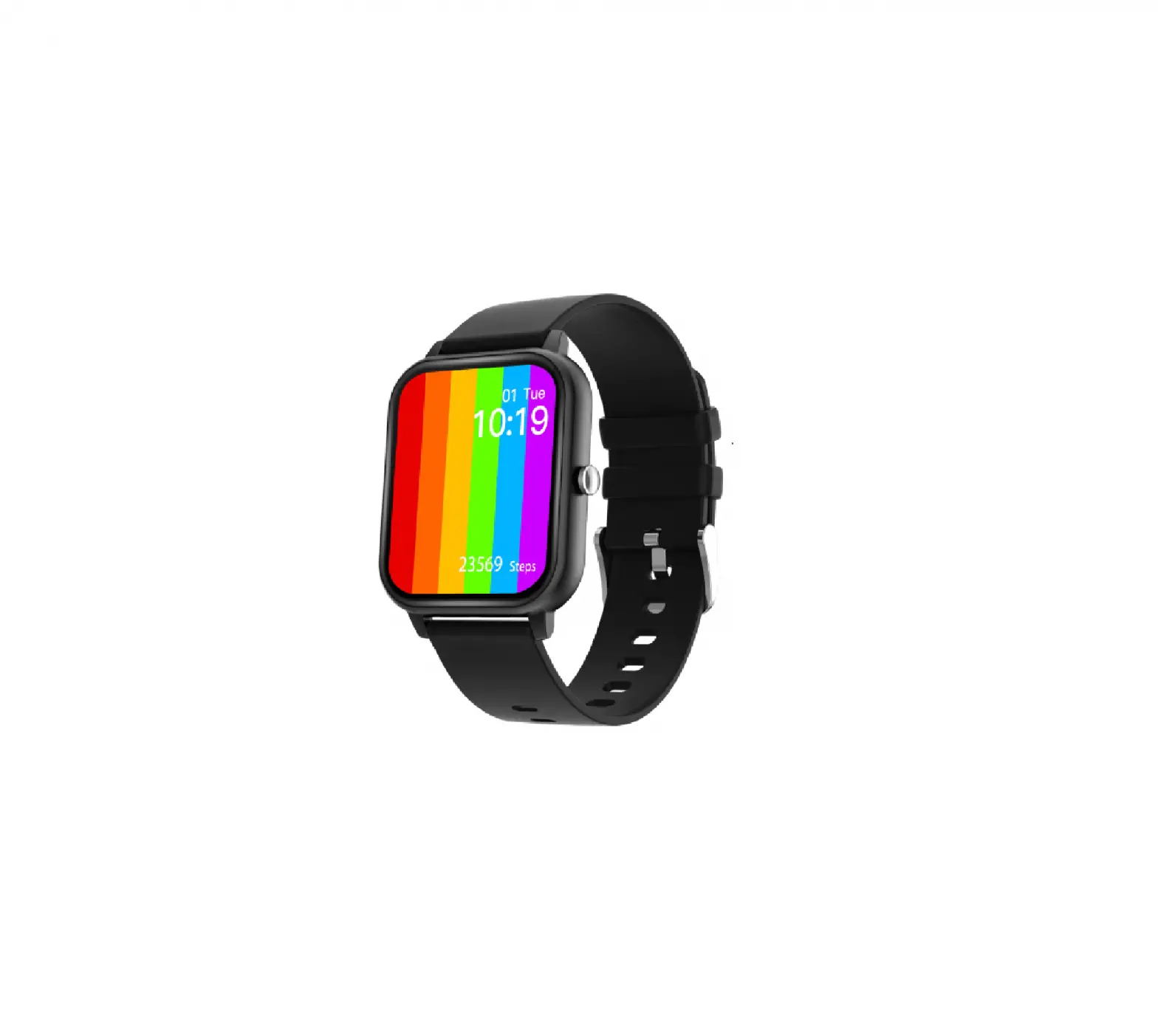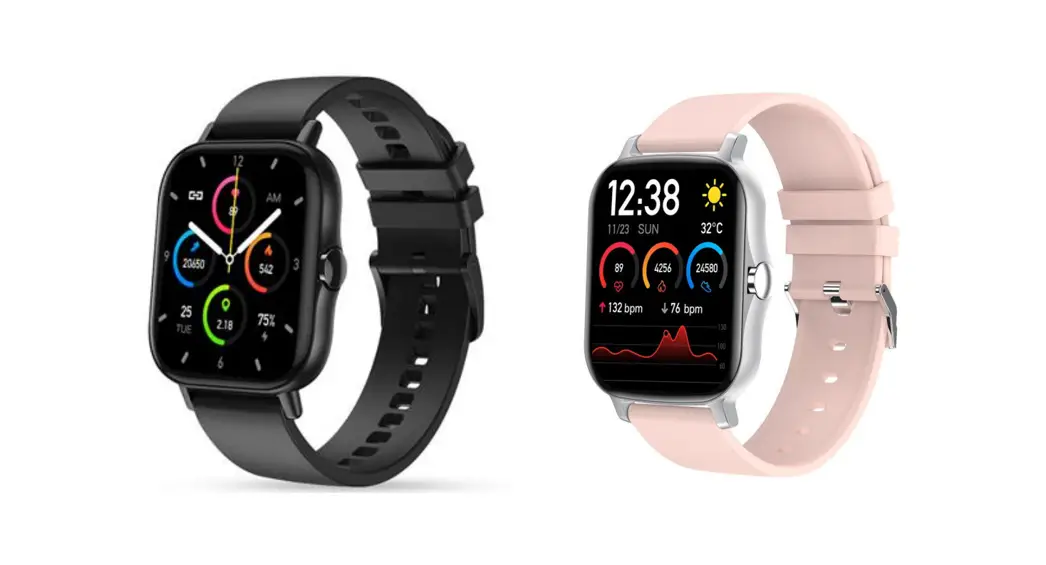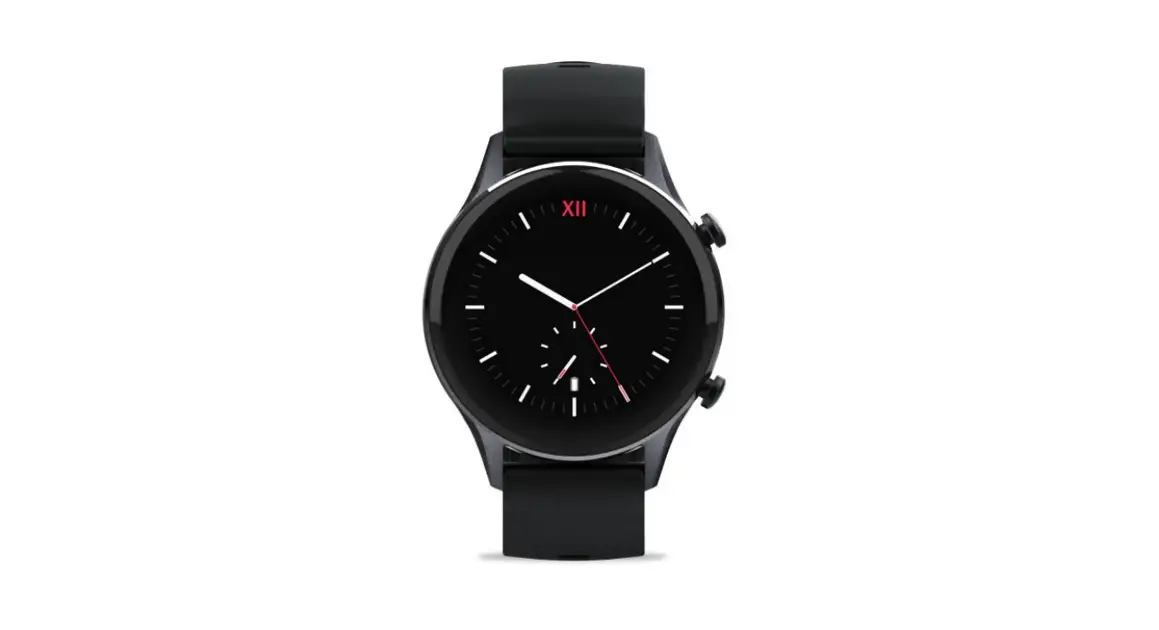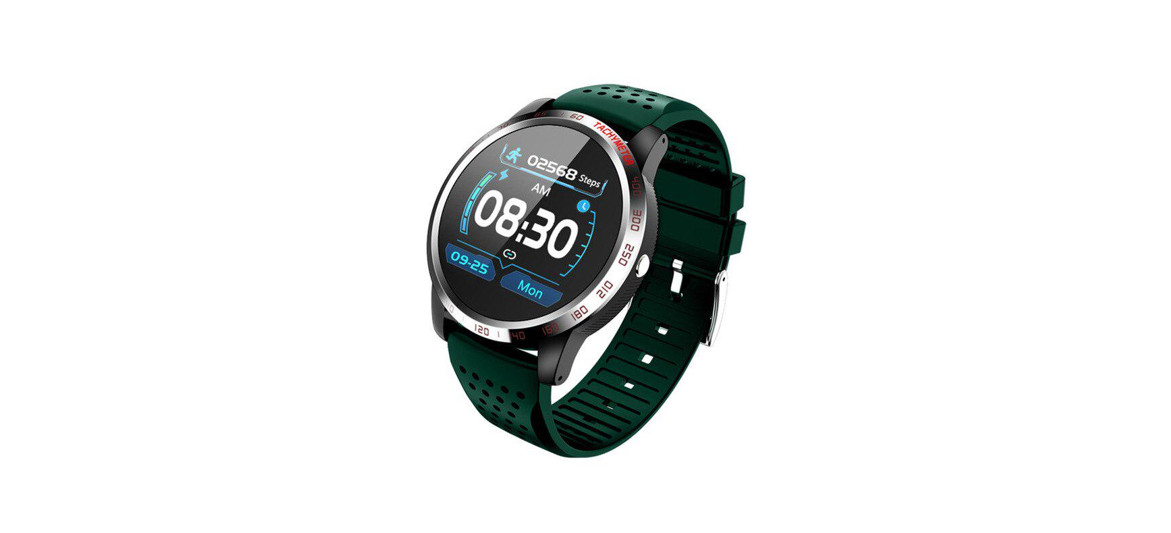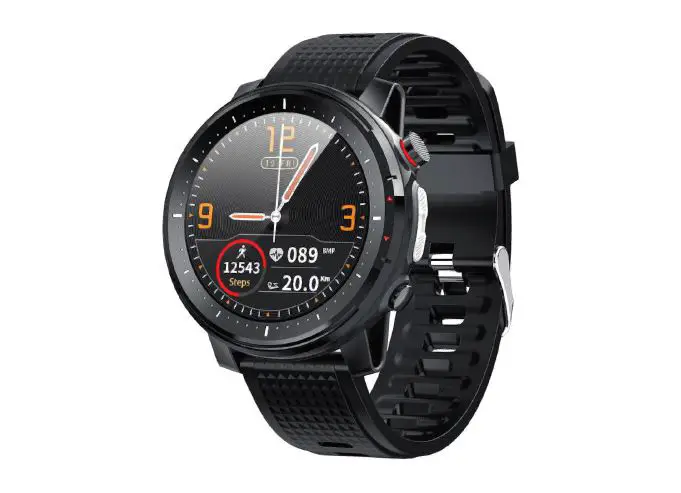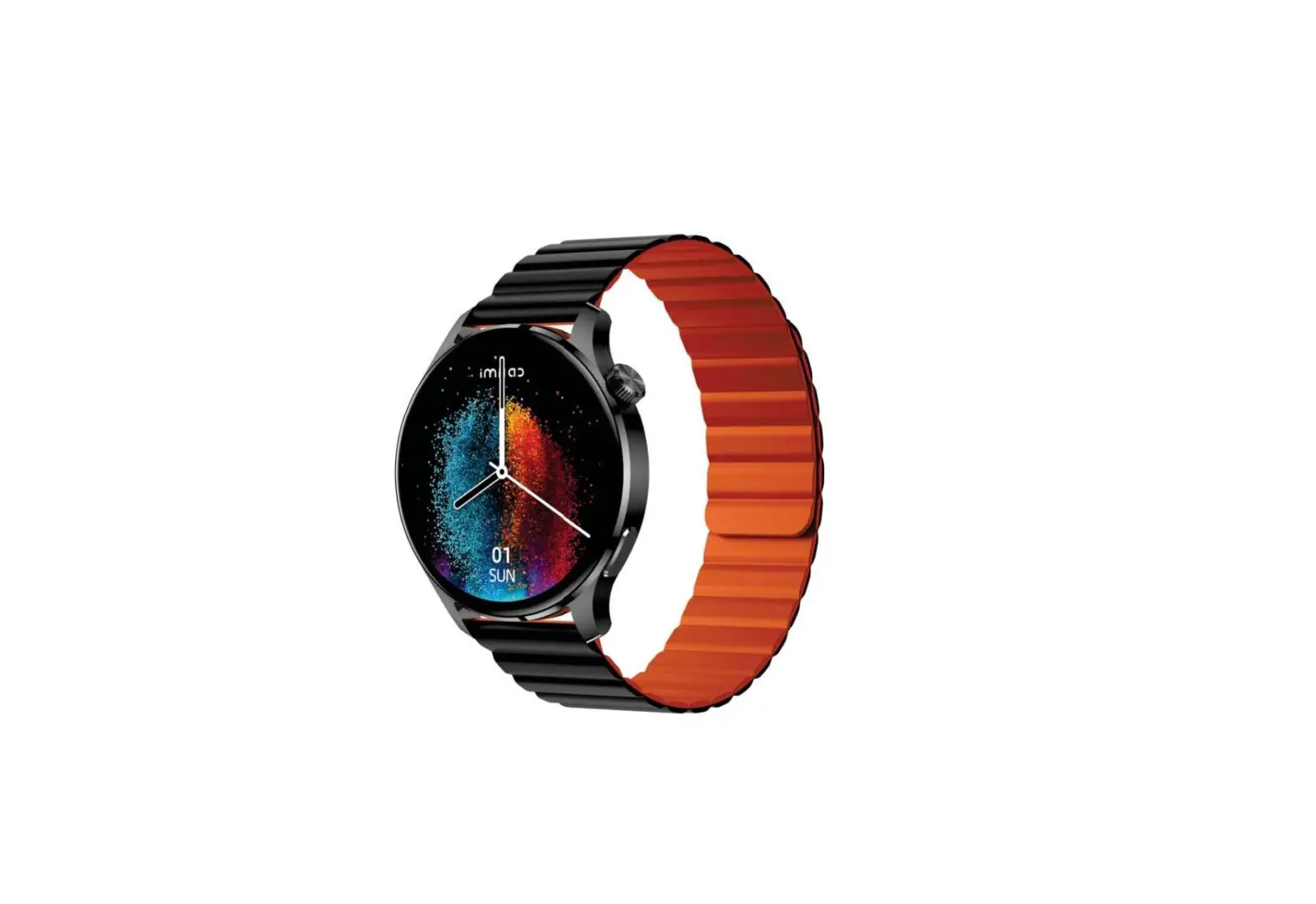

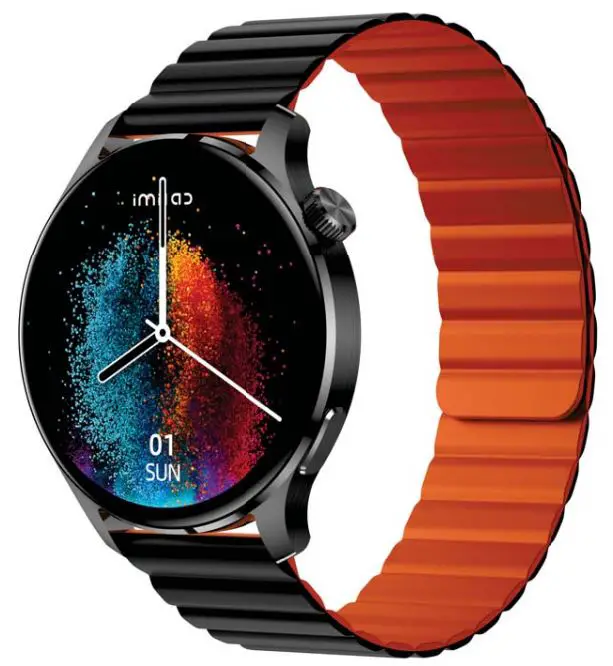
imilab Smart Watch W13
Product Information
The IMISW13(ID-C5C6) is a wireless indoor security camera that uses Wi-Fi to connect to your home network. It features a high-definition camera with night vision and motion detection capabilities. The camera can be accessed and controlled through a mobile app, allowing you to monitor your home from anywhere at any time.
Product Usage Instructions
- Download the mobile app and create an account.
- Connect the camera to a power source using the provided power adapter.
- Press and hold the reset button on the back of the camera for 10 seconds until the LED light flashes rapidly.
- Open the mobile app and follow the on-screen instructions to connect the camera to your home Wi-Fi network.
- Once connected, you can access the camera feed through the mobile app and adjust settings such as motion detection sensitivity and night vision mode.
- The camera can also be set to send notifications to your mobile device when motion is detected.
- To view recorded footage, insert a microSD card into the camera’s memory card slot.
Notes:
- The Company reserves the right to modify the contents of the manual without prior notice. In general, the functions may vary in some versions of the software.
- Before using the product, please use the included charging cable to charge this product for not less than 2 hours.
- Before using the product, please connect with your mobile app to synchronize the time and set your personal information.
- The product is IP68 waterproof, but please keep away from deep sea diving, hot water, tea or other corrosive liquids, otherwise it may cause damage to the watch. Any problems caused by these factors will not be covered by the product warranty and free repair service.
How to wear
For daily use, wear the watch at about one-finger distance from your wrist bone and comfortably tighten the strap.
Note: Excessively loose wear may affect the data capture of the heart rate sensor.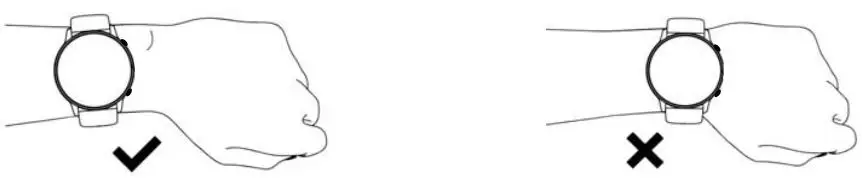
How to download & connect to APP
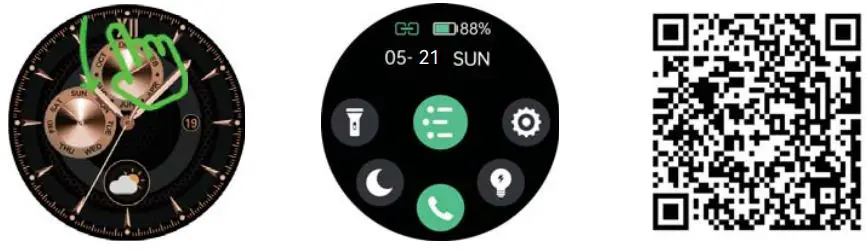
- Press and hold the side button to power on the watch, slide down the watch home page from the top, open Settings – APP Download – Download QR Code, scan the QR code with your mobile phone, download and install “Imilab Fit” APP.Or you can scan the QR code below to download from the mobile app market for installation.

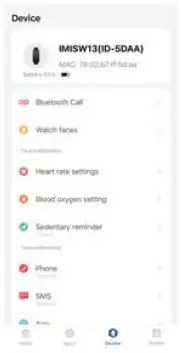
- Open the “Imilab Fit” App, select “Add Device” on the Devices page, and then follow the on-screen instructions.

- How to make Bluetooth calls
- Android mobile: When the APP is successfully bound to the watch and the data is synchronized, it will automatically prompt whether to pair with IMISW13 (ID-xxxx), Then it can be paired directly.
- The iOS mobile (iOS 13 or above) supports one-key connection prompt. When the APP is successfully bound to the watch and the data is synchronized, it will automatically prompt IMISW13 (ID-xxxx) would like to Piar with your iPhone, Then it can be paired directly.
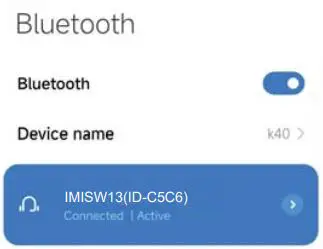
- For some iOS and Android mobile phone: When the APP is successfully bound to the watch, in order to use the Phone function, you need to manually enter the phone Settings – Bluetooth – search audio Bluetooth IMISW13 (ID-xxxx). Click to pair the audio Bluetooth IMISW13 (ID-xxxx) , the Phone function can only be used normally after successful pairing.

Tips:
- Please upgrade the app to latest version to get a better experience.
- Andorid 5.0 and IOS 9.0 or above system are compatible with the App.
- For the first time connection with iphone, “Pair” reminder will pop-up, click to pair, then incoming calls and instant messages will be pushed.
- For the first time connection with android, “Permissions” reminder will pop-up, please follow up the guidance and allow permissions to ensure all functions working properly.
- To connect successfully, please turn on mobile phone’s Bluetooth, GPS and network.
- If the device cannot be searched or connected during use, please reset or turn off the watch to try again.
Operating Instructions
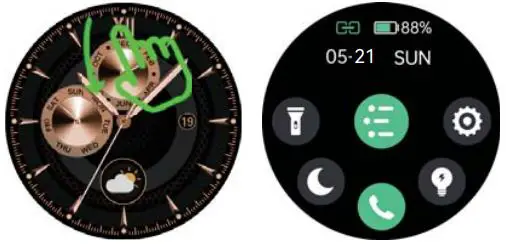
- Control panel: Slide the Home screen from the top to down.

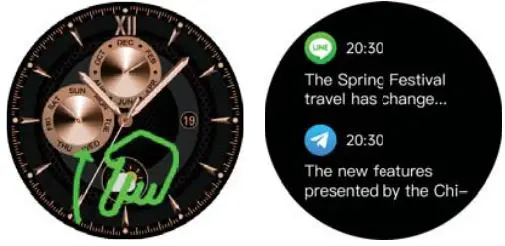
- Message: Slide the Home screen from the bottom to the top.

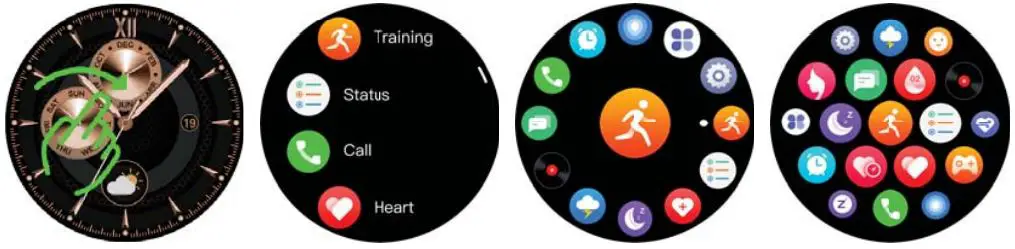
- Main Menu Page: Slide right from the main page. You can change the menu styles by double click on upper button or change on setting page.

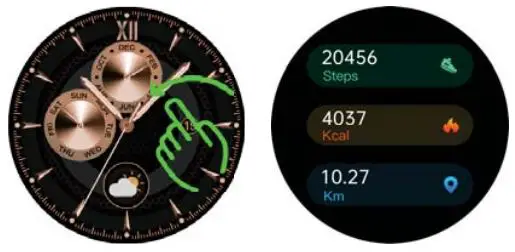
- Open shortcut interface: Slide the Home screen from right to left.

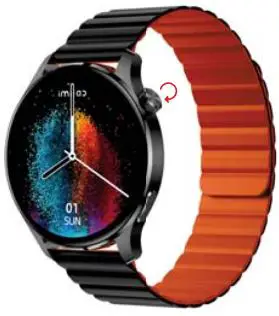
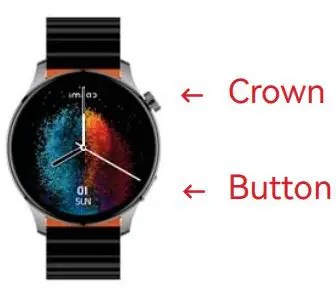
- You can switch the watch face by rotating the digital crown in the Home screen.

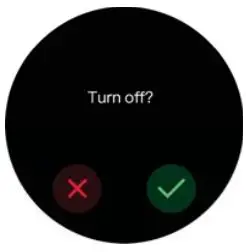
- Power on/off: Press and hold the digital crown button for 3 seconds on the watch screen.

- During normal operation: Press the digital crown to return to the upper level function interface; when in the watch face screen, press the digital crown again to light up/off the screen.

- Rotary crown function: The list theme can be scrolled up and down by rotating the crown, and the Home screen can be scrolled left and right by rotating the crown.
- Press the down button to enter the sports list.
Function introduction
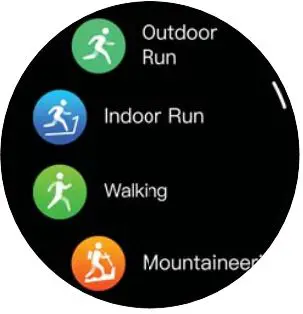 |
Spot modes: 100 spots modes are suppoted.More details can be viewed in APP. Record daily steps, distance, and calories. More details can be viewed in app. |
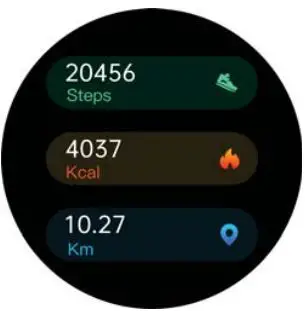 |
Status: Record the number of steps, distance, and calories for the day. More detailed information analysis and data records can be viewed in the APP. |
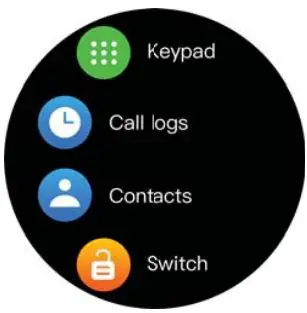 | Bluetooth Calling: While the watch and your phone are connected via Bluetooth, you can make Bluetooth calls on the watch. Call logs:Record your call histoy. Contacts: You can add contacts synchronously in the APP. Switch: BT Bluetooth switch (control call function). |
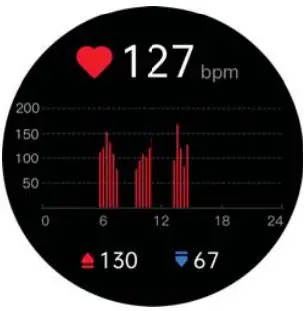 | Heat rate monitor: Measure the current heat rate value; the watch can record and display the heat rate value for 24 hours,and automatically monitor the heat rate evey 10 minutes. More detailed analysis and data records can be viewed in the APP. (The value is for reference only and cannot be used as a medical basis.) |
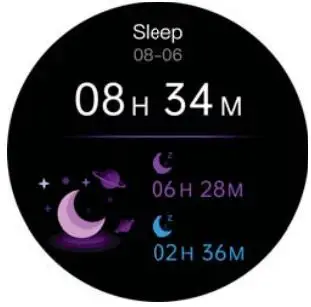 |
Sleep: Record and display the total sleeping hours, deep sleep and light sleep of the previous night. More detailed analysis and data records can be viewed in the APP. |
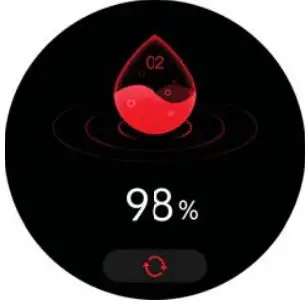 | Blood oxygen: Test the current blood oxygen value; it monitors blood oxygen throughout the day, more detailed analysis and data records can be viewed in the APP. (The value is for reference only and cannot be used as a medical basis.) |
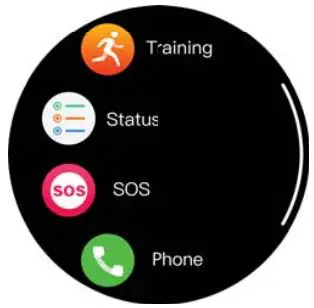 |
SOS: You can add contacts in “SOS call” on the APP side. |
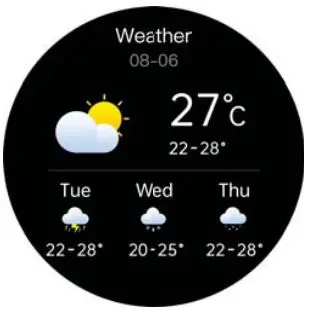 | Weather: Display the current weather conditions and the weather for the next 3 days. The weather information will be displayed once connecting to the APP. If the watch is disconnected for a long time, the weather information will not be updated. |
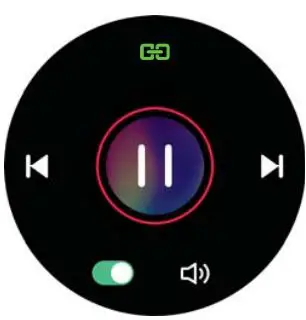 |
Music control: After connecting to the mobile phone, you can click “play/pause/previous/next song” on the smat watch to control the music from mobile phone, and the volume can be adjusted. |
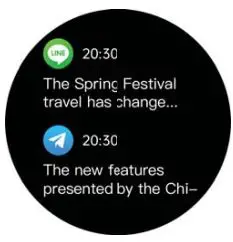 |
Notifications: Message reminders, sync notification from your phone, save up to 8 latest messages . |
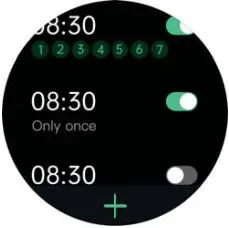 |
Alarm: 8 alarm reminders can be set, the watch will vibrate and the screen will be bright. |
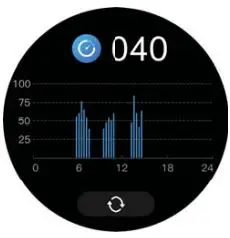 | Pressure: Measure the current pressure, the watch can record and display the pressure value 24 hours a day. More detailed information analysis and data records can be viewed in the APP. (Values are for reference only and cannot be used as medical basis). |
|
|
Mood: Test the current mood. More detailed information analysis and data records can be viewed in the APP. (The values are for reference only and cannot be used as medical basis). |
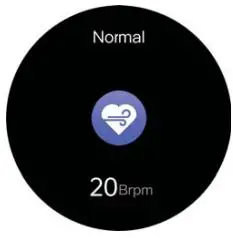 |
Respiratoy rate: Measure the current respiratoy rate. (Values are for reference only and cannot be used as medical basis). |
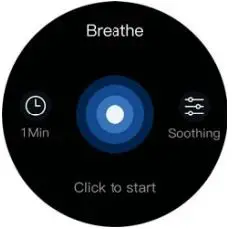 |
Breathing training: You can set the breathing rhythm and time, and follow the training prompts to complete the breathing training. |
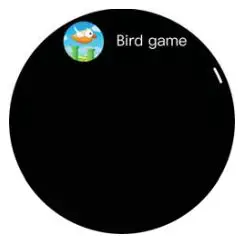 |
Games: Bird game. |
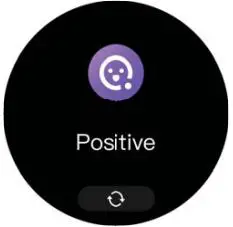
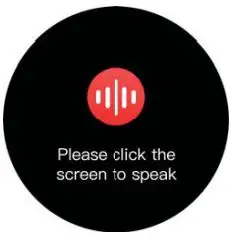 | Voice assistant: Double-click the down button to enter the voice assistant, double click the voice assistant to wake up the phone function. (Note: The watch needs to be connected to the mobile phone via Bluetooth before it can be used.) | |
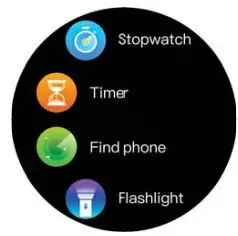 |
Other functions: Stopwatch/ Flashlight/Tim- er/Find phone/Calculator. | |
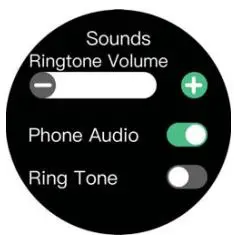 | Sound setting: Turn on/off entetainment sound: play music/ watch videos from wechat moments, watch TV/movies etc, control the watch play sound.(The main control is the third-paty playback sound)Ringtone for incoming calls: control whether the sound of the watch is on or off. | |
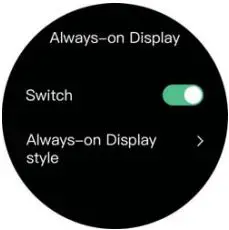 |
Always-on Display:When always-on screen mode is on, always show a clock when your watch isn’t in use. ( Power consumption will be increased) | |
|
|
Settings: Watch face/Theme/Always-On Display/Brightness/Screen Time/Sounds/ Info/Off/Reset/QR Code/Password | |
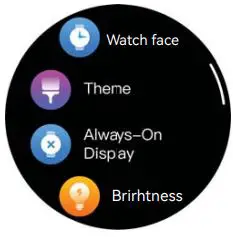
Other functions
Sedentary reminder, do not disturb, lower battery reminder, incoming call reminder, shake to take photo, find watch, online watch face/custom watch face, 12/24 time system, unit setting, raise to wake, physiological cycle reminder, goal reminder.
Charge the battery
- Place the watch on the charging head and keep the charging contacts on the back of the watch completely attached to the metal contacts on the charging head.
- Connect the charging cable to a standard USB charger purchased through regular channels with an output voltage of 5V and an output current of 0.5A and above.
If the watch cannot be turned on after being left for a long time, please wipe the charging contact plate of the charging cable clean when using it again to avoid sweat or moisture residue.
Warranty
- In case of any quality issues caused by the manufacturing, material and design of this product during normal use, the motherboard is covered by a one-year warranty from the date of purchase, and the battery and charging cable are covered by a six-month warranty.
- No warranty will be available for malfunction caused by the user’s personal reasons, for example,
- Malfunction caused by unauthorized disassembly, modification of the watch, etc.
- Malfunction caused by inadvertent dropping during use.
- All man-made damage or due to third-party fault, misuse ( for example, ingress of water, external shock crack, scratches and damage to peripheral components, etc.), will not be covered by the warranty.
- For repair and maintenance within the warranty, please provide the warranty card with the date of purchase and the stamp of the place of purchase.
- Customers who need product repair service should take the product to our company or our distribution point.
- All features of the product are subject to the actual product.
Specifications
| IMILAB Smart Watch W13 | |
| Model | IMISW13 |
| Battery Capacity | 300mAh |
| Battery Type | Li-ion |
| Charging Voltage | 5 V |
| Water & Dust Proof | IP68 |
| Working Temperature | -20°C ~ 45°C |
| FCC ID | 2APA9-IMISW13 |
FCC
NOTE: This equipment has been tested and found to comply with the limits for a Class B digital device, pursuant to part 15 of the FCC Rules. These limits are designed to provide reasonable protection against harmful interference in a residential installation. This equipment generates, uses and can radiate radio frequency energy and, if not installed and used in accordance with the instructions, may cause harmful interference to radio communications. However, there is no guarantee that interference will not occur in a particular installation. If this equipment does cause harmful interference to radio or television reception, which can be determined by turning the equipment off and on, the user is encouraged to try to correct the interference by one or more of the following measures:
- Reorient or relocate the receiving antenna.
- Increase the separation between the equipment and receiver.
- Connect the equipment into an outlet on a circuit different from that to which the receiver is connected.
- Consult the dealer or an experienced radio/TV technician for help.
Changes or modifications not expressly approved by the party responsible for compliance could void the user’s authority to operate the equipment.
Scan the QR code to view the manual in more languages