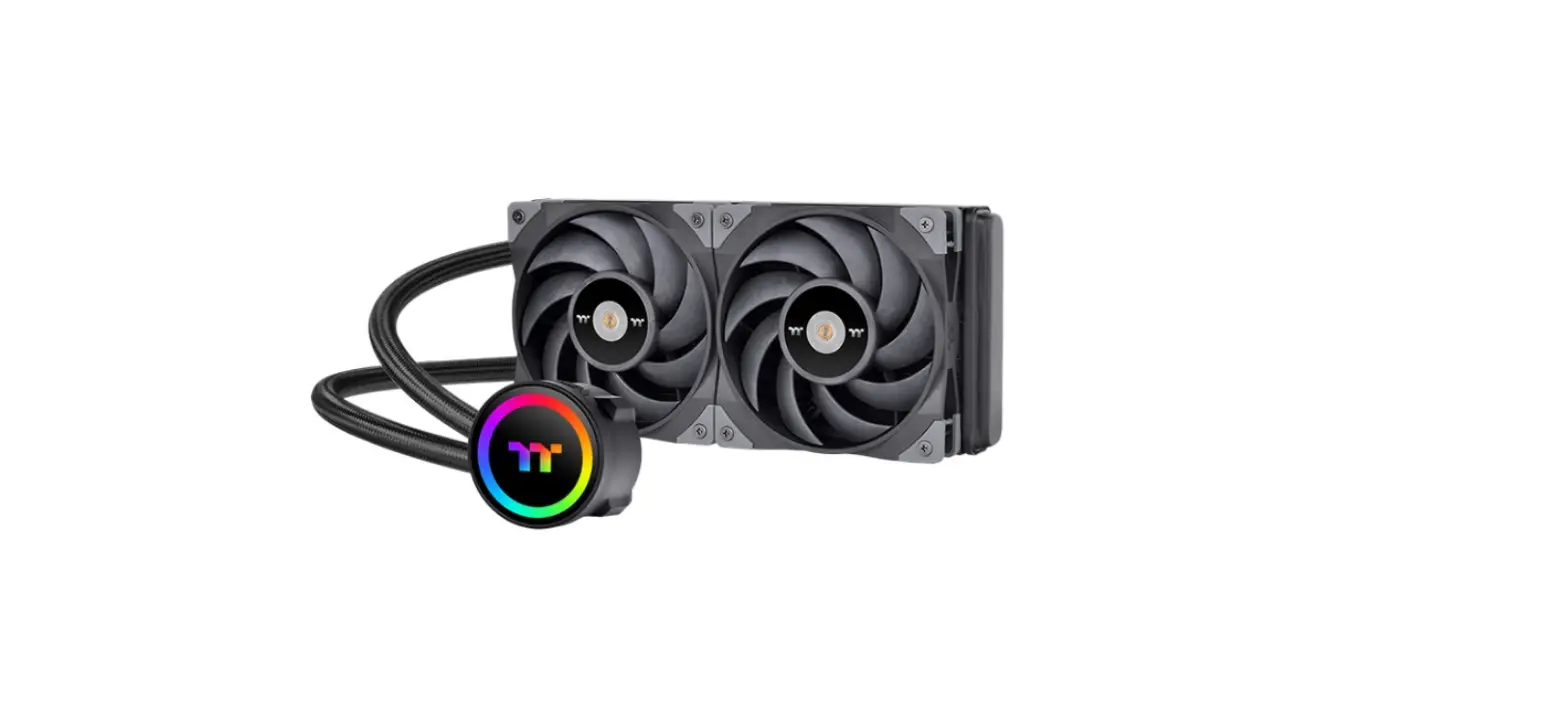
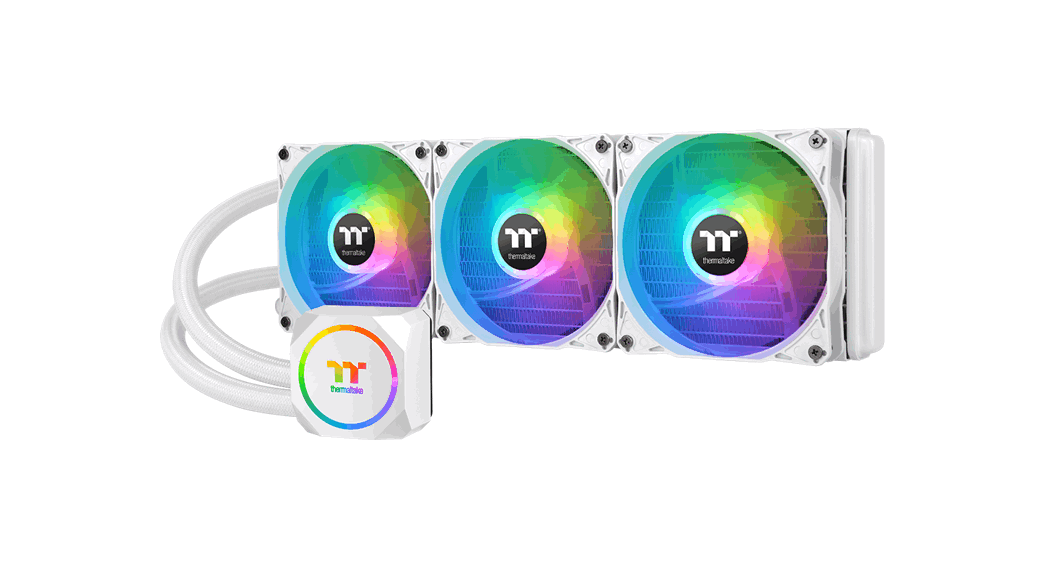
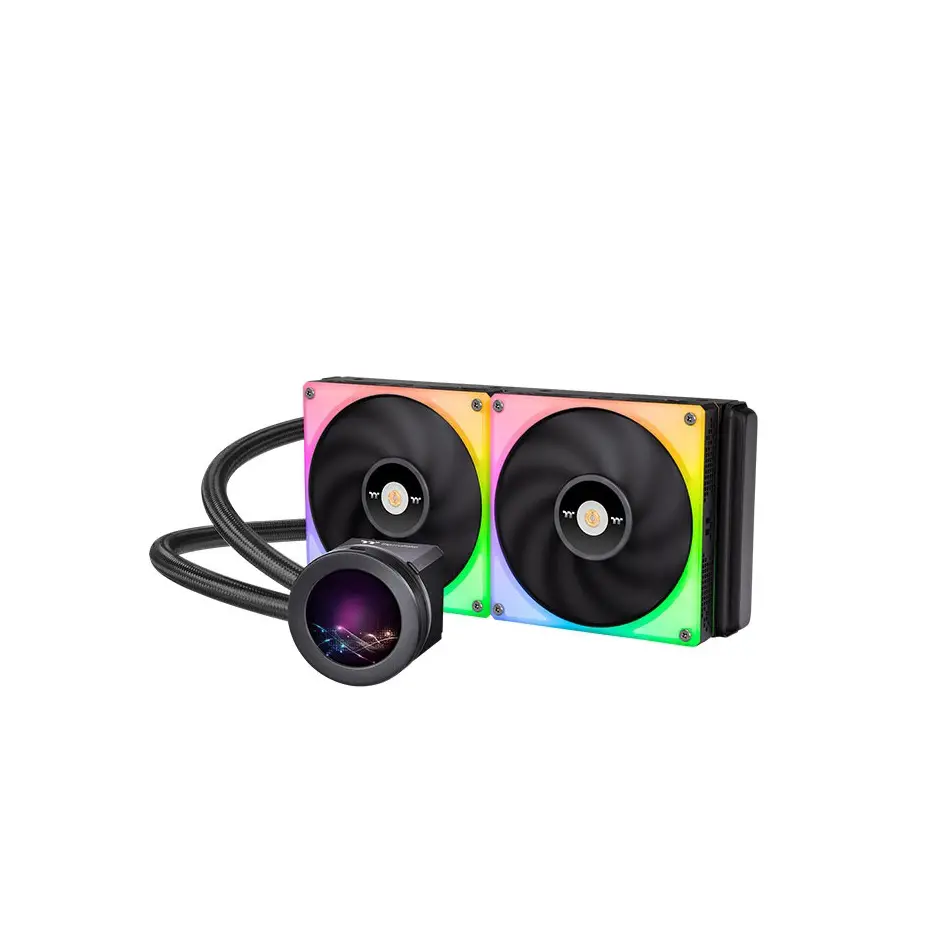
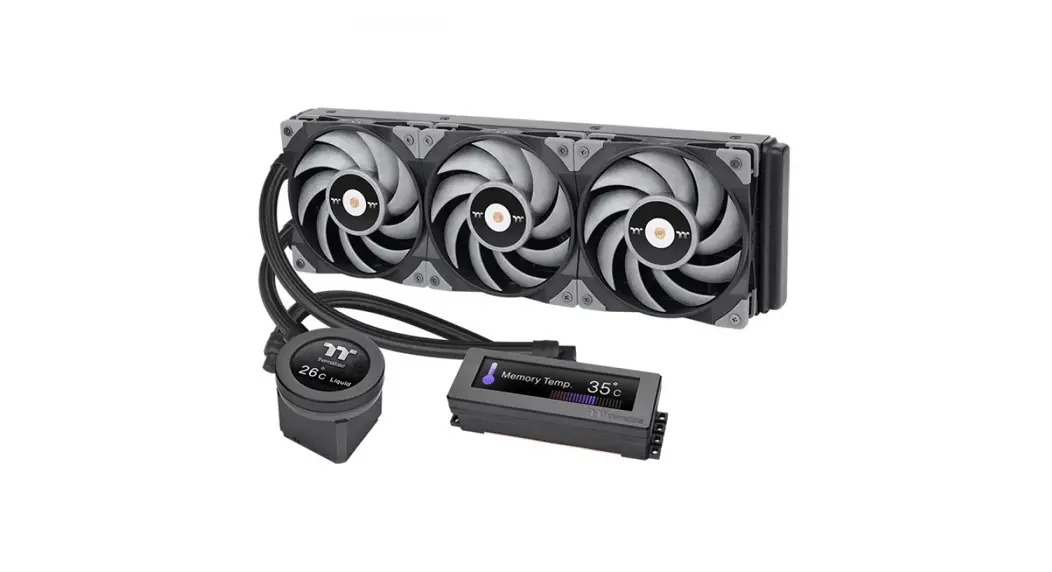
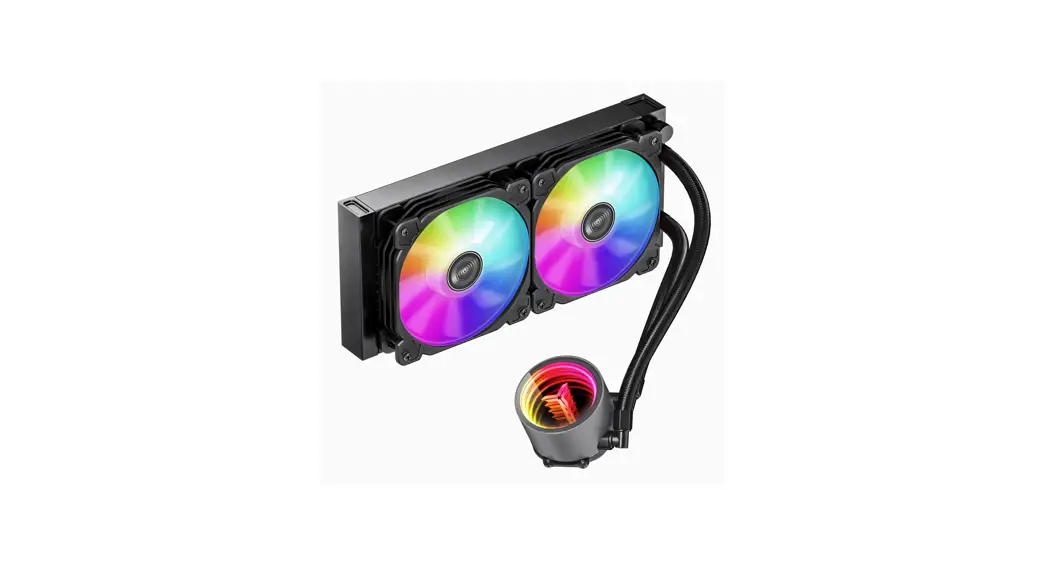
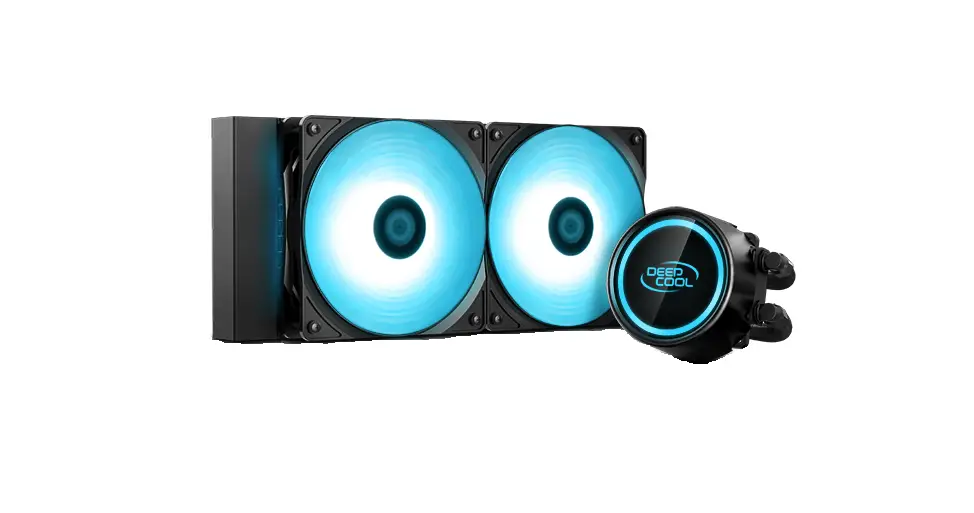
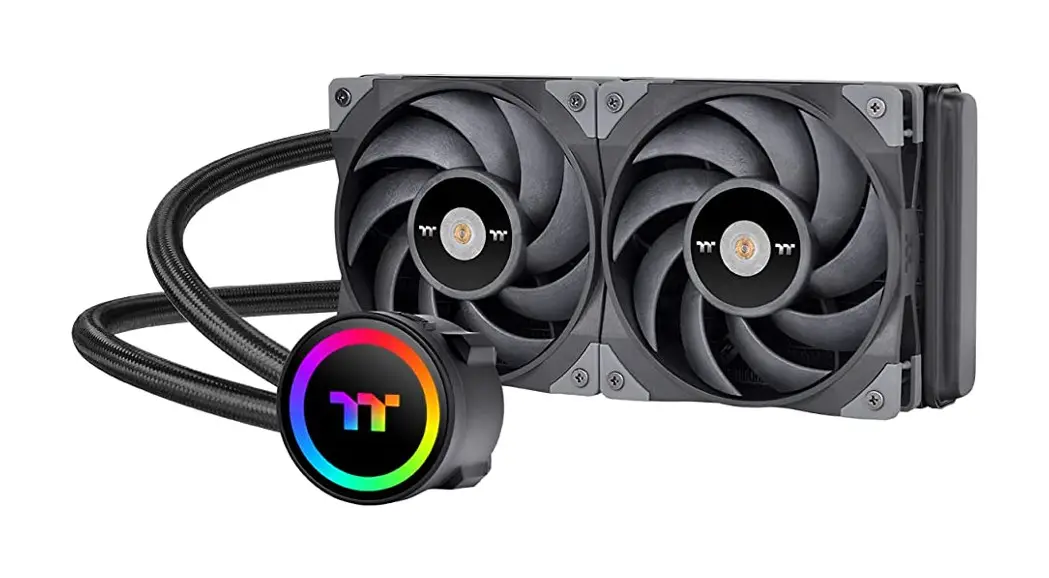
TH240 V2 Ultra ARGB Sync All-In-One Liquid Cooler
Product Information
The product mentioned in the user manual is the TT RGB Plus
Software, which is a control interface developed by Thermaltake. It
allows users to customize the lighting and visual effects of their
Thermaltake products. Additionally, the TH Series Ultra ARGB Sync
Software is also mentioned, which provides further control over
lighting and display options.
Compatibility
The TT RGB Plus Software is compatible with Windows 10 and
Windows 11 operating systems.
Features
- Ultra 2.1 LCD support
- CPU water block LCD preview
- LCD display function list
- LCD visual effect settings
- Upload files to be displayed on the LCD screen
- Customize LCD text information, speed, brightness, and
rotation - Set LCD boot animation and standby screen
Please note that the software interface may vary with feature
updates, and it is recommended to download the latest version from
Thermaltake’s website.
FCC Compliance
This device complies with Part 15 of the FCC Rules. It operates
under two conditions: (1) it does not cause harmful interference,
and (2) it accepts any interference received, including
interference that may cause undesired operation.
Product Usage Instructions
Downloading the Software
To use the TT RGB Plus Software and TH Series Ultra ARGB Sync
Software, follow these steps:
- Visit Thermaltake’s Official website at https://www.thermaltake.com/downloads
- Download the TT RGB PLUS software
TT RGB Plus Software Interface
Once the software is downloaded and installed, you can control
and customize your Thermaltake products using the following
steps:
Lighting Control
- Launch the TT RGB PLUS software
- Select “Ultra 2.1 LCD” on the LIGHTING page
- Preview the CPU water block LCD
- Explore the LCD display function list
- Adjust LCD visual effects by setting the background, text and
visual color, and screen brightness, or turn off the LCD
screen
Uploading Files to LCD Display
- Select “UPLOAD FILE” from LCD DISPLAY
- Upload a file (GIF, JPG, PNG, MOV, MP4, AVI) to be shown on the
LCD screen
LCD Settings
- Click the gear icon on the upper right corner to enter the
SETTINGS menu - Upload a GIF file (Max size: 5MB) to set it as the LCD boot
animation - Upload a JPG file (Max size: 5MB) to set it as the LCD standby
screen
Please refer to the user manual or visit Thermaltake’s website
for any further assistance or software updates.
TT RGB Plus Software control interface
Please download TT RGB PLUS from Thermaltake’s Official website. https://www.thermaltake.com/downloads OS compatibility: Windows 10 & Windows 11
TH Series Ultra ARGB Sync Software User Interface
LIGHTING – Ultra 2.1 LCD
A
B
C
D
UPLOAD FILE
A
B
C
A. After installation of TT RGB PLUS, you can select “Ultra 2.1 LCD” on the “LIGHTING” page.
B. Preview the CPU water block LCD. C. LCD DISPLAY function list.
· UPLOAD FILE (Upload picture or video to LCD) · CPU TEMP. · CPU FREQUENCY · CPU LOAD · GPU TEMP. · GPU FREQUENCY · GPU LOAD · RAM TYPE · RAM FREQUENCY · RAM TEMP. · RAM LOAD · CAROUSEL (Switches between PC information) · WINDOW STREAM · WEATHER · CLOCK
D. LCD visual effect settings. Set LCD background, text and visual color, and screen brightness, or turn off the LCD screen.
A. Select “UPLOAD FILE” from “LCD DISPLAY”. You can
upload a file to show on the LCD screen.
(File type: GIF, JPG, PNG, MOV, MP4, AVI)
B. Set the LCD text information, speed, and brightness,
rotate the LCD screen, or turn off the LCD.
C. Click “UPLOAD” to upload the picture. (Max size: 20MB)
SETTINGS
B
C
A
A. Click the gear icon on the upper right corner to
enter the “SETTINGS” menu.
B. Upload the picture to set it as LCD boot animation.
(GIF only, Max size: 5MB)
C. Upload the picture to set it as LCD standby screen.
(JPG only, Max size: 5MB)
The software interface may vary with feature updates, please download the latest software version from www.thermaltake.com
This device complies with Part 15 of the FCC Rules. Operation is subject to the following two conditions: (1) this device may not cause harmful interference, and (2) this device must accept any interference received, including interference that may cause undesired operation.
© 2023 Thermaltake Technology Co., Ltd. All Rights Reserved. www.thermaltake.com
 thermaltake.com/downloads