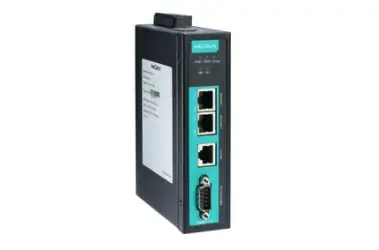
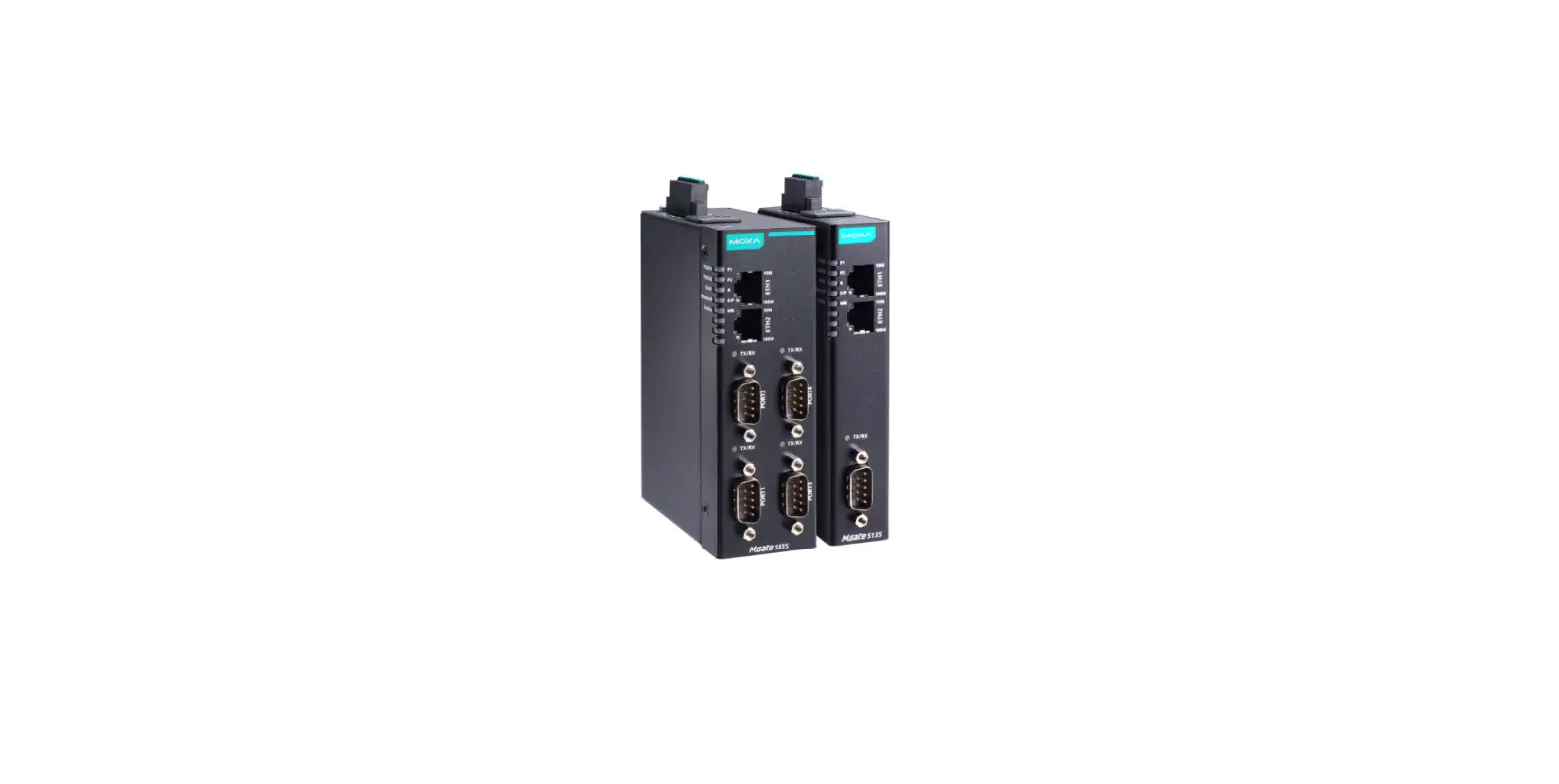
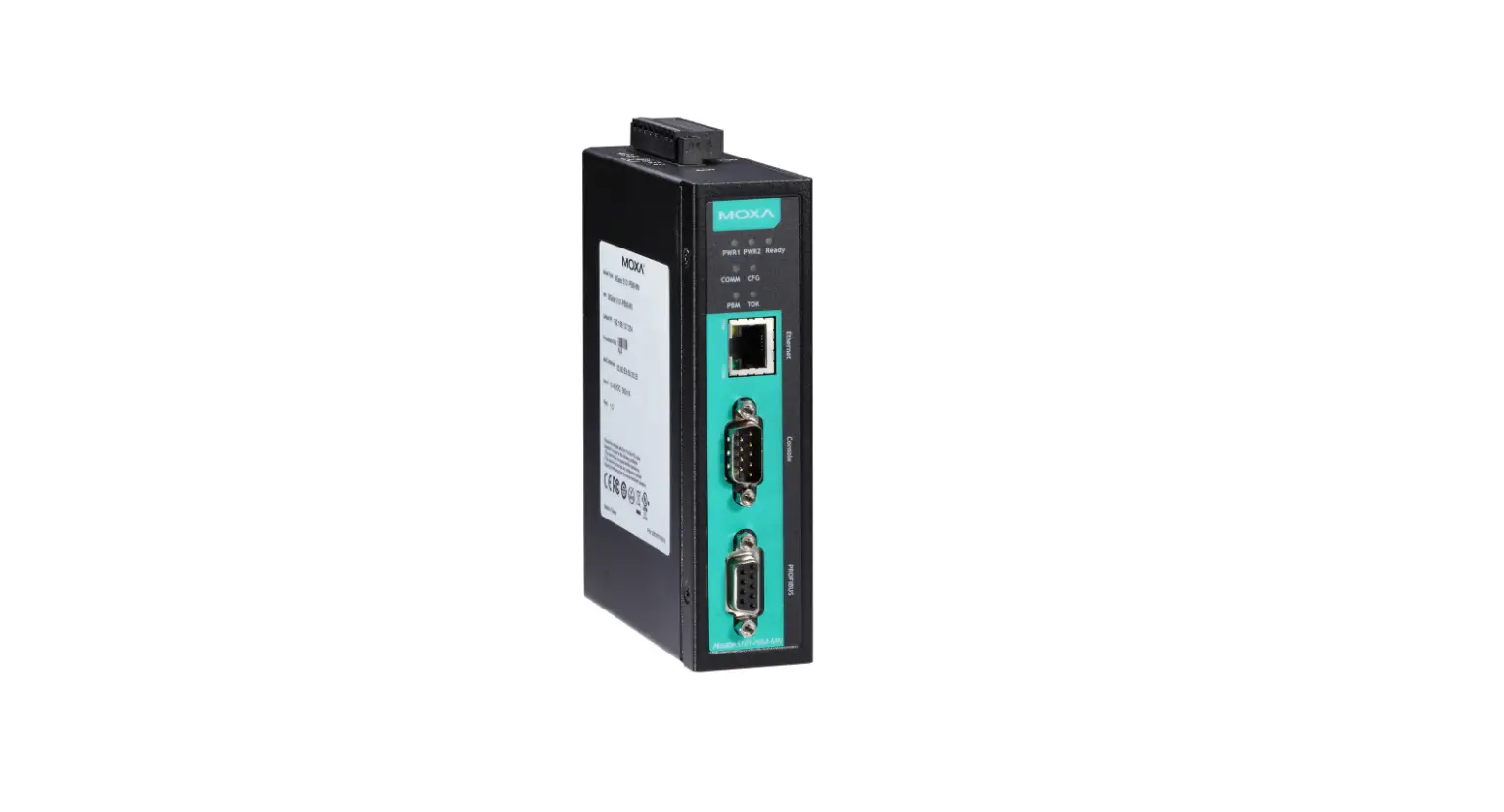
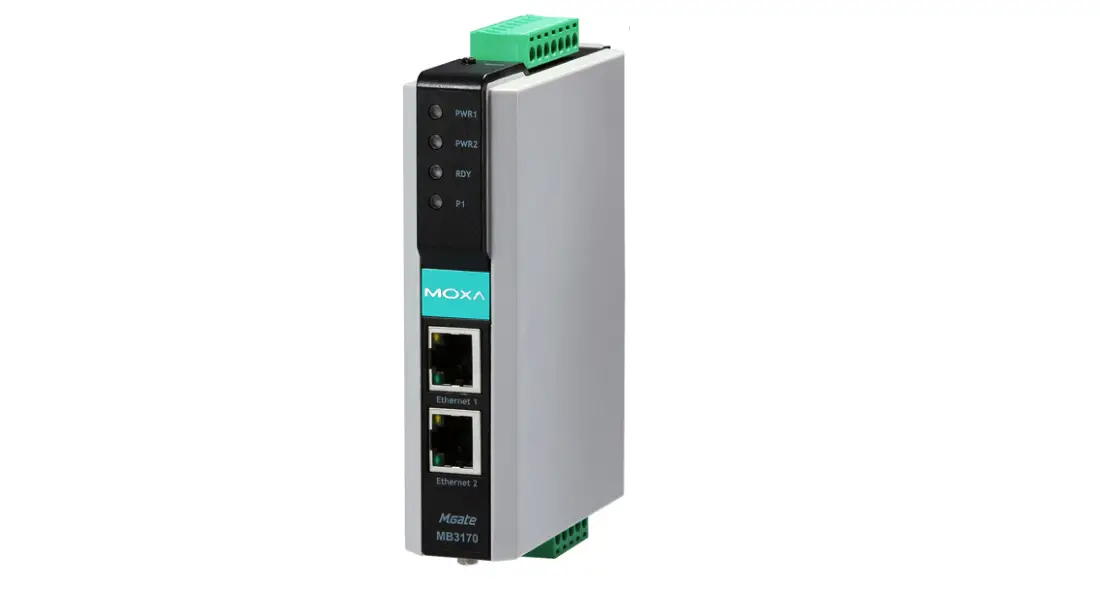
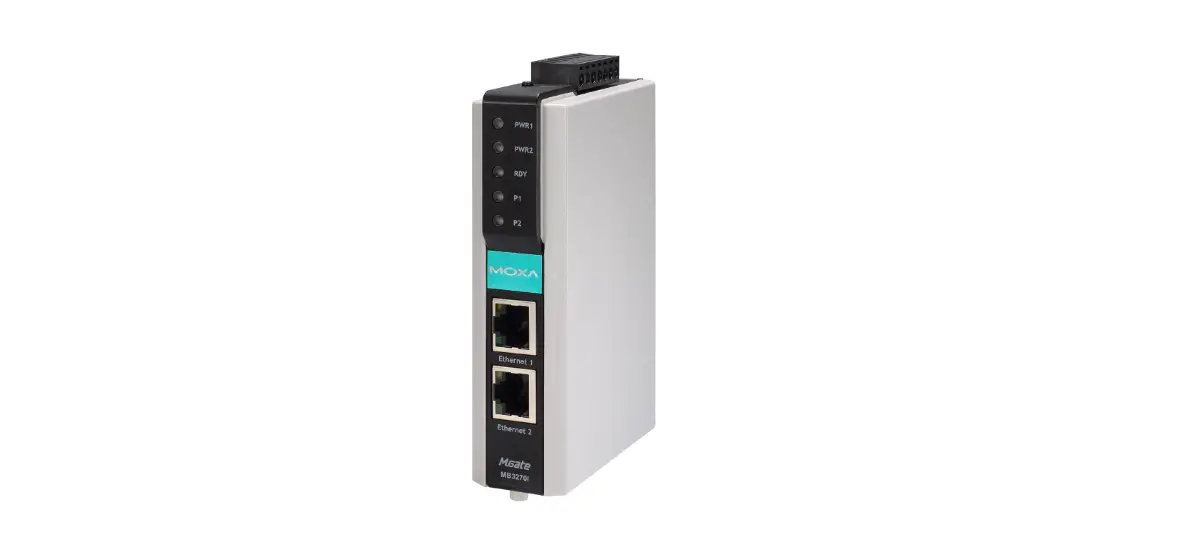
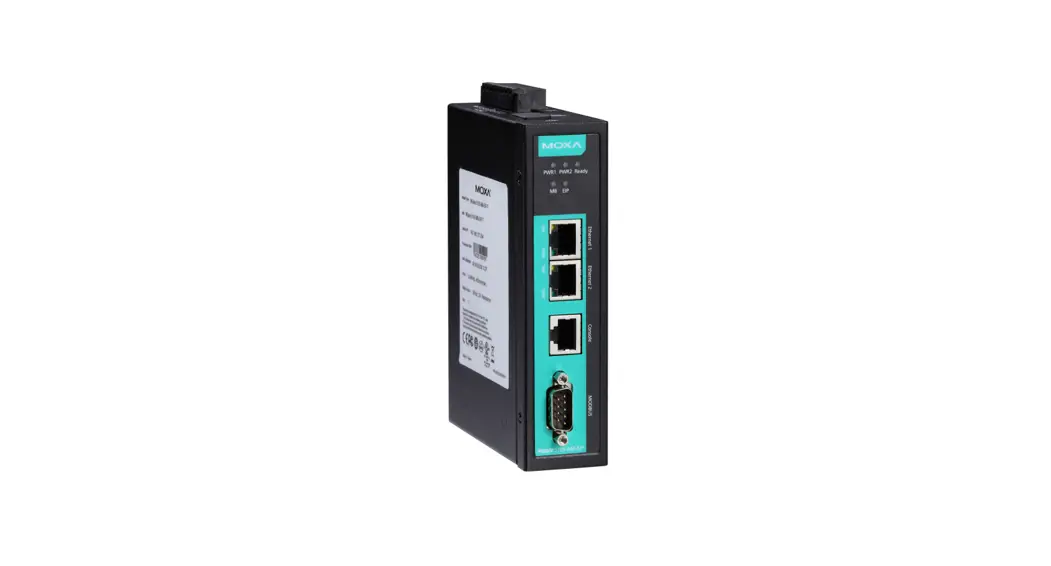
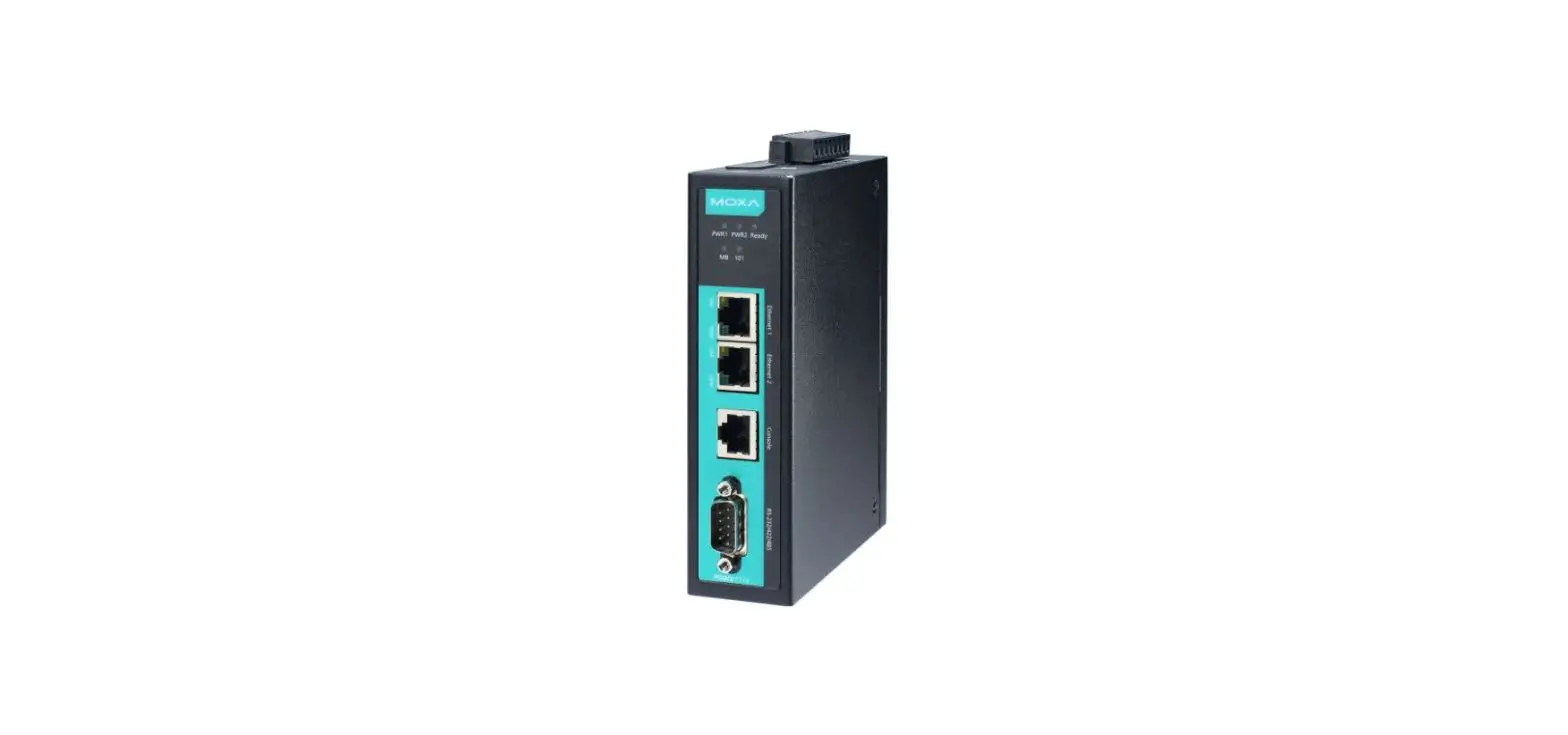
MGate 5121 Series Modbus TCP Gateways
Product Information:
Product Name: MGate 5121 Series
Version: 1.0
Release Date: June 2023
Manufacturer: Moxa Inc.
Supported Networks: CANopen/J1939 and Modbus TCP
Technical Support Contact Information: www.moxa.com/support
All rights reserved. P/N: 1802051210110 *1802051210110*
Package Checklist:
– MGate 5121 Industrial Ethernet Gateway
– Power Adapter
– User Manual
– Device Search Utility (DSU)
Hardware Introduction:
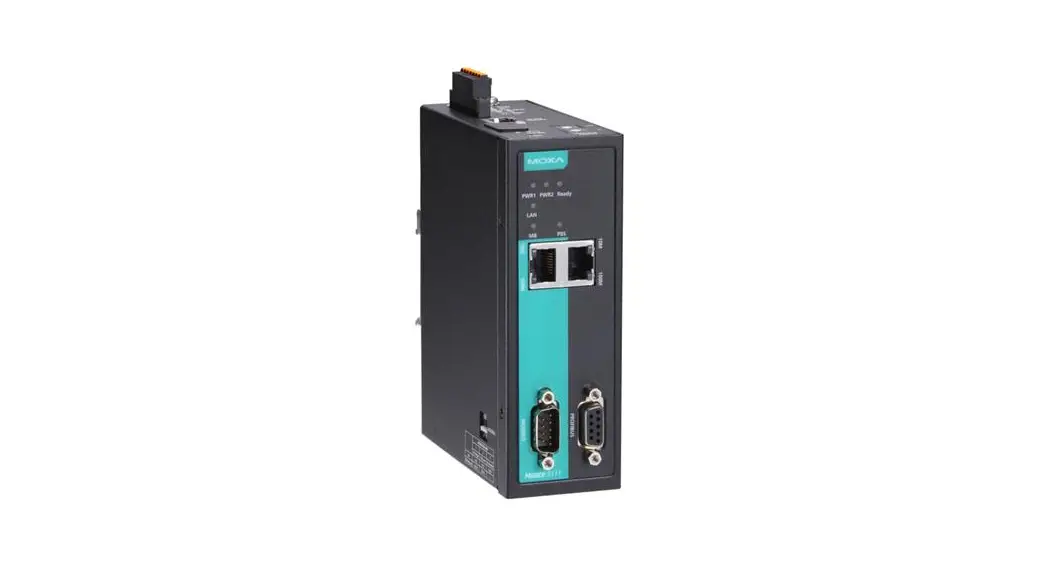
The MGate 5121 is an industrial Ethernet gateway that enables
communication between CANopen/J1939 and Modbus TCP networks. It
features LED indicators for power, readiness, Modbus TCP, CAN, and
J1939.
LED Indicators:
– POWER1 (P1): Green when powered on, off when powered off.
– POWER2 (P2): Green when powered on, off when powered off.
– READY (R): Red when not ready, green when ready.
– MODBUS (MB): Red when in Modbus TCP Server mode.
– CAN: Green when in CANopen mode, red when CAN bus is off.
– CAN TX/RX: Off when not transmitting/receiving, green when
transmitting/receiving.
– ETH 1, ETH 2: Green when connected to an Ethernet device, amber
when there is a connection error, off when not connected.
Panel Layouts:
The MGate 5121 has top and front views with LED indicators and a
reset button. It can be mounted on a DIN rail or wall.
Dimensions:
– DIN Rail: Dimensions not provided in the user manual.
– Side DIN Rail: Dimensions not provided in the user manual.
– Wall Mount: Dimensions not provided in the user manual.
Reset Button:
To restore the MGate 5121 to factory default settings, press and
hold the reset button with a pointed object (e.g., a straightened
paper clip) until the Ready LED stops blinking (approximately five
seconds).
Hardware Installation Procedure:
1. Connect the power adapter to the MGate 5121’s terminal block
using a 12-48 VDC power line or DIN-rail power supply. 2. Use a CAN
cable to connect the MGate to the CAN device. 3. Use an Ethernet
cable to connect the MGate to the Modbus TCP client. 4. Attach the
MGate 5121 to a DIN rail or wall using the provided metal plates
and screws.
Software Installation Information:
– Download the User Manual and Device Search Utility (DSU) from
Moxa’s website: www.moxa.com. – Refer to
the User’s Manual for instructions on using the DSU. – The MGate
5121 supports login via a web browser with the default IP address:
192.168.127.254. – Create an administration account and password
when logging in for the first time.
Pin Assignments:
CAN Port (6-pin Terminal Block): – Pin 1: CAN – Pin 2: CAN_L – Pin
3: CAN_H – Pin 4: CAN Signal GND – Pin 5: Ext-CAN_L* (extension
pin) – Pin 6: Ext-CAN_H* (extension pin) * Use Ext_CAN_L and
Ext_CAN_H as extension pins if another device is connected to the
same CAN bus.
Ethernet Port (RJ45): – Pin 1: Tx+ – Pin 2: Tx- – Pin 3: Rx+ – Pin
6: Rx-
Power Input and Relay Output Pinouts: – V2+: DC Power Input 2 –
V2-: DC Power Input 2 – N.O. Common: Relay Output Common – N.C.:
Relay Output Normally Closed – V1+: DC Power Input 1 – V1-: DC
Power Input 1
Specifications:
– Power Parameters: Not provided in the user manual. –
Environmental Limits: – Operating Temperature: Not provided in the
user manual. – Storage Temperature (package included): Not provided
in the user manual. – Ambient Relative Humidity: Not provided in
the user manual. – Physical Characteristics: – Dimensions: Not
provided in the user manual. – Weight: Not provided in the user
manual. – Reliability: – Alert Tools: Not provided in the user
manual. – MTBF: Not provided in the user manual.
MGate 5121 Series Quick Installation Guide
Version 1.0, June 2023
Technical Support Contact Information www.moxa.com/support
2023 Moxa Inc. All rights reserved. P/N: 1802051210110 *1802051210110*
Overview
The MGate 5121 is an industrial Ethernet gateway for CANopen/J1939 and Modbus TCP network communications.
Package Checklist
Before installing the MGate 5121, verify that the package contains the following items: · 1 MGate 5121 gateway · Quick installation guide (printed) · Warranty card
NOTE Please notify your sales representative if any of the above items are missing or damaged.
Optional Accessories (can be purchased separately) · WK-25: Wall-mounting kit, 2 plates, 4 screws, 25 x 43 x 2 mm
Hardware Introduction
LED Indicators
LED POWER1 (P1) POWER2 (P2)
Color Green Off Off
Green
READY (R)
Red
Off Green
MODBUS (MB)
[as Modbus TCPServer]
Red
CAN
Green
[as CANopen]Red
Description Power is on. Power is off. Power is off. Steady: Power is on, and the MGate is functioning normally. Blinking (1 sec.): The MGate has been located by the Moxa utility DSU Location function. Steady: Power is on, and the MGate is booting up. Blinking slowly (0.5 sec.): Shows an IP conflict, or the DHCP server is not responding properly. Blinking quickly (0.1 sec.): The microSD card failed. No communication Steady: Normal communication in progress. Blinking (1 sec.): Communication error 1. Received an invalid function code 2. Master accessed invalid register address
or coil addresses 3. Received frame error (parity error,
checksum error) Steady green: In CANopen OPERATIONAL state. Blinking green: In CANopen PREOPERATIONAL state. Single flash: In CANopen STOP state. Steady red: CAN bus off
– 2 –
LED
CAN [as J1939] CAN TX/RX ETH 1, ETH 2
Color
Off Green
Red Green Amber Green Amber Off
Description Single flash: An error counter warning level has been reached. Double flash: A heartbeat event has occurred. No J1939 I/O configured Steady: CAN bus (J1939) communication is receiving or transmitting data. Steady: A communication error occurred 1. The J1939 address claim failed 2. CAN is in bus-off state because the error counter is exceeding its limitations. Flashing: CAN bus port is receiving data Flashing: CAN bus port is transmitting data Steady ON: Ethernet link on at 100Mbps Blinking: Data transmitting at 100Mbps Steady ON: Ethernet link on at 10Mbps Blinking: Data transmitting at 10Mbps Link is down or not connected
Panel Layouts
Top View
Front View
– 3 –
Dimensions
DIN Rail
Side DIN Rail
– 4 –
Wall Mount
Reset Button
Restore the MGate to factory default settings by using a pointed object (such as a straightened paper clip) to hold the reset button down until the Ready LED stops blinking (approximately five seconds).
Hardware Installation Procedure
1. Connect the power adapter. Connect the 12-48 VDC power line or DIN-rail power supply to the MGate 5121’s terminal block.
2. Use a CAN cable to connect the MGate to the CAN device. 3. Use an Ethernet cable to connect the MGate to the Modbus TCP
client. 4. The MGate 5121 is designed to be attached to a DIN rail or
mounted on a wall. For DIN-rail mounting, push down the spring and properly attach it to the DIN rail until it “snaps” into place. For wall mounting, install the wall-mounting kit (optional) first and then screw the device onto the wall. When wiring the relay contact (R) and power inputs (P1/P2), we suggest using American Wire Gauge (AWG) 16 to 20 as a cable and the corresponding pin-type cable terminals. The stripping length is recommended to be 8 to 9 mm. The wire temperature rating should be at least 85°C. Use copper conductors only. The shielding ground screw (M4) is near the power connector. When you connect the shielded ground wire (min. 16 AWG), the noise is routed from the metal chassis to the ground.
– 5 –
The following figure illustrates the two mounting options:
Wall- or Cabinet-mounting
We provide two metal plates to mount the unit on a wall or inside a cabinet. Attach the plates to the unit’s rear panel with screws. With the plates attached, use screws to mount the unit on the wall. The heads of the screws should be 5 to 7 mm in diameter, the shafts should be 3 to 4 mm in diameter, and the length of the screws should be over 10.5 mm.
Software Installation Information
Please download the User Manual and Device Search Utility (DSU) from Moxa’s website: www.moxa.com For using the DSU, refer to the User’s Manual. The MGate 5121 also supports login via a web browser. Default IP address: 192.168.127.254 Create your administration account and password when you log in the first time.
Pin Assignments
CAN Port (6-pin Terminal Block) Pin CAN 1 CAN_L 2 CAN_H 3 CAN Signal GND 4 Ext-CAN_L* 5 Ext-CAN_H* 6 CAN_SHLD
* For the CAN port, plug CAN_L and CAN_H into the terminal block. If another device is connected to the same CAN bus, use the Ext_CAN_L and Ext_CAN_H as extension pins.
– 6 –
Ethernet Port (RJ45)
Pin Signal
1
Tx+
2
Tx-
3
Rx+
6
Rx-
Power Input and Relay Output Pinouts
V2+
V2-
DC Power Input 2
DC Power Input 2
N.O. Common N.C.
V1+
V1-
DC Power Input 1
DC Power Input 1
Specifications
Power Parameters Power Input Power Consumption Relays Contact Current Rating Environmental Limits Operating Temperature
Storage Temperature (package included) Ambient Relative Humidity Physical Characteristics Dimensions Weight Reliability Alert Tools MTBF
12 to 48 VDC 455 mA max.
Resistive load: 2 A @ 30 VDC
Standard models: -10 to 60°C (14 to 140°F) Wide temp. models: -40 to 75°C (-40 to 167°F) -40 to 85°C (-40 to 185°F)
5 to 95% RH
25 x 90 x 129.6 mm (0.98 x 3.54 x 5.1 in) 294 g (0.65 lb)
Built-in buzzer and RTC 1,408,984 hrs.
Hot surface label.
Functional earth terminal.
– 7 –
ATTENTION
· This device is an open-type equipment and intended to be installed in a suitable enclosure.
· If the equipment is used in a manner not specified by the manufacturer, the protection provided by the equipment may be impaired.
· When installing the device, the assembler is responsible for the securing the safety of the system in which the equipment is incorporated.
NOTE · ·
This device is intended for use indoors and at altitudes up to 2,000 meters. Pollution degree 2.
NOTE Clean the device with a soft cloth, dry or with water.
NOTE The power input specification complies with the requirements of SELV (Safety Extra Low Voltage), and the power supply should comply with UL 61010-1 and UL 61010-2-201.
WARNING
(User Guide)
. This equipment has KC approval to be used for industrial environments and therefore it has the possibility of interferences with household equipment.
For any repair or maintenance needs, please contact us. Moxa Inc. No. 1111, Heping Rd., Bade Dist., Taoyuan City 334004, Taiwan +886-03-2737575
– 8 –
 Moxa - Your Trusted Partner in Automation